ignition FORD TAURUS 2019 Repair Manual
[x] Cancel search | Manufacturer: FORD, Model Year: 2019, Model line: TAURUS, Model: FORD TAURUS 2019Pages: 515, PDF Size: 17.29 MB
Page 256 of 515
2. Disconnect the electrical connector.
3.
Turn the bulb holder counterclockwise
and remove it.
Note: Do not touch the bulb glass.
Note: You cannot separate the bulb from
the bulb holder.
LED Lamps
LED lamps are not serviceable items. See
an authorized dealer if they fail.
The following lamps are LED:
• Front parking lamps.
• Front side marker lamps.
• Front direction indicators.
• Side direction indicators.
• Brake and rear lamps.
• Central high mounted brake lamp.
• Rear direction indicators.
• Reversing lamps.
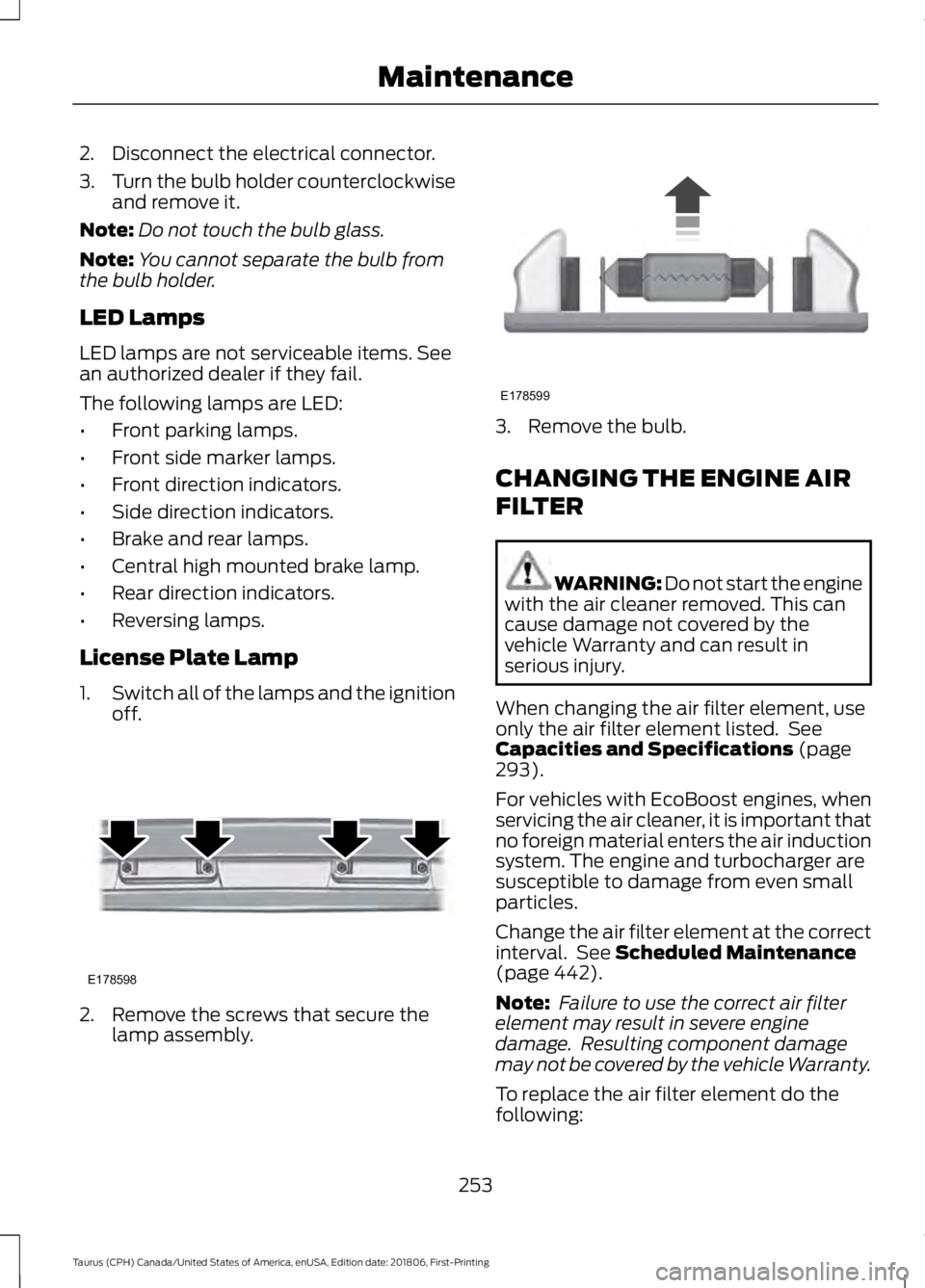
License Plate Lamp
1. Switch all of the lamps and the ignition
off. 2. Remove the screws that secure the
lamp assembly. 3. Remove the bulb.
CHANGING THE ENGINE AIR
FILTER
WARNING: Do not start the engine
with the air cleaner removed. This can
cause damage not covered by the
vehicle Warranty and can result in
serious injury.
When changing the air filter element, use
only the air filter element listed. See
Capacities and Specifications (page
293).
For vehicles with EcoBoost engines, when
servicing the air cleaner, it is important that
no foreign material enters the air induction
system. The engine and turbocharger are
susceptible to damage from even small
particles.
Change the air filter element at the correct
interval. See
Scheduled Maintenance
(page 442).
Note: Failure to use the correct air filter
element may result in severe engine
damage. Resulting component damage
may not be covered by the vehicle Warranty.
To replace the air filter element do the
following:
253
Taurus (CPH) Canada/United States of America, enUSA, Edition date: 201806, First-Printing MaintenanceE178598 E178599
Page 257 of 515
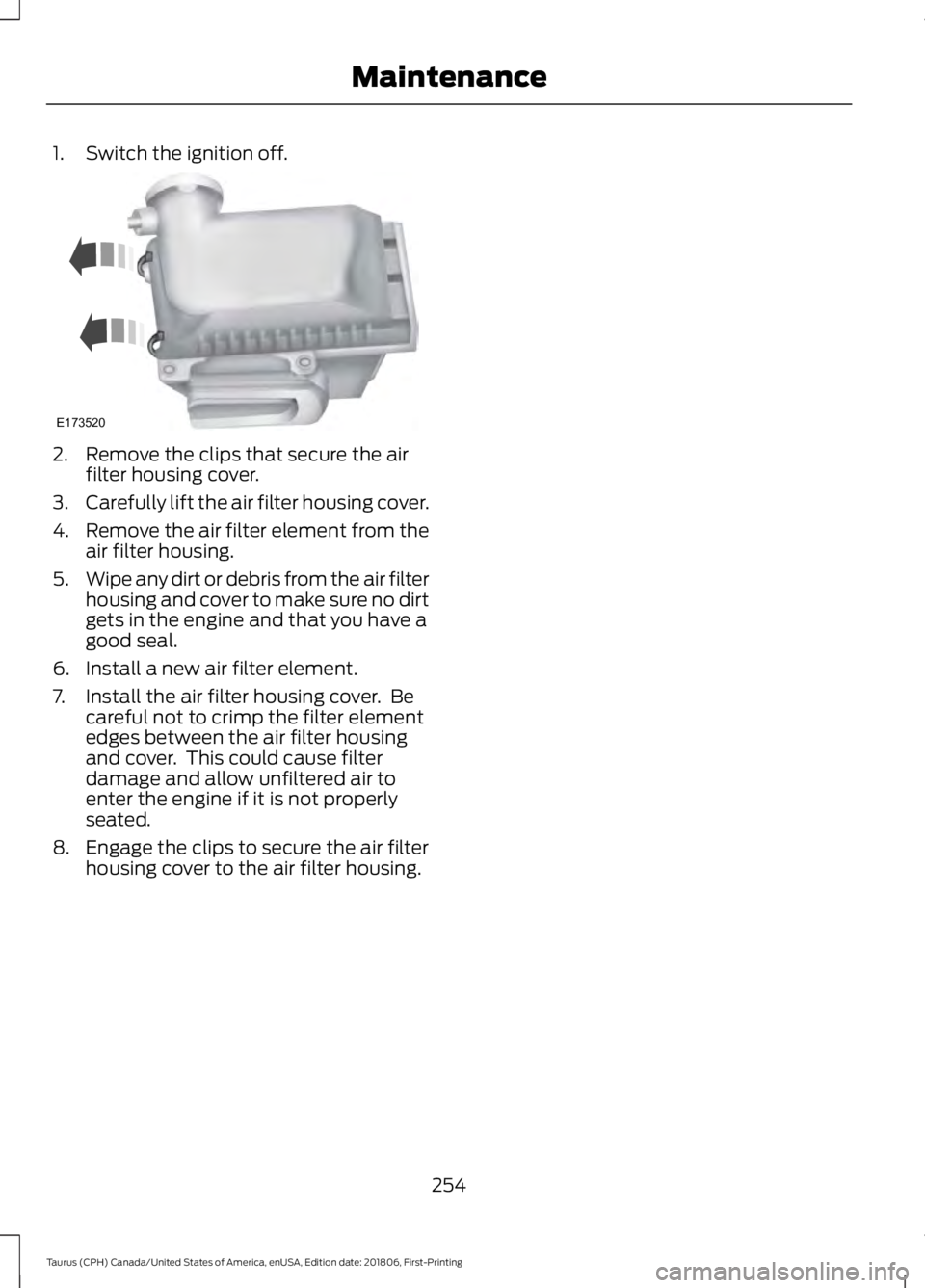
1. Switch the ignition off.
2. Remove the clips that secure the air
filter housing cover.
3. Carefully lift the air filter housing cover.
4. Remove the air filter element from the
air filter housing.
5. Wipe any dirt or debris from the air filter
housing and cover to make sure no dirt
gets in the engine and that you have a
good seal.
6. Install a new air filter element.
7. Install the air filter housing cover. Be careful not to crimp the filter element
edges between the air filter housing
and cover. This could cause filter
damage and allow unfiltered air to
enter the engine if it is not properly
seated.
8. Engage the clips to secure the air filter housing cover to the air filter housing.
254
Taurus (CPH) Canada/United States of America, enUSA, Edition date: 201806, First-Printing MaintenanceE173520
Page 260 of 515
WAXING
Regular waxing is necessary to protect your
car's paint from the elements. We
recommend that you wash and wax the
painted surface once or twice a year.
When washing and waxing, park your
vehicle in a shaded area out of direct
sunlight. Always wash your vehicle before
applying wax.
•
Use a quality wax that does not contain
abrasives.
• Follow the manufacturer ’s instructions
to apply and remove the wax.
• Apply a small amount of wax in a
back-and-forth motion, not in circles.
• Do not allow wax to come in contact
with any non-body (low-gloss black)
colored trim. The wax will discolor or
stain the parts over time.
•Roof racks.
• Bumpers.
• Grained door handles.
• Side moldings.
• Mirror housings.
• Windshield cowl area.
• Do not apply wax to glass areas.
• After waxing, your car's paint should
feel smooth, and be free of streaks and
smudges.
CLEANING THE ENGINE
Engines are more efficient when they are
clean because grease and dirt buildup keep
the engine warmer than normal. When washing:
•
Take care when using a power washer
to clean the engine. The high-pressure
fluid could penetrate the sealed parts
and cause damage.
• Do not spray a hot engine with cold
water to avoid cracking the engine
block or other engine components.
• Spray Motorcraft Engine Shampoo and
Degreaser on all parts that require
cleaning and pressure rinse clean. In
Canada, use Motorcraft Engine
Shampoo.
• Never wash or rinse the engine while it
is hot or running; water in the running
engine may cause internal damage.
• Never wash or rinse any ignition coil,
spark plug wire or spark plug well, or
the area in and around these locations.
• Cover the battery, power distribution
box, and air filter assembly to prevent
water damage when cleaning the
engine.
CLEANING THE WINDOWS AND
WIPER BLADES
Car wash chemicals and environmental
fallout can result in windshield and wiper
blade contamination. Dirty windshield and
wipers will result in poor windshield wiper
operation. Keep the windshield and wiper
blades clean to maintain windshield wiper
performance.
257
Taurus (CPH) Canada/United States of America, enUSA, Edition date: 201806, First-Printing Vehicle Care
Page 296 of 515
ENGINE SPECIFICATIONS - 3.5L DURATEC
Specification
Measurement
214
Cubic inches.
1-4-2-5-3-6
Firing order.
Coil on plug
Ignition system.
0.049–0.053 in (1.25–1.35 mm)
Spark plug gap.
10.8:1
Compression ratio.
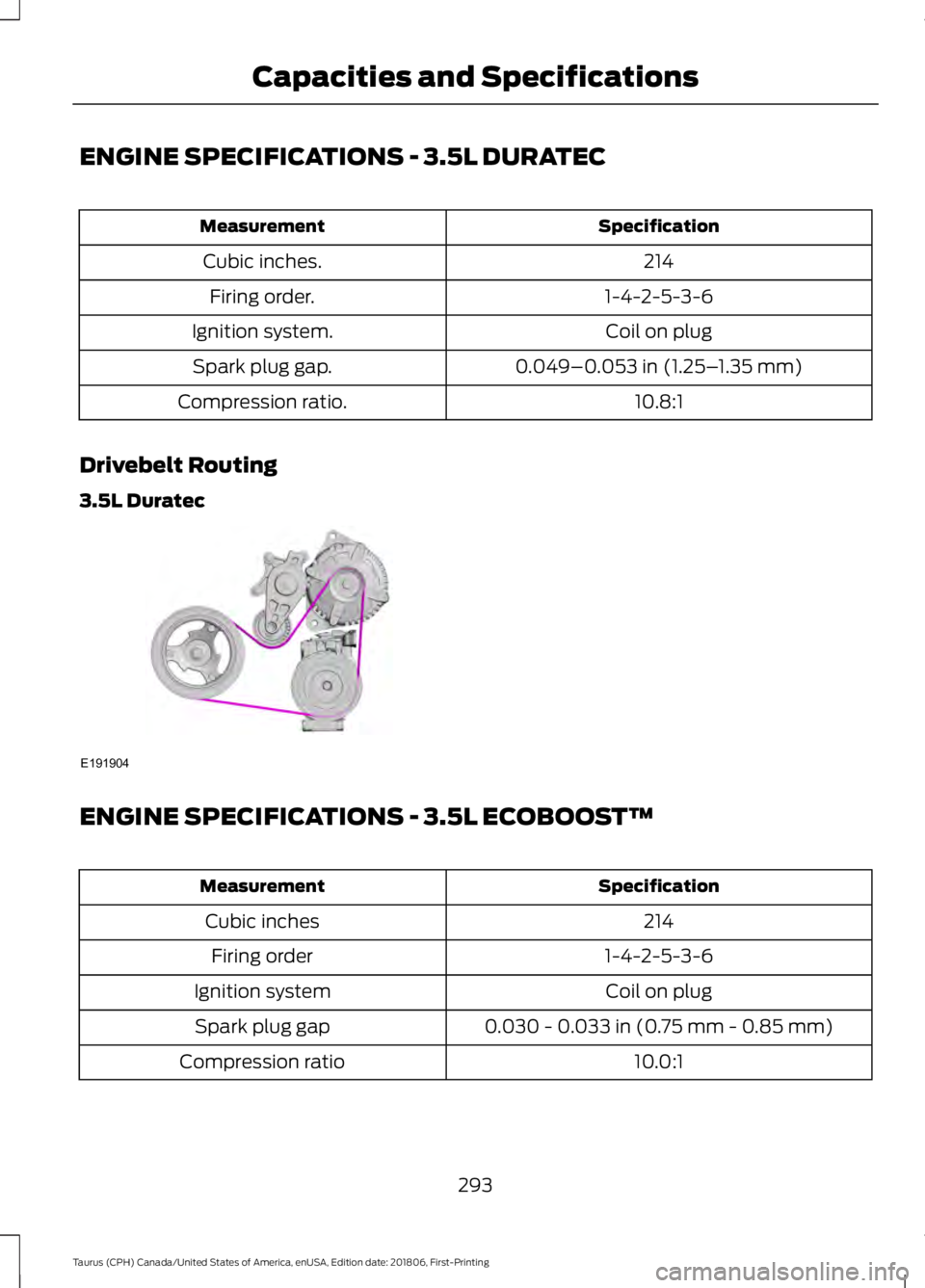
Drivebelt Routing
3.5L Duratec ENGINE SPECIFICATIONS - 3.5L ECOBOOST™
Specification
Measurement
214
Cubic inches
1-4-2-5-3-6
Firing order
Coil on plug
Ignition system
0.030 - 0.033 in (0.75 mm - 0.85 mm)
Spark plug gap
10.0:1
Compression ratio
293
Taurus (CPH) Canada/United States of America, enUSA, Edition date: 201806, First-Printing Capacities and SpecificationsE191904
Page 329 of 515
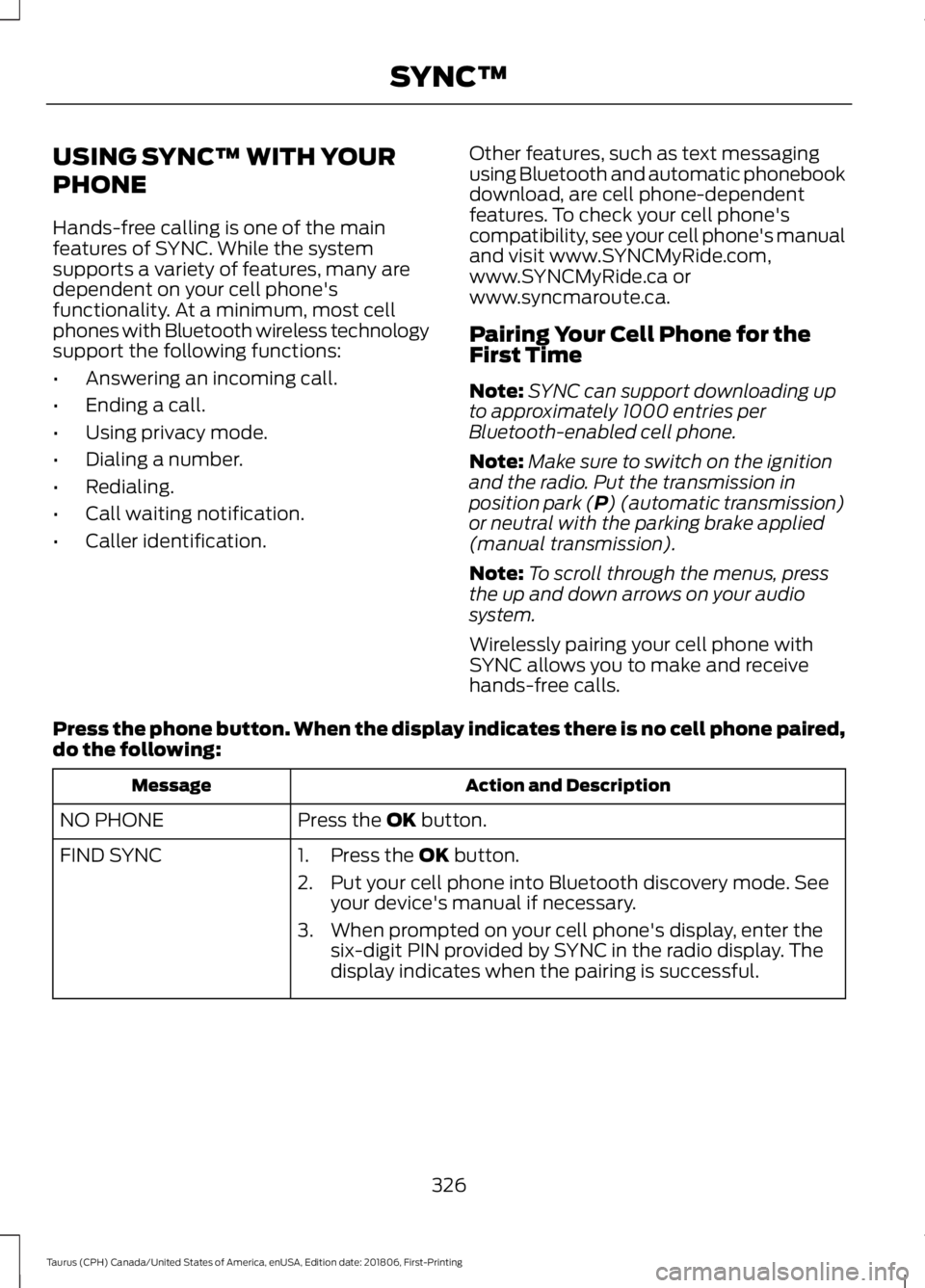
USING SYNC™ WITH YOUR
PHONE
Hands-free calling is one of the main
features of SYNC. While the system
supports a variety of features, many are
dependent on your cell phone's
functionality. At a minimum, most cell
phones with Bluetooth wireless technology
support the following functions:
•
Answering an incoming call.
• Ending a call.
• Using privacy mode.
• Dialing a number.
• Redialing.
• Call waiting notification.
• Caller identification. Other features, such as text messaging
using Bluetooth and automatic phonebook
download, are cell phone-dependent
features. To check your cell phone's
compatibility, see your cell phone's manual
and visit www.SYNCMyRide.com,
www.SYNCMyRide.ca or
www.syncmaroute.ca.
Pairing Your Cell Phone for the
First Time
Note:
SYNC can support downloading up
to approximately 1000 entries per
Bluetooth-enabled cell phone.
Note: Make sure to switch on the ignition
and the radio. Put the transmission in
position park (P) (automatic transmission)
or neutral with the parking brake applied
(manual transmission).
Note: To scroll through the menus, press
the up and down arrows on your audio
system.
Wirelessly pairing your cell phone with
SYNC allows you to make and receive
hands-free calls.
Press the phone button. When the display indicates there is no cell phone paired,
do the following: Action and Description
Message
Press the
OK button.
NO PHONE
FIND SYNC 1. Press the
OK button.
2. Put your cell phone into Bluetooth discovery mode. See your device's manual if necessary.
3. When prompted on your cell phone's display, enter the six-digit PIN provided by SYNC in the radio display. The
display indicates when the pairing is successful.
326
Taurus (CPH) Canada/United States of America, enUSA, Edition date: 201806, First-Printing SYNC™
Page 330 of 515
Depending on your cell phone's capability
and your market, the system may prompt
you with questions, such as setting the
current cell phone as the primary cell
phone (the cell phone SYNC automatically
tries to connect with first upon vehicle
start-up) and downloading your
phonebook.
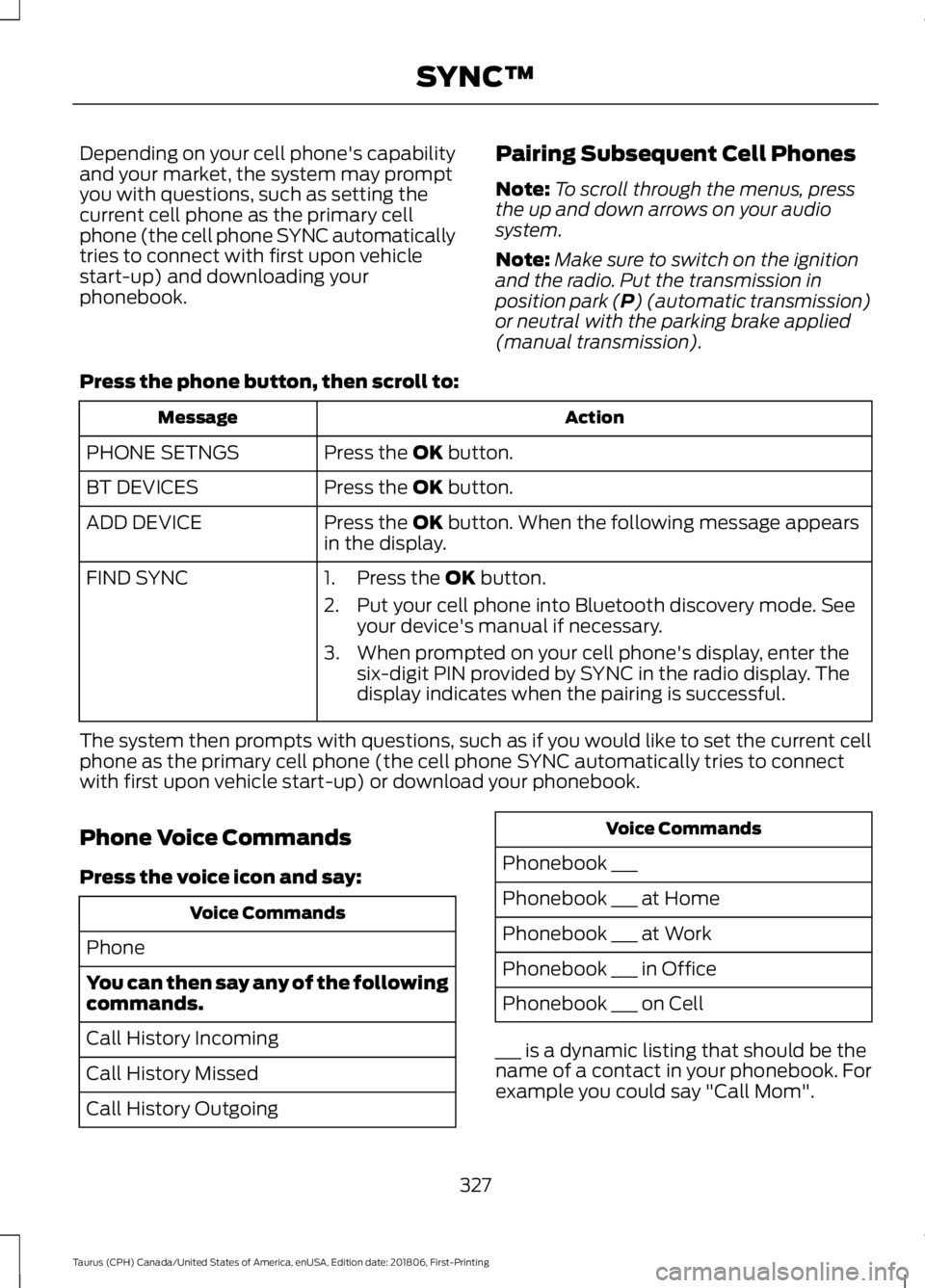
Pairing Subsequent Cell Phones
Note:
To scroll through the menus, press
the up and down arrows on your audio
system.
Note: Make sure to switch on the ignition
and the radio. Put the transmission in
position park (P) (automatic transmission)
or neutral with the parking brake applied
(manual transmission).
Press the phone button, then scroll to: Action
Message
Press the
OK button.
PHONE SETNGS
Press the
OK button.
BT DEVICES
Press the
OK button. When the following message appears
in the display.
ADD DEVICE
FIND SYNC
1. Press the
OK button.
2. Put your cell phone into Bluetooth discovery mode. See your device's manual if necessary.
3. When prompted on your cell phone's display, enter the six-digit PIN provided by SYNC in the radio display. The
display indicates when the pairing is successful.
The system then prompts with questions, such as if you would like to set the current cell
phone as the primary cell phone (the cell phone SYNC automatically tries to connect
with first upon vehicle start-up) or download your phonebook.
Phone Voice Commands
Press the voice icon and say: Voice Commands
Phone
You can then say any of the following
commands.
Call History Incoming
Call History Missed
Call History Outgoing Voice Commands
Phonebook ___
Phonebook ___ at Home
Phonebook ___ at Work
Phonebook ___ in Office
Phonebook ___ on Cell
___ is a dynamic listing that should be the
name of a contact in your phonebook. For
example you could say "Call Mom".
327
Taurus (CPH) Canada/United States of America, enUSA, Edition date: 201806, First-Printing SYNC™
Page 340 of 515
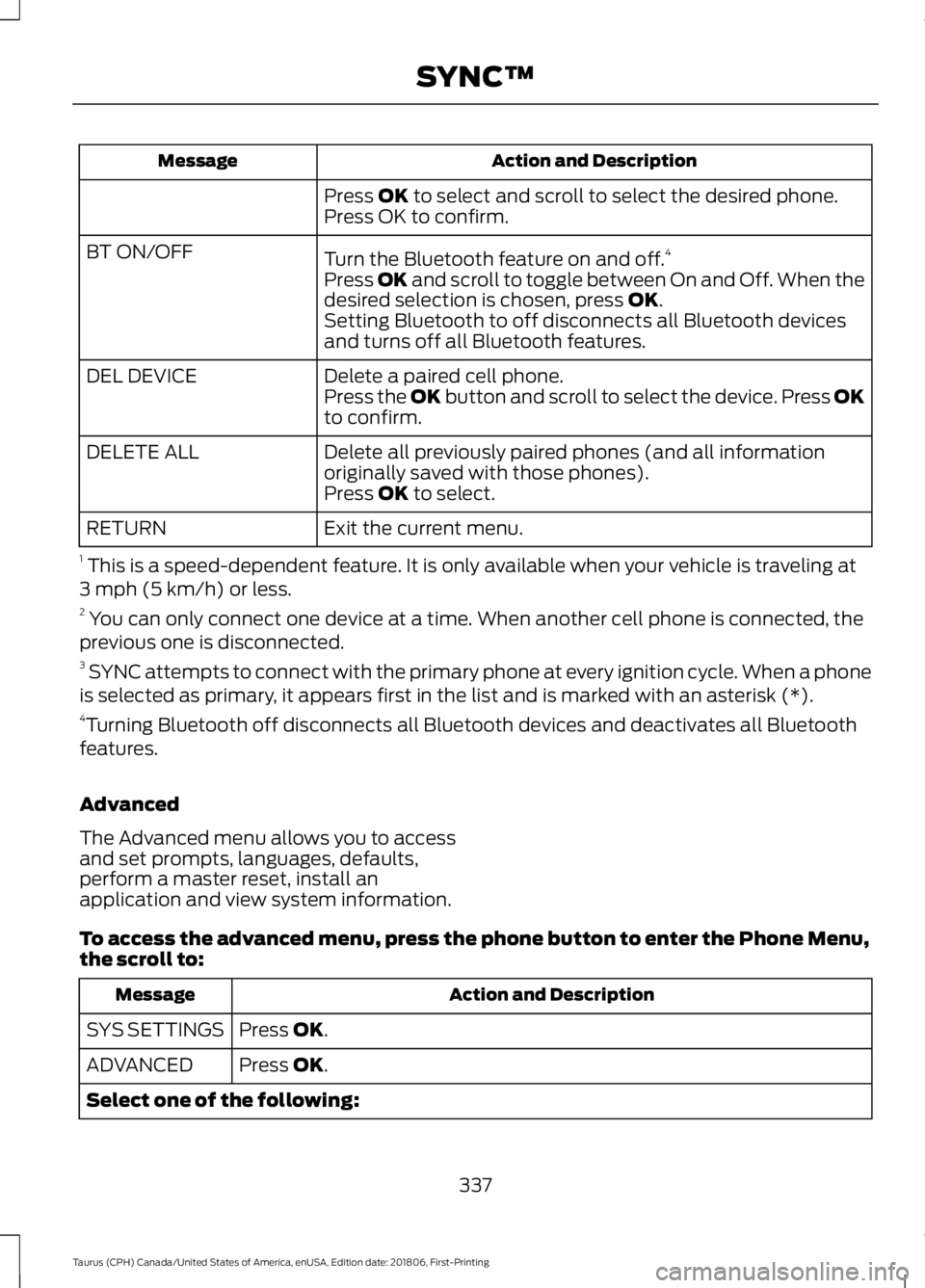
Action and Description
Message
Press OK to select and scroll to select the desired phone.
Press OK to confirm.
Turn the Bluetooth feature on and off. 4
BT ON/OFF
Press
OK and scroll to toggle between On and Off. When the
desired selection is chosen, press OK.
Setting Bluetooth to off disconnects all Bluetooth devices
and turns off all Bluetooth features.
Delete a paired cell phone.
DEL DEVICE
Press the OK button and scroll to select the device. Press OK
to confirm.
Delete all previously paired phones (and all information
originally saved with those phones).
DELETE ALL
Press
OK to select.
Exit the current menu.
RETURN
1 This is a speed-dependent feature. It is only available when your vehicle is traveling at
3 mph (5 km/h) or less.
2 You can only connect one device at a time. When another cell phone is connected, the
previous one is disconnected.
3 SYNC attempts to connect with the primary phone at every ignition cycle. When a phone
is selected as primary, it appears first in the list and is marked with an asterisk (*).
4 Turning Bluetooth off disconnects all Bluetooth devices and deactivates all Bluetooth
features.
Advanced
The Advanced menu allows you to access
and set prompts, languages, defaults,
perform a master reset, install an
application and view system information.
To access the advanced menu, press the phone button to enter the Phone Menu,
the scroll to: Action and Description
Message
Press
OK.
SYS SETTINGS
Press
OK.
ADVANCED
Select one of the following:
337
Taurus (CPH) Canada/United States of America, enUSA, Edition date: 201806, First-Printing SYNC™
Page 361 of 515
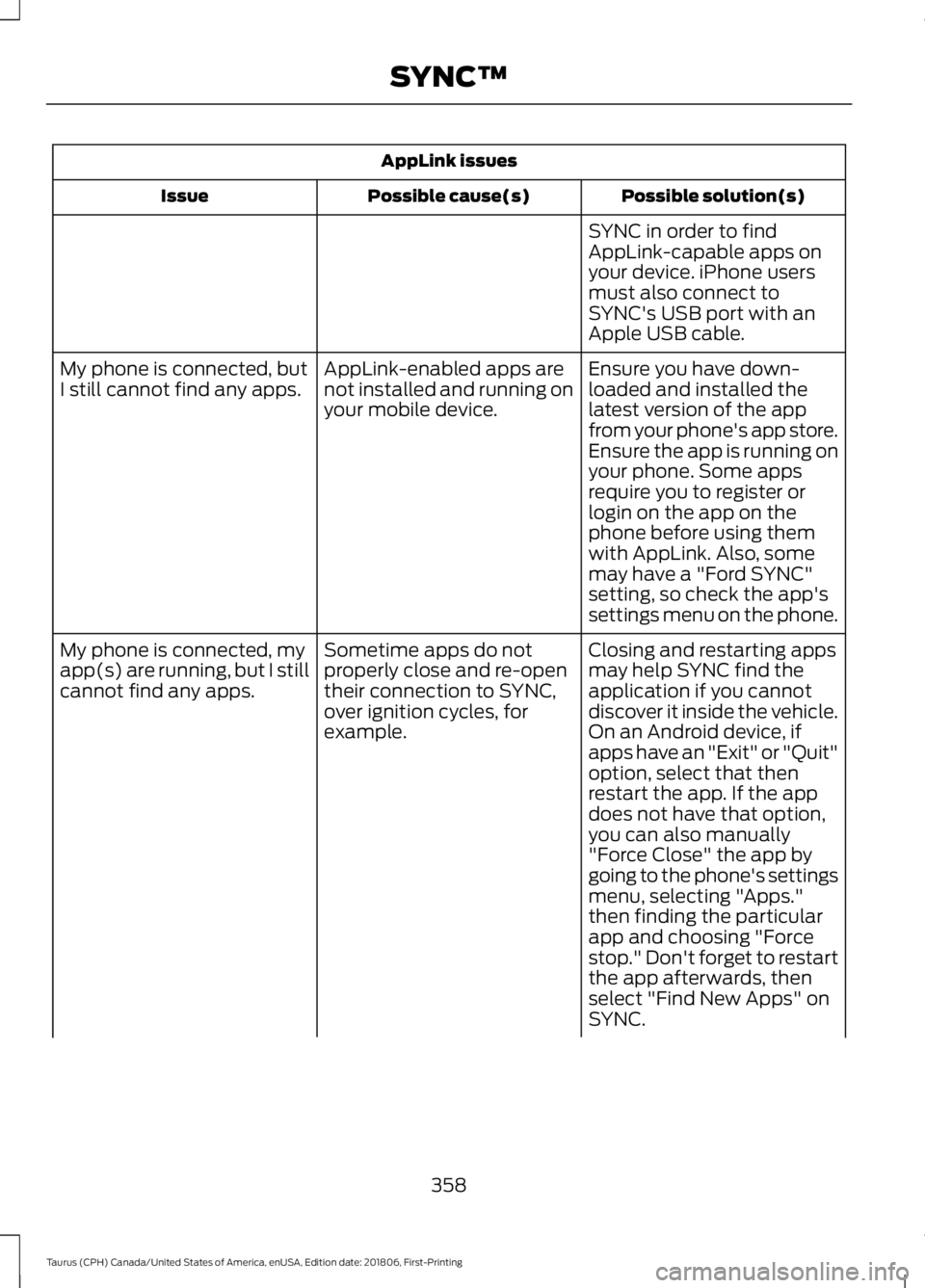
AppLink issues
Possible solution(s)
Possible cause(s)
Issue
SYNC in order to find
AppLink-capable apps on
your device. iPhone users
must also connect to
SYNC's USB port with an
Apple USB cable.
Ensure you have down-
loaded and installed the
latest version of the app
from your phone's app store.
Ensure the app is running on
your phone. Some apps
AppLink-enabled apps are
not installed and running on
your mobile device.
My phone is connected, but
I still cannot find any apps.
require you to register or
login on the app on the
phone before using them
with AppLink. Also, some
may have a "Ford SYNC"
setting, so check the app's
settings menu on the phone.
Closing and restarting apps
may help SYNC find the
application if you cannot
discover it inside the vehicle.
On an Android device, if
apps have an "Exit" or "Quit"
Sometime apps do not
properly close and re-open
their connection to SYNC,
over ignition cycles, for
example.
My phone is connected, my
app(s) are running, but I still
cannot find any apps.
option, select that then
restart the app. If the app
does not have that option,
you can also manually
"Force Close" the app by
going to the phone's settings
menu, selecting "Apps."
then finding the particular
app and choosing "Force
stop." Don't forget to restart
the app afterwards, then
select "Find New Apps" on
SYNC.
358
Taurus (CPH) Canada/United States of America, enUSA, Edition date: 201806, First-Printing SYNC™
Page 365 of 515
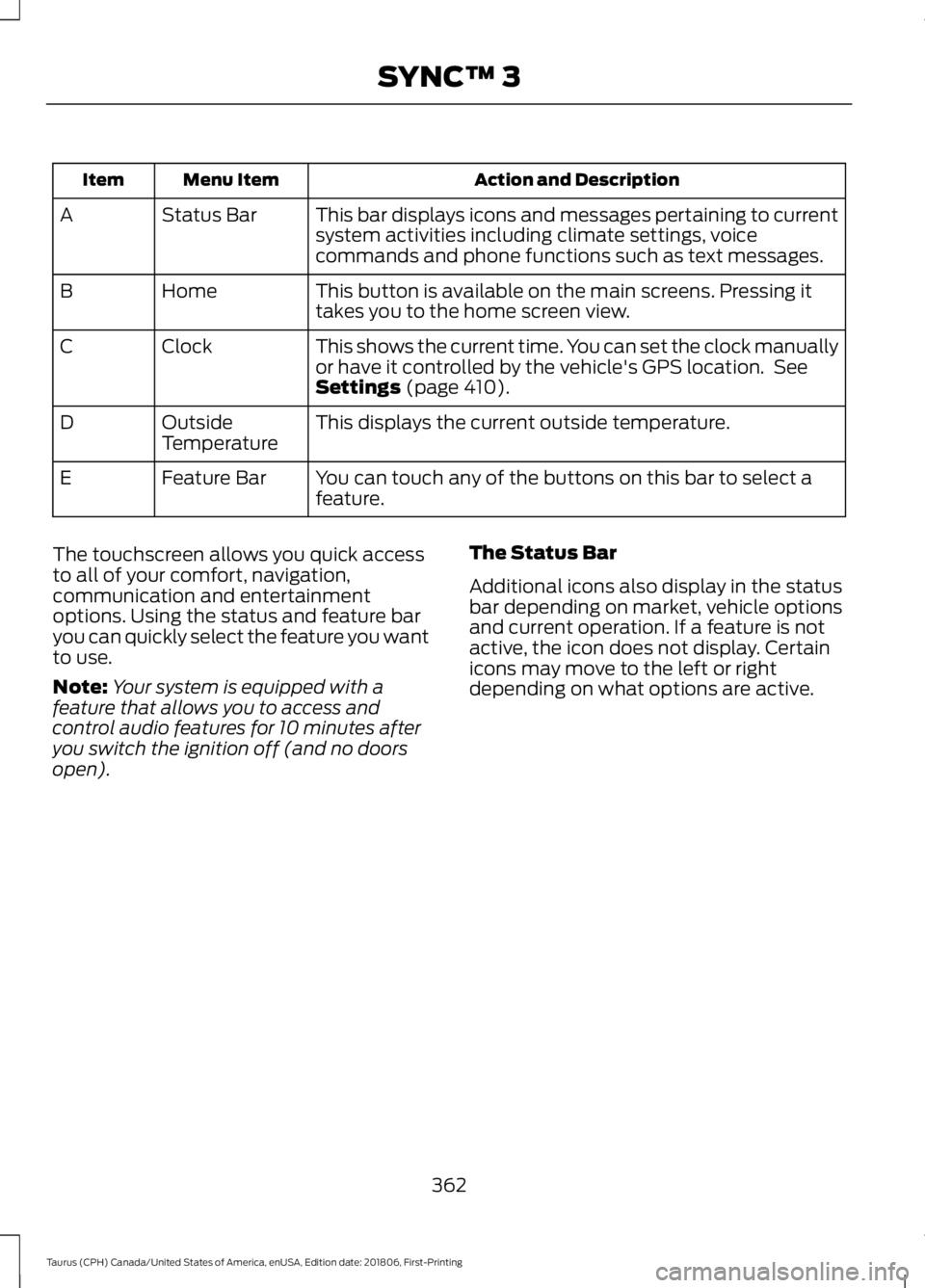
Action and Description
Menu Item
Item
This bar displays icons and messages pertaining to current
system activities including climate settings, voice
commands and phone functions such as text messages.
Status Bar
A
This button is available on the main screens. Pressing it
takes you to the home screen view.
Home
B
This shows the current time. You can set the clock manually
or have it controlled by the vehicle's GPS location. See
Settings (page 410).
Clock
C
This displays the current outside temperature.
Outside
Temperature
D
You can touch any of the buttons on this bar to select a
feature.
Feature Bar
E
The touchscreen allows you quick access
to all of your comfort, navigation,
communication and entertainment
options. Using the status and feature bar
you can quickly select the feature you want
to use.
Note: Your system is equipped with a
feature that allows you to access and
control audio features for 10 minutes after
you switch the ignition off (and no doors
open). The Status Bar
Additional icons also display in the status
bar depending on market, vehicle options
and current operation. If a feature is not
active, the icon does not display. Certain
icons may move to the left or right
depending on what options are active.
362
Taurus (CPH) Canada/United States of America, enUSA, Edition date: 201806, First-Printing SYNC™ 3
Page 375 of 515
If you would like to switch this feature
on later, select:
Menu Item
Settings
General From this menu, you can
enable automatic updates.
If you have not done so
already, the system
prompts you to set up a
Wi-Fi connection when you
enable this feature.
Automatic
System
Updates
When the system is connected via Wi-Fi
and automatic updates are enabled, your
system checks for software updates
periodically. If a new version is available, it
downloads at that time. Software
downloads can take place for up to 30
minutes after you have switched your
vehicle off. The updates do not interrupt
the normal use of your SYNC 3 system. If
a download does not complete for any
reason, the download continues where it
left off at the next Wi-Fi connected
opportunity. Upon activation of an update,
a banner displays on the touchscreen
indicating the system update. Select the
icon to see more detail. This icon displays
for two ignition cycles.
To switch this feature off: Menu Item
Settings
General In this menu selection, you
can change the selection
for automatic updates to
OFF.
Automatic
System
Updates Customer Assistance
The SYNC support team is available to
help you with any questions you are not
able to answer on your own.
Monday-Saturday, 8:30am-8:00pm EST.
United States: 1-800-392-3673.
Canada: 1-800-565-3673.
Mexico: 01-800-719-8466.
Times are subject to change due to
holidays.
Privacy Information
When you connect a cellular phone to
SYNC 3, the system creates a profile within
your vehicle that links to that cellular
phone. This profile helps in offering you
more cellular features and operating more
efficiently. Among other things, this profile
may contain data about your cellular
phone book, text messages (read and
unread), and call history, including history
of calls when your cell phone was not
connected to the system. In addition, if you
connect a media device, the system
creates and retains an index of supported
media content. The system also records a
short diagnostic log of approximately 10
minutes of all recent system activity. The
log profile and other system data may be
used to improve the system and help
diagnose any problems that may occur.
The cellular profile, media device index,
and diagnostic log remain in your vehicle
unless you delete them and are generally
accessible only in your vehicle when the
cellular phone or media player is
connected.
If you no longer plan to use the system or
your vehicle, we recommend you perform
a Master Reset to erase all stored
information. You can find more information
about the Master Reset in General
Settings. See Settings (page 410). System
372
Taurus (CPH) Canada/United States of America, enUSA, Edition date: 201806, First-Printing SYNC™ 3