USB port FORD TRANSIT 2015 5.G User Guide
[x] Cancel search | Manufacturer: FORD, Model Year: 2015, Model line: TRANSIT, Model: FORD TRANSIT 2015 5.GPages: 461, PDF Size: 5.82 MB
Page 338 of 461
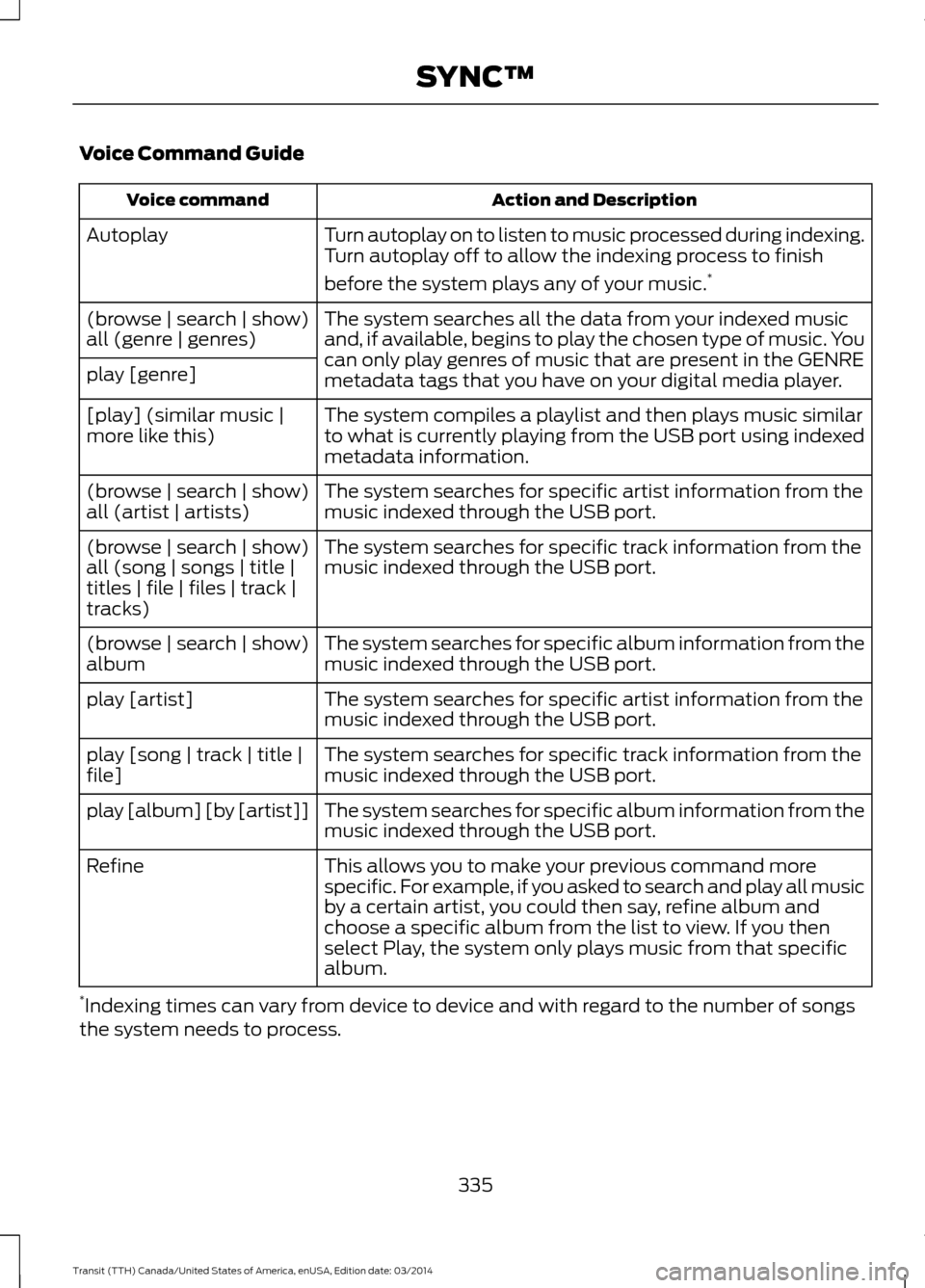
Voice Command Guide
Action and Description
Voice command
Turn autoplay on to listen to music processed during indexing.
Turn autoplay off to allow the indexing process to finish
before the system plays any of your music. *
Autoplay
The system searches all the data from your indexed music
and, if available, begins to play the chosen type of music. You
can only play genres of music that are present in the GENRE
metadata tags that you have on your digital media player.
(browse | search | show)
all (genre | genres)
play [genre]
The system compiles a playlist and then plays music similar
to what is currently playing from the USB port using indexed
metadata information.
[play] (similar music |
more like this)
The system searches for specific artist information from the
music indexed through the USB port.
(browse | search | show)
all (artist | artists)
The system searches for specific track information from the
music indexed through the USB port.
(browse | search | show)
all (song | songs | title |
titles | file | files | track |
tracks)
The system searches for specific album information from the
music indexed through the USB port.
(browse | search | show)
album
The system searches for specific artist information from the
music indexed through the USB port.
play [artist]
The system searches for specific track information from the
music indexed through the USB port.
play [song | track | title |
file]
The system searches for specific album information from the
music indexed through the USB port.
play [album] [by [artist]]
This allows you to make your previous command more
specific. For example, if you asked to search and play all music
by a certain artist, you could then say, refine album and
choose a specific album from the list to view. If you then
select Play, the system only plays music from that specific
album.
Refine
* Indexing times can vary from device to device and with regard to the number of songs
the system needs to process.
335Transit (TTH) Canada/United States of America, enUSA, Edition date: 03/2014 SYNC™
Page 339 of 461
![FORD TRANSIT 2015 5.G User Guide Bluetooth Audio Command Guide
Press the voice button and when
prompted say any of the following:
Voice command
[Phone] Connections | [Media] Connec-
tions | [Bluetooth] Connections
pause
play Voice co](/img/11/5392/w960_5392-338.png "FORD TRANSIT 2015 5.G User Guide Bluetooth Audio Command Guide
Press the voice button and when
prompted say any of the following:
Voice command
[Phone] Connections | [Media] Connec-
tions | [Bluetooth] Connections
pause
play Voice co")
Bluetooth Audio Command Guide
Press the voice button and when
prompted say any of the following:
Voice command
[Phone] Connections | [Media] Connec-
tions | [Bluetooth] Connections
pause
play Voice command
[play] next track
[play] previous track
Media Menu Features
The media menu allows you to select your
media source, how to play your music, for
example by artist, genre, shuffle or repeat,
and to add, connect or delete devices.
Press the AUX button, then scroll to: Action and Description
Message
Press the
OK button to enter the media menu.
Menu
Select one of the following:
Play your music by artist, album, genre, playlist, track, similar
music or play all music. You can also choose to Explore USB
to view the supported digital music files on your playing
device.
Menu
Select and play music from your USB port, auxiliary input jack
or stream music from your Bluetooth-enabled cell phone.
Browse device
Select one of the following:
Press the
OK button to access music plugged into your USB
port. You can also plug in devices to charge them (if
supported by your device). Once connected, the system
indexes any readable media files. 1
USB
Press the OK button. This is a phone-dependent feature that
allows you to stream music playing on your Bluetooth-
enabled phone. If supported by your device, you can press
seek to play the previous or next track.
Bluetooth audio
Press the
OK button to select and play music from your
portable music player over your vehicle's speakers. 2
Line In
Choose to shuffle or repeat your music and select your
Autoplay settings. Once you turn these selections on, they
remain on until you turn them off. Press SEEK
to play the
previous or next track. 3
Media Player Settings
336Transit (TTH) Canada/United States of America, enUSA, Edition date: 03/2014 SYNC™
Page 340 of 461
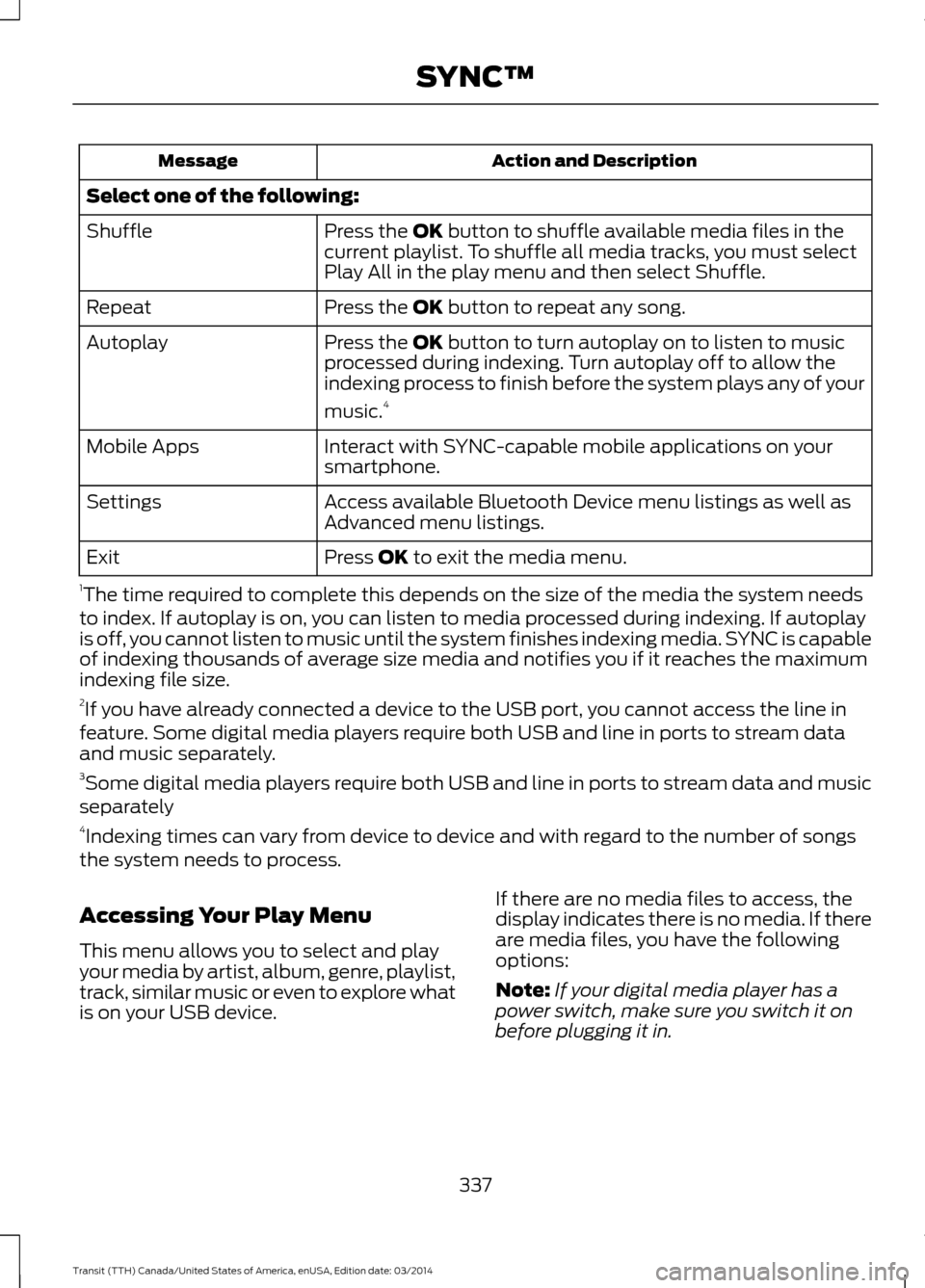
Action and Description
Message
Select one of the following: Press the OK button to shuffle available media files in the
current playlist. To shuffle all media tracks, you must select
Play All in the play menu and then select Shuffle.
Shuffle
Press the
OK button to repeat any song.
Repeat
Press the
OK button to turn autoplay on to listen to music
processed during indexing. Turn autoplay off to allow the
indexing process to finish before the system plays any of your
music. 4
Autoplay
Interact with SYNC-capable mobile applications on your
smartphone.
Mobile Apps
Access available Bluetooth Device menu listings as well as
Advanced menu listings.
Settings
Press
OK to exit the media menu.
Exit
1 The time required to complete this depends on the size of the media the system needs
to index. If autoplay is on, you can listen to media processed during indexing. If autoplay
is off, you cannot listen to music until the system finishes indexing media. SYNC is capable
of indexing thousands of average size media and notifies you if it reaches the maximum
indexing file size.
2 If you have already connected a device to the USB port, you cannot access the line in
feature. Some digital media players require both USB and line in ports to stream data
and music separately.
3 Some digital media players require both USB and line in ports to stream data and music
separately
4 Indexing times can vary from device to device and with regard to the number of songs
the system needs to process.
Accessing Your Play Menu
This menu allows you to select and play
your media by artist, album, genre, playlist,
track, similar music or even to explore what
is on your USB device. If there are no media files to access, the
display indicates there is no media. If there
are media files, you have the following
options:
Note:
If your digital media player has a
power switch, make sure you switch it on
before plugging it in.
337 Transit (TTH) Canada/United States of America, enUSA, Edition date: 03/2014 SYNC™
Page 342 of 461
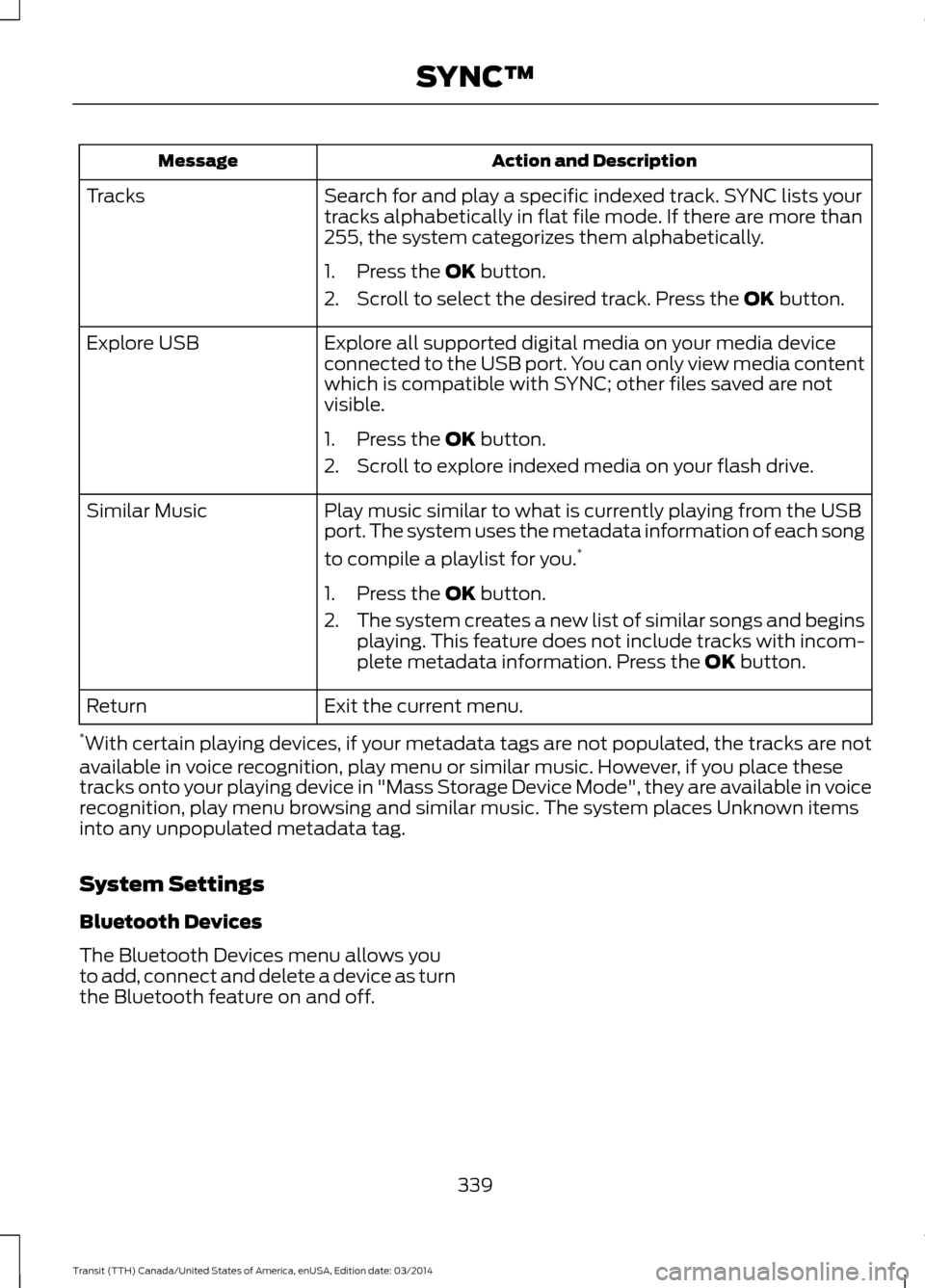
Action and Description
Message
Search for and play a specific indexed track. SYNC lists your
tracks alphabetically in flat file mode. If there are more than
255, the system categorizes them alphabetically.
Tracks
1. Press the OK button.
2. Scroll to select the desired track. Press the OK
button.
Explore all supported digital media on your media device
connected to the USB port. You can only view media content
which is compatible with SYNC; other files saved are not
visible.
Explore USB
1. Press the
OK button.
2. Scroll to explore indexed media on your flash drive.
Play music similar to what is currently playing from the USB
port. The system uses the metadata information of each song
to compile a playlist for you. *
Similar Music
1. Press the
OK button.
2. The system creates a new list of similar songs and begins
playing. This feature does not include tracks with incom-
plete metadata information. Press the
OK button.
Exit the current menu.
Return
* With certain playing devices, if your metadata tags are not populated, the tracks are not
available in voice recognition, play menu or similar music. However, if you place these
tracks onto your playing device in "Mass Storage Device Mode", they are available in voice
recognition, play menu browsing and similar music. The system places Unknown items
into any unpopulated metadata tag.
System Settings
Bluetooth Devices
The Bluetooth Devices menu allows you
to add, connect and delete a device as turn
the Bluetooth feature on and off.
339Transit (TTH) Canada/United States of America, enUSA, Edition date: 03/2014 SYNC™
Page 345 of 461
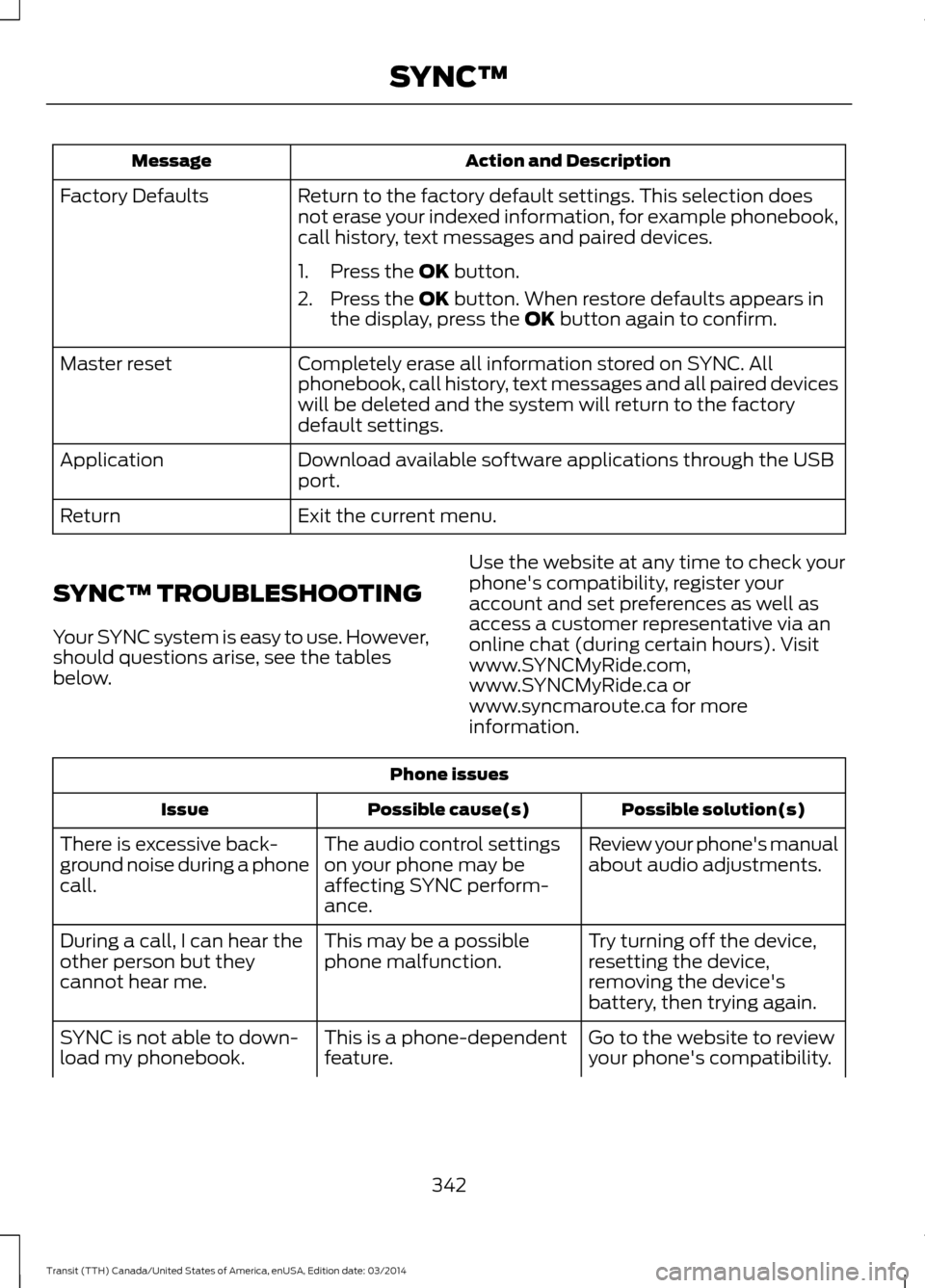
Action and Description
Message
Return to the factory default settings. This selection does
not erase your indexed information, for example phonebook,
call history, text messages and paired devices.
Factory Defaults
1. Press the OK button.
2. Press the
OK button. When restore defaults appears in
the display, press the OK button again to confirm.
Completely erase all information stored on SYNC. All
phonebook, call history, text messages and all paired devices
will be deleted and the system will return to the factory
default settings.
Master reset
Download available software applications through the USB
port.
Application
Exit the current menu.
Return
SYNC™ TROUBLESHOOTING
Your SYNC system is easy to use. However,
should questions arise, see the tables
below. Use the website at any time to check your
phone's compatibility, register your
account and set preferences as well as
access a customer representative via an
online chat (during certain hours). Visit
www.SYNCMyRide.com,
www.SYNCMyRide.ca or
www.syncmaroute.ca for more
information.Phone issues
Possible solution(s)
Possible cause(s)
Issue
Review your phone's manual
about audio adjustments.
The audio control settings
on your phone may be
affecting SYNC perform-
ance.
There is excessive back-
ground noise during a phone
call.
Try turning off the device,
resetting the device,
removing the device's
battery, then trying again.
This may be a possible
phone malfunction.
During a call, I can hear the
other person but they
cannot hear me.
Go to the website to review
your phone's compatibility.
This is a phone-dependent
feature.
SYNC is not able to down-
load my phonebook.
342Transit (TTH) Canada/United States of America, enUSA, Edition date: 03/2014 SYNC™
Page 347 of 461
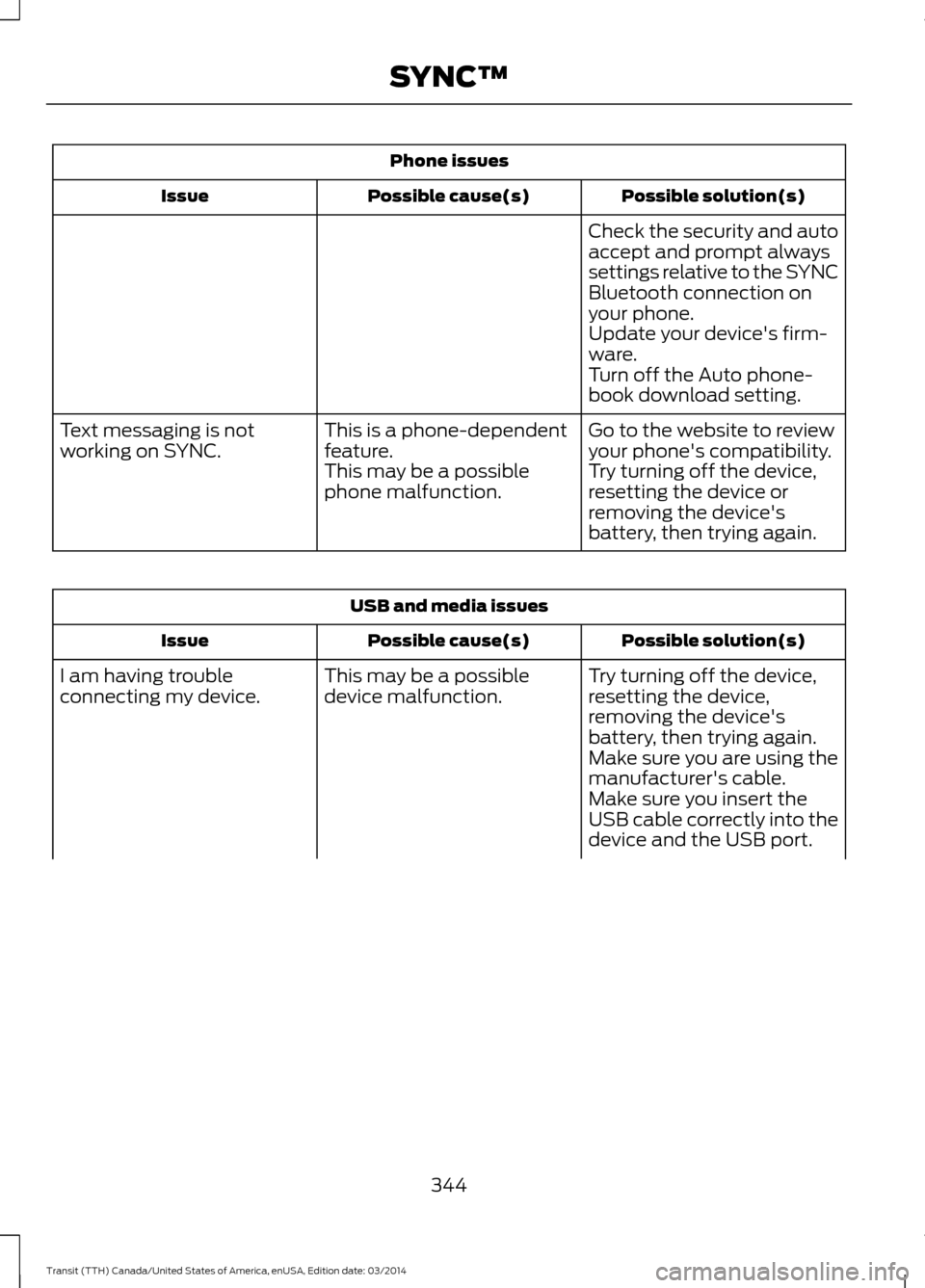
Phone issues
Possible solution(s)
Possible cause(s)
Issue
Check the security and auto
accept and prompt always
settings relative to the SYNC
Bluetooth connection on
your phone.
Update your device's firm-
ware.
Turn off the Auto phone-
book download setting.
Go to the website to review
your phone's compatibility.
This is a phone-dependent
feature.
Text messaging is not
working on SYNC.
Try turning off the device,
resetting the device or
removing the device's
battery, then trying again.
This may be a possible
phone malfunction. USB and media issues
Possible solution(s)
Possible cause(s)
Issue
Try turning off the device,
resetting the device,
removing the device's
battery, then trying again.
This may be a possible
device malfunction.
I am having trouble
connecting my device.
Make sure you are using the
manufacturer's cable.
Make sure you insert the
USB cable correctly into the
device and the USB port.
344 Transit (TTH) Canada/United States of America, enUSA, Edition date: 03/2014 SYNC™
Page 348 of 461
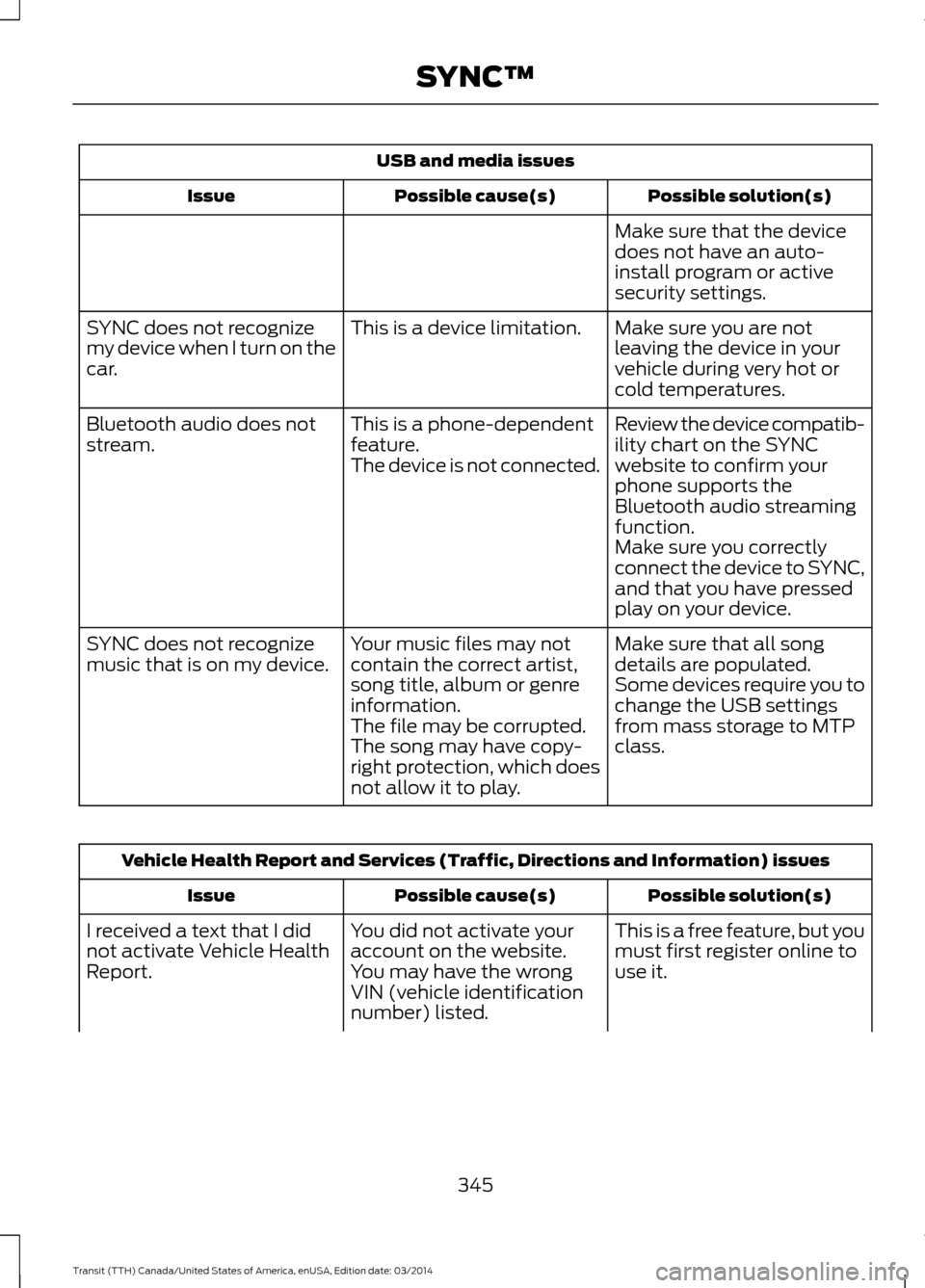
USB and media issues
Possible solution(s)
Possible cause(s)
Issue
Make sure that the device
does not have an auto-
install program or active
security settings.
Make sure you are not
leaving the device in your
vehicle during very hot or
cold temperatures.
This is a device limitation.
SYNC does not recognize
my device when I turn on the
car.
Review the device compatib-
ility chart on the SYNC
website to confirm your
phone supports the
Bluetooth audio streaming
function.
This is a phone-dependent
feature.
The device is not connected.
Bluetooth audio does not
stream.
Make sure you correctly
connect the device to SYNC,
and that you have pressed
play on your device.
Make sure that all song
details are populated.
Your music files may not
contain the correct artist,
song title, album or genre
information.
SYNC does not recognize
music that is on my device.
Some devices require you to
change the USB settings
from mass storage to MTP
class.
The file may be corrupted.
The song may have copy-
right protection, which does
not allow it to play. Vehicle Health Report and Services (Traffic, Directions and Information) issues
Possible solution(s)
Possible cause(s)
Issue
This is a free feature, but you
must first register online to
use it.
You did not activate your
account on the website.
You may have the wrong
VIN (vehicle identification
number) listed.
I received a text that I did
not activate Vehicle Health
Report.
345Transit (TTH) Canada/United States of America, enUSA, Edition date: 03/2014 SYNC™
Page 368 of 461
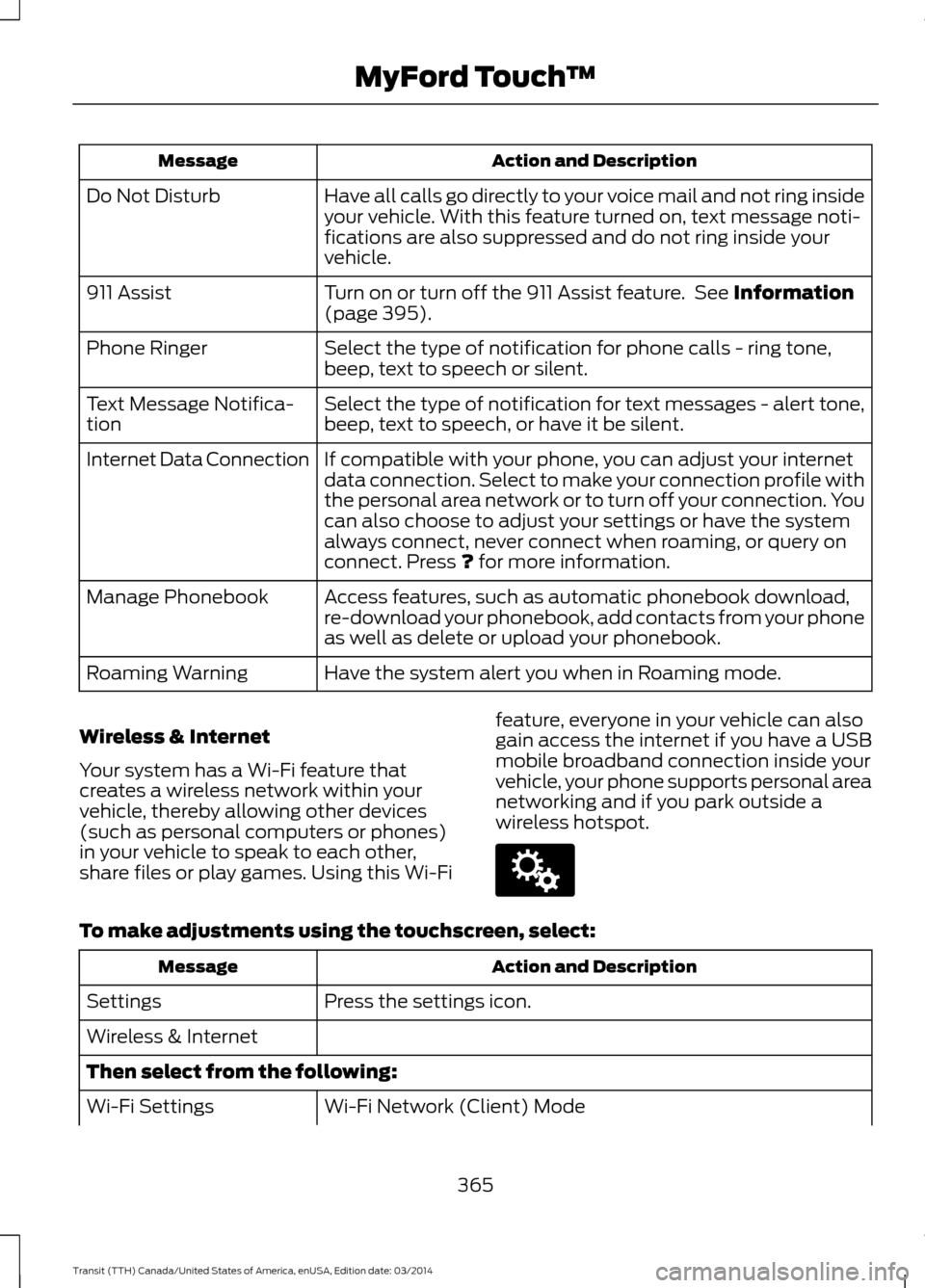
Action and Description
Message
Have all calls go directly to your voice mail and not ring inside
your vehicle. With this feature turned on, text message noti-
fications are also suppressed and do not ring inside your
vehicle.
Do Not Disturb
Turn on or turn off the 911 Assist feature. See Information
(page 395).
911 Assist
Select the type of notification for phone calls - ring tone,
beep, text to speech or silent.
Phone Ringer
Select the type of notification for text messages - alert tone,
beep, text to speech, or have it be silent.
Text Message Notifica-
tion
If compatible with your phone, you can adjust your internet
data connection. Select to make your connection profile with
the personal area network or to turn off your connection. You
can also choose to adjust your settings or have the system
always connect, never connect when roaming, or query on
connect. Press
? for more information.
Internet Data Connection
Access features, such as automatic phonebook download,
re-download your phonebook, add contacts from your phone
as well as delete or upload your phonebook.
Manage Phonebook
Have the system alert you when in Roaming mode.
Roaming Warning
Wireless & Internet
Your system has a Wi-Fi feature that
creates a wireless network within your
vehicle, thereby allowing other devices
(such as personal computers or phones)
in your vehicle to speak to each other,
share files or play games. Using this Wi-Fi feature, everyone in your vehicle can also
gain access the internet if you have a USB
mobile broadband connection inside your
vehicle, your phone supports personal area
networking and if you park outside a
wireless hotspot.To make adjustments using the touchscreen, select:
Action and Description
Message
Press the settings icon.
Settings
Wireless & Internet
Then select from the following:
Wi-Fi Network (Client) Mode
Wi-Fi Settings
365Transit (TTH) Canada/United States of America, enUSA, Edition date: 03/2014 MyFord Touch
™E142607
Page 372 of 461
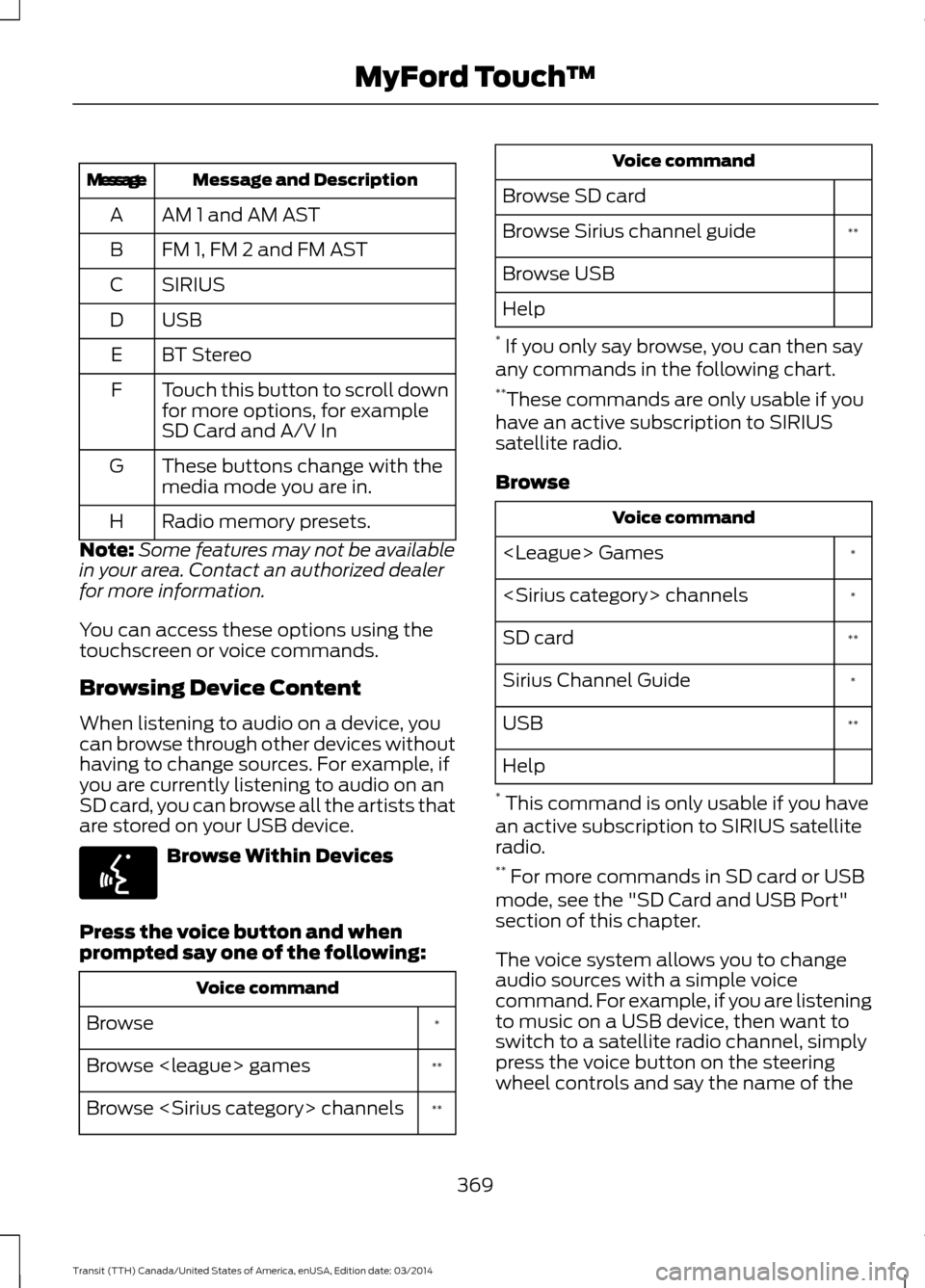
Message and Description
Message
AM 1 and AM AST
A
FM 1, FM 2 and FM AST
B
SIRIUS
C
USBD
BT Stereo
E
Touch this button to scroll down
for more options, for example
SD Card and A/V In
F
These buttons change with the
media mode you are in.
G
Radio memory presets.
H
Note: Some features may not be available
in your area. Contact an authorized dealer
for more information.
You can access these options using the
touchscreen or voice commands.
Browsing Device Content
When listening to audio on a device, you
can browse through other devices without
having to change sources. For example, if
you are currently listening to audio on an
SD card, you can browse all the artists that
are stored on your USB device. Browse Within Devices
Press the voice button and when
prompted say one of the following: Voice command
*
Browse
**
Browse
**
Browse
Browse SD card **
Browse Sirius channel guide
Browse USB
Help
* If you only say browse, you can then say
any commands in the following chart.
** These commands are only usable if you
have an active subscription to SIRIUS
satellite radio.
Browse Voice command
*
*
**
SD card
*
Sirius Channel Guide
**
USB
Help
* This command is only usable if you have
an active subscription to SIRIUS satellite
radio.
** For more commands in SD card or USB
mode, see the "SD Card and USB Port"
section of this chapter.
The voice system allows you to change
audio sources with a simple voice
command. For example, if you are listening
to music on a USB device, then want to
switch to a satellite radio channel, simply
press the voice button on the steering
wheel controls and say the name of the
369 Transit (TTH) Canada/United States of America, enUSA, Edition date: 03/2014 MyFord Touch
™E142599
Page 373 of 461
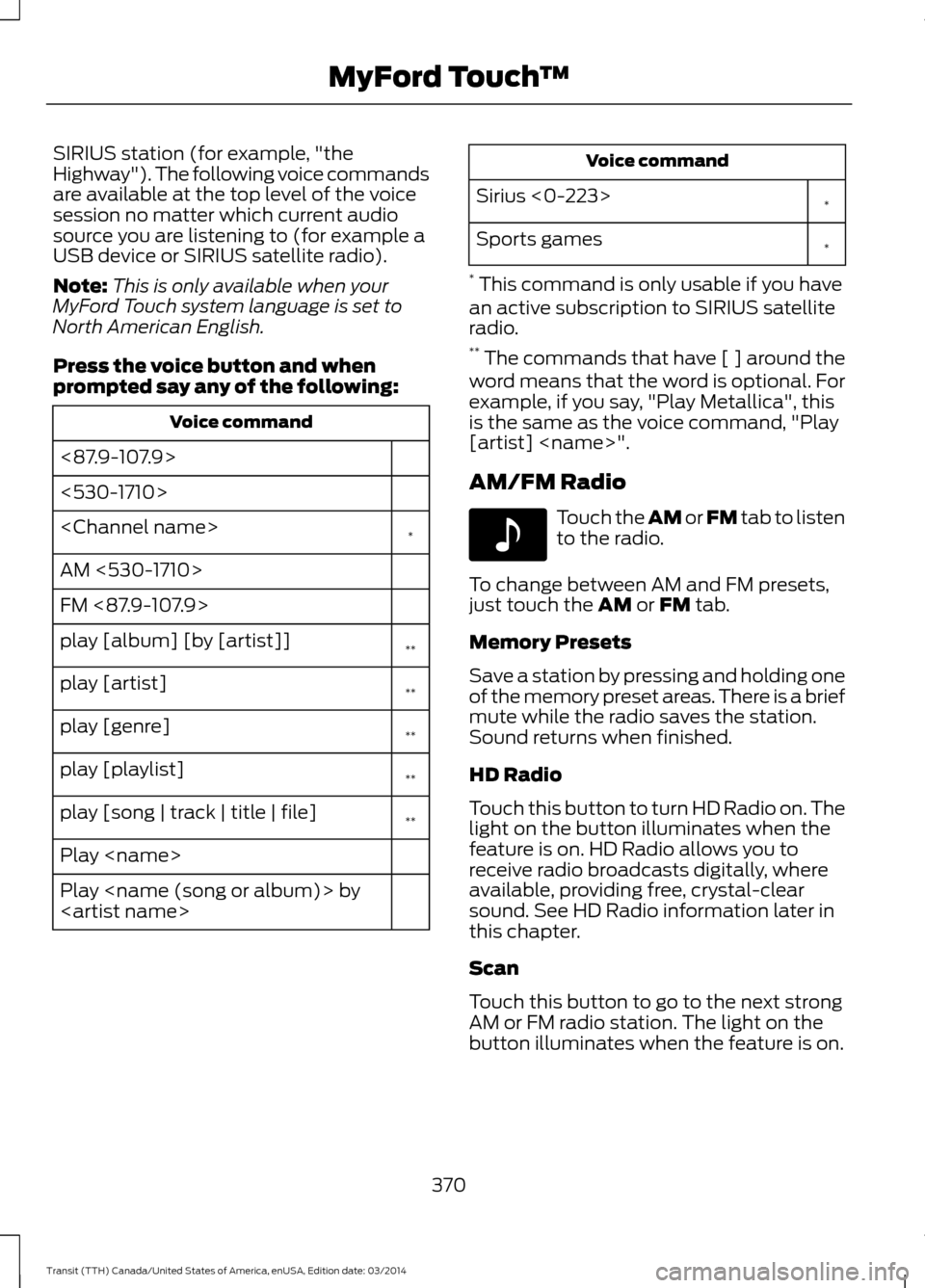
SIRIUS station (for example, "the
Highway"). The following voice commands
are available at the top level of the voice
session no matter which current audio
source you are listening to (for example a
USB device or SIRIUS satellite radio).
Note:
This is only available when your
MyFord Touch system language is set to
North American English.
Press the voice button and when
prompted say any of the following: Voice command
<87.9-107.9>
<530-1710>
*
AM <530-1710>
FM <87.9-107.9>
**
play [album] [by [artist]]
**
play [artist]
**
play [genre]
**
play [playlist]
**
play [song | track | title | file]
Play
Play
*
Sirius <0-223>
*
Sports games
* This command is only usable if you have
an active subscription to SIRIUS satellite
radio.
** The commands that have [ ] around the
word means that the word is optional. For
example, if you say, "Play Metallica", this
is the same as the voice command, "Play
[artist]
AM/FM Radio Touch the AM or FM tab to listen
t
o the radio.
To change between AM and FM presets,
just touch the
AM or FM tab.
Memory Presets
Save a station by pressing and holding one
of the memory preset areas. There is a brief
mute while the radio saves the station.
Sound returns when finished.
HD Radio
Touch this button to turn HD Radio on. The
light on the button illuminates when the
feature is on. HD Radio allows you to
receive radio broadcasts digitally, where
available, providing free, crystal-clear
sound. See HD Radio information later in
this chapter.
Scan
Touch this button to go to the next strong
AM or FM radio station. The light on the
button illuminates when the feature is on.
370 Transit (TTH) Canada/United States of America, enUSA, Edition date: 03/2014 MyFord Touch
™E142611