radio FORD TRANSIT 2015 5.G User Guide
[x] Cancel search | Manufacturer: FORD, Model Year: 2015, Model line: TRANSIT, Model: FORD TRANSIT 2015 5.GPages: 461, PDF Size: 5.82 MB
Page 285 of 461
GENERAL INFORMATION
Radio Frequencies and Reception
Factors
AM and FM frequencies are established by
the Federal Communications Commission
(FCC) and the Canadian Radio and
Telecommunications Commission (CRTC).
Those frequencies are:
•
AM: 530, 540-1700, 1710 kHz
• FM: 87.9-107.7, 107.9 MHz Radio Reception Factors
The further you travel from an FM station, the weaker the
signal and the weaker the reception.
Distance and Strength
Hills, mountains, tall buildings, bridges, tunnels, freeway
overpasses, parking garages, dense tree foliage and
thunderstorms can interfere with the reception.
Terrain
When you pass a ground-based broadcast repeating
tower, a stronger signal may overtake a weaker one and
result in the audio system muting.
Station overload
CD and CD Player Information
Note: CD units play commercially pressed
4.75-inch (12 centimeter) audio compact
discs only. Due to technical incompatibility,
certain recordable and re-recordable
compact discs may not function correctly
when used in Ford CD players.
Note: Do not insert CDs with homemade
paper (adhesive) labels into the CD player
as the label may peel and cause the CD to
become jammed. You should use a
permanent felt tip marker rather than
adhesive labels on your homemade CDs.
Ballpoint pens may damage CDs. Please
contact an authorized dealer for further
information.
Note: Do not use any irregularly shaped
discs or discs with a scratch protection film
attached.
Always handle discs by their edges only.
Clean the disc with an approved CD
cleaner only. Wipe it from the center of the
disc toward the edge. Do not clean in a
circular motion. Do not expose discs to direct sunlight or
heat sources for extended periods.
MP3 and WMA Track and Folder
Structure
Audio systems capable of recognizing and
playing MP3 and WMA individual tracks
and folder structures work as follows:
•
There are two different modes for MP3
and WMA disc playback: MP3 and
WMA track mode (system default) and
MP3 and WMA folder mode.
• MP3 and WMA track mode ignores any
folder structure on the MP3 and WMA
disc. The player numbers each MP3
and WMA track on the disc (noted by
the MP3 or WMA file extension) from
T001 to a maximum of T255. The
maximum number of playable MP3 and
WMA files may be less depending on
the structure of the CD and exact
model of radio present.
282 Transit (TTH) Canada/United States of America, enUSA, Edition date: 03/2014 Audio System
Page 287 of 461
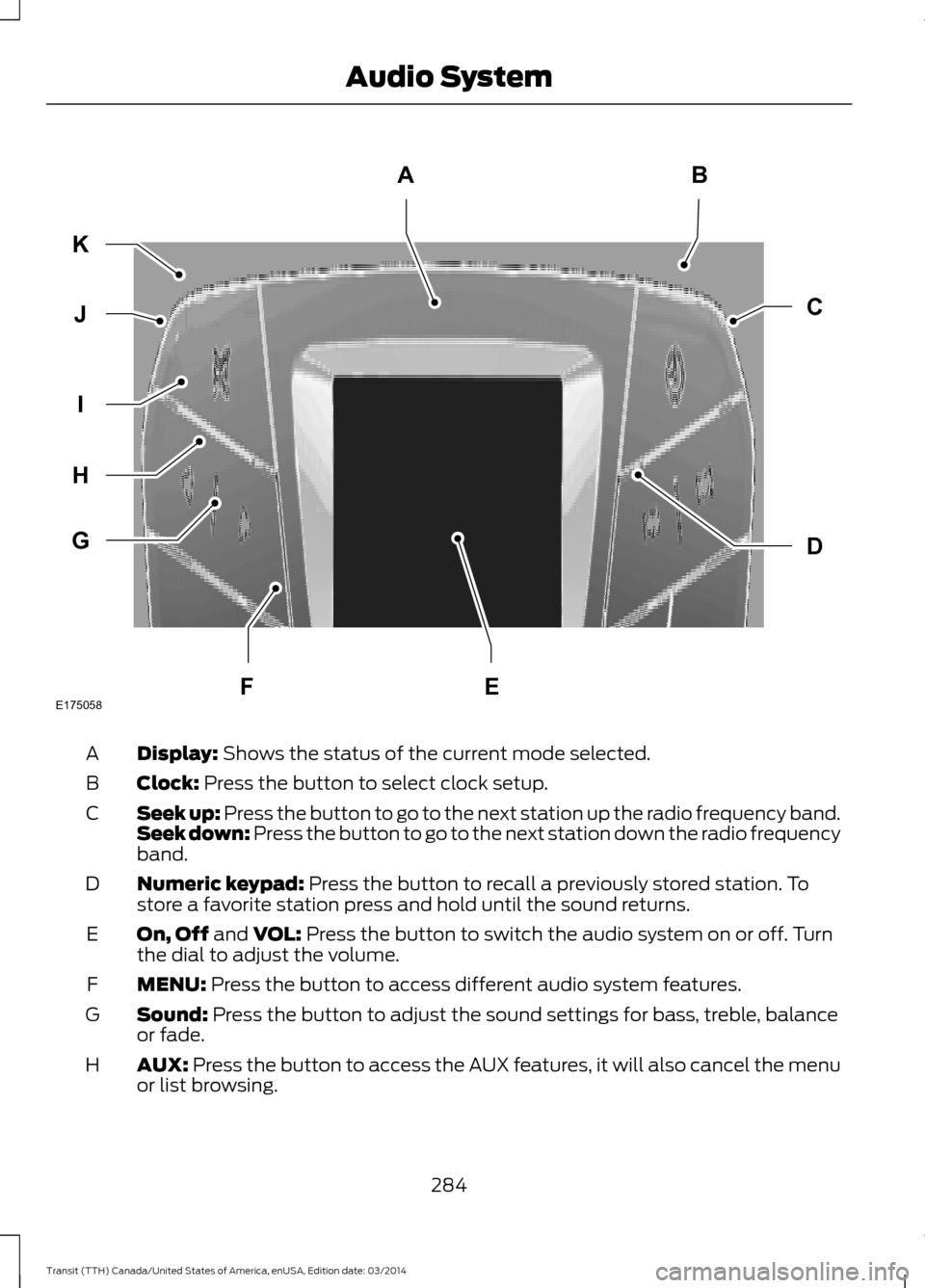
Display: Shows the status of the current mode selected.
A
Clock: Press the button to select clock setup.
B
Seek up: Press the button to go to the next station up the radio frequency band.
S
eek down: Press the button to go to the next station down the radio frequency
band.
C
Numeric keypad:
Press the button to recall a previously stored station. To
store a favorite station press and hold until the sound returns.
D
On, Off and
VOL: Press the button to switch the audio system on or off. Turn
the dial to adjust the volume.
E
MENU:
Press the button to access different audio system features.
F
Sound: Press the button to adjust the sound settings for bass, treble, balance
or fade.
G
AUX:
Press the button to access the AUX features, it will also cancel the menu
or list browsing.
H
284Transit (TTH) Canada/United States of America, enUSA, Edition date: 03/2014 Audio SystemE175058
AB
D
C
G
H
I
J
K
FE
Page 288 of 461
Radio: Press the button to select different radio frequency bands. Press to
cancel the menu or list browsing.
I
Cursor up
or down: Press the cursor up or down arrow buttons to adjust the
settings within the menus or to move to the next radio station while listening
to the radio on the
FM or AM frequency band.
J
Mute:
Press the button to mute the sound.
K
Clock Button
This allows you to adjust the clock settings.
Press the
Clock button until the following message is displayed. Action and Description
Message
Use the cursor up or down arrow buttons to set the correct
hour.
Set Hour
Press the
Clock button again until the following message is displayed.
Use the cursor up or down arrow buttons to set the correct
minutes.
Set Minutes
Setting 24 Hour or 12 Hour Display
Press the
Menu button until the following message is displayed. Action and Description
Message
Use the cursor up or down arrow buttons to select one of the
following:
24 Hour
12 Hour
24 Hour
Note: The default setting is 24 hour.
Station Tuning Buttons
Seek Tuning
Select a frequency band and briefly press
one of the seek buttons. The unit will stop
at the first station it finds in the direction
you have chosen. Manual Tuning
Use the cursor up or down arrow buttons
to tune up or down the frequency band in
small increments. To increment quickly,
press and hold until you find a station you
want to listen to.
285 Transit (TTH) Canada/United States of America, enUSA, Edition date: 03/2014 Audio System
Page 290 of 461
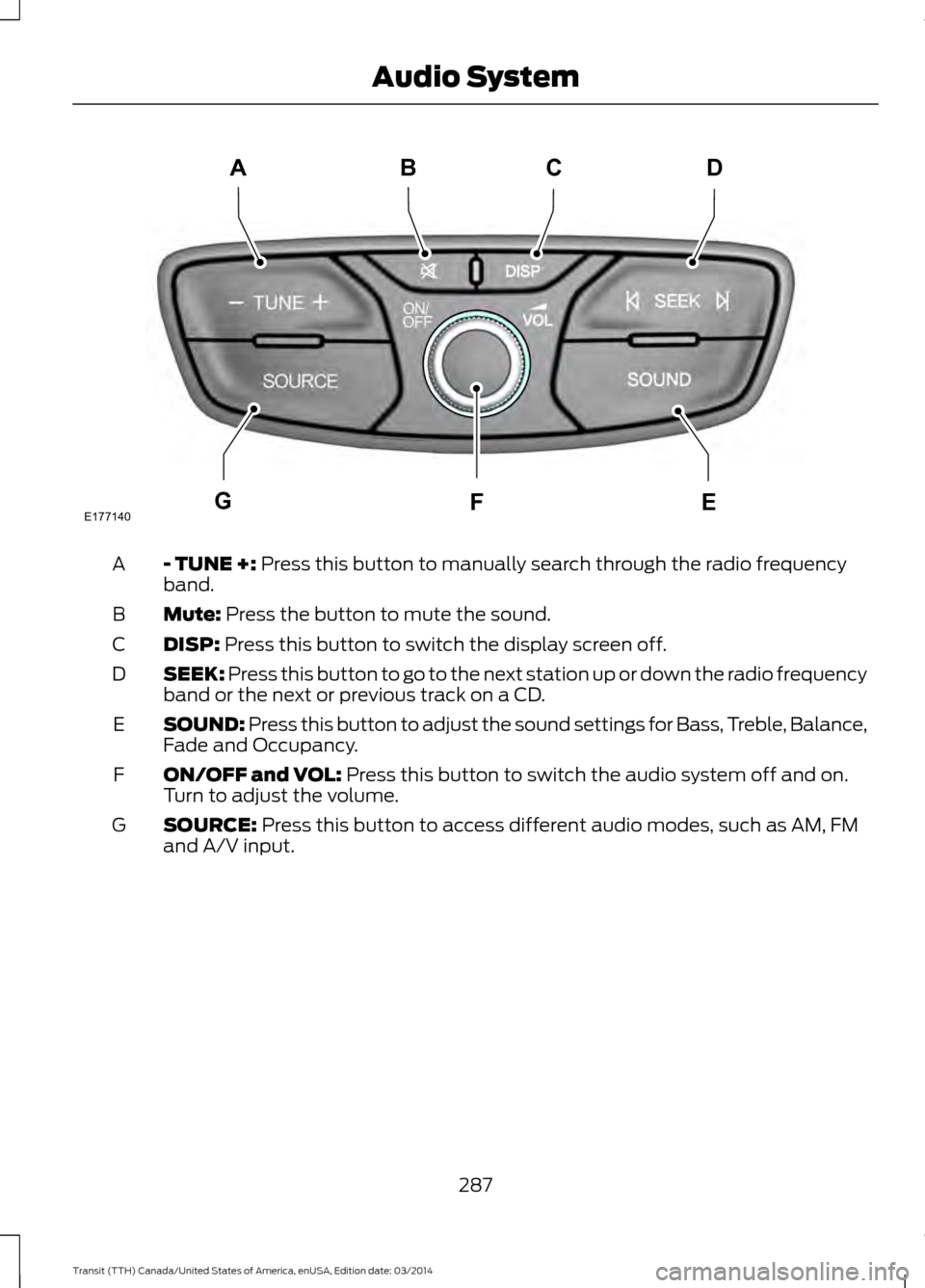
- TUNE +: Press this button to manually search through the radio frequency
band.
A
Mute: Press the button to mute the sound.
B
DISP:
Press this button to switch the display screen off.
C
SEEK: Press this button to go to the next station up or down the radio frequency
band or the next or previous track on a CD.
D
SOUND: Press this button to adjust the sound settings for Bass, Treble, Balance,
Fade and Occupancy.
E
ON/OFF and VOL:
Press this button to switch the audio system off and on.
Turn to adjust the volume.
F
SOURCE:
Press this button to access different audio modes, such as AM, FM
and A/V input.
G
287Transit (TTH) Canada/United States of America, enUSA, Edition date: 03/2014 Audio SystemE177140
CD
GEF
B
A
Page 292 of 461
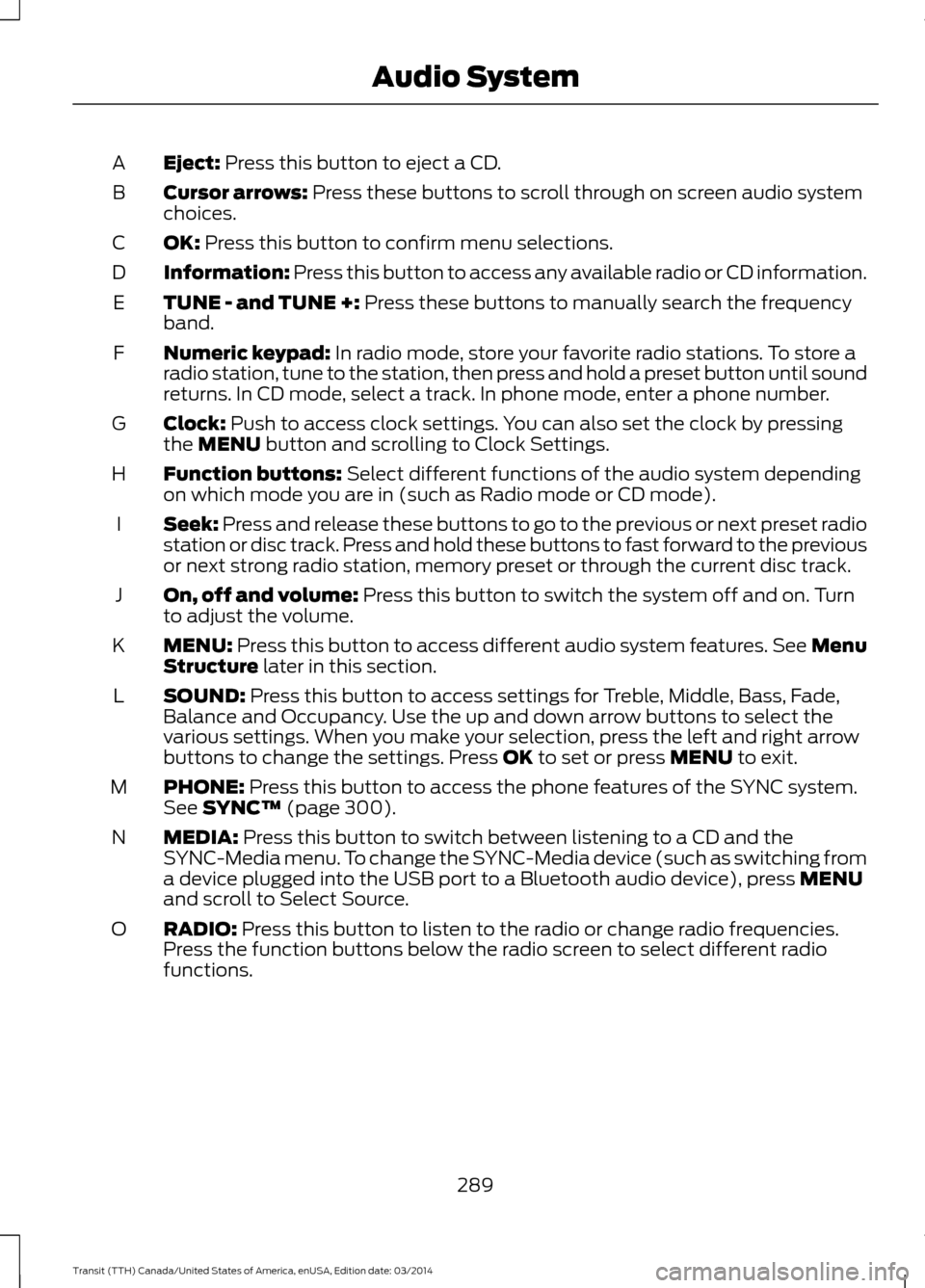
Eject: Press this button to eject a CD.
A
Cursor arrows:
Press these buttons to scroll through on screen audio system
choices.
B
OK: Press this button to confirm menu selections.
C
Information: Press this button to access any available radio or CD information.
D
TUNE - and TUNE +:
Press these buttons to manually search the frequency
band.
E
Numeric keypad:
In radio mode, store your favorite radio stations. To store a
radio station, tune to the station, then press and hold a preset button until sound
returns. In CD mode, select a track. In phone mode, enter a phone number.
F
Clock:
Push to access clock settings. You can also set the clock by pressing
the MENU button and scrolling to Clock Settings.
G
Function buttons: Select different functions of the audio system depending
on which mode you are in (such as Radio mode or CD mode).
H
Seek:
Press and release these buttons to go to the previous or next preset radio
station or disc track. Press and hold these buttons to fast forward to the previous
or next strong radio station, memory preset or through the current disc track.
I
On, off and volume:
Press this button to switch the system off and on. Turn
to adjust the volume.
J
MENU: Press this button to access different audio system features. See Menu
Structure later in this section.
K
SOUND: Press this button to access settings for Treble, Middle, Bass, Fade,
Balance and Occupancy. Use the up and down arrow buttons to select the
various settings. When you make your selection, press the left and right arrow
buttons to change the settings. Press OK
to set or press MENU to exit.
L
PHONE:
Press this button to access the phone features of the SYNC system.
See SYNC™ (page 300).
M
MEDIA:
Press this button to switch between listening to a CD and the
SYNC-Media menu. To change the SYNC-Media device (such as switching from
a device plugged into the USB port to a Bluetooth audio device), press MENU
and scroll to Select Source.
N
RADIO: Press this button to listen to the radio or change radio frequencies.
Press the function buttons below the radio screen to select different radio
functions.
O
289Transit (TTH) Canada/United States of America, enUSA, Edition date: 03/2014 Audio System
Page 293 of 461
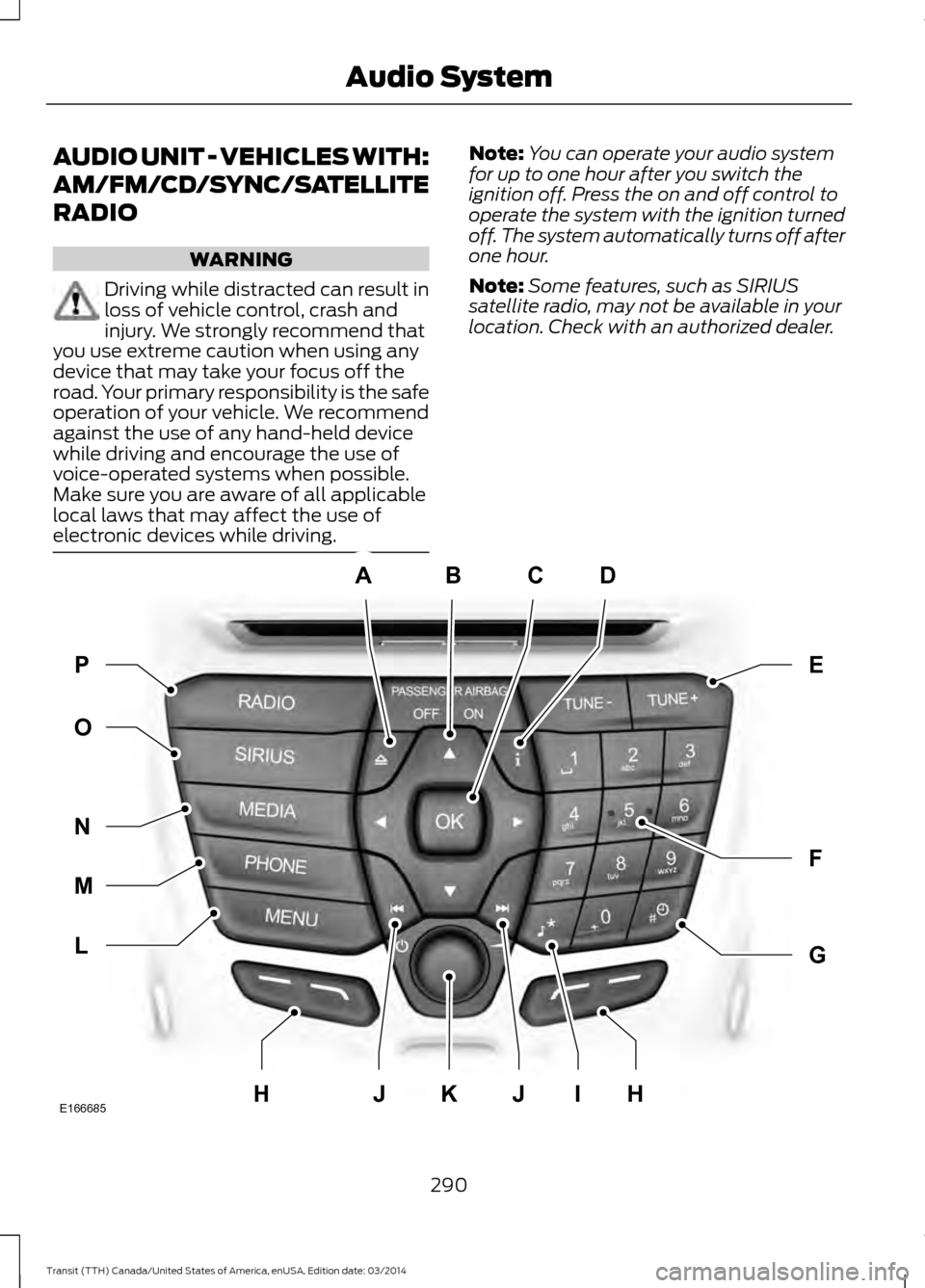
AUDIO UNIT - VEHICLES WITH:
AM/FM/CD/SYNC/SATELLITE
RADIO
WARNING
Driving while distracted can result in
loss of vehicle control, crash and
injury. We strongly recommend that
you use extreme caution when using any
device that may take your focus off the
road. Your primary responsibility is the safe
operation of your vehicle. We recommend
against the use of any hand-held device
while driving and encourage the use of
voice-operated systems when possible.
Make sure you are aware of all applicable
local laws that may affect the use of
electronic devices while driving. Note:
You can operate your audio system
for up to one hour after you switch the
ignition off. Press the on and off control to
operate the system with the ignition turned
off. The system automatically turns off after
one hour.
Note: Some features, such as SIRIUS
satellite radio, may not be available in your
location. Check with an authorized dealer. 290
Transit (TTH) Canada/United States of America, enUSA, Edition date: 03/2014 Audio SystemABCD
F
G
E
L
M
N
O P
JIJKE166685HH
Page 294 of 461
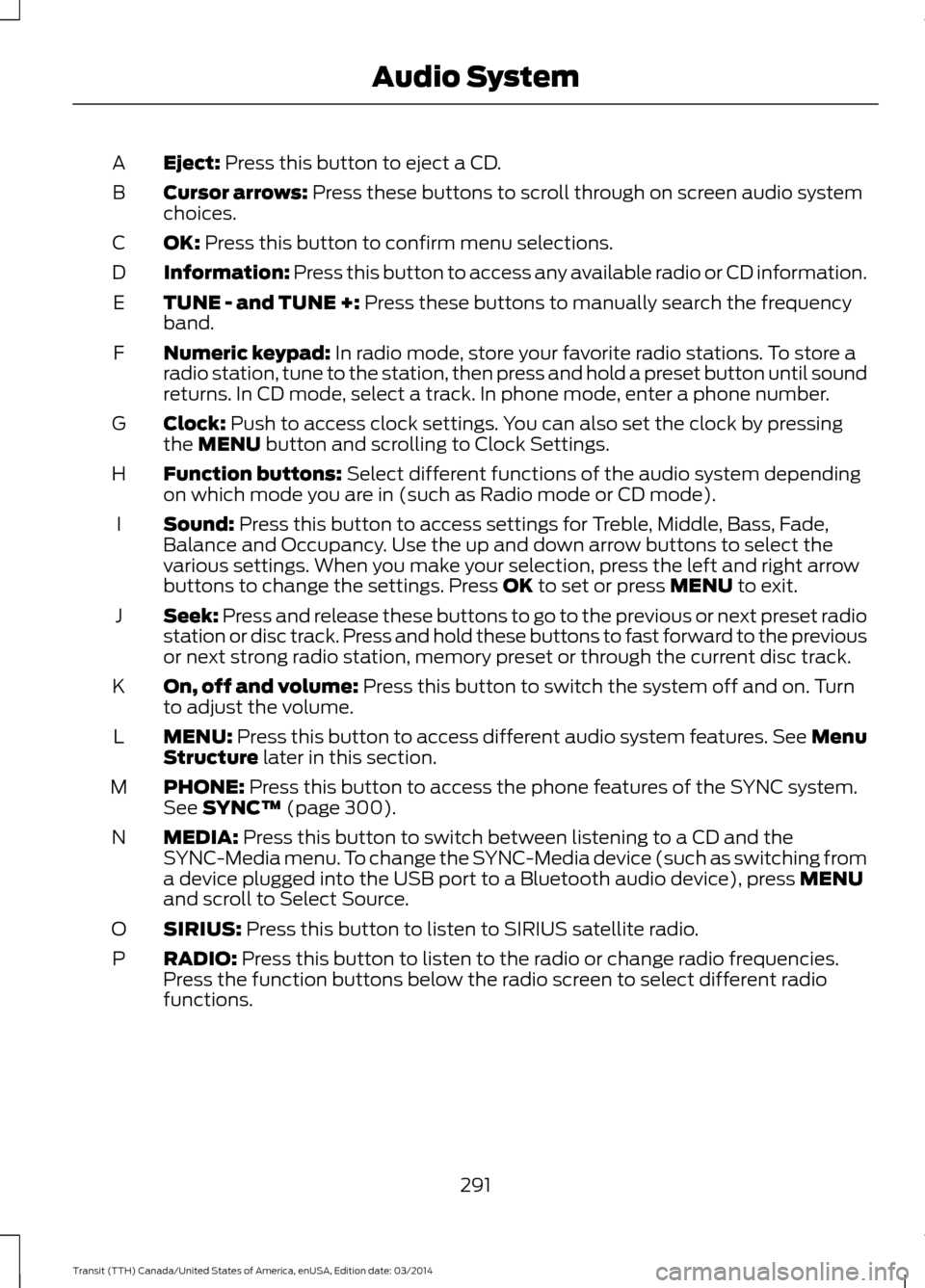
Eject: Press this button to eject a CD.
A
Cursor arrows:
Press these buttons to scroll through on screen audio system
choices.
B
OK: Press this button to confirm menu selections.
C
Information: Press this button to access any available radio or CD information.
D
TUNE - and TUNE +:
Press these buttons to manually search the frequency
band.
E
Numeric keypad:
In radio mode, store your favorite radio stations. To store a
radio station, tune to the station, then press and hold a preset button until sound
returns. In CD mode, select a track. In phone mode, enter a phone number.
F
Clock:
Push to access clock settings. You can also set the clock by pressing
the MENU button and scrolling to Clock Settings.
G
Function buttons: Select different functions of the audio system depending
on which mode you are in (such as Radio mode or CD mode).
H
Sound:
Press this button to access settings for Treble, Middle, Bass, Fade,
Balance and Occupancy. Use the up and down arrow buttons to select the
various settings. When you make your selection, press the left and right arrow
buttons to change the settings. Press
OK to set or press MENU to exit.
I
Seek:
Press and release these buttons to go to the previous or next preset radio
station or disc track. Press and hold these buttons to fast forward to the previous
or next strong radio station, memory preset or through the current disc track.
J
On, off and volume:
Press this button to switch the system off and on. Turn
to adjust the volume.
K
MENU: Press this button to access different audio system features. See Menu
Structure later in this section.
L
PHONE: Press this button to access the phone features of the SYNC system.
See
SYNC™ (page 300).
M
MEDIA: Press this button to switch between listening to a CD and the
SYNC-Media menu. To change the SYNC-Media device (such as switching from
a device plugged into the USB port to a Bluetooth audio device), press
MENU
and scroll to Select Source.
N
SIRIUS:
Press this button to listen to SIRIUS satellite radio.
O
RADIO: Press this button to listen to the radio or change radio frequencies.
Press the function buttons below the radio screen to select different radio
functions.
P
291Transit (TTH) Canada/United States of America, enUSA, Edition date: 03/2014 Audio System
Page 295 of 461
DIGITAL RADIO
Note:
HD Radio broadcasts are not
available in all markets.
HD Radio technology is the digital
evolution of analog AM/FM radio. Your
system has a special receiver that allows
it to receive digital broadcasts (where
available) in addition to the analog
broadcasts, it already receives. Digital
broadcasts provide a better sound quality
than analog broadcasts with free,
crystal-clear audio and no static or
distortion. For more information, and a
guide to available stations and
programming, please visit
www.hdradio.com.
When HD Radio is on and you tune to a
station broadcasting HD Radio technology,
you may notice the HD Radio logo on your
screen. When this logo is available, you
may also see Title and Artist fields
on-screen.
The multicast indicator appears in FM
mode (only) if the current station is
broadcasting multiple digital broadcasts.
The highlighted numbers signify available
digital channels where new or different
content is available. HD1 signifies the main
programming status and is available in
analog and digital broadcasts. Other
multicast stations (HD2 through HD7) are
only available digitally. When HD Radio broadcasts are active, you
can access the following functions:
When HD Radio broadcasts are active, you
can access the following functions:
•
Scan allows you to hear a brief
sampling of all available stations. This
feature still works when HD Radio
reception is on, although it does not
scan for HD2-HD7 channels. You may
see the HD logo appear if the station
has a digital broadcast.
• Memory presets allow you to save an
active channel as a memory preset.
Touch and hold a memory preset slot
until the sound returns. There is a brief
mute while the radio saves the station.
Sound returns when finished. When
switching to an HD2 or HD3 memory
preset, the sound mutes before the
digital audio plays, because the system
has to reacquire the digital signal.
Note: As with any saved radio station, you
cannot access the saved station if your
vehicle is outside the station ’s reception
area.
292 Transit (TTH) Canada/United States of America, enUSA, Edition date: 03/2014 Audio System
Page 296 of 461
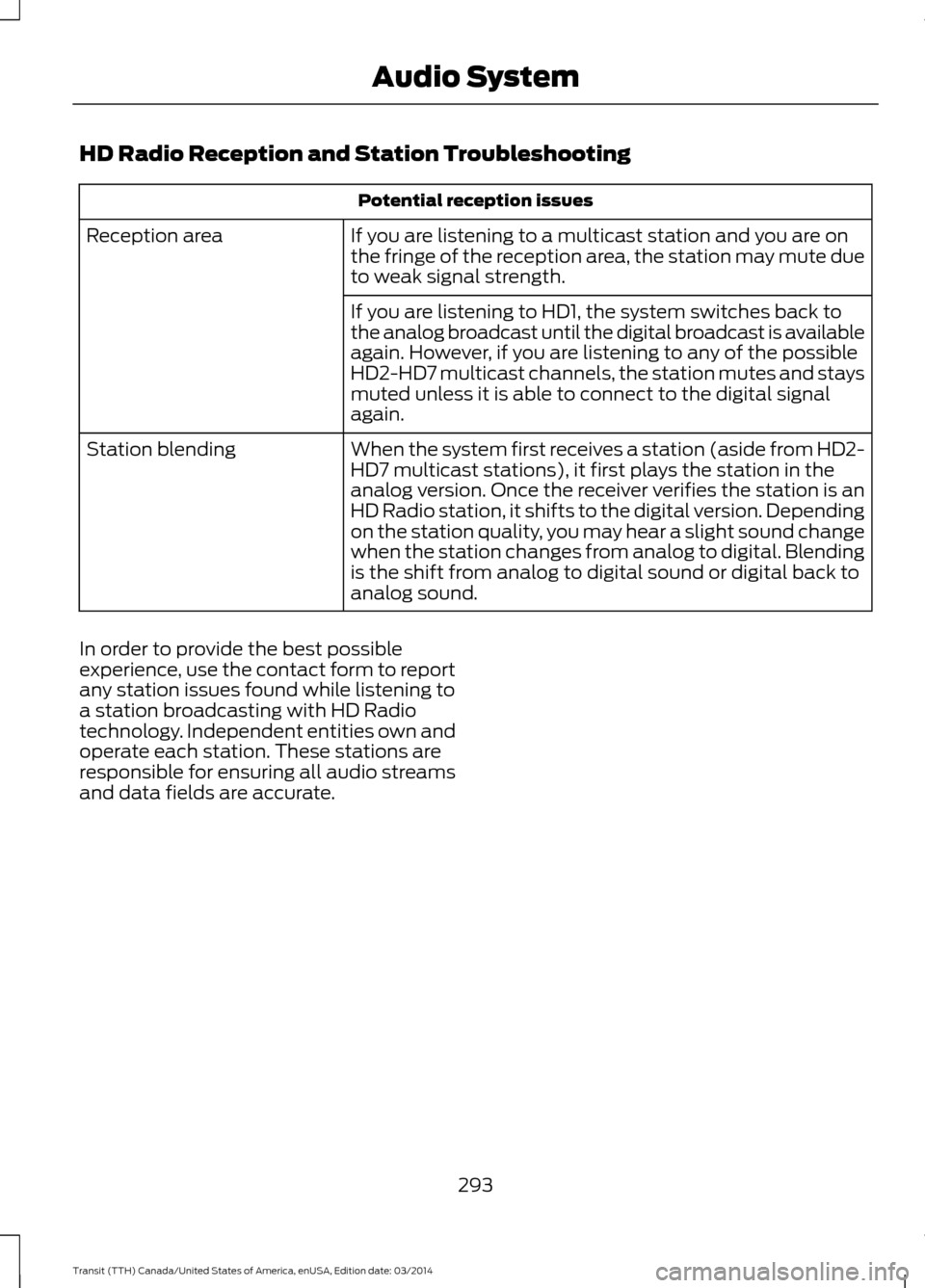
HD Radio Reception and Station Troubleshooting
Potential reception issues
If you are listening to a multicast station and you are on
the fringe of the reception area, the station may mute due
to weak signal strength.
Reception area
If you are listening to HD1, the system switches back to
the analog broadcast until the digital broadcast is available
again. However, if you are listening to any of the possible
HD2-HD7 multicast channels, the station mutes and stays
muted unless it is able to connect to the digital signal
again.
When the system first receives a station (aside from HD2-
HD7 multicast stations), it first plays the station in the
analog version. Once the receiver verifies the station is an
HD Radio station, it shifts to the digital version. Depending
on the station quality, you may hear a slight sound change
when the station changes from analog to digital. Blending
is the shift from analog to digital sound or digital back to
analog sound.
Station blending
In order to provide the best possible
experience, use the contact form to report
any station issues found while listening to
a station broadcasting with HD Radio
technology. Independent entities own and
operate each station. These stations are
responsible for ensuring all audio streams
and data fields are accurate.
293Transit (TTH) Canada/United States of America, enUSA, Edition date: 03/2014 Audio System
Page 297 of 461
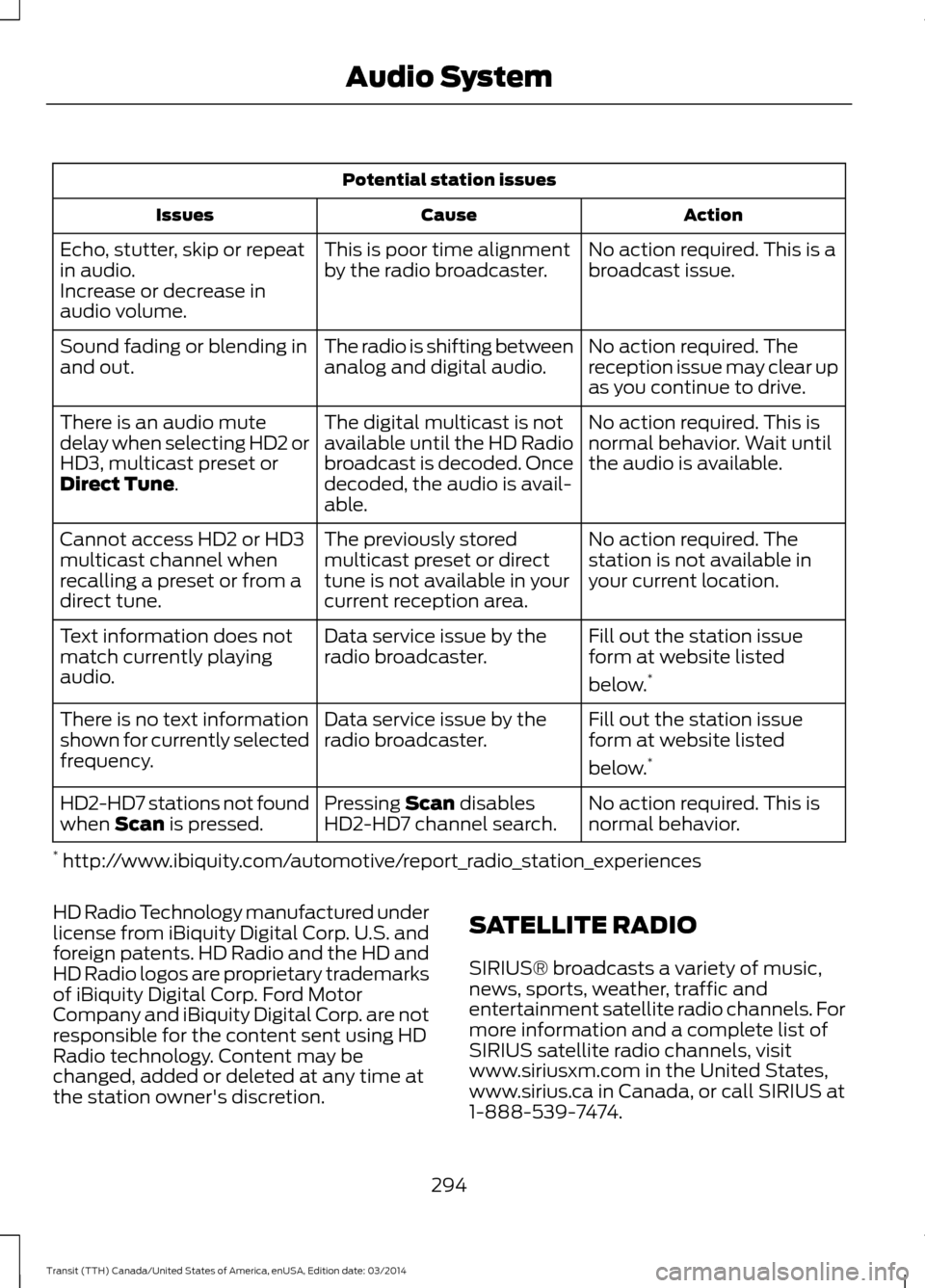
Potential station issues
Action
Cause
Issues
No action required. This is a
broadcast issue.
This is poor time alignment
by the radio broadcaster.
Echo, stutter, skip or repeat
in audio.
Increase or decrease in
audio volume.
No action required. The
reception issue may clear up
as you continue to drive.
The radio is shifting between
analog and digital audio.
Sound fading or blending in
and out.
No action required. This is
normal behavior. Wait until
the audio is available.
The digital multicast is not
available until the HD Radio
broadcast is decoded. Once
decoded, the audio is avail-
able.
There is an audio mute
delay when selecting HD2 or
HD3, multicast preset or
Direct Tune.
No action required. The
station is not available in
your current location.
The previously stored
multicast preset or direct
tune is not available in your
current reception area.
Cannot access HD2 or HD3
multicast channel when
recalling a preset or from a
direct tune.
Fill out the station issue
form at website listed
below.*
Data service issue by the
radio broadcaster.
Text information does not
match currently playing
audio.
Fill out the station issue
form at website listed
below.*
Data service issue by the
radio broadcaster.
There is no text information
shown for currently selected
frequency.
No action required. This is
normal behavior.
Pressing
Scan disables
HD2-HD7 channel search.
HD2-HD7 stations not found
when Scan is pressed.
* http://www.ibiquity.com/automotive/report_radio_station_experiences
HD Radio Technology manufactured under
license from iBiquity Digital Corp. U.S. and
foreign patents. HD Radio and the HD and
HD Radio logos are proprietary trademarks
of iBiquity Digital Corp. Ford Motor
Company and iBiquity Digital Corp. are not
responsible for the content sent using HD
Radio technology. Content may be
changed, added or deleted at any time at
the station owner's discretion. SATELLITE RADIO
SIRIUS® broadcasts a variety of music,
news, sports, weather, traffic and
entertainment satellite radio channels. For
more information and a complete list of
SIRIUS satellite radio channels, visit
www.siriusxm.com in the United States,
www.sirius.ca in Canada, or call SIRIUS at
1-888-539-7474.
294 Transit (TTH) Canada/United States of America, enUSA, Edition date: 03/2014 Audio System