change time FORD TRANSIT 2015 5.G Owner's Manual
[x] Cancel search | Manufacturer: FORD, Model Year: 2015, Model line: TRANSIT, Model: FORD TRANSIT 2015 5.GPages: 461, PDF Size: 5.82 MB
Page 306 of 461
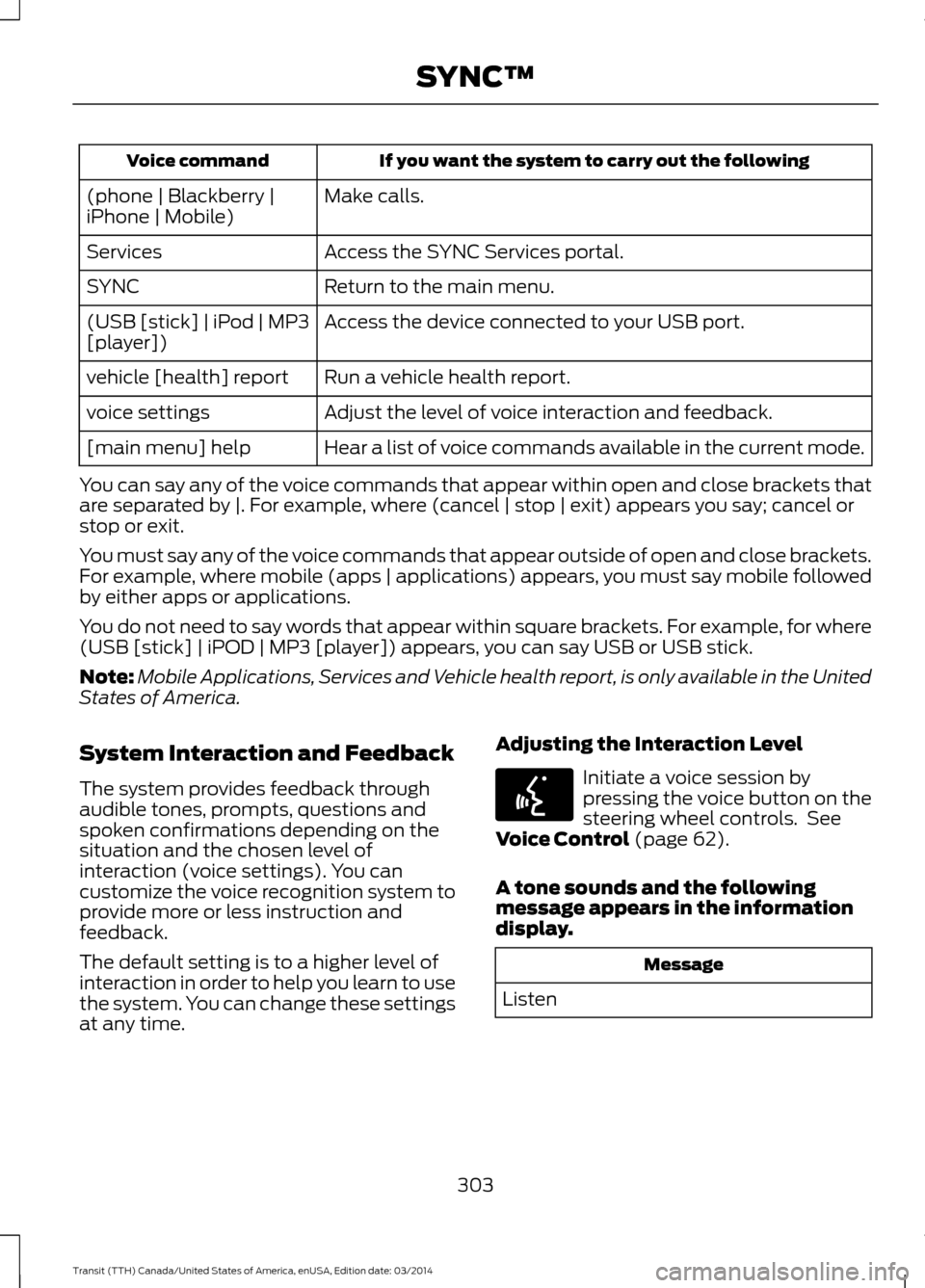
If you want the system to carry out the following
Voice command
Make calls.
(phone | Blackberry |
iPhone | Mobile)
Access the SYNC Services portal.
Services
Return to the main menu.
SYNC
Access the device connected to your USB port.
(USB [stick] | iPod | MP3
[player])
Run a vehicle health report.
vehicle [health] report
Adjust the level of voice interaction and feedback.
voice settings
Hear a list of voice commands available in the current mode.
[main menu] help
You can say any of the voice commands that appear within open and close brackets that
are separated by |. For example, where (cancel | stop | exit) appears you say; cancel or
stop or exit.
You must say any of the voice commands that appear outside of open and close brackets.
For example, where mobile (apps | applications) appears, you must say mobile followed
by either apps or applications.
You do not need to say words that appear within square brackets. For example, for where
(USB [stick] | iPOD | MP3 [player]) appears, you can say USB or USB stick.
Note: Mobile Applications, Services and Vehicle health report, is only available in the United
States of America.
System Interaction and Feedback
The system provides feedback through
audible tones, prompts, questions and
spoken confirmations depending on the
situation and the chosen level of
interaction (voice settings). You can
customize the voice recognition system to
provide more or less instruction and
feedback.
The default setting is to a higher level of
interaction in order to help you learn to use
the system. You can change these settings
at any time. Adjusting the Interaction Level Initiate a voice session by
pressing the voice button on the
steering wheel controls. See
Voice Control (page 62).
A tone sounds and the following
message appears in the information
display. Message
Listen
303 Transit (TTH) Canada/United States of America, enUSA, Edition date: 03/2014 SYNC™E142599
Page 320 of 461
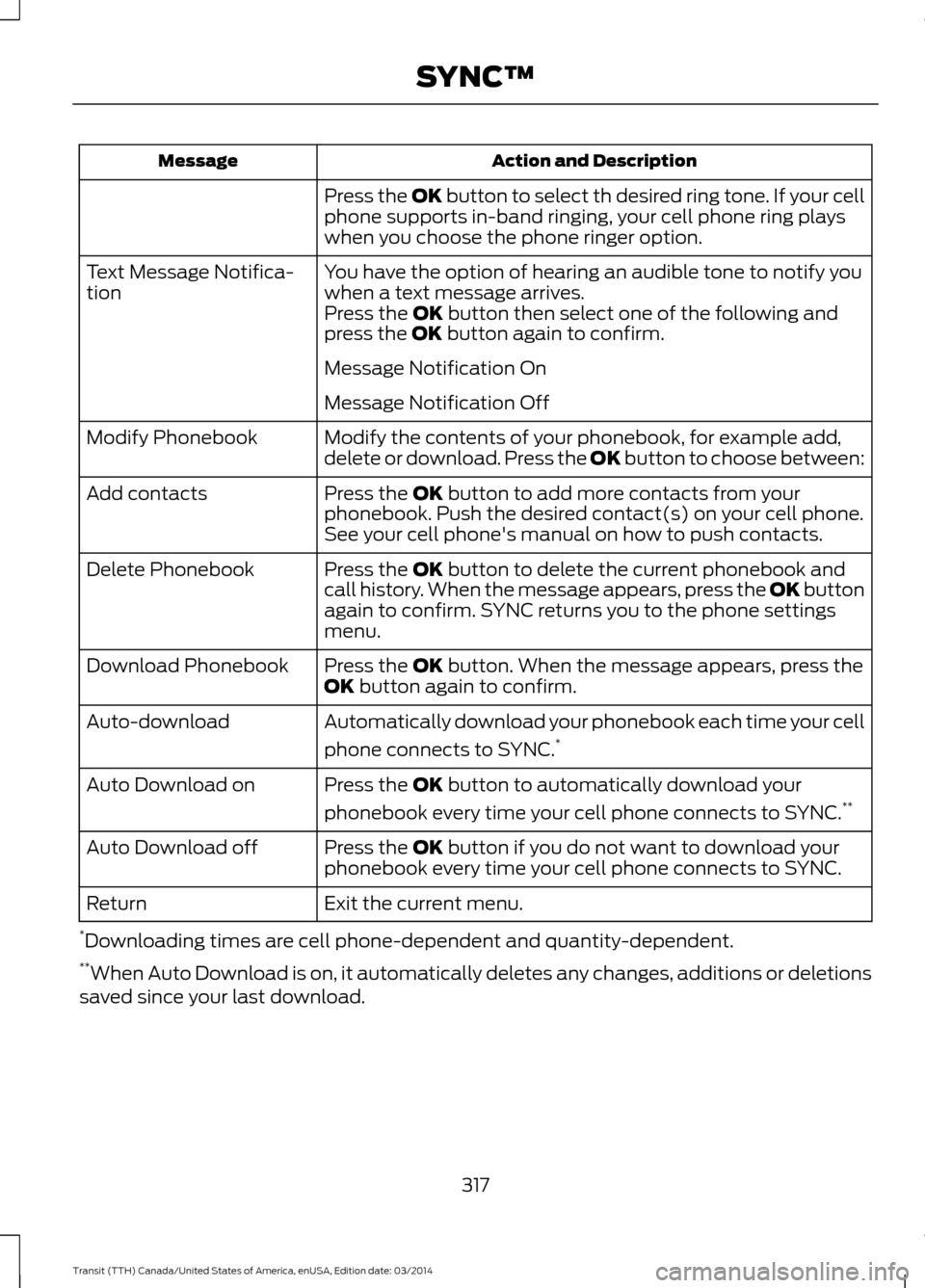
Action and Description
Message
Press the OK button to select th desired ring tone. If your cell
phone supports in-band ringing, your cell phone ring plays
when you choose the phone ringer option.
You have the option of hearing an audible tone to notify you
when a text message arrives.
Text Message Notifica-
tion
Press the
OK button then select one of the following and
press the OK button again to confirm.
Message Notification On
Message Notification Off
Modify the contents of your phonebook, for example add,
delete or download. Press the OK button to choose between:
Modify Phonebook
Press the
OK button to add more contacts from your
phonebook. Push the desired contact(s) on your cell phone.
See your cell phone's manual on how to push contacts.
Add contacts
Press the
OK button to delete the current phonebook and
call history. When the message appears, press the OK button
again to confirm. SYNC returns you to the phone settings
menu.
Delete Phonebook
Press the
OK button. When the message appears, press the
OK button again to confirm.
Download Phonebook
Automatically download your phonebook each time your cell
phone connects to SYNC.*
Auto-download
Press the
OK button to automatically download your
phonebook every time your cell phone connects to SYNC. **
Auto Download on
Press the
OK button if you do not want to download your
phonebook every time your cell phone connects to SYNC.
Auto Download off
Exit the current menu.
Return
* Downloading times are cell phone-dependent and quantity-dependent.
** When Auto Download is on, it automatically deletes any changes, additions or deletions
saved since your last download.
317Transit (TTH) Canada/United States of America, enUSA, Edition date: 03/2014 SYNC™
Page 322 of 461
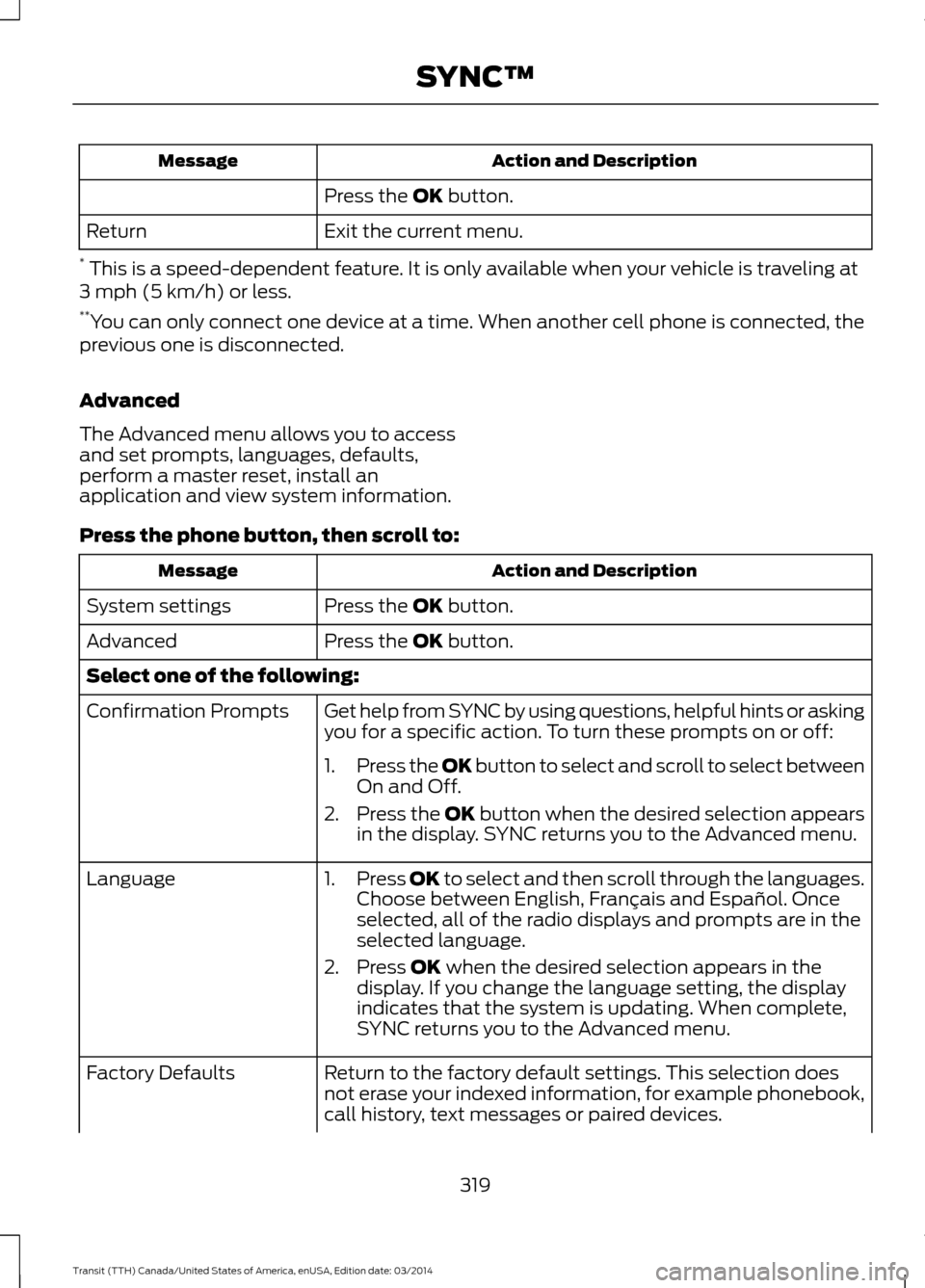
Action and Description
Message
Press the OK button.
Exit the current menu.
Return
* This is a speed-dependent feature. It is only available when your vehicle is traveling at
3 mph (5 km/h) or less.
** You can only connect one device at a time. When another cell phone is connected, the
previous one is disconnected.
Advanced
The Advanced menu allows you to access
and set prompts, languages, defaults,
perform a master reset, install an
application and view system information.
Press the phone button, then scroll to: Action and Description
Message
Press the
OK button.
System settings
Press the
OK button.
Advanced
Select one of the following:
Get help from SYNC by using questions, helpful hints or asking
you for a specific action. To turn these prompts on or off:
Confirmation Prompts
1.Press the
OK button to select and scroll to select between
On and Off.
2. Press the
OK button when the desired selection appears
in the display. SYNC returns you to the Advanced menu.
1. Press
OK to select and then scroll through the languages.
Choose between English, Français and Español. Once
selected, all of the radio displays and prompts are in the
selected language.
2. Press
OK when the desired selection appears in the
display. If you change the language setting, the display
indicates that the system is updating. When complete,
SYNC returns you to the Advanced menu.
Language
Return to the factory default settings. This selection does
not erase your indexed information, for example phonebook,
call history, text messages or paired devices.
Factory Defaults
319Transit (TTH) Canada/United States of America, enUSA, Edition date: 03/2014 SYNC™
Page 323 of 461
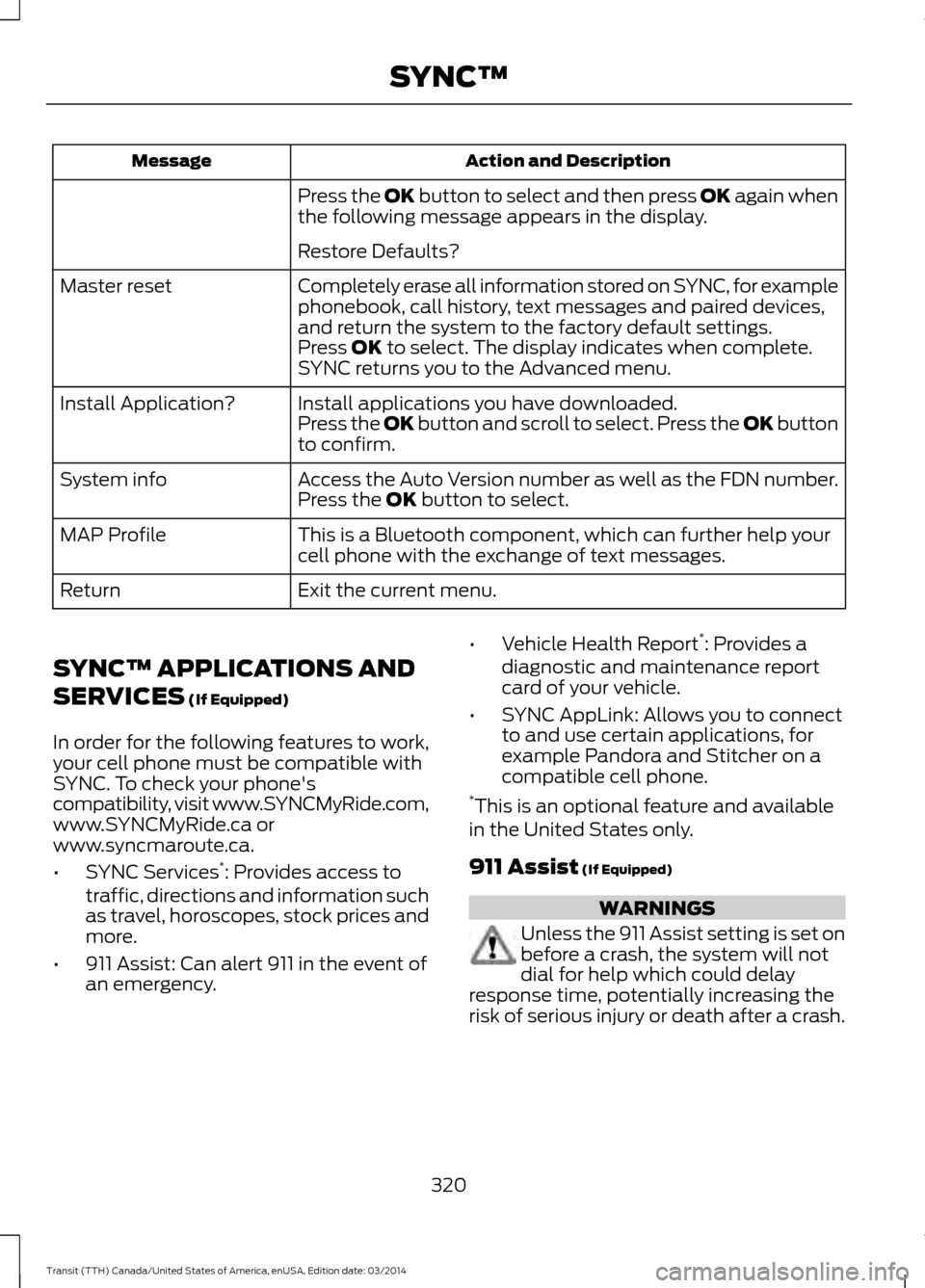
Action and Description
Message
Press the OK button to select and then press OK again when
the following message appears in the display.
Restore Defaults?
Completely erase all information stored on SYNC, for example
phonebook, call history, text messages and paired devices,
and return the system to the factory default settings.
Master reset
Press OK to select. The display indicates when complete.
SYNC returns you to the Advanced menu.
Install applications you have downloaded.
Install Application?
Press the
OK button and scroll to select. Press the OK button
to confirm.
Access the Auto Version number as well as the FDN number.
System info
Press the
OK button to select.
This is a Bluetooth component, which can further help your
cell phone with the exchange of text messages.
MAP Profile
Exit the current menu.
Return
SYNC™ APPLICATIONS AND
SERVICES
(If Equipped)
In order for the following features to work,
your cell phone must be compatible with
SYNC. To check your phone's
compatibility, visit www.SYNCMyRide.com,
www.SYNCMyRide.ca or
www.syncmaroute.ca.
• SYNC Services *
: Provides access to
traffic, directions and information such
as travel, horoscopes, stock prices and
more.
• 911 Assist: Can alert 911 in the event of
an emergency. •
Vehicle Health Report *
: Provides a
diagnostic and maintenance report
card of your vehicle.
• SYNC AppLink: Allows you to connect
to and use certain applications, for
example Pandora and Stitcher on a
compatible cell phone.
* This is an optional feature and available
in the United States only.
911 Assist
(If Equipped) WARNINGS
Unless the 911 Assist setting is set on
before a crash, the system will not
dial for help which could delay
response time, potentially increasing the
risk of serious injury or death after a crash.
320 Transit (TTH) Canada/United States of America, enUSA, Edition date: 03/2014 SYNC™
Page 327 of 461
![FORD TRANSIT 2015 5.G Owners Manual Press the phone button, then scroll to:
Action and Description
Message
Press the OK button.
vehicle [health] report
Select one of the following:
Press the
OK button to and select on or off.
Report In](/img/11/5392/w960_5392-326.png "FORD TRANSIT 2015 5.G Owners Manual Press the phone button, then scroll to:
Action and Description
Message
Press the OK button.
vehicle [health] report
Select one of the following:
Press the
OK button to and select on or off.
Report In")
Press the phone button, then scroll to:
Action and Description
Message
Press the OK button.
vehicle [health] report
Select one of the following:
Press the
OK button to and select on or off.
Report Interval
Select On to have SYNC automatically prompt you to run a
health report at certain mileage intervals. *
Scroll to select between 5000, 7500 or 10000-mile intervals.
Select your desire option and press the
OK button.
Mileage Interval
Press the
OK button for SYNC to run a health report of your
vehicle's diagnostic systems and send the results to Ford
where it combines with scheduled maintenance information,
open recalls, other field service actions and vehicle inspection
items that still need servicing by an authorized dealer.
Run Report
Exit the current menu.
Return
* You must first turn this feature on before you can select the desired mileage interval.
Vehicle Health Report Privacy Notice
When you create a Vehicle Health Report,
Ford Motor Company may collect your
cellular phone number (to process your
report request) and diagnostic information
about your vehicle. Certain versions or
updates to Vehicle Health Report may also
collect more vehicle information. Ford may
use your vehicle information it collects for
any purpose. If you do not want to disclose
your cellular phone number or vehicle
information, do not run the feature or set
up your Vehicle Health Report profile at
www.SYNCMyRide.com. See
www.SYNCMyRide.com (Vehicle Health
Report Terms and Conditions, and Privacy
Statement) for more information. SYNC Services: Traffic, Directions
& Information (TDI) (If Equipped,
United States Only)
Note:
SYNC Services varies by trim level
and model year and may require a
subscription. Traffic alerts and turn-by-turn
directions available in select markets.
Message and data rates may apply. Ford
Motor Company reserves the right to change
or discontinue this product service at any
time without prior notification or incurring
any future obligation.
324 Transit (TTH) Canada/United States of America, enUSA, Edition date: 03/2014 SYNC™
Page 333 of 461
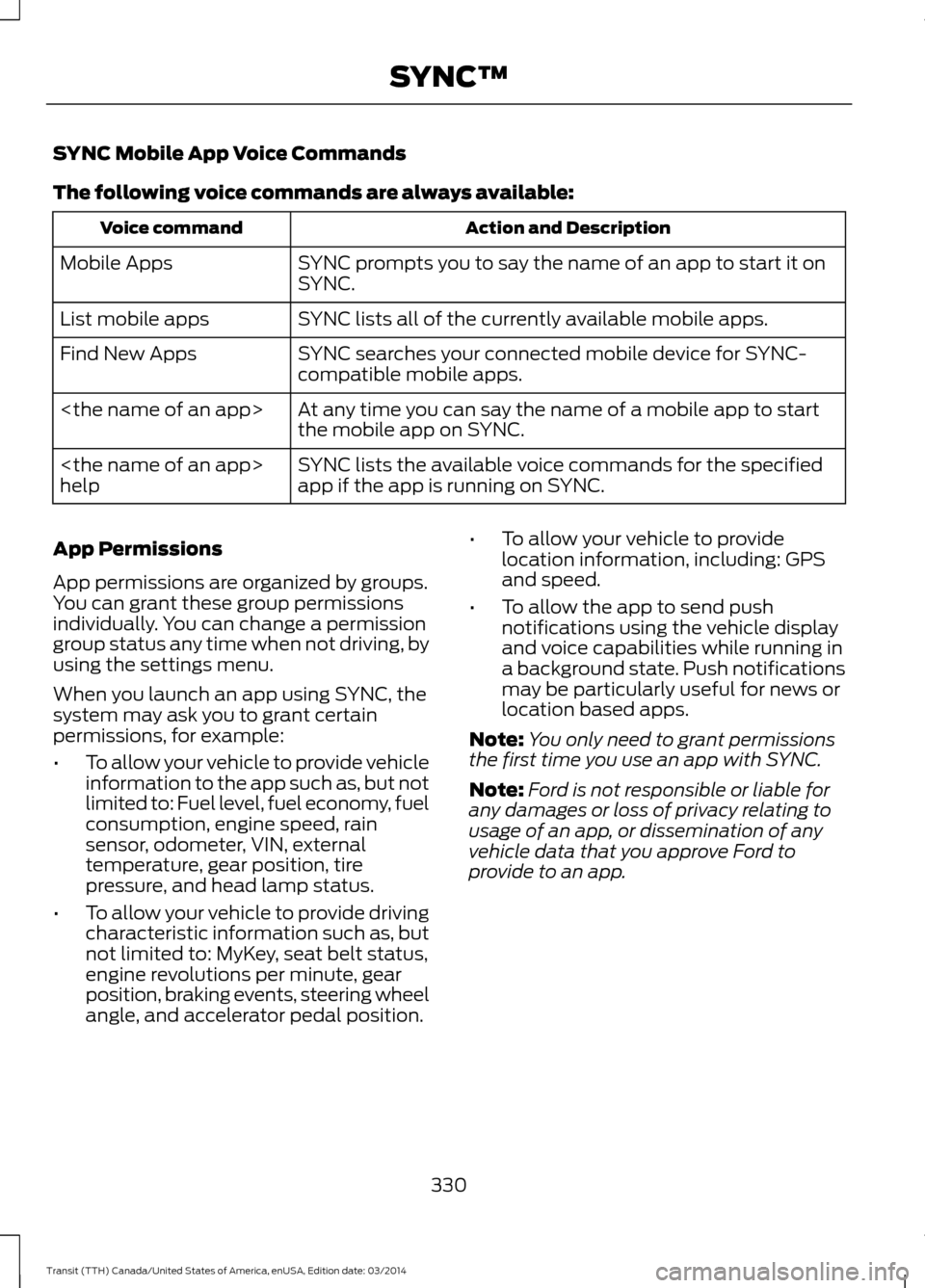
SYNC Mobile App Voice Commands
The following voice commands are always available:
Action and Description
Voice command
SYNC prompts you to say the name of an app to start it on
SYNC.
Mobile Apps
SYNC lists all of the currently available mobile apps.
List mobile apps
SYNC searches your connected mobile device for SYNC-
compatible mobile apps.
Find New Apps
At any time you can say the name of a mobile app to start
the mobile app on SYNC.
SYNC lists the available voice commands for the specified
app if the app is running on SYNC.
help
App Permissions
App permissions are organized by groups.
You can grant these group permissions
individually. You can change a permission
group status any time when not driving, by
using the settings menu.
When you launch an app using SYNC, the
system may ask you to grant certain
permissions, for example:
• To allow your vehicle to provide vehicle
information to the app such as, but not
limited to: Fuel level, fuel economy, fuel
consumption, engine speed, rain
sensor, odometer, VIN, external
temperature, gear position, tire
pressure, and head lamp status.
• To allow your vehicle to provide driving
characteristic information such as, but
not limited to: MyKey, seat belt status,
engine revolutions per minute, gear
position, braking events, steering wheel
angle, and accelerator pedal position. •
To allow your vehicle to provide
location information, including: GPS
and speed.
• To allow the app to send push
notifications using the vehicle display
and voice capabilities while running in
a background state. Push notifications
may be particularly useful for news or
location based apps.
Note: You only need to grant permissions
the first time you use an app with SYNC.
Note: Ford is not responsible or liable for
any damages or loss of privacy relating to
usage of an app, or dissemination of any
vehicle data that you approve Ford to
provide to an app.
330 Transit (TTH) Canada/United States of America, enUSA, Edition date: 03/2014 SYNC™
Page 355 of 461
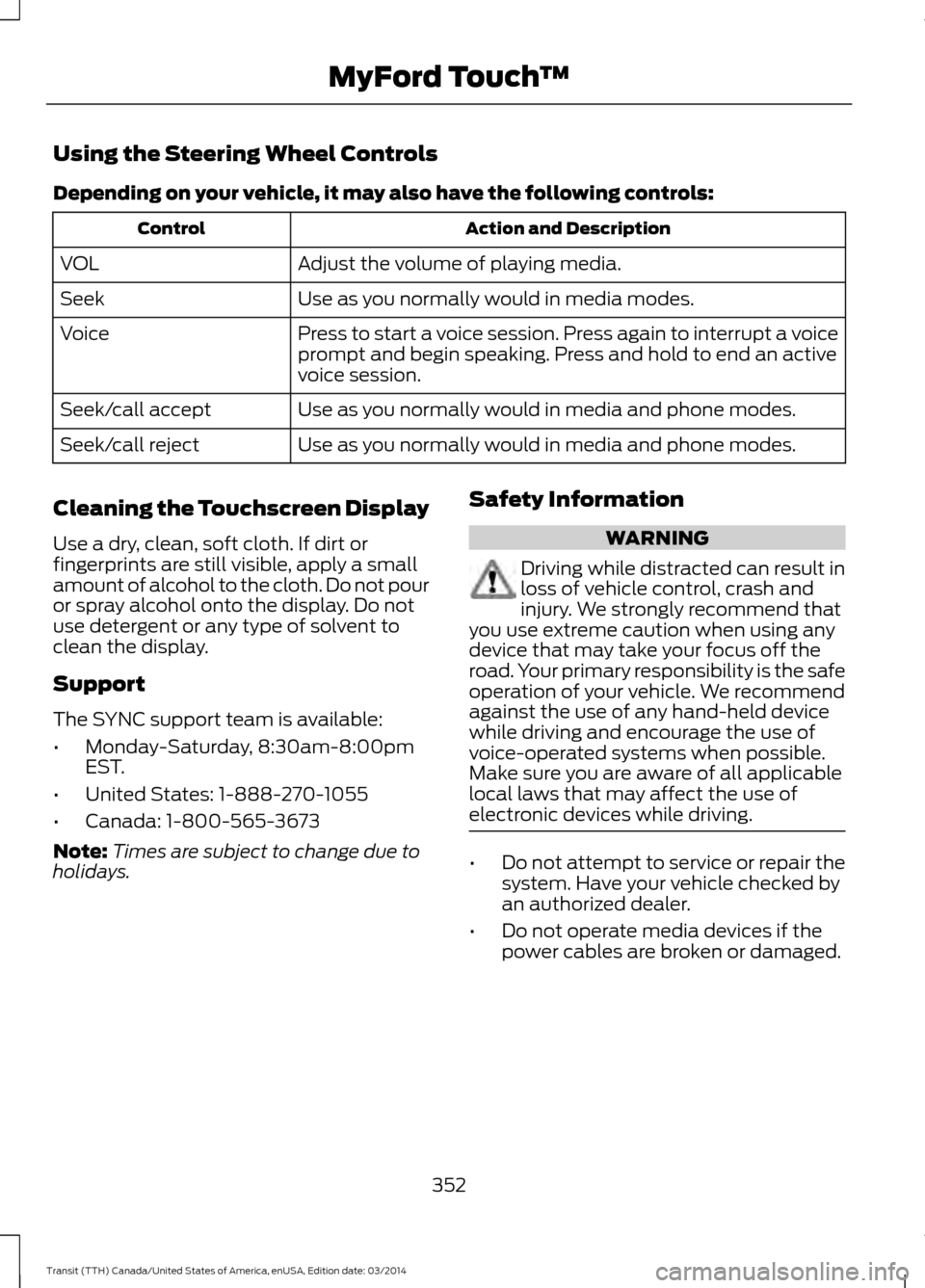
Using the Steering Wheel Controls
Depending on your vehicle, it may also have the following controls:
Action and Description
Control
Adjust the volume of playing media.
VOL
Use as you normally would in media modes.
Seek
Press to start a voice session. Press again to interrupt a voice
prompt and begin speaking. Press and hold to end an active
voice session.
Voice
Use as you normally would in media and phone modes.
Seek/call accept
Use as you normally would in media and phone modes.
Seek/call reject
Cleaning the Touchscreen Display
Use a dry, clean, soft cloth. If dirt or
fingerprints are still visible, apply a small
amount of alcohol to the cloth. Do not pour
or spray alcohol onto the display. Do not
use detergent or any type of solvent to
clean the display.
Support
The SYNC support team is available:
• Monday-Saturday, 8:30am-8:00pm
EST.
• United States: 1-888-270-1055
• Canada: 1-800-565-3673
Note: Times are subject to change due to
holidays. Safety Information WARNING
Driving while distracted can result in
loss of vehicle control, crash and
injury. We strongly recommend that
you use extreme caution when using any
device that may take your focus off the
road. Your primary responsibility is the safe
operation of your vehicle. We recommend
against the use of any hand-held device
while driving and encourage the use of
voice-operated systems when possible.
Make sure you are aware of all applicable
local laws that may affect the use of
electronic devices while driving. •
Do not attempt to service or repair the
system. Have your vehicle checked by
an authorized dealer.
• Do not operate media devices if the
power cables are broken or damaged.
352 Transit (TTH) Canada/United States of America, enUSA, Edition date: 03/2014 MyFord Touch
™
Page 378 of 461
HD Radio Technology manufactured under
license from iBiquity Digital Corp. U.S. and
foreign patents. HD Radio and the HD and
HD Radio logos are proprietary trademarks
of iBiquity Digital Corp. Ford Motor
Company and iBiquity Digital Corp. are not
responsible for the content sent using HD
Radio technology. Content may be
changed, added or deleted at any time at
the station owner's discretion.
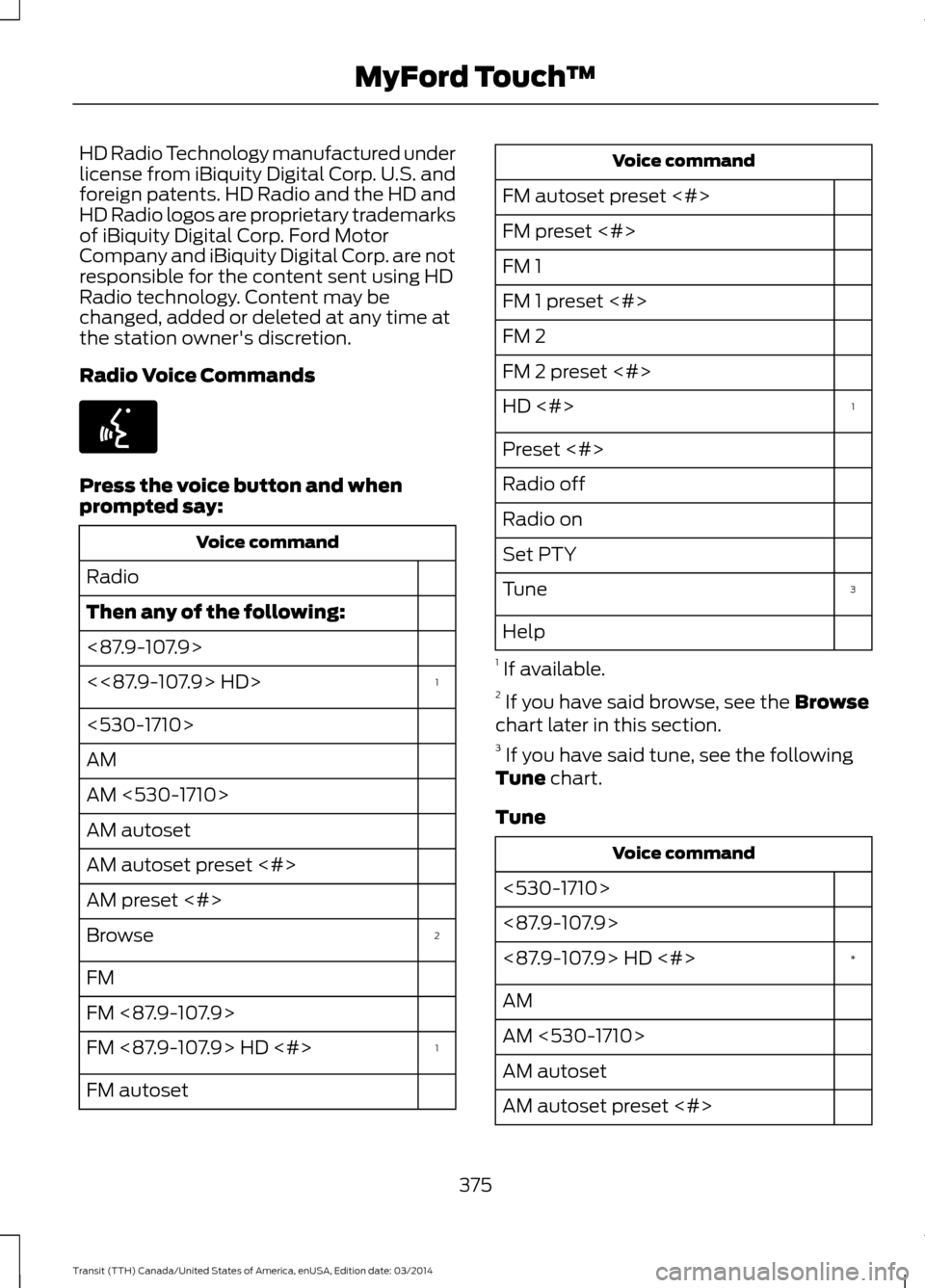
Radio Voice Commands
Press the voice button and when
prompted say:
Voice command
Radio
Then any of the following:
<87.9-107.9> 1
<<87.9-107.9> HD>
<530-1710>
AM
AM <530-1710>
AM autoset
AM autoset preset <#>
AM preset <#>
2
Browse
FM
FM <87.9-107.9>
1
FM <87.9-107.9> HD <#>
FM autoset Voice command
FM autoset preset <#>
FM preset <#>
FM 1
FM 1 preset <#>
FM 2
FM 2 preset <#> 1
HD <#>
Preset <#>
Radio off
Radio on
Set PTY
3
Tune
Help
1 If available.
2 If you have said browse, see the Browse
chart later in this section.
3 If you have said tune, see the following
Tune
chart.
Tune Voice command
<530-1710>
<87.9-107.9> *
<87.9-107.9> HD <#>
AM
AM <530-1710>
AM autoset
AM autoset preset <#>
375 Transit (TTH) Canada/United States of America, enUSA, Edition date: 03/2014 MyFord Touch
™E142599
Page 381 of 461
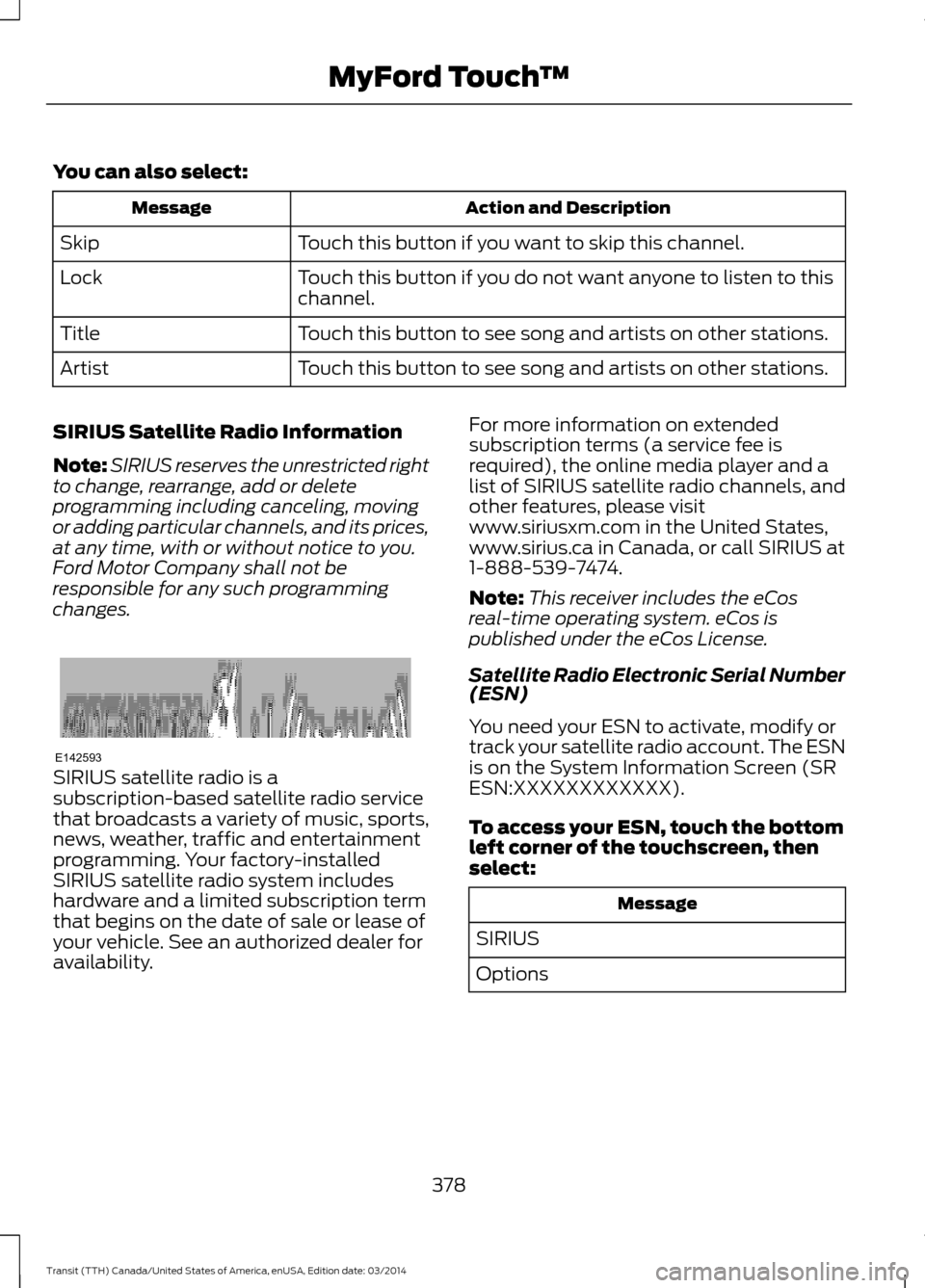
You can also select:
Action and Description
Message
Touch this button if you want to skip this channel.
Skip
Touch this button if you do not want anyone to listen to this
channel.
Lock
Touch this button to see song and artists on other stations.
Title
Touch this button to see song and artists on other stations.
Artist
SIRIUS Satellite Radio Information
Note: SIRIUS reserves the unrestricted right
to change, rearrange, add or delete
programming including canceling, moving
or adding particular channels, and its prices,
at any time, with or without notice to you.
Ford Motor Company shall not be
responsible for any such programming
changes. SIRIUS satellite radio is a
subscription-based satellite radio service
that broadcasts a variety of music, sports,
news, weather, traffic and entertainment
programming. Your factory-installed
SIRIUS satellite radio system includes
hardware and a limited subscription term
that begins on the date of sale or lease of
your vehicle. See an authorized dealer for
availability. For more information on extended
subscription terms (a service fee is
required), the online media player and a
list of SIRIUS satellite radio channels, and
other features, please visit
www.siriusxm.com in the United States,
www.sirius.ca in Canada, or call SIRIUS at
1-888-539-7474.
Note:
This receiver includes the eCos
real-time operating system. eCos is
published under the eCos License.
Satellite Radio Electronic Serial Number
(ESN)
You need your ESN to activate, modify or
track your satellite radio account. The ESN
is on the System Information Screen (SR
ESN:XXXXXXXXXXXX).
To access your ESN, touch the bottom
left corner of the touchscreen, then
select: Message
SIRIUS
Options
378 Transit (TTH) Canada/United States of America, enUSA, Edition date: 03/2014 MyFord Touch
™E142593
Page 386 of 461
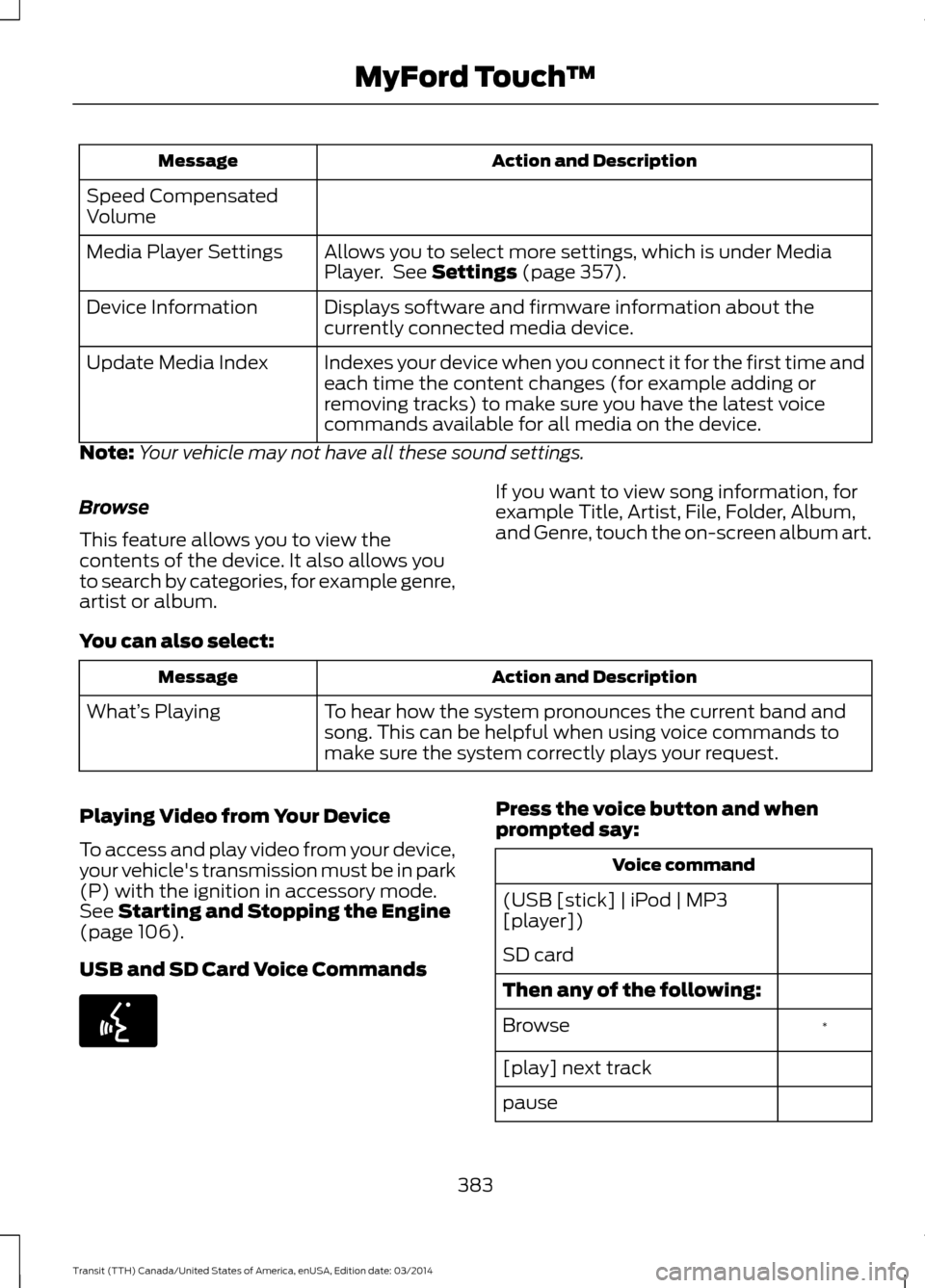
Action and Description
Message
Speed Compensated
Volume Allows you to select more settings, which is under Media
Player. See Settings (page 357).
Media Player Settings
Displays software and firmware information about the
currently connected media device.
Device Information
Indexes your device when you connect it for the first time and
each time the content changes (for example adding or
removing tracks) to make sure you have the latest voice
commands available for all media on the device.
Update Media Index
Note: Your vehicle may not have all these sound settings.
Browse
This feature allows you to view the
contents of the device. It also allows you
to search by categories, for example genre,
artist or album. If you want to view song information, for
example Title, Artist, File, Folder, Album,
and Genre, touch the on-screen album art.
You can also select: Action and Description
Message
To hear how the system pronounces the current band and
song. This can be helpful when using voice commands to
make sure the system correctly plays your request.
What’
s Playing
Playing Video from Your Device
To access and play video from your device,
your vehicle's transmission must be in park
(P) with the ignition in accessory mode.
See
Starting and Stopping the Engine
(page 106).
USB and SD Card Voice Commands Press the voice button and when
prompted say:
Voice command
(USB [stick] | iPod | MP3
[player])
SD card
Then any of the following: *
Browse
[play] next track
pause
383 Transit (TTH) Canada/United States of America, enUSA, Edition date: 03/2014 MyFord Touch
™E142599