phone FORD TRANSIT 2015 5.G Manual PDF
[x] Cancel search | Manufacturer: FORD, Model Year: 2015, Model line: TRANSIT, Model: FORD TRANSIT 2015 5.GPages: 461, PDF Size: 5.82 MB
Page 388 of 461
Voice command
All songs *
All TV shows
*
All video playlists
*
All video podcasts
*
All videos
Artist
Audiobook
Author
Composer
Folder
Genre
Playlist
Podcast
*
TV show
*
Video
*
Video playlist
*
Video podcast
Help
* This command is only available in USB
mode and is device-dependent.
Supported Media Players, Formats
and Metadata Information
SYNC is capable of hosting nearly any
digital media player, including iPod,
Zune ™, plays from device players, and
most USB drives. Supported audio formats
include MP3, WMA, WAV and AAC. It is also able to organize your indexed
media from your playing device by
metadata tags. Metadata tags, which are
descriptive software identifiers embedded
in the media files, provide information
about the file.
If your indexed media files contain no
information embedded in these metadata
tags, SYNC may classify the empty
metadata tags as unknown.
In order to playback video from your iPod
or iPhone, you must have a special
combination USB/RCA composite video
cable (which you can buy from Apple).
When you connect the cable to your iPod
or iPhone, plug the other end into both the
RCA jacks and the USB port.
Bluetooth Audio
The system allows you to stream audio
over your vehicle's speakers from your
connected, Bluetooth-enabled cell phone.
To access, press the lower left corner
on the touchscreen, then select:
Message
BT Stereo
Bluetooth Audio Voice Commands 385
Transit (TTH) Canada/United States of America, enUSA, Edition date: 03/2014 MyFord Touch
™E142611 E142599
Page 389 of 461
![FORD TRANSIT 2015 5.G Manual PDF Press the voice button and when
prompted say:
Voice command
Next song
play
pause
[play] previous track
A/V Inputs WARNINGS
Driving while distracted can result in
loss of vehicle control, crash and
inj](/img/11/5392/w960_5392-388.png "FORD TRANSIT 2015 5.G Manual PDF Press the voice button and when
prompted say:
Voice command
Next song
play
pause
[play] previous track
A/V Inputs WARNINGS
Driving while distracted can result in
loss of vehicle control, crash and
inj")
Press the voice button and when
prompted say:
Voice command
Next song
play
pause
[play] previous track
A/V Inputs WARNINGS
Driving while distracted can result in
loss of vehicle control, crash and
injury. We strongly recommend that
you use extreme caution when using any
device that may take your focus off the
road. Your primary responsibility is the safe
operation of your vehicle. We recommend
against the use of any handheld device
while driving and encourage the use of
voice-operated systems when possible.
Make sure you are aware of all applicable
local laws that may affect the use of
electronic devices while driving. For safety reasons, do not connect
or adjust the settings on your
portable music player while your
vehicle is moving. Store the portable music player in a
secure location, for example the
center console or the glove box,
when your vehicle is moving. Hard objects
may become projectiles in a crash or
sudden stop, which may increase the risk
of serious injury. The audio extension cable
must be long enough to allow the portable
music player to be safely stored while your
vehicle is moving. The A/V inputs allow you to connect an
auxiliary audio/video source (for example
gaming systems or a personal camcorder)
by connecting RCA cords (not included)
to these input jacks. The jacks are yellow,
red and white and are located either
behind a small access door on the
instrument panel or in your center console.
You can also use the A/V inputs as an
auxiliary input jack to play music from your
portable music player over your vehicle's
speakers. Plug in your 1/8 inch (3.5
millimeter) RCA adapter into the two left
A/V input jacks (red and white).
Press the lower left corner of the
touchscreen, and then select A/V In.
To use the auxiliary input jack feature,
make sure that your portable music player
is designed for use with headphones and
that it is fully charged. You also need an
audio extension cable with stereo male
1/8-inch (3.5 millimeter) connectors at one
end and a RCA jack at the other.
1. Switch off the engine, radio and portable music player. Set the parking
brake and put the transmission in park
(P).
2. Attach one end of the audio extension
cable to the headphone output of your
player and the other end into the
adapter in one of the two left A/V input
jacks (white or red) inside the center
console.
386 Transit (TTH) Canada/United States of America, enUSA, Edition date: 03/2014 MyFord Touch
™E142622
Page 390 of 461
3. Press the lower left corner on the
touchscreen. Select a tuned FM station.
4. Adjust the volume as desired.
5. Turn the portable music player on and adjust the volume to ½ the maximum.
6. Press the lower left corner on the touchscreen. Select the A/V In tab.
(You should hear audio from your
portable music player although it may
be low.)
7. Adjust the sound on your portable music player until it reaches the level
of the FM station by switching back and
forth between the controls.
In order to playback video from your iPod
or iPhone, you must have a special
combination USB/RCA composite video
cable (which you can buy from Apple).
When you connect the cable to your iPod
or iPhone, plug the other end into both the
RCA jacks and the USB port. Troubleshooting
•
Do not connect the audio input jack to
a line level output. The jack only works
correctly with devices that have a
headphone output with a volume
control.
• Do not set the portable music player's
volume level higher than is necessary
to match the volume of the FM radio
as this causes distortion and reduces
sound quality.
• If the music sounds distorted at lower
listening levels, turn the portable music
player volume down. If the problem
persists, replace or recharge the
batteries in the portable media player.
• Control the portable media player in
the same manner when used with
headphones, as the auxiliary input jack
does not provide control (for example
Play or Pause) over the attached
portable media player.
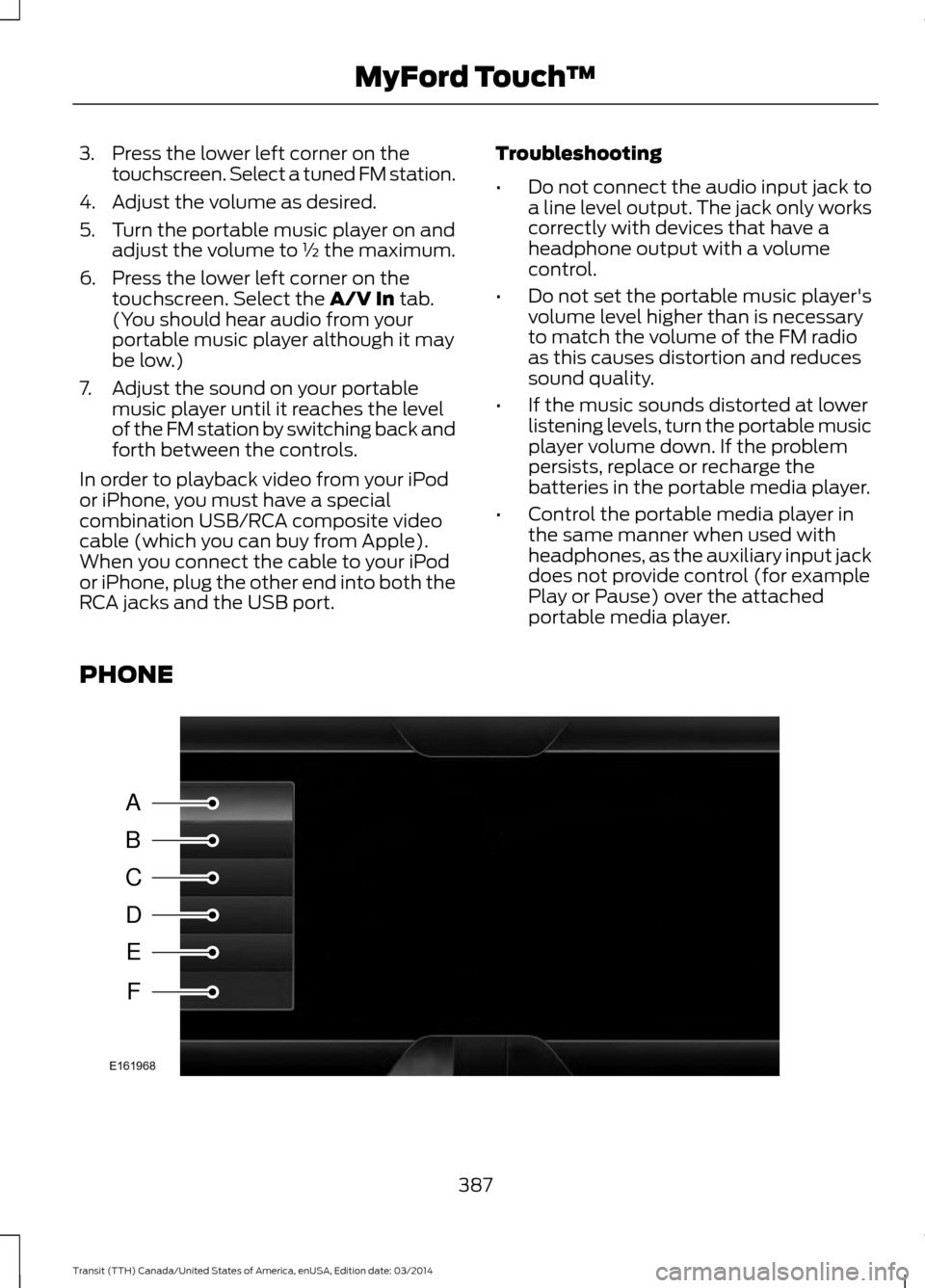
PHONE 387
Transit (TTH) Canada/United States of America, enUSA, Edition date: 03/2014 MyFord Touch
™A
B
C
D
E
F
E161968
Page 391 of 461
Message
Item
Phone
A
Quick Dial
B
Phonebook
C
History
D
Messaging
E
Settings
F
Hands-free calling is one of the main
features of SYNC®. Once you pair your cell
phone, you can access many options using
the touchscreen or voice commands. While
the system supports a variety of features,
many are dependent on your cell phone ’s
functionality.
At a minimum, most cell phones with
Bluetooth wireless technology support the
following functions:
• Answering an incoming call.
• Ending a call.
• Using privacy mode.
• Dialing a number.
• Redialing.
• Call waiting notification.
• Caller ID. Other features, such as text messaging
using Bluetooth and automatic phonebook
download, are cell phone-dependent
features. To check your cell phone
’s
compatibility, see your cell phone ’s user
manual and visit www.SYNCMyRide.com,
www.SYNCMyRide.ca or
www.syncmaroute.ca.
Pairing Your Cell Phone for the
First Time WARNING
Driving while distracted can result in
loss of vehicle control, crash and
injury. We strongly recommend that
you use extreme caution when using any
device that may take your focus off the
road. Your primary responsibility is the safe
operation of your vehicle. We recommend
against the use of any handheld device
while driving and encourage the use of
voice-operated systems when possible.
Make sure you are aware of all applicable
local laws that may affect the use of
electronic devices while driving. The first thing you must do to use the
phone features of SYNC is to pair your
Bluetooth-enabled cell phone with SYNC.
This allows you to use your cell phone in a
hands-free manner.
Note:
Put the transmission in position P.
Turn on your vehicle ignition and the radio.
Touch the upper left corner of the touchscreen: Action and Description
Message
Add phone Follow the on-screen instructions.
Find SYNC
Make sure that Bluetooth is set to On and that your cell phone
is in the c
orrect mode. See your cell phone ’s manual if
necessary.
Select
SYNC and a six-digit PIN appears on your device.
388 Transit (TTH) Canada/United States of America, enUSA, Edition date: 03/2014 MyFord Touch
™
Page 392 of 461
Action and Description
Message
If you are prompted to enter a PIN on your device, it does not
support Secure Simple Pairing. To pair, enter the PIN
displayed on the touchscreen. Skip the next step.
When prompted on your cell phone ’s display, confirm that
the PIN provided by SYNC matches the PIN displayed on your
cell phone.
The display indicates when the pairing is successful.
SYNC may prompt you with more cell phone options. For
more information on your cell phone's capability, see your
cell phone's manual and visit the website.
Pairing Subsequent Cell Phones
Note: Move the gearshift lever to park (P).
Switch your vehicle ignition and the radio
on. Make sure that Bluetooth is set to
On and
that your cell phone is in the correct mode.
See your device's manual if necessary.
To pair a subsequent cell phone, select: Action and Description
Message
Phone
Settings
BT Devices Select
SYNC and a six-digit PIN appears on your device.
Add Device
If you are prompted to enter a PIN on your device, it does not
support Secure Simple Pairing. To pair, enter the PIN
displayed on the touchscreen. Skip the next step.
When prompted on your cell phone ’s display, confirm that
the PIN provided by SYNC matches the PIN displayed on your
cell phone.
The display indicates when the pairing is successful.
SYNC may prompt you with more cell phone options. For
more information on your cell phone's capability, see your
cell phone's manual and visit the website.
Making Calls 389
Transit (TTH) Canada/United States of America, enUSA, Edition date: 03/2014 MyFord Touch
™E142599
Page 393 of 461
![FORD TRANSIT 2015 5.G Manual PDF Press the voice button and when
prompted say:
Voice command
Call <name>
dial [[a] number] To end the call or exit phone
mode, press and hold the phone
button.
Receiving Calls
During an incoming call,](/img/11/5392/w960_5392-392.png "FORD TRANSIT 2015 5.G Manual PDF Press the voice button and when
prompted say:
Voice command
Call <name>
dial [[a] number] To end the call or exit phone
mode, press and hold the phone
button.
Receiving Calls
During an incoming call,")
Press the voice button and when
prompted say:
Voice command
Call
dial [[a] number] To end the call or exit phone
mode, press and hold the phone
button.
Receiving Calls
During an incoming call, an audible tone
sounds. Call information appears in the
display if it is available. To accept the call, select:
Message
Accept
Note: You can also accept the call by
pressing the phone button on the steering
wheel. To reject the call, select:
Message
Reject
Note: You can also reject the call by
pressing the phone button on the steering
wheel.
Ignore the call by doing nothing. SYNC logs
it as a missed call. Phone Menu Options
Press the top left corner on the
touchscreen to select from the following
options:
Phone
Touch this button to access the
on-screen numerical pad to enter a
number and place a call. During an
active call, you can also choose to:
Message
Mute the call
Put the call on hold
Turn on the privacy feature
Join two calls
End the call
Quick Dial
Select and call contacts stored in your
phonebook contacts and call history folder.
Phonebook
Touch this button to access and call any
contacts in your previously downloaded
phonebook. The system places the entries
in alphabetical categories summarized at
the top of the screen.
390 Transit (TTH) Canada/United States of America, enUSA, Edition date: 03/2014 MyFord Touch
™
Page 394 of 461
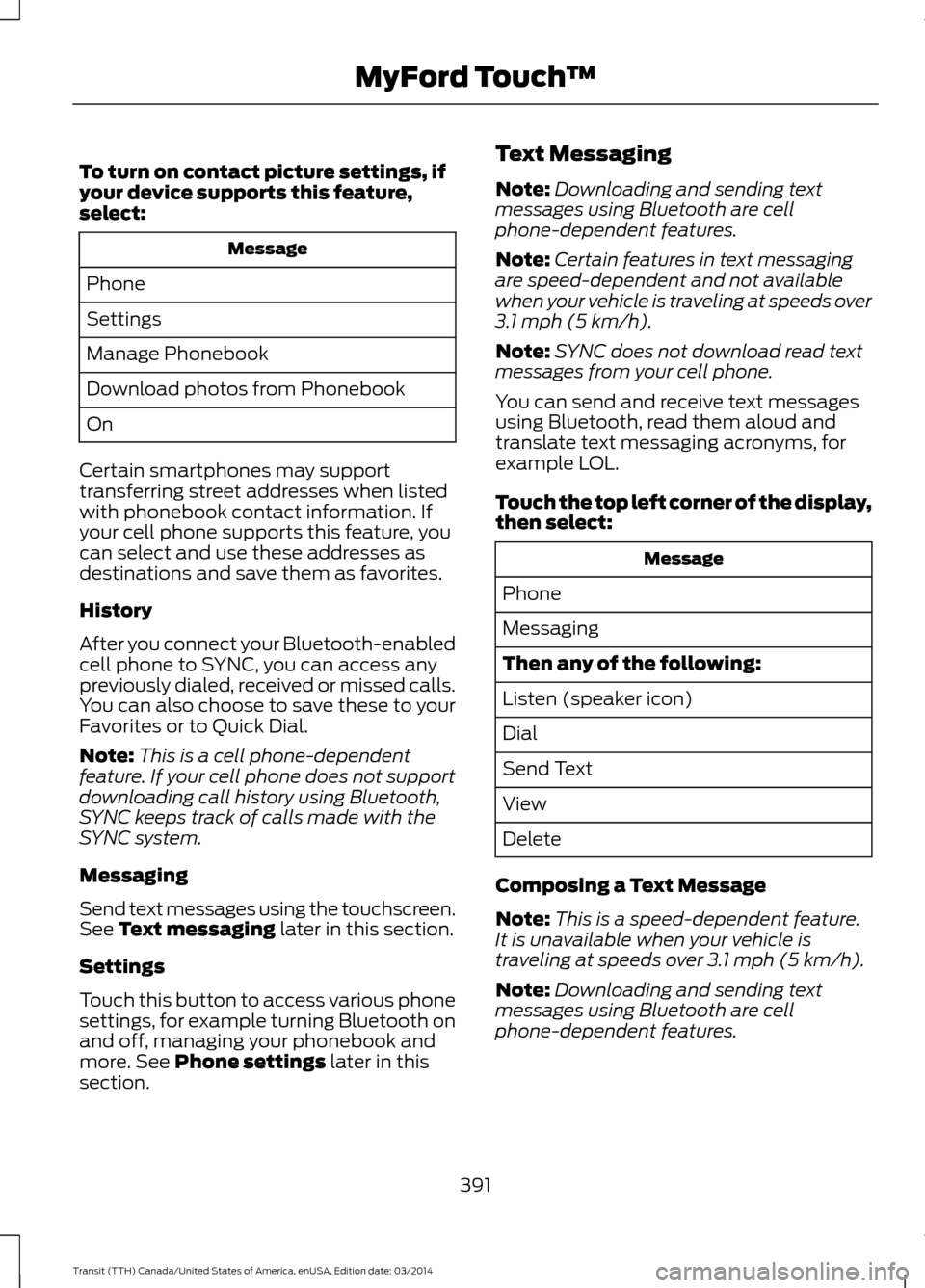
To turn on contact picture settings, if
your device supports this feature,
select:
Message
Phone
Settings
Manage Phonebook
Download photos from Phonebook
On
Certain smartphones may support
transferring street addresses when listed
with phonebook contact information. If
your cell phone supports this feature, you
can select and use these addresses as
destinations and save them as favorites.
History
After you connect your Bluetooth-enabled
cell phone to SYNC, you can access any
previously dialed, received or missed calls.
You can also choose to save these to your
Favorites or to Quick Dial.
Note: This is a cell phone-dependent
feature. If your cell phone does not support
downloading call history using Bluetooth,
SYNC keeps track of calls made with the
SYNC system.
Messaging
Send text messages using the touchscreen.
See Text messaging later in this section.
Settings
Touch this button to access various phone
settings, for example turning Bluetooth on
and off, managing your phonebook and
more. See
Phone settings later in this
section. Text Messaging
Note:
Downloading and sending text
messages using Bluetooth are cell
phone-dependent features.
Note: Certain features in text messaging
are speed-dependent and not available
when your vehicle is traveling at speeds over
3.1 mph (5 km/h)
.
Note: SYNC does not download read text
messages from your cell phone.
You can send and receive text messages
using Bluetooth, read them aloud and
translate text messaging acronyms, for
example LOL.
Touch the top left corner of the display,
then select: Message
Phone
Messaging
Then any of the following:
Listen (speaker icon)
Dial
Send Text
View
Delete
Composing a Text Message
Note: This is a speed-dependent feature.
It is unavailable when your vehicle is
traveling at speeds over 3.1 mph (5 km/h).
Note: Downloading and sending text
messages using Bluetooth are cell
phone-dependent features.
391 Transit (TTH) Canada/United States of America, enUSA, Edition date: 03/2014 MyFord Touch
™
Page 395 of 461
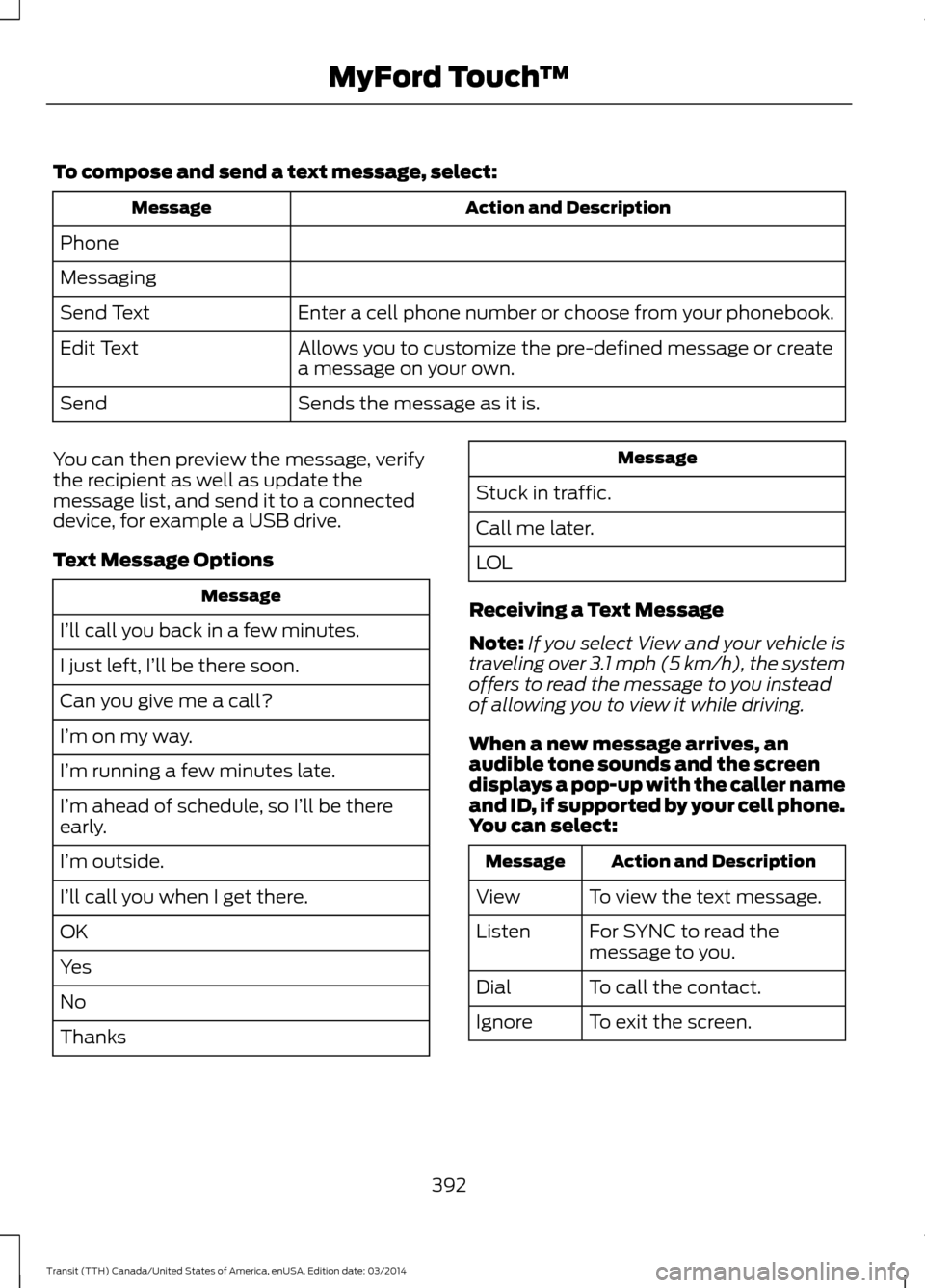
To compose and send a text message, select:
Action and Description
Message
Phone
Messaging Enter a cell phone number or choose from your phonebook.
Send Text
Allows you to customize the pre-defined message or create
a message on your own.
Edit Text
Sends the message as it is.
Send
You can then preview the message, verify
the recipient as well as update the
message list, and send it to a connected
device, for example a USB drive.
Text Message Options Message
I’ll call you back in a few minutes.
I just left, I’ll be there soon.
Can you give me a call?
I’m on my way.
I’m running a few minutes late.
I’m ahead of schedule, so I’ll be there
early.
I’m outside.
I’ll call you when I get there.
OK
Yes
No
Thanks Message
Stuck in traffic.
Call me later.
LOL
Receiving a Text Message
Note: If you select View and your vehicle is
traveling over 3.1 mph (5 km/h), the system
offers to read the message to you instead
of allowing you to view it while driving.
When a new message arrives, an
audible tone sounds and the screen
displays a pop-up with the caller name
and ID, if supported by your cell phone.
You can select: Action and Description
Message
To view the text message.
View
For SYNC to read the
message to you.
Listen
To call the contact.
Dial
To exit the screen.
Ignore
392 Transit (TTH) Canada/United States of America, enUSA, Edition date: 03/2014 MyFord Touch
™
Page 396 of 461
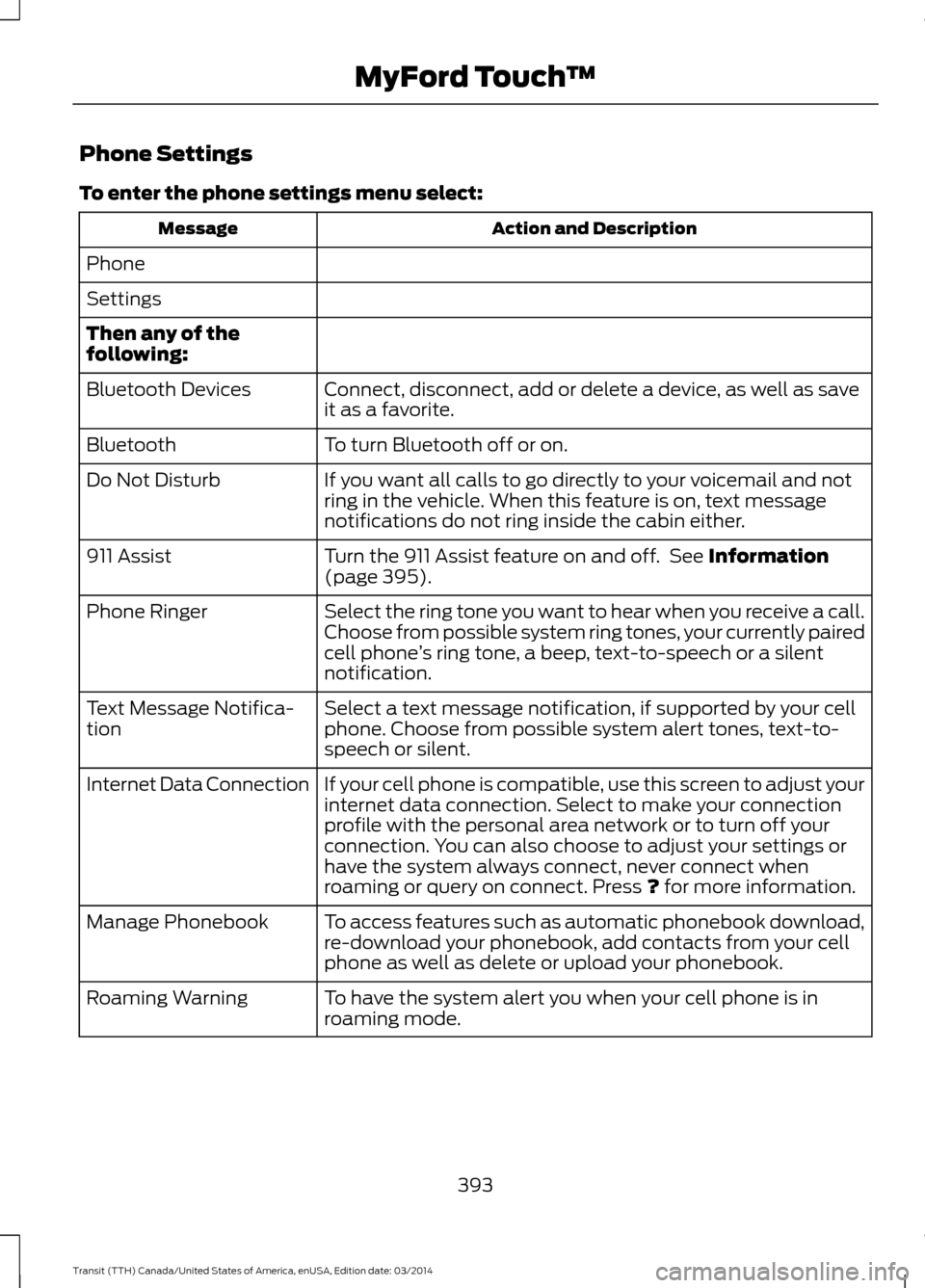
Phone Settings
To enter the phone settings menu select:
Action and Description
Message
Phone
Settings
Then any of the
following: Connect, disconnect, add or delete a device, as well as save
it as a favorite.
Bluetooth Devices
To turn Bluetooth off or on.
Bluetooth
If you want all calls to go directly to your voicemail and not
ring in the vehicle. When this feature is on, text message
notifications do not ring inside the cabin either.
Do Not Disturb
Turn the 911 Assist feature on and off. See Information
(page 395).
911 Assist
Select the ring tone you want to hear when you receive a call.
Choose from possible system ring tones, your currently paired
cell phone’s ring tone, a beep, text-to-speech or a silent
notification.
Phone Ringer
Select a text message notification, if supported by your cell
phone. Choose from possible system alert tones, text-to-
speech or silent.
Text Message Notifica-
tion
If your cell phone is compatible, use this screen to adjust your
internet data connection. Select to make your connection
profile with the personal area network or to turn off your
connection. You can also choose to adjust your settings or
have the system always connect, never connect when
roaming or query on connect. Press
? for more information.
Internet Data Connection
To access features such as automatic phonebook download,
re-download your phonebook, add contacts from your cell
phone as well as delete or upload your phonebook.
Manage Phonebook
To have the system alert you when your cell phone is in
roaming mode.
Roaming Warning
393Transit (TTH) Canada/United States of America, enUSA, Edition date: 03/2014 MyFord Touch
™
Page 397 of 461
![FORD TRANSIT 2015 5.G Manual PDF Phone Voice Commands
Press the voice button and when
prompted say any of the following:
Voice command
Call
call (someone | [[a] name])
Call <name> at home
Call <name> at work
Call <name> on cell
Call](/img/11/5392/w960_5392-396.png "FORD TRANSIT 2015 5.G Manual PDF Phone Voice Commands
Press the voice button and when
prompted say any of the following:
Voice command
Call
call (someone | [[a] name])
Call <name> at home
Call <name> at work
Call <name> on cell
Call")
Phone Voice Commands
Press the voice button and when
prompted say any of the following:
Voice command
Call
call (someone | [[a] name])
Call
Call
Call
Call
Call voicemail
dial [[a] number]
Do not disturb off
Do not disturb on
Forward text messages 1
Go to hands free
1
(hold call off | take call off hold)
1
(hold call [on] | (put | place) call on
hold)
1
join (call | calls)
Listen to text message <#> Voice command
Listen to text messages 2
Messages
1
mute [call] [on]
Pair phone
1
Privacy on
Read text message
Reply to text messages
(turn ringer off | silent mode [on])
(turn ringer on | silent mode off)
1
(mute [call] off | Unmute [call])
Help
1 These commands are only available
during an active call.
2 If you say messages, see the following
additional commands. Voice command
Call
Forward text messages
Listen to text message <#>
Listen to text messages
Reply to text messages
Help
394 Transit (TTH) Canada/United States of America, enUSA, Edition date: 03/2014 MyFord Touch
™E142599