buttons FORD TRANSIT 2018 User Guide
[x] Cancel search | Manufacturer: FORD, Model Year: 2018, Model line: TRANSIT, Model: FORD TRANSIT 2018Pages: 521, PDF Size: 8.65 MB
Page 332 of 521
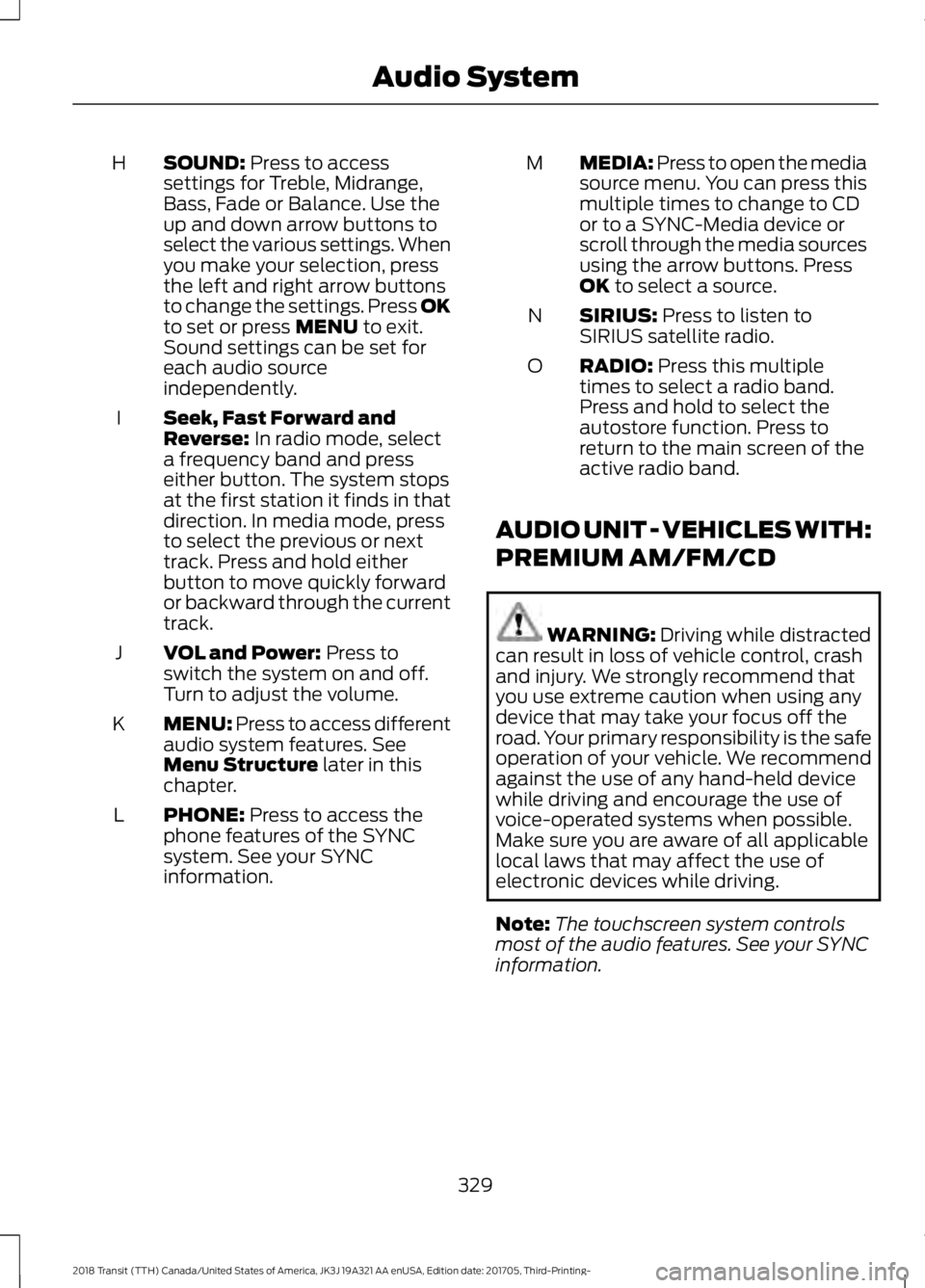
SOUND: Press to access
settings for Treble, Midrange,
Bass, Fade or Balance. Use the
up and down arrow buttons to
select the various settings. When
you make your selection, press
H
the left and right arrow buttons
to change the settings. Press OK
to set or press
MENU to exit.
Sound settings can be set for
each audio source
independently.
Seek, Fast Forward and
Reverse:
In radio mode, select
a frequency band and press
either button. The system stops
at the first station it finds in that
direction. In media mode, press
to select the previous or next
track. Press and hold either
button to move quickly forward
or backward through the current
track.
I
VOL and Power:
Press to
switch the system on and off.
Turn to adjust the volume.
J
MENU: Press to access different
audio system features. See
Menu Structure
later in this
chapter.
K
PHONE:
Press to access the
phone features of the SYNC
system. See your SYNC
information.
L MEDIA: Press to open the media
source menu. You can press this
multiple times to change to CD
or to a SYNC-Media device or
scroll through the media sources
using the arrow buttons. Press
OK
to select a source.
M
SIRIUS:
Press to listen to
SIRIUS satellite radio.
N
RADIO:
Press this multiple
times to select a radio band.
Press and hold to select the
autostore function. Press to
return to the main screen of the
active radio band.
O
AUDIO UNIT - VEHICLES WITH:
PREMIUM AM/FM/CD WARNING:
Driving while distracted
can result in loss of vehicle control, crash
and injury. We strongly recommend that
you use extreme caution when using any
device that may take your focus off the
road. Your primary responsibility is the safe
operation of your vehicle. We recommend
against the use of any hand-held device
while driving and encourage the use of
voice-operated systems when possible.
Make sure you are aware of all applicable
local laws that may affect the use of
electronic devices while driving.
Note: The touchscreen system controls
most of the audio features. See your SYNC
information.
329
2018 Transit (TTH) Canada/United States of America, JK3J 19A321 AA enUSA, Edition date: 201705, Third-Printing- Audio System
Page 335 of 521
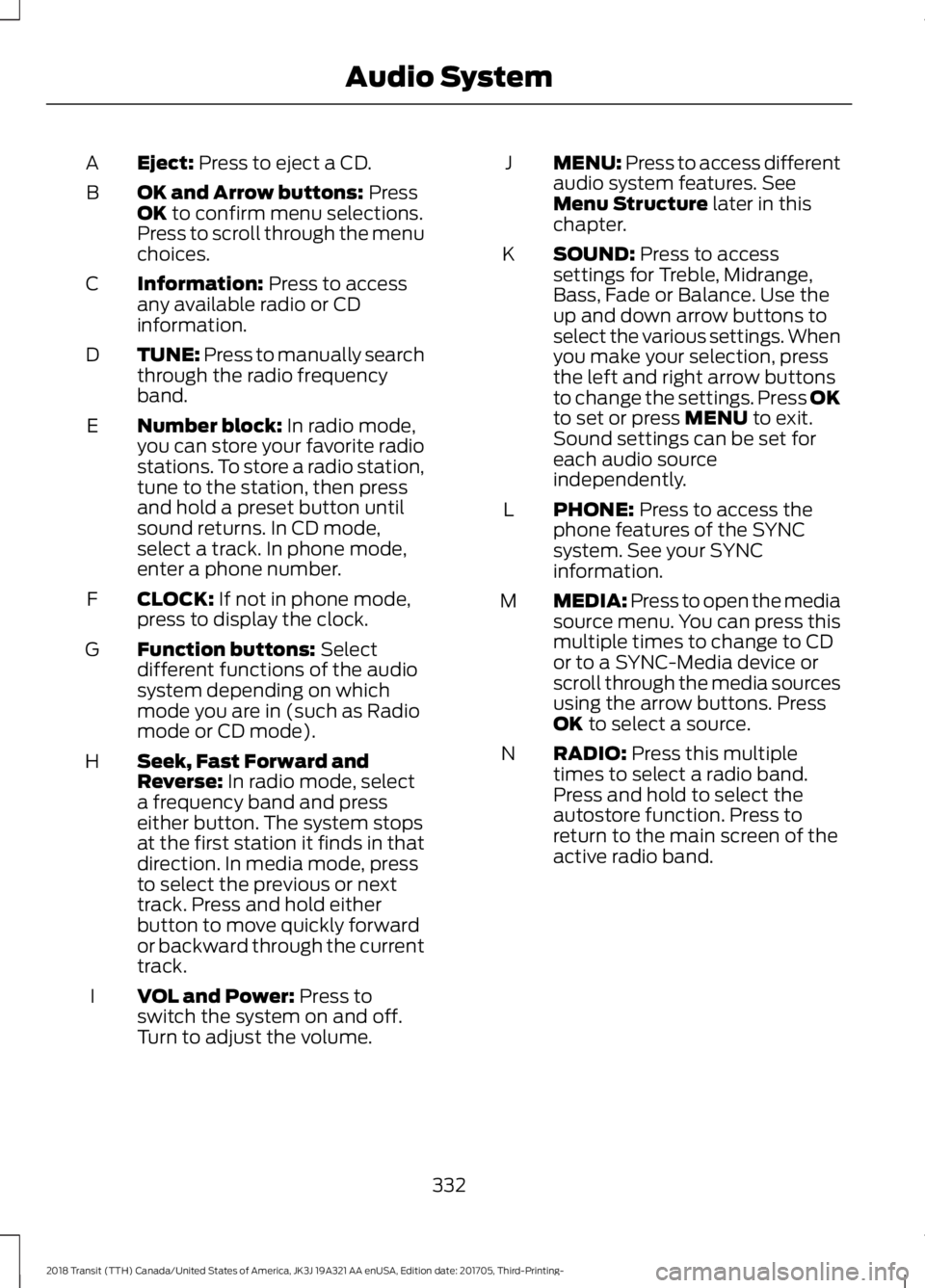
Eject: Press to eject a CD.
A
OK and Arrow buttons:
Press
OK to confirm menu selections.
Press to scroll through the menu
choices.
B
Information:
Press to access
any available radio or CD
information.
C
TUNE: Press to manually search
through the radio frequency
band.
D
Number block:
In radio mode,
you can store your favorite radio
stations. To store a radio station,
tune to the station, then press
and hold a preset button until
sound returns. In CD mode,
select a track. In phone mode,
enter a phone number.
E
CLOCK:
If not in phone mode,
press to display the clock.
F
Function buttons:
Select
different functions of the audio
system depending on which
mode you are in (such as Radio
mode or CD mode).
G
Seek, Fast Forward and
Reverse:
In radio mode, select
a frequency band and press
either button. The system stops
at the first station it finds in that
direction. In media mode, press
to select the previous or next
track. Press and hold either
button to move quickly forward
or backward through the current
track.
H
VOL and Power:
Press to
switch the system on and off.
Turn to adjust the volume.
I MENU: Press to access different
audio system features. See
Menu Structure
later in this
chapter.
J
SOUND:
Press to access
settings for Treble, Midrange,
Bass, Fade or Balance. Use the
up and down arrow buttons to
select the various settings. When
you make your selection, press
K
the left and right arrow buttons
to change the settings. Press OK
to set or press
MENU to exit.
Sound settings can be set for
each audio source
independently.
PHONE:
Press to access the
phone features of the SYNC
system. See your SYNC
information.
L
MEDIA: Press to open the media
source menu. You can press this
multiple times to change to CD
or to a SYNC-Media device or
scroll through the media sources
using the arrow buttons. Press
OK
to select a source.
M
RADIO:
Press this multiple
times to select a radio band.
Press and hold to select the
autostore function. Press to
return to the main screen of the
active radio band.
N
332
2018 Transit (TTH) Canada/United States of America, JK3J 19A321 AA enUSA, Edition date: 201705, Third-Printing- Audio System
Page 337 of 521
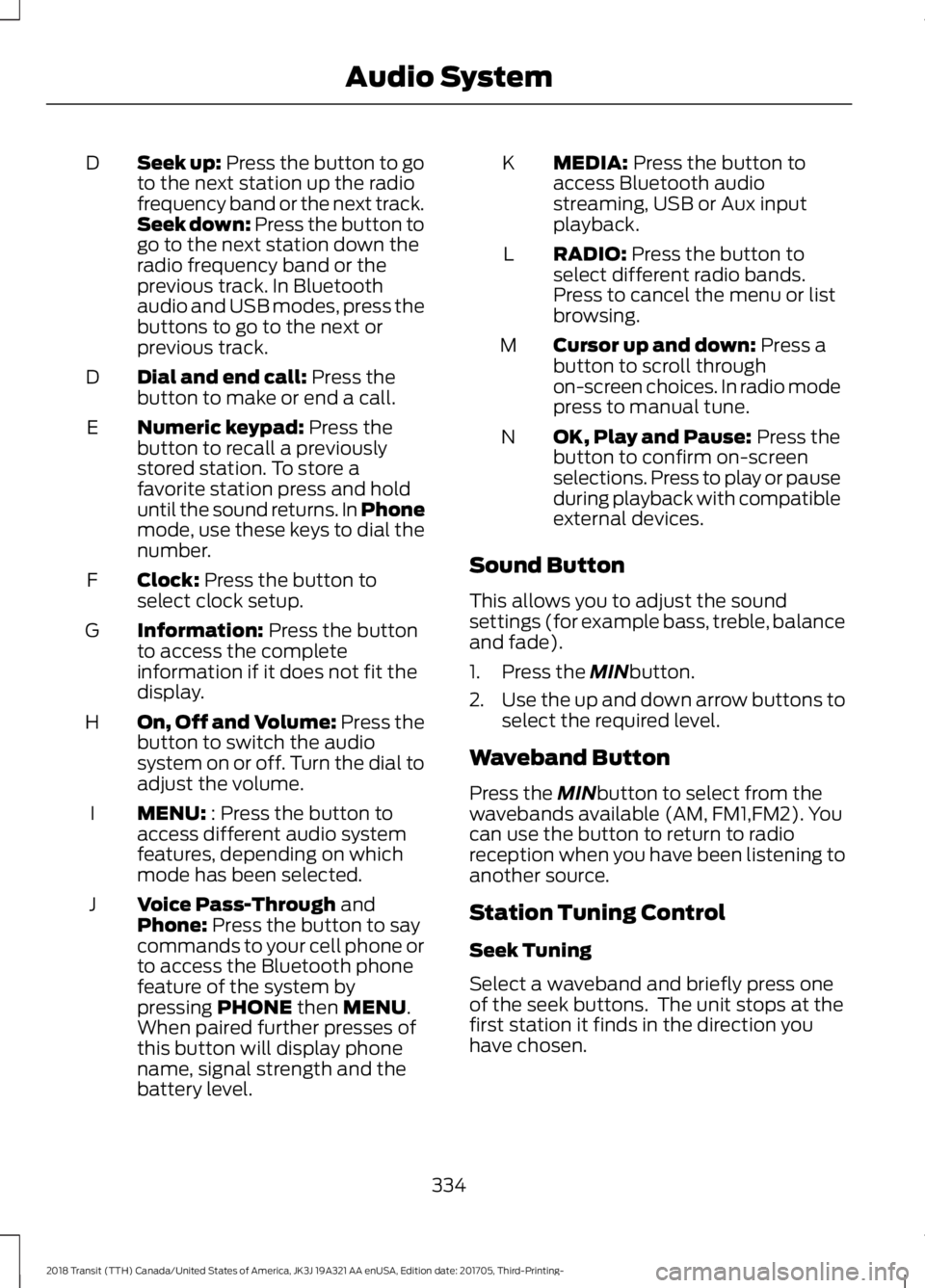
Seek up: Press the button to go
to the next station up the radio
frequency band or the next track.
Seek down: Press the button to
go to the next station down the
radio frequency band or the
previous track. In Bluetooth
audio and USB modes, press the
buttons to go to the next or
previous track.
D
Dial and end call:
Press the
button to make or end a call.
D
Numeric keypad:
Press the
button to recall a previously
stored station. To store a
favorite station press and hold
until the sound returns. In Phone
mode, use these keys to dial the
number.
E
Clock:
Press the button to
select clock setup.
F
Information:
Press the button
to access the complete
information if it does not fit the
display.
G
On, Off and Volume:
Press the
button to switch the audio
system on or off. Turn the dial to
adjust the volume.
H
MENU:
: Press the button to
access different audio system
features, depending on which
mode has been selected.
I
Voice Pass-Through
and
Phone: Press the button to say
commands to your cell phone or
to access the Bluetooth phone
feature of the system by
pressing
PHONE then MENU.
When paired further presses of
this button will display phone
name, signal strength and the
battery level.
J MEDIA:
Press the button to
access Bluetooth audio
streaming, USB or Aux input
playback.
K
RADIO:
Press the button to
select different radio bands.
Press to cancel the menu or list
browsing.
L
Cursor up and down:
Press a
button to scroll through
on-screen choices. In radio mode
press to manual tune.
M
OK, Play and Pause:
Press the
button to confirm on-screen
selections. Press to play or pause
during playback with compatible
external devices.
N
Sound Button
This allows you to adjust the sound
settings (for example bass, treble, balance
and fade).
1. Press the
MINbutton.
2. Use the up and down arrow buttons to
select the required level.
Waveband Button
Press the
MINbutton to select from the
wavebands available (AM, FM1,FM2). You
can use the button to return to radio
reception when you have been listening to
another source.
Station Tuning Control
Seek Tuning
Select a waveband and briefly press one
of the seek buttons. The unit stops at the
first station it finds in the direction you
have chosen.
334
2018 Transit (TTH) Canada/United States of America, JK3J 19A321 AA enUSA, Edition date: 201705, Third-Printing- Audio System
Page 338 of 521
Manual Tuning
Use the up and down arrow buttons to
tune down or up the waveband in small
increments or press and hold to increment
quickly, until you find a station you want
to listen to.
Station Preset Buttons
This allows you to store your favorite
stations. They can be recalled by selecting
the appropriate waveband and pressing
one of the preset buttons.
1. Select a waveband.
2. Tune to the station required.
3. Press and hold one of the preset
buttons. A progress bar and message
will appear. When the progress bar
completes the station has been stored.
The audio unit will also mute
momentarily as confirmation.
You can repeat this on each waveband and
for each preset button.
Phone and Voice Pass-Through
Note: Using the system with the engine off
will drain the battery.
Note: As no common agreement exists, cell
phone manufacturers are able to implement
a variety of profiles in their Bluetooth
devices. Because of this, an incompatibility
can occur between the phone and hands
free system, which in some cases may
significantly degrade the system
performance. To avoid this situation, only
recommended phones should be used. To
check your cell phone's compatibility, refer
to your device's manual or visit the regional
Ford website.
This section describes the functions and
features of the Bluetooth cell phone hands
free system. The Bluetooth cell phone part of the
system provides interaction with the audio
system and your cell phone. It allows you
to use the audio system to make and
receive calls without having to hold your
cell phone.
The Voice Pass-Through allows access to
the voice recognition commands on your
cell phone.
Bluetooth Setup
Note:
Up to five Bluetooth devices can be
paired to the system.
Note: If there is an ongoing call when the
phone in use is selected as the new active
phone, the call is transferred to the vehicle
audio system.
Note: Even if connected to the system, your
phone can still be used in the usual way.
Note: A call will be disconnected if the
audio unit is switched off. If the ignition is
switched off the phone call will remain in
progress.
Before you can use your cell phone with
your vehicle it must be paired to the audio
system.
The following procedure is required before
an initial Bluetooth phone connection can
be made.
The information display may show your
cell phone's battery charge level and signal
strength.
Using the device
1. Press the PHONE button and then
keep pressing the MENU button to
scroll to the ADD DEVICE display.
Press the OK button.
2. Select the
VIA DEVICE and press OK.
3. Once
VIA DEVICE has been selected,
FIND FORD BT is displayed on the
radio display.
4. Note the six digit number displayed.
335
2018 Transit (TTH) Canada/United States of America, JK3J 19A321 AA enUSA, Edition date: 201705, Third-Printing- Audio System
Page 340 of 521
Deleting a Paired Device or Phone
To remove a paired device follow this
process:
1. Press the PHONE button and then
keep pressing the MENU button to
scroll to the DEL DEVICE display.
2. Press the
OK button. The first paired
device name will be shown. Scroll to
the required device name using the up
and down arrow. Once choose the
device, press
OK, the message "DEL
DEVICE" will appear. Press OK, Scroll
to select
"YES" and press OK to
confirm. Select delete all to erase all
paired devices.
3. Press the
OK button multiple times to
unpair the device from the audio unit.
Privacy Mode
You can transfer a call from hands free to
private mode during an active call.
Press the
MENU button until PRIVACY
appears, then press the OK button to
transfer. To return to hands free mode,
press the dial button.
Phone Menu Options
Press the
PHONE button to select phone
mode. Press the PHONE button again to
display information such as phone name,
signal strength and battery level.
When in phone mode, press the
MENU
button to scroll through the various phone
options:
• Dial.
• Phonebook.
• Call History.
• Add Device.
• Select Device.
• Set Primary.
• Delete Device.
• Bluetooth on and off. •
Load Phonebook.
• Reject on or off.
Press the OK button to select the required
option, and use the up and down arrows
to change features.
Making and Receiving Calls
Outgoing calls can be made by:
• Entering a number using the keys on
the radio.
• Saying a command to call someone
after pressing the
Voice
Pass-Through button.
• Selecting a contact from the
downloaded phonebook.
• Selecting a number or contact from the
call history log.
• Using quick dial by pressing one of the
radio preset buttons.
• Using the redial function.
• Using the cell phone.
Incoming calls can be answered by:
• Pressing the call pickup button on the
audio unit.
• Using the cell phone.
Calls can be rejected using the end call
button on the audio unit or by using the cell
phone directly.
USB
Note: Only use USB Mass-Storage device
compliant devices.
Note: Always switch your audio unit to a
different source (for example the radio)
before unplugging the USB device.
Note: Do not install or connect USB hubs
or splitters.
337
2018 Transit (TTH) Canada/United States of America, JK3J 19A321 AA enUSA, Edition date: 201705, Third-Printing- Audio System
Page 341 of 521
Note:
The system is only designed to
recognize and read suitable audio files from
a USB device that conforms to the USB
Mass-Storage device class or an iPod. Not
all available USB devices can be guaranteed
to function with the system.
Note: It is possible to connect compatible
devices with a trailing USB lead as well as
those that plug into the USB socket directly
(for example USB memory sticks and pen
drives).
Note: Some USB devices with a higher
power consumption may not be compatible
(for example some larger hard drives).
Note: Access time to read the files on the
external device will vary depending upon
factors such as the file structure, size and
device content.
The audio unit supports a range of external
devices. Once connected, control of the
external device is possible via the audio
unit.
Operating the USB Device
Note: USB playback will start automatically
when you connect a compatible device. To
turn this feature off, select AUTOPL and
then select OFF using the menu function.
Connect the device to the audio unit.
Select the USB device as the audio source
by pressing the
MEDIA button until the
USB screen appears in the display. After
first connecting the USB device, the first
track within the first folder will start to play
automatically. Following audio source
switching, the position of playback on the
USB device is remembered.
Press the seek up and down keys to skip
backward and forward through tracks.
Press and hold to fast forward and reverse
through the track.
iPod
Connect the iPod to the audio unit. Select the iPod as the audio source by
pressing the
MEDIA button until IPOD
appears in the display. After first
connecting the iPod, the first track within
the first folder will start to play
automatically. Following audio source
switching, the position of playback on the
iPod is remembered.
Press the seek up and down keys to skip
backward and forward through tracks.
Press and hold the seek keys to enable fast
rewind or fast forward through track
content.
Various functions may be controlled from
the audio unit including:
• Next and previous track select.
• Track seek.
• Shuffle.
• Repeat.
Bluetooth Audio Streaming
Note: Make sure the device is paired before
using this feature.
Compatible Bluetooth devices can be
connected to the audio unit to playback
using the vehicle audio system.
Select the device as the audio source by
pressing the
MEDIA button until BT
AUDIO appears in the display.
The device playback can be controlled
using the audio unit buttons play, pause,
next and previous track.
338
2018 Transit (TTH) Canada/United States of America, JK3J 19A321 AA enUSA, Edition date: 201705, Third-Printing- Audio System
Page 343 of 521
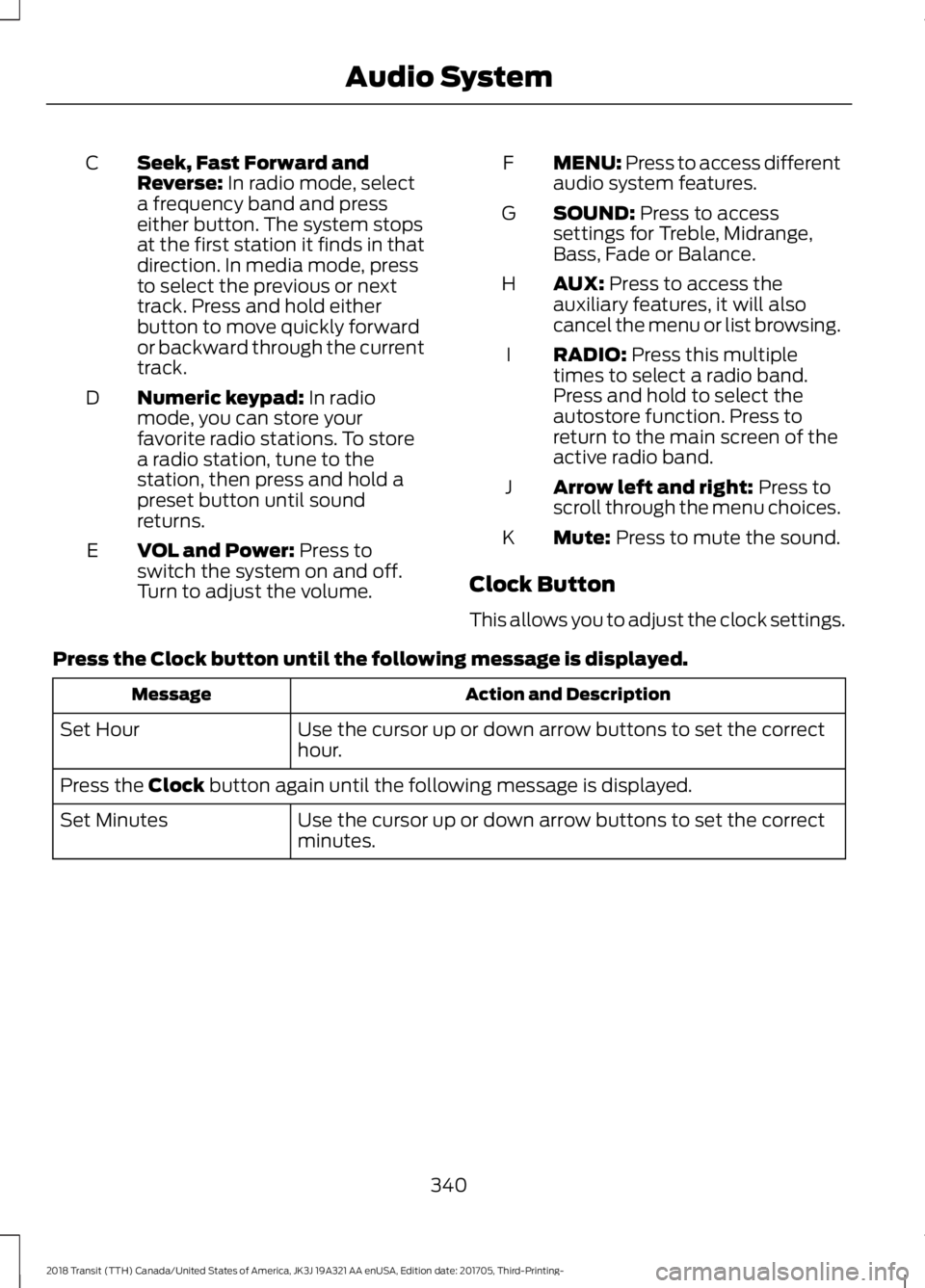
Seek, Fast Forward and
Reverse: In radio mode, select
a frequency band and press
either button. The system stops
at the first station it finds in that
direction. In media mode, press
to select the previous or next
track. Press and hold either
button to move quickly forward
or backward through the current
track.
C
Numeric keypad:
In radio
mode, you can store your
favorite radio stations. To store
a radio station, tune to the
station, then press and hold a
preset button until sound
returns.
D
VOL and Power:
Press to
switch the system on and off.
Turn to adjust the volume.
E MENU: Press to access different
audio system features.
F
SOUND:
Press to access
settings for Treble, Midrange,
Bass, Fade or Balance.
G
AUX:
Press to access the
auxiliary features, it will also
cancel the menu or list browsing.
H
RADIO:
Press this multiple
times to select a radio band.
Press and hold to select the
autostore function. Press to
return to the main screen of the
active radio band.
I
Arrow left and right:
Press to
scroll through the menu choices.
J
Mute:
Press to mute the sound.
K
Clock Button
This allows you to adjust the clock settings.
Press the
Clock button until the following message is displayed. Action and Description
Message
Use the cursor up or down arrow buttons to set the correct
hour.
Set Hour
Press the
Clock button again until the following message is displayed.
Use the cursor up or down arrow buttons to set the correct
minutes.
Set Minutes
340
2018 Transit (TTH) Canada/United States of America, JK3J 19A321 AA enUSA, Edition date: 201705, Third-Printing- Audio System
Page 344 of 521
Setting 24 Hour or 12 Hour Display
Press the Menu button until the following message is displayed.
Action and Description
Message
Use the cursor up or down arrow buttons to select one of the
following:
24 Hour
12 Hour
24 Hour
Note: The default setting is 24 hour.
Station Tuning Buttons
Seek Tuning
Select a frequency band and briefly press
one of the seek buttons. The unit will stop
at the first station it finds in the direction
you have chosen.
Manual Tuning
Use the cursor up or down arrow buttons
to tune up or down the frequency band in
small increments. To increment quickly,
press and hold until you find a station you
want to listen to.
Station Preset Buttons
This feature allows you to store your
favorite stations. They can be recalled by
selecting the appropriate frequency band
and pressing one of the preset buttons.
1. Select a frequency band.
2. Tune to the station required.
3. Press and hold one of the preset buttons. The audio unit will also mute
momentarily as confirmation.
You can repeat this on each frequency
band and for each preset button. Menu Button
This allows you to adjust all of the audio
system settings. Press the button
repeatedly until the required setting is
displayed. Use the cursor up or down arrow
buttons to adjust the following settings:
•
Clock hour.
• Clock minutes.
• 24 hour, 12 hour.
• Bass.
• Treble.
• Balance.
• Fade.
• RDS.
Sound Button
This allows you to adjust the sound
settings for bass, treble, balance or fade.
1. Press the sound button until the required setting is displayed.
2. Use the cursor up or down arrow buttons to select the required level.
Note: Fade settings are only adjustable if
there are speakers in the rear of your vehicle.
AUX Button
Connect your media device to the audio
unit. See
USB Port (page 347).
341
2018 Transit (TTH) Canada/United States of America, JK3J 19A321 AA enUSA, Edition date: 201705, Third-Printing- Audio System
Page 356 of 521
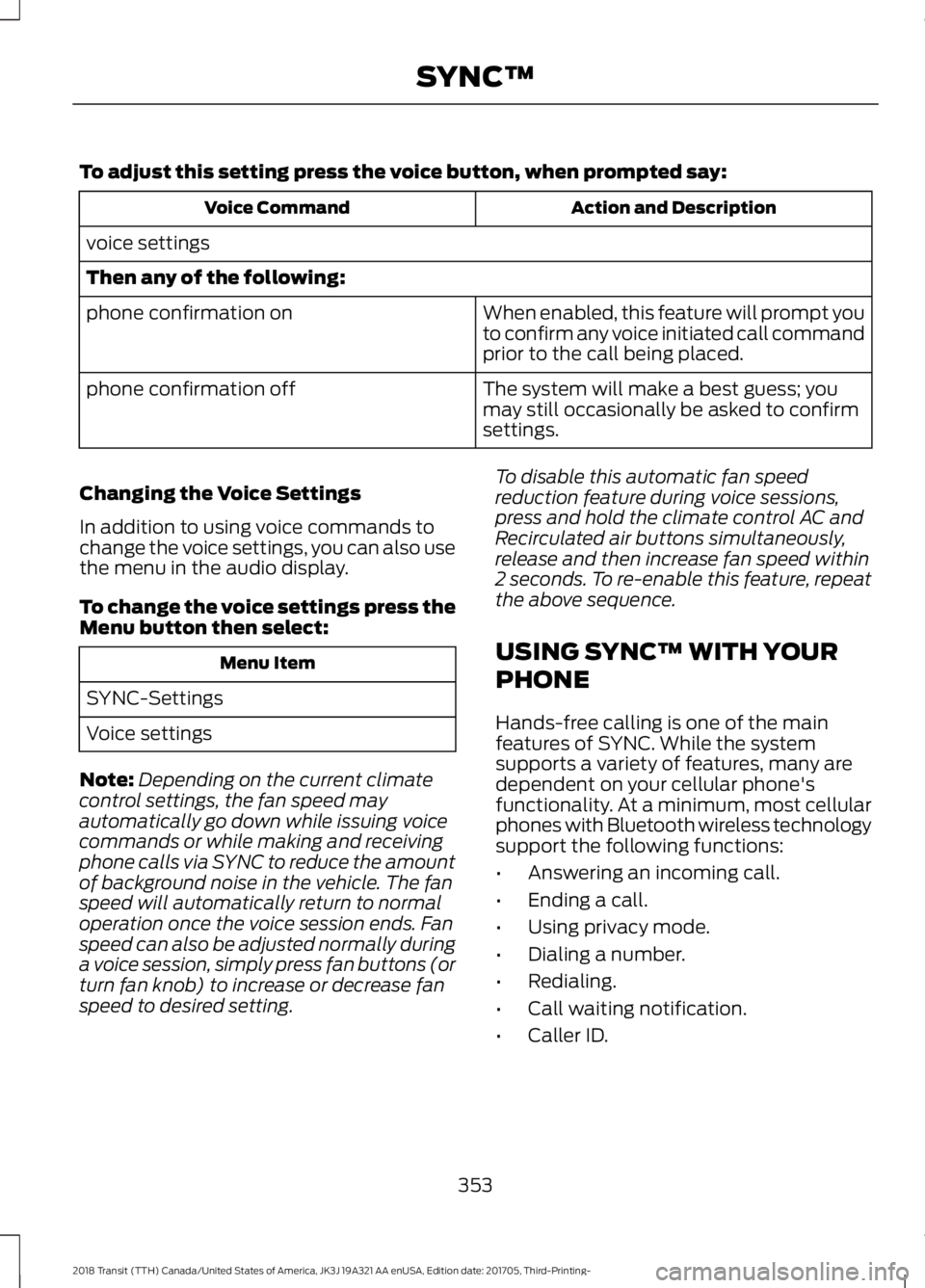
To adjust this setting press the voice button, when prompted say:
Action and Description
Voice Command
voice settings
Then any of the following: When enabled, this feature will prompt you
to confirm any voice initiated call command
prior to the call being placed.
phone confirmation on
The system will make a best guess; you
may still occasionally be asked to confirm
settings.
phone confirmation off
Changing the Voice Settings
In addition to using voice commands to
change the voice settings, you can also use
the menu in the audio display.
To change the voice settings press the
Menu button then select: Menu Item
SYNC-Settings
Voice settings
Note: Depending on the current climate
control settings, the fan speed may
automatically go down while issuing voice
commands or while making and receiving
phone calls via SYNC to reduce the amount
of background noise in the vehicle. The fan
speed will automatically return to normal
operation once the voice session ends. Fan
speed can also be adjusted normally during
a voice session, simply press fan buttons (or
turn fan knob) to increase or decrease fan
speed to desired setting. To disable this automatic fan speed
reduction feature during voice sessions,
press and hold the climate control AC and
Recirculated air buttons simultaneously,
release and then increase fan speed within
2 seconds. To re-enable this feature, repeat
the above sequence.
USING SYNC™ WITH YOUR
PHONE
Hands-free calling is one of the main
features of SYNC. While the system
supports a variety of features, many are
dependent on your cellular phone's
functionality. At a minimum, most cellular
phones with Bluetooth wireless technology
support the following functions:
•
Answering an incoming call.
• Ending a call.
• Using privacy mode.
• Dialing a number.
• Redialing.
• Call waiting notification.
• Caller ID.
353
2018 Transit (TTH) Canada/United States of America, JK3J 19A321 AA enUSA, Edition date: 201705, Third-Printing- SYNC™
Page 364 of 521
Sending a Text Message
Note:
You can only send a text message to
one recipient at a time.
1. Select the send option when the desired selection highlights in the audio
display.
2. Select the confirmation option when the contact appears.
3. Press the OK button again to confirm when the system asks if you want to
send the message. A pre-defined
signature appears on each text
message. Note:
You can send text messages either
by choosing a contact from the phonebook
and selecting the text option from the audio
display or by replying to a received message
in the inbox.
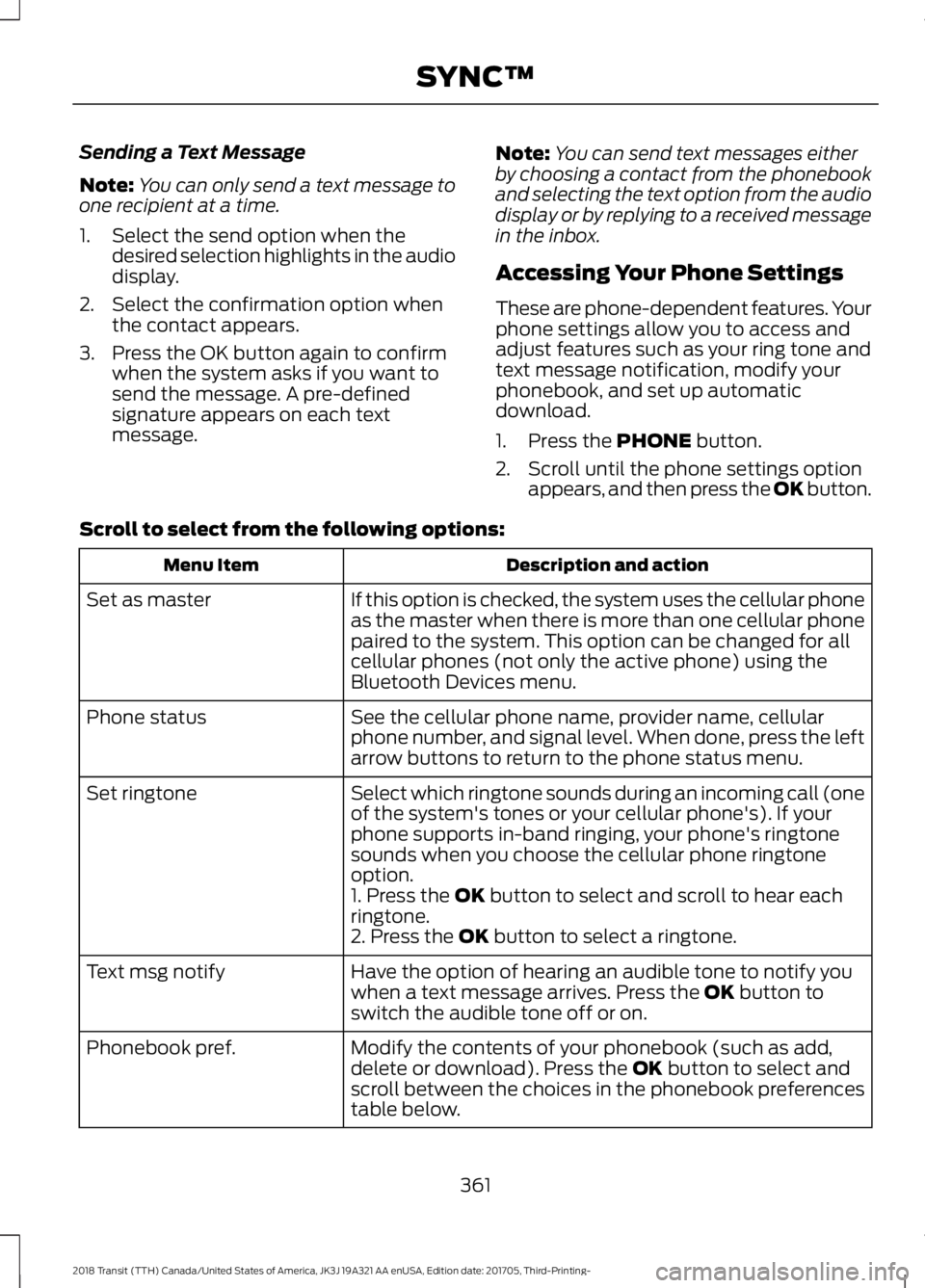
Accessing Your Phone Settings
These are phone-dependent features. Your
phone settings allow you to access and
adjust features such as your ring tone and
text message notification, modify your
phonebook, and set up automatic
download.
1. Press the PHONE button.
2. Scroll until the phone settings option appears, and then press the OK button.
Scroll to select from the following options: Description and action
Menu Item
If this option is checked, the system uses the cellular phone
as the master when there is more than one cellular phone
paired to the system. This option can be changed for all
cellular phones (not only the active phone) using the
Bluetooth Devices menu.
Set as master
See the cellular phone name, provider name, cellular
phone number, and signal level. When done, press the left
arrow buttons to return to the phone status menu.
Phone status
Select which ringtone sounds during an incoming call (one
of the system's tones or your cellular phone's). If your
phone supports in-band ringing, your phone's ringtone
sounds when you choose the cellular phone ringtone
option.
Set ringtone
1. Press the
OK button to select and scroll to hear each
ringtone.
2. Press the
OK button to select a ringtone.
Have the option of hearing an audible tone to notify you
when a text message arrives. Press the
OK button to
switch the audible tone off or on.
Text msg notify
Modify the contents of your phonebook (such as add,
delete or download). Press the
OK button to select and
scroll between the choices in the phonebook preferences
table below.
Phonebook pref.
361
2018 Transit (TTH) Canada/United States of America, JK3J 19A321 AA enUSA, Edition date: 201705, Third-Printing- SYNC™