ESP FORD TRANSIT 2018 Workshop Manual
[x] Cancel search | Manufacturer: FORD, Model Year: 2018, Model line: TRANSIT, Model: FORD TRANSIT 2018Pages: 521, PDF Size: 8.65 MB
Page 412 of 521
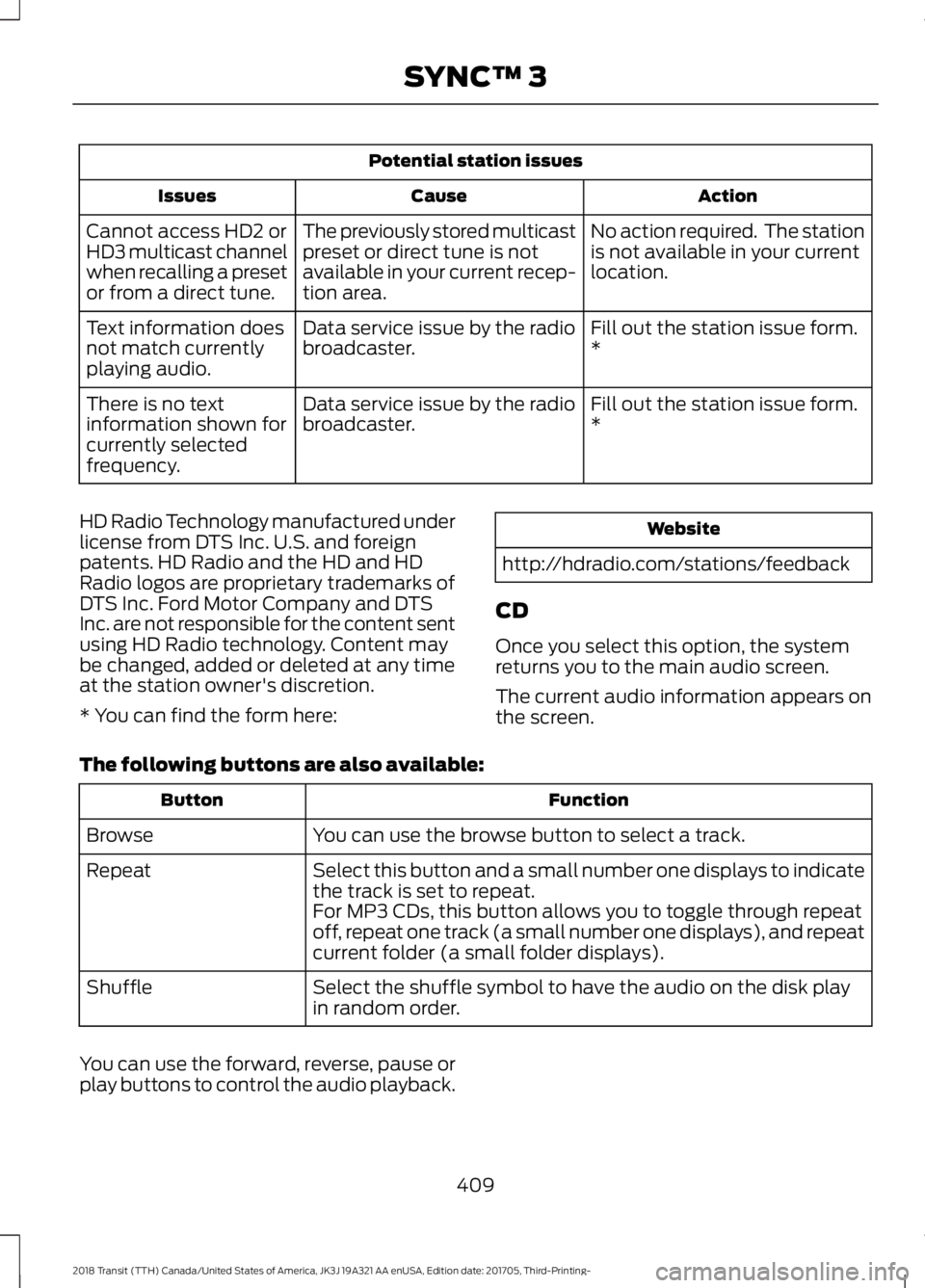
Potential station issues
Action
Cause
Issues
No action required. The station
is not available in your current
location.
The previously stored multicast
preset or direct tune is not
available in your current recep-
tion area.
Cannot access HD2 or
HD3 multicast channel
when recalling a preset
or from a direct tune.
Fill out the station issue form.
*
Data service issue by the radio
broadcaster.
Text information does
not match currently
playing audio.
Fill out the station issue form.
*
Data service issue by the radio
broadcaster.
There is no text
information shown for
currently selected
frequency.
HD Radio Technology manufactured under
license from DTS Inc. U.S. and foreign
patents. HD Radio and the HD and HD
Radio logos are proprietary trademarks of
DTS Inc. Ford Motor Company and DTS
Inc. are not responsible for the content sent
using HD Radio technology. Content may
be changed, added or deleted at any time
at the station owner's discretion.
* You can find the form here: Website
http://hdradio.com/stations/feedback
CD
Once you select this option, the system
returns you to the main audio screen.
The current audio information appears on
the screen.
The following buttons are also available: Function
Button
You can use the browse button to select a track.
Browse
Select this button and a small number one displays to indicate
the track is set to repeat.
Repeat
For MP3 CDs, this button allows you to toggle through repeat
off, repeat one track (a small number one displays), and repeat
current folder (a small folder displays).
Select the shuffle symbol to have the audio on the disk play
in random order.
Shuffle
You can use the forward, reverse, pause or
play buttons to control the audio playback.
409
2018 Transit (TTH) Canada/United States of America, JK3J 19A321 AA enUSA, Edition date: 201705, Third-Printing- SYNC™ 3
Page 415 of 521
PHONE
WARNING: Driving while distracted
can result in loss of vehicle control, crash
and injury. We strongly recommend that
you use extreme caution when using any
device that may take your focus off the
road. Your primary responsibility is the safe
operation of your vehicle. We recommend
against the use of any hand-held device
while driving and encourage the use of
voice-operated systems when possible.
Make sure you are aware of all applicable
local laws that may affect the use of
electronic devices while driving.
Hands-free calling is one of the main
features of the system. Once you pair your
cell phone, you can access many options
using the touchscreen or voice commands.
While the system supports a variety of
features, many are dependent on your cell
phone ’s functionality.
Pairing Your Cell Phone for the
First Time
Pair your Bluetooth enabled phone with
the system before using the functions in
hands-free mode.
Switch on Bluetooth on your device to
begin pairing. See your phone ’s manual if
necessary.
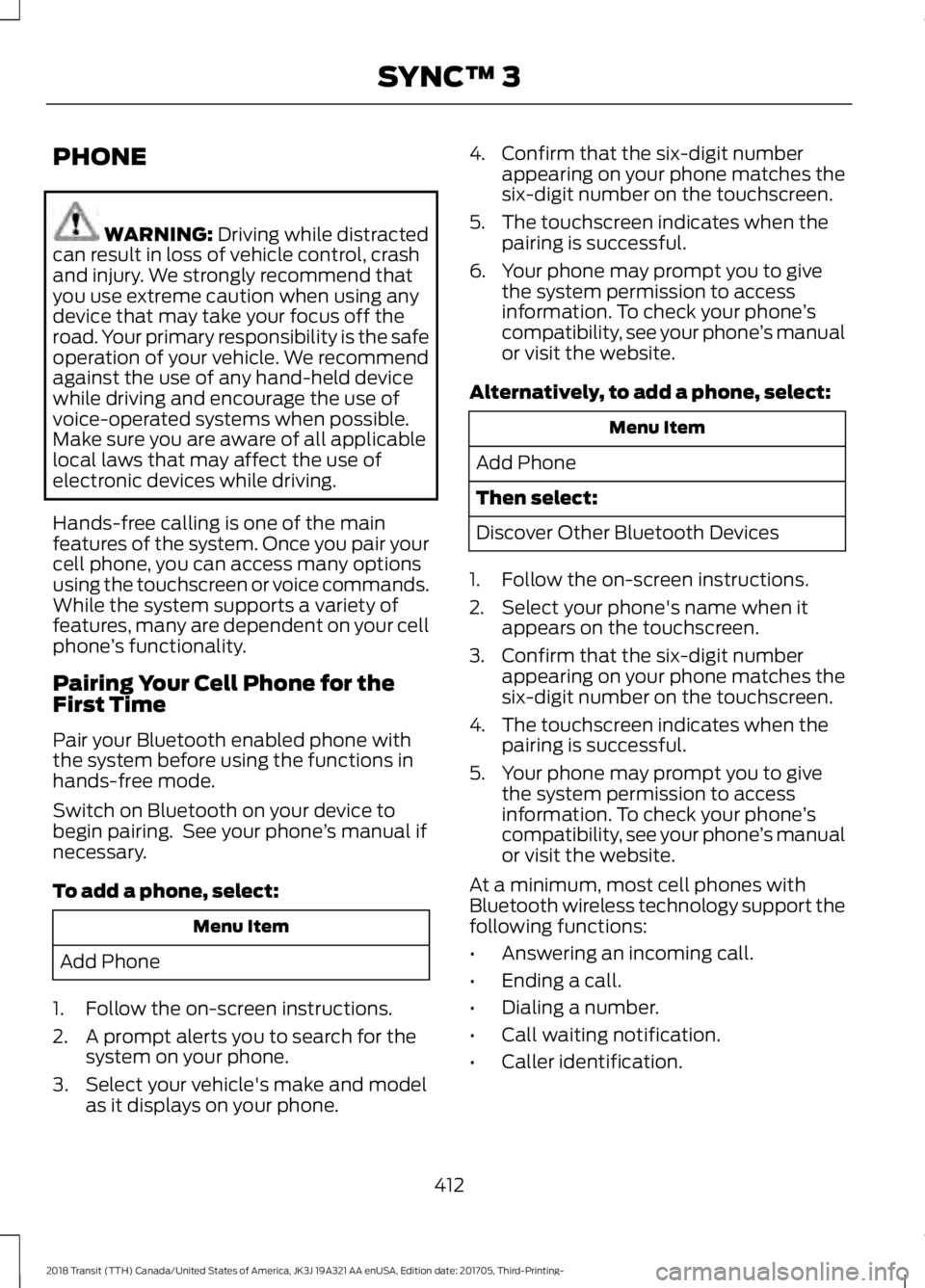
To add a phone, select: Menu Item
Add Phone
1. Follow the on-screen instructions.
2. A prompt alerts you to search for the system on your phone.
3. Select your vehicle's make and model as it displays on your phone. 4. Confirm that the six-digit number
appearing on your phone matches the
six-digit number on the touchscreen.
5. The touchscreen indicates when the pairing is successful.
6. Your phone may prompt you to give the system permission to access
information. To check your phone ’s
compatibility, see your phone ’s manual
or visit the website.
Alternatively, to add a phone, select: Menu Item
Add Phone
Then select:
Discover Other Bluetooth Devices
1. Follow the on-screen instructions.
2. Select your phone's name when it appears on the touchscreen.
3. Confirm that the six-digit number appearing on your phone matches the
six-digit number on the touchscreen.
4. The touchscreen indicates when the pairing is successful.
5. Your phone may prompt you to give the system permission to access
information. To check your phone ’s
compatibility, see your phone ’s manual
or visit the website.
At a minimum, most cell phones with
Bluetooth wireless technology support the
following functions:
• Answering an incoming call.
• Ending a call.
• Dialing a number.
• Call waiting notification.
• Caller identification.
412
2018 Transit (TTH) Canada/United States of America, JK3J 19A321 AA enUSA, Edition date: 201705, Third-Printing- SYNC™ 3
Page 428 of 521
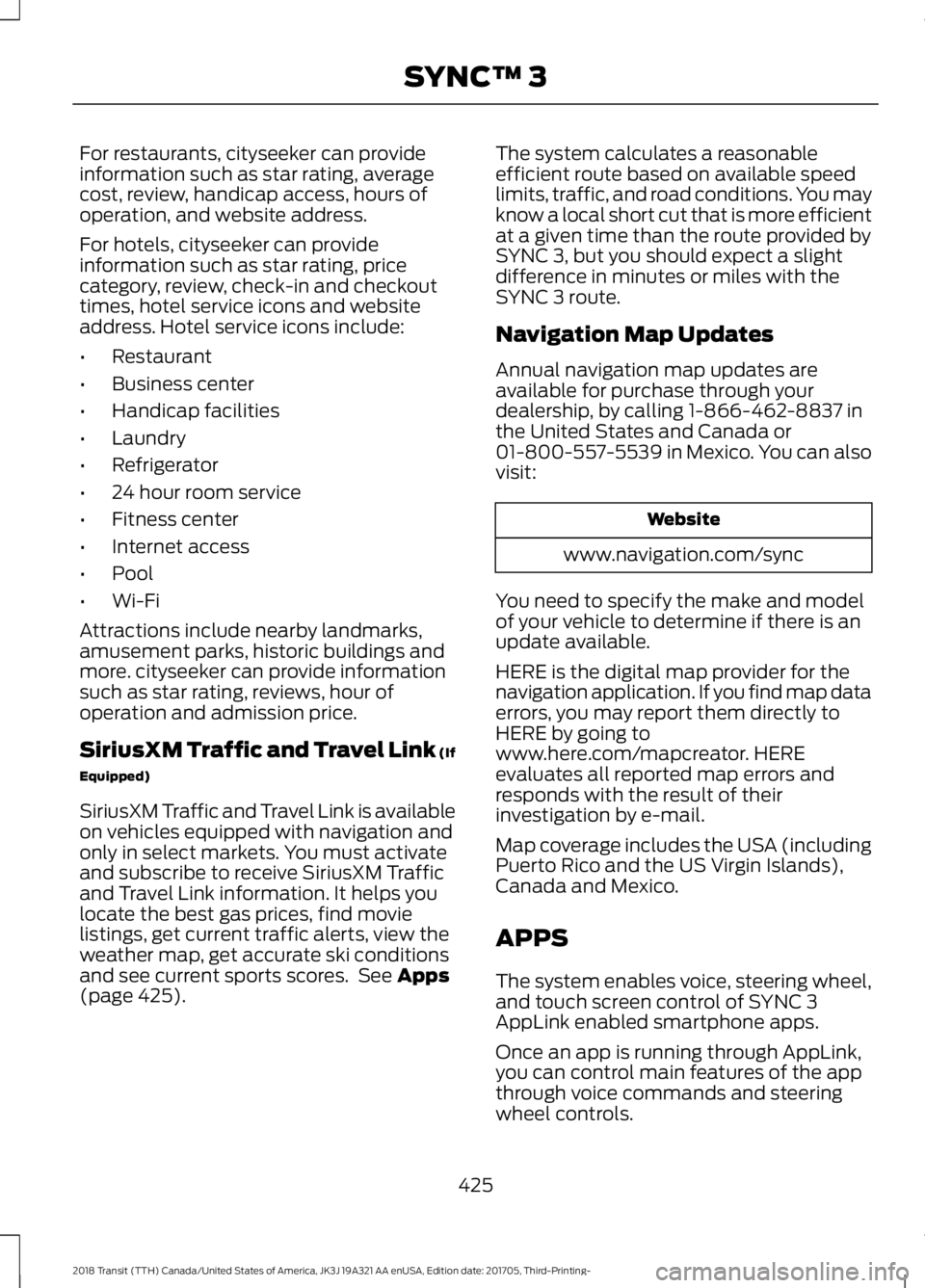
For restaurants, cityseeker can provide
information such as star rating, average
cost, review, handicap access, hours of
operation, and website address.
For hotels, cityseeker can provide
information such as star rating, price
category, review, check-in and checkout
times, hotel service icons and website
address. Hotel service icons include:
•
Restaurant
• Business center
• Handicap facilities
• Laundry
• Refrigerator
• 24 hour room service
• Fitness center
• Internet access
• Pool
• Wi-Fi
Attractions include nearby landmarks,
amusement parks, historic buildings and
more. cityseeker can provide information
such as star rating, reviews, hour of
operation and admission price.
SiriusXM Traffic and Travel Link (If
Equipped)
SiriusXM Traffic and Travel Link is available
on vehicles equipped with navigation and
only in select markets. You must activate
and subscribe to receive SiriusXM Traffic
and Travel Link information. It helps you
locate the best gas prices, find movie
listings, get current traffic alerts, view the
weather map, get accurate ski conditions
and see current sports scores. See Apps
(page 425). The system calculates a reasonable
efficient route based on available speed
limits, traffic, and road conditions. You may
know a local short cut that is more efficient
at a given time than the route provided by
SYNC 3, but you should expect a slight
difference in minutes or miles with the
SYNC 3 route.
Navigation Map Updates
Annual navigation map updates are
available for purchase through your
dealership, by calling 1-866-462-8837 in
the United States and Canada or
01-800-557-5539 in Mexico. You can also
visit:
Website
www.navigation.com/sync
You need to specify the make and model
of your vehicle to determine if there is an
update available.
HERE is the digital map provider for the
navigation application. If you find map data
errors, you may report them directly to
HERE by going to
www.here.com/mapcreator. HERE
evaluates all reported map errors and
responds with the result of their
investigation by e-mail.
Map coverage includes the USA (including
Puerto Rico and the US Virgin Islands),
Canada and Mexico.
APPS
The system enables voice, steering wheel,
and touch screen control of SYNC 3
AppLink enabled smartphone apps.
Once an app is running through AppLink,
you can control main features of the app
through voice commands and steering
wheel controls.
425
2018 Transit (TTH) Canada/United States of America, JK3J 19A321 AA enUSA, Edition date: 201705, Third-Printing- SYNC™ 3
Page 429 of 521
Note:
Available AppLink enabled apps will
vary by market.
Note: You must pair and connect your
smartphone via Bluetooth to SYNC 3 to
access AppLink.
Note: iPhone users need to connect the
phone to the USB port.
Note: For information on available apps,
supported smartphone devices and
troubleshooting tips please visit: Websites
owner.ford.com
www.syncmyride.ca
www.syncmaroute.ca
Note: Make sure you have an active account
for the app that you have downloaded.
Some apps will work automatically with no
setup. Other apps will want you to configure
your personal settings and personalize your
experience by creating stations or
favorites.We recommend you do this at
home or outside of your vehicle.
Note: We encourage you to review the
smartphone app ’s terms of service and
privacy policies because Ford is not
responsible for your app or its use of data.
Note: AppLink is a native SYNC system
feature. Accessing mobile apps through
AppLink is only possible when Android Auto
or Apple CarPlay are disabled. Some apps
may only be accessible in the car through
AppLink and others only through Android
Auto or Apple CarPlay. Please refer to the
Smartphone Connectivity information to
disable Android Auto or Apple CarPlay.
Note: In order to use an app with SYNC 3,
the app needs to be running in the
background of your phone. If you shut down
the app on your phone, it shuts down the
app on SYNC 3 as well. Note:
If a SYNC 3 AppLink compatible app
is not shown in the Apps Domain, make sure
the required app is running on the mobile
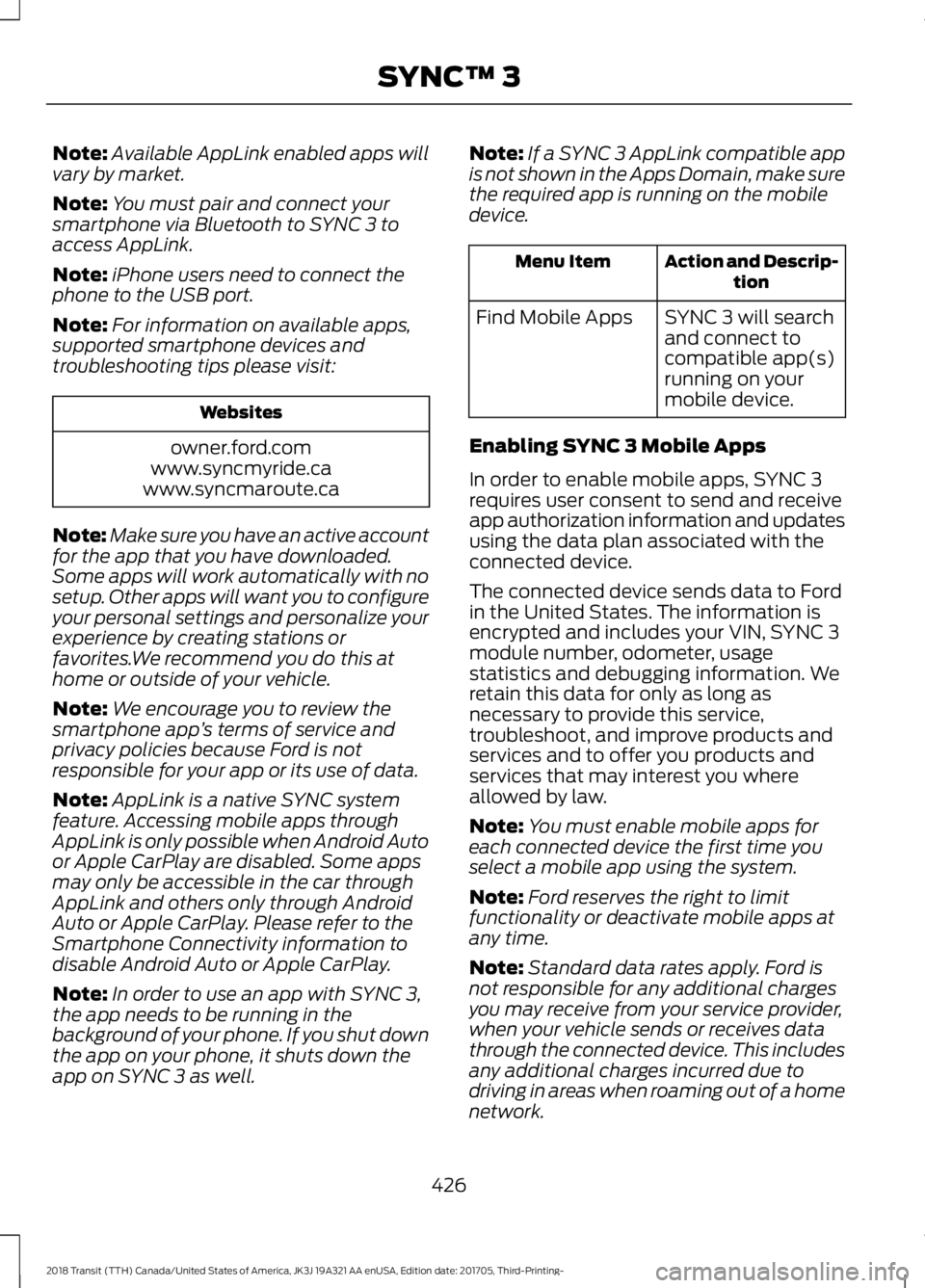
device. Action and Descrip-
tion
Menu Item
SYNC 3 will search
and connect to
compatible app(s)
running on your
mobile device.
Find Mobile Apps
Enabling SYNC 3 Mobile Apps
In order to enable mobile apps, SYNC 3
requires user consent to send and receive
app authorization information and updates
using the data plan associated with the
connected device.
The connected device sends data to Ford
in the United States. The information is
encrypted and includes your VIN, SYNC 3
module number, odometer, usage
statistics and debugging information. We
retain this data for only as long as
necessary to provide this service,
troubleshoot, and improve products and
services and to offer you products and
services that may interest you where
allowed by law.
Note: You must enable mobile apps for
each connected device the first time you
select a mobile app using the system.
Note: Ford reserves the right to limit
functionality or deactivate mobile apps at
any time.
Note: Standard data rates apply. Ford is
not responsible for any additional charges
you may receive from your service provider,
when your vehicle sends or receives data
through the connected device. This includes
any additional charges incurred due to
driving in areas when roaming out of a home
network.
426
2018 Transit (TTH) Canada/United States of America, JK3J 19A321 AA enUSA, Edition date: 201705, Third-Printing- SYNC™ 3
Page 430 of 521
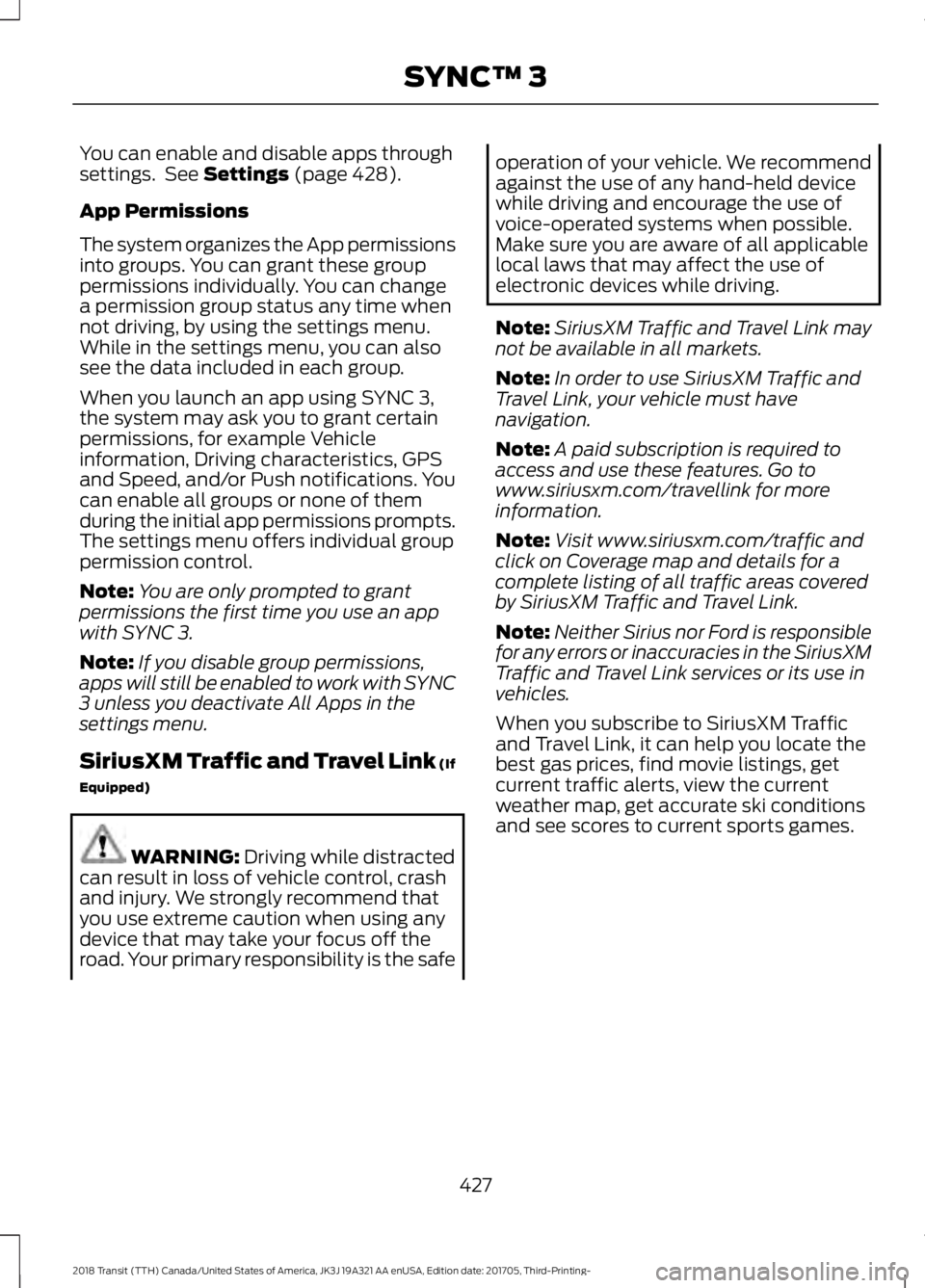
You can enable and disable apps through
settings. See Settings (page 428).
App Permissions
The system organizes the App permissions
into groups. You can grant these group
permissions individually. You can change
a permission group status any time when
not driving, by using the settings menu.
While in the settings menu, you can also
see the data included in each group.
When you launch an app using SYNC 3,
the system may ask you to grant certain
permissions, for example Vehicle
information, Driving characteristics, GPS
and Speed, and/or Push notifications. You
can enable all groups or none of them
during the initial app permissions prompts.
The settings menu offers individual group
permission control.
Note: You are only prompted to grant
permissions the first time you use an app
with SYNC 3.
Note: If you disable group permissions,
apps will still be enabled to work with SYNC
3 unless you deactivate All Apps in the
settings menu.
SiriusXM Traffic and Travel Link (If
Equipped) WARNING:
Driving while distracted
can result in loss of vehicle control, crash
and injury. We strongly recommend that
you use extreme caution when using any
device that may take your focus off the
road. Your primary responsibility is the safe operation of your vehicle. We recommend
against the use of any hand-held device
while driving and encourage the use of
voice-operated systems when possible.
Make sure you are aware of all applicable
local laws that may affect the use of
electronic devices while driving.
Note:
SiriusXM Traffic and Travel Link may
not be available in all markets.
Note: In order to use SiriusXM Traffic and
Travel Link, your vehicle must have
navigation.
Note: A paid subscription is required to
access and use these features. Go to
www.siriusxm.com/travellink for more
information.
Note: Visit www.siriusxm.com/traffic and
click on Coverage map and details for a
complete listing of all traffic areas covered
by SiriusXM Traffic and Travel Link.
Note: Neither Sirius nor Ford is responsible
for any errors or inaccuracies in the SiriusXM
Traffic and Travel Link services or its use in
vehicles.
When you subscribe to SiriusXM Traffic
and Travel Link, it can help you locate the
best gas prices, find movie listings, get
current traffic alerts, view the current
weather map, get accurate ski conditions
and see scores to current sports games.
427
2018 Transit (TTH) Canada/United States of America, JK3J 19A321 AA enUSA, Edition date: 201705, Third-Printing- SYNC™ 3
Page 440 of 521
Note:
Standard data rates will apply. Ford
is not responsible for any additional charges
you may receive from your service provider,
when your vehicle sends or receives data
through the connected device. This includes
any additional charges incurred due to
driving in areas when roaming out of a home
network. Action and Description
Menu Item
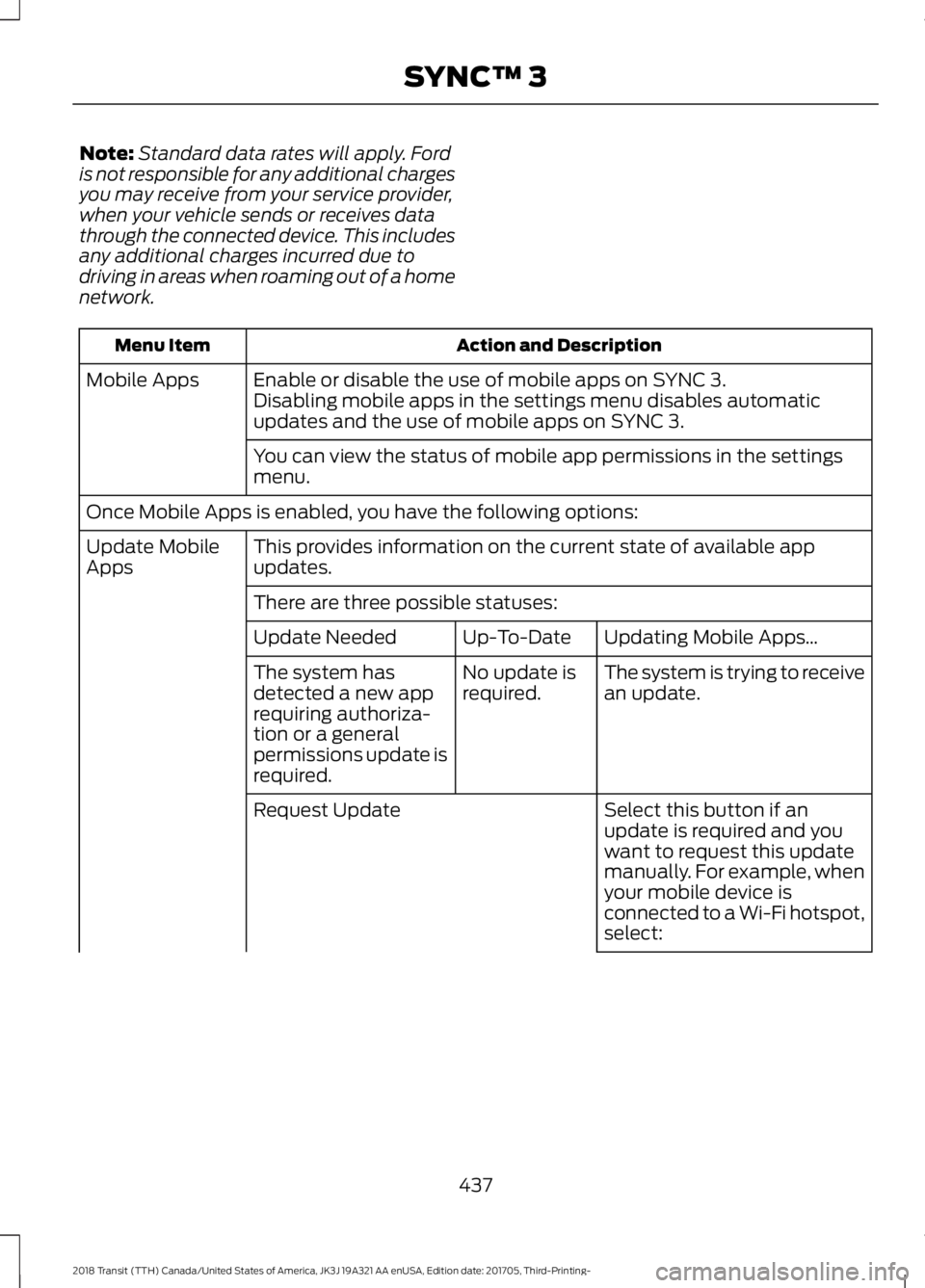
Enable or disable the use of mobile apps on SYNC 3.
Mobile Apps
Disabling mobile apps in the settings menu disables automatic
updates and the use of mobile apps on SYNC 3.
You can view the status of mobile app permissions in the settings
menu.
Once Mobile Apps is enabled, you have the following options: This provides information on the current state of available app
updates.
Update Mobile
Apps
There are three possible statuses: Updating Mobile Apps…
Up-To-Date
Update Needed
The system is trying to receive
an update.
No update is
required.
The system has
detected a new app
requiring authoriza-
tion or a general
permissions update is
required.
Select this button if an
update is required and you
want to request this update
manually. For example, when
your mobile device is
connected to a Wi-Fi hotspot,
select:
Request Update
437
2018 Transit (TTH) Canada/United States of America, JK3J 19A321 AA enUSA, Edition date: 201705, Third-Printing- SYNC™ 3
Page 441 of 521
Action and Description
Menu Item
Request Update
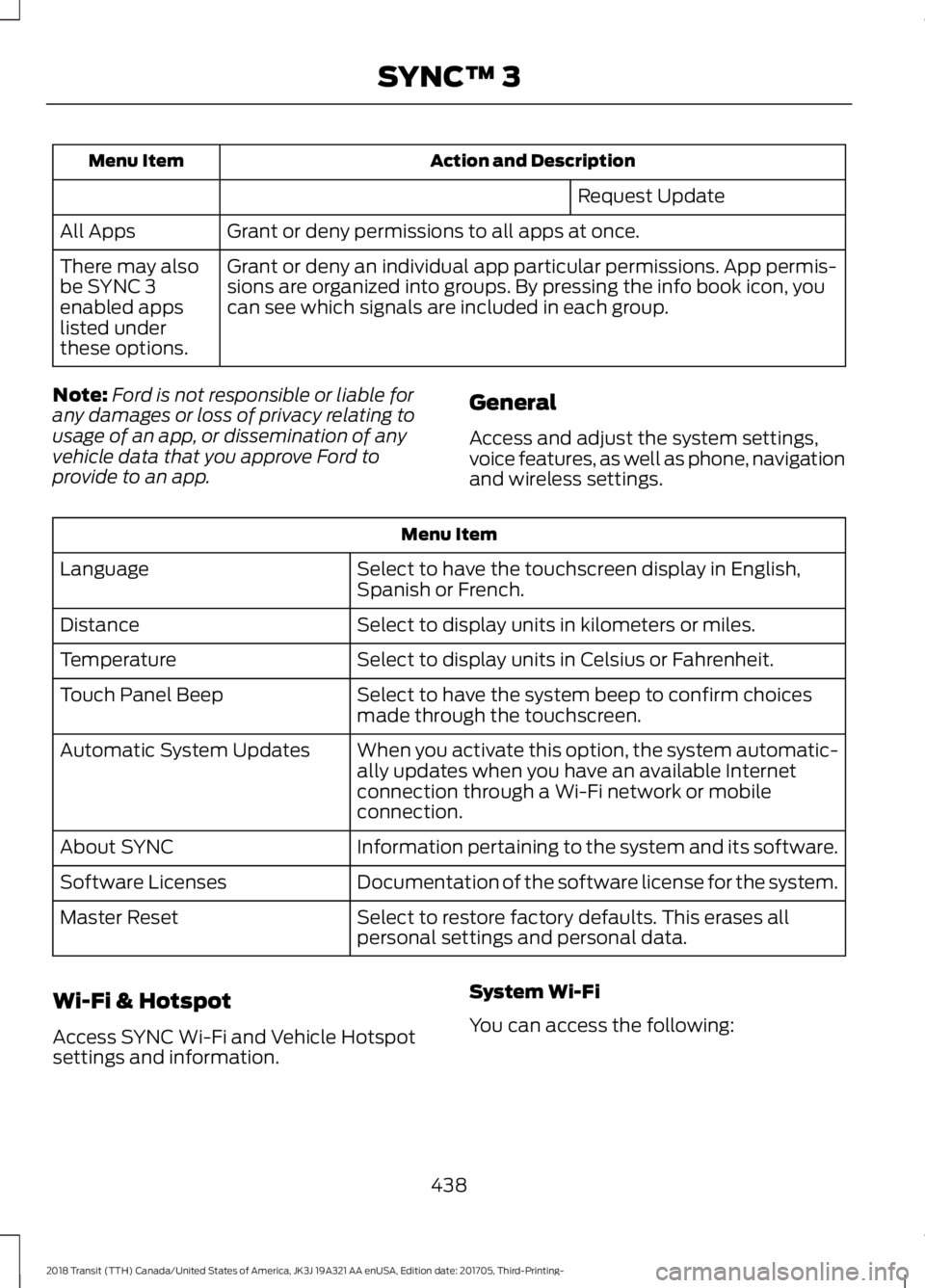
Grant or deny permissions to all apps at once.
All Apps
Grant or deny an individual app particular permissions. App permis-
sions are organized into groups. By pressing the info book icon, you
can see which signals are included in each group.
There may also
be SYNC 3
enabled apps
listed under
these options.
Note: Ford is not responsible or liable for
any damages or loss of privacy relating to
usage of an app, or dissemination of any
vehicle data that you approve Ford to
provide to an app. General
Access and adjust the system settings,
voice features, as well as phone, navigation
and wireless settings.Menu Item
Select to have the touchscreen display in English,
Spanish or French.
Language
Select to display units in kilometers or miles.
Distance
Select to display units in Celsius or Fahrenheit.
Temperature
Select to have the system beep to confirm choices
made through the touchscreen.
Touch Panel Beep
When you activate this option, the system automatic-
ally updates when you have an available Internet
connection through a Wi-Fi network or mobile
connection.
Automatic System Updates
Information pertaining to the system and its software.
About SYNC
Documentation of the software license for the system.
Software Licenses
Select to restore factory defaults. This erases all
personal settings and personal data.
Master Reset
Wi-Fi & Hotspot
Access SYNC Wi-Fi and Vehicle Hotspot
settings and information. System Wi-Fi
You can access the following:
438
2018 Transit (TTH) Canada/United States of America, JK3J 19A321 AA enUSA, Edition date: 201705, Third-Printing- SYNC™ 3
Page 442 of 521
Action and Description
Menu Item
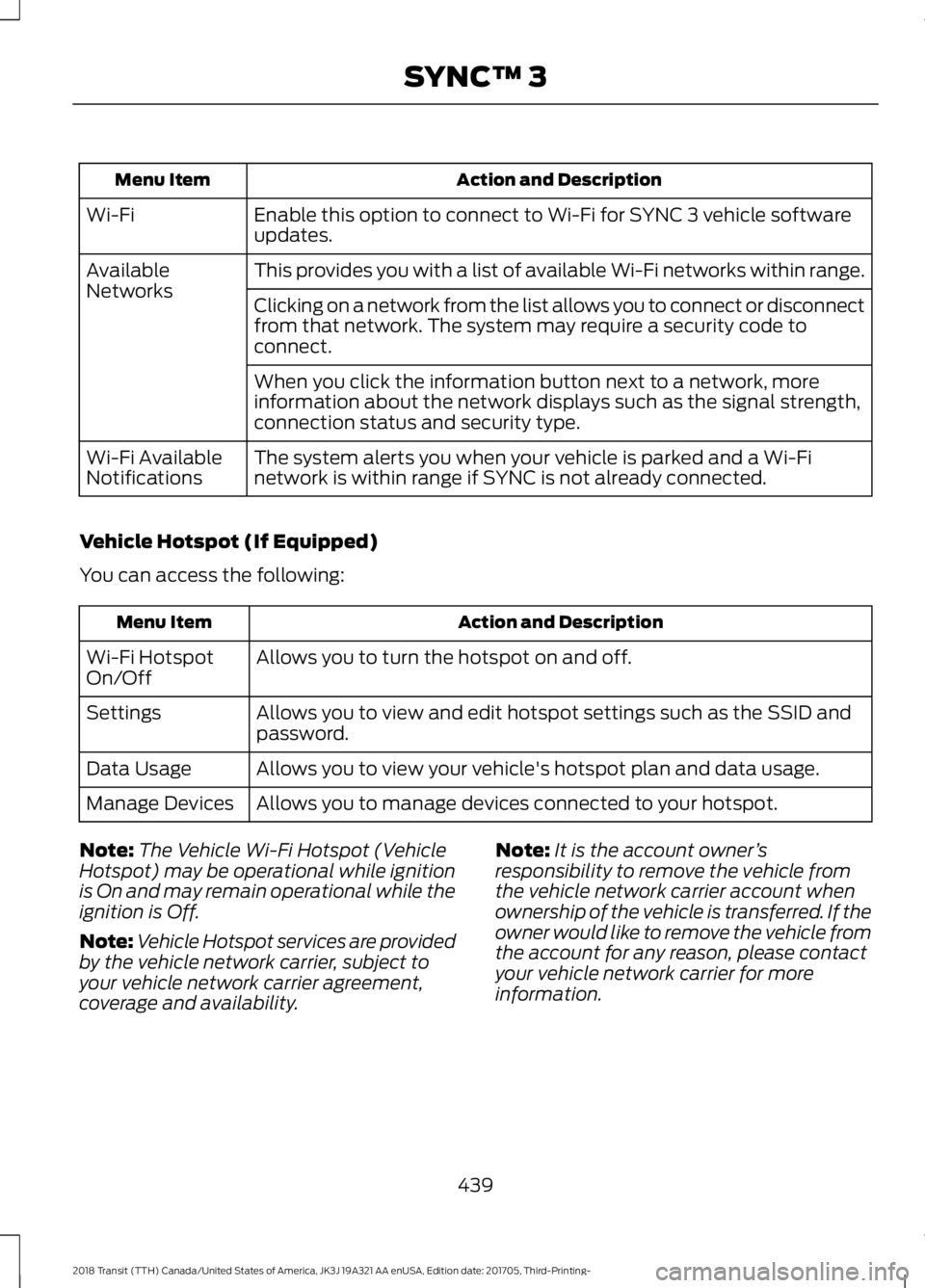
Enable this option to connect to Wi-Fi for SYNC 3 vehicle software
updates.
Wi-Fi
This provides you with a list of available Wi-Fi networks within range.
Available
Networks
Clicking on a network from the list allows you to connect or disconnect
from that network. The system may require a security code to
connect.
When you click the information button next to a network, more
information about the network displays such as the signal strength,
connection status and security type.
The system alerts you when your vehicle is parked and a Wi-Fi
network is within range if SYNC is not already connected.
Wi-Fi Available
Notifications
Vehicle Hotspot (If Equipped)
You can access the following: Action and Description
Menu Item
Allows you to turn the hotspot on and off.
Wi-Fi Hotspot
On/Off
Allows you to view and edit hotspot settings such as the SSID and
password.
Settings
Allows you to view your vehicle's hotspot plan and data usage.
Data Usage
Allows you to manage devices connected to your hotspot.
Manage Devices
Note: The Vehicle Wi-Fi Hotspot (Vehicle
Hotspot) may be operational while ignition
is On and may remain operational while the
ignition is Off.
Note: Vehicle Hotspot services are provided
by the vehicle network carrier, subject to
your vehicle network carrier agreement,
coverage and availability. Note:
It is the account owner ’s
responsibility to remove the vehicle from
the vehicle network carrier account when
ownership of the vehicle is transferred. If the
owner would like to remove the vehicle from
the account for any reason, please contact
your vehicle network carrier for more
information.
439
2018 Transit (TTH) Canada/United States of America, JK3J 19A321 AA enUSA, Edition date: 201705, Third-Printing- SYNC™ 3
Page 443 of 521
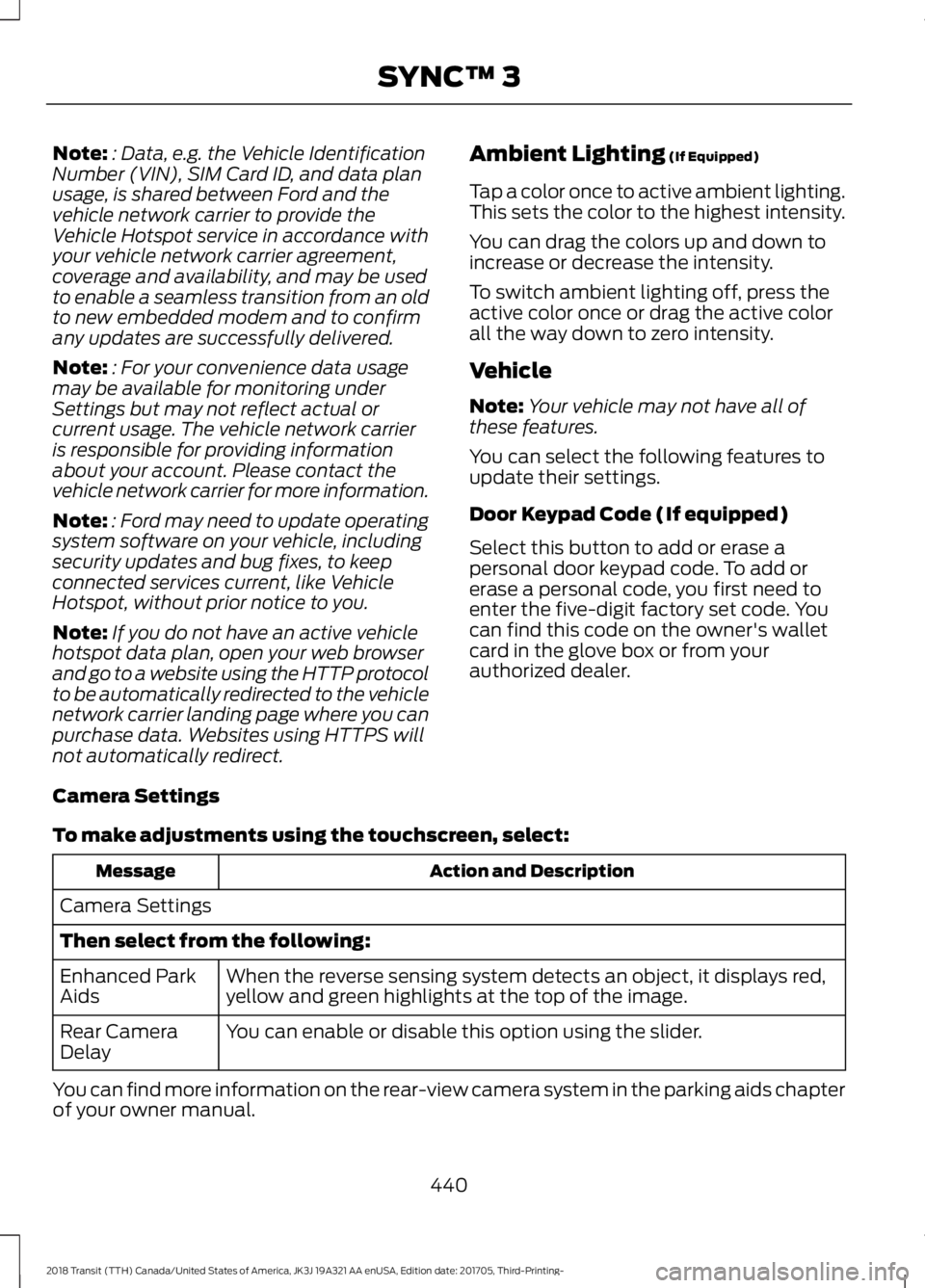
Note:
: Data, e.g. the Vehicle Identification
Number (VIN), SIM Card ID, and data plan
usage, is shared between Ford and the
vehicle network carrier to provide the
Vehicle Hotspot service in accordance with
your vehicle network carrier agreement,
coverage and availability, and may be used
to enable a seamless transition from an old
to new embedded modem and to confirm
any updates are successfully delivered.
Note: : For your convenience data usage
may be available for monitoring under
Settings but may not reflect actual or
current usage. The vehicle network carrier
is responsible for providing information
about your account. Please contact the
vehicle network carrier for more information.
Note: : Ford may need to update operating
system software on your vehicle, including
security updates and bug fixes, to keep
connected services current, like Vehicle
Hotspot, without prior notice to you.
Note: If you do not have an active vehicle
hotspot data plan, open your web browser
and go to a website using the HTTP protocol
to be automatically redirected to the vehicle
network carrier landing page where you can
purchase data. Websites using HTTPS will
not automatically redirect. Ambient Lighting (If Equipped)
Tap a color once to active ambient lighting.
This sets the color to the highest intensity.
You can drag the colors up and down to
increase or decrease the intensity.
To switch ambient lighting off, press the
active color once or drag the active color
all the way down to zero intensity.
Vehicle
Note: Your vehicle may not have all of
these features.
You can select the following features to
update their settings.
Door Keypad Code (If equipped)
Select this button to add or erase a
personal door keypad code. To add or
erase a personal code, you first need to
enter the five-digit factory set code. You
can find this code on the owner's wallet
card in the glove box or from your
authorized dealer.
Camera Settings
To make adjustments using the touchscreen, select: Action and Description
Message
Camera Settings
Then select from the following: When the reverse sensing system detects an object, it displays red,
yellow and green highlights at the top of the image.
Enhanced Park
Aids
You can enable or disable this option using the slider.
Rear Camera
Delay
You can find more information on the rear-view camera system in the parking aids chapter
of your owner manual.
440
2018 Transit (TTH) Canada/United States of America, JK3J 19A321 AA enUSA, Edition date: 201705, Third-Printing- SYNC™ 3
Page 450 of 521
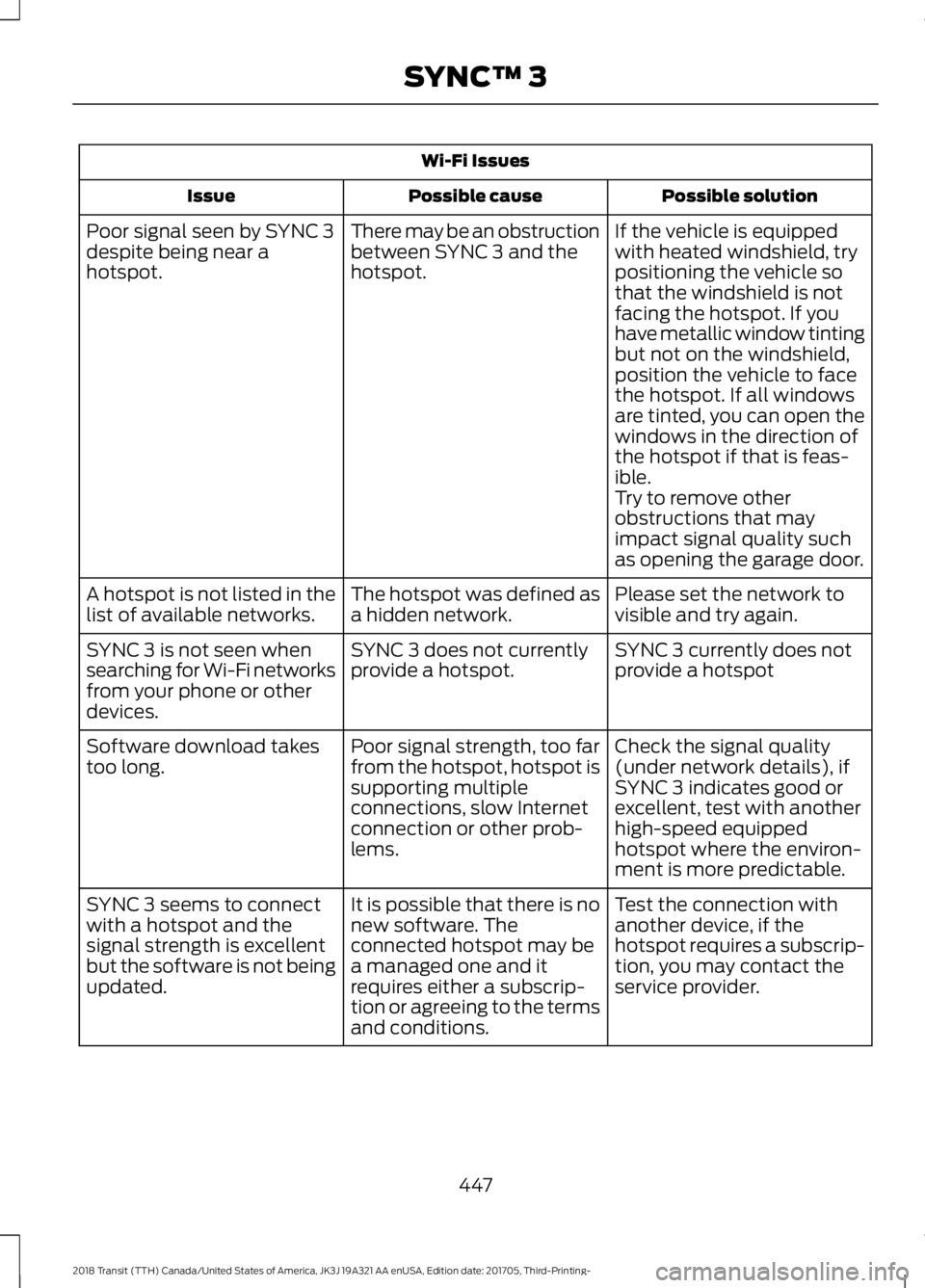
Wi-Fi Issues
Possible solution
Possible cause
Issue
If the vehicle is equipped
with heated windshield, try
positioning the vehicle so
that the windshield is not
facing the hotspot. If you
have metallic window tinting
There may be an obstruction
between SYNC 3 and the
hotspot.
Poor signal seen by SYNC 3
despite being near a
hotspot.
but not on the windshield,
position the vehicle to face
the hotspot. If all windows
are tinted, you can open the
windows in the direction of
the hotspot if that is feas-
ible.
Try to remove other
obstructions that may
impact signal quality such
as opening the garage door.
Please set the network to
visible and try again.
The hotspot was defined as
a hidden network.
A hotspot is not listed in the
list of available networks.
SYNC 3 currently does not
provide a hotspot
SYNC 3 does not currently
provide a hotspot.
SYNC 3 is not seen when
searching for Wi-Fi networks
from your phone or other
devices.
Check the signal quality
(under network details), if
SYNC 3 indicates good or
excellent, test with another
high-speed equipped
hotspot where the environ-
ment is more predictable.
Poor signal strength, too far
from the hotspot, hotspot is
supporting multiple
connections, slow Internet
connection or other prob-
lems.
Software download takes
too long.
Test the connection with
another device, if the
hotspot requires a subscrip-
tion, you may contact the
service provider.
It is possible that there is no
new software. The
connected hotspot may be
a managed one and it
requires either a subscrip-
tion or agreeing to the terms
and conditions.
SYNC 3 seems to connect
with a hotspot and the
signal strength is excellent
but the software is not being
updated.
447
2018 Transit (TTH) Canada/United States of America, JK3J 19A321 AA enUSA, Edition date: 201705, Third-Printing- SYNC™ 3