change wheel FORD TRANSIT 2018 Owners Manual
[x] Cancel search | Manufacturer: FORD, Model Year: 2018, Model line: TRANSIT, Model: FORD TRANSIT 2018Pages: 521, PDF Size: 8.65 MB
Page 7 of 521
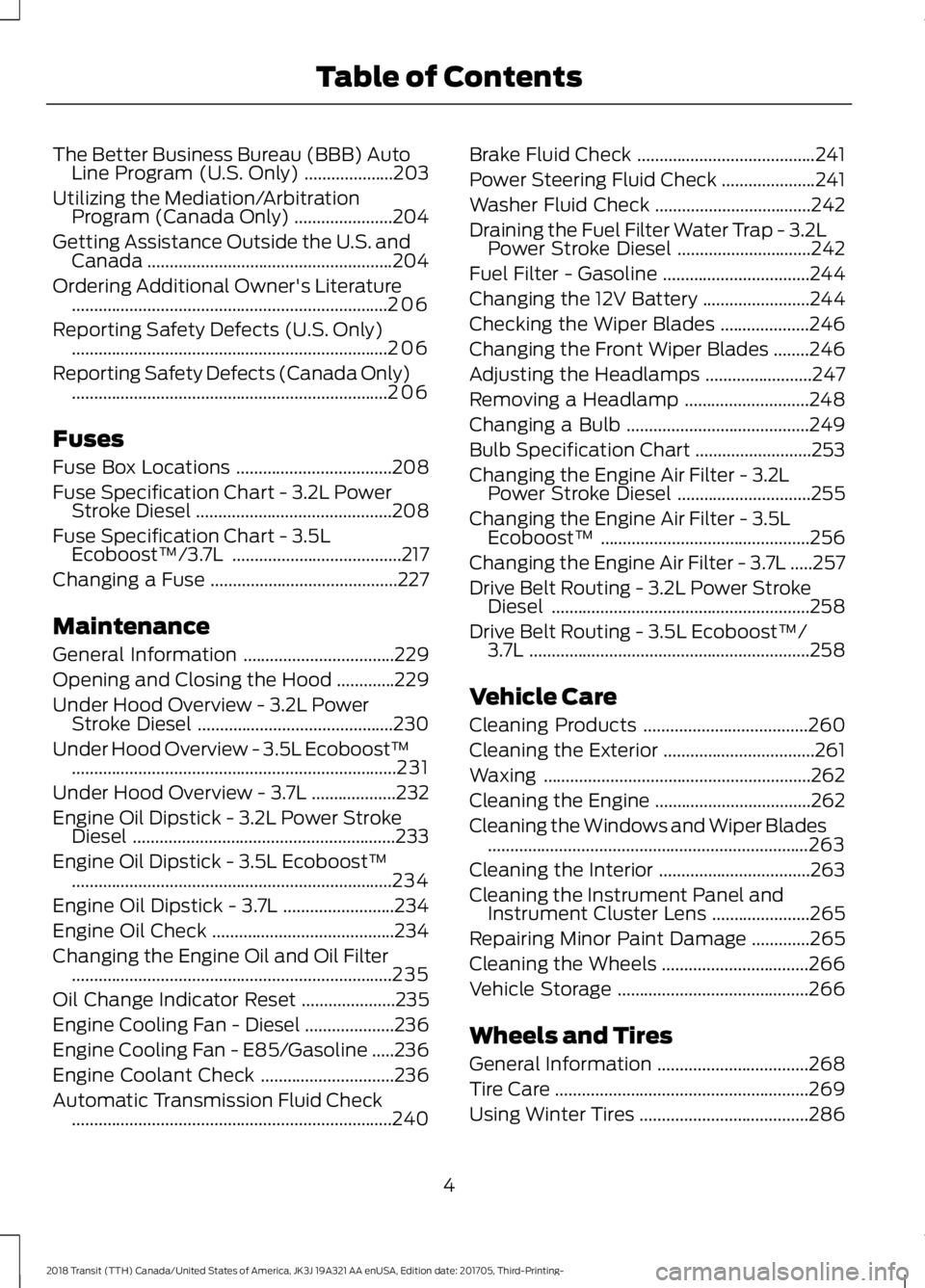
The Better Business Bureau (BBB) Auto
Line Program (U.S. Only) ....................203
Utilizing the Mediation/Arbitration Program (Canada Only) ......................
204
Getting Assistance Outside the U.S. and Canada .......................................................
204
Ordering Additional Owner's Literature .......................................................................
206
Reporting Safety Defects (U.S. Only) .......................................................................
206
Reporting Safety Defects (Canada Only) .......................................................................
206
Fuses
Fuse Box Locations ...................................
208
Fuse Specification Chart - 3.2L Power Stroke Diesel ............................................
208
Fuse Specification Chart - 3.5L Ecoboost™/3.7L ......................................
217
Changing a Fuse ..........................................
227
Maintenance
General Information ..................................
229
Opening and Closing the Hood .............
229
Under Hood Overview - 3.2L Power Stroke Diesel ............................................
230
Under Hood Overview - 3.5L Ecoboost™ ........................................................................\
.
231
Under Hood Overview - 3.7L ...................
232
Engine Oil Dipstick - 3.2L Power Stroke Diesel ...........................................................
233
Engine Oil Dipstick - 3.5L Ecoboost™ ........................................................................\
234
Engine Oil Dipstick - 3.7L .........................
234
Engine Oil Check .........................................
234
Changing the Engine Oil and Oil Filter ........................................................................\
235
Oil Change Indicator Reset .....................
235
Engine Cooling Fan - Diesel ....................
236
Engine Cooling Fan - E85/Gasoline .....
236
Engine Coolant Check ..............................
236
Automatic Transmission Fluid Check ........................................................................\
240 Brake Fluid Check
........................................
241
Power Steering Fluid Check .....................
241
Washer Fluid Check ...................................
242
Draining the Fuel Filter Water Trap - 3.2L Power Stroke Diesel ..............................
242
Fuel Filter - Gasoline .................................
244
Changing the 12V Battery ........................
244
Checking the Wiper Blades ....................
246
Changing the Front Wiper Blades ........
246
Adjusting the Headlamps ........................
247
Removing a Headlamp ............................
248
Changing a Bulb .........................................
249
Bulb Specification Chart ..........................
253
Changing the Engine Air Filter - 3.2L Power Stroke Diesel ..............................
255
Changing the Engine Air Filter - 3.5L Ecoboost™ ...............................................
256
Changing the Engine Air Filter - 3.7L .....
257
Drive Belt Routing - 3.2L Power Stroke Diesel ..........................................................
258
Drive Belt Routing - 3.5L Ecoboost™/ 3.7L ...............................................................
258
Vehicle Care
Cleaning Products .....................................
260
Cleaning the Exterior ..................................
261
Waxing ............................................................
262
Cleaning the Engine ...................................
262
Cleaning the Windows and Wiper Blades ........................................................................\
263
Cleaning the Interior ..................................
263
Cleaning the Instrument Panel and Instrument Cluster Lens ......................
265
Repairing Minor Paint Damage .............
265
Cleaning the Wheels .................................
266
Vehicle Storage ...........................................
266
Wheels and Tires
General Information ..................................
268
Tire Care .........................................................
269
Using Winter Tires ......................................
286
4
2018 Transit (TTH) Canada/United States of America, JK3J 19A321 AA enUSA, Edition date: 201705, Third-Printing- Table of Contents
Page 69 of 521
3. Access the main menu in the
information display and then scroll
through the menus to change the
settings of your MyKey. From the
MyKey menu select the option Create
MyKey. See Information Displays
(page 99).
4. When prompted, hold the
OK button
until you see a message informing you
to label this key as a MyKey. The
programmed restrictions apply when
you key off, open and close the driver
door and restart your vehicle with the
programmed key or transmitter.
MyKey is successfully created. Make sure
you label it so you can distinguish it from
the admin keys.
You can also program configurable
settings for the key(s). See
Programming/Changing Configurable
Settings
.
Programming/Changing
Configurable Settings
Use the information display to access your
configurable MyKey settings.
1. Switch the ignition on using the key or the transmitter you want to program.
2. Access the main menu in the information display and then scroll
through the menus to change the
settings of your MyKey. See
Information Displays
(page 99).
3. Follow the instructions in the display. Note:
You can clear or change your MyKey
settings at any time during the same key
cycle as you created the MyKey. Once you
have switched the vehicle off, however, you
will need an admin key to change or clear
your MyKey settings.
CLEARING ALL MYKEYS
When you clear your MyKeys, you remove
all restrictions and return all MyKeys to
their original admin key status at once. To
clear all MyKeys of all MyKey settings, use
the information display.
1. Switch the ignition on using an admin key.
2. Access the main menu in the information display and then scroll
through the menus to begin clearing
your MyKey programming. See
Information Displays
(page 99).
3. Follow the instructions in the display.
4. A confirmation message appears in the
display after you finish clearing your
MyKeys.
Note: When you clear your MyKeys, you
remove all restrictions and return all MyKeys
to their original admin key status. You
cannot remove the MyKey restrictions
individually.
CHECKING MYKEY SYSTEM
STATUS
You can find information on programmed
MyKey(s) using the information display
control on the steering wheel. See
Information Displays
(page 99).
66
2018 Transit (TTH) Canada/United States of America, JK3J 19A321 AA enUSA, Edition date: 201705, Third-Printing- MyKey
™
(If Equipped)
Page 105 of 521
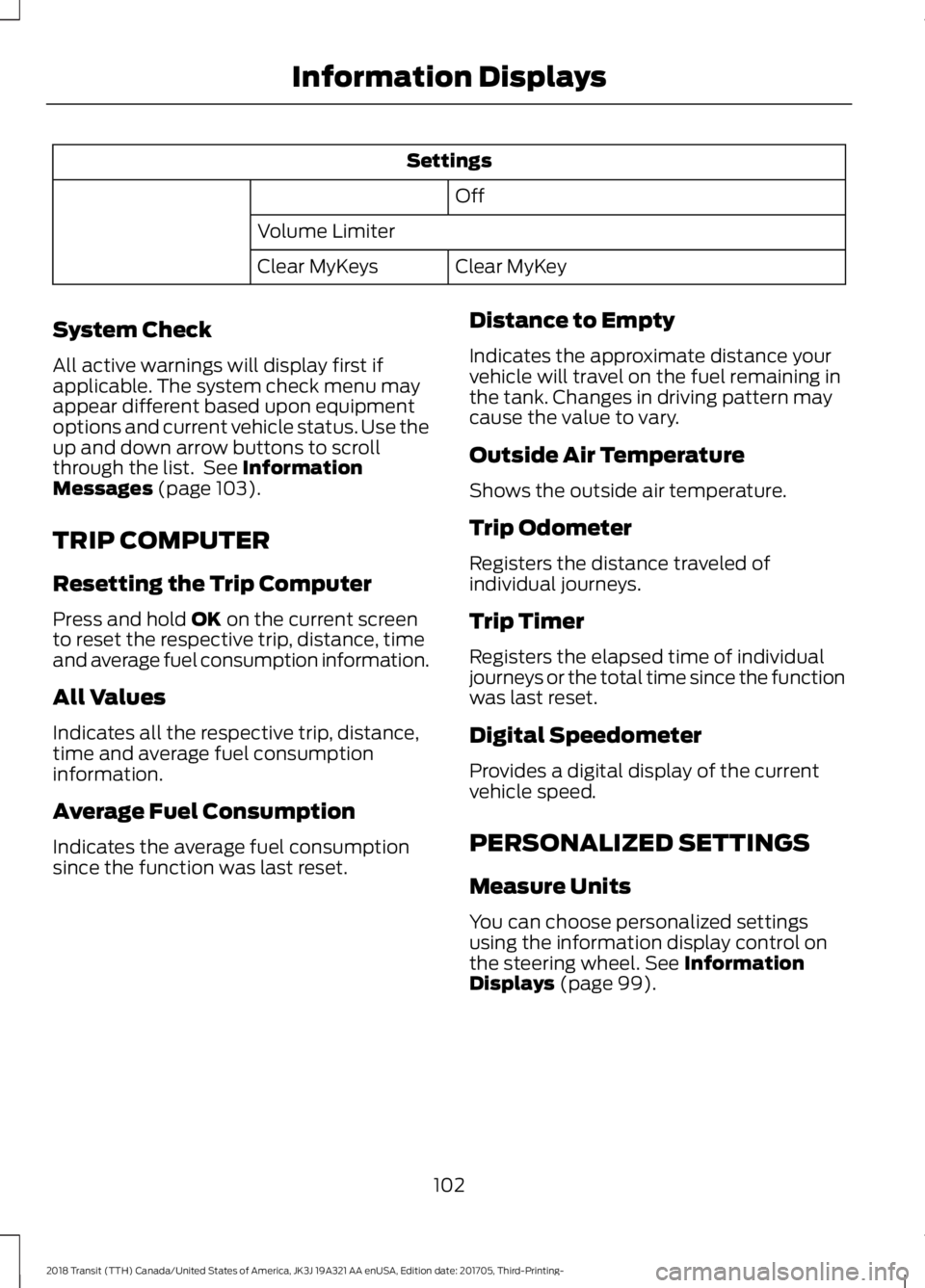
Settings
Off
Volume Limiter Clear MyKey
Clear MyKeys
System Check
All active warnings will display first if
applicable. The system check menu may
appear different based upon equipment
options and current vehicle status. Use the
up and down arrow buttons to scroll
through the list. See Information
Messages (page 103).
TRIP COMPUTER
Resetting the Trip Computer
Press and hold
OK on the current screen
to reset the respective trip, distance, time
and average fuel consumption information.
All Values
Indicates all the respective trip, distance,
time and average fuel consumption
information.
Average Fuel Consumption
Indicates the average fuel consumption
since the function was last reset. Distance to Empty
Indicates the approximate distance your
vehicle will travel on the fuel remaining in
the tank. Changes in driving pattern may
cause the value to vary.
Outside Air Temperature
Shows the outside air temperature.
Trip Odometer
Registers the distance traveled of
individual journeys.
Trip Timer
Registers the elapsed time of individual
journeys or the total time since the function
was last reset.
Digital Speedometer
Provides a digital display of the current
vehicle speed.
PERSONALIZED SETTINGS
Measure Units
You can choose personalized settings
using the information display control on
the steering wheel.
See Information
Displays (page 99).
102
2018 Transit (TTH) Canada/United States of America, JK3J 19A321 AA enUSA, Edition date: 201705, Third-Printing- Information Displays
Page 154 of 521
AUTOMATIC TRANSMISSION
WARNING: Always fully apply the
parking brake. Make sure you shift into park
(P) for vehicles with an automatic
transmission. Switch the ignition off and
remove the key whenever you leave your
vehicle. WARNING:
Do not apply the brake
pedal and accelerator pedal
simultaneously. Applying both pedals
simultaneously for more than a few
seconds will limit engine performance,
which may result in difficulty maintaining
speed in traffic and could lead to serious
injury.
Understanding the Positions of
Your Automatic Transmission
Putting your vehicle in gear:
1. Fully press down the brake pedal.
2. Move the gearshift lever into the desired gear.
3. Come to a complete stop.
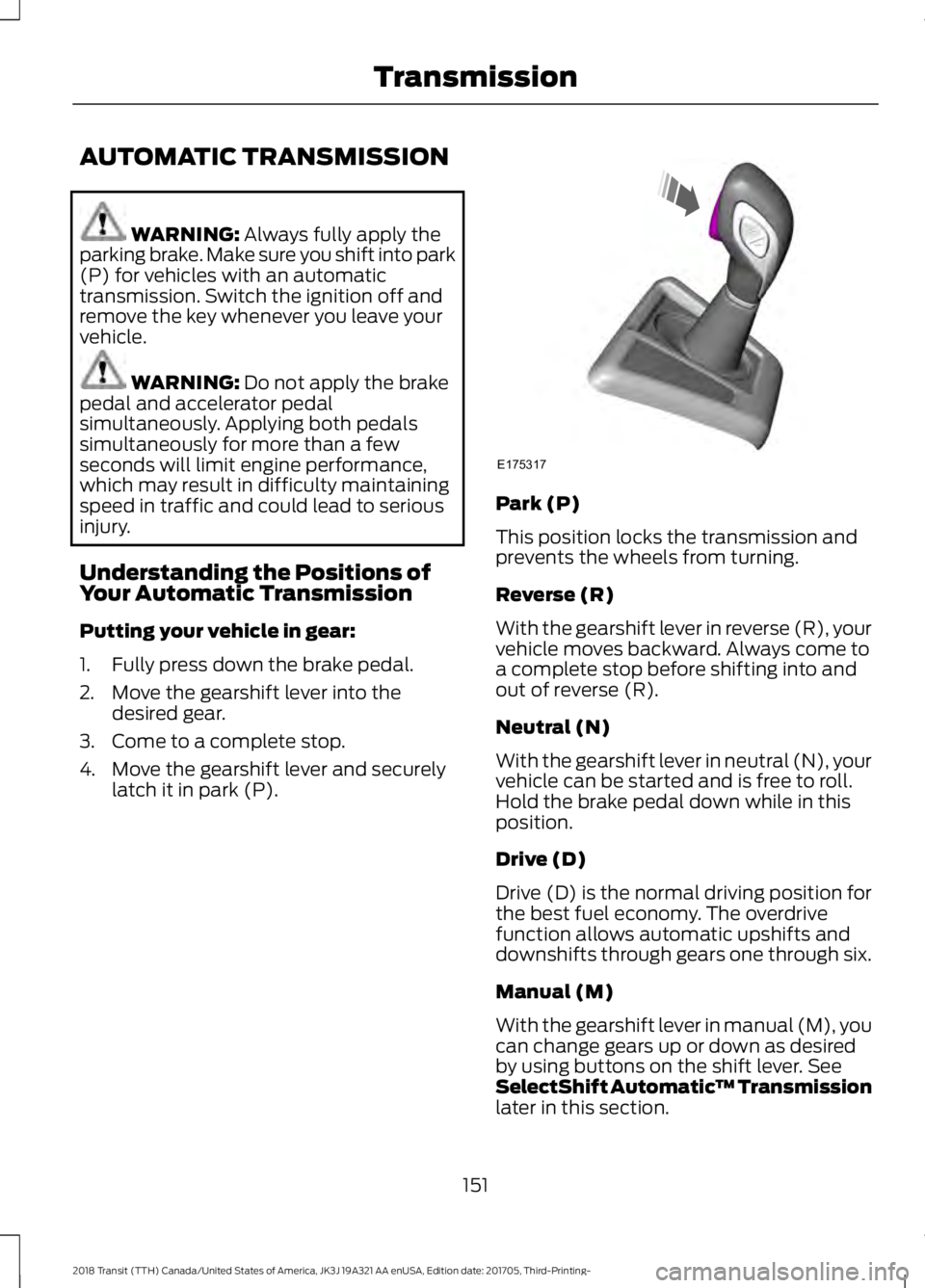
4. Move the gearshift lever and securely latch it in park (P). Park (P)
This position locks the transmission and
prevents the wheels from turning.
Reverse (R)
With the gearshift lever in reverse (R), your
vehicle moves backward. Always come to
a complete stop before shifting into and
out of reverse (R).
Neutral (N)
With the gearshift lever in neutral (N), your
vehicle can be started and is free to roll.
Hold the brake pedal down while in this
position.
Drive (D)
Drive (D) is the normal driving position for
the best fuel economy. The overdrive
function allows automatic upshifts and
downshifts through gears one through six.
Manual (M)
With the gearshift lever in manual (M), you
can change gears up or down as desired
by using buttons on the shift lever. See
SelectShift Automatic
™ Transmission
later in this section.
151
2018 Transit (TTH) Canada/United States of America, JK3J 19A321 AA enUSA, Edition date: 201705, Third-Printing- TransmissionE175317
Page 164 of 521
PRINCIPLE OF OPERATION
WARNING: Vehicle modifications
involving braking system, aftermarket roof
racks, suspension, steering system, tire
construction and wheel and tire size may
change the handling characteristics of your
vehicle and may adversely affect the
performance of the electronic stability
control system. In addition, installing any
stereo loudspeakers may interfere with
and adversely affect the electronic stability
control system. Install any aftermarket
stereo loudspeaker as far as possible from
the front center console, the tunnel, and
the front seats in order to minimize the risk
of interfering with the electronic stability
control sensors. Reducing the
effectiveness of the electronic stability
control system could lead to an increased
risk of loss of vehicle control, vehicle
rollover, personal injury and death. WARNING:
Remember that even
advanced technology cannot defy the laws
of physics. It's always possible to lose
control of a vehicle due to inappropriate
driver input for the conditions. Aggressive
driving on any road condition can cause
you to lose control of your vehicle
increasing the risk of personal injury or
property damage. Activation of the
electronic stability control system is an
indication that at least some of the tires
have exceeded their ability to grip the road;
this could reduce the operator's ability to
control the vehicle potentially resulting in
a loss of vehicle control, vehicle rollover,
personal injury and death. If your electronic
stability control system activates, SLOW
DOWN.
The system automatically turns on each
time you switch the ignition on. If the stability control or traction control
system detects a fault, the following may
occur:
•
The stability and traction control light
illuminates steadily.
• The stability control and traction
control systems do not enhance your
vehicle's ability to maintain traction of
the wheels.
If the stability control or traction control
system activates, the following may occur:
• The stability and traction control light
flashes.
• Your vehicle slows down.
• Reduced engine power.
• A vibration in the brake pedal.
• The brake pedal is stiffer than usual.
• If the driving condition is severe and
your foot is not on the brake pedal, the
pedal may move as the system applies
higher brake force.
The stability control system has several
features built into it to help you maintain
control of your vehicle.
Electronic Stability Control
The system helps to prevent your vehicle
skidding or laterally sliding by individually
applying the brakes to one or more wheels
and, if necessary, reducing engine power.
Roll Stability Control
The system helps to prevent rollovers by
detecting your vehicle's roll motion, and
individually applying the brakes to one or
more wheels.
161
2018 Transit (TTH) Canada/United States of America, JK3J 19A321 AA enUSA, Edition date: 201705, Third-Printing- Stability Control
Page 169 of 521
Note:
If the transmission is in reverse (R)
and the rear cargo door is open, no rear view
camera features display.
Note: When towing, the camera only sees
what you are towing. This might not provide
adequate coverage as it usually provides in
normal operation and you might not see
some objects. In some vehicles, the
guidelines may disappear when you connect
the trailer tow connector.
The camera may not operate correctly
under the following conditions:
• Nighttime or dark areas if one or both
reverse lamps are not operating.
• Mud, water or debris obstructs the
camera's view. Clean the lens with a
soft, lint-free cloth and non-abrasive
cleaner.
• The rear of your vehicle is hit or
damaged, causing the camera to
become misaligned.
Camera Guidelines
Distance markers are only a guide and are
calculated for unloaded vehicles on an
even road surface.
Note: Guidelines are only available when
the transmission is in reverse (R).
Note: Guidelines do not display when the
rear cargo door is ajar.
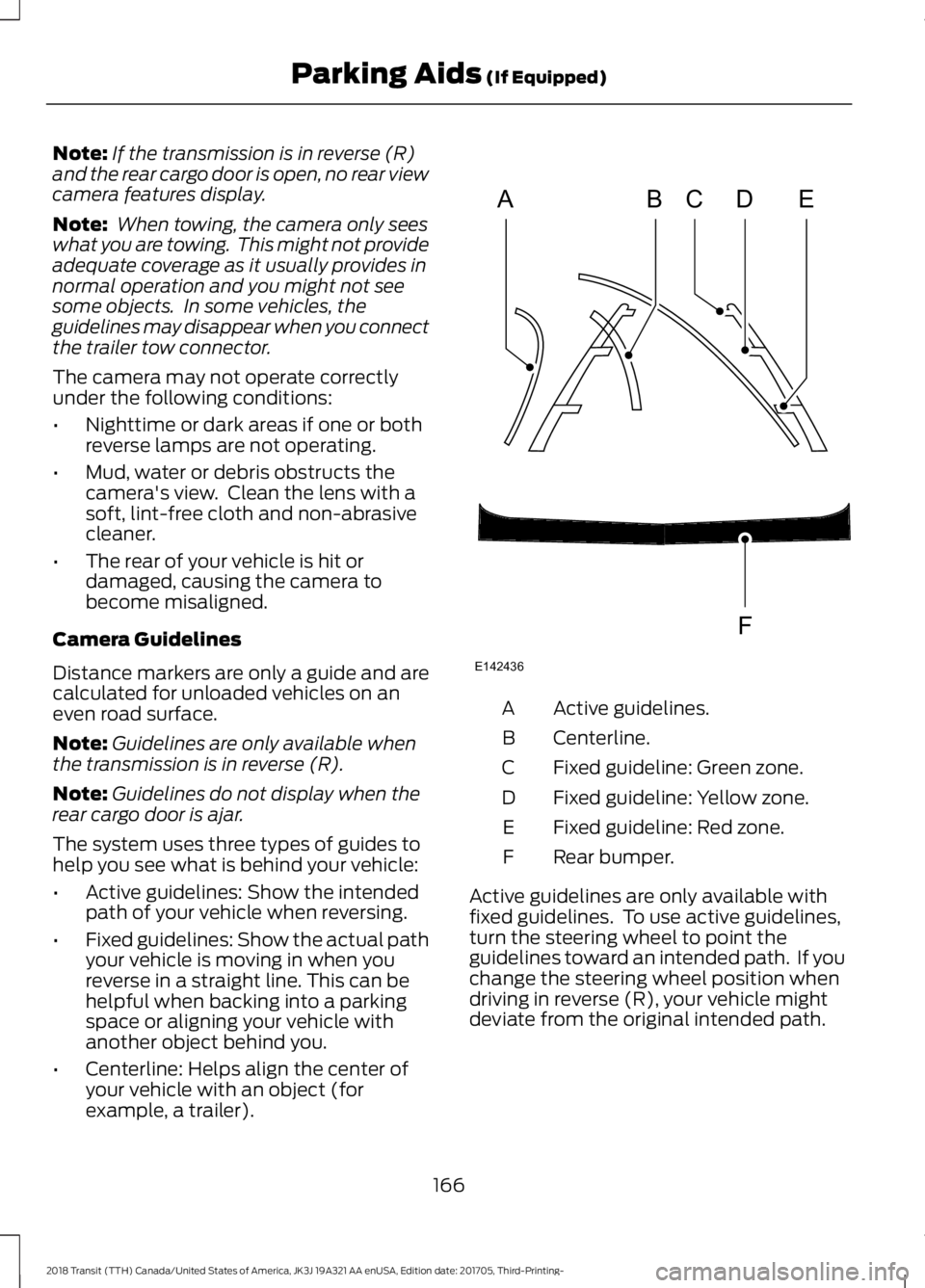
The system uses three types of guides to
help you see what is behind your vehicle:
• Active guidelines: Show the intended
path of your vehicle when reversing.
• Fixed guidelines: Show the actual path
your vehicle is moving in when you
reverse in a straight line. This can be
helpful when backing into a parking
space or aligning your vehicle with
another object behind you.
• Centerline: Helps align the center of
your vehicle with an object (for
example, a trailer). Active guidelines.
A
Centerline.
B
Fixed guideline: Green zone.
C
Fixed guideline: Yellow zone.
D
Fixed guideline: Red zone.
E
Rear bumper.
F
Active guidelines are only available with
fixed guidelines. To use active guidelines,
turn the steering wheel to point the
guidelines toward an intended path. If you
change the steering wheel position when
driving in reverse (R), your vehicle might
deviate from the original intended path.
166
2018 Transit (TTH) Canada/United States of America, JK3J 19A321 AA enUSA, Edition date: 201705, Third-Printing- Parking Aids (If Equipped)ABCD
F
E
E142436
Page 170 of 521
The fixed and active guidelines fade in and
out depending on the steering wheel
position. When the steering wheel position
is straight the active guidelines are not
visible. Objects in the red zone are closest
to your vehicle and objects in the green
zone are further from your vehicle.
Objects are getting closer to your vehicle
as they move from the green zone to the
yellow or red zones. Use the side view
mirrors and rear view mirror to get better
coverage on both sides and rear of the
vehicle.
Manual Zoom
WARNING: When manual zoom is
on, the full area behind your vehicle may
not show. Be aware of your surroundings
when using the manual zoom feature.
Manual zoom is only available when you
shift the transmission into reverse (R).
Selectable settings for this feature are
Zoom in (+) and Zoom out (-). Press the
symbol in the camera screen to change the
view. The default setting is Zoom OFF.
This allows you to get a closer view of an
object behind your vehicle. The zoomed
image keeps the bumper in the image to
provide a reference. The zoom is only
active while the transmission is in reverse
(R).
Note: Only the centerline shows when you
switch on manual zoom.
Rear View Camera Delay WARNING:
Use caution when
turning camera features on or off when the
transmission is not in park (P). Make sure
your vehicle is not moving. You can switch this feature on or off using
the vehicle settings menu in the
information display. The default setting is
off.
When shifting the transmission out of
reverse (R) and into any gear other than
park (P), the camera image remains in the
display until:
•
Your vehicle speed sufficiently
increases.
• You shift your vehicle into park (P).
Vehicles with Parking Aid
The system uses red, yellow and green
colored distance bars that indicate the
approximate distance of an object from
the rear bumper. The distance bars appear
on the camera guidelines when the sensing
system detects an object.
167
2018 Transit (TTH) Canada/United States of America, JK3J 19A321 AA enUSA, Edition date: 201705, Third-Printing- Parking Aids
(If Equipped)
Page 171 of 521
PRINCIPLE OF OPERATION
Cruise control lets you maintain a set
speed without keeping your foot on the
accelerator pedal. You can use cruise
control when your vehicle speed is greater
than 20 mph (30 km/h).
USING CRUISE CONTROL WARNING: Do not use cruise control
on winding roads, in heavy traffic or when
the road surface is slippery. This could
result in loss of vehicle control, serious
injury or death. WARNING:
When you are going
downhill, your vehicle speed could increase
above the set speed. The system does not
apply the brakes.
Note: Cruise control disengages if the
vehicle speed decreases more than 10 mph
(16 km/h) below the set speed while driving
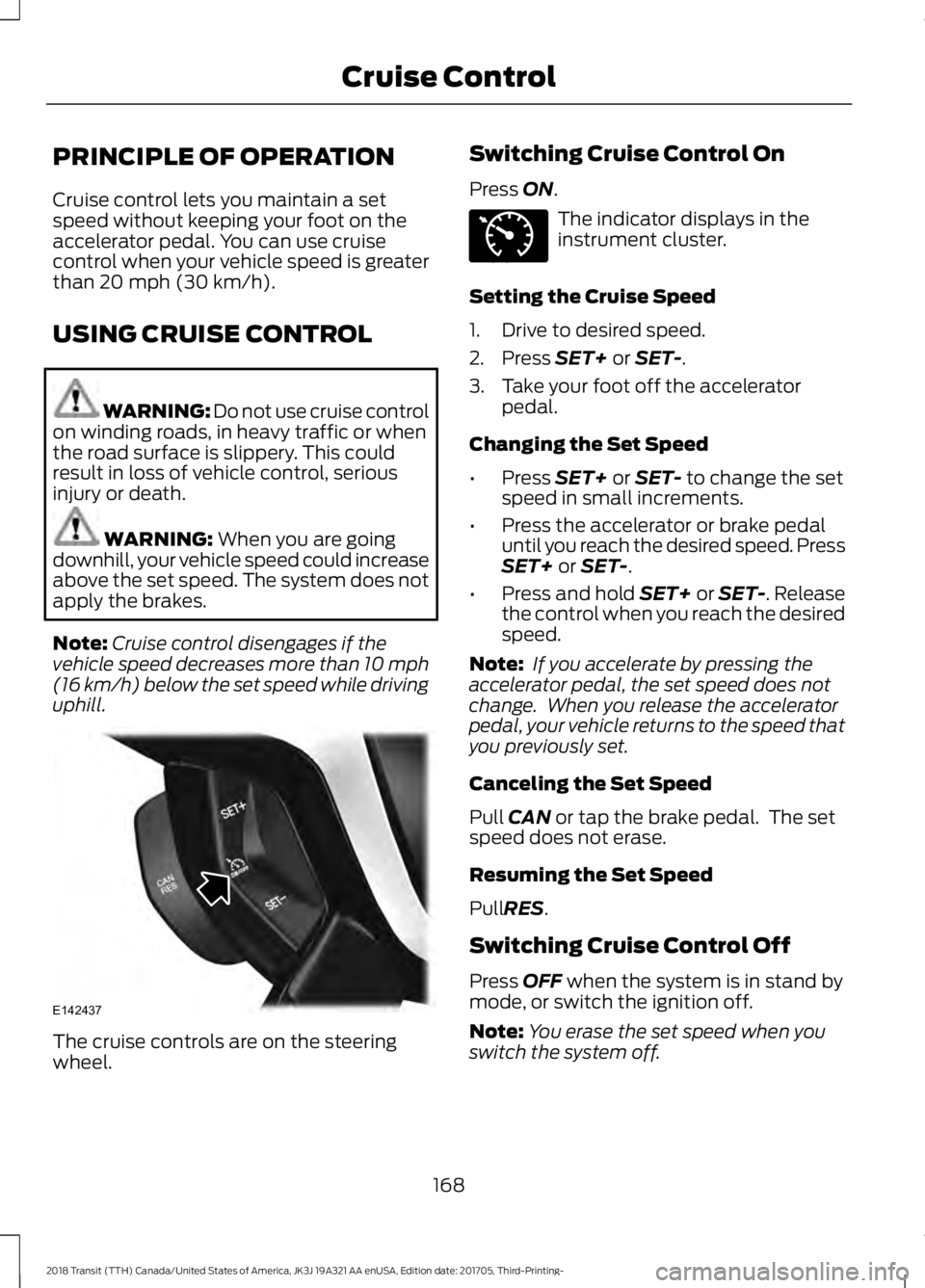
uphill. The cruise controls are on the steering
wheel. Switching Cruise Control On
Press
ON. The indicator displays in the
instrument cluster.
Setting the Cruise Speed
1. Drive to desired speed.
2. Press
SET+ or SET-.
3. Take your foot off the accelerator pedal.
Changing the Set Speed
• Press
SET+ or SET- to change the set
speed in small increments.
• Press the accelerator or brake pedal
until you reach the desired speed. Press
SET+
or SET-.
• Press and hold SET+ or SET-. Release
the control when you reach the desired
speed.
Note: If you accelerate by pressing the
accelerator pedal, the set speed does not
change. When you release the accelerator
pedal, your vehicle returns to the speed that
you previously set.
Canceling the Set Speed
Pull
CAN or tap the brake pedal. The set
speed does not erase.
Resuming the Set Speed
Pull
RES.
Switching Cruise Control Off
Press
OFF when the system is in stand by
mode, or switch the ignition off.
Note: You erase the set speed when you
switch the system off.
168
2018 Transit (TTH) Canada/United States of America, JK3J 19A321 AA enUSA, Edition date: 201705, Third-Printing- Cruise ControlE142437 E71340
Page 175 of 521
Setting the Steering Wheel Vibration
Level
The system has three intensity levels which
you can set using the information display.
See General Information (page 99).
Setting the System Sensitivity
Some vehicles can adjust how quickly the
system warns you. The system has two
sensitivity levels which you can set using
the information display. See
General
Information (page 99).
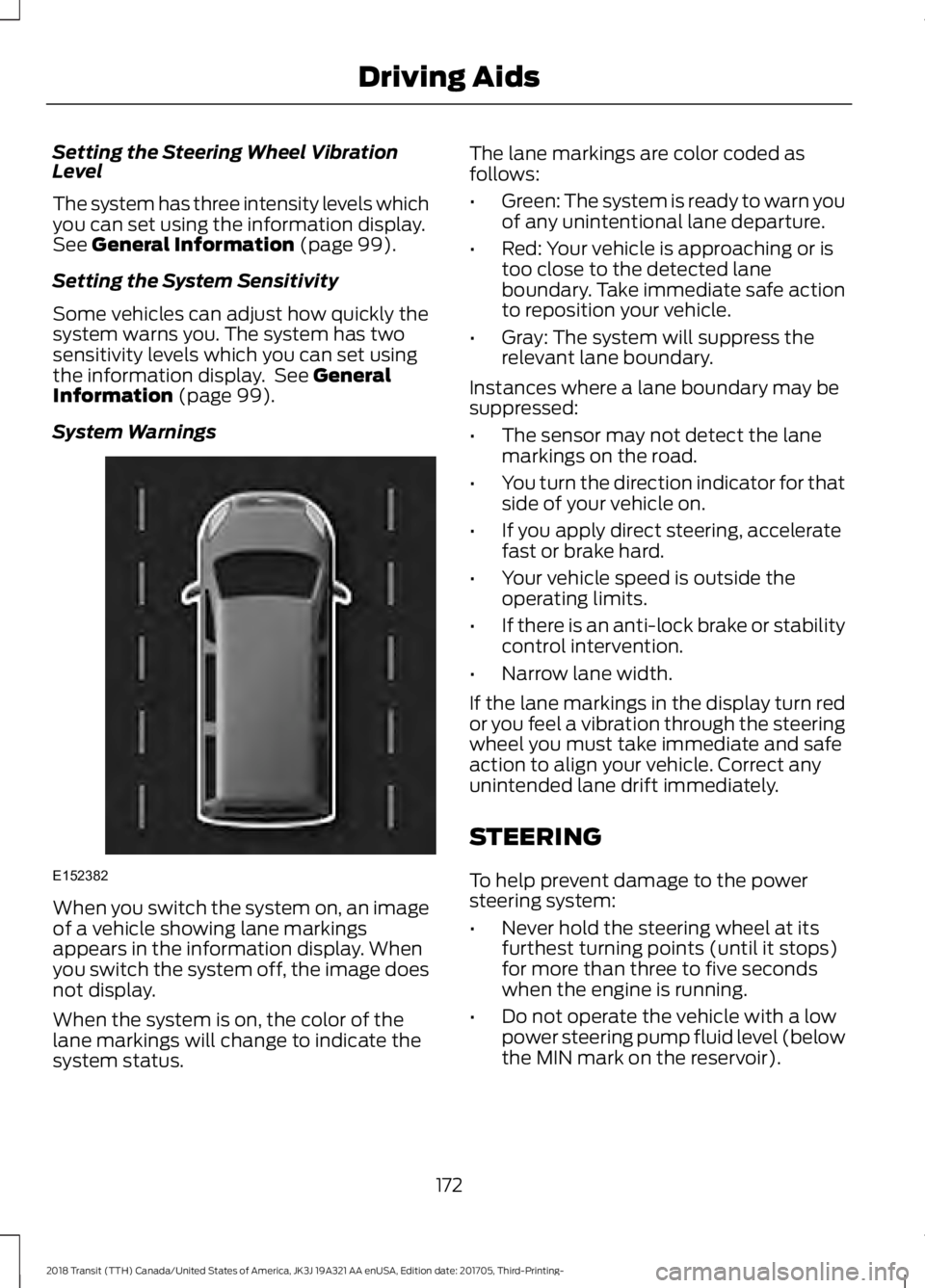
System Warnings When you switch the system on, an image
of a vehicle showing lane markings
appears in the information display. When
you switch the system off, the image does
not display.
When the system is on, the color of the
lane markings will change to indicate the
system status. The lane markings are color coded as
follows:
•
Green: The system is ready to warn you
of any unintentional lane departure.
• Red: Your vehicle is approaching or is
too close to the detected lane
boundary. Take immediate safe action
to reposition your vehicle.
• Gray: The system will suppress the
relevant lane boundary.
Instances where a lane boundary may be
suppressed:
• The sensor may not detect the lane
markings on the road.
• You turn the direction indicator for that
side of your vehicle on.
• If you apply direct steering, accelerate
fast or brake hard.
• Your vehicle speed is outside the
operating limits.
• If there is an anti-lock brake or stability
control intervention.
• Narrow lane width.
If the lane markings in the display turn red
or you feel a vibration through the steering
wheel you must take immediate and safe
action to align your vehicle. Correct any
unintended lane drift immediately.
STEERING
To help prevent damage to the power
steering system:
• Never hold the steering wheel at its
furthest turning points (until it stops)
for more than three to five seconds
when the engine is running.
• Do not operate the vehicle with a low
power steering pump fluid level (below
the MIN mark on the reservoir).
172
2018 Transit (TTH) Canada/United States of America, JK3J 19A321 AA enUSA, Edition date: 201705, Third-Printing- Driving AidsE152382
Page 189 of 521
The controller shows gain setting, output bar graph and the trailer connectivity
status in the information display as follows:
Action and Description
Message
Displays the current gain setting during a given ignition cycle
and when adjusting the gain setting. This also displays if you
use the manual control lever or make gain adjustments with
no trailer connected.
Trailer Brake
Gain:
No Trailer
Displays when you press your vehicle's brake pedal, or upon
use of the manual control lever. Bar indicators illuminate in
the information display to indicate the amount of power going
to the trailer brakes relative to the brake pedal or manual
control input. One bar indicates the least amount of output;
six bars indicate maximum output.
Trailer Brake
Gain:
Output:
Displays when the system senses a correct trailer wiring
connection during a given ignition cycle. For example a trailer
with electric trailer brakes.
Trailer Connected
Displays when the system senses a trailer connection and
then a disconnection, either intentional or unintentional,
during a given ignition cycle, this is accompanied by a single
audible tone. It also displays if a vehicle or trailer-wiring fault
occurs causing the trailer to appear disconnected. This
message can also display if you use the manual control lever
without a trailer connected.
Trailer Disconnected
Procedure for Adjusting the Gain Setting
The gain setting sets the trailer brake
controller for the specific towing condition.
You should change the setting as towing
conditions change. Changes to towing
conditions include trailer load, vehicle load,
road conditions and weather.
The gain should be set to provide the
maximum trailer braking assistance while
making sure the trailer wheels do not lock
when using the brakes. Locked trailer
wheels may lead to trailer instability.
Note: Only carry out this procedure in a
traffic-free environment at speeds of
approximately 20-25 mph (30-40 km/h). 1.
Make sure the trailer brakes are in good
working condition, functioning normally
and correctly adjusted. See a trailer
dealer if necessary.
2. Hook up the trailer and make the electrical connections according to the
trailer manufacturer's instructions.
3. Use the gain adjustment + and -
buttons to increase or decrease the
gain setting to the desired starting
point. A gain setting of six is a good
starting point for heavier loads.
4. In a traffic-free environment, tow the trailer on a dry, level surface at a speed
of 20-25 mph (30-40 km/h) and slide
the manual control lever completely.
186
2018 Transit (TTH) Canada/United States of America, JK3J 19A321 AA enUSA, Edition date: 201705, Third-Printing- Towing