ignition FORD TRANSIT 2020 Repair Manual
[x] Cancel search | Manufacturer: FORD, Model Year: 2020, Model line: TRANSIT, Model: FORD TRANSIT 2020Pages: 529, PDF Size: 8.3 MB
Page 200 of 529
Note:
Do not clean the sensors with sharp
objects.
Note: If your vehicle sustains damage
leaving the sensors misaligned, this may
cause inaccurate measurements or false
alerts.
Note: If you switch traction control off, the
side sensing system also turns off.
Note: Some accessories, for example large
trailer hitches or bike or surfboard racks can
cause reduced performance or false alerts.
Note: The system does not detect an object
that is moving toward the side of your
vehicle, for example another vehicle moving
at low speed, if it does not pass a front or
rear sensor.
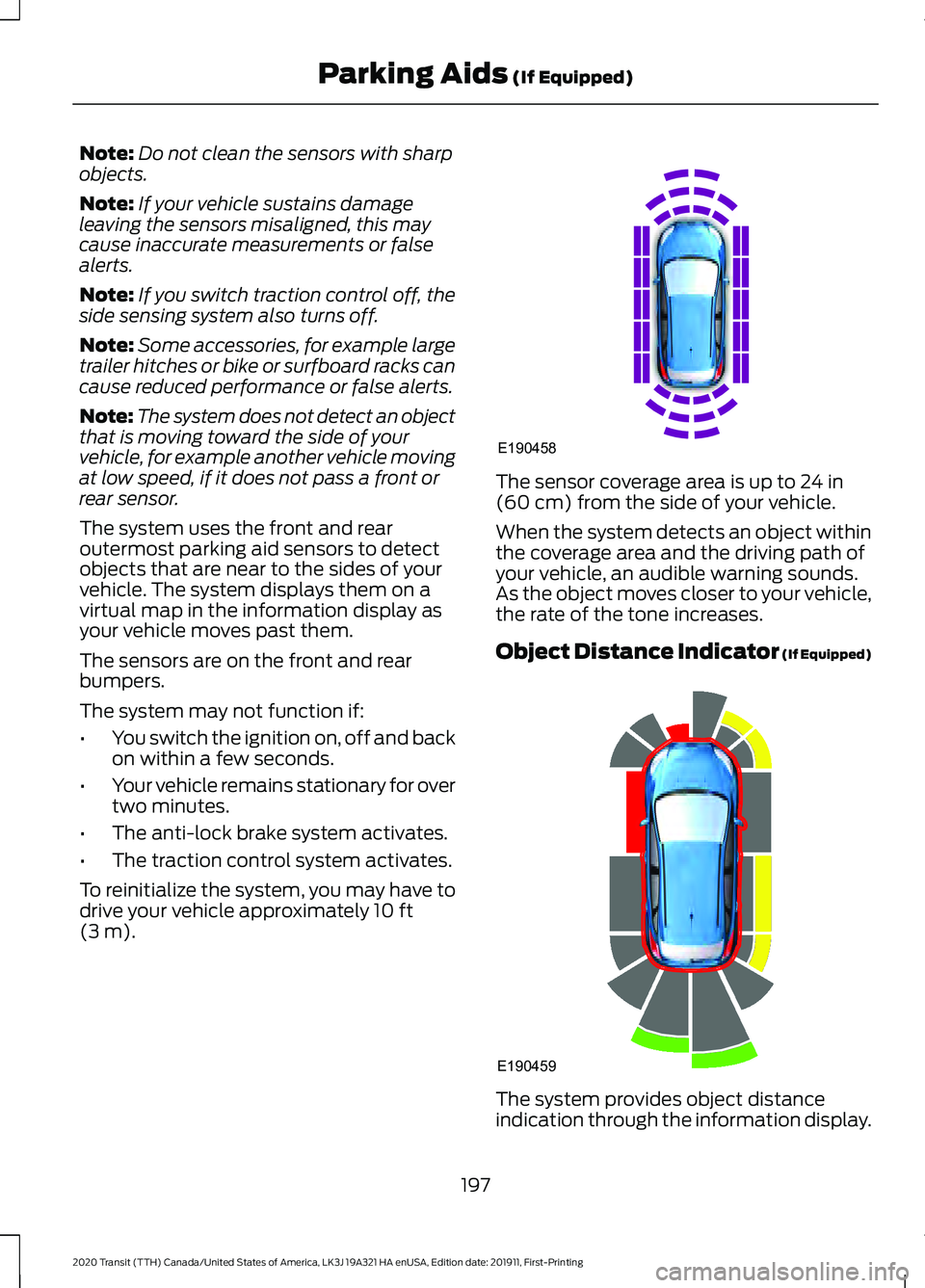
The system uses the front and rear
outermost parking aid sensors to detect
objects that are near to the sides of your
vehicle. The system displays them on a
virtual map in the information display as
your vehicle moves past them.
The sensors are on the front and rear
bumpers.
The system may not function if:
• You switch the ignition on, off and back
on within a few seconds.
• Your vehicle remains stationary for over
two minutes.
• The anti-lock brake system activates.
• The traction control system activates.
To reinitialize the system, you may have to
drive your vehicle approximately 10 ft
(3 m). The sensor coverage area is up to
24 in
(60 cm) from the side of your vehicle.
When the system detects an object within
the coverage area and the driving path of
your vehicle, an audible warning sounds.
As the object moves closer to your vehicle,
the rate of the tone increases.
Object Distance Indicator (If Equipped) The system provides object distance
indication through the information display.
197
2020 Transit (TTH) Canada/United States of America, LK3J 19A321 HA enUSA, Edition date: 201911, First-Printing Parking Aids
(If Equipped)E190458 E190459
Page 209 of 529
PRINCIPLE OF OPERATION
Cruise control lets you maintain a set
speed without keeping your foot on the
accelerator pedal. You can use cruise
control when your vehicle speed is greater
than 20 mph (30 km/h).
USING CRUISE CONTROL WARNING:
Do not use cruise
control on winding roads, in heavy traffic
or when the road surface is slippery. This
could result in loss of vehicle control,
serious injury or death. WARNING:
When you are going
downhill, your vehicle speed could
increase above the set speed. The
system does not apply the brakes.
The cruise controls are on the steering
wheel.
Switching Cruise Control On Press the button.
Switching Cruise Control Off Press the button when the
system is in standby mode. The
system also turns off when you
switch the ignition off.
Note: The set speed erases when you
switch the system off.
Setting the Cruise Speed
Drive to the required speed. Press the toggle button upward
or downward to set the current
speed.
Take your foot off the accelerator pedal.
Note: The set speed appears in the
information display.
Changing the Set Speed Press the toggle button upward
to increase the set speed.
Press the toggle button
downward to decrease the set
speed.
You can adjust the set speed in small or
large increments. Press the toggle button
upward or downward once to adjust the
set speed in small increments. Press and
hold the toggle button upward or
downward to adjust the set speed in large
increments.
Note: If you accelerate by pressing the
accelerator pedal, the set speed does not
change. When you release the accelerator
pedal, your vehicle returns to the speed that
you previously set.
Canceling the Set Speed Press the button, or press the
brake pedal to cancel the set
speed.
Note: The set speed is stored.
Note: The system cancels if the vehicle
speed drops below 10 mph (16 km/h) under
the set speed when driving uphill.
Resuming the Set Speed Press to resume the set speed.
206
2020 Transit (TTH) Canada/United States of America, LK3J 19A321 HA enUSA, Edition date: 201911, First-Printing Cruise ControlE71340 E71340
Page 212 of 529
Note:
The brakes may emit noise when
applied by the system.
Setting the Gap Distance You can decrease or increase the
distance between your vehicle
and the vehicle in front by
pressing the gap control.
Note: It is your responsibility to select a gap
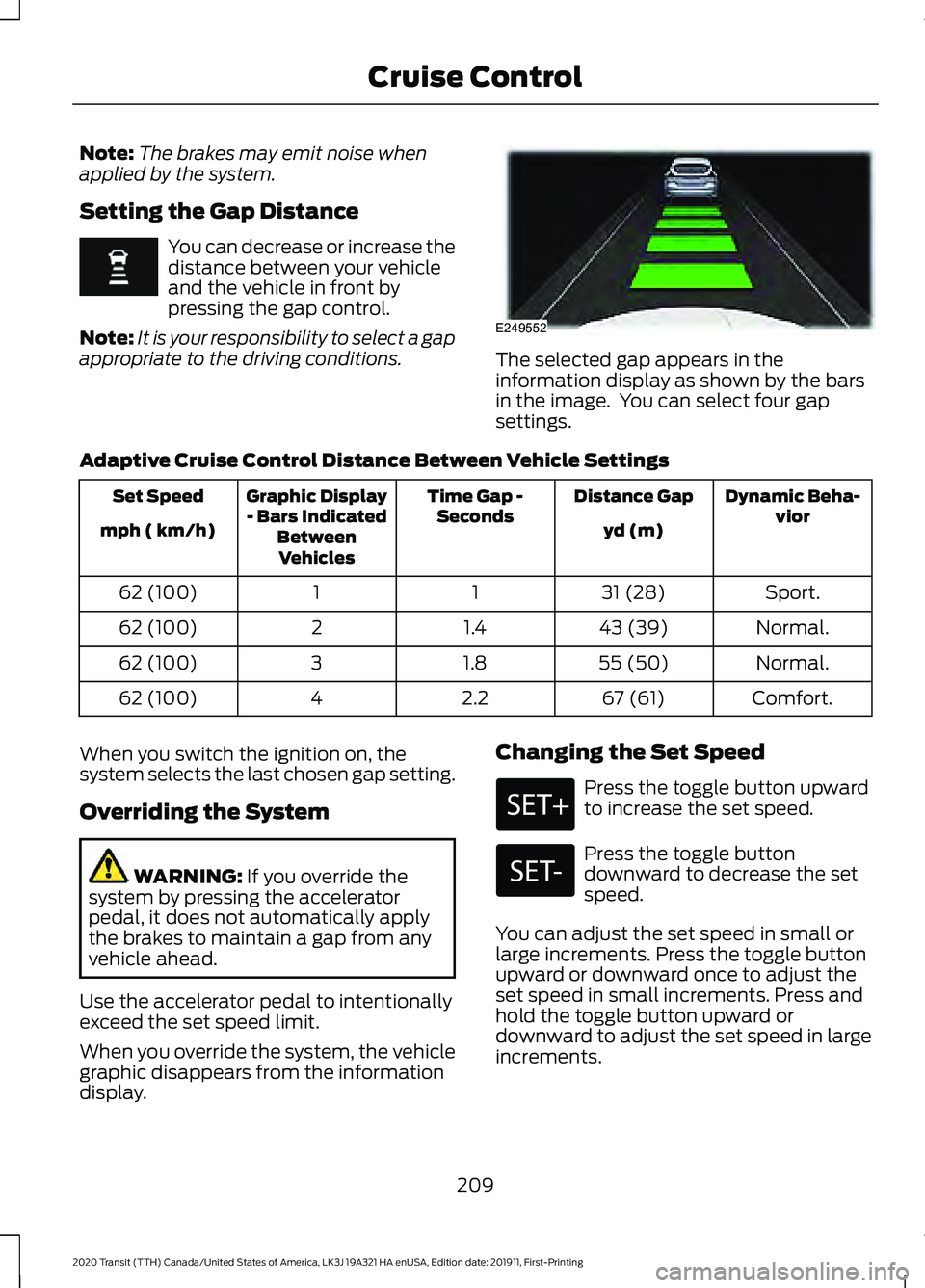
appropriate to the driving conditions. The selected gap appears in the
information display as shown by the bars
in the image. You can select four gap
settings.
Adaptive Cruise Control Distance Between Vehicle Settings Dynamic Beha-
vior
Distance Gap
Time Gap -
Seconds
Graphic Display
- Bars Indicated BetweenVehicles
Set Speed
yd (m)
mph ( km/h)
Sport.
31 (28)
1
1
62 (100)
Normal.
43 (39)
1.4
2
62 (100)
Normal.
55 (50)
1.8
3
62 (100)
Comfort.
67 (61)
2.2
4
62 (100)
When you switch the ignition on, the
system selects the last chosen gap setting.
Overriding the System WARNING: If you override the
system by pressing the accelerator
pedal, it does not automatically apply
the brakes to maintain a gap from any
vehicle ahead.
Use the accelerator pedal to intentionally
exceed the set speed limit.
When you override the system, the vehicle
graphic disappears from the information
display. Changing the Set Speed Press the toggle button upward
to increase the set speed.
Press the toggle button
downward to decrease the set
speed.
You can adjust the set speed in small or
large increments. Press the toggle button
upward or downward once to adjust the
set speed in small increments. Press and
hold the toggle button upward or
downward to adjust the set speed in large
increments.
209
2020 Transit (TTH) Canada/United States of America, LK3J 19A321 HA enUSA, Edition date: 201911, First-Printing Cruise Control E249552
Page 215 of 529
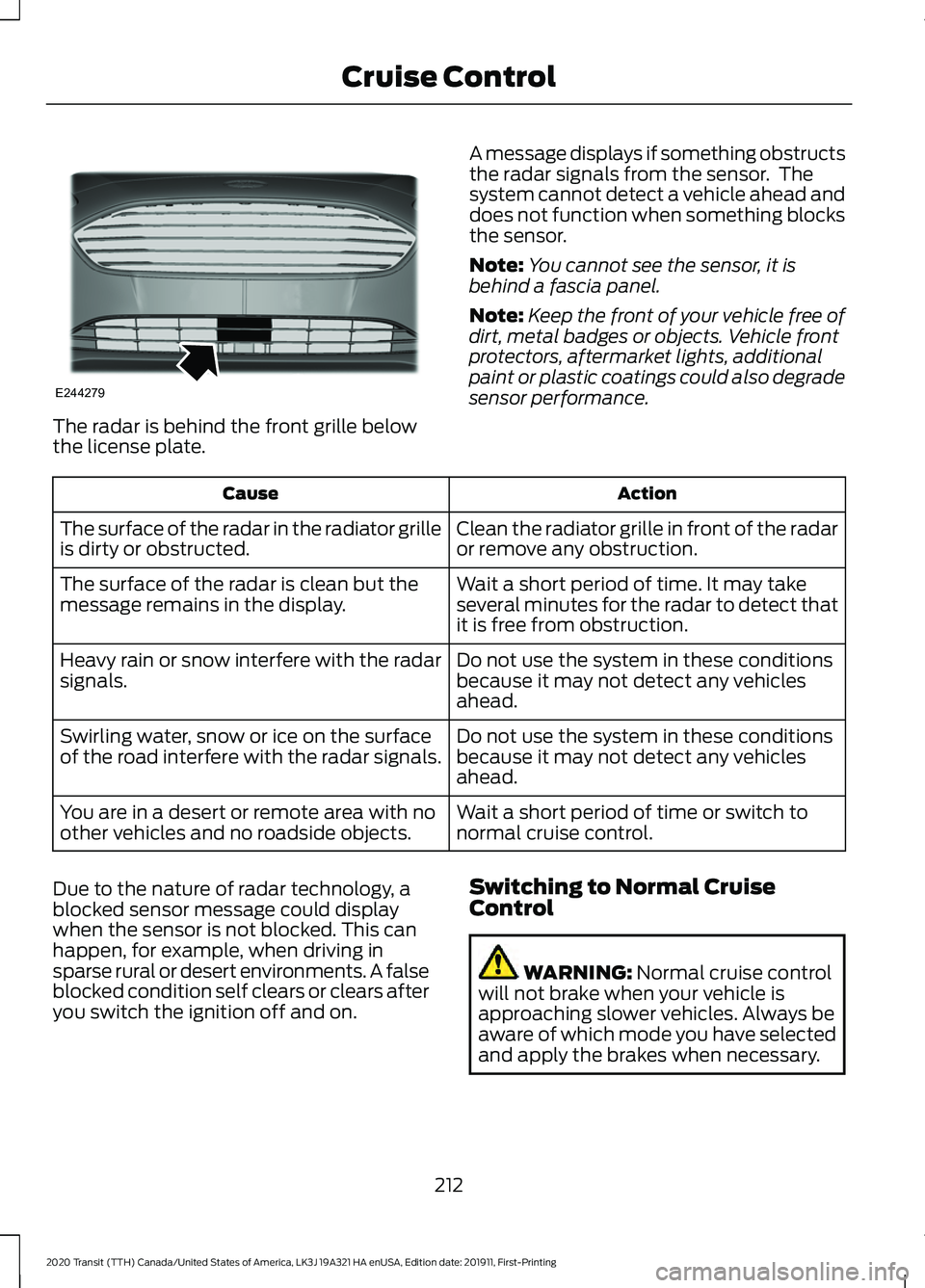
The radar is behind the front grille below
the license plate.
A message displays if something obstructs
the radar signals from the sensor. The
system cannot detect a vehicle ahead and
does not function when something blocks
the sensor.
Note:
You cannot see the sensor, it is
behind a fascia panel.
Note: Keep the front of your vehicle free of
dirt, metal badges or objects. Vehicle front
protectors, aftermarket lights, additional
paint or plastic coatings could also degrade
sensor performance. Action
Cause
Clean the radiator grille in front of the radar
or remove any obstruction.
The surface of the radar in the radiator grille
is dirty or obstructed.
Wait a short period of time. It may take
several minutes for the radar to detect that
it is free from obstruction.
The surface of the radar is clean but the
message remains in the display.
Do not use the system in these conditions
because it may not detect any vehicles
ahead.
Heavy rain or snow interfere with the radar
signals.
Do not use the system in these conditions
because it may not detect any vehicles
ahead.
Swirling water, snow or ice on the surface
of the road interfere with the radar signals.
Wait a short period of time or switch to
normal cruise control.
You are in a desert or remote area with no
other vehicles and no roadside objects.
Due to the nature of radar technology, a
blocked sensor message could display
when the sensor is not blocked. This can
happen, for example, when driving in
sparse rural or desert environments. A false
blocked condition self clears or clears after
you switch the ignition off and on. Switching to Normal Cruise
Control WARNING: Normal cruise control
will not brake when your vehicle is
approaching slower vehicles. Always be
aware of which mode you have selected
and apply the brakes when necessary.
212
2020 Transit (TTH) Canada/United States of America, LK3J 19A321 HA enUSA, Edition date: 201911, First-Printing Cruise ControlE244279
Page 219 of 529
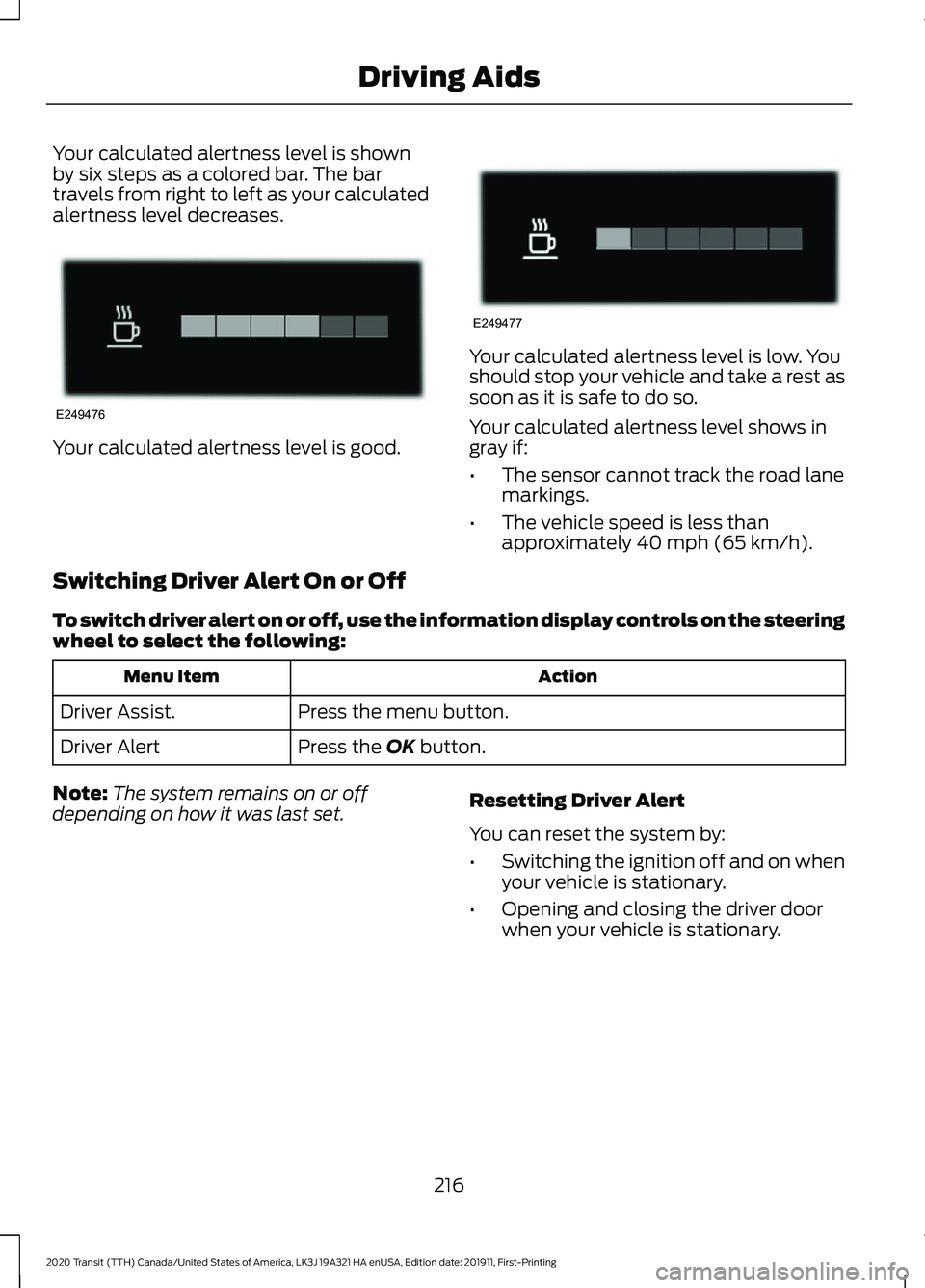
Your calculated alertness level is shown
by six steps as a colored bar. The bar
travels from right to left as your calculated
alertness level decreases.
Your calculated alertness level is good. Your calculated alertness level is low. You
should stop your vehicle and take a rest as
soon as it is safe to do so.
Your calculated alertness level shows in
gray if:
•
The sensor cannot track the road lane
markings.
• The vehicle speed is less than
approximately 40 mph (65 km/h).
Switching Driver Alert On or Off
To switch driver alert on or off, use the information display controls on the steering
wheel to select the following: Action
Menu Item
Press the menu button.
Driver Assist.
Press the
OK button.
Driver Alert
Note: The system remains on or off
depending on how it was last set. Resetting Driver Alert
You can reset the system by:
•
Switching the ignition off and on when
your vehicle is stationary.
• Opening and closing the driver door
when your vehicle is stationary.
216
2020 Transit (TTH) Canada/United States of America, LK3J 19A321 HA enUSA, Edition date: 201911, First-Printing Driving AidsE249476 E249477
Page 229 of 529
Zone coverage also decreases when
parking at narrow angles. The sensor on
the left-hand side is mostly obstructed and
zone coverage on that side is severely
reduced.
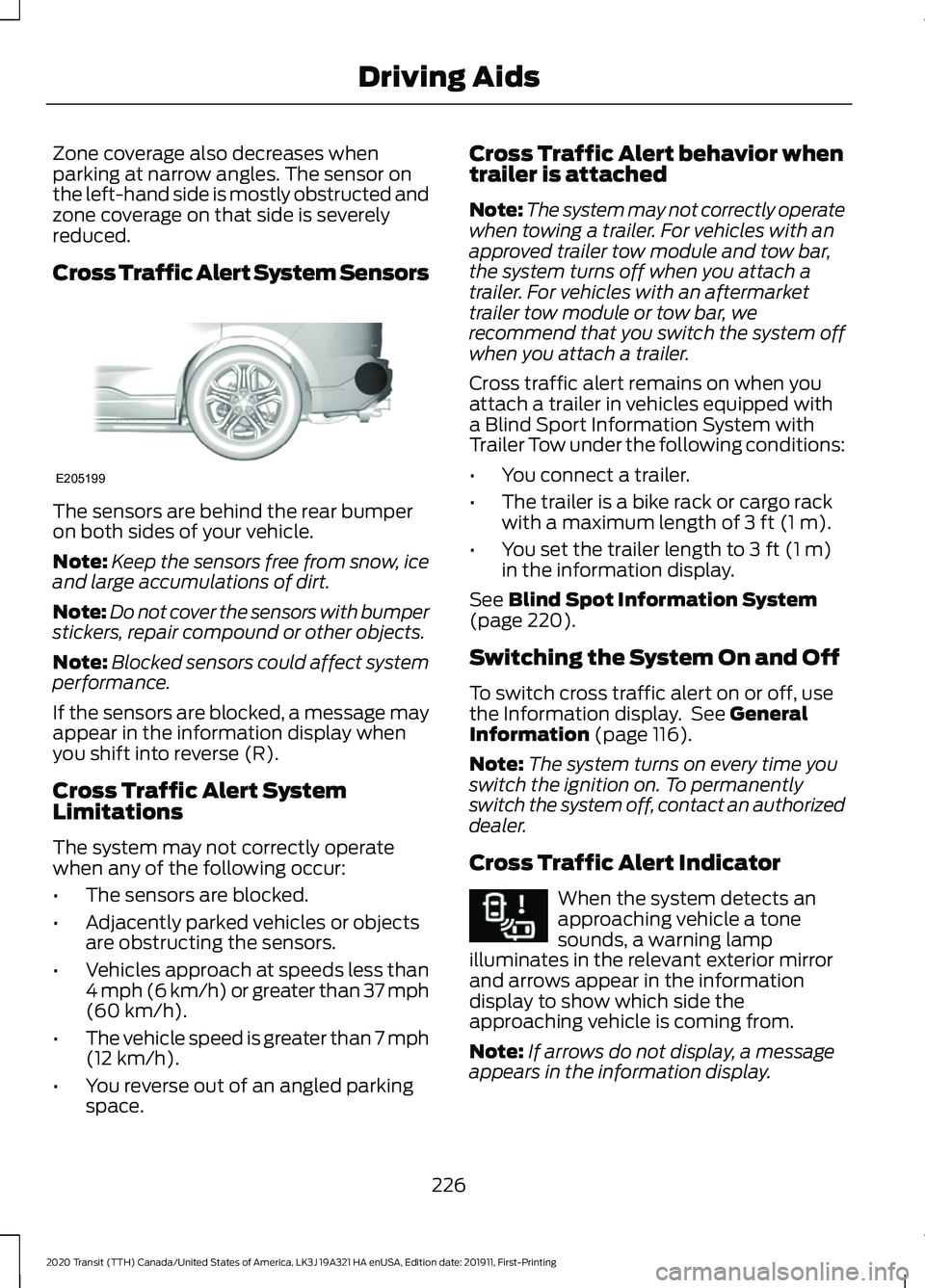
Cross Traffic Alert System Sensors
The sensors are behind the rear bumper
on both sides of your vehicle.
Note:
Keep the sensors free from snow, ice
and large accumulations of dirt.
Note: Do not cover the sensors with bumper
stickers, repair compound or other objects.
Note: Blocked sensors could affect system
performance.
If the sensors are blocked, a message may
appear in the information display when
you shift into reverse (R).
Cross Traffic Alert System
Limitations
The system may not correctly operate
when any of the following occur:
• The sensors are blocked.
• Adjacently parked vehicles or objects
are obstructing the sensors.
• Vehicles approach at speeds less than
4 mph (6 km/h) or greater than 37 mph
(60 km/h).
• The vehicle speed is greater than 7 mph
(12 km/h)
.
• You reverse out of an angled parking
space. Cross Traffic Alert behavior when
trailer is attached
Note:
The system may not correctly operate
when towing a trailer. For vehicles with an
approved trailer tow module and tow bar,
the system turns off when you attach a
trailer. For vehicles with an aftermarket
trailer tow module or tow bar, we
recommend that you switch the system off
when you attach a trailer.
Cross traffic alert remains on when you
attach a trailer in vehicles equipped with
a Blind Sport Information System with
Trailer Tow under the following conditions:
• You connect a trailer.
• The trailer is a bike rack or cargo rack
with a maximum length of
3 ft (1 m).
• You set the trailer length to
3 ft (1 m)
in the information display.
See
Blind Spot Information System
(page 220).
Switching the System On and Off
To switch cross traffic alert on or off, use
the Information display. See
General
Information (page 116).
Note: The system turns on every time you
switch the ignition on. To permanently
switch the system off, contact an authorized
dealer.
Cross Traffic Alert Indicator When the system detects an
approaching vehicle a tone
sounds, a warning lamp
illuminates in the relevant exterior mirror
and arrows appear in the information
display to show which side the
approaching vehicle is coming from.
Note: If arrows do not display, a message
appears in the information display.
226
2020 Transit (TTH) Canada/United States of America, LK3J 19A321 HA enUSA, Edition date: 201911, First-Printing Driving AidsE205199 E268294
Page 230 of 529
If the system malfunctions, a warning lamp
illuminates in the instrument cluster and
a message appears in the information
display. Have your vehicle checked as soon
as possible.
Note:
In exceptional conditions, the system
could alert you, even when there is nothing
in the detection zone, for example a vehicle
passing further away from your vehicle.
Cross Traffic Alert Information Messages Action
Message
Displays instead of indication arrows when the system
detects a vehicle. Check for approaching traffic.
Cross Traffic Alert
Displays if the cross traffic alert system sensors are blocked.
Clean the sensors. If the message continues to appear, have
your vehicle checked as soon as possible.
Cross Traffic Not Avail-
able Sensor Blocked See
Manual
The system has malfunctioned. Have your vehicle checked
as soon as possible.
Cross Traffic System
Fault
Displays if you attach a trailer to your vehicle.
Cross Traffic Alert Deac-
tivated Trailer Attached
ECO
Eco Mode
How Does Eco Mode Work
The system is designed to monitor certain
driving characteristics to help you drive
more efficiently. See Economical Driving
(page 254).
Note: The efficiency levels do not result in
a defined fuel consumption figure.
Note: The system only indicates the
efficiency level for the current trip. The
system resets each time you switch the
ignition on. Instantaneous Efficiency Level
The display ring increases as the
instantaneous efficiency level increases
and illuminates when it reaches maximum
efficiency. The level continuously updates
to indicate the efficiency level for the
current trip.
Viewing the Instantaneous Efficiency
Level
1. Using the information display controls
on the steering wheel, select
MyView.
2. Select
Eco Coach.
Trip Summary
The calculated trip summary is shown as
four colored bars. The bars travel from left
to right as the calculated efficiency levels
increase. The bars indicate the average
efficiency level for acceleration,
deceleration, speed and gear shifting
during the total distance traveled by your
vehicle for the current trip.
227
2020 Transit (TTH) Canada/United States of America, LK3J 19A321 HA enUSA, Edition date: 201911, First-Printing Driving Aids
Page 231 of 529
Note:
Vehicles with an automatic
transmission do not have a bar for gear
shifting.
Viewing the Trip Summary
1. Using the information display controls on the steering wheel, select MyView.
2. Select
Eco Coach.
Efficient Drive Mode
What Is Efficient Drive Mode
Efficient drive mode is a predictive coach
that provides near real-time traffic
information to help you drive more
efficiently by releasing the accelerator
pedal.
Switching Efficient Drive Mode On and
Off
1. Using the information display controls on the steering wheel, select
Driver
Assist..
2. Select
Eco Coach.
3. Switch
Eco Advice on and off.
Displaying the Efficient Drive Mode
1. Using the information display controls on the steering wheel, select
Driver
Assist..
The display ring can provide information
about speed limit, freeway ramp, slope,
curve, crosswalk, etc.
Efficient Drive Mode Indicator It indicates that you have to
slowly decelerate. Trip Summary
The calculated trip summary is shown as
five colored bars. The bars travel from left
to right as the calculated efficiency levels
increase. The bars indicate the average
efficiency level for acceleration,
deceleration, speed, gear shifting and
compliance score during the total distance
traveled by your vehicle for both last and
current trips.
Note:
Vehicles with an automatic
transmission do not have a bar for gear
shifting.
Viewing the trip summary
1. Using the information display controls on the steering wheel, select
MyView.
2. Select
Eco Coach.
3. Switch the engine off.
4. Press the
OK button.
STEERING
Electric Power Steering WARNING:
The electric power
steering system has diagnostic checks
that continuously monitor the system. If
a fault is detected, a message displays
in the information display. Stop your
vehicle as soon as it is safe to do so.
Switch the ignition off. After at least 10
seconds, switch the ignition on and
watch the information display for a
steering system warning message. If a
steering system warning message
returns, have the system checked as
soon as possible.
228
2020 Transit (TTH) Canada/United States of America, LK3J 19A321 HA enUSA, Edition date: 201911, First-Printing Driving AidsE308186
Page 237 of 529
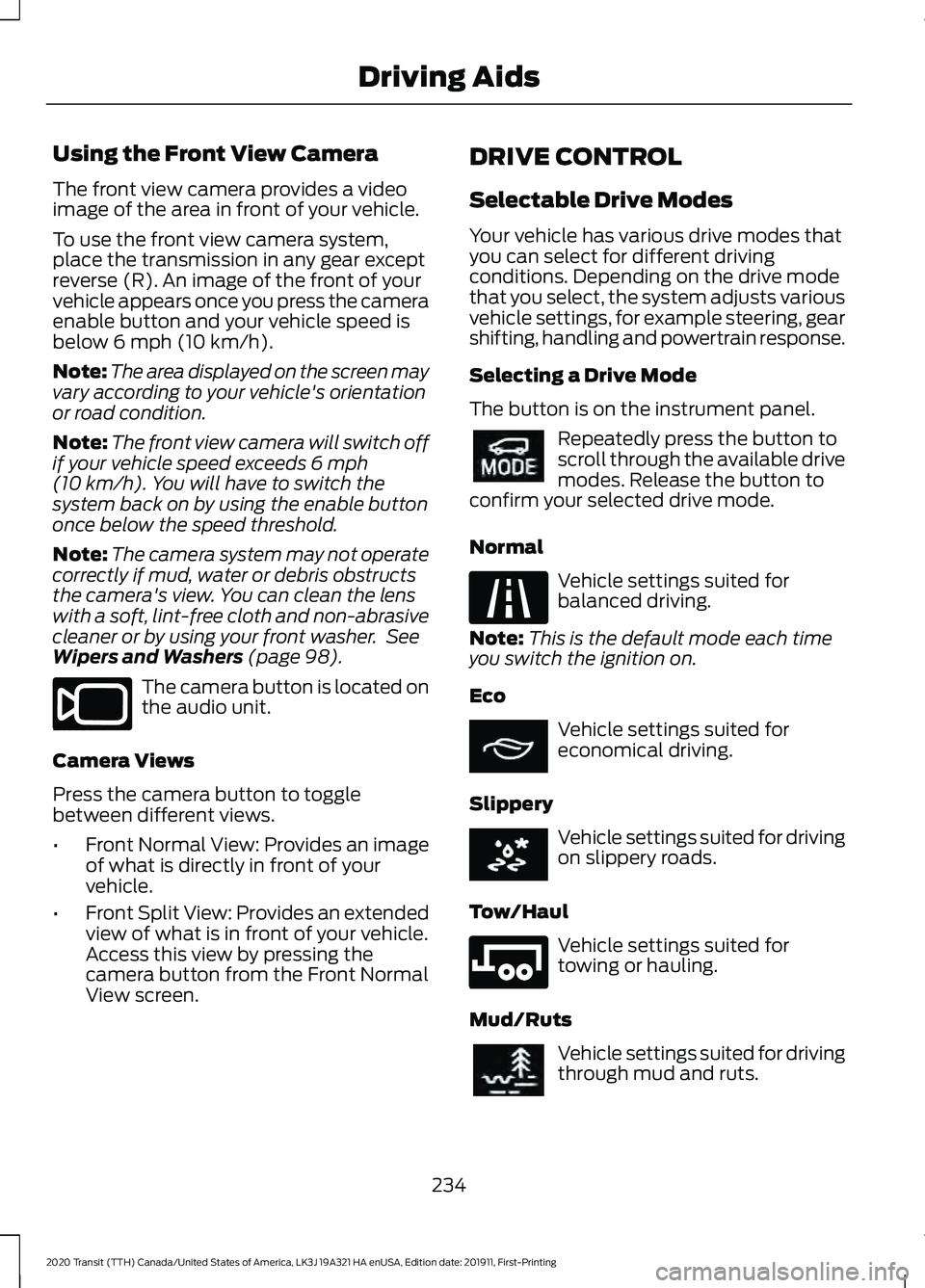
Using the Front View Camera
The front view camera provides a video
image of the area in front of your vehicle.
To use the front view camera system,
place the transmission in any gear except
reverse (R). An image of the front of your
vehicle appears once you press the camera
enable button and your vehicle speed is
below 6 mph (10 km/h).
Note: The area displayed on the screen may
vary according to your vehicle's orientation
or road condition.
Note: The front view camera will switch off
if your vehicle speed exceeds
6 mph
(10 km/h). You will have to switch the
system back on by using the enable button
once below the speed threshold.
Note: The camera system may not operate
correctly if mud, water or debris obstructs
the camera's view. You can clean the lens
with a soft, lint-free cloth and non-abrasive
cleaner or by using your front washer. See
Wipers and Washers
(page 98). The camera button is located on
the audio unit.
Camera Views
Press the camera button to toggle
between different views.
• Front Normal View: Provides an image
of what is directly in front of your
vehicle.
• Front Split View: Provides an extended
view of what is in front of your vehicle.
Access this view by pressing the
camera button from the Front Normal
View screen. DRIVE CONTROL
Selectable Drive Modes
Your vehicle has various drive modes that
you can select for different driving
conditions. Depending on the drive mode
that you select, the system adjusts various
vehicle settings, for example steering, gear
shifting, handling and powertrain response.
Selecting a Drive Mode
The button is on the instrument panel.
Repeatedly press the button to
scroll through the available drive
modes. Release the button to
confirm your selected drive mode.
Normal Vehicle settings suited for
balanced driving.
Note: This is the default mode each time
you switch the ignition on.
Eco Vehicle settings suited for
economical driving.
Slippery Vehicle settings suited for driving
on slippery roads.
Tow/Haul Vehicle settings suited for
towing or hauling.
Mud/Ruts Vehicle settings suited for driving
through mud and ruts.
234
2020 Transit (TTH) Canada/United States of America, LK3J 19A321 HA enUSA, Edition date: 201911, First-Printing Driving AidsE188847 E298514 E225310 E267164 E269320 E246592 E296606
Page 238 of 529
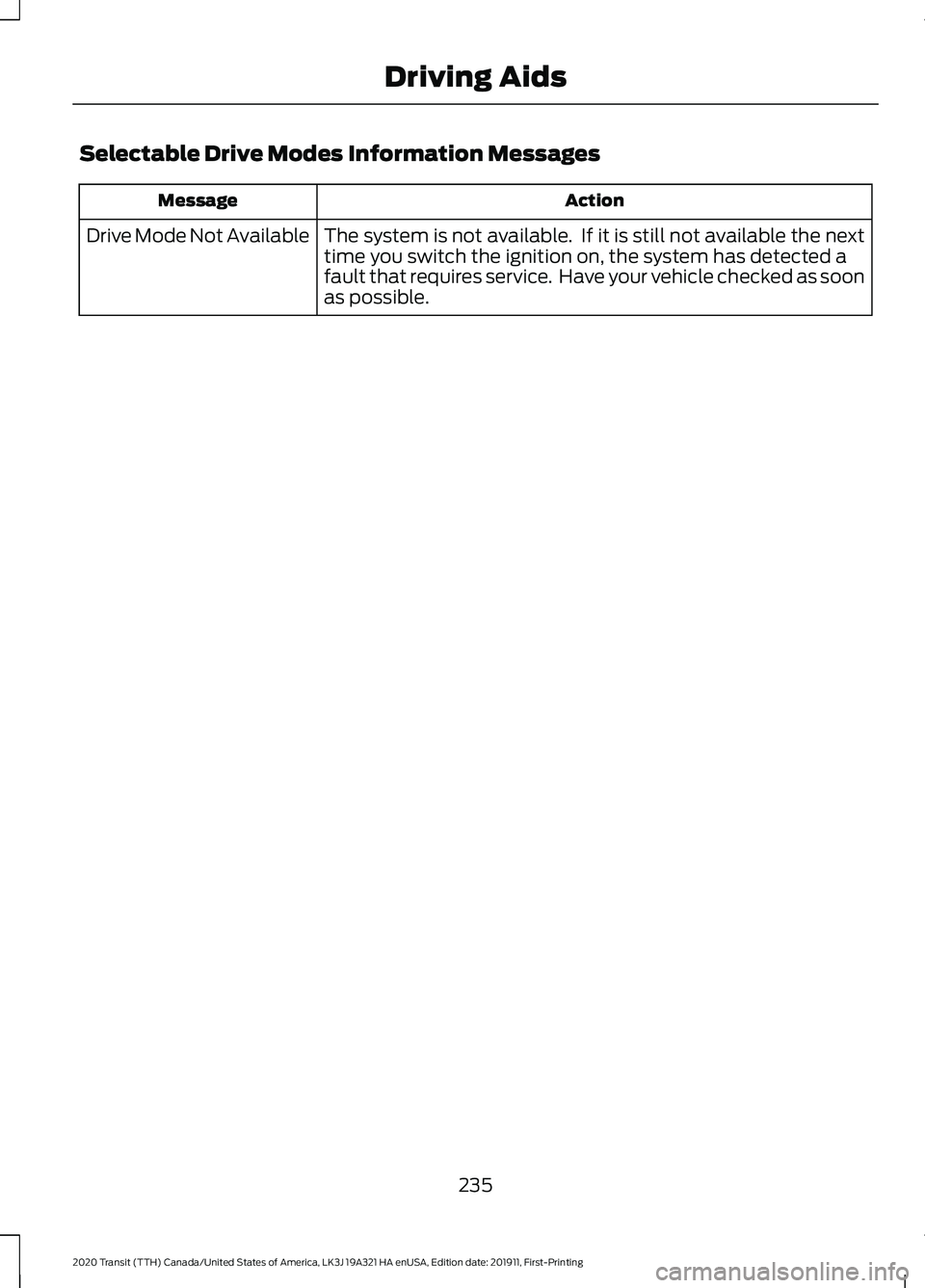
Selectable Drive Modes Information Messages
Action
Message
The system is not available. If it is still not available the next
time you switch the ignition on, the system has detected a
fault that requires service. Have your vehicle checked as soon
as possible.
Drive Mode Not Available
235
2020 Transit (TTH) Canada/United States of America, LK3J 19A321 HA enUSA, Edition date: 201911, First-Printing Driving Aids