USB FORD TRANSIT 2021 Owner's Manual
[x] Cancel search | Manufacturer: FORD, Model Year: 2021, Model line: TRANSIT, Model: FORD TRANSIT 2021Pages: 509, PDF Size: 8.21 MB
Page 422 of 509
Mute
Mute the microphone when in a call or
voice recognition session.
Text Messaging
Setting Text Message Notification
iOS
1. Go to the settings menu on your cell
phone.
2. Select Bluetooth. 3.
Select the information icon to the right
of your vehicle.
4. Switch text message notification on.
Android
1. Go to the settings menu on your cell phone.
2. Select Bluetooth.
3. Select the profiles option.
4. Select the phone profile.
5. Switch text message notification on.
Using Text Messaging Description
Menu Item
Hear the text message.
Hear It
View the text message.
View
Call the sender.
Call
Reply to the text message with a standard text message.
Reply
Apple CarPlay (If Equipped)
1. Connect your device to a USB port.
2. Follow the instructions on the touchscreen.
Note: Certain features of the system are
not available when you are using Apple
CarPlay.
Switching Apple CarPlay Off Select the settings option on the
feature bar.
1. Select
Apple CarPlay Preferences.
2. Switch
Apple CarPlay off.
Android Auto
(If Equipped)
1. Connect your device to a USB port. 2. Follow the instructions on the
touchscreen.
Note: You might need to enable Android
Auto from the settings menu.
Note: Certain features of the system are
not available when you are using Android
Auto.
Switching Android Auto Off Select the settings option on the
feature bar.
1. Select
Android Auto.
2. Switch
Android Auto off.
NAVIGATION
Note: For more information, refer to our
website.
419
2021 Transit (TTH) Canada/United States of America, MK3J 19A321 AA enUSA, Edition date: 202010, Second-Printing SYNC™ 3
Page 428 of 509
Navigation Map Accuracy and
Updates
HERE is the digital map provider for the
navigation application. If you find map data
errors, you may report them directly to
HERE by going to www.here.com. HERE
evaluates all reported map errors and
responds with the result of their
investigation by e-mail.
The navigation system map data may
contain inaccurate or incomplete
information due to the passage of time,
changing circumstances, sources used and
the nature of collecting comprehensive
geographic data, any of which may lead to
incorrect results. Inaccurate speed limit
information, turn restrictions and other
road attributes may affect the determined
route and associated guidance
Annual navigation map updates are
available for purchase through your
dealership. Depending on your purchase
agreement, you might be eligible for free
Map update. You can choose to download
the Map data update onto a USB, order a
USB, or use Wi-Fi to deliver automatic
updates. To update your Map data over
Wi-Fi, your vehicle must be connected to
a Wi-Fi access point. Map Data files are
large, so it is highly recommended to
perform the update when free Wi-Fi is
available otherwise high data rates may
apply. For USB updates, free map update
eligibility, and other details, contact
dealers at 1-866-462-8837 in the United
States and Canada or 01-800-557-5539
in Mexico or visit our local website for more
information.
APPS
The system allows you interact with select
mobile apps while keeping your eyes on
the road. Voice commands, your steering
wheel buttons, or a quick tap on your
touchscreen give you advanced control of
compatible mobile apps. You can also
stream your favorite music or podcasts,
share your time of arrival with friends, and
keep connected safely.
When you start an app through the system
for the first time, you could be asked to
grant certain permissions. You can review
and change the permissions that you have
granted at any time when your vehicle is
not moving. We recommend that you
check your data plan before using your
apps through the system. Using them
could result in additional charges. We also
recommend that you check the app
provider's terms and conditions and
privacy policy before using their app. Make
sure that you have an active account for
apps that you want to use through the
system. Some apps will work with no
setup. Others require you to configure
some personal settings before you can use
them.
Note:
For more information about available
apps, visit catalog.ford.com.
Using Apps on an iOS Device Select the apps option on the
feature bar.
1. If your device is connected via USB, switch Apple CarPlay off. See Phone
(page 418).
2. Connect your device to a USB port or pair and connect using Bluetooth.
3. If prompted to enable CarPlay, select Disable
.
4. Start the apps on your device that you want to use through SYNC.
425
2021 Transit (TTH) Canada/United States of America, MK3J 19A321 AA enUSA, Edition date: 202010, Second-Printing SYNC™ 3
Page 429 of 509
Note:
If you close the apps on your device,
you will not be able to use them through the
system.
5. Select the app that you want to use on
the touchscreen.
Note: Connect your device to a USB port if
you want to use a navigation app. When
using a navigation app, keep your device
unlocked and the app open.
Using Apps on an Android Device Select the apps option on the
feature bar.
1. If your device is connected via USB, switch Android Auto off. See Phone
(page 418).
2. Pair your device. See Phone (page 418).
3. Start the apps on your device that you want to use through SYNC.
Note: If you close the apps on your device,
you will not be able to use them through the
system.
4. Select
Find Mobile Apps.
Note: The system searches and connects
to compatible apps that are running on your
device.
5. Select the app that you want to use on
the touchscreen.
Note: Mobile Apps on your device use the
USB port to establish a connection with
SYNC. Some devices may lose the ability to
play music over USB when Mobile Apps are
enabled.
Using Mobile Navigation on an
Android Device
1. Connect your device to a USB port.
2. Switch Android Auto off. See
Phone
(page 418).
3. Switch on
Enable Mobile Apps via
USB in the Mobile Apps Settings tile. 4. Select the apps option on the feature
bar.
5. Select the navigation app that you want to use on the touchscreen.
Note: When using a navigation app, keep
your device unlocked and the app open.
SiriusXM Traffic and Travel Link (If
Equipped) WARNING: Driving while distracted
can result in loss of vehicle control, crash
and injury. We strongly recommend that
you use extreme caution when using any
device that may take your focus off the
road. Your primary responsibility is the
safe operation of your vehicle. We
recommend against the use of any
hand-held device while driving and
encourage the use of voice-operated
systems when possible. Make sure you
are aware of all applicable local laws
that may affect the use of electronic
devices while driving.
Note: SiriusXM Traffic and Travel Link may
not be available in all markets.
Note: In order to use SiriusXM Traffic and
Travel Link, your vehicle must have
navigation.
Note: A paid subscription is required to
access and use these features. Go to
www.siriusxm.com/travellink for more
information.
Note: Visit www.siriusxm.com/traffic and
click on Coverage map and details for a
complete listing of all traffic areas covered
by SiriusXM Traffic and Travel Link.
Note: Neither Sirius nor Ford is responsible
for any errors or inaccuracies in the SiriusXM
Traffic and Travel Link services or its use in
vehicles.
426
2021 Transit (TTH) Canada/United States of America, MK3J 19A321 AA enUSA, Edition date: 202010, Second-Printing SYNC™ 3
Page 432 of 509
SYNC™ 3 TROUBLESHOOTING
Voice Recognition
Possible Cause and Resolution
Symptom
The system does not under-
stand what I am saying. –
You might not be using supported voice commands.
•See Using Voice Recognition (page 402).
• For a complete list of voice commands, refer to our
website.
– You might be speaking too soon.
•Wait for the voice prompt before you speak.
The system does not under-
stand the name of a track or
artist. –
Device limitation. Bluetooth®
does not support voice
commands.
• Connect your device to a USB port.
• If you have an iOS device, press and hold the voice
control button on the steering wheel to use Siri to
play specific tracks.
– You might not be using supported voice commands.
•See
Using Voice Recognition (page 402).
• For a complete list of voice commands, refer to our
website.
– You might not be saying the name exactly as it appears
on your device.
•Say the name of the track or artist exactly as it
appears on your device. Spell out any abbreviations
in the name.
– The name contains special characters, for example *,
- or +.
•Rename the files on your device or use the touch-
screen to select and play the track.
The system does not under-
stand the name of a contact
in the phonebook on my
device and calls the wrong
contact. –
You might not be saying the name exactly as it appears
on your device.
•Say the first and last name of the contact exactly
as it appears on your device. Spell out any abbrevi-
ations in the name.
– The name contains special characters, for example *,
- or +.
•Rename the contact on your device or use the
touchscreen to select and call the contact.
429
2021 Transit (TTH) Canada/United States of America, MK3J 19A321 AA enUSA, Edition date: 202010, Second-Printing SYNC™ 3
Page 433 of 509
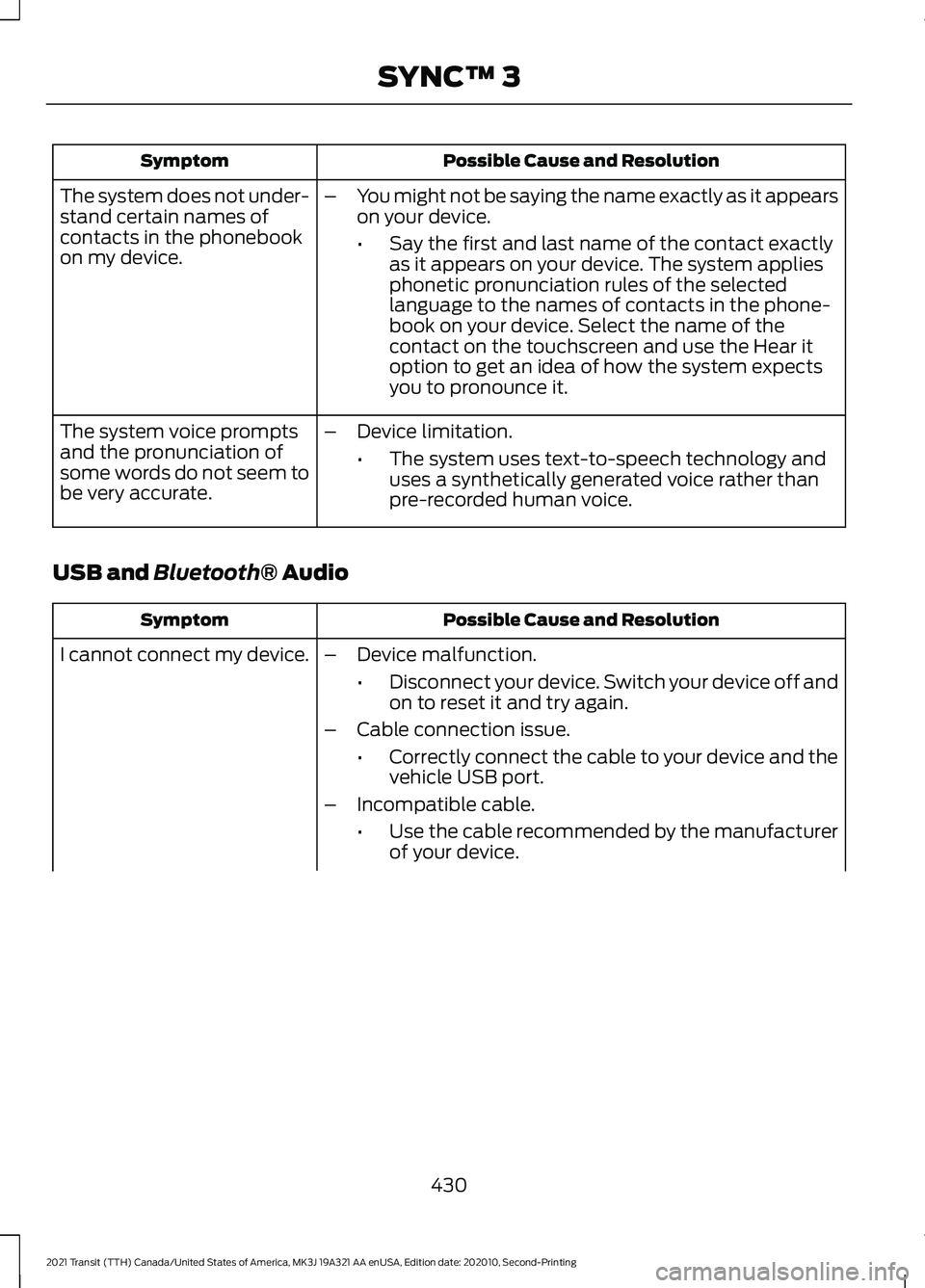
Possible Cause and Resolution
Symptom
–You might not be saying the name exactly as it appears
on your device.
•Say the first and last name of the contact exactly
as it appears on your device. The system applies
phonetic pronunciation rules of the selected
language to the names of contacts in the phone-
book on your device. Select the name of the
contact on the touchscreen and use the Hear it
option to get an idea of how the system expects
you to pronounce it.
The system does not under-
stand certain names of
contacts in the phonebook
on my device.
–Device limitation.
•The system uses text-to-speech technology and
uses a synthetically generated voice rather than
pre-recorded human voice.
The system voice prompts
and the pronunciation of
some words do not seem to
be very accurate.
USB and Bluetooth® Audio Possible Cause and Resolution
Symptom
I cannot connect my device. –Device malfunction.
•Disconnect your device. Switch your device off and
on to reset it and try again.
– Cable connection issue.
•Correctly connect the cable to your device and the
vehicle USB port.
– Incompatible cable.
•Use the cable recommended by the manufacturer
of your device.
430
2021 Transit (TTH) Canada/United States of America, MK3J 19A321 AA enUSA, Edition date: 202010, Second-Printing SYNC™ 3
Page 434 of 509
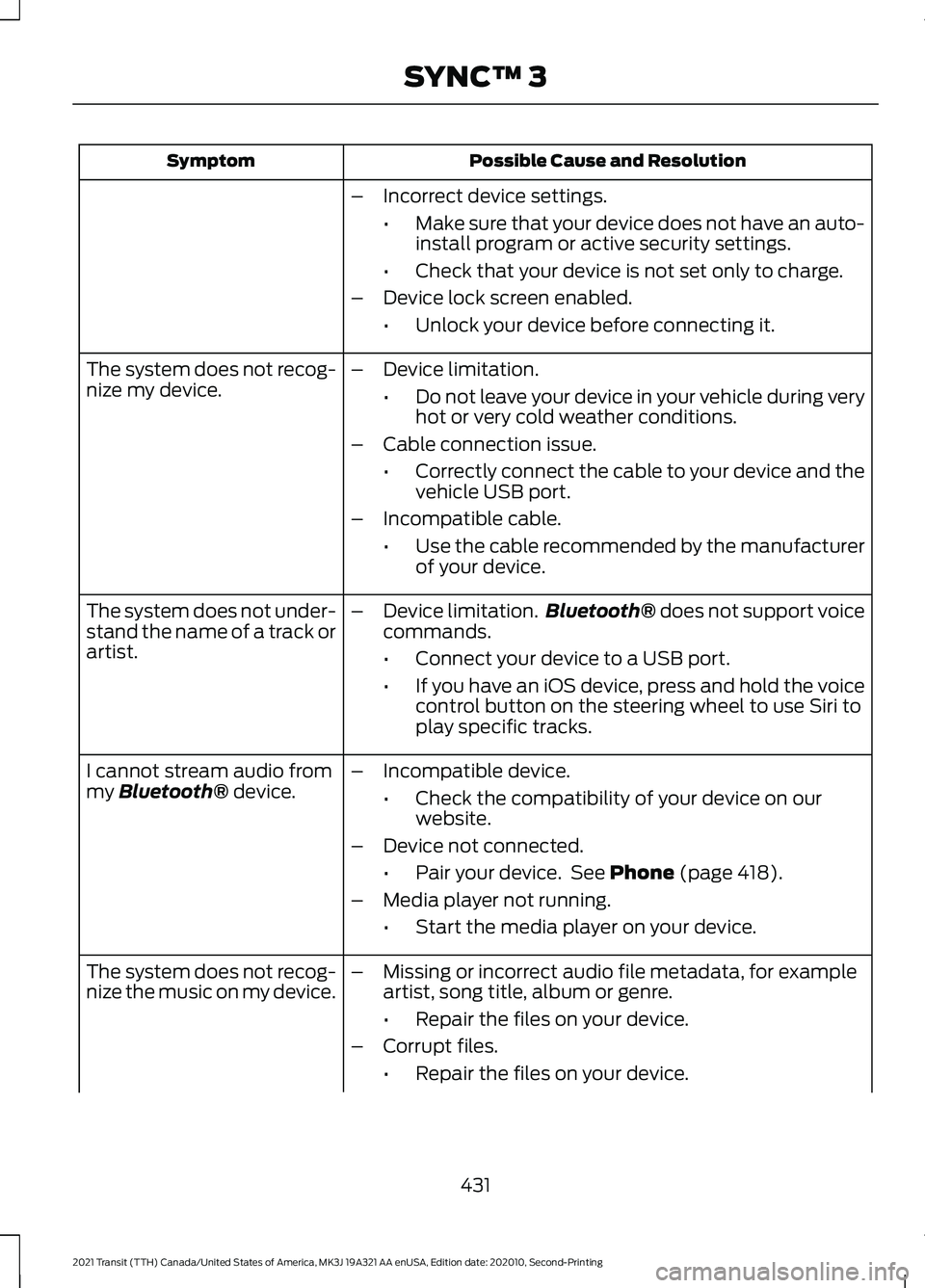
Possible Cause and Resolution
Symptom
–Incorrect device settings.
•Make sure that your device does not have an auto-
install program or active security settings.
• Check that your device is not set only to charge.
– Device lock screen enabled.
•Unlock your device before connecting it.
The system does not recog-
nize my device. –
Device limitation.
•Do not leave your device in your vehicle during very
hot or very cold weather conditions.
– Cable connection issue.
•Correctly connect the cable to your device and the
vehicle USB port.
– Incompatible cable.
•Use the cable recommended by the manufacturer
of your device.
The system does not under-
stand the name of a track or
artist. –
Device limitation. Bluetooth® does not support voice
commands.
• Connect your device to a USB port.
• If you have an iOS device, press and hold the voice
control button on the steering wheel to use Siri to
play specific tracks.
I cannot stream audio from
my
Bluetooth® device. –
Incompatible device.
•Check the compatibility of your device on our
website.
– Device not connected.
•Pair your device. See
Phone (page 418).
– Media player not running.
•Start the media player on your device.
The system does not recog-
nize the music on my device. –
Missing or incorrect audio file metadata, for example
artist, song title, album or genre.
•Repair the files on your device.
– Corrupt files.
•Repair the files on your device.
431
2021 Transit (TTH) Canada/United States of America, MK3J 19A321 AA enUSA, Edition date: 202010, Second-Printing SYNC™ 3
Page 435 of 509
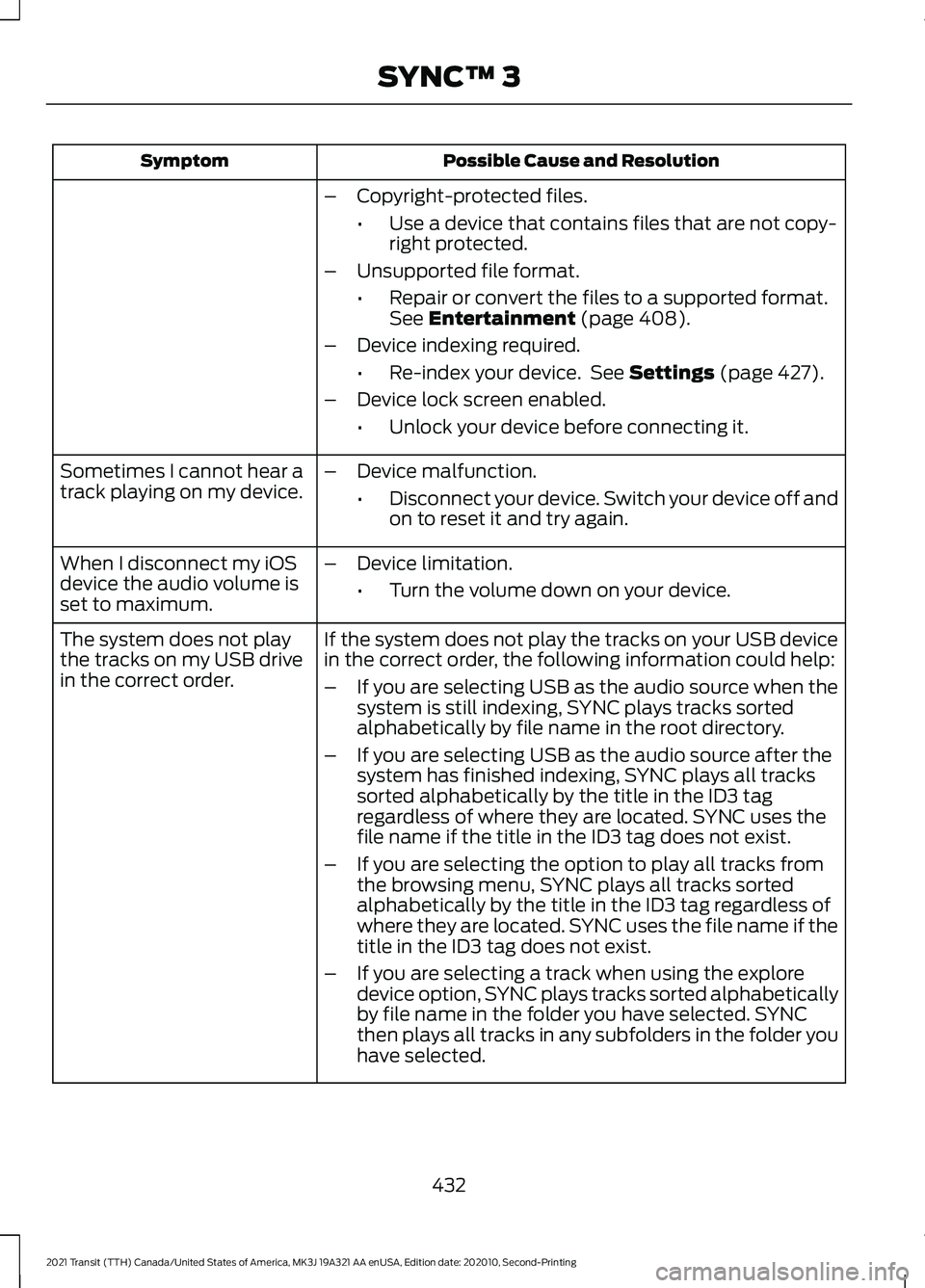
Possible Cause and Resolution
Symptom
–Copyright-protected files.
•Use a device that contains files that are not copy-
right protected.
– Unsupported file format.
•Repair or convert the files to a supported format.
See Entertainment (page 408).
– Device indexing required.
•Re-index your device. See
Settings (page 427).
– Device lock screen enabled.
•Unlock your device before connecting it.
Sometimes I cannot hear a
track playing on my device. –
Device malfunction.
•Disconnect your device. Switch your device off and
on to reset it and try again.
When I disconnect my iOS
device the audio volume is
set to maximum. –
Device limitation.
•Turn the volume down on your device.
If the system does not play the tracks on your USB device
in the correct order, the following information could help:
The system does not play
the tracks on my USB drive
in the correct order.
–If you are selecting USB as the audio source when the
system is still indexing, SYNC plays tracks sorted
alphabetically by file name in the root directory.
– If you are selecting USB as the audio source after the
system has finished indexing, SYNC plays all tracks
sorted alphabetically by the title in the ID3 tag
regardless of where they are located. SYNC uses the
file name if the title in the ID3 tag does not exist.
– If you are selecting the option to play all tracks from
the browsing menu, SYNC plays all tracks sorted
alphabetically by the title in the ID3 tag regardless of
where they are located. SYNC uses the file name if the
title in the ID3 tag does not exist.
– If you are selecting a track when using the explore
device option, SYNC plays tracks sorted alphabetically
by file name in the folder you have selected. SYNC
then plays all tracks in any subfolders in the folder you
have selected.
432
2021 Transit (TTH) Canada/United States of America, MK3J 19A321 AA enUSA, Edition date: 202010, Second-Printing SYNC™ 3
Page 436 of 509
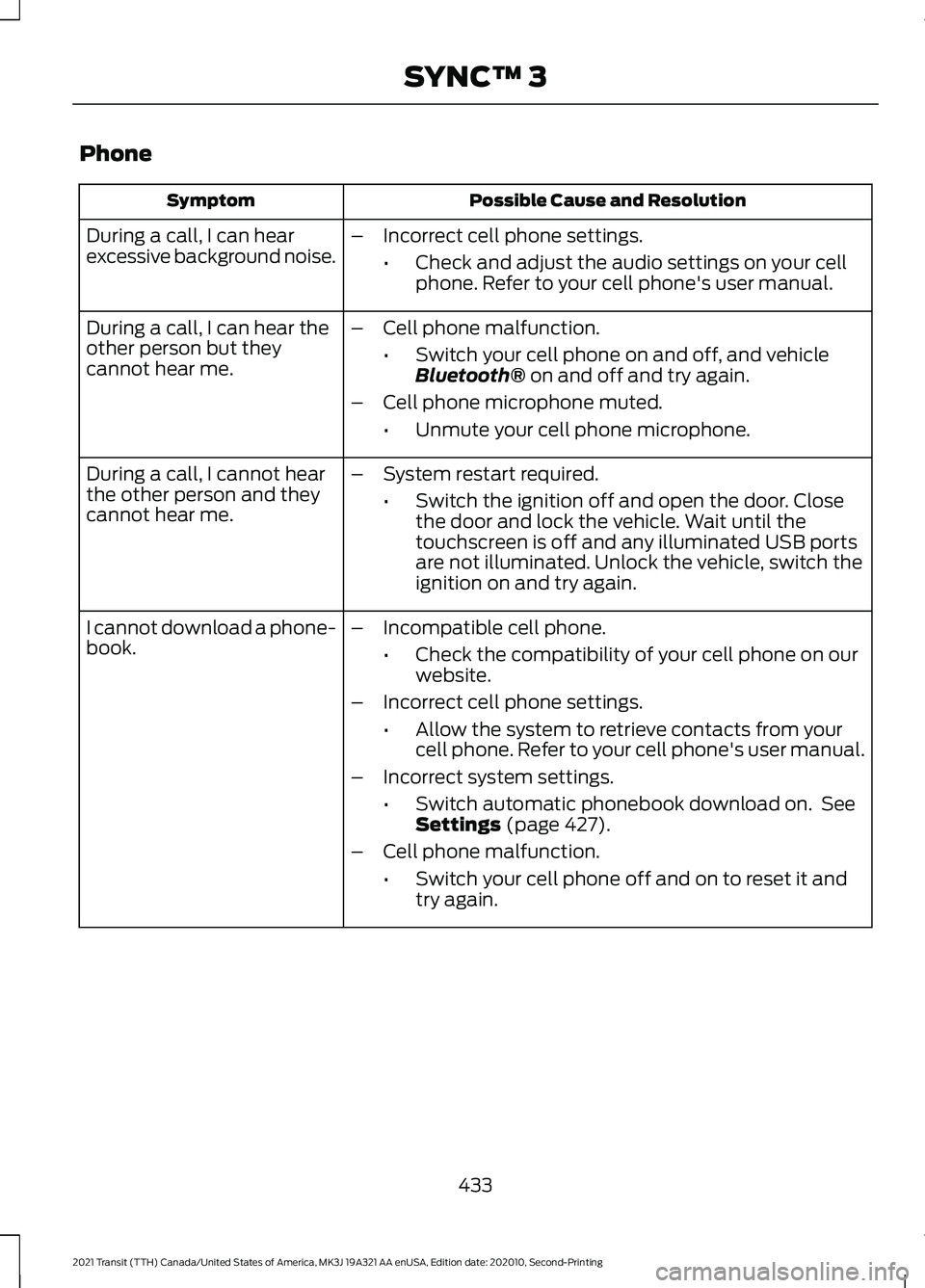
Phone
Possible Cause and Resolution
Symptom
During a call, I can hear
excessive background noise. –
Incorrect cell phone settings.
•Check and adjust the audio settings on your cell
phone. Refer to your cell phone's user manual.
– Cell phone malfunction.
•Switch your cell phone on and off, and vehicle
Bluetooth® on and off and try again.
– Cell phone microphone muted.
•Unmute your cell phone microphone.
During a call, I can hear the
other person but they
cannot hear me.
During a call, I cannot hear
the other person and they
cannot hear me.
–
System restart required.
•Switch the ignition off and open the door. Close
the door and lock the vehicle. Wait until the
touchscreen is off and any illuminated USB ports
are not illuminated. Unlock the vehicle, switch the
ignition on and try again.
I cannot download a phone-
book. –
Incompatible cell phone.
•Check the compatibility of your cell phone on our
website.
– Incorrect cell phone settings.
•Allow the system to retrieve contacts from your
cell phone. Refer to your cell phone's user manual.
– Incorrect system settings.
•Switch automatic phonebook download on. See
Settings
(page 427).
– Cell phone malfunction.
•Switch your cell phone off and on to reset it and
try again.
433
2021 Transit (TTH) Canada/United States of America, MK3J 19A321 AA enUSA, Edition date: 202010, Second-Printing SYNC™ 3
Page 439 of 509
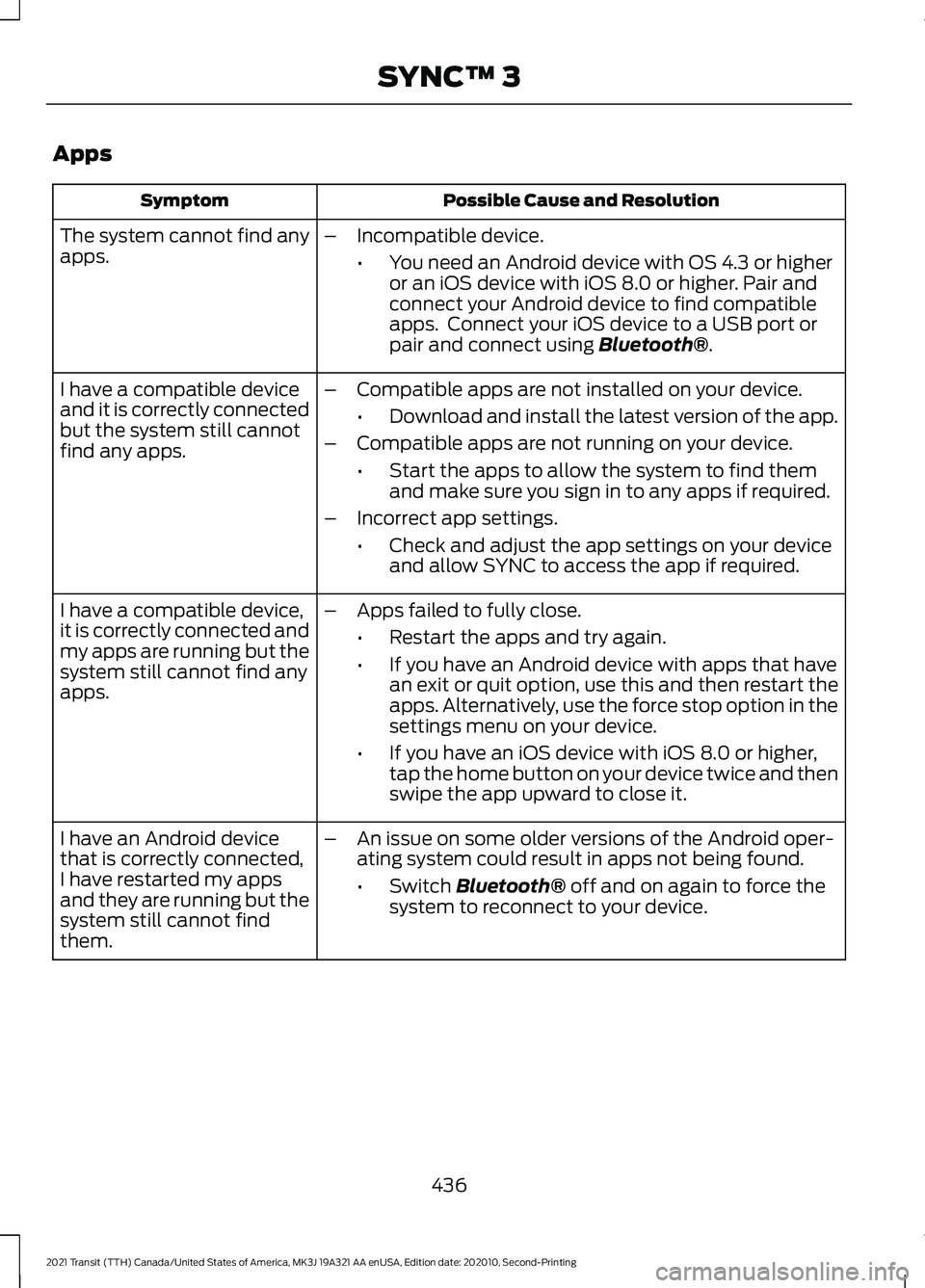
Apps
Possible Cause and Resolution
Symptom
The system cannot find any
apps. –
Incompatible device.
•You need an Android device with OS 4.3 or higher
or an iOS device with iOS 8.0 or higher. Pair and
connect your Android device to find compatible
apps. Connect your iOS device to a USB port or
pair and connect using Bluetooth®.
I have a compatible device
and it is correctly connected
but the system still cannot
find any apps. –
Compatible apps are not installed on your device.
•Download and install the latest version of the app.
– Compatible apps are not running on your device.
•Start the apps to allow the system to find them
and make sure you sign in to any apps if required.
– Incorrect app settings.
•Check and adjust the app settings on your device
and allow SYNC to access the app if required.
I have a compatible device,
it is correctly connected and
my apps are running but the
system still cannot find any
apps. –
Apps failed to fully close.
•Restart the apps and try again.
• If you have an Android device with apps that have
an exit or quit option, use this and then restart the
apps. Alternatively, use the force stop option in the
settings menu on your device.
• If you have an iOS device with iOS 8.0 or higher,
tap the home button on your device twice and then
swipe the app upward to close it.
I have an Android device
that is correctly connected,
I have restarted my apps
and they are running but the
system still cannot find
them. –
An issue on some older versions of the Android oper-
ating system could result in apps not being found.
•Switch
Bluetooth® off and on again to force the
system to reconnect to your device.
436
2021 Transit (TTH) Canada/United States of America, MK3J 19A321 AA enUSA, Edition date: 202010, Second-Printing SYNC™ 3
Page 498 of 509
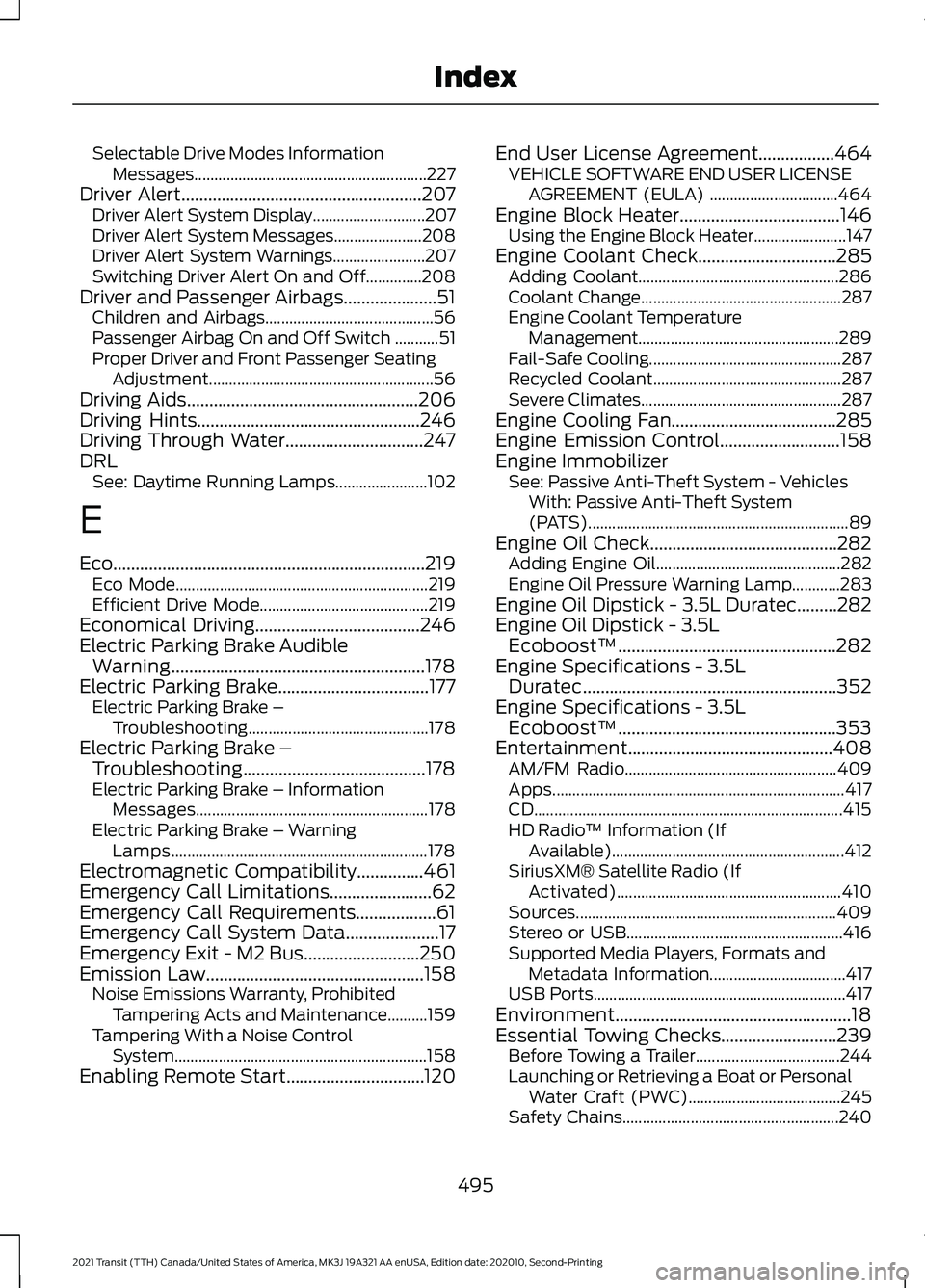
Selectable Drive Modes Information
Messages.......................................................... 227
Driver Alert......................................................207
Driver Alert System Display............................ 207
Driver Alert System Messages...................... 208
Driver Alert System Warnings....................... 207
Switching Driver Alert On and Off..............208
Driver and Passenger Airbags.....................51 Children and Airbags.......................................... 56
Passenger Airbag On and Off Switch ...........51
Proper Driver and Front Passenger Seating Adjustment........................................................ 56
Driving Aids....................................................206
Driving Hints
..................................................246
Driving Through Water...............................247
DRL See: Daytime Running Lamps....................... 102
E
Eco......................................................................219 Eco Mode............................................................... 219
Efficient Drive Mode.......................................... 219
Economical Driving
.....................................246
Electric Parking Brake Audible Warning.........................................................178
Electric Parking Brake..................................177 Electric Parking Brake –
Troubleshooting............................................. 178
Electric Parking Brake – Troubleshooting.........................................178
Electric Parking Brake – Information Messages.......................................................... 178
Electric Parking Brake – Warning Lamps................................................................ 178
Electromagnetic Compatibility
...............461
Emergency Call Limitations.......................62
Emergency Call Requirements..................61
Emergency Call System Data
.....................17
Emergency Exit - M2 Bus..........................250
Emission Law.................................................158 Noise Emissions Warranty, Prohibited
Tampering Acts and Maintenance..........159
Tampering With a Noise Control System............................................................... 158
Enabling Remote Start...............................120 End User License Agreement
.................464
VEHICLE SOFTWARE END USER LICENSE
AGREEMENT (EULA) ................................ 464
Engine Block Heater
....................................146
Using the Engine Block Heater....................... 147
Engine Coolant Check...............................285 Adding Coolant.................................................. 286
Coolant Change.................................................. 287
Engine Coolant Temperature Management.................................................. 289
Fail-Safe Cooling................................................ 287
Recycled Coolant............................................... 287
Severe Climates.................................................. 287
Engine Cooling Fan.....................................285
Engine Emission Control...........................158
Engine Immobilizer See: Passive Anti-Theft System - Vehicles
With: Passive Anti-Theft System
(PATS)................................................................. 89
Engine Oil Check..........................................282 Adding Engine Oil.............................................. 282
Engine Oil Pressure Warning Lamp............283
Engine Oil Dipstick - 3.5L Duratec.........282
Engine Oil Dipstick - 3.5L Ecoboost™.................................................282
Engine Specifications - 3.5L Duratec.........................................................352
Engine Specifications - 3.5L Ecoboost™.................................................353
Entertainment..............................................408 AM/FM Radio..................................................... 409
Apps........................................................................\
. 417
CD........................................................................\
..... 415
HD Radio ™ Information (If
Available).......................................................... 412
SiriusXM® Satellite Radio (If Activated)........................................................ 410
Sources................................................................. 409
Stereo or USB...................................................... 416
Supported Media Players, Formats and Metadata Information.................................. 417
USB Ports............................................................... 417
Environment.....................................................18
Essential Towing Checks..........................239 Before Towing a Trailer.................................... 244
Launching or Retrieving a Boat or Personal Water Craft (PWC)...................................... 245
Safety Chains...................................................... 240
495
2021 Transit (TTH) Canada/United States of America, MK3J 19A321 AA enUSA, Edition date: 202010, Second-Printing Index