AUX FORD TRANSIT CONNECT 2014 2.G User Guide
[x] Cancel search | Manufacturer: FORD, Model Year: 2014, Model line: TRANSIT CONNECT, Model: FORD TRANSIT CONNECT 2014 2.GPages: 411, PDF Size: 6.62 MB
Page 249 of 411
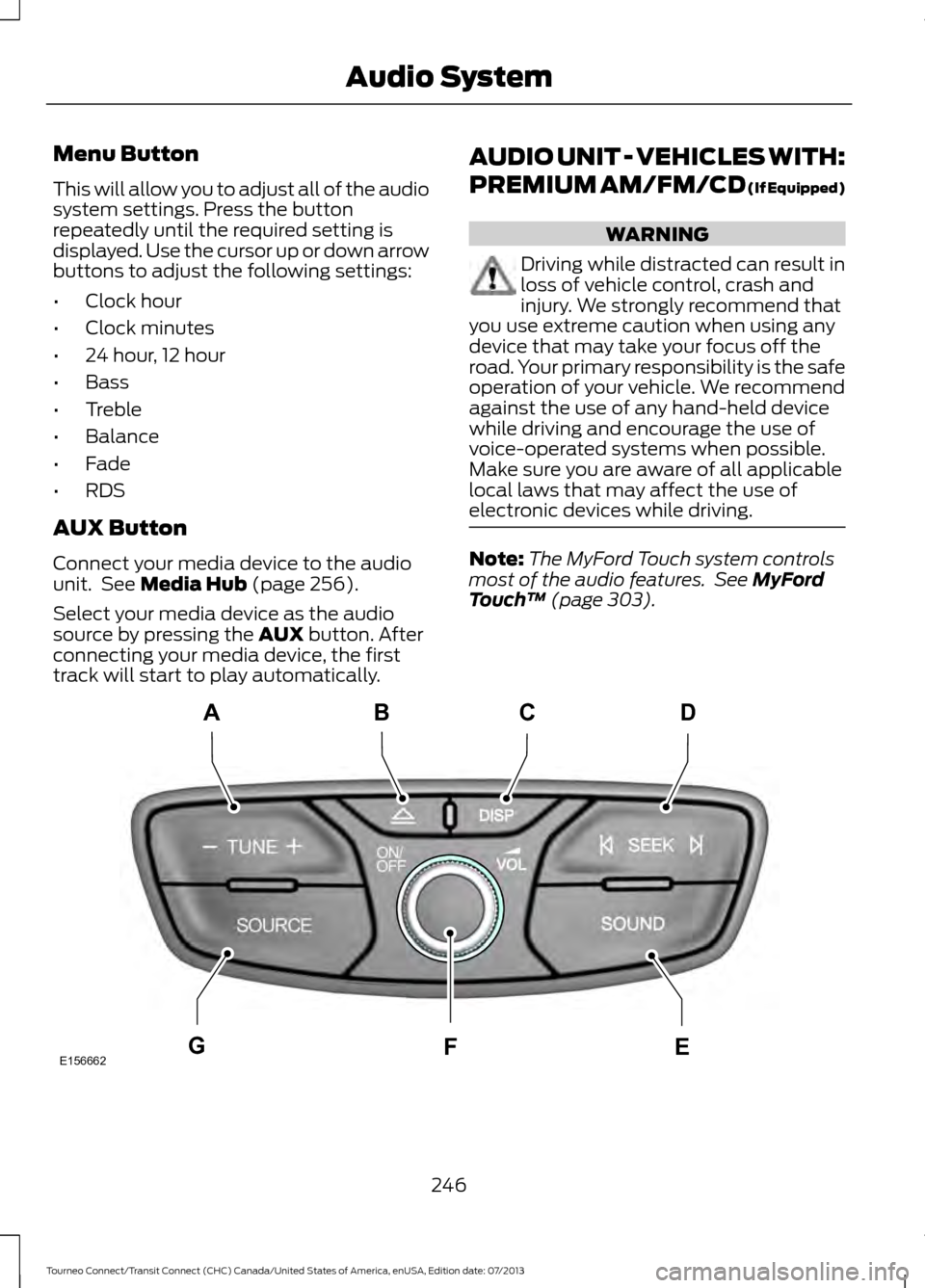
Menu Button
This will allow you to adjust all of the audio
system settings. Press the button
repeatedly until the required setting is
displayed. Use the cursor up or down arrow
buttons to adjust the following settings:
•
Clock hour
• Clock minutes
• 24 hour, 12 hour
• Bass
• Treble
• Balance
• Fade
• RDS
AUX Button
Connect your media device to the audio
unit. See Media Hub (page 256).
Select your media device as the audio
source by pressing the
AUX button. After
connecting your media device, the first
track will start to play automatically. AUDIO UNIT - VEHICLES WITH:
PREMIUM AM/FM/CD (If Equipped) WARNING
Driving while distracted can result in
loss of vehicle control, crash and
injury. We strongly recommend that
you use extreme caution when using any
device that may take your focus off the
road. Your primary responsibility is the safe
operation of your vehicle. We recommend
against the use of any hand-held device
while driving and encourage the use of
voice-operated systems when possible.
Make sure you are aware of all applicable
local laws that may affect the use of
electronic devices while driving. Note:
The MyFord Touch system controls
most of the audio features. See
MyFord
Touch ™ (page 303). 246
Tourneo Connect/Transit Connect (CHC) Canada/United States of America, enUSA, Edition date: 07/2013 Audio SystemE156662
CD
GEF
B
A
Page 259 of 411
AUDIO INPUT JACK (If Equipped)
WARNINGS
Driving while distracted can result in
loss of vehicle control, accident and
injury. We strongly recommend that
you use extreme caution when using any
device or feature that may take your focus
off the road. Your primary responsibility is
the safe operation of your vehicle. We
recommend against the use of any
handheld device while driving and
encourage the use of voice-operated
systems when possible. Make sure you are
aware of all applicable local laws that may
affect the use of electronic devices while
driving. For safety reasons, do not connect
or adjust the settings on your
portable music player while your
vehicle is moving. Store the portable music player in a
secure location, such as the center
console or the glove box, when your
vehicle is in moving. Hard objects may
become projectiles in a collision or sudden
stop, which may increase the risk of serious
injury. The audio extension cable must be
long enough to allow the portable music
player to be safely stored while your
vehicle is moving. The auxiliary input jack allows you to
connect and play music from your portable
music player through your vehicle speakers.
You can use any portable music player
designed for use with headphones. Your
audio extension cable must have male
one-eighth inch (three and one-half
millimeter) connectors at each end.
1. Make sure your vehicle is stationary
with the radio and portable music
players turned off. 2. Plug the extension cable from the
portable music player into the auxiliary
input jack.
3. Switch the radio on. Select either a tuned FM station or a CD.
4. Adjust the volume as desired.
5. Switch the portable music player on and adjust its volume to half its
maximum level.
6. Press
AUX until LINE or LINE IN
appears in the display. You should hear
music from your device even if it is low.
7. Adjust the volume on your portable music player until it reaches the volume
level of the FM station or CD. Do this
by switching back and forth between
the AUX and FM or CD controls.
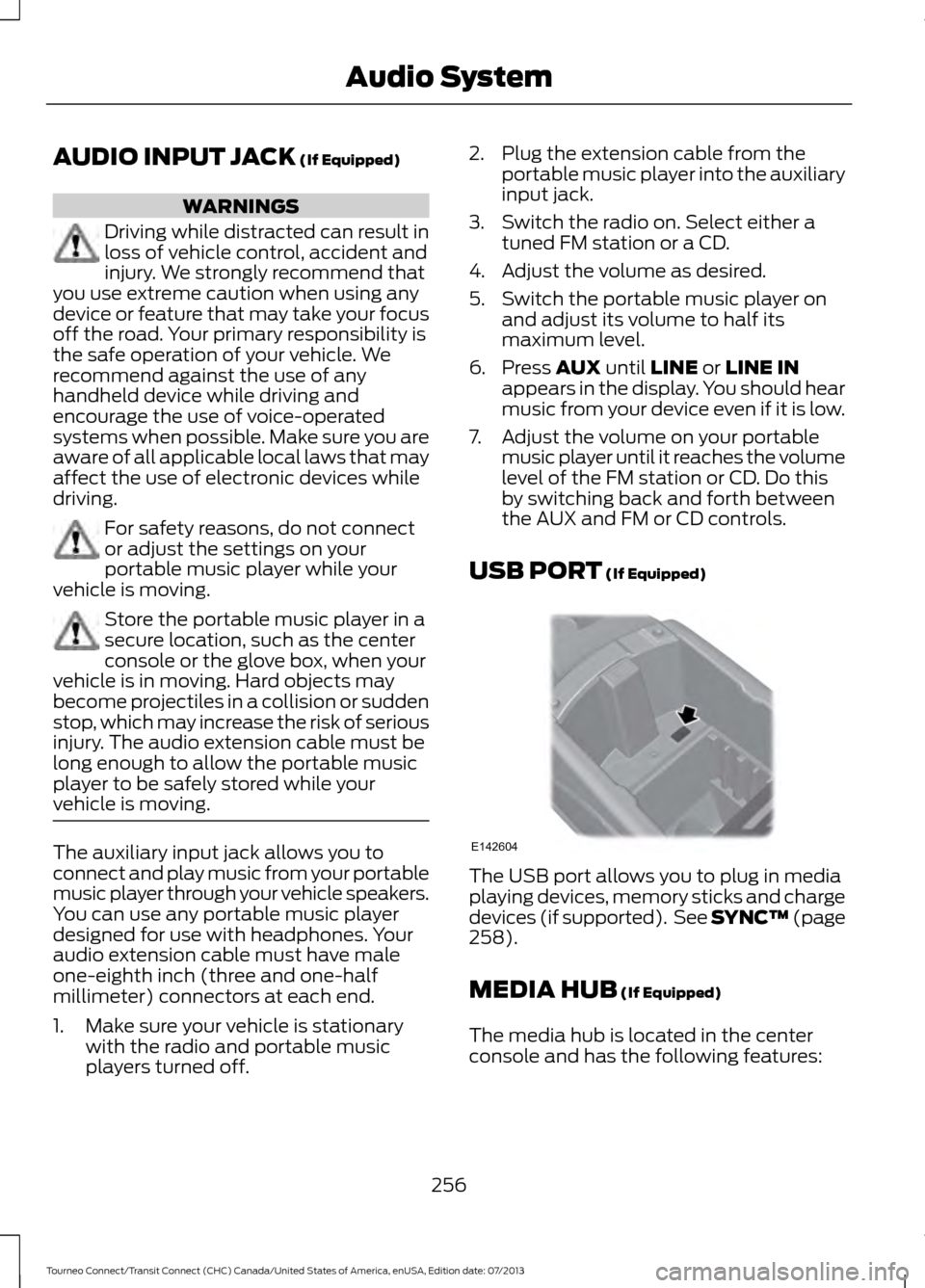
USB PORT
(If Equipped) The USB port allows you to plug in media
playing devices, memory sticks and charge
devices (if supported). See SYNC™
(page
258).
MEDIA HUB
(If Equipped)
The media hub is located in the center
console and has the following features:
256
Tourneo Connect/Transit Connect (CHC) Canada/United States of America, enUSA, Edition date: 07/2013 Audio SystemE142604
Page 263 of 411
System data cannot be accessed without
special equipment and access to the
vehicle's SYNC module. Ford Motor
Company and Ford of Canada will not
access the system data for any purpose
other than as described absent consent, a
court order, or where required by law
enforcement, other government
authorities, or other third parties acting
with lawful authority. Other parties may
seek to access the information
independently of Ford Motor Company and
Ford of Canada. For further privacy
information, see the sections on 911 Assist,
Vehicle Health Report, and Traffic,
Directions and Information.
USING VOICE RECOGNITION
This system helps you control many
features using voice commands. This
allows you to keep your hands on the
wheel and focus on what is in front of you.
Helpful Hints
•
Make sure the interior of your vehicle is
as quiet as possible. Wind noise from
open windows and road vibrations may
prevent the system from correctly
recognizing spoken commands.
• After pressing the voice button, wait
until after the tone sounds and
Listening appears before saying a
command. Any command spoken
before this does not register with the
system.
• Speak naturally, without long pauses
between words.
• At any time, you can interrupt the
system while it is speaking by pressing
the voice button.
Initiating a Voice Session Initiate a voice session by
pressing the voice button on the
steering wheel controls. See
Voice Control (page 56).
A tone sounds and the following
message appears in the information
display. Message
Listening
You can then say any of the following: If you want the system to carry out the following
Voice command
Stream audio from your phone.
Bluetooth audio
Cancel the requested action.
(cancel | stop | exit)
Access the device connected to the auxiliary input jack.
((line | AV | audio video)
in | AUX | audio video)
Access mobile applications.
mobile (apps | applica-
tions)
260
Tourneo Connect/Transit Connect (CHC) Canada/United States of America, enUSA, Edition date: 07/2013 SYNC™
(If Equipped)E142599
Page 288 of 411
Note:
iPhone users need to connect the
phone to the USB port in order to start the
application. We recommend you lock your
iPhone after starting an application.
Note: The AppLink feature is not available
if your vehicle is equipped with the MyFord
Touch or MyLincoln Touch system.
Note: Depending on your display type, you
can access AppLink from the media menu,
the phone menu, or by using voice
commands. Once an app is running through
AppLink, you can control main features of
the app through voice commands and
steering wheel controls.
To Access Using the Phone Menu
1. Press the phone button to access the SYNC phone menu on-screen.
2. Scroll to Mobile Apps and press OK to access a list of available applications.
3. Scroll through the list of available applications and press OK to select a
particular app.
4. Once an app is running through SYNC,
you can access an app ’s menu by
pressing the MENU button to first
access the SYNC menu.
5. Select "SYNC-Media" by pressing
OK.
6. Scroll until "
then press
OK. From here, you can
access an application's features, such
as Thumbs up and Thumbs down. For
more information, please visit
www.SYNCMyRide.com.
To Access Using the Media Menu
1. Press the
AUX button on the center
console.
2. Press
MENU to access the SYNC
menu.
3. Select "SYNC-Media" by pressing
OK. 4.
Scroll to Mobile Apps and press OK to
access a list of available applications.
5. Scroll through the list of available applications and press
OK to select a
particular app.
6. Once an app is running through SYNC,
you can access an app ’s menu by
pressing the
MENU button to first
access the SYNC menu.
7. Select "SYNC-Media" by pressing
OK.
8. Scroll until "
then press
OK. From here, you can
access an application's features, such
as Thumbs up and Thumbs down. For
more information, please visit
www.SYNCMyRide.com.
To Access Using Voice Commands
1. Press the voice icon.
2. When prompted, say "Mobile Apps".
3. Say the name of the application after the tone.
4. The app should start. While an app is running through SYNC, you can press
the voice button and speak commands
specific to the app, such as "Play
Station Quickmix". Say "Help" to
discover available voice commands.
USING SYNC™ WITH YOUR
MEDIA PLAYER
You can access and play music from your
digital music player over your vehicle's
speaker system using the system's media
menu or voice commands. You can also
sort and play your music by specific
categories, for example artist and album.
Note: The system is capable of indexing up
to 6,000 songs.
285
Tourneo Connect/Transit Connect (CHC) Canada/United States of America, enUSA, Edition date: 07/2013 SYNC™
(If Equipped)
Page 289 of 411
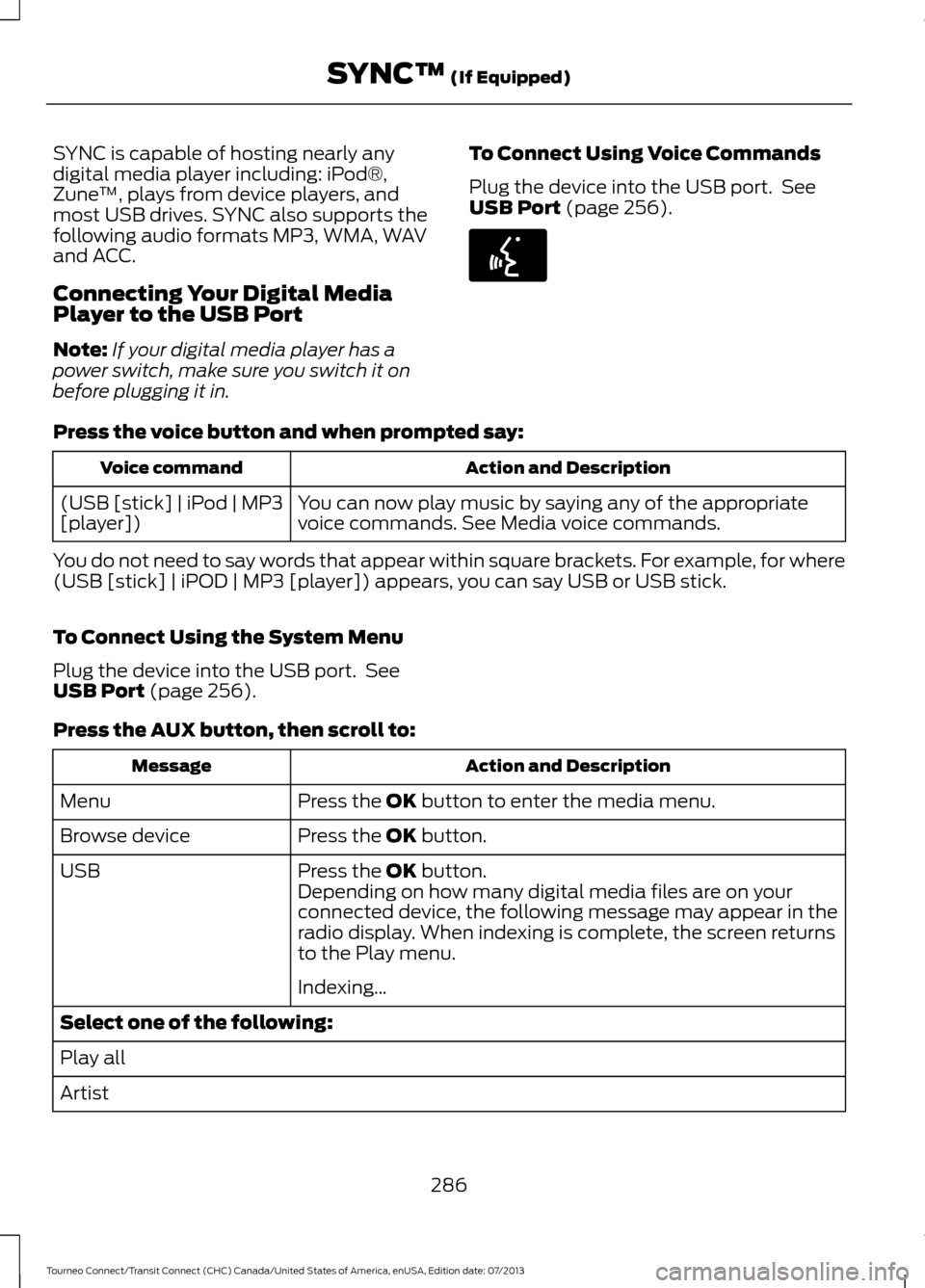
SYNC is capable of hosting nearly any
digital media player including: iPod®,
Zune
™, plays from device players, and
most USB drives. SYNC also supports the
following audio formats MP3, WMA, WAV
and ACC.
Connecting Your Digital Media
Player to the USB Port
Note: If your digital media player has a
power switch, make sure you switch it on
before plugging it in. To Connect Using Voice Commands
Plug the device into the USB port. See
USB Port (page 256).Press the voice button and when prompted say:
Action and Description
Voice command
You can now play music by saying any of the appropriate
voice commands. See Media voice commands.
(USB [stick] | iPod | MP3
[player])
You do not need to say words that appear within square brackets. For example, for where
(USB [stick] | iPOD | MP3 [player]) appears, you can say USB or USB stick.
To Connect Using the System Menu
Plug the device into the USB port. See
USB Port
(page 256).
Press the
AUX button, then scroll to: Action and Description
Message
Press the
OK button to enter the media menu.
Menu
Press the
OK button.
Browse device
Press the
OK button.
USB
Depending on how many digital media files are on your
connected device, the following message may appear in the
radio display. When indexing is complete, the screen returns
to the Play menu.
Indexing…
Select one of the following:
Play all
Artist
286
Tourneo Connect/Transit Connect (CHC) Canada/United States of America, enUSA, Edition date: 07/2013 SYNC™
(If Equipped)E142599
Page 293 of 411
![FORD TRANSIT CONNECT 2014 2.G User Guide Bluetooth Audio Command Guide
Press the voice button and when
prompted say any of the following:
Voice command
[Phone] Connections | [Media] Connec-
tions | [Bluetooth] Connections
pause
play Voice co](/img/11/5404/w960_5404-292.png "FORD TRANSIT CONNECT 2014 2.G User Guide Bluetooth Audio Command Guide
Press the voice button and when
prompted say any of the following:
Voice command
[Phone] Connections | [Media] Connec-
tions | [Bluetooth] Connections
pause
play Voice co")
Bluetooth Audio Command Guide
Press the voice button and when
prompted say any of the following:
Voice command
[Phone] Connections | [Media] Connec-
tions | [Bluetooth] Connections
pause
play Voice command
[play] next track
[play] previous track
Media Menu Features
The media menu allows you to select your
media source, how to play your music, for
example by artist, genre, shuffle or repeat,
and to add, connect or delete devices.
Press the AUX button, then scroll to: Action and Description
Message
Press the
OK button to enter the media menu.
Menu
Select one of the following:
Play your music by artist, album, genre, playlist, track, similar
music or play all music. You can also choose to Explore USB
to view the supported digital music files on your playing
device.
Menu
Select and play music from your USB port, auxiliary input jack
or stream music from your Bluetooth-enabled cell phone.
Browse device
Select one of the following:
Press the
OK button to access music plugged into your USB
port. You can also plug in devices to charge them (if
supported by your device). Once connected, the system
indexes any readable media files. 1
USB
Press the OK button. This is a phone-dependent feature that
allows you to stream music playing on your Bluetooth-
enabled phone. If supported by your device, you can press
seek to play the previous or next track.
Bluetooth audio
Press the
OK button to select and play music from your
portable music player over your vehicle's speakers. 2
Line In
Choose to shuffle or repeat your music and select your
Autoplay settings. Once you turn these selections on, they
remain on until you turn them off. Press
SEEK to play the
previous or next track. 3
Media Player Settings
290
Tourneo Connect/Transit Connect (CHC) Canada/United States of America, enUSA, Edition date: 07/2013 SYNC™
(If Equipped)
Page 295 of 411
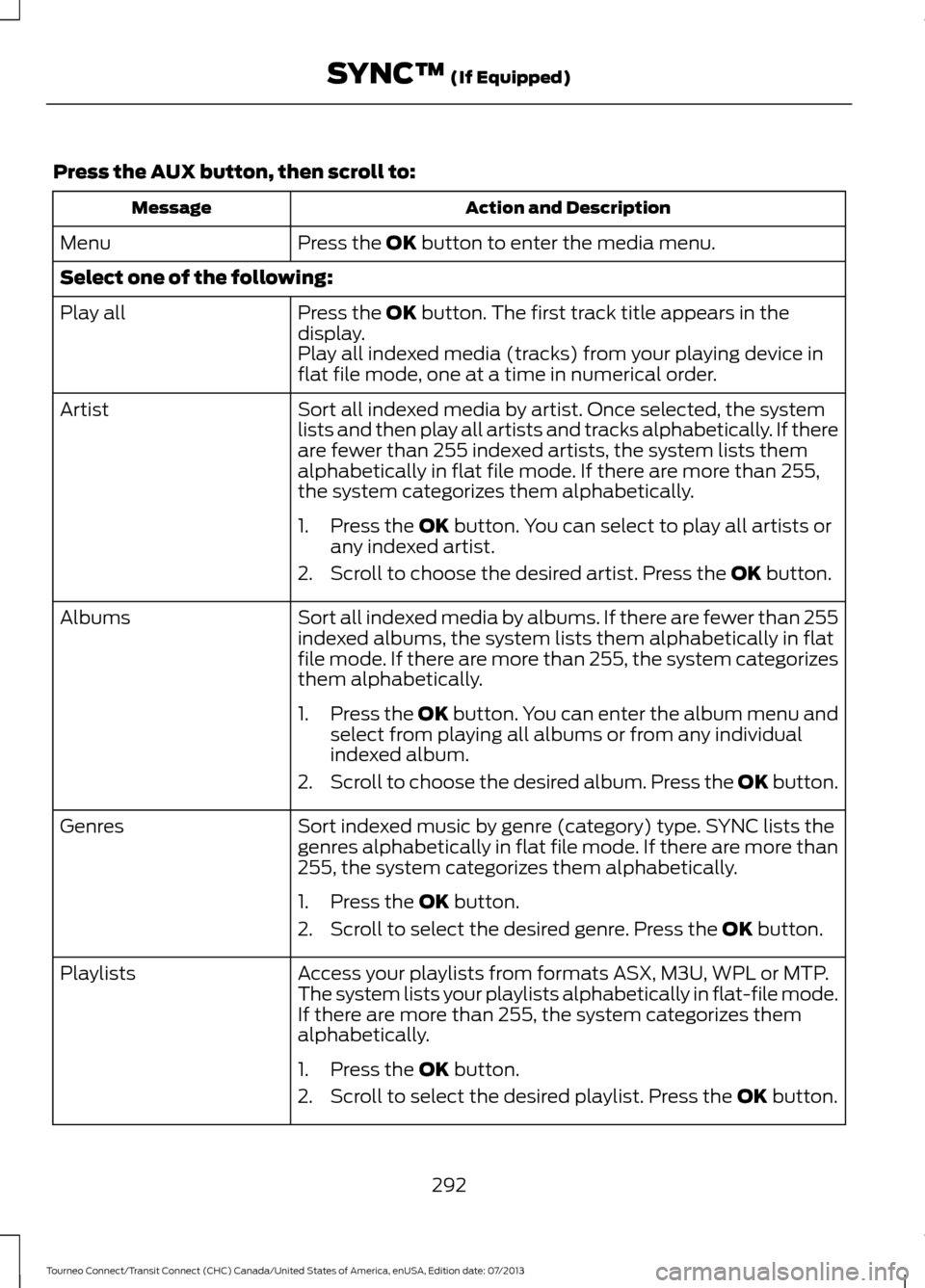
Press the AUX button, then scroll to:
Action and Description
Message
Press the
OK button to enter the media menu.
Menu
Select one of the following:
Press the
OK button. The first track title appears in the
display.
Play all
Play all indexed media (tracks) from your playing device in
flat file mode, one at a time in numerical order.
Sort all indexed media by artist. Once selected, the system
lists and then play all artists and tracks alphabetically. If there
are fewer than 255 indexed artists, the system lists them
alphabetically in flat file mode. If there are more than 255,
the system categorizes them alphabetically.
Artist
1. Press the
OK button. You can select to play all artists or
any indexed artist.
2. Scroll to choose the desired artist. Press the
OK button.
Sort all indexed media by albums. If there are fewer than 255
indexed albums, the system lists them alphabetically in flat
file mode. If there are more than 255, the system categorizes
them alphabetically.
Albums
1.Press the
OK button. You can enter the album menu and
select from playing all albums or from any individual
indexed album.
2. Scroll to choose the desired album. Press the OK button.
Sort indexed music by genre (category) type. SYNC lists the
genres alphabetically in flat file mode. If there are more than
255, the system categorizes them alphabetically.
Genres
1. Press the
OK button.
2. Scroll to select the desired genre. Press the
OK button.
Access your playlists from formats ASX, M3U, WPL or MTP.
The system lists your playlists alphabetically in flat-file mode.
If there are more than 255, the system categorizes them
alphabetically.
Playlists
1. Press the
OK button.
2. Scroll to select the desired playlist. Press the
OK button.
292
Tourneo Connect/Transit Connect (CHC) Canada/United States of America, enUSA, Edition date: 07/2013 SYNC™
(If Equipped)
Page 297 of 411
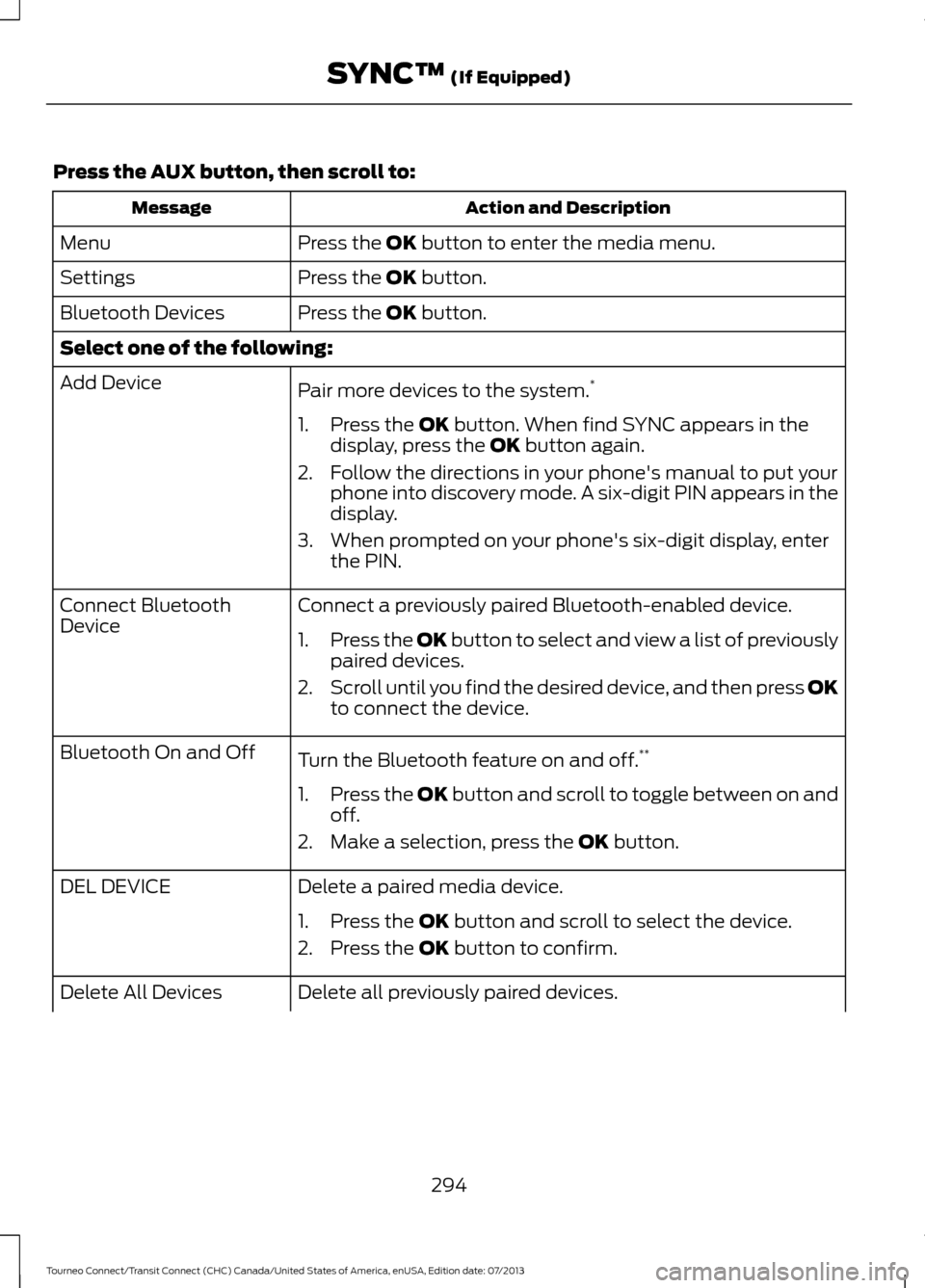
Press the AUX button, then scroll to:
Action and Description
Message
Press the
OK button to enter the media menu.
Menu
Press the
OK button.
Settings
Press the
OK button.
Bluetooth Devices
Select one of the following:
Pair more devices to the system. *
Add Device
1. Press the
OK button. When find SYNC appears in the
display, press the OK button again.
2. Follow the directions in your phone's manual to put your phone into discovery mode. A six-digit PIN appears in the
display.
3. When prompted on your phone's six-digit display, enter the PIN.
Connect a previously paired Bluetooth-enabled device.
Connect Bluetooth
Device
1.Press the OK button to select and view a list of previously
paired devices.
2. Scroll until you find the desired device, and then press OK
to connect the device.
Turn the Bluetooth feature on and off. **
Bluetooth On and Off
1.Press the OK button and scroll to toggle between on and
off.
2. Make a selection, press the
OK button.
Delete a paired media device.
DEL DEVICE
1. Press the
OK button and scroll to select the device.
2. Press the
OK button to confirm.
Delete all previously paired devices.
Delete All Devices
294
Tourneo Connect/Transit Connect (CHC) Canada/United States of America, enUSA, Edition date: 07/2013 SYNC™
(If Equipped)
Page 402 of 411
A
A/C
See: Climate Control.......................................... 88
About This Manual...........................................7
ABS See: Brakes............................................................ 122
ABS driving hints See: Hints on Driving With Anti-Lock
Brakes................................................................. 122
Accessories....................................................365 Exterior style........................................................ 365
Interior style......................................................... 365
Lifestyle................................................................. 365
Peace of mind..................................................... 365
Accessories See: Replacement Parts
Recommendation............................................. 11
Adjusting the Headlamps.........................188 Horizontal Aim Adjustment............................ 189
Vertical Aim Adjustment................................. 188
Adjusting the Steering Wheel
....................55
Airbag Disposal..............................................40
Air Conditioning See: Climate Control.......................................... 88
Air Vents
............................................................88
Center Air Vents.................................................... 88
Side Air Vents........................................................ 89
Alarm See: Anti-Theft Alarm........................................ 54
Anti-Theft Alarm
............................................54
Alarm System........................................................ 54
Arming the Alarm................................................. 54
Disarming the Alarm........................................... 54
Triggering the Alarm............................................ 54
Appendices....................................................367
Audible Warnings and Indicators
.............75
Automatic Transmission Warning
Chime................................................................... 76
Headlamps On Warning Chime...................... 75
Key in Ignition Warning Chime......................... 75
Parking Brake On Warning Chime.................. 75
Audio Control
...................................................55
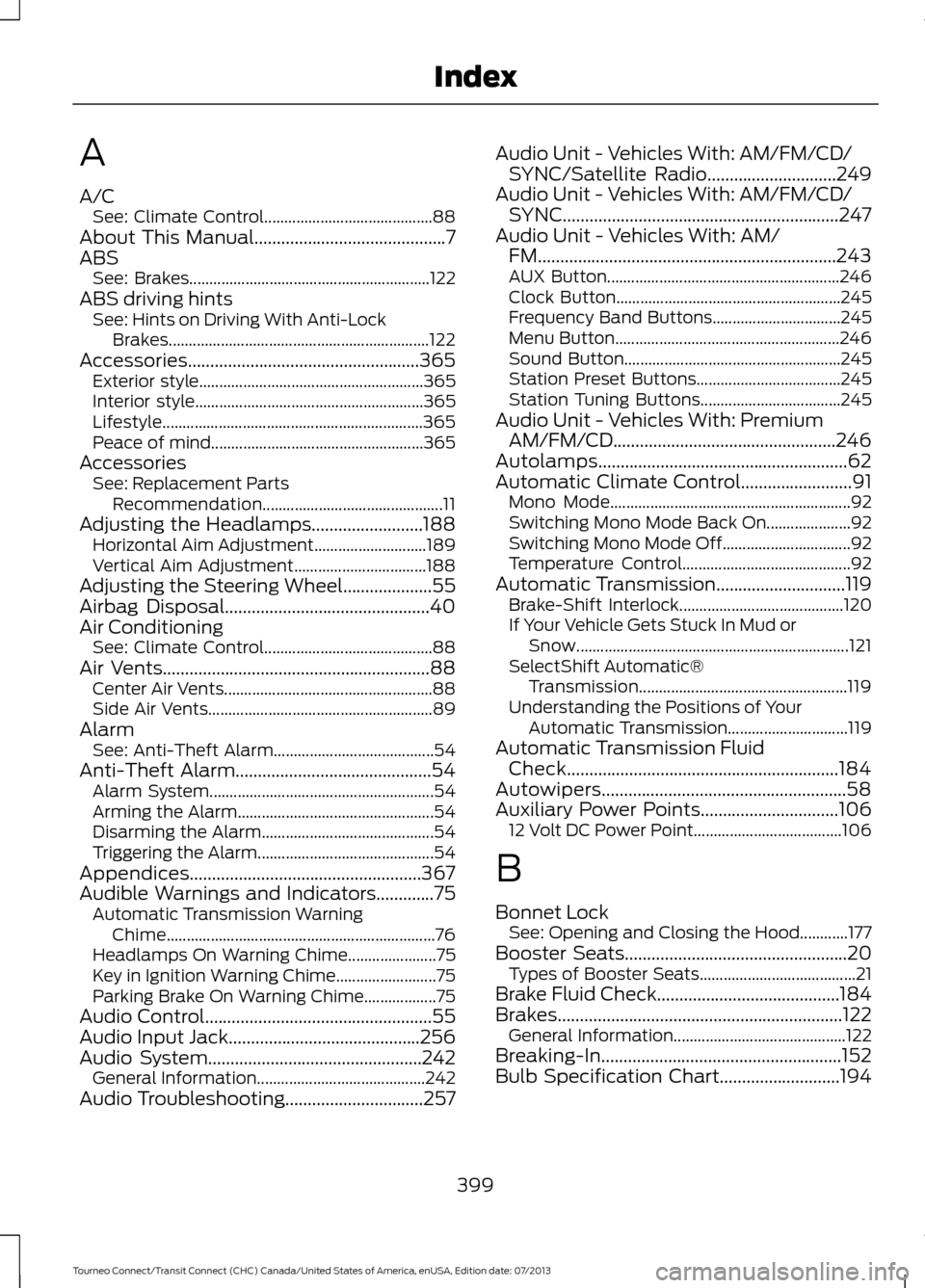
Audio Input Jack...........................................256
Audio System
................................................242
General Information.......................................... 242
Audio Troubleshooting
...............................257 Audio Unit - Vehicles With: AM/FM/CD/
SYNC/Satellite Radio
.............................249
Audio Unit - Vehicles With: AM/FM/CD/ SYNC..............................................................247
Audio Unit - Vehicles With: AM/ FM...................................................................243
AUX Button.......................................................... 246
Clock Button........................................................ 245
Frequency Band Buttons................................ 245
Menu Button........................................................ 246
Sound Button...................................................... 245
Station Preset Buttons.................................... 245
Station Tuning Buttons................................... 245
Audio Unit - Vehicles With: Premium AM/FM/CD..................................................246
Autolamps........................................................62
Automatic Climate Control
.........................91
Mono Mode............................................................ 92
Switching Mono Mode Back On..................... 92
Switching Mono Mode Off................................ 92
Temperature Control.......................................... 92
Automatic Transmission
.............................119
Brake-Shift Interlock......................................... 120
If Your Vehicle Gets Stuck In Mud or Snow.................................................................... 121
SelectShift Automatic® Transmission.................................................... 119
Understanding the Positions of Your Automatic Transmission.............................. 119
Automatic Transmission Fluid Check.............................................................184
Autowipers.......................................................58
Auxiliary Power Points...............................106 12 Volt DC Power Point..................................... 106
B
Bonnet Lock See: Opening and Closing the Hood............177
Booster Seats
..................................................20
Types of Booster Seats....................................... 21
Brake Fluid Check.........................................184
Brakes................................................................122 General Information........................................... 122
Breaking-In......................................................152
Bulb Specification Chart...........................194
399
Tourneo Connect/Transit Connect (CHC) Canada/United States of America, enUSA, Edition date: 07/2013 Index