ignition FORD TRANSIT CONNECT 2015 2.G Repair Manual
[x] Cancel search | Manufacturer: FORD, Model Year: 2015, Model line: TRANSIT CONNECT, Model: FORD TRANSIT CONNECT 2015 2.GPages: 428, PDF Size: 6.27 MB
Page 261 of 428
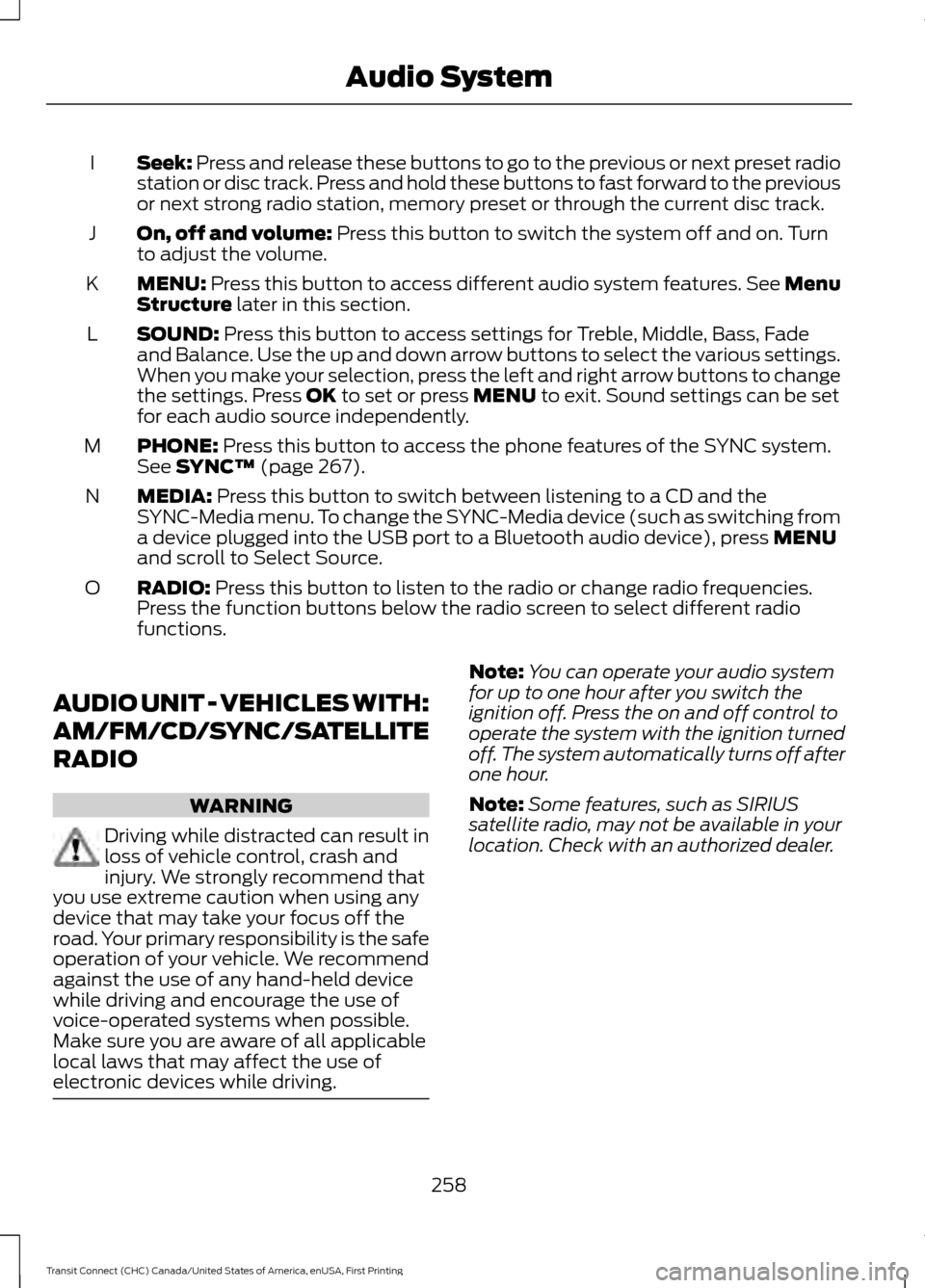
Seek: Press and release these buttons to go to the previous or next preset radio
station or disc track. Press and hold these buttons to fast forward to the previous
or next strong radio station, memory preset or through the current disc track.
I
On, off and volume:
Press this button to switch the system off and on. Turn
to adjust the volume.
J
MENU:
Press this button to access different audio system features. See Menu
Structure later in this section.
K
SOUND:
Press this button to access settings for Treble, Middle, Bass, Fade
and Balance. Use the up and down arrow buttons to select the various settings.
When you make your selection, press the left and right arrow buttons to change
the settings. Press
OK to set or press MENU to exit. Sound settings can be set
for each audio source independently.
L
PHONE:
Press this button to access the phone features of the SYNC system.
See SYNC™ (page 267).
M
MEDIA:
Press this button to switch between listening to a CD and the
SYNC-Media menu. To change the SYNC-Media device (such as switching from
a device plugged into the USB port to a Bluetooth audio device), press
MENU
and scroll to Select Source.
N
RADIO:
Press this button to listen to the radio or change radio frequencies.
Press the function buttons below the radio screen to select different radio
functions.
O
AUDIO UNIT - VEHICLES WITH:
AM/FM/CD/SYNC/SATELLITE
RADIO WARNING
Driving while distracted can result in
loss of vehicle control, crash and
injury. We strongly recommend that
you use extreme caution when using any
device that may take your focus off the
road. Your primary responsibility is the safe
operation of your vehicle. We recommend
against the use of any hand-held device
while driving and encourage the use of
voice-operated systems when possible.
Make sure you are aware of all applicable
local laws that may affect the use of
electronic devices while driving. Note:
You can operate your audio system
for up to one hour after you switch the
ignition off. Press the on and off control to
operate the system with the ignition turned
off. The system automatically turns off after
one hour.
Note: Some features, such as SIRIUS
satellite radio, may not be available in your
location. Check with an authorized dealer.
258
Transit Connect (CHC) Canada/United States of America, enUSA, First Printing Audio System
Page 275 of 428
Pairing a Cell Phone for the First
Time
Note:
SYNC can support downloading up
to approximately 1000 entries per
Bluetooth-enabled cell phone.
Note: Make sure to switch on the ignition
and the radio. Put the transmission in
position park (P) (automatic transmission)
or neutral with the parking brake applied
(manual transmission). Note:
To scroll through the menus, press
the up and down arrows on your audio
system.
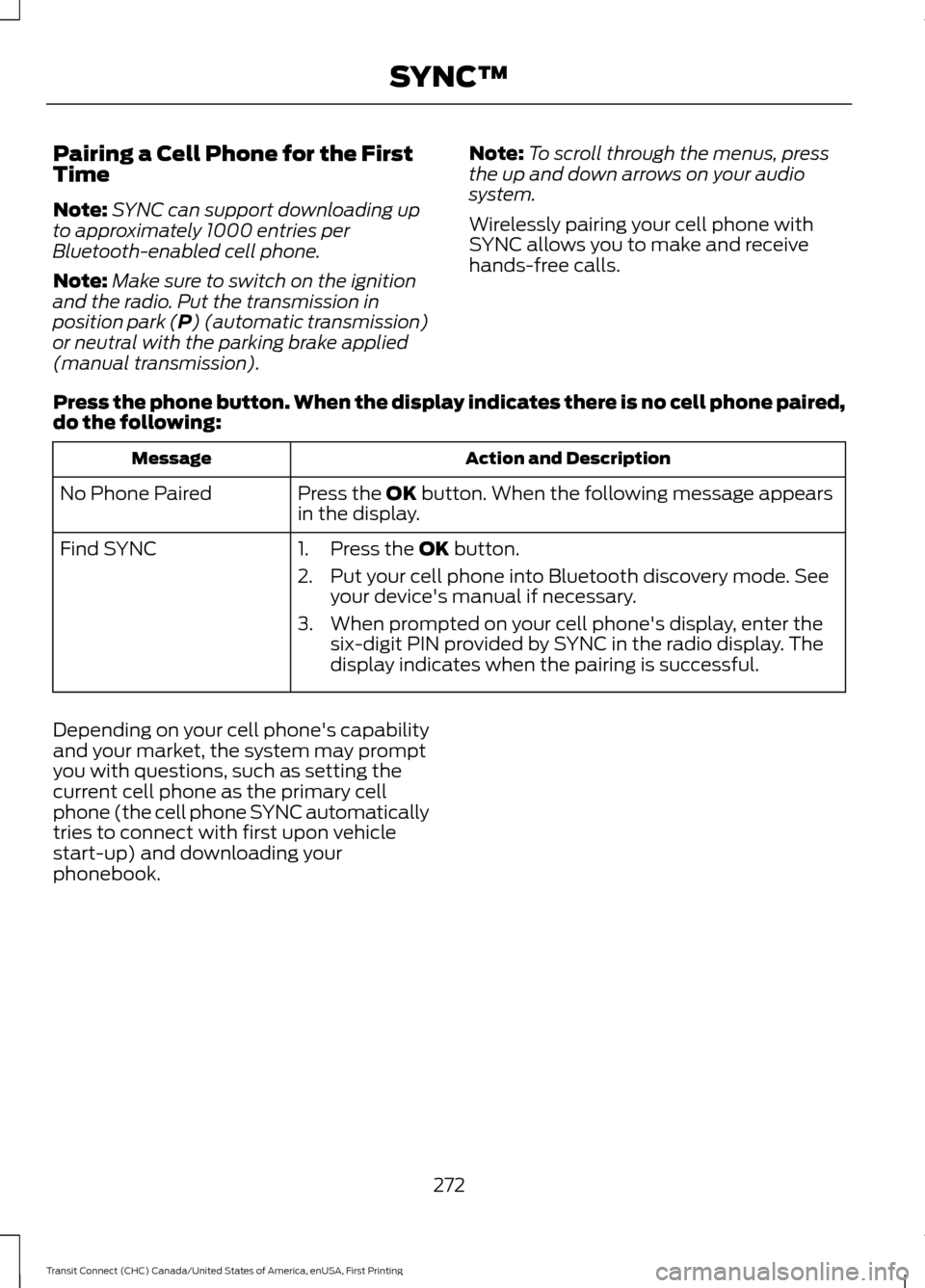
Wirelessly pairing your cell phone with
SYNC allows you to make and receive
hands-free calls.
Press the phone button. When the display indicates there is no cell phone paired,
do the following: Action and Description
Message
Press the
OK button. When the following message appears
in the display.
No Phone Paired
Find SYNC
1. Press the
OK button.
2. Put your cell phone into Bluetooth discovery mode. See your device's manual if necessary.
3. When prompted on your cell phone's display, enter the six-digit PIN provided by SYNC in the radio display. The
display indicates when the pairing is successful.
Depending on your cell phone's capability
and your market, the system may prompt
you with questions, such as setting the
current cell phone as the primary cell
phone (the cell phone SYNC automatically
tries to connect with first upon vehicle
start-up) and downloading your
phonebook.
272
Transit Connect (CHC) Canada/United States of America, enUSA, First Printing SYNC™
Page 276 of 428
Pairing Subsequent Cell Phones
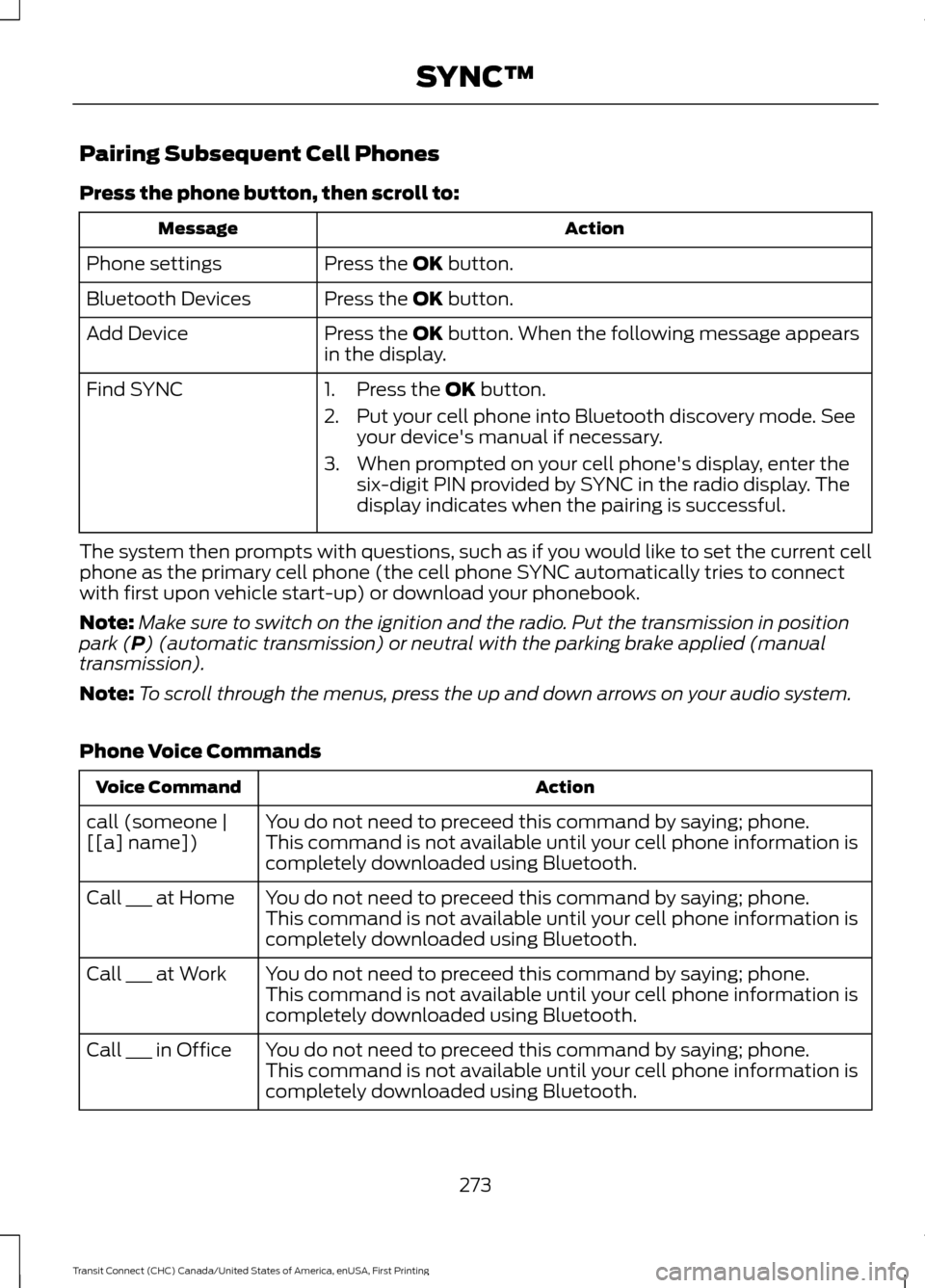
Press the phone button, then scroll to:
Action
Message
Press the OK button.
Phone settings
Press the
OK button.
Bluetooth Devices
Press the
OK button. When the following message appears
in the display.
Add Device
Find SYNC
1. Press the
OK button.
2. Put your cell phone into Bluetooth discovery mode. See your device's manual if necessary.
3. When prompted on your cell phone's display, enter the six-digit PIN provided by SYNC in the radio display. The
display indicates when the pairing is successful.
The system then prompts with questions, such as if you would like to set the current cell
phone as the primary cell phone (the cell phone SYNC automatically tries to connect
with first upon vehicle start-up) or download your phonebook.
Note: Make sure to switch on the ignition and the radio. Put the transmission in position
park (
P) (automatic transmission) or neutral with the parking brake applied (manual
transmission).
Note: To scroll through the menus, press the up and down arrows on your audio system.
Phone Voice Commands Action
Voice Command
You do not need to preceed this command by saying; phone.
call (someone |
[[a] name]) This command is not available until your cell phone information is
completely downloaded using Bluetooth.
You do not need to preceed this command by saying; phone.
Call ___ at Home
This command is not available until your cell phone information is
completely downloaded using Bluetooth.
You do not need to preceed this command by saying; phone.
Call ___ at Work
This command is not available until your cell phone information is
completely downloaded using Bluetooth.
You do not need to preceed this command by saying; phone.
Call ___ in Office
This command is not available until your cell phone information is
completely downloaded using Bluetooth.
273
Transit Connect (CHC) Canada/United States of America, enUSA, First Printing SYNC™
Page 312 of 428
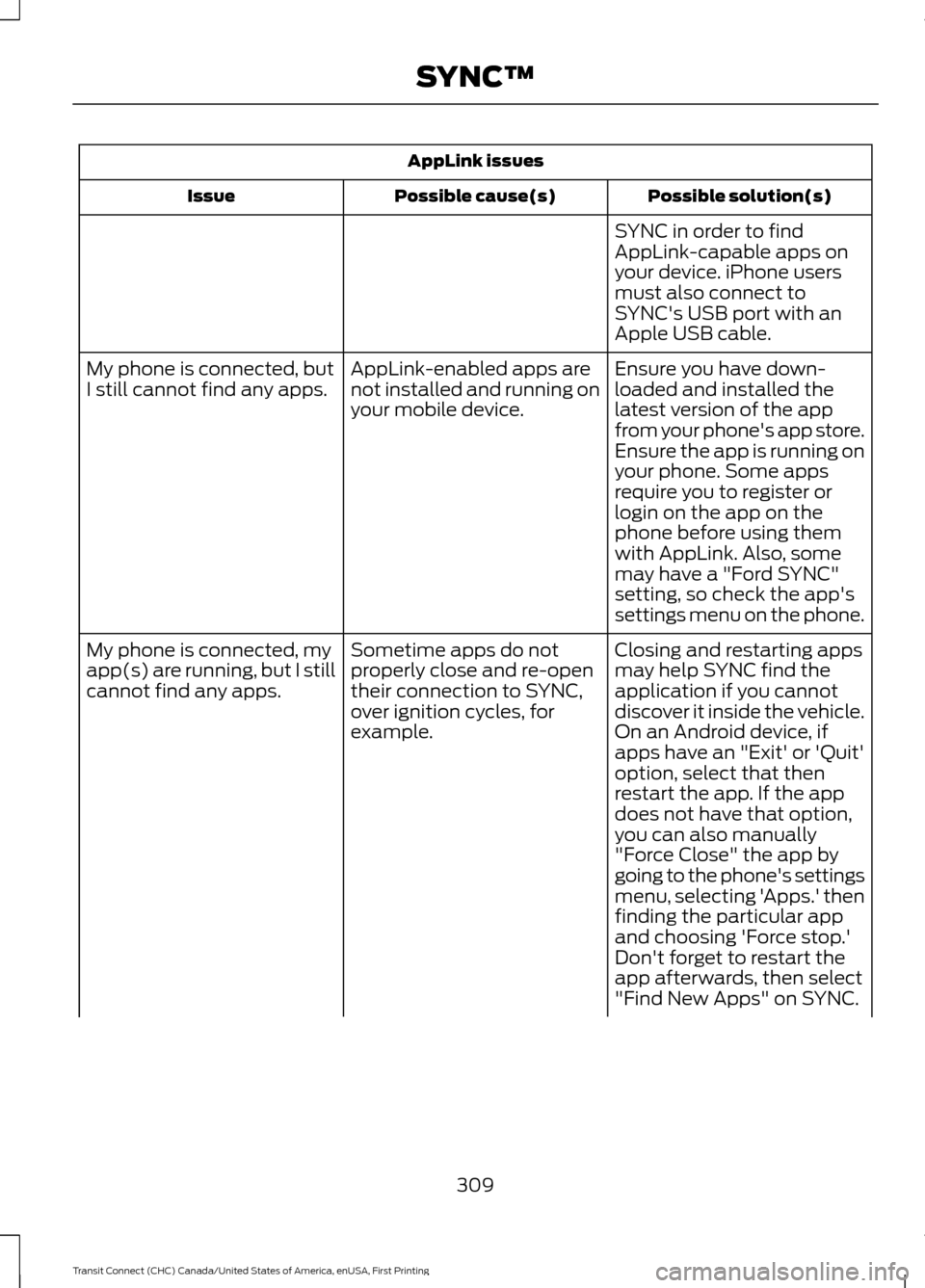
AppLink issues
Possible solution(s)
Possible cause(s)
Issue
SYNC in order to find
AppLink-capable apps on
your device. iPhone users
must also connect to
SYNC's USB port with an
Apple USB cable.
Ensure you have down-
loaded and installed the
latest version of the app
from your phone's app store.
Ensure the app is running on
your phone. Some apps
AppLink-enabled apps are
not installed and running on
your mobile device.
My phone is connected, but
I still cannot find any apps.
require you to register or
login on the app on the
phone before using them
with AppLink. Also, some
may have a "Ford SYNC"
setting, so check the app's
settings menu on the phone.
Closing and restarting apps
may help SYNC find the
application if you cannot
discover it inside the vehicle.
On an Android device, if
apps have an "Exit' or 'Quit'
Sometime apps do not
properly close and re-open
their connection to SYNC,
over ignition cycles, for
example.
My phone is connected, my
app(s) are running, but I still
cannot find any apps.
option, select that then
restart the app. If the app
does not have that option,
you can also manually
"Force Close" the app by
going to the phone's settings
menu, selecting 'Apps.' then
finding the particular app
and choosing 'Force stop.'
Don't forget to restart the
app afterwards, then select
"Find New Apps" on SYNC.
309
Transit Connect (CHC) Canada/United States of America, enUSA, First Printing SYNC™
Page 316 of 428
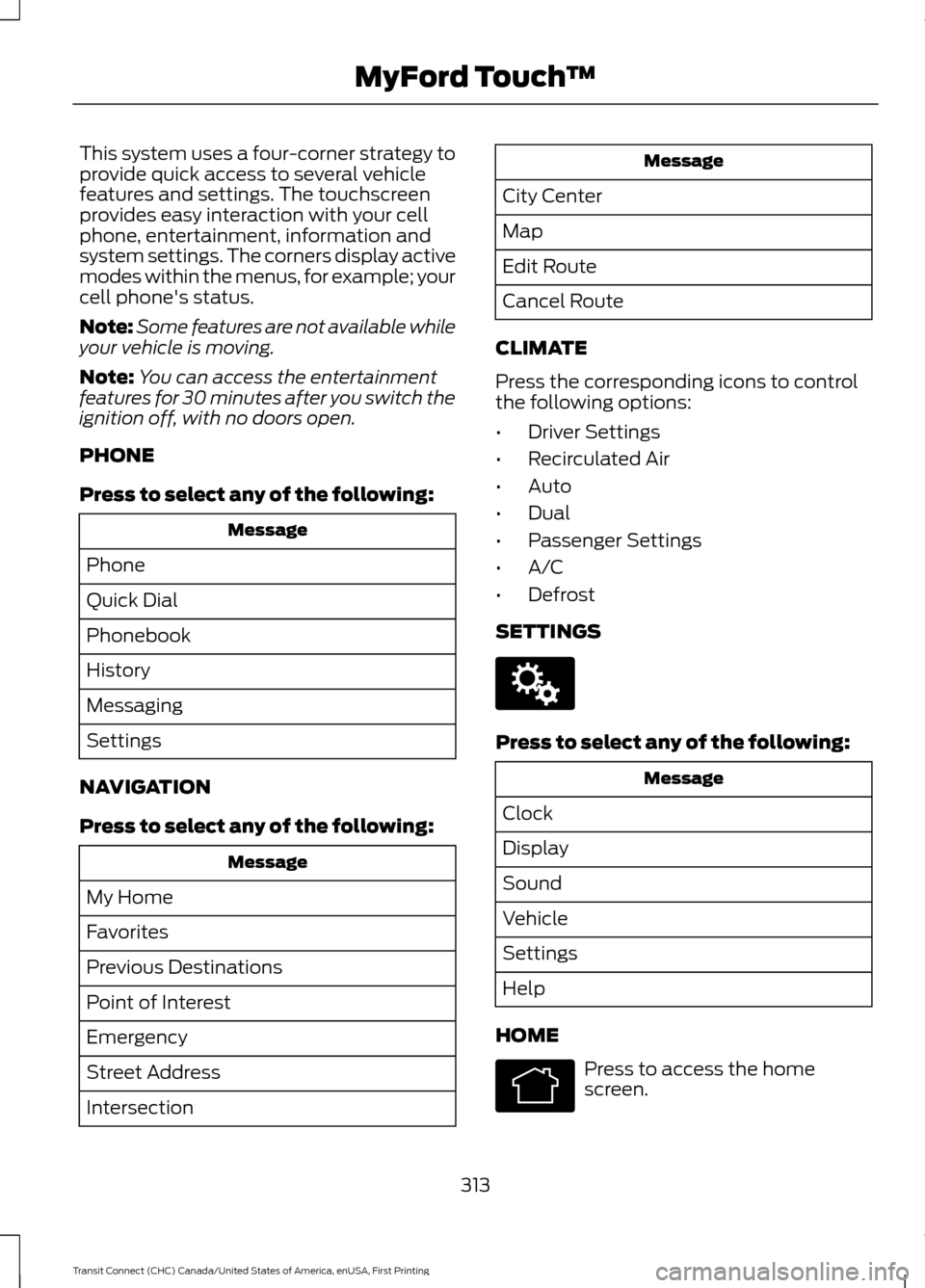
This system uses a four-corner strategy to
provide quick access to several vehicle
features and settings. The touchscreen
provides easy interaction with your cell
phone, entertainment, information and
system settings. The corners display active
modes within the menus, for example; your
cell phone's status.
Note:
Some features are not available while
your vehicle is moving.
Note: You can access the entertainment
features for 30 minutes after you switch the
ignition off, with no doors open.
PHONE
Press to select any of the following: Message
Phone
Quick Dial
Phonebook
History
Messaging
Settings
NAVIGATION
Press to select any of the following: Message
My Home
Favorites
Previous Destinations
Point of Interest
Emergency
Street Address
Intersection Message
City Center
Map
Edit Route
Cancel Route
CLIMATE
Press the corresponding icons to control
the following options:
• Driver Settings
• Recirculated Air
• Auto
• Dual
• Passenger Settings
• A/C
• Defrost
SETTINGS Press to select any of the following:
Message
Clock
Display
Sound
Vehicle
Settings
Help
HOME Press to access the home
screen.
313
Transit Connect (CHC) Canada/United States of America, enUSA, First Printing MyFord Touch
™E142607 E142613
Page 330 of 428
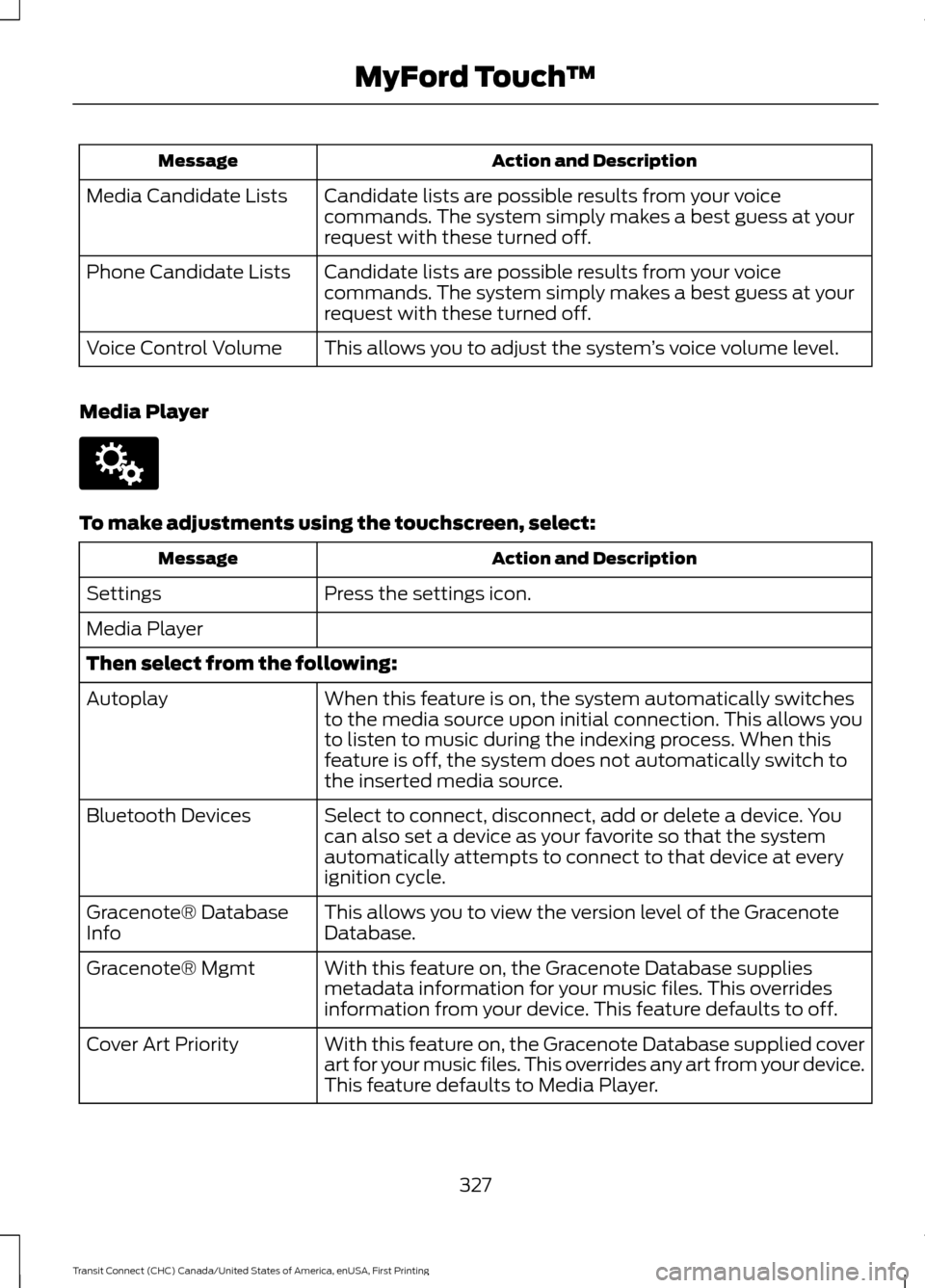
Action and Description
Message
Candidate lists are possible results from your voice
commands. The system simply makes a best guess at your
request with these turned off.
Media Candidate Lists
Candidate lists are possible results from your voice
commands. The system simply makes a best guess at your
request with these turned off.
Phone Candidate Lists
This allows you to adjust the system ’s voice volume level.
Voice Control Volume
Media Player To make adjustments using the touchscreen, select:
Action and Description
Message
Press the settings icon.
Settings
Media Player
Then select from the following:
When this feature is on, the system automatically switches
to the media source upon initial connection. This allows you
to listen to music during the indexing process. When this
feature is off, the system does not automatically switch to
the inserted media source.
Autoplay
Select to connect, disconnect, add or delete a device. You
can also set a device as your favorite so that the system
automatically attempts to connect to that device at every
ignition cycle.
Bluetooth Devices
This allows you to view the version level of the Gracenote
Database.
Gracenote® Database
Info
With this feature on, the Gracenote Database supplies
metadata information for your music files. This overrides
information from your device. This feature defaults to off.
Gracenote® Mgmt
With this feature on, the Gracenote Database supplied cover
art for your music files. This overrides any art from your device.
This feature defaults to Media Player.
Cover Art Priority
327
Transit Connect (CHC) Canada/United States of America, enUSA, First Printing MyFord Touch
™E142607
Page 345 of 428
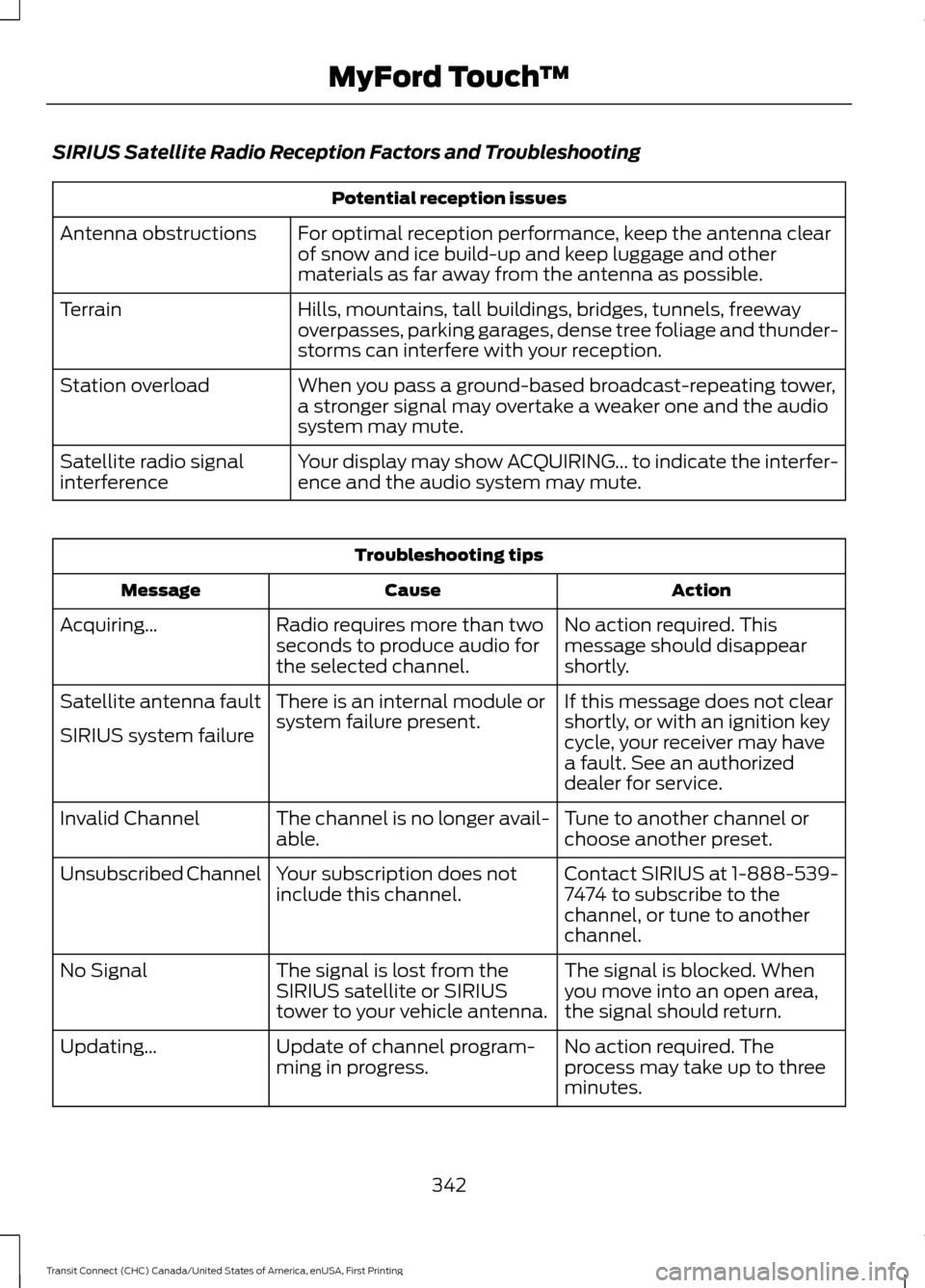
SIRIUS Satellite Radio Reception Factors and Troubleshooting
Potential reception issues
For optimal reception performance, keep the antenna clear
of snow and ice build-up and keep luggage and other
materials as far away from the antenna as possible.
Antenna obstructions
Hills, mountains, tall buildings, bridges, tunnels, freeway
overpasses, parking garages, dense tree foliage and thunder-
storms can interfere with your reception.
Terrain
When you pass a ground-based broadcast-repeating tower,
a stronger signal may overtake a weaker one and the audio
system may mute.
Station overload
Your display may show ACQUIRING... to indicate the interfer-
ence and the audio system may mute.
Satellite radio signal
interference Troubleshooting tips
Action
Cause
Message
No action required. This
message should disappear
shortly.
Radio requires more than two
seconds to produce audio for
the selected channel.
Acquiring…
If this message does not clear
shortly, or with an ignition key
cycle, your receiver may have
a fault. See an authorized
dealer for service.
There is an internal module or
system failure present.
Satellite antenna fault
SIRIUS system failure
Tune to another channel or
choose another preset.
The channel is no longer avail-
able.
Invalid Channel
Contact SIRIUS at 1-888-539-
7474 to subscribe to the
channel, or tune to another
channel.
Your subscription does not
include this channel.
Unsubscribed Channel
The signal is blocked. When
you move into an open area,
the signal should return.
The signal is lost from the
SIRIUS satellite or SIRIUS
tower to your vehicle antenna.
No Signal
No action required. The
process may take up to three
minutes.
Update of channel program-
ming in progress.
Updating…
342
Transit Connect (CHC) Canada/United States of America, enUSA, First Printing MyFord Touch
™
Page 350 of 428
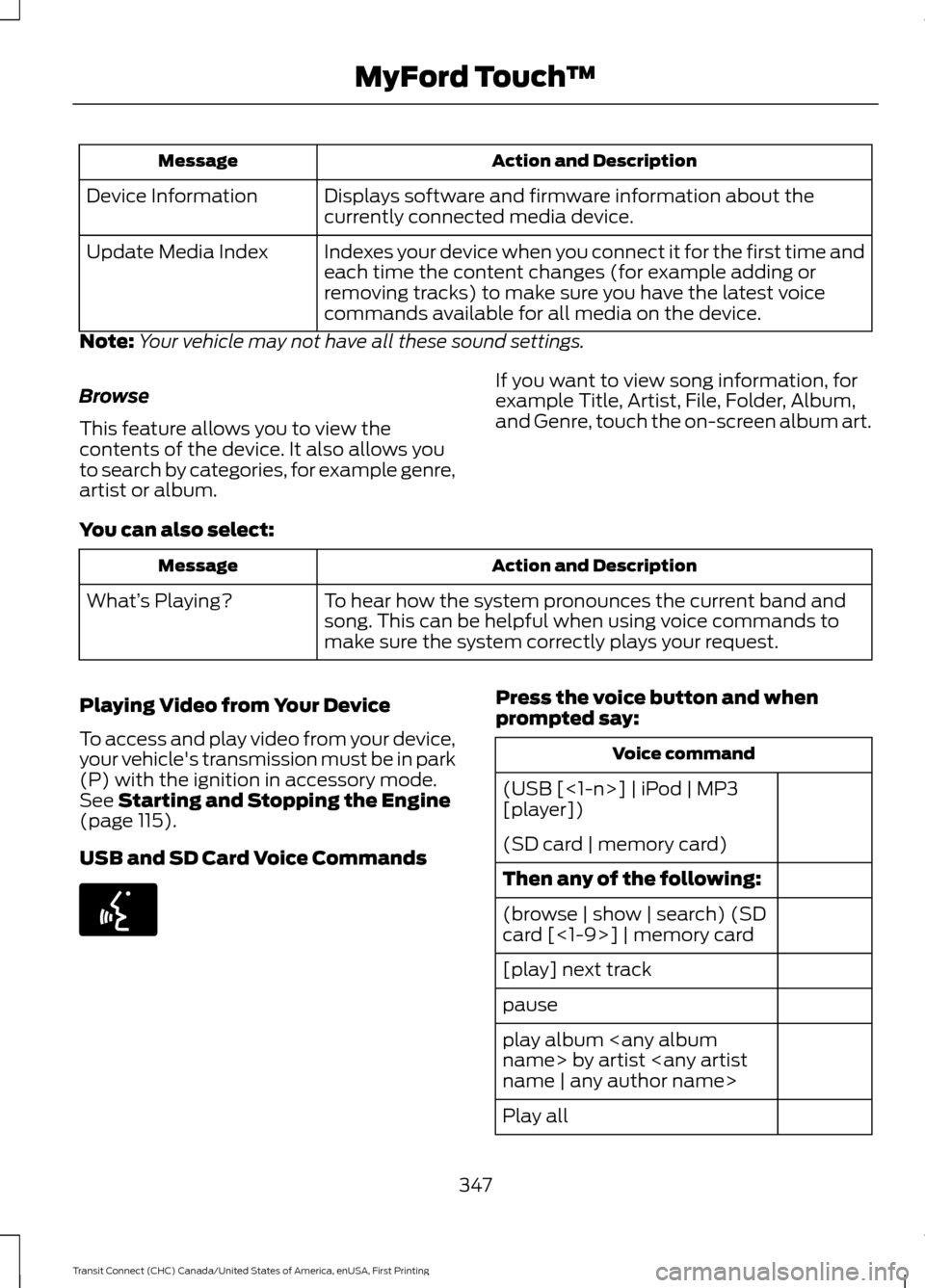
Action and Description
Message
Displays software and firmware information about the
currently connected media device.
Device Information
Indexes your device when you connect it for the first time and
each time the content changes (for example adding or
removing tracks) to make sure you have the latest voice
commands available for all media on the device.
Update Media Index
Note: Your vehicle may not have all these sound settings.
Browse
This feature allows you to view the
contents of the device. It also allows you
to search by categories, for example genre,
artist or album. If you want to view song information, for
example Title, Artist, File, Folder, Album,
and Genre, touch the on-screen album art.
You can also select: Action and Description
Message
To hear how the system pronounces the current band and
song. This can be helpful when using voice commands to
make sure the system correctly plays your request.
What’
s Playing?
Playing Video from Your Device
To access and play video from your device,
your vehicle's transmission must be in park
(P) with the ignition in accessory mode.
See Starting and Stopping the Engine
(page 115).
USB and SD Card Voice Commands Press the voice button and when
prompted say:
Voice command
(USB [<1-n>] | iPod | MP3
[player])
(SD card | memory card)
Then any of the following:
(browse | show | search) (SD
card [<1-9>] | memory card
[play] next track
pause
play album
Play all
347
Transit Connect (CHC) Canada/United States of America, enUSA, First Printing MyFord Touch
™E142599
Page 355 of 428
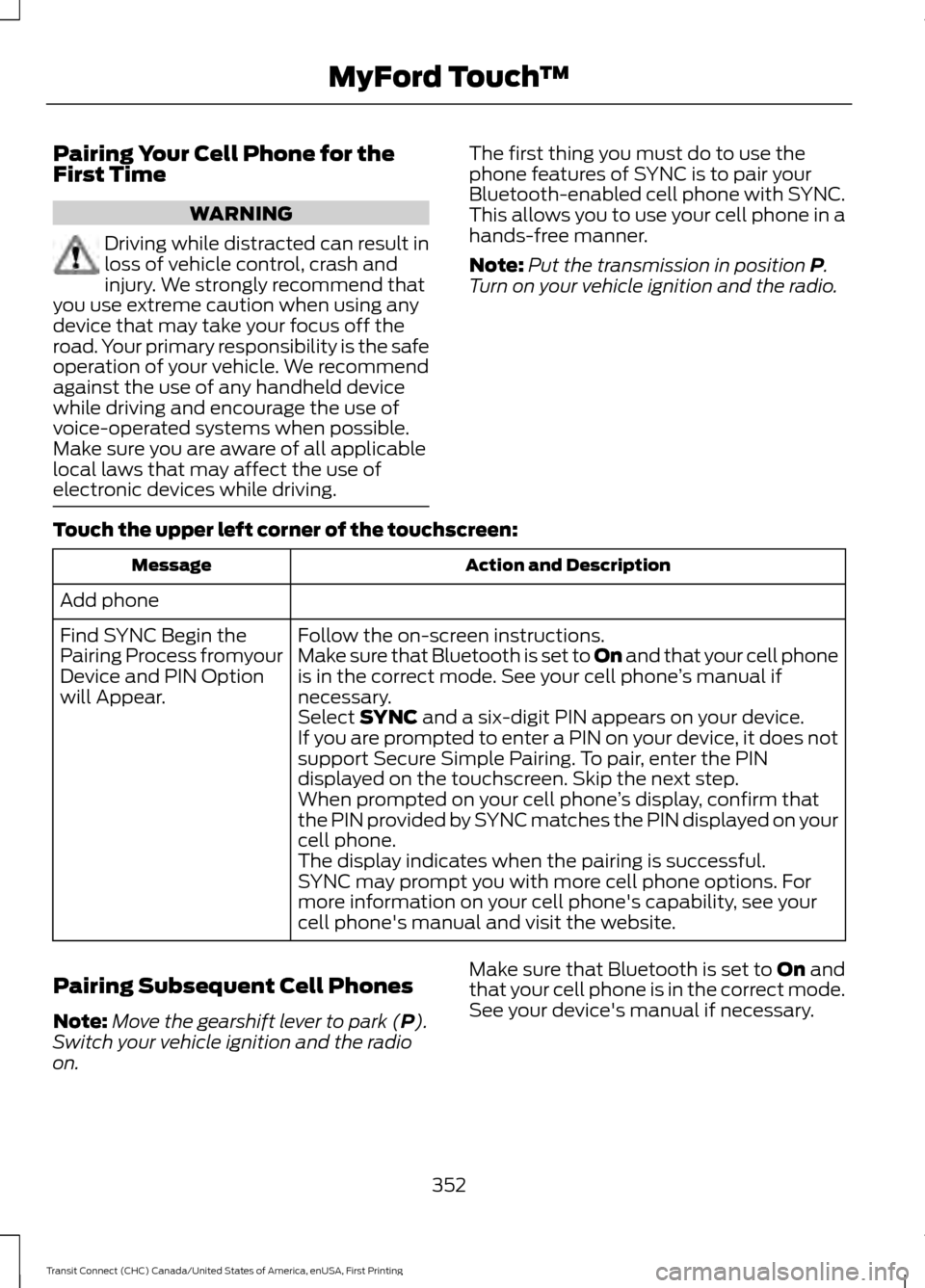
Pairing Your Cell Phone for the
First Time
WARNING
Driving while distracted can result in
loss of vehicle control, crash and
injury. We strongly recommend that
you use extreme caution when using any
device that may take your focus off the
road. Your primary responsibility is the safe
operation of your vehicle. We recommend
against the use of any handheld device
while driving and encourage the use of
voice-operated systems when possible.
Make sure you are aware of all applicable
local laws that may affect the use of
electronic devices while driving. The first thing you must do to use the
phone features of SYNC is to pair your
Bluetooth-enabled cell phone with SYNC.
This allows you to use your cell phone in a
hands-free manner.
Note:
Put the transmission in position P.
Turn on your vehicle ignition and the radio.
Touch the upper left corner of the touchscreen: Action and Description
Message
Add phone Follow the on-screen instructions.
Find SYNC Begin the
Pairing Process fromyour
Device and PIN Option
will Appear. Make sure that Bluetooth is set to On
and that your cell phone
is in the correct mode. See your cell phone ’s manual if
necessary.
Select
SYNC and a six-digit PIN appears on your device.
If you are prompted to enter a PIN on your device, it does not
support Secure Simple Pairing. To pair, enter the PIN
displayed on the touchscreen. Skip the next step.
When prompted on your cell phone ’s display, confirm that
the PIN provided by SYNC matches the PIN displayed on your
cell phone.
The display indicates when the pairing is successful.
SYNC may prompt you with more cell phone options. For
more information on your cell phone's capability, see your
cell phone's manual and visit the website.
Pairing Subsequent Cell Phones
Note: Move the gearshift lever to park (
P).
Switch your vehicle ignition and the radio
on. Make sure that Bluetooth is set to
On and
that your cell phone is in the correct mode.
See your device's manual if necessary.
352
Transit Connect (CHC) Canada/United States of America, enUSA, First Printing MyFord Touch
™
Page 418 of 428
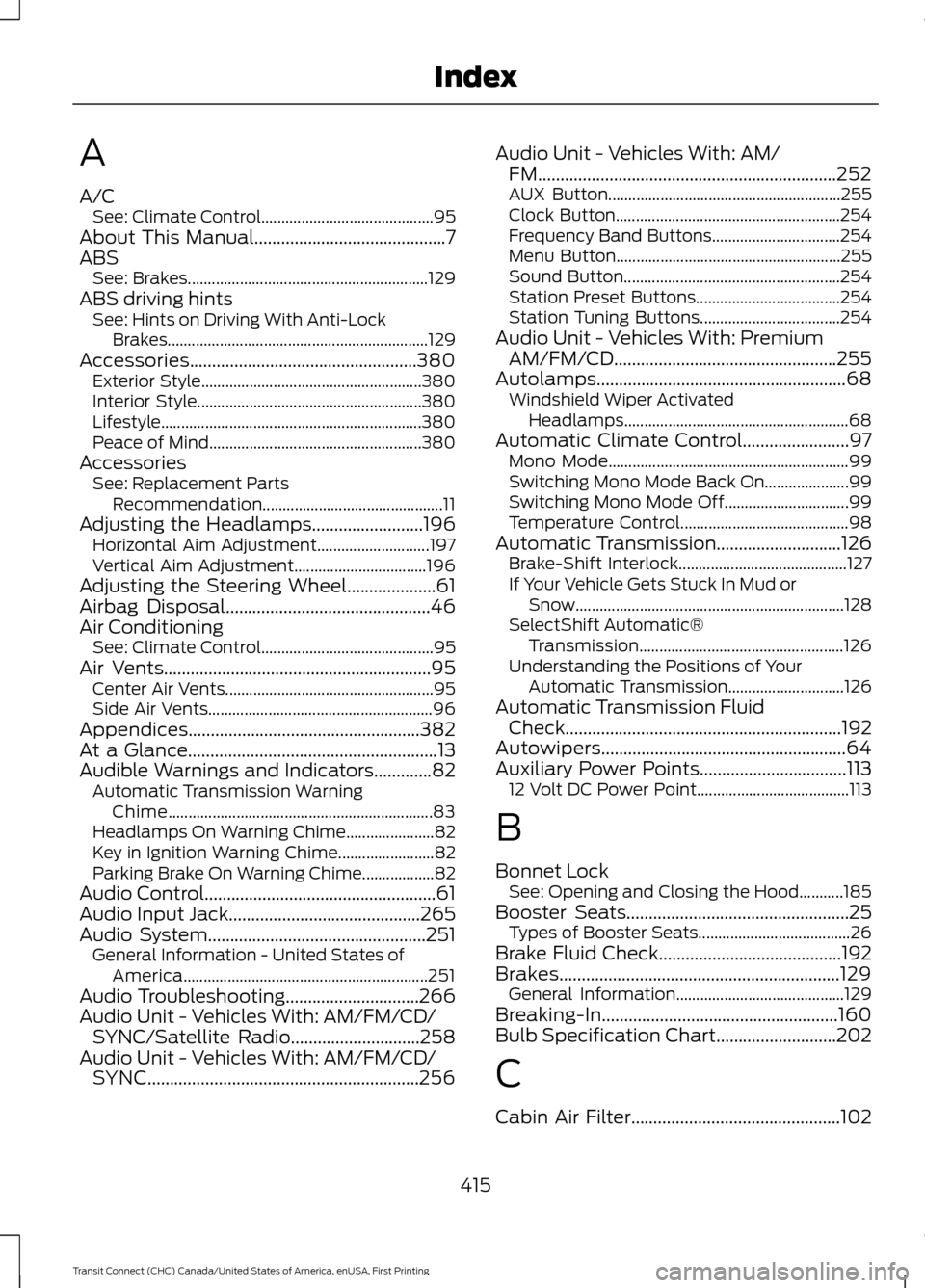
A
A/C
See: Climate Control........................................... 95
About This Manual...........................................7
ABS See: Brakes............................................................ 129
ABS driving hints See: Hints on Driving With Anti-Lock
Brakes................................................................. 129
Accessories...................................................380 Exterior Style....................................................... 380
Interior Style........................................................ 380
Lifestyle................................................................. 380
Peace of Mind..................................................... 380
Accessories See: Replacement Parts
Recommendation............................................. 11
Adjusting the Headlamps.........................196 Horizontal Aim Adjustment............................ 197
Vertical Aim Adjustment................................. 196
Adjusting the Steering Wheel....................61
Airbag Disposal
..............................................46
Air Conditioning See: Climate Control........................................... 95
Air Vents............................................................95 Center Air Vents.................................................... 95
Side Air Vents........................................................ 96
Appendices....................................................382
At a Glance
........................................................13
Audible Warnings and Indicators.............82 Automatic Transmission Warning
Chime.................................................................. 83
Headlamps On Warning Chime...................... 82
Key in Ignition Warning Chime........................ 82
Parking Brake On Warning Chime.................. 82
Audio Control....................................................61
Audio Input Jack
...........................................265
Audio System.................................................251 General Information - United States of
America............................................................. 251
Audio Troubleshooting..............................266
Audio Unit - Vehicles With: AM/FM/CD/ SYNC/Satellite Radio.............................258
Audio Unit - Vehicles With: AM/FM/CD/ SYNC
.............................................................256 Audio Unit - Vehicles With: AM/
FM
...................................................................252
AUX Button.......................................................... 255
Clock Button........................................................ 254
Frequency Band Buttons................................ 254
Menu Button........................................................ 255
Sound Button...................................................... 254
Station Preset Buttons.................................... 254
Station Tuning Buttons................................... 254
Audio Unit - Vehicles With: Premium AM/FM/CD
..................................................255
Autolamps........................................................68
Windshield Wiper Activated
Headlamps........................................................ 68
Automatic Climate Control........................97 Mono Mode............................................................ 99
Switching Mono Mode Back On..................... 99
Switching Mono Mode Off............................... 99
Temperature Control.......................................... 98
Automatic Transmission
............................126
Brake-Shift Interlock.......................................... 127
If Your Vehicle Gets Stuck In Mud or Snow................................................................... 128
SelectShift Automatic® Transmission................................................... 126
Understanding the Positions of Your Automatic Transmission............................. 126
Automatic Transmission Fluid Check
..............................................................192
Autowipers.......................................................64
Auxiliary Power Points.................................113 12 Volt DC Power Point...................................... 113
B
Bonnet Lock See: Opening and Closing the Hood...........185
Booster Seats..................................................25 Types of Booster Seats...................................... 26
Brake Fluid Check.........................................192
Brakes...............................................................129 General Information.......................................... 129
Breaking-In.....................................................160
Bulb Specification Chart...........................202
C
Cabin Air Filter...............................................102
415
Transit Connect (CHC) Canada/United States of America, enUSA, First Printing Index