USB port FORD TRANSIT CONNECT 2018 User Guide
[x] Cancel search | Manufacturer: FORD, Model Year: 2018, Model line: TRANSIT CONNECT, Model: FORD TRANSIT CONNECT 2018Pages: 449, PDF Size: 6.73 MB
Page 305 of 449
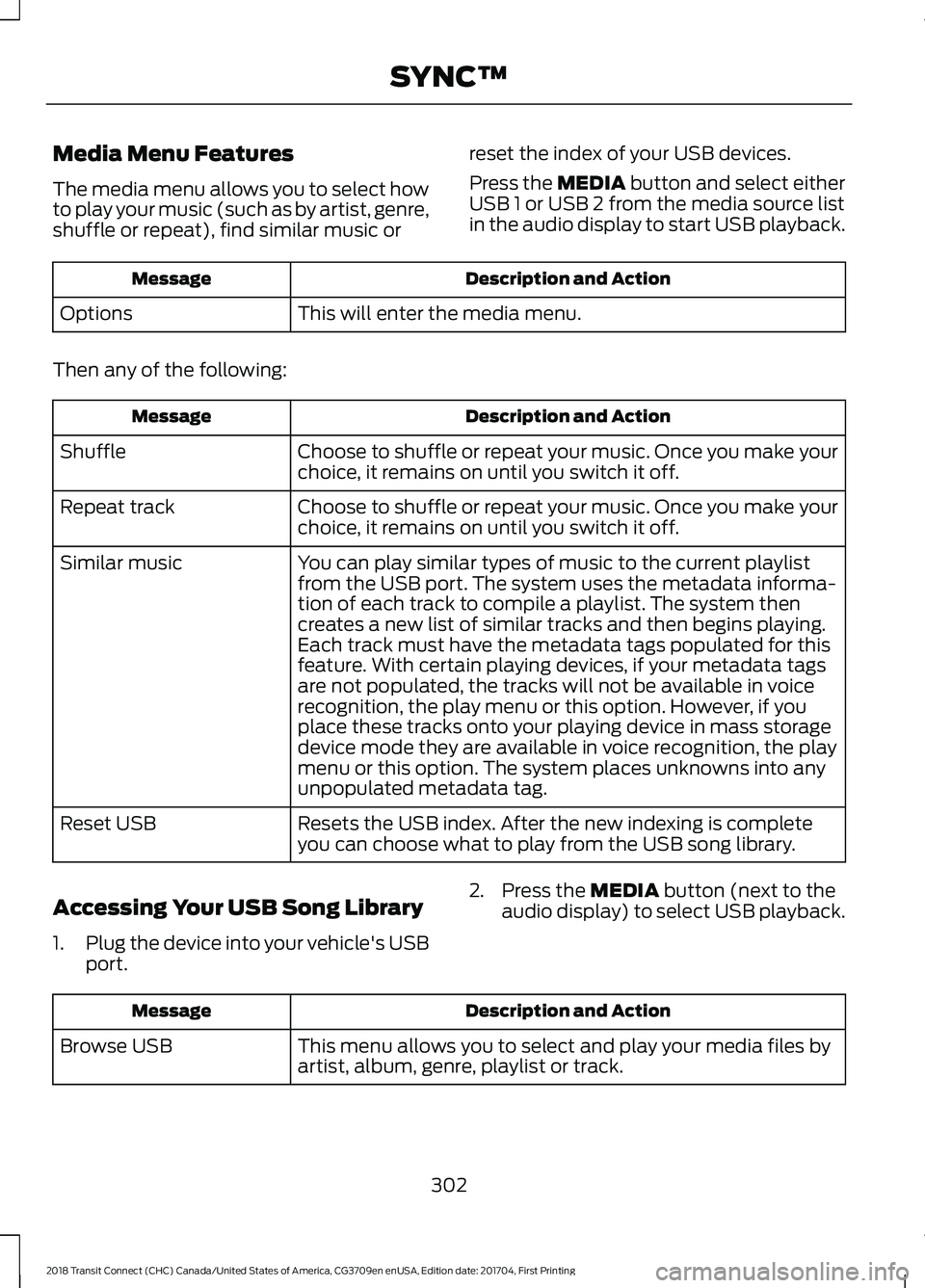
Media Menu Features
The media menu allows you to select how
to play your music (such as by artist, genre,
shuffle or repeat), find similar music or
reset the index of your USB devices.
Press the MEDIA button and select either
USB 1 or USB 2 from the media source list
in the audio display to start USB playback. Description and Action
Message
This will enter the media menu.
Options
Then any of the following: Description and Action
Message
Choose to shuffle or repeat your music. Once you make your
choice, it remains on until you switch it off.
Shuffle
Choose to shuffle or repeat your music. Once you make your
choice, it remains on until you switch it off.
Repeat track
You can play similar types of music to the current playlist
from the USB port. The system uses the metadata informa-
tion of each track to compile a playlist. The system then
creates a new list of similar tracks and then begins playing.
Each track must have the metadata tags populated for this
feature. With certain playing devices, if your metadata tags
Similar music
are not populated, the tracks will not be available in voice
recognition, the play menu or this option. However, if you
place these tracks onto your playing device in mass storage
device mode they are available in voice recognition, the play
menu or this option. The system places unknowns into any
unpopulated metadata tag.
Resets the USB index. After the new indexing is complete
you can choose what to play from the USB song library.
Reset USB
Accessing Your USB Song Library
1. Plug the device into your vehicle's USB
port. 2. Press the
MEDIA button (next to the
audio display) to select USB playback. Description and Action
Message
This menu allows you to select and play your media files by
artist, album, genre, playlist or track.
Browse USB
302
2018 Transit Connect (CHC) Canada/United States of America, CG3709en enUSA, Edition date: 201704, First Printing SYNC™
Page 306 of 449
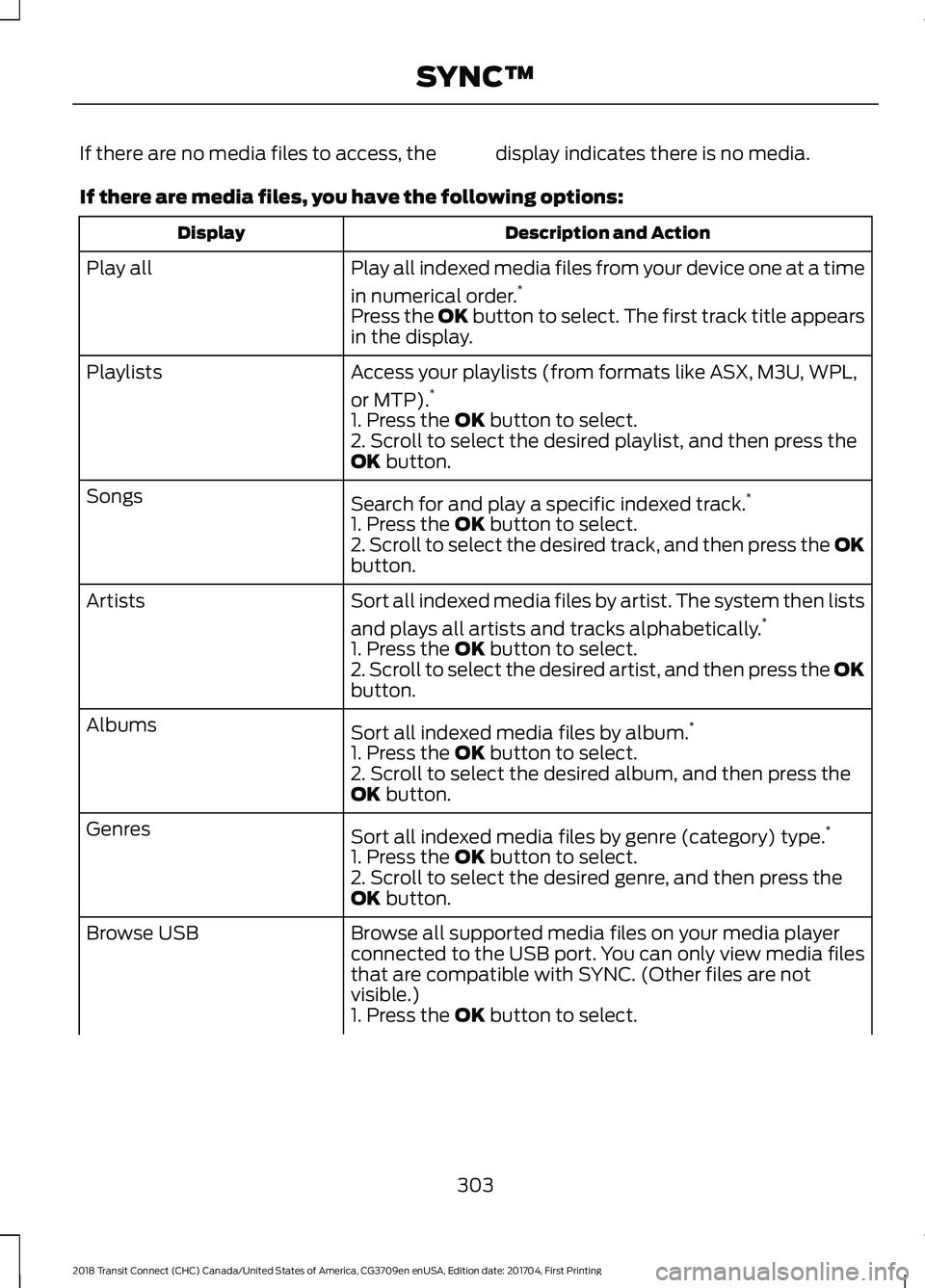
If there are no media files to access, the display indicates there is no media.
If there are media files, you have the following options:
Description and Action
Display
Play all indexed media files from your device one at a time
in numerical order.*
Play all
Press the OK button to select. The first track title appears
in the display.
Access your playlists (from formats like ASX, M3U, WPL,
or MTP).*
Playlists
1. Press the OK button to select.
2. Scroll to select the desired playlist, and then press the
OK
button.
Search for and play a specific indexed track. *
Songs
1. Press the
OK button to select.
2. Scroll to select the desired track, and then press the OK
button.
Sort all indexed media files by artist. The system then lists
and plays all artists and tracks alphabetically. *
Artists
1. Press the
OK button to select.
2. Scroll to select the desired artist, and then press the OK
button.
Sort all indexed media files by album. *
Albums
1. Press the
OK button to select.
2. Scroll to select the desired album, and then press the
OK
button.
Sort all indexed media files by genre (category) type. *
Genres
1. Press the
OK button to select.
2. Scroll to select the desired genre, and then press the
OK
button.
Browse all supported media files on your media player
connected to the USB port. You can only view media files
that are compatible with SYNC. (Other files are not
visible.)
Browse USB
1. Press the
OK button to select.
303
2018 Transit Connect (CHC) Canada/United States of America, CG3709en enUSA, Edition date: 201704, First Printing SYNC™
Page 307 of 449
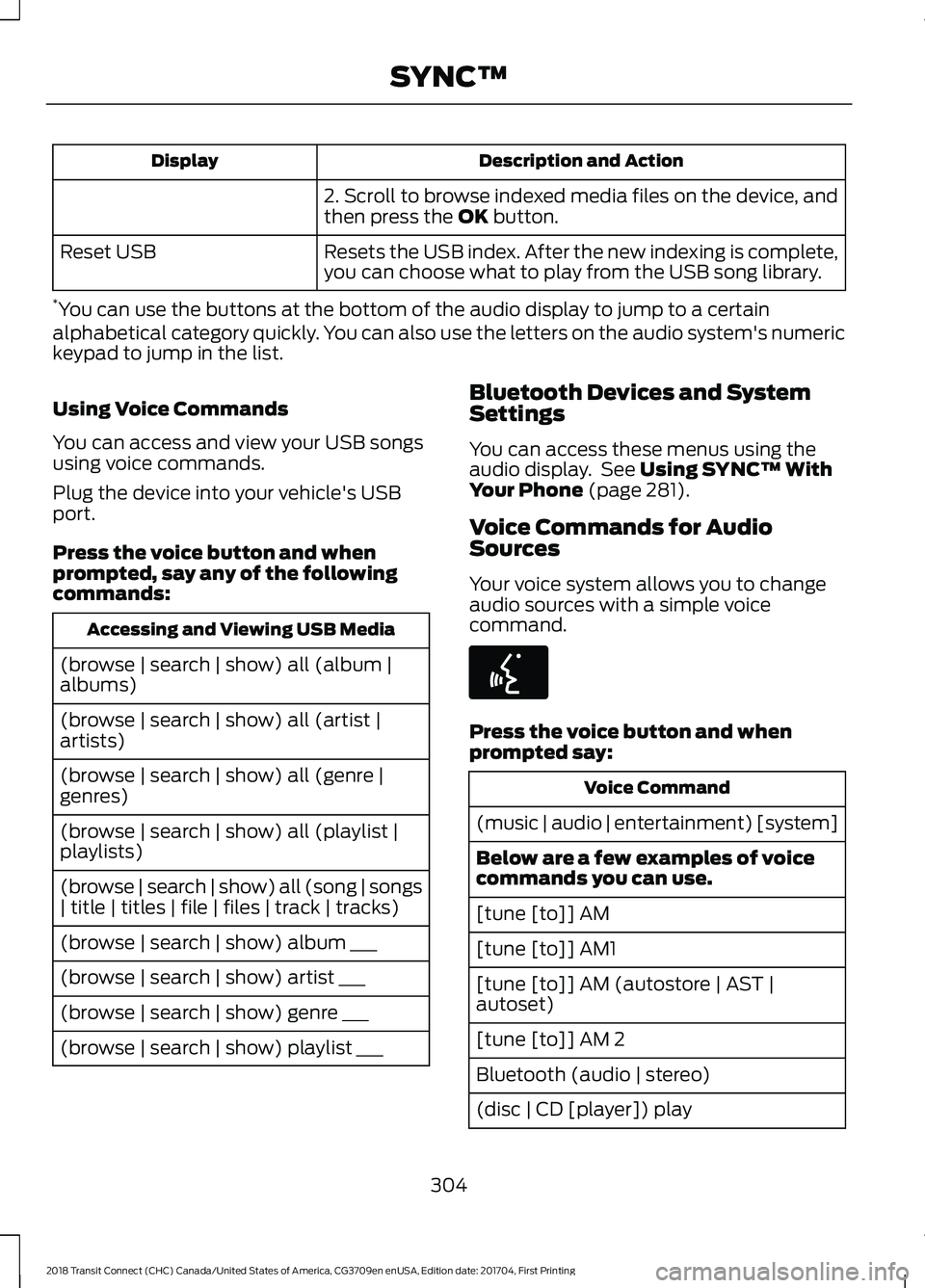
Description and Action
Display
2. Scroll to browse indexed media files on the device, and
then press the OK button.
Resets the USB index. After the new indexing is complete,
you can choose what to play from the USB song library.
Reset USB
* You can use the buttons at the bottom of the audio display to jump to a certain
alphabetical category quickly. You can also use the letters on the audio system's numeric
keypad to jump in the list.
Using Voice Commands
You can access and view your USB songs
using voice commands.
Plug the device into your vehicle's USB
port.
Press the voice button and when
prompted, say any of the following
commands: Accessing and Viewing USB Media
(browse | search | show) all (album |
albums)
(browse | search | show) all (artist |
artists)
(browse | search | show) all (genre |
genres)
(browse | search | show) all (playlist |
playlists)
(browse | search | show) all (song | songs
| title | titles | file | files | track | tracks)
(browse | search | show) album ___
(browse | search | show) artist ___
(browse | search | show) genre ___
(browse | search | show) playlist ___ Bluetooth Devices and System
Settings
You can access these menus using the
audio display. See
Using SYNC™ With
Your Phone (page 281).
Voice Commands for Audio
Sources
Your voice system allows you to change
audio sources with a simple voice
command. Press the voice button and when
prompted say:
Voice Command
(music | audio | entertainment) [system]
Below are a few examples of voice
commands you can use.
[tune [to]] AM
[tune [to]] AM1
[tune [to]] AM (autostore | AST |
autoset)
[tune [to]] AM 2
Bluetooth (audio | stereo)
(disc | CD [player]) play
304
2018 Transit Connect (CHC) Canada/United States of America, CG3709en enUSA, Edition date: 201704, First Printing SYNC™E142599
Page 312 of 449
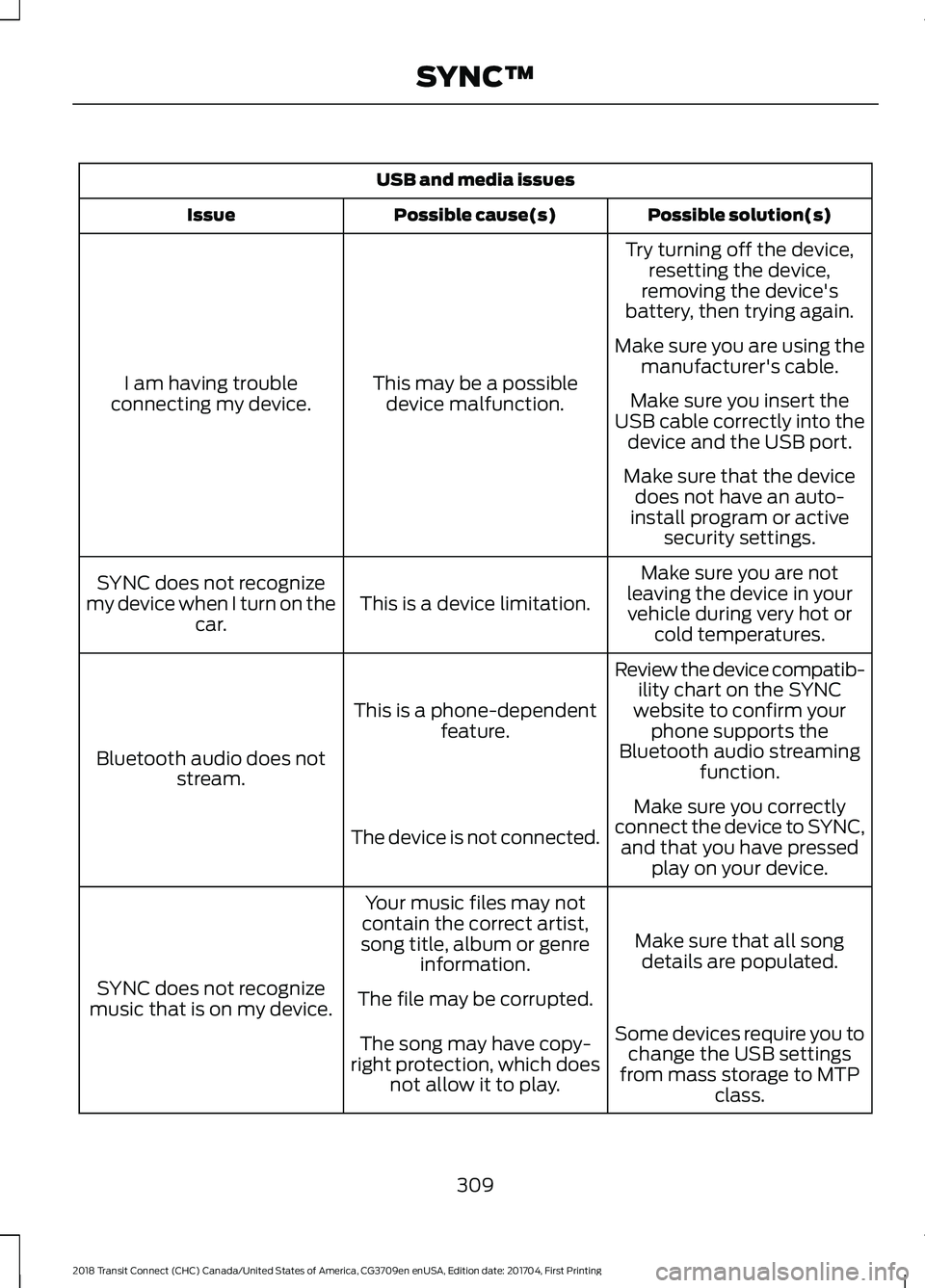
USB and media issues
Possible solution(s)
Possible cause(s)
Issue
Try turning off the device,resetting the device,
removing the device's
battery, then trying again.
This may be a possible device malfunction.
I am having trouble
connecting my device. Make sure you are using the
manufacturer's cable.
Make sure you insert the
USB cable correctly into the device and the USB port.
Make sure that the device does not have an auto-
install program or active security settings.
Make sure you are not
leaving the device in your vehicle during very hot or cold temperatures.
This is a device limitation.
SYNC does not recognize
my device when I turn on the car.
Review the device compatib-ility chart on the SYNC
website to confirm your phone supports the
Bluetooth audio streaming function.
This is a phone-dependent
feature.
Bluetooth audio does not stream.
Make sure you correctly
connect the device to SYNC, and that you have pressed play on your device.
The device is not connected.
Make sure that all songdetails are populated.
Your music files may not
contain the correct artist,
song title, album or genre information.
SYNC does not recognize
music that is on my device. The file may be corrupted.
Some devices require you tochange the USB settings
from mass storage to MTP class.
The song may have copy-
right protection, which does not allow it to play.
309
2018 Transit Connect (CHC) Canada/United States of America, CG3709en enUSA, Edition date: 201704, First Printing SYNC™
Page 315 of 449
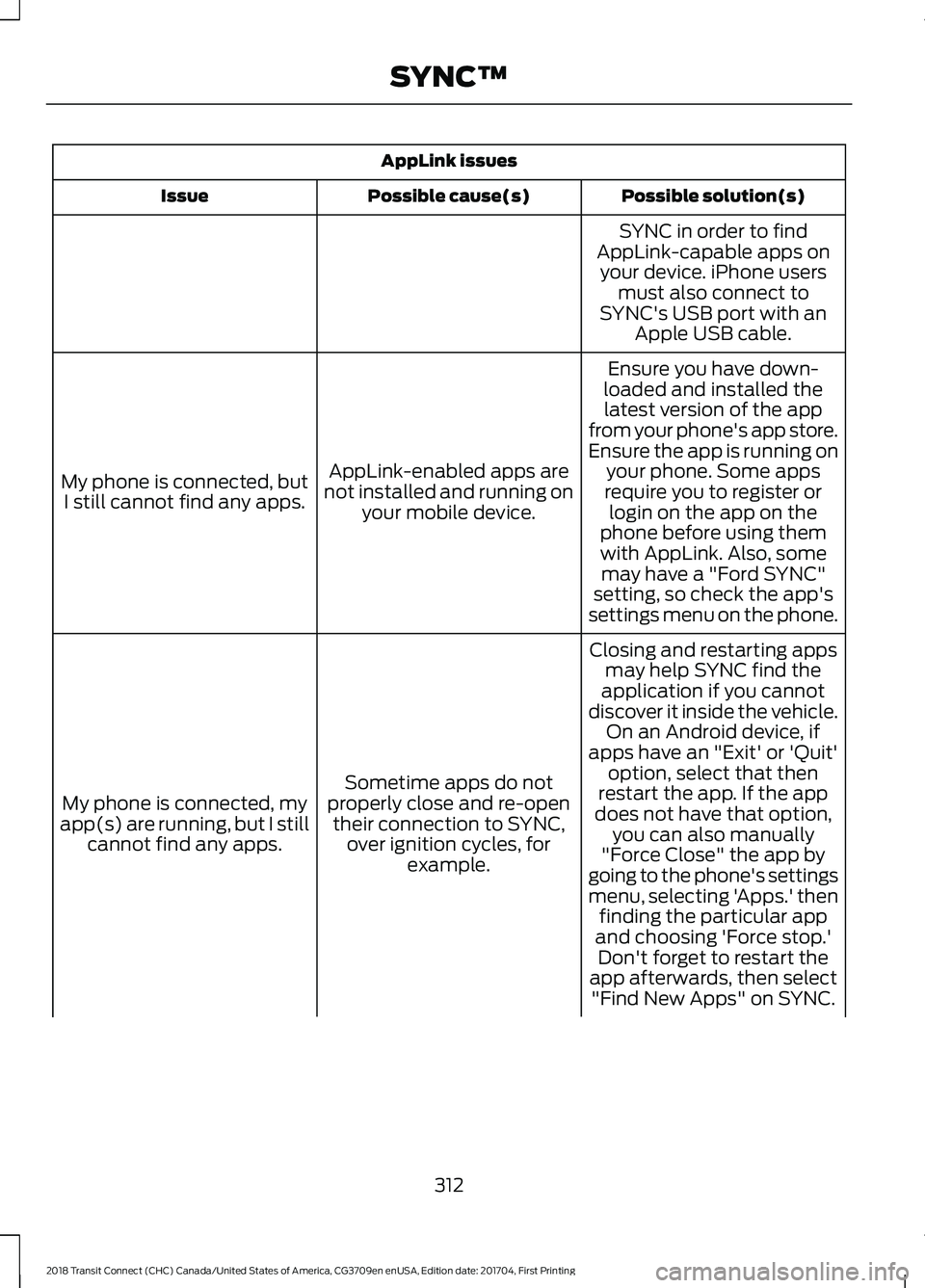
AppLink issues
Possible solution(s)
Possible cause(s)
Issue
SYNC in order to find
AppLink-capable apps on your device. iPhone users must also connect to
SYNC's USB port with an Apple USB cable.
Ensure you have down-
loaded and installed the latest version of the app
from your phone's app store.
Ensure the app is running on your phone. Some apps
AppLink-enabled apps are
not installed and running on your mobile device.
My phone is connected, but
I still cannot find any apps. require you to register or
login on the app on the
phone before using them with AppLink. Also, some may have a "Ford SYNC"
setting, so check the app's
settings menu on the phone.
Closing and restarting apps may help SYNC find the
application if you cannot
discover it inside the vehicle. On an Android device, if
apps have an "Exit' or 'Quit'
Sometime apps do not
properly close and re-open their connection to SYNC, over ignition cycles, for example.
My phone is connected, my
app(s) are running, but I still cannot find any apps. option, select that then
restart the app. If the app
does not have that option, you can also manually
"Force Close" the app by
going to the phone's settings
menu, selecting 'Apps.' then finding the particular app
and choosing 'Force stop.' Don't forget to restart the
app afterwards, then select "Find New Apps" on SYNC.
312
2018 Transit Connect (CHC) Canada/United States of America, CG3709en enUSA, Edition date: 201704, First Printing SYNC™
Page 317 of 449
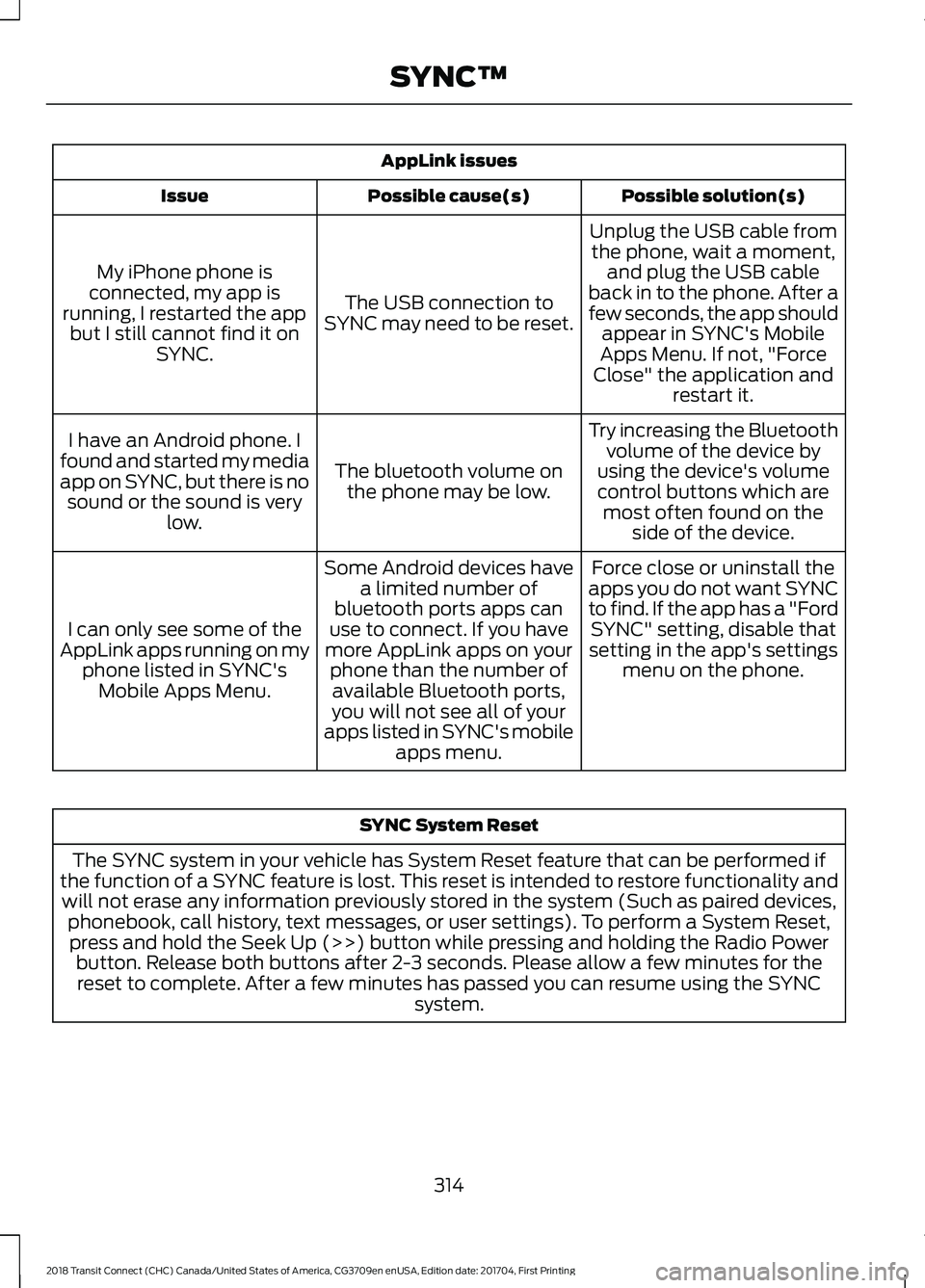
AppLink issues
Possible solution(s)
Possible cause(s)
Issue
Unplug the USB cable fromthe phone, wait a moment, and plug the USB cable
back in to the phone. After a
few seconds, the app should appear in SYNC's Mobile
Apps Menu. If not, "Force
Close" the application and restart it.
The USB connection to
SYNC may need to be reset.
My iPhone phone is
connected, my app is
running, I restarted the app but I still cannot find it on SYNC.
Try increasing the Bluetoothvolume of the device by
using the device's volume control buttons which are most often found on the side of the device.
The bluetooth volume on
the phone may be low.
I have an Android phone. I
found and started my media
app on SYNC, but there is no sound or the sound is very low.
Force close or uninstall the
apps you do not want SYNC
to find. If the app has a "Ford SYNC" setting, disable that
setting in the app's settings menu on the phone.
Some Android devices have
a limited number of
bluetooth ports apps can
use to connect. If you have
more AppLink apps on your phone than the number ofavailable Bluetooth ports,
you will not see all of your
apps listed in SYNC's mobile apps menu.
I can only see some of the
AppLink apps running on my phone listed in SYNC'sMobile Apps Menu. SYNC System Reset
The SYNC system in your vehicle has System Reset feature that can be performed if
the function of a SYNC feature is lost. This reset is intended to restore functionality and will not erase any information previously stored in the system (Such as paired devices, phonebook, call history, text messages, or user settings). To perform a System Reset,press and hold the Seek Up (>>) button while pressing and holding the Radio Power button. Release both buttons after 2-3 seconds. Please allow a few minutes for thereset to complete. After a few minutes has passed you can resume using the SYNC system.
314
2018 Transit Connect (CHC) Canada/United States of America, CG3709en enUSA, Edition date: 201704, First Printing SYNC™
Page 326 of 449
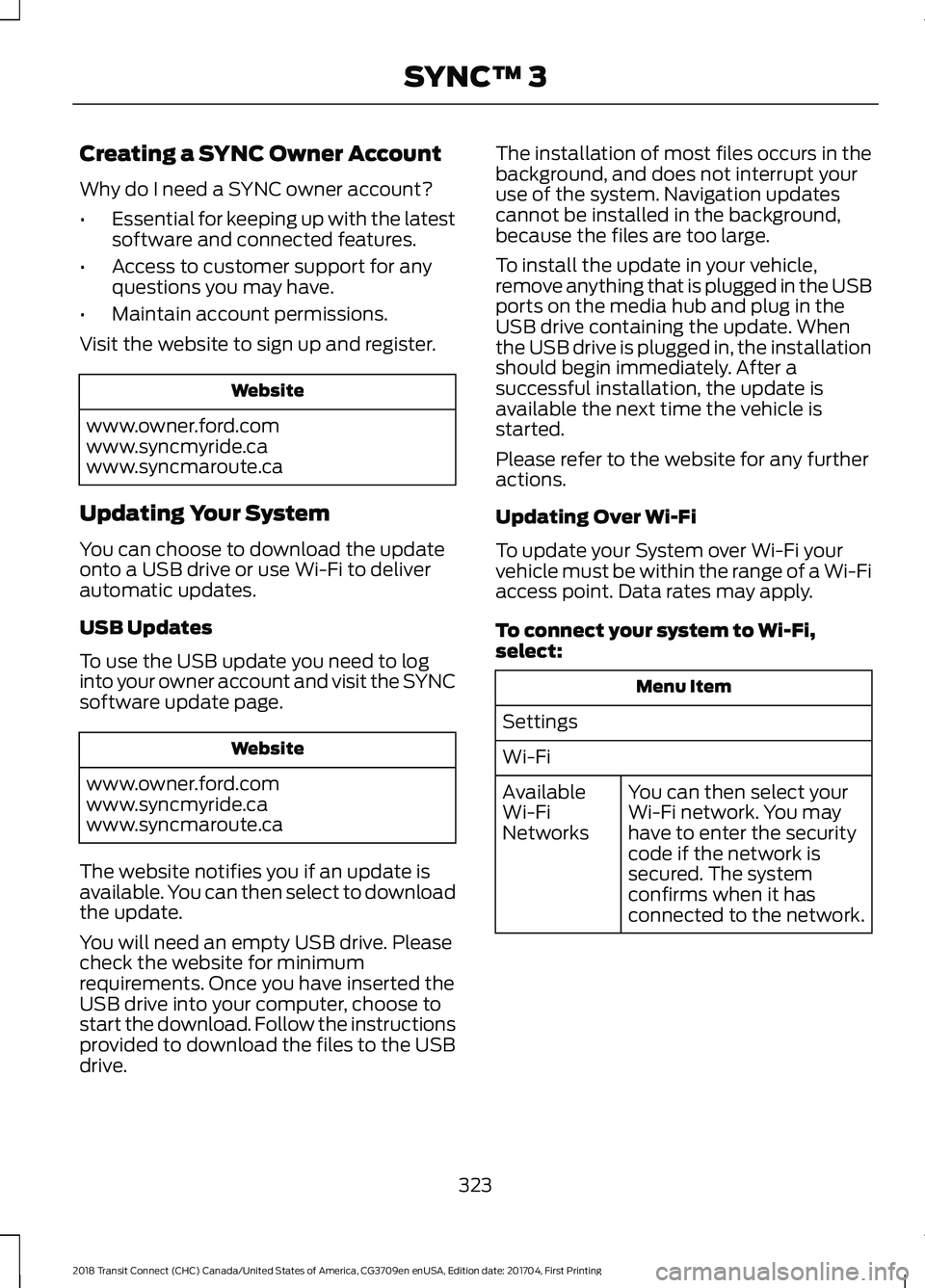
Creating a SYNC Owner Account
Why do I need a SYNC owner account?
•
Essential for keeping up with the latest
software and connected features.
• Access to customer support for any
questions you may have.
• Maintain account permissions.
Visit the website to sign up and register. Website
www.owner.ford.com
www.syncmyride.ca
www.syncmaroute.ca
Updating Your System
You can choose to download the update
onto a USB drive or use Wi-Fi to deliver
automatic updates.
USB Updates
To use the USB update you need to log
into your owner account and visit the SYNC
software update page. Website
www.owner.ford.com
www.syncmyride.ca
www.syncmaroute.ca
The website notifies you if an update is
available. You can then select to download
the update.
You will need an empty USB drive. Please
check the website for minimum
requirements. Once you have inserted the
USB drive into your computer, choose to
start the download. Follow the instructions
provided to download the files to the USB
drive. The installation of most files occurs in the
background, and does not interrupt your
use of the system. Navigation updates
cannot be installed in the background,
because the files are too large.
To install the update in your vehicle,
remove anything that is plugged in the USB
ports on the media hub and plug in the
USB drive containing the update. When
the USB drive is plugged in, the installation
should begin immediately. After a
successful installation, the update is
available the next time the vehicle is
started.
Please refer to the website for any further
actions.
Updating Over Wi-Fi
To update your System over Wi-Fi your
vehicle must be within the range of a Wi-Fi
access point. Data rates may apply.
To connect your system to Wi-Fi,
select:
Menu Item
Settings
Wi-Fi You can then select your
Wi-Fi network. You may
have to enter the security
code if the network is
secured. The system
confirms when it has
connected to the network.
Available
Wi-Fi
Networks
323
2018 Transit Connect (CHC) Canada/United States of America, CG3709en enUSA, Edition date: 201704, First Printing SYNC™ 3
Page 345 of 449
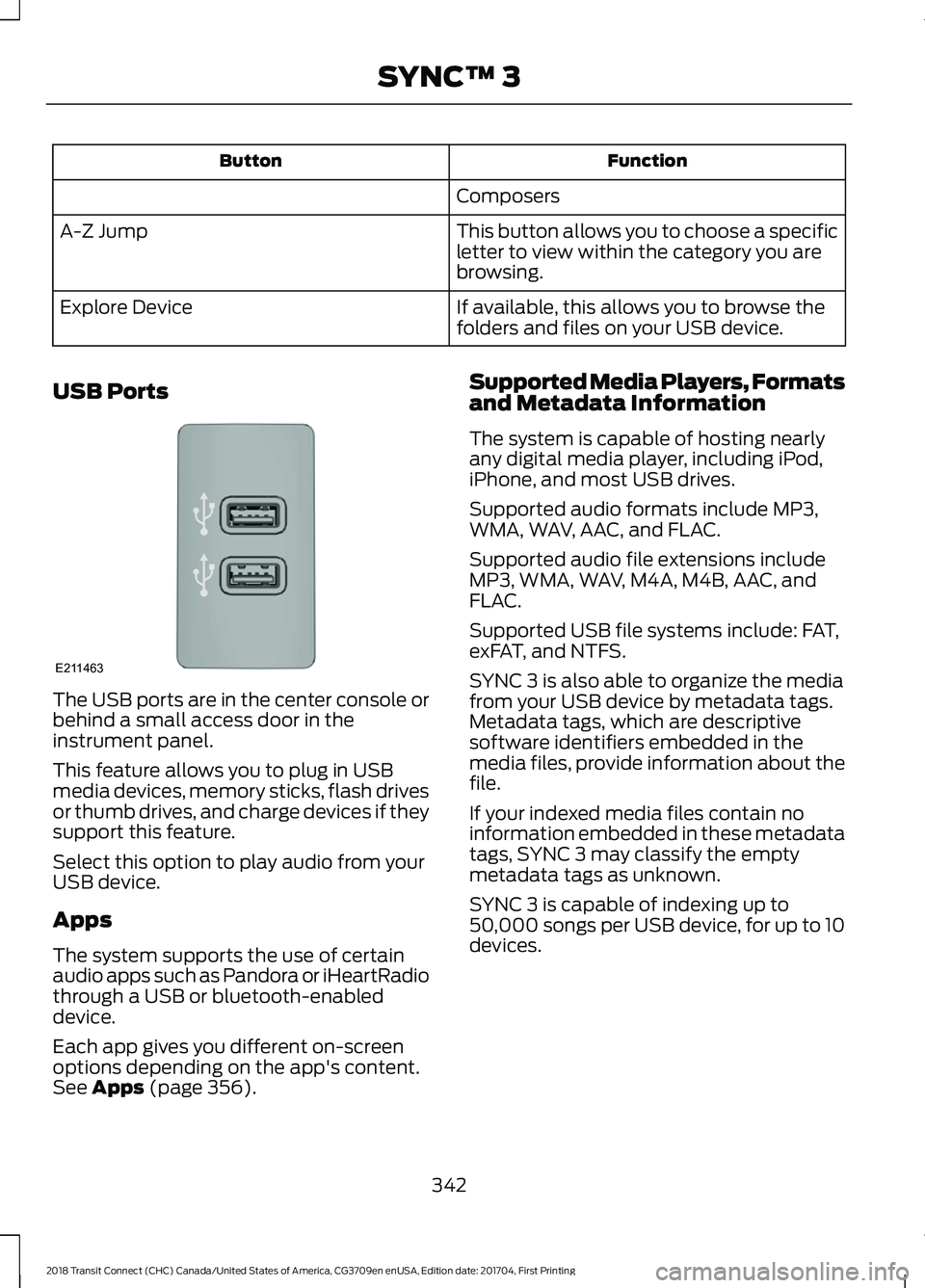
Function
Button
Composers
This button allows you to choose a specific
letter to view within the category you are
browsing.
A-Z Jump
If available, this allows you to browse the
folders and files on your USB device.
Explore Device
USB Ports The USB ports are in the center console or
behind a small access door in the
instrument panel.
This feature allows you to plug in USB
media devices, memory sticks, flash drives
or thumb drives, and charge devices if they
support this feature.
Select this option to play audio from your
USB device.
Apps
The system supports the use of certain
audio apps such as Pandora or iHeartRadio
through a USB or bluetooth-enabled
device.
Each app gives you different on-screen
options depending on the app's content.
See Apps (page 356). Supported Media Players, Formats
and Metadata Information
The system is capable of hosting nearly
any digital media player, including iPod,
iPhone, and most USB drives.
Supported audio formats include MP3,
WMA, WAV, AAC, and FLAC.
Supported audio file extensions include
MP3, WMA, WAV, M4A, M4B, AAC, and
FLAC.
Supported USB file systems include: FAT,
exFAT, and NTFS.
SYNC 3 is also able to organize the media
from your USB device by metadata tags.
Metadata tags, which are descriptive
software identifiers embedded in the
media files, provide information about the
file.
If your indexed media files contain no
information embedded in these metadata
tags, SYNC 3 may classify the empty
metadata tags as unknown.
SYNC 3 is capable of indexing up to
50,000 songs per USB device, for up to 10
devices.
342
2018 Transit Connect (CHC) Canada/United States of America, CG3709en enUSA, Edition date: 201704, First Printing SYNC™ 3E211463
Page 350 of 449
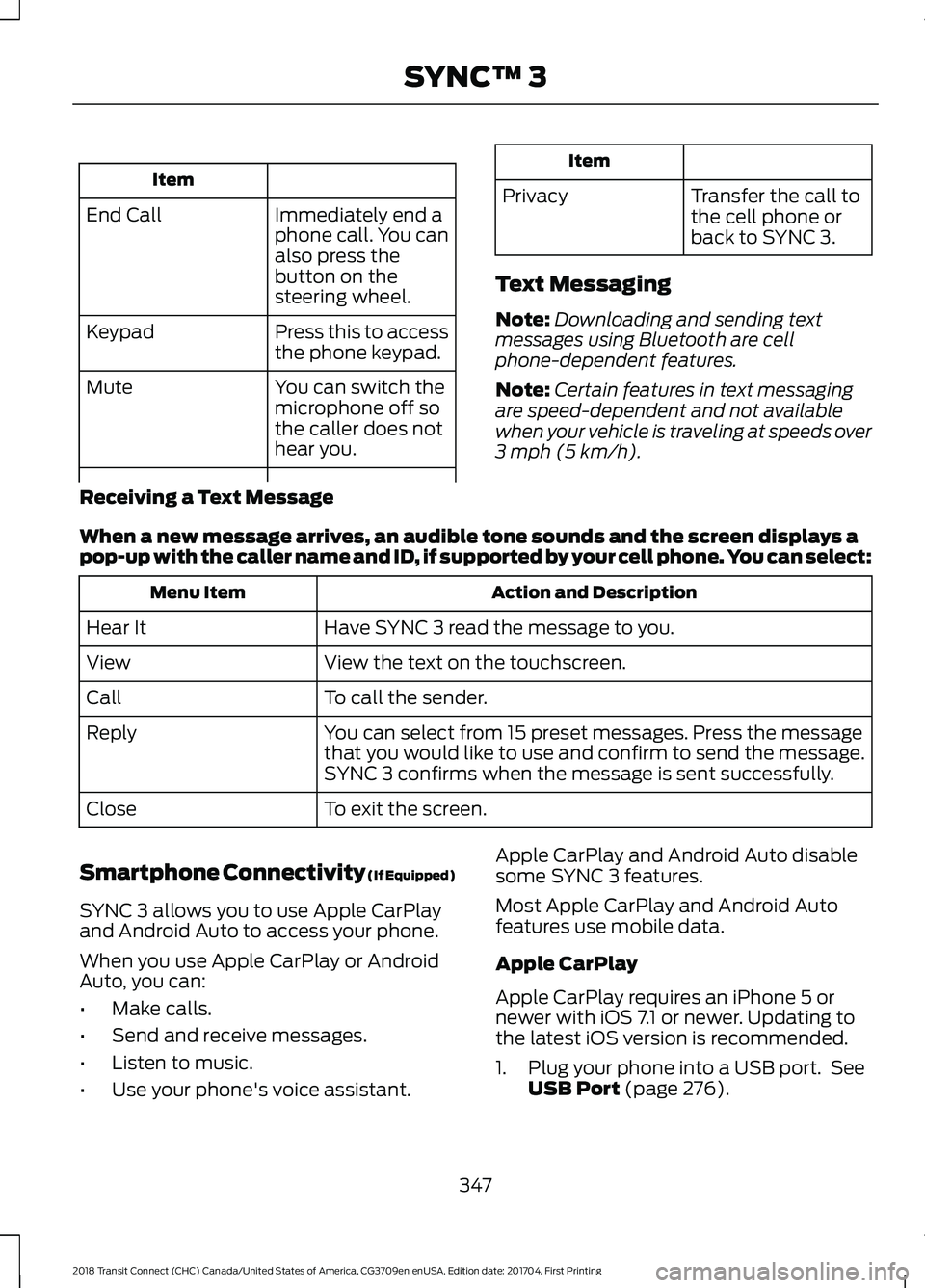
Item
Immediately end a
phone call. You can
also press the
button on the
steering wheel.
End Call
Press this to access
the phone keypad.
Keypad
You can switch the
microphone off so
the caller does not
hear you.
Mute Item
Privacy Transfer the call to
the cell phone or
back to SYNC 3.
Text Messaging
Note: Downloading and sending text
messages using Bluetooth are cell
phone-dependent features.
Note: Certain features in text messaging
are speed-dependent and not available
when your vehicle is traveling at speeds over
3 mph (5 km/h).
Receiving a Text Message
When a new message arrives, an audible tone sounds and the screen displays a
pop-up with the caller name and ID, if supported by your cell phone. You can select: Action and Description
Menu Item
Have SYNC 3 read the message to you.
Hear It
View the text on the touchscreen.
View
To call the sender.
Call
You can select from 15 preset messages. Press the message
that you would like to use and confirm to send the message.
SYNC 3 confirms when the message is sent successfully.
Reply
To exit the screen.
Close
Smartphone Connectivity (If Equipped)
SYNC 3 allows you to use Apple CarPlay
and Android Auto to access your phone.
When you use Apple CarPlay or Android
Auto, you can:
• Make calls.
• Send and receive messages.
• Listen to music.
• Use your phone's voice assistant. Apple CarPlay and Android Auto disable
some SYNC 3 features.
Most Apple CarPlay and Android Auto
features use mobile data.
Apple CarPlay
Apple CarPlay requires an iPhone 5 or
newer with iOS 7.1 or newer. Updating to
the latest iOS version is recommended.
1. Plug your phone into a USB port. See
USB Port
(page 276).
347
2018 Transit Connect (CHC) Canada/United States of America, CG3709en enUSA, Edition date: 201704, First Printing SYNC™ 3
Page 351 of 449
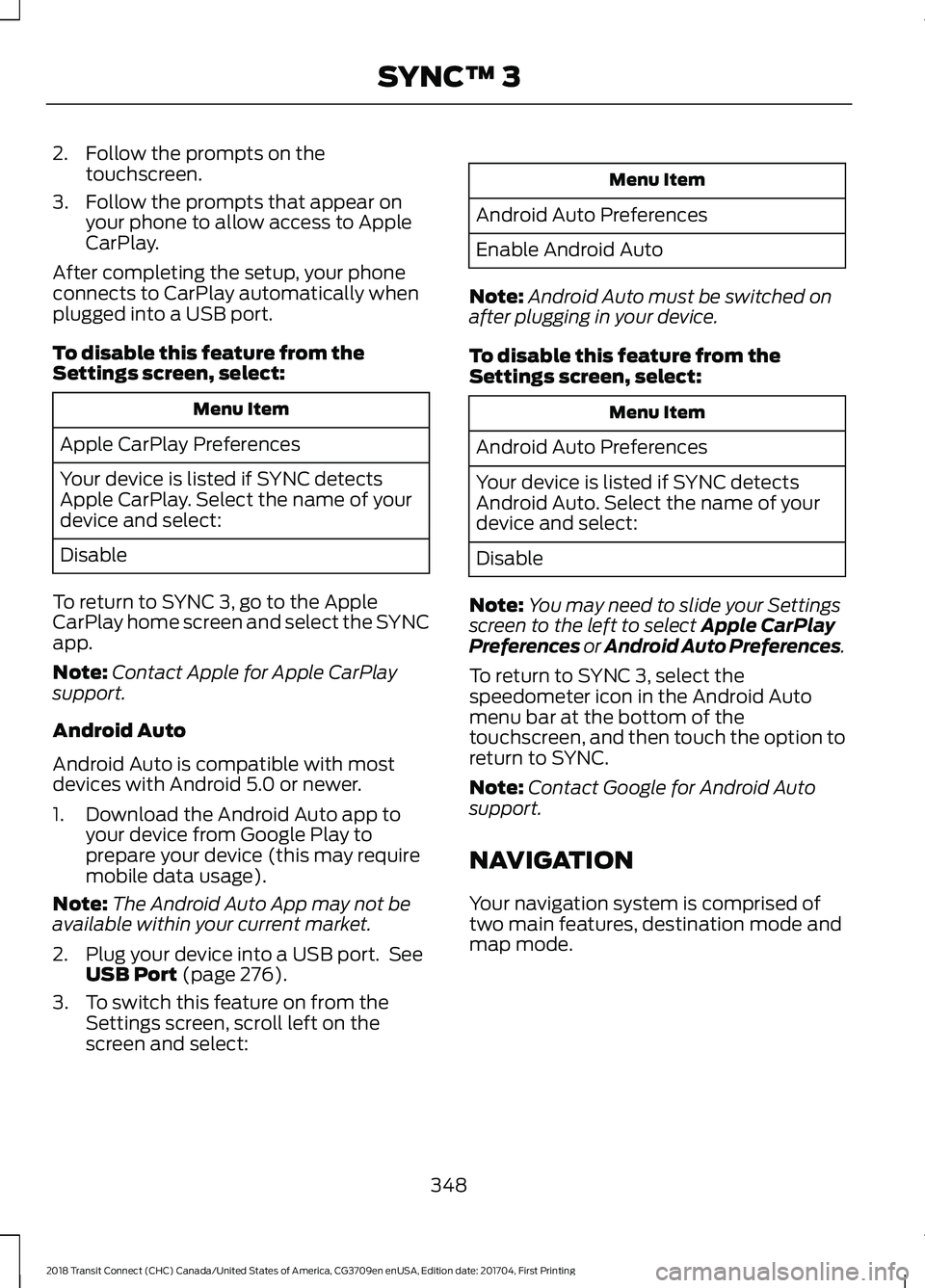
2. Follow the prompts on the
touchscreen.
3. Follow the prompts that appear on your phone to allow access to Apple
CarPlay.
After completing the setup, your phone
connects to CarPlay automatically when
plugged into a USB port.
To disable this feature from the
Settings screen, select: Menu Item
Apple CarPlay Preferences
Your device is listed if SYNC detects
Apple CarPlay. Select the name of your
device and select:
Disable
To return to SYNC 3, go to the Apple
CarPlay home screen and select the SYNC
app.
Note: Contact Apple for Apple CarPlay
support.
Android Auto
Android Auto is compatible with most
devices with Android 5.0 or newer.
1. Download the Android Auto app to your device from Google Play to
prepare your device (this may require
mobile data usage).
Note: The Android Auto App may not be
available within your current market.
2. Plug your device into a USB port. See USB Port (page 276).
3. To switch this feature on from the Settings screen, scroll left on the
screen and select: Menu Item
Android Auto Preferences
Enable Android Auto
Note: Android Auto must be switched on
after plugging in your device.
To disable this feature from the
Settings screen, select: Menu Item
Android Auto Preferences
Your device is listed if SYNC detects
Android Auto. Select the name of your
device and select:
Disable
Note: You may need to slide your Settings
screen to the left to select
Apple CarPlay
Preferences or Android Auto Preferences.
To return to SYNC 3, select the
speedometer icon in the Android Auto
menu bar at the bottom of the
touchscreen, and then touch the option to
return to SYNC.
Note: Contact Google for Android Auto
support.
NAVIGATION
Your navigation system is comprised of
two main features, destination mode and
map mode.
348
2018 Transit Connect (CHC) Canada/United States of America, CG3709en enUSA, Edition date: 201704, First Printing SYNC™ 3