USB port FORD TRANSIT CONNECT 2018 Owner's Manual
[x] Cancel search | Manufacturer: FORD, Model Year: 2018, Model line: TRANSIT CONNECT, Model: FORD TRANSIT CONNECT 2018Pages: 449, PDF Size: 6.73 MB
Page 360 of 449
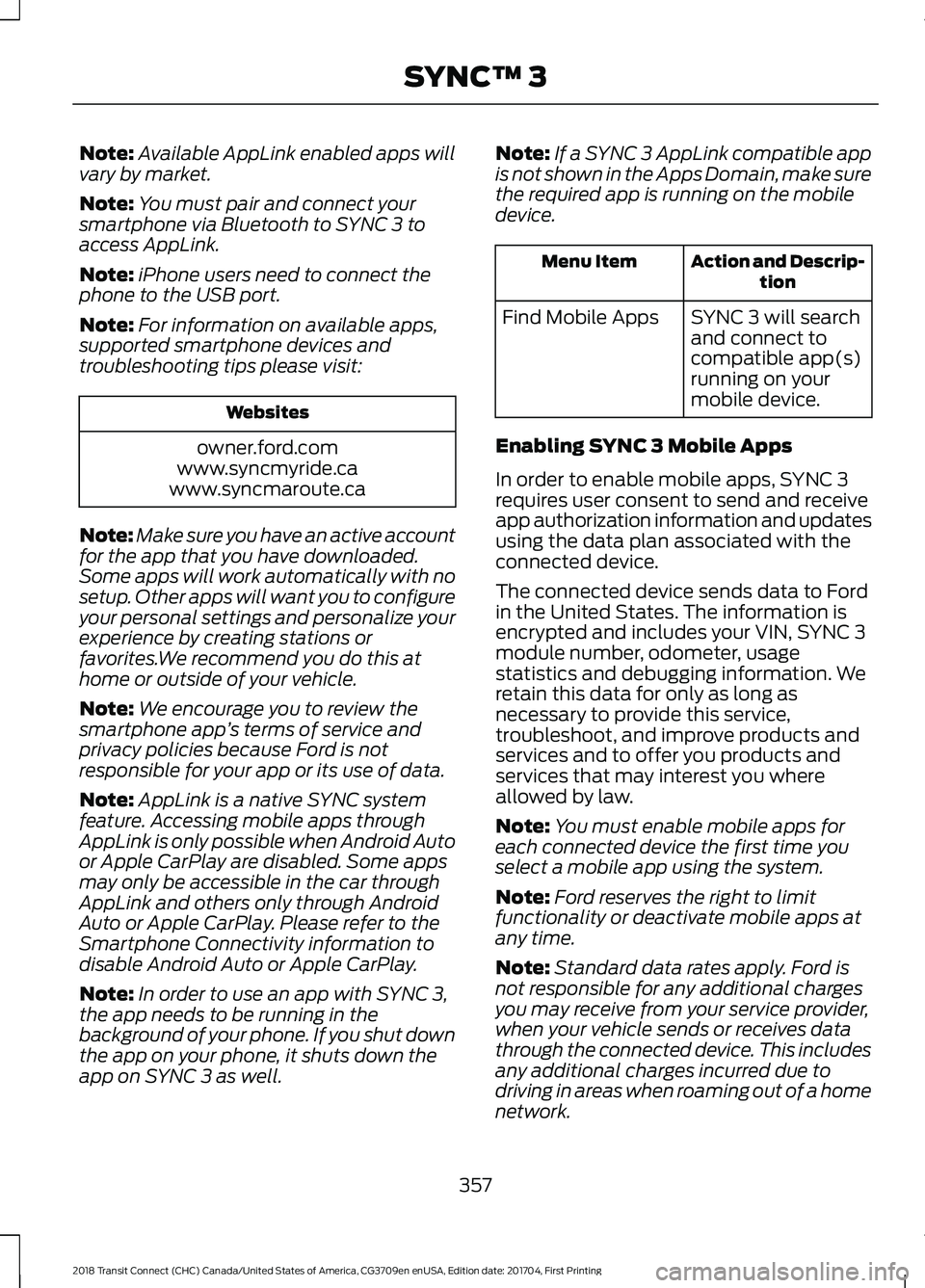
Note:
Available AppLink enabled apps will
vary by market.
Note: You must pair and connect your
smartphone via Bluetooth to SYNC 3 to
access AppLink.
Note: iPhone users need to connect the
phone to the USB port.
Note: For information on available apps,
supported smartphone devices and
troubleshooting tips please visit: Websites
owner.ford.com
www.syncmyride.ca
www.syncmaroute.ca
Note: Make sure you have an active account
for the app that you have downloaded.
Some apps will work automatically with no
setup. Other apps will want you to configure
your personal settings and personalize your
experience by creating stations or
favorites.We recommend you do this at
home or outside of your vehicle.
Note: We encourage you to review the
smartphone app ’s terms of service and
privacy policies because Ford is not
responsible for your app or its use of data.
Note: AppLink is a native SYNC system
feature. Accessing mobile apps through
AppLink is only possible when Android Auto
or Apple CarPlay are disabled. Some apps
may only be accessible in the car through
AppLink and others only through Android
Auto or Apple CarPlay. Please refer to the
Smartphone Connectivity information to
disable Android Auto or Apple CarPlay.
Note: In order to use an app with SYNC 3,
the app needs to be running in the
background of your phone. If you shut down
the app on your phone, it shuts down the
app on SYNC 3 as well. Note:
If a SYNC 3 AppLink compatible app
is not shown in the Apps Domain, make sure
the required app is running on the mobile
device. Action and Descrip-
tion
Menu Item
SYNC 3 will search
and connect to
compatible app(s)
running on your
mobile device.
Find Mobile Apps
Enabling SYNC 3 Mobile Apps
In order to enable mobile apps, SYNC 3
requires user consent to send and receive
app authorization information and updates
using the data plan associated with the
connected device.
The connected device sends data to Ford
in the United States. The information is
encrypted and includes your VIN, SYNC 3
module number, odometer, usage
statistics and debugging information. We
retain this data for only as long as
necessary to provide this service,
troubleshoot, and improve products and
services and to offer you products and
services that may interest you where
allowed by law.
Note: You must enable mobile apps for
each connected device the first time you
select a mobile app using the system.
Note: Ford reserves the right to limit
functionality or deactivate mobile apps at
any time.
Note: Standard data rates apply. Ford is
not responsible for any additional charges
you may receive from your service provider,
when your vehicle sends or receives data
through the connected device. This includes
any additional charges incurred due to
driving in areas when roaming out of a home
network.
357
2018 Transit Connect (CHC) Canada/United States of America, CG3709en enUSA, Edition date: 201704, First Printing SYNC™ 3
Page 375 of 449
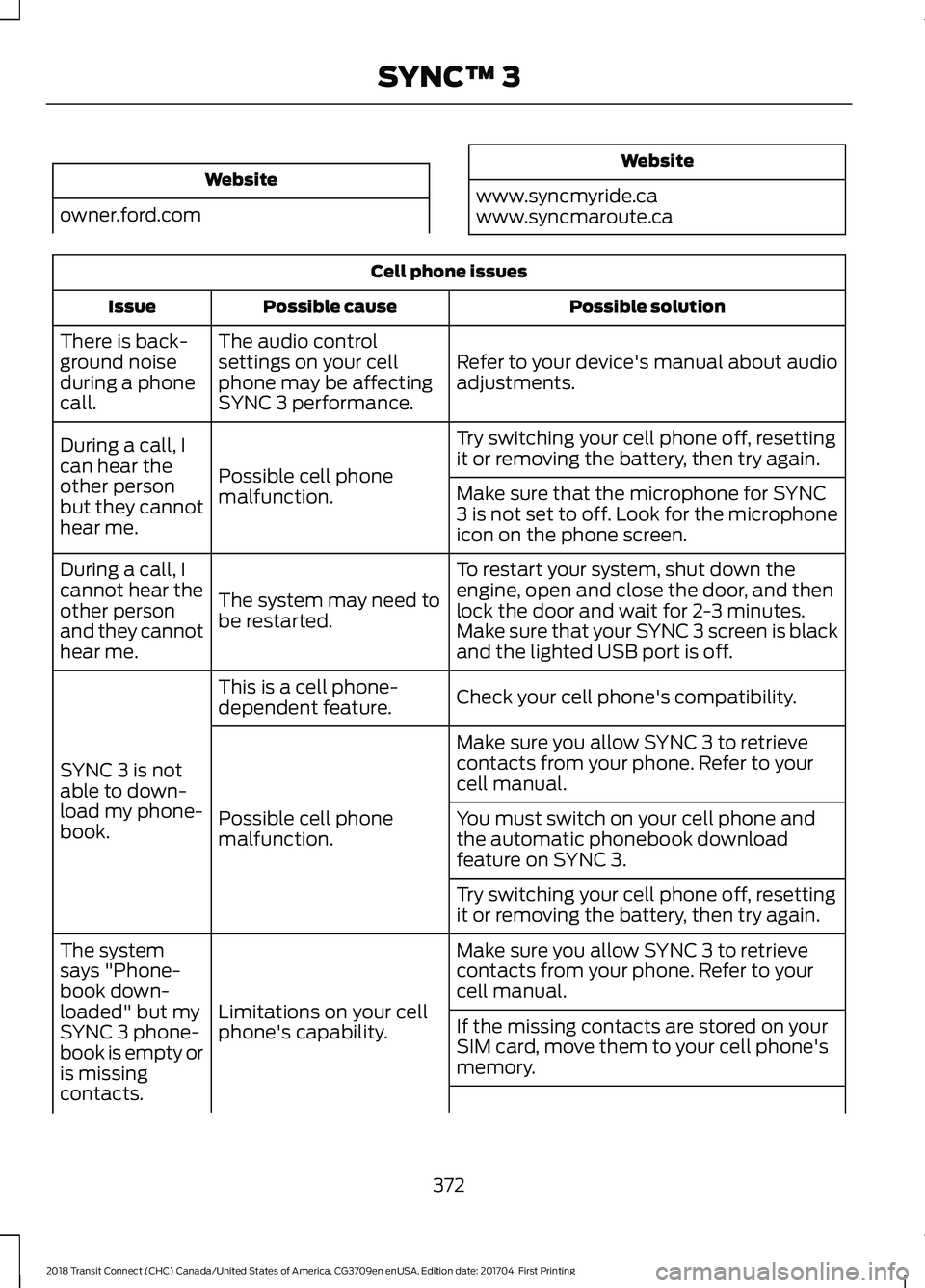
Website
owner.ford.com Website
www.syncmyride.ca
www.syncmaroute.ca Cell phone issues
Possible solution
Possible cause
Issue
Refer to your device's manual about audio
adjustments.
The audio control
settings on your cell
phone may be affecting
SYNC 3 performance.
There is back-
ground noise
during a phone
call.
Try switching your cell phone off, resetting
it or removing the battery, then try again.
Possible cell phone
malfunction.
During a call, I
can hear the
other person
but they cannot
hear me.
Make sure that the microphone for SYNC
3 is not set to off. Look for the microphone
icon on the phone screen.
To restart your system, shut down the
engine, open and close the door, and then
lock the door and wait for 2-3 minutes.
Make sure that your SYNC 3 screen is black
and the lighted USB port is off.
The system may need to
be restarted.
During a call, I
cannot hear the
other person
and they cannot
hear me.
Check your cell phone's compatibility.
This is a cell phone-
dependent feature.
SYNC 3 is not
able to down-
load my phone-
book. Make sure you allow SYNC 3 to retrieve
contacts from your phone. Refer to your
cell manual.
Possible cell phone
malfunction. You must switch on your cell phone and
the automatic phonebook download
feature on SYNC 3.
Try switching your cell phone off, resetting
it or removing the battery, then try again.
Make sure you allow SYNC 3 to retrieve
contacts from your phone. Refer to your
cell manual.
Limitations on your cell
phone's capability.
The system
says "Phone-
book down-
loaded" but my
SYNC 3 phone-
book is empty or
is missing
contacts.
If the missing contacts are stored on your
SIM card, move them to your cell phone's
memory.
372
2018 Transit Connect (CHC) Canada/United States of America, CG3709en enUSA, Edition date: 201704, First Printing SYNC™ 3
Page 377 of 449
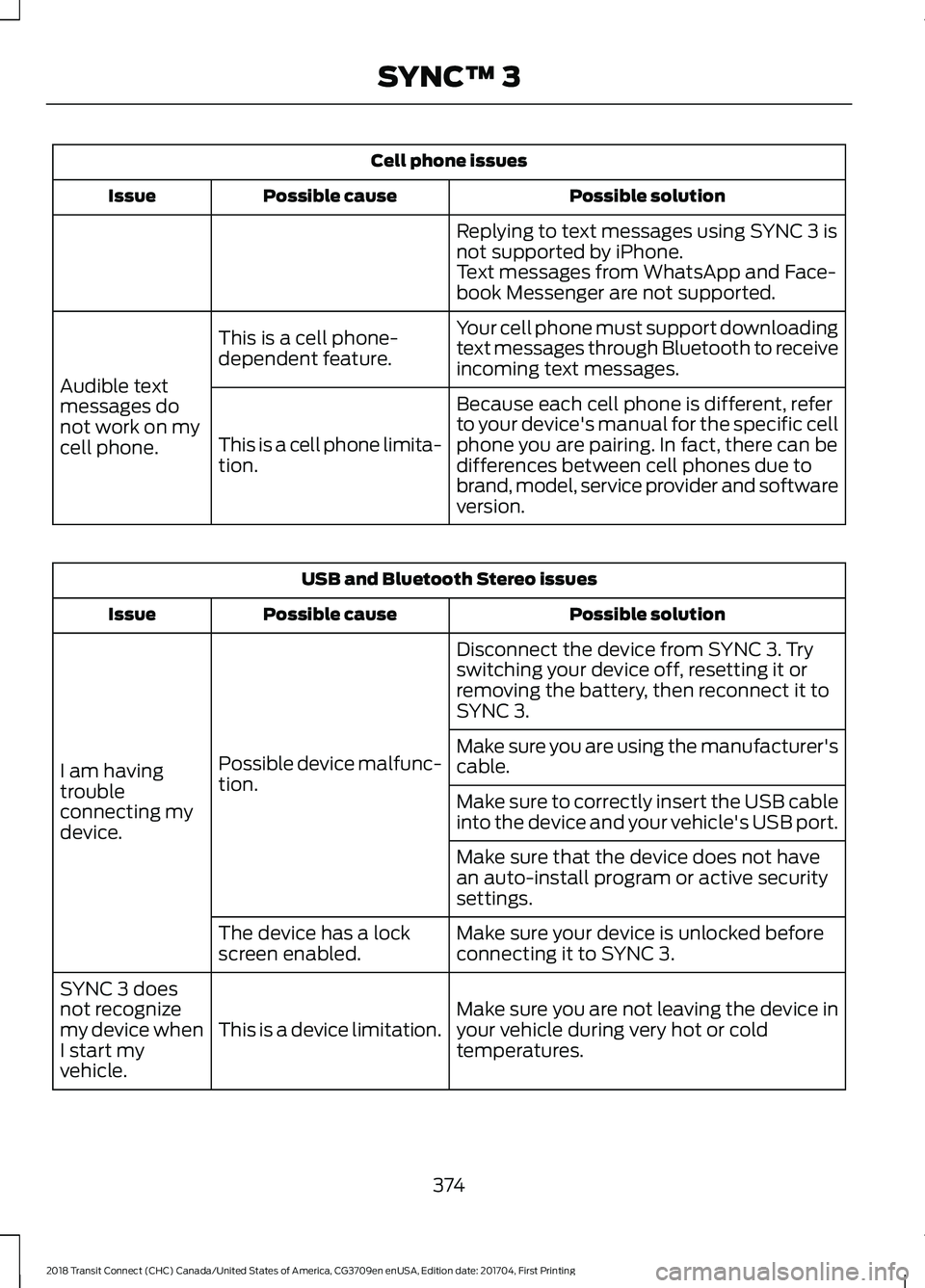
Cell phone issues
Possible solution
Possible cause
Issue
Replying to text messages using SYNC 3 is
not supported by iPhone.
Text messages from WhatsApp and Face-
book Messenger are not supported.
Your cell phone must support downloading
text messages through Bluetooth to receive
incoming text messages.
This is a cell phone-
dependent feature.
Audible text
messages do
not work on my
cell phone. Because each cell phone is different, refer
to your device's manual for the specific cell
phone you are pairing. In fact, there can be
differences between cell phones due to
brand, model, service provider and software
version.
This is a cell phone limita-
tion. USB and Bluetooth Stereo issues
Possible solution
Possible cause
Issue
Disconnect the device from SYNC 3. Try
switching your device off, resetting it or
removing the battery, then reconnect it to
SYNC 3.
Possible device malfunc-
tion.
I am having
trouble
connecting my
device. Make sure you are using the manufacturer's
cable.
Make sure to correctly insert the USB cable
into the device and your vehicle's USB port.
Make sure that the device does not have
an auto-install program or active security
settings.
Make sure your device is unlocked before
connecting it to SYNC 3.
The device has a lock
screen enabled.
Make sure you are not leaving the device in
your vehicle during very hot or cold
temperatures.
This is a device limitation.
SYNC 3 does
not recognize
my device when
I start my
vehicle.
374
2018 Transit Connect (CHC) Canada/United States of America, CG3709en enUSA, Edition date: 201704, First Printing SYNC™ 3
Page 378 of 449
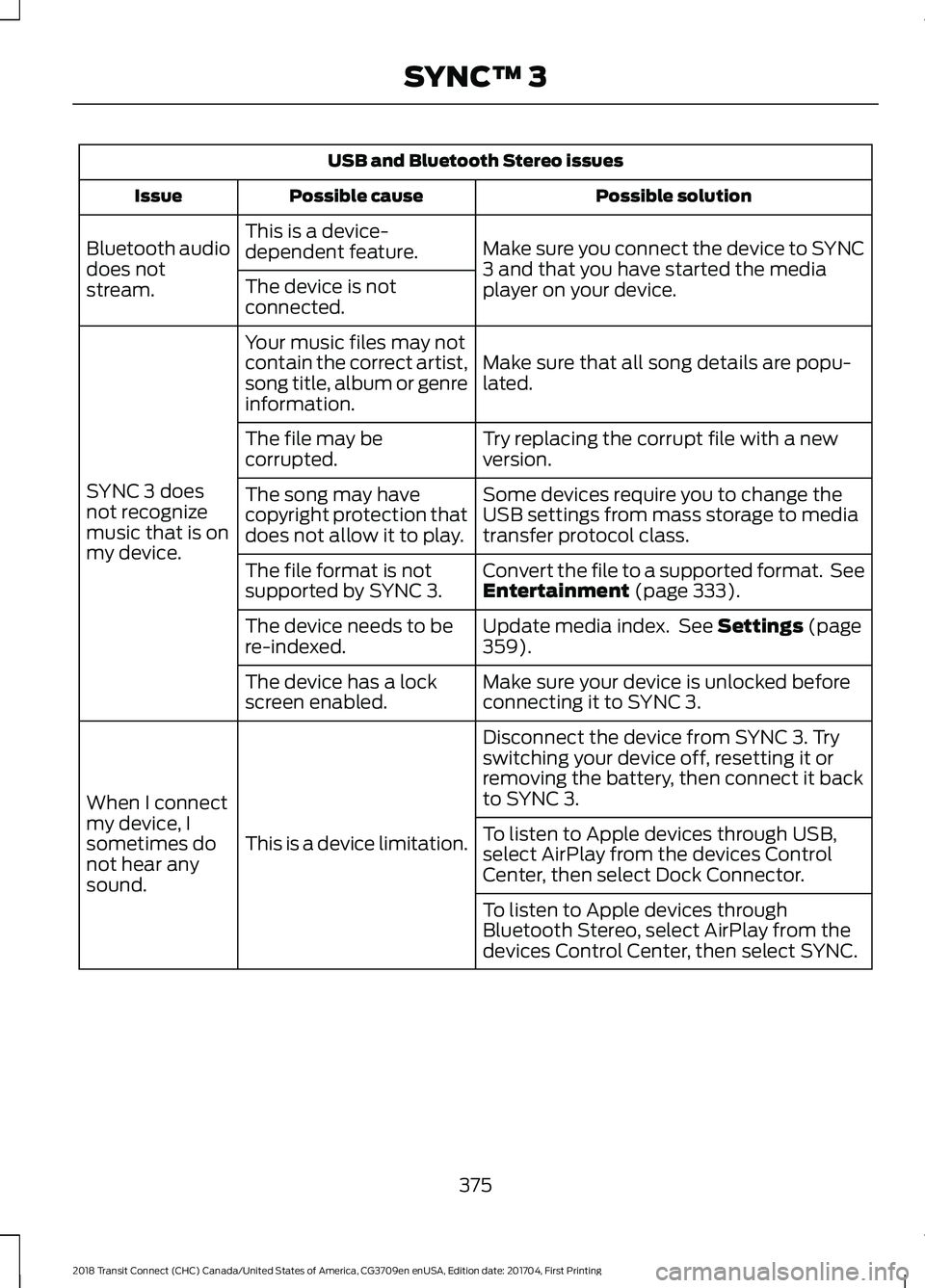
USB and Bluetooth Stereo issues
Possible solution
Possible cause
Issue
Make sure you connect the device to SYNC
3 and that you have started the media
player on your device.
This is a device-
dependent feature.
Bluetooth audio
does not
stream. The device is not
connected.
Make sure that all song details are popu-
lated.
Your music files may not
contain the correct artist,
song title, album or genre
information.
SYNC 3 does
not recognize
music that is on
my device. Try replacing the corrupt file with a new
version.
The file may be
corrupted.
Some devices require you to change the
USB settings from mass storage to media
transfer protocol class.
The song may have
copyright protection that
does not allow it to play.
Convert the file to a supported format. See
Entertainment (page 333).
The file format is not
supported by SYNC 3.
Update media index. See
Settings (page
359).
The device needs to be
re-indexed.
Make sure your device is unlocked before
connecting it to SYNC 3.
The device has a lock
screen enabled.
Disconnect the device from SYNC 3. Try
switching your device off, resetting it or
removing the battery, then connect it back
to SYNC 3.
This is a device limitation.
When I connect
my device, I
sometimes do
not hear any
sound. To listen to Apple devices through USB,
select AirPlay from the devices Control
Center, then select Dock Connector.
To listen to Apple devices through
Bluetooth Stereo, select AirPlay from the
devices Control Center, then select SYNC.
375
2018 Transit Connect (CHC) Canada/United States of America, CG3709en enUSA, Edition date: 201704, First Printing SYNC™ 3
Page 381 of 449
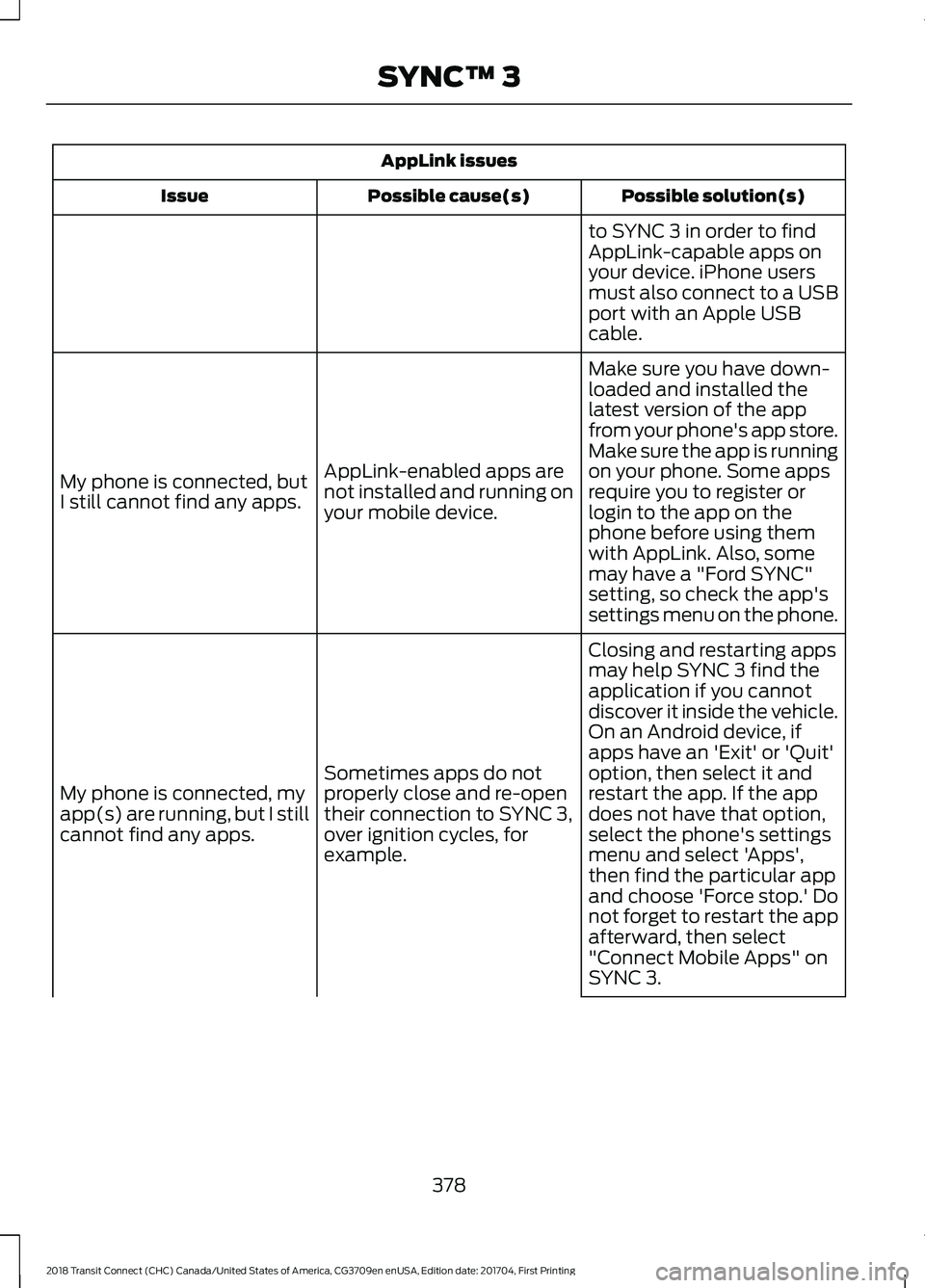
AppLink issues
Possible solution(s)
Possible cause(s)
Issue
to SYNC 3 in order to find
AppLink-capable apps on
your device. iPhone users
must also connect to a USB
port with an Apple USB
cable.
Make sure you have down-
loaded and installed the
latest version of the app
from your phone's app store.
Make sure the app is running
on your phone. Some apps
AppLink-enabled apps are
not installed and running on
your mobile device.
My phone is connected, but
I still cannot find any apps.
require you to register or
login to the app on the
phone before using them
with AppLink. Also, some
may have a "Ford SYNC"
setting, so check the app's
settings menu on the phone.
Closing and restarting apps
may help SYNC 3 find the
application if you cannot
discover it inside the vehicle.
On an Android device, if
apps have an 'Exit' or 'Quit'
Sometimes apps do not
properly close and re-open
their connection to SYNC 3,
over ignition cycles, for
example.
My phone is connected, my
app(s) are running, but I still
cannot find any apps. option, then select it and
restart the app. If the app
does not have that option,
select the phone's settings
menu and select 'Apps',
then find the particular app
and choose 'Force stop.' Do
not forget to restart the app
afterward, then select
"Connect Mobile Apps" on
SYNC 3.
378
2018 Transit Connect (CHC) Canada/United States of America, CG3709en enUSA, Edition date: 201704, First Printing SYNC™ 3
Page 383 of 449
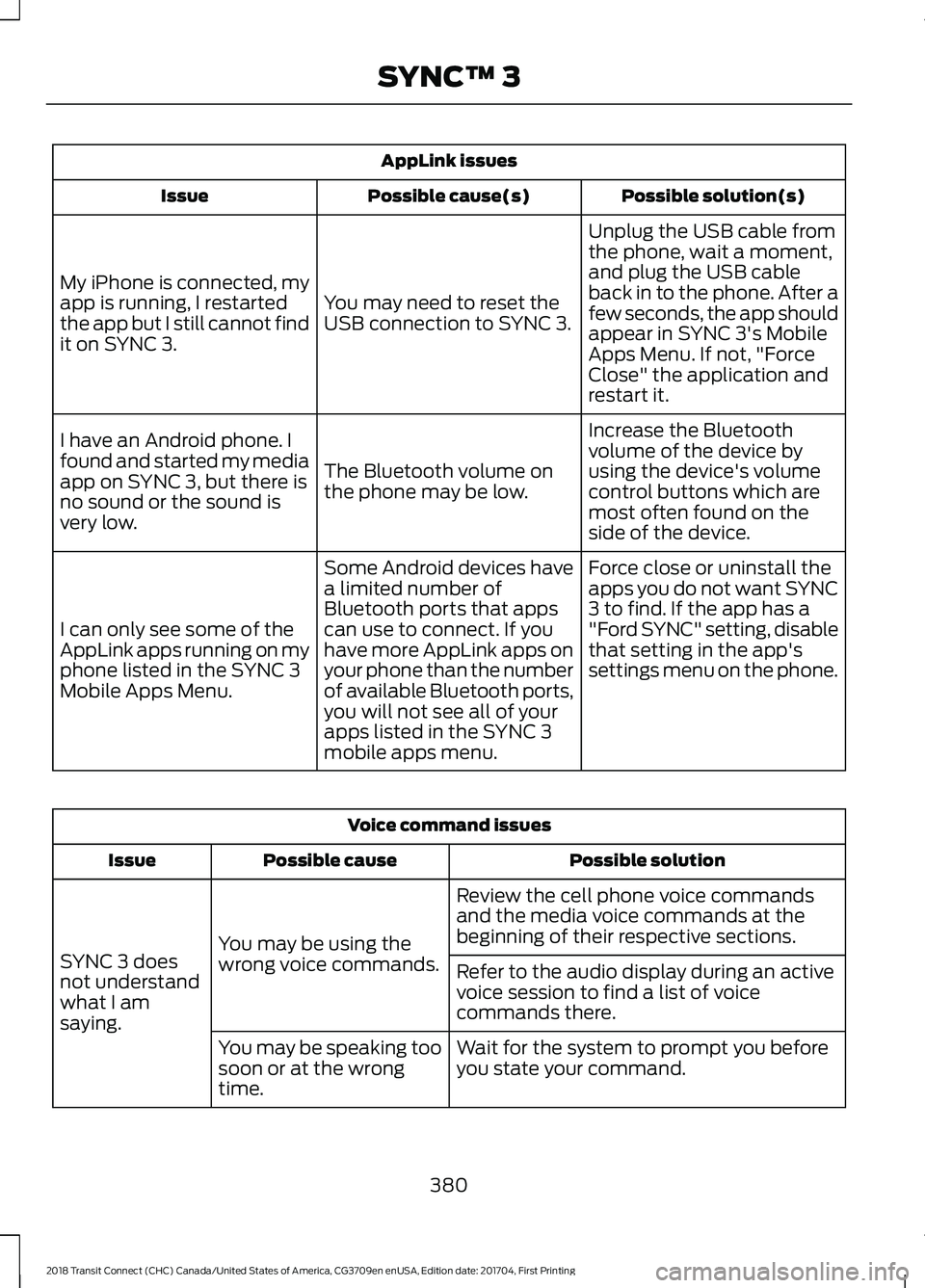
AppLink issues
Possible solution(s)
Possible cause(s)
Issue
Unplug the USB cable from
the phone, wait a moment,
and plug the USB cable
back in to the phone. After a
few seconds, the app should
appear in SYNC 3's Mobile
Apps Menu. If not, "Force
Close" the application and
restart it.
You may need to reset the
USB connection to SYNC 3.
My iPhone is connected, my
app is running, I restarted
the app but I still cannot find
it on SYNC 3.
Increase the Bluetooth
volume of the device by
using the device's volume
control buttons which are
most often found on the
side of the device.
The Bluetooth volume on
the phone may be low.
I have an Android phone. I
found and started my media
app on SYNC 3, but there is
no sound or the sound is
very low.
Force close or uninstall the
apps you do not want SYNC
3 to find. If the app has a
"Ford SYNC" setting, disable
that setting in the app's
settings menu on the phone.
Some Android devices have
a limited number of
Bluetooth ports that apps
can use to connect. If you
have more AppLink apps on
your phone than the number
of available Bluetooth ports,
you will not see all of your
apps listed in the SYNC 3
mobile apps menu.
I can only see some of the
AppLink apps running on my
phone listed in the SYNC 3
Mobile Apps Menu. Voice command issues
Possible solution
Possible cause
Issue
Review the cell phone voice commands
and the media voice commands at the
beginning of their respective sections.
You may be using the
wrong voice commands.
SYNC 3 does
not understand
what I am
saying. Refer to the audio display during an active
voice session to find a list of voice
commands there.
Wait for the system to prompt you before
you state your command.
You may be speaking too
soon or at the wrong
time.
380
2018 Transit Connect (CHC) Canada/United States of America, CG3709en enUSA, Edition date: 201704, First Printing SYNC™ 3
Page 386 of 449
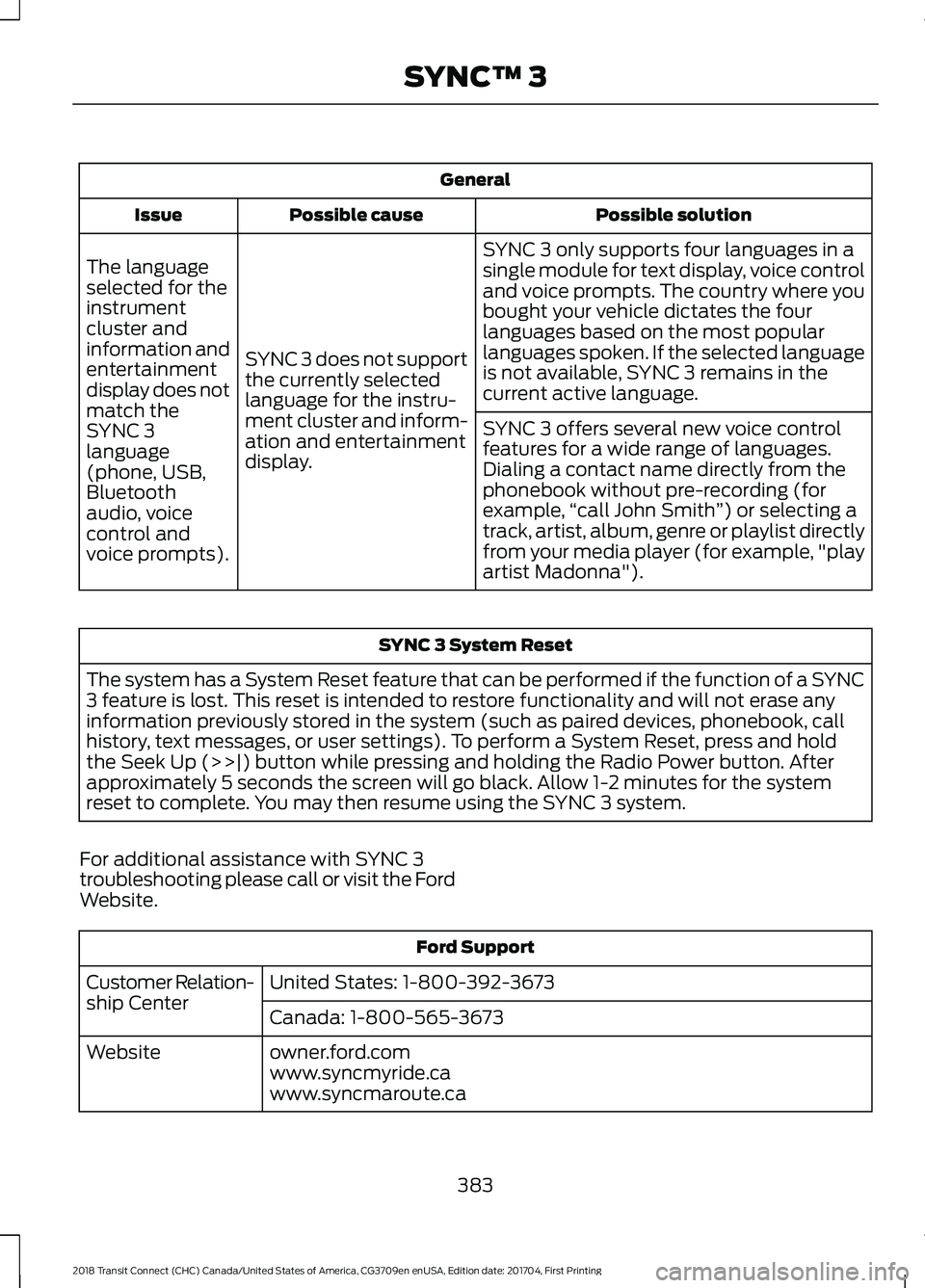
General
Possible solution
Possible cause
Issue
SYNC 3 only supports four languages in a
single module for text display, voice control
and voice prompts. The country where you
bought your vehicle dictates the four
languages based on the most popular
languages spoken. If the selected language
is not available, SYNC 3 remains in the
current active language.
SYNC 3 does not support
the currently selected
language for the instru-
ment cluster and inform-
ation and entertainment
display.
The language
selected for the
instrument
cluster and
information and
entertainment
display does not
match the
SYNC 3
SYNC 3 offers several new voice control
features for a wide range of languages.
Dialing a contact name directly from the
phonebook without pre-recording (for
example,
“call John Smith ”) or selecting a
track, artist, album, genre or playlist directly
from your media player (for example, "play
artist Madonna").
language
(phone, USB,
Bluetooth
audio, voice
control and
voice prompts). SYNC 3 System Reset
The system has a System Reset feature that can be performed if the function of a SYNC
3 feature is lost. This reset is intended to restore functionality and will not erase any
information previously stored in the system (such as paired devices, phonebook, call
history, text messages, or user settings). To perform a System Reset, press and hold
the Seek Up (>>|) button while pressing and holding the Radio Power button. After
approximately 5 seconds the screen will go black. Allow 1-2 minutes for the system
reset to complete. You may then resume using the SYNC 3 system.
For additional assistance with SYNC 3
troubleshooting please call or visit the Ford
Website. Ford Support
United States: 1-800-392-3673
Customer Relation-
ship Center
Canada: 1-800-565-3673
owner.ford.com
Website
www.syncmyride.ca
www.syncmaroute.ca
383
2018 Transit Connect (CHC) Canada/United States of America, CG3709en enUSA, Edition date: 201704, First Printing SYNC™ 3
Page 442 of 449
Cruise Control...................................................61
Principle of Operation....................................... 145
Cruise control See: Using Cruise Control................................ 145
Cup Holders.....................................................115
Customer Assistance..................................178
D
Data Recording
..................................................9
Event Data Recording.......................................... 10
Service Data Recording........................................ 9
Daytime Running Lamps
............................68
Type 1 - Conventional
(Non-Configurable)....................................... 68
Type 2 - Configurable......................................... 68
Digital Radio..................................................270 HD Radio Reception and Station
Troubleshooting.............................................. 271
Direction Indicators
.......................................70
Doors and Locks.............................................53
Drive Belt Routing.........................................218
Driver and Passenger Airbags...................38 Children and Airbags.......................................... 39
Proper Driver and Front Passenger Seating Adjustment........................................................ 38
Driving Aids.....................................................146
Driving Hints
....................................................170
Driving Through Water.................................171
DRL See: Daytime Running Lamps........................ 68
E
Economical Driving
......................................170
Emission Law..................................................127 Noise Emissions Warranty, Prohibited
Tampering Acts and Maintenance..........128
Tampering With a Noise Control System................................................................ 127
End User License Agreement
.................406
FordPass Connect Terms and
Conditions........................................................ 431
VEHICLE SOFTWARE END USER LICENSE AGREEMENT (EULA) ................................ 406
Engine Block Heater.....................................118 Using the Engine Block Heater....................... 118Engine Coolant Check...............................202
Adding Coolant.................................................. 202
Coolant Change................................................. 204
Engine Coolant Temperature Management.................................................. 205
Fail-Safe Cooling............................................... 204
Recycled Coolant.............................................. 203
Severe Climates................................................. 203
Engine Cooling Fan......................................201
Engine Emission Control
............................127
Engine Immobilizer See: Passive Anti-Theft System..................... 58
Engine Oil Check
.........................................200
Adding Engine Oil.............................................. 200
Engine Oil Dipstick
......................................200
Engine Specifications.................................255
Entertainment...............................................333 AM/FM Radio...................................................... 334
Apps........................................................................\
342
Bluetooth Stereo or USB................................. 341
CD ........................................................................\
.... 340
HD Radio ™ Information (If
Available)......................................................... 337
SiriusXM® Satellite Radio (If Activated)........................................................ 334
Sources.................................................................. 333
Supported Media Players, Formats and Metadata Information................................. 342
USB Ports............................................................. 342
Environment
......................................................15
Essential Towing Checks...........................165
Before Towing a Trailer..................................... 166
Hitches.................................................................... 165
Launching or Retrieving a Boat or Personal Watercraft......................................................... 167
Safety Chains....................................................... 165
Trailer Brakes....................................................... 166
Trailer Lamps....................................................... 166
Trailer Towing Connector................................. 165
When Towing a Trailer...................................... 166
Event Data Recording See: Data Recording.............................................. 9
Export Unique Options..................................13
Exterior Mirrors
................................................76
Fold Away Exterior Mirrors................................. 77
Power Exterior Mirrors......................................... 76
439
2018 Transit Connect (CHC) Canada/United States of America, CG3709en enUSA, Edition date: 201704, First Printing Index
Page 448 of 449
Traction Control.............................................137
Principle of Operation....................................... 137
Trailer Sway Control....................................163
Transmission Code Designation.............257
Transmission...................................................131
Transporting the Vehicle...........................168
Trip Computer
.................................................86
Average Fuel........................................................... 87
Digital Speedometer........................................... 87
Distance to Empty............................................... 86
Resetting the Trip Computer........................... 86
Trip Odometer....................................................... 86
U
Under Hood Overview
................................199
USB Port..........................................................276
Using Cruise Control....................................145 Switching Cruise Control Off.......................... 145
Switching Cruise Control On.......................... 145
Using MyKey With Remote Start Systems..........................................................52
Using Snow Chains
.....................................243
Using Stability Control...............................139
Using SYNC™ With Your Media Player............................................................298
Accessing Your USB Song Library...............302
Bluetooth Devices and System Settings............................................................ 304
Connecting Your Digital Media Player to the USB Port.......................................................... 298
Media Menu Features...................................... 302
Media Voice Commands................................ 299
Voice Commands for Audio Sources.........304
Using SYNC™ With Your Phone.............281 Accessing Features through the Phone
Menu................................................................. 286
Accessing Your Phone Settings................... 289
Bluetooth Devices............................................. 290
Making Calls........................................................ 285
Pairing a Phone for the First Time...............282
Pairing Subsequent Phones.......................... 283
Phone Options during an Active Call.........285
Phone Voice Commands................................ 283
Receiving Calls.................................................... 285
System Settings.................................................. 291
Text Messaging................................................... 287Using Traction Control................................137
Switching the System Off................................ 137
System Indicator Lights and Messages........................................................... 137
Using a Switch...................................................... 137
Using the Information Display Controls.............................................................. 137
Using Voice Recognition............................279 Audio Voice Commands.................................. 327
Initiating a Voice Session................................ 279
Mobile App Voice Commands...................... 330
Navigation Voice Commands....................... 329
Phone Voice Commands................................ 328
SiriusXM Traffic and Travel Link Voice Commands....................................................... 331
System Interaction and Feedback.............280
Voice Settings Commands............................. 331
Utilizing the Mediation/Arbitration Program (Canada Only)..........................181
V
Vehicle Care....................................................219
Vehicle Certification Label.......................256
Vehicle Identification Number................255
Vehicle Storage.............................................224 Battery.................................................................... 225
Body........................................................................\
224
Brakes..................................................................... 225
Cooling system................................................... 225
Engine..................................................................... 225
Fuel system.......................................................... 225
General.................................................................. 224
Miscellaneous..................................................... 225
Removing Vehicle From Storage.................. 225
Tires........................................................................\
. 225
Ventilation See: Climate Control.......................................... 96
VIN See: Vehicle Identification Number............255
Voice Control....................................................61
W
Warning Lamps and Indicators................80 Airbag - Front........................................................ 80
Anti-Lock Braking System................................ 80
Battery..................................................................... 80
445
2018 Transit Connect (CHC) Canada/United States of America, CG3709en enUSA, Edition date: 201704, First Printing Index