USB port FORD TRANSIT CONNECT 2019 User Guide
[x] Cancel search | Manufacturer: FORD, Model Year: 2019, Model line: TRANSIT CONNECT, Model: FORD TRANSIT CONNECT 2019Pages: 493, PDF Size: 7.43 MB
Page 390 of 493
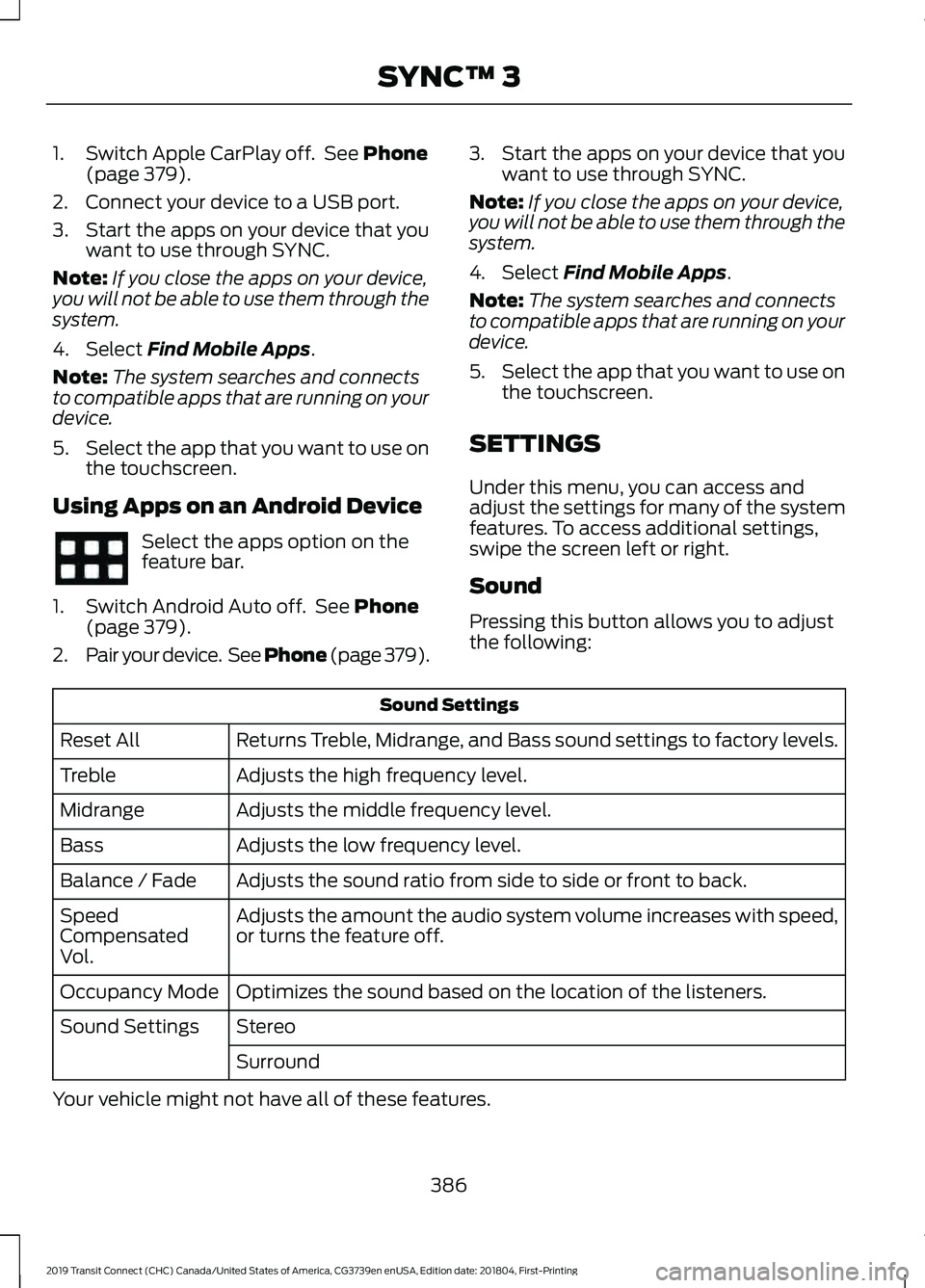
1. Switch Apple CarPlay off. See Phone
(page 379).
2. Connect your device to a USB port.
3. Start the apps on your device that you want to use through SYNC.
Note: If you close the apps on your device,
you will not be able to use them through the
system.
4. Select
Find Mobile Apps.
Note: The system searches and connects
to compatible apps that are running on your
device.
5. Select the app that you want to use on
the touchscreen.
Using Apps on an Android Device Select the apps option on the
feature bar.
1. Switch Android Auto off. See
Phone
(page 379).
2. Pair your device. See Phone (page 379). 3. Start the apps on your device that you
want to use through SYNC.
Note: If you close the apps on your device,
you will not be able to use them through the
system.
4. Select
Find Mobile Apps.
Note: The system searches and connects
to compatible apps that are running on your
device.
5. Select the app that you want to use on
the touchscreen.
SETTINGS
Under this menu, you can access and
adjust the settings for many of the system
features. To access additional settings,
swipe the screen left or right.
Sound
Pressing this button allows you to adjust
the following: Sound Settings
Returns Treble, Midrange, and Bass sound settings to factory levels.
Reset All
Adjusts the high frequency level.
Treble
Adjusts the middle frequency level.
Midrange
Adjusts the low frequency level.
Bass
Adjusts the sound ratio from side to side or front to back.
Balance / Fade
Adjusts the amount the audio system volume increases with speed,
or turns the feature off.
Speed
Compensated
Vol.
Optimizes the sound based on the location of the listeners.
Occupancy Mode
Stereo
Sound Settings
Surround
Your vehicle might not have all of these features.
386
2019 Transit Connect (CHC) Canada/United States of America, CG3739en enUSA, Edition date: 201804, First-Printing SYNC™ 3
Page 404 of 493
Valet Mode
Valet mode allows you to lock the system.
No information is accessible until the
system is unlocked with the correct PIN.
When you select valet mode a pop up
appears informing you that a four digit
code must be entered to enable and
disable valet mode. You can use any PIN
you chose but you must use the same PIN
to disable valet mode. The system asks
you to input the code.
Note:
If the system is locked and you
cannot remember the PIN, please contact
the Customer Relationship Center.
United States: 1-800-392-3673
Canada: 1-800-565-3673
To enable valet mode, enter your chosen
PIN. The system then asks to confirm your
PIN by reentering it. The system then locks. To unlock the system, enter the same pin
number. The system reconnects to your
phone and all of your options are available
again.
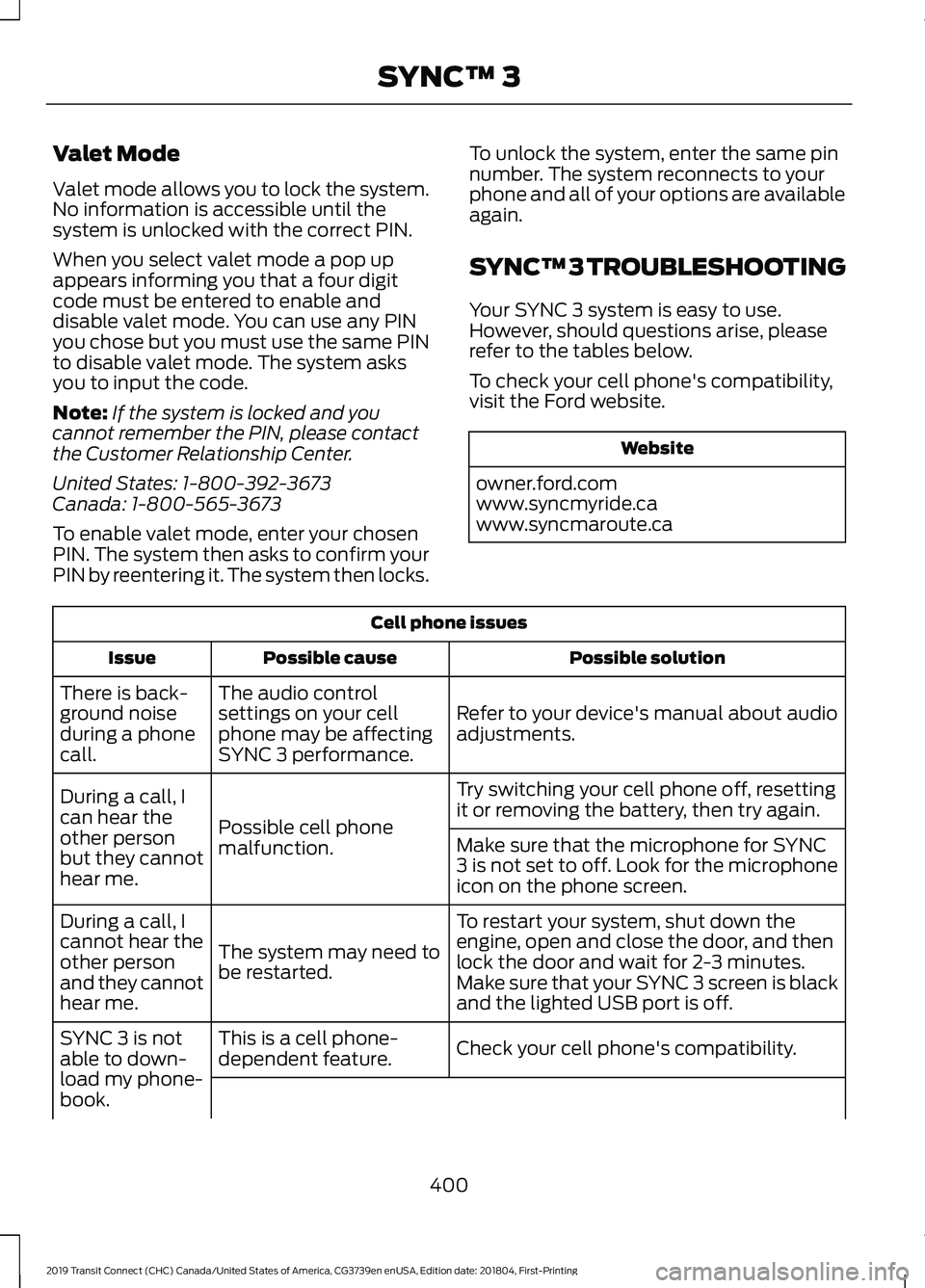
SYNC™ 3 TROUBLESHOOTING
Your SYNC 3 system is easy to use.
However, should questions arise, please
refer to the tables below.
To check your cell phone's compatibility,
visit the Ford website. Website
owner.ford.com
www.syncmyride.ca
www.syncmaroute.ca Cell phone issues
Possible solution
Possible cause
Issue
Refer to your device's manual about audio
adjustments.
The audio control
settings on your cell
phone may be affecting
SYNC 3 performance.
There is back-
ground noise
during a phone
call.
Try switching your cell phone off, resetting
it or removing the battery, then try again.
Possible cell phone
malfunction.
During a call, I
can hear the
other person
but they cannot
hear me.
Make sure that the microphone for SYNC
3 is not set to off. Look for the microphone
icon on the phone screen.
To restart your system, shut down the
engine, open and close the door, and then
lock the door and wait for 2-3 minutes.
Make sure that your SYNC 3 screen is black
and the lighted USB port is off.
The system may need to
be restarted.
During a call, I
cannot hear the
other person
and they cannot
hear me.
Check your cell phone's compatibility.
This is a cell phone-
dependent feature.
SYNC 3 is not
able to down-
load my phone-
book.
400
2019 Transit Connect (CHC) Canada/United States of America, CG3739en enUSA, Edition date: 201804, First-Printing SYNC™ 3
Page 407 of 493
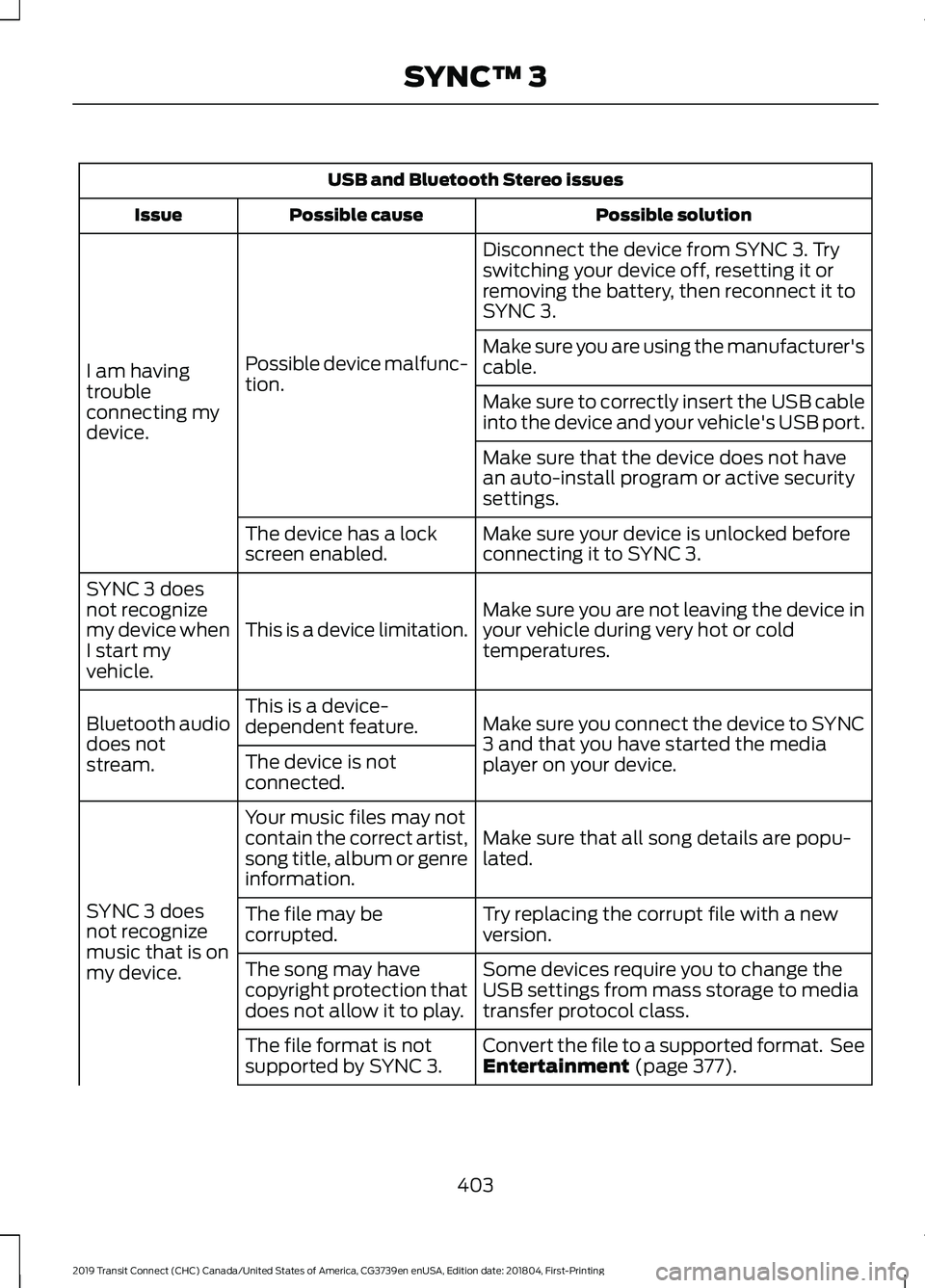
USB and Bluetooth Stereo issues
Possible solution
Possible cause
Issue
Disconnect the device from SYNC 3. Try
switching your device off, resetting it or
removing the battery, then reconnect it to
SYNC 3.
Possible device malfunc-
tion.
I am having
trouble
connecting my
device. Make sure you are using the manufacturer's
cable.
Make sure to correctly insert the USB cable
into the device and your vehicle's USB port.
Make sure that the device does not have
an auto-install program or active security
settings.
Make sure your device is unlocked before
connecting it to SYNC 3.
The device has a lock
screen enabled.
Make sure you are not leaving the device in
your vehicle during very hot or cold
temperatures.
This is a device limitation.
SYNC 3 does
not recognize
my device when
I start my
vehicle.
Make sure you connect the device to SYNC
3 and that you have started the media
player on your device.
This is a device-
dependent feature.
Bluetooth audio
does not
stream. The device is not
connected.
Make sure that all song details are popu-
lated.
Your music files may not
contain the correct artist,
song title, album or genre
information.
SYNC 3 does
not recognize
music that is on
my device. Try replacing the corrupt file with a new
version.
The file may be
corrupted.
Some devices require you to change the
USB settings from mass storage to media
transfer protocol class.
The song may have
copyright protection that
does not allow it to play.
Convert the file to a supported format. See
Entertainment (page 377).
The file format is not
supported by SYNC 3.
403
2019 Transit Connect (CHC) Canada/United States of America, CG3739en enUSA, Edition date: 201804, First-Printing SYNC™ 3
Page 410 of 493
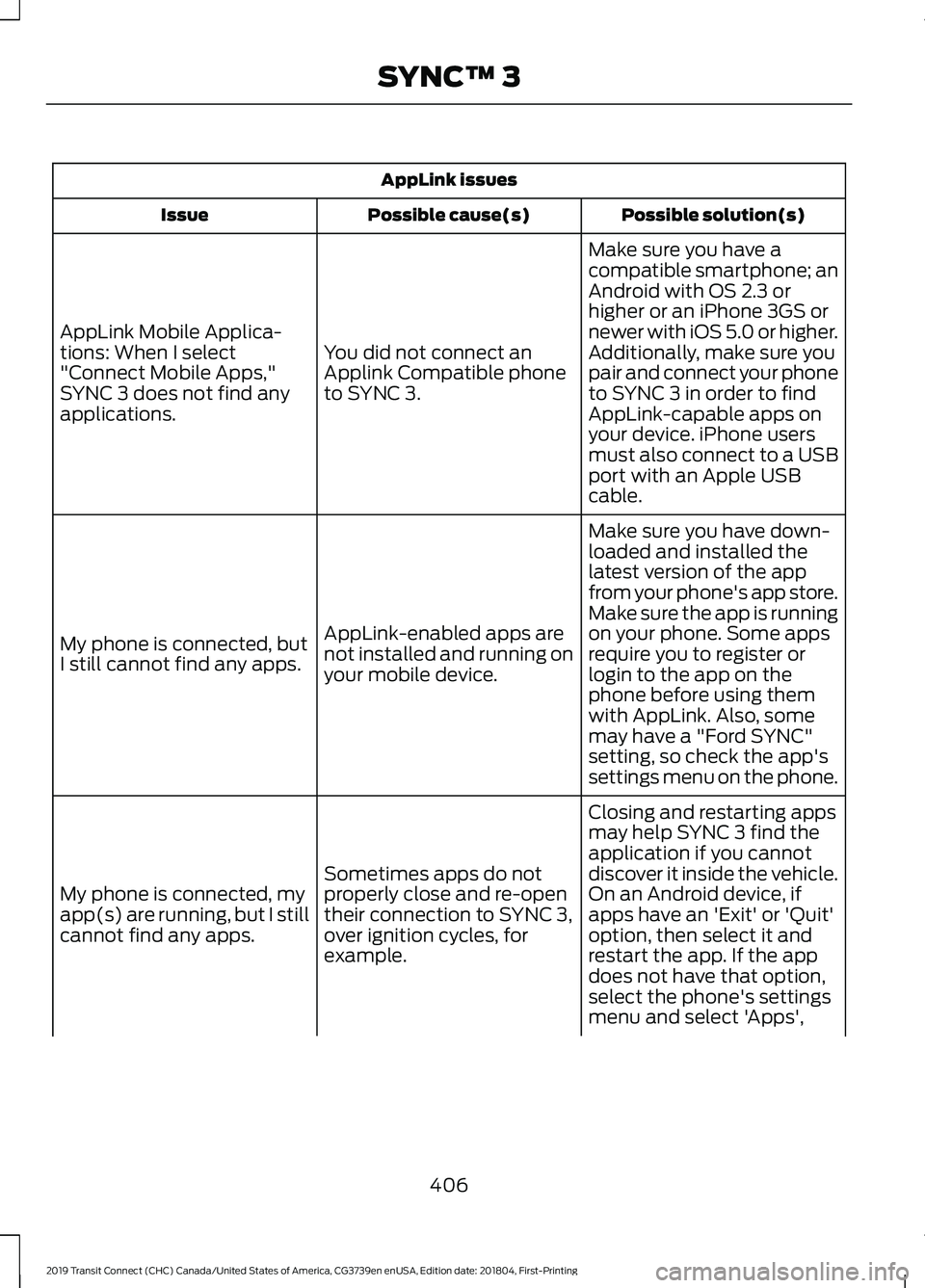
AppLink issues
Possible solution(s)
Possible cause(s)
Issue
Make sure you have a
compatible smartphone; an
Android with OS 2.3 or
higher or an iPhone 3GS or
newer with iOS 5.0 or higher.
Additionally, make sure you
You did not connect an
Applink Compatible phone
to SYNC 3.
AppLink Mobile Applica-
tions: When I select
"Connect Mobile Apps,"
SYNC 3 does not find any
applications.
pair and connect your phone
to SYNC 3 in order to find
AppLink-capable apps on
your device. iPhone users
must also connect to a USB
port with an Apple USB
cable.
Make sure you have down-
loaded and installed the
latest version of the app
from your phone's app store.
Make sure the app is running
on your phone. Some apps
AppLink-enabled apps are
not installed and running on
your mobile device.
My phone is connected, but
I still cannot find any apps.
require you to register or
login to the app on the
phone before using them
with AppLink. Also, some
may have a "Ford SYNC"
setting, so check the app's
settings menu on the phone.
Closing and restarting apps
may help SYNC 3 find the
application if you cannot
discover it inside the vehicle.
On an Android device, if
apps have an 'Exit' or 'Quit'
Sometimes apps do not
properly close and re-open
their connection to SYNC 3,
over ignition cycles, for
example.
My phone is connected, my
app(s) are running, but I still
cannot find any apps.
option, then select it and
restart the app. If the app
does not have that option,
select the phone's settings
menu and select 'Apps',
406
2019 Transit Connect (CHC) Canada/United States of America, CG3739en enUSA, Edition date: 201804, First-Printing SYNC™ 3
Page 412 of 493
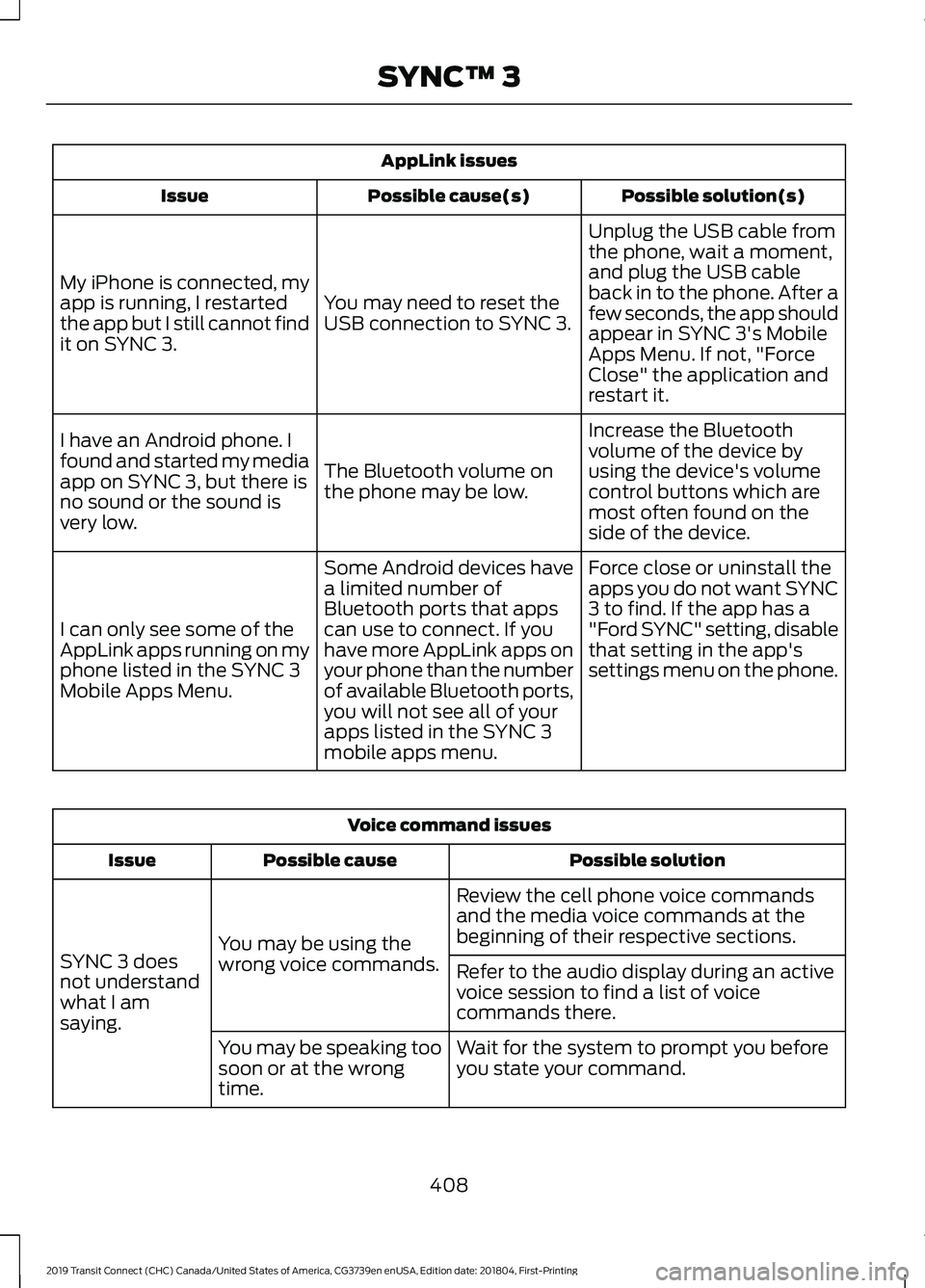
AppLink issues
Possible solution(s)
Possible cause(s)
Issue
Unplug the USB cable from
the phone, wait a moment,
and plug the USB cable
back in to the phone. After a
few seconds, the app should
appear in SYNC 3's Mobile
Apps Menu. If not, "Force
Close" the application and
restart it.
You may need to reset the
USB connection to SYNC 3.
My iPhone is connected, my
app is running, I restarted
the app but I still cannot find
it on SYNC 3.
Increase the Bluetooth
volume of the device by
using the device's volume
control buttons which are
most often found on the
side of the device.
The Bluetooth volume on
the phone may be low.
I have an Android phone. I
found and started my media
app on SYNC 3, but there is
no sound or the sound is
very low.
Force close or uninstall the
apps you do not want SYNC
3 to find. If the app has a
"Ford SYNC" setting, disable
that setting in the app's
settings menu on the phone.
Some Android devices have
a limited number of
Bluetooth ports that apps
can use to connect. If you
have more AppLink apps on
your phone than the number
of available Bluetooth ports,
you will not see all of your
apps listed in the SYNC 3
mobile apps menu.
I can only see some of the
AppLink apps running on my
phone listed in the SYNC 3
Mobile Apps Menu. Voice command issues
Possible solution
Possible cause
Issue
Review the cell phone voice commands
and the media voice commands at the
beginning of their respective sections.
You may be using the
wrong voice commands.
SYNC 3 does
not understand
what I am
saying. Refer to the audio display during an active
voice session to find a list of voice
commands there.
Wait for the system to prompt you before
you state your command.
You may be speaking too
soon or at the wrong
time.
408
2019 Transit Connect (CHC) Canada/United States of America, CG3739en enUSA, Edition date: 201804, First-Printing SYNC™ 3
Page 415 of 493
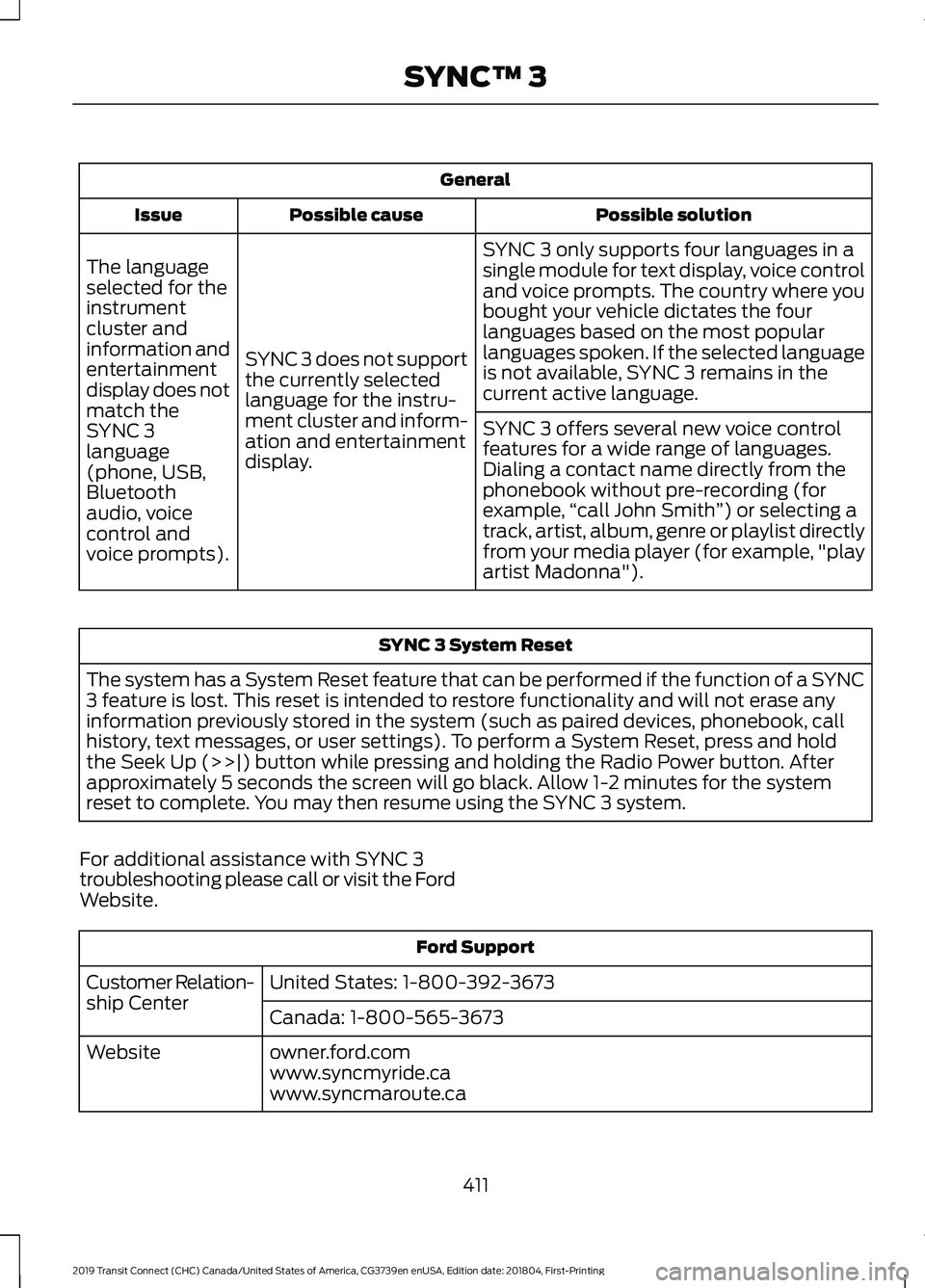
General
Possible solution
Possible cause
Issue
SYNC 3 only supports four languages in a
single module for text display, voice control
and voice prompts. The country where you
bought your vehicle dictates the four
languages based on the most popular
languages spoken. If the selected language
is not available, SYNC 3 remains in the
current active language.
SYNC 3 does not support
the currently selected
language for the instru-
ment cluster and inform-
ation and entertainment
display.
The language
selected for the
instrument
cluster and
information and
entertainment
display does not
match the
SYNC 3
SYNC 3 offers several new voice control
features for a wide range of languages.
Dialing a contact name directly from the
phonebook without pre-recording (for
example,
“call John Smith ”) or selecting a
track, artist, album, genre or playlist directly
from your media player (for example, "play
artist Madonna").
language
(phone, USB,
Bluetooth
audio, voice
control and
voice prompts). SYNC 3 System Reset
The system has a System Reset feature that can be performed if the function of a SYNC
3 feature is lost. This reset is intended to restore functionality and will not erase any
information previously stored in the system (such as paired devices, phonebook, call
history, text messages, or user settings). To perform a System Reset, press and hold
the Seek Up (>>|) button while pressing and holding the Radio Power button. After
approximately 5 seconds the screen will go black. Allow 1-2 minutes for the system
reset to complete. You may then resume using the SYNC 3 system.
For additional assistance with SYNC 3
troubleshooting please call or visit the Ford
Website. Ford Support
United States: 1-800-392-3673
Customer Relation-
ship Center
Canada: 1-800-565-3673
owner.ford.com
Website
www.syncmyride.ca
www.syncmaroute.ca
411
2019 Transit Connect (CHC) Canada/United States of America, CG3739en enUSA, Edition date: 201804, First-Printing SYNC™ 3
Page 483 of 493
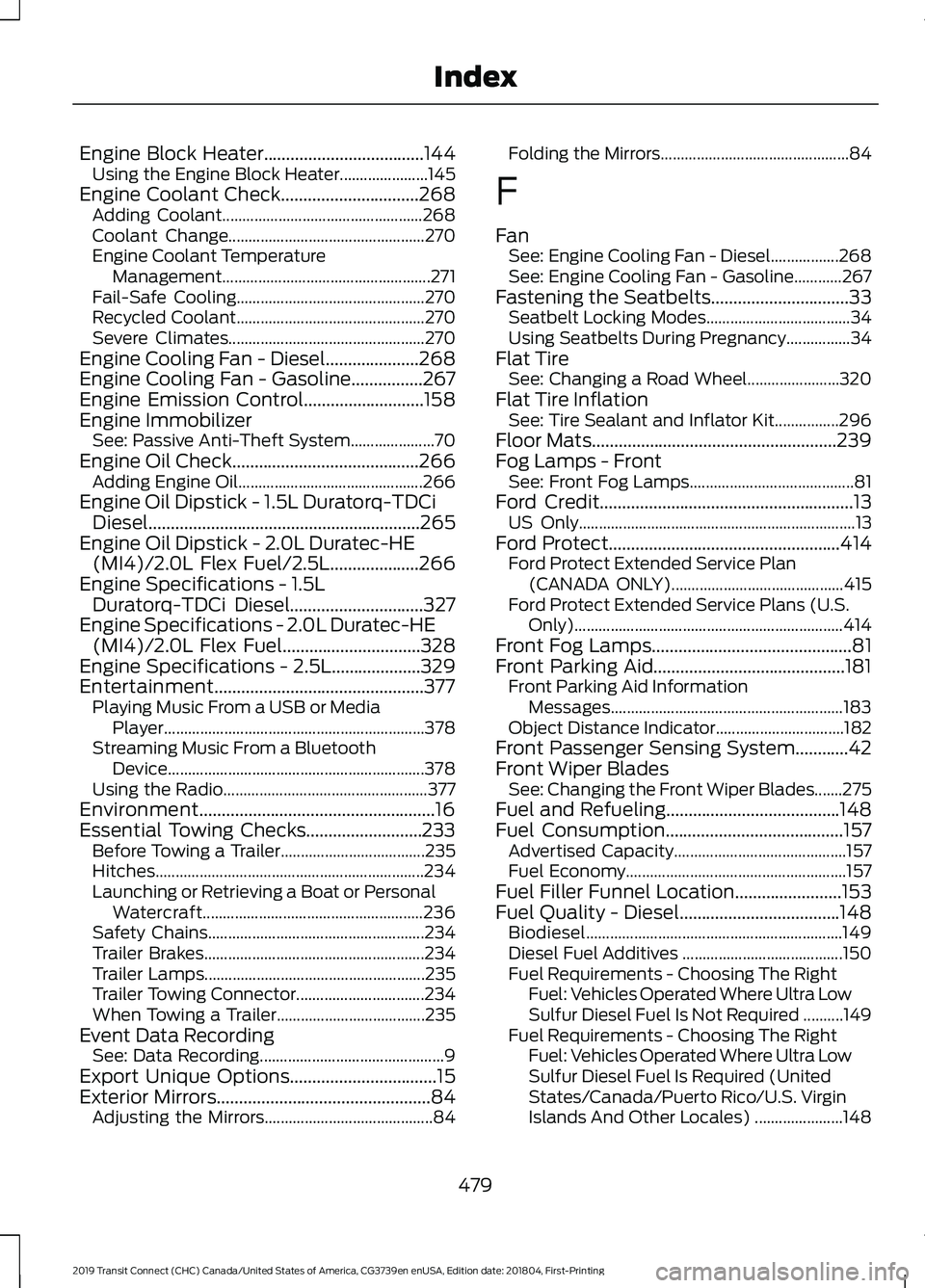
Engine Block Heater....................................144
Using the Engine Block Heater...................... 145
Engine Coolant Check...............................268
Adding Coolant.................................................. 268
Coolant Change................................................. 270
Engine Coolant Temperature Management....................................................271
Fail-Safe Cooling............................................... 270
Recycled Coolant............................................... 270
Severe Climates................................................. 270
Engine Cooling Fan - Diesel.....................268
Engine Cooling Fan - Gasoline................267
Engine Emission Control...........................158
Engine Immobilizer See: Passive Anti-Theft System..................... 70
Engine Oil Check..........................................266 Adding Engine Oil.............................................. 266
Engine Oil Dipstick - 1.5L Duratorq-TDCi Diesel.............................................................265
Engine Oil Dipstick - 2.0L Duratec-HE (MI4)/2.0L Flex Fuel/2.5L....................266
Engine Specifications - 1.5L Duratorq-TDCi Diesel..............................327
Engine Specifications - 2.0L Duratec-HE (MI4)/2.0L Flex Fuel
...............................328
Engine Specifications - 2.5L....................329
Entertainment...............................................377 Playing Music From a USB or Media
Player................................................................. 378
Streaming Music From a Bluetooth Device................................................................ 378
Using the Radio................................................... 377
Environment.....................................................16
Essential Towing Checks..........................233 Before Towing a Trailer.................................... 235
Hitches................................................................... 234
Launching or Retrieving a Boat or Personal Watercraft....................................................... 236
Safety Chains...................................................... 234
Trailer Brakes....................................................... 234
Trailer Lamps....................................................... 235
Trailer Towing Connector................................ 234
When Towing a Trailer..................................... 235
Event Data Recording See: Data Recording.............................................. 9
Export Unique Options.................................15
Exterior Mirrors
................................................84
Adjusting the Mirrors.......................................... 84Folding the Mirrors...............................................
84
F
Fan See: Engine Cooling Fan - Diesel.................268
See: Engine Cooling Fan - Gasoline............267
Fastening the Seatbelts...............................33 Seatbelt Locking Modes.................................... 34
Using Seatbelts During Pregnancy................34
Flat Tire See: Changing a Road Wheel....................... 320
Flat Tire Inflation See: Tire Sealant and Inflator Kit................296
Floor Mats.......................................................239
Fog Lamps - Front See: Front Fog Lamps......................................... 81
Ford Credit
.........................................................13
US Only..................................................................... 13
Ford Protect....................................................414 Ford Protect Extended Service Plan
(CANADA ONLY)........................................... 415
Ford Protect Extended Service Plans (U.S. Only)................................................................... 414
Front Fog Lamps.............................................81
Front Parking Aid...........................................181 Front Parking Aid Information
Messages.......................................................... 183
Object Distance Indicator................................ 182
Front Passenger Sensing System............42
Front Wiper Blades See: Changing the Front Wiper Blades.......275
Fuel and Refueling.......................................148
Fuel Consumption
........................................157
Advertised Capacity........................................... 157
Fuel Economy....................................................... 157
Fuel Filler Funnel Location........................153
Fuel Quality - Diesel....................................148 Biodiesel................................................................ 149
Diesel Fuel Additives ........................................ 150
Fuel Requirements - Choosing The Right Fuel: Vehicles Operated Where Ultra Low
Sulfur Diesel Fuel Is Not Required ..........149
Fuel Requirements - Choosing The Right Fuel: Vehicles Operated Where Ultra Low
Sulfur Diesel Fuel Is Required (United
States/Canada/Puerto Rico/U.S. Virgin
Islands And Other Locales) ...................... 148
479
2019 Transit Connect (CHC) Canada/United States of America, CG3739en enUSA, Edition date: 201804, First-Printing Index
Page 487 of 493
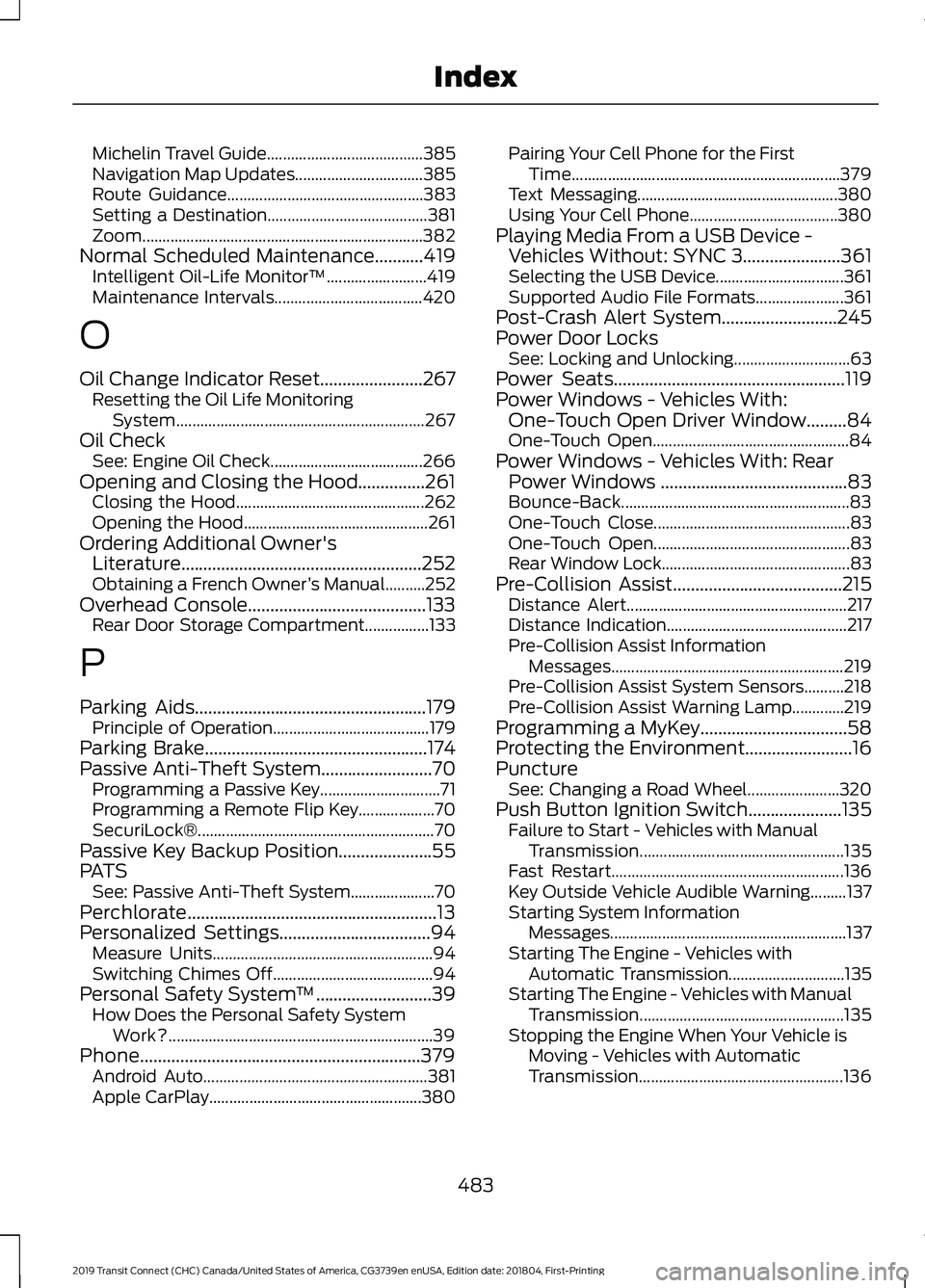
Michelin Travel Guide.......................................
385
Navigation Map Updates................................ 385
Route Guidance................................................. 383
Setting a Destination........................................ 381
Zoom...................................................................... 382
Normal Scheduled Maintenance...........419 Intelligent Oil-Life Monitor™......................... 419
Maintenance Intervals..................................... 420
O
Oil Change Indicator Reset.......................267
Resetting the Oil Life Monitoring
System.............................................................. 267
Oil Check See: Engine Oil Check...................................... 266
Opening and Closing the Hood...............261 Closing the Hood............................................... 262
Opening the Hood.............................................. 261
Ordering Additional Owner's Literature......................................................252
Obtaining a French Owner ’s Manual..........252
Overhead Console........................................133 Rear Door Storage Compartment................133
P
Parking Aids
....................................................179
Principle of Operation....................................... 179
Parking Brake
..................................................174
Passive Anti-Theft System.........................70 Programming a Passive Key.............................. 71
Programming a Remote Flip Key................... 70
SecuriLock®........................................................... 70
Passive Key Backup Position.....................55
PATS See: Passive Anti-Theft System..................... 70
Perchlorate........................................................13
Personalized Settings..................................94 Measure Units....................................................... 94
Switching Chimes Off........................................ 94
Personal Safety System ™
..........................39
How Does the Personal Safety System
Work?.................................................................. 39
Phone...............................................................379 Android Auto........................................................ 381
Apple CarPlay..................................................... 380Pairing Your Cell Phone for the First
Time................................................................... 379
Text Messaging.................................................. 380
Using Your Cell Phone..................................... 380
Playing Media From a USB Device - Vehicles Without: SYNC 3......................361
Selecting the USB Device................................ 361
Supported Audio File Formats...................... 361
Post-Crash Alert System..........................245
Power Door Locks See: Locking and Unlocking............................. 63
Power Seats....................................................119
Power Windows - Vehicles With: One-Touch Open Driver Window.........84
One-Touch Open................................................. 84
Power Windows - Vehicles With: Rear Power Windows ..........................................83
Bounce-Back......................................................... 83
One-Touch Close................................................. 83
One-Touch Open................................................. 83
Rear Window Lock............................................... 83
Pre-Collision Assist
......................................215
Distance Alert....................................................... 217
Distance Indication............................................. 217
Pre-Collision Assist Information Messages.......................................................... 219
Pre-Collision Assist System Sensors..........218
Pre-Collision Assist Warning Lamp.............219
Programming a MyKey
.................................58
Protecting the Environment........................16
Puncture See: Changing a Road Wheel....................... 320
Push Button Ignition Switch.....................135 Failure to Start - Vehicles with Manual
Transmission................................................... 135
Fast Restart.......................................................... 136
Key Outside Vehicle Audible Warning.........137
Starting System Information Messages........................................................... 137
Starting The Engine - Vehicles with Automatic Transmission............................. 135
Starting The Engine - Vehicles with Manual Transmission................................................... 135
Stopping the Engine When Your Vehicle is Moving - Vehicles with Automatic
Transmission................................................... 136
483
2019 Transit Connect (CHC) Canada/United States of America, CG3739en enUSA, Edition date: 201804, First-Printing Index
Page 491 of 493
Rear Towing Point.............................................
246
Towing Eye Location........................................ 246
Towing the Vehicle on Four Wheels..........................................................237
Emergency Towing............................................ 237
Recreational Vehicle Towing.......................... 237
Towing.............................................................230
Traction Control.............................................176
Principle of Operation....................................... 176
Trailer Sway Control.....................................231
Transmission Code Designation - 6-Speed Automatic
Transmission..............................................334
Transmission Code Designation - 8-Speed Automatic
Transmission..............................................335
Transmission
..................................................169
Transporting the Vehicle...........................236
Trip Computer
.................................................94
Average Fuel.......................................................... 94
Digital Speedometer.......................................... 94
Distance to Empty............................................... 94
Resetting the Trip Computer........................... 94
Trip Odometer....................................................... 94
Type Approvals
............................................464
Radio Frequency Certification Logos for
Blind Spot Information System................471
Radio Frequency Certification Logos for Mid Range Radar.................................................. 466
Radio Frequency Certification Logos for Passive Anti-Theft System....................... 467
Radio Frequency Certification Logos for Radio Transceiver Module......................... 470
Radio Frequency Certification Logos for SYNC 3.............................................................. 473
Radio Frequency Certification Logos for Tire Pressure Monitoring Sensor(s)...............464
Radio Frequency Certification Logos for Wireless Charging......................................... 472
U
Under Hood Overview - 1.5L Duratorq-TDCi Diesel
..............................262
Under Hood Overview - 2.0L Duratec-HE (MI4)/2.0L Flex Fuel...............................263
Under Hood Overview - 2.5L...................264
Unique Driving Characteristics................146 USB Port - Vehicles Without: SYNC
3.......................................................................362
Using Adaptive Cruise Control................196 Automatic Cancellation................................... 199
Blocked Sensor.................................................. 200
Canceling the Set Speed................................. 199
Changing the Set Speed................................. 198
Detection Issues................................................. 199
Following a Vehicle............................................ 197
Hilly Condition Usage....................................... 199
Overriding the System...................................... 198
Resuming the Set Speed................................. 199
Setting the Adaptive Cruise Speed..............197
Setting the Gap Distance................................ 198
Switching Adaptive Cruise Control Off....................................................................... 199
Switching Adaptive Cruise Control On........................................................................\
196
Switching to Normal Cruise Control............201
System Not Available...................................... 200
Using Cruise Control....................................195 Switching Cruise Control Off......................... 195
Switching Cruise Control On.......................... 195
Using MyKey With Remote Start Systems...........................................................61
Using Snow Chains......................................315 Vehicles with Stability Control...................... 316
Using Stability Control................................178
Using Traction Control................................176 Switching the System Off................................ 176
System Indicator Lights and Messages.......................................................... 176
Using a Switch..................................................... 176
Using the Information Display Controls............................................................. 176
Using Voice Recognition...........................362 Apps........................................................................\
376
Automatic Blower Motor Speed Reduction......................................................... 377
Entertainment..................................................... 373
General................................................................... 372
Navigation............................................................. 375
Phone..................................................................... 374
Phone Voice Service......................................... 362
Voice Settings...................................................... 377
Using Winter Tires........................................315
Utilizing the Mediation/Arbitration Program (Canada Only)........................250
487
2019 Transit Connect (CHC) Canada/United States of America, CG3739en enUSA, Edition date: 201804, First-Printing Index