buttons FORD TRANSIT CONNECT 2019 User Guide
[x] Cancel search | Manufacturer: FORD, Model Year: 2019, Model line: TRANSIT CONNECT, Model: FORD TRANSIT CONNECT 2019Pages: 493, PDF Size: 7.43 MB
Page 190 of 493
If your vehicle is parked and after you
switch the ignition on, you can use the
information display to toggle through the
modes. Press the button to switch the
system on and open the system menu in
the information display.
Note:
If your vehicle is parked, the default
mode is parallel park out assist. However if
you did not use active park assist to parallel
park your vehicle, use the information
display to select park out assist.
Note: You can only repeatedly press the
active park assist button to toggle through
the modes after moving your vehicle
approximately 10 ft (3 m).
To toggle through the modes, use the
buttons on the information display to
select the following:
• Parallel parking.
• Perpendicular parking.
• Parallel park out assist.
• Switch the system off.
Note: There is no time limit for toggling
through the modes.
Parallel Parking
The system detects available parallel
parking spaces and steers your vehicle into
the space. You control the accelerator,
gearshift and brakes. The system visually
and audibly guides you into a parallel
parking space. Press the button once to search
for a parking space.
Note: You can also switch the system on
after you have already driven partially or
completely past a parking space. Press the
active park assist button and the system
informs you if you have recently passed a
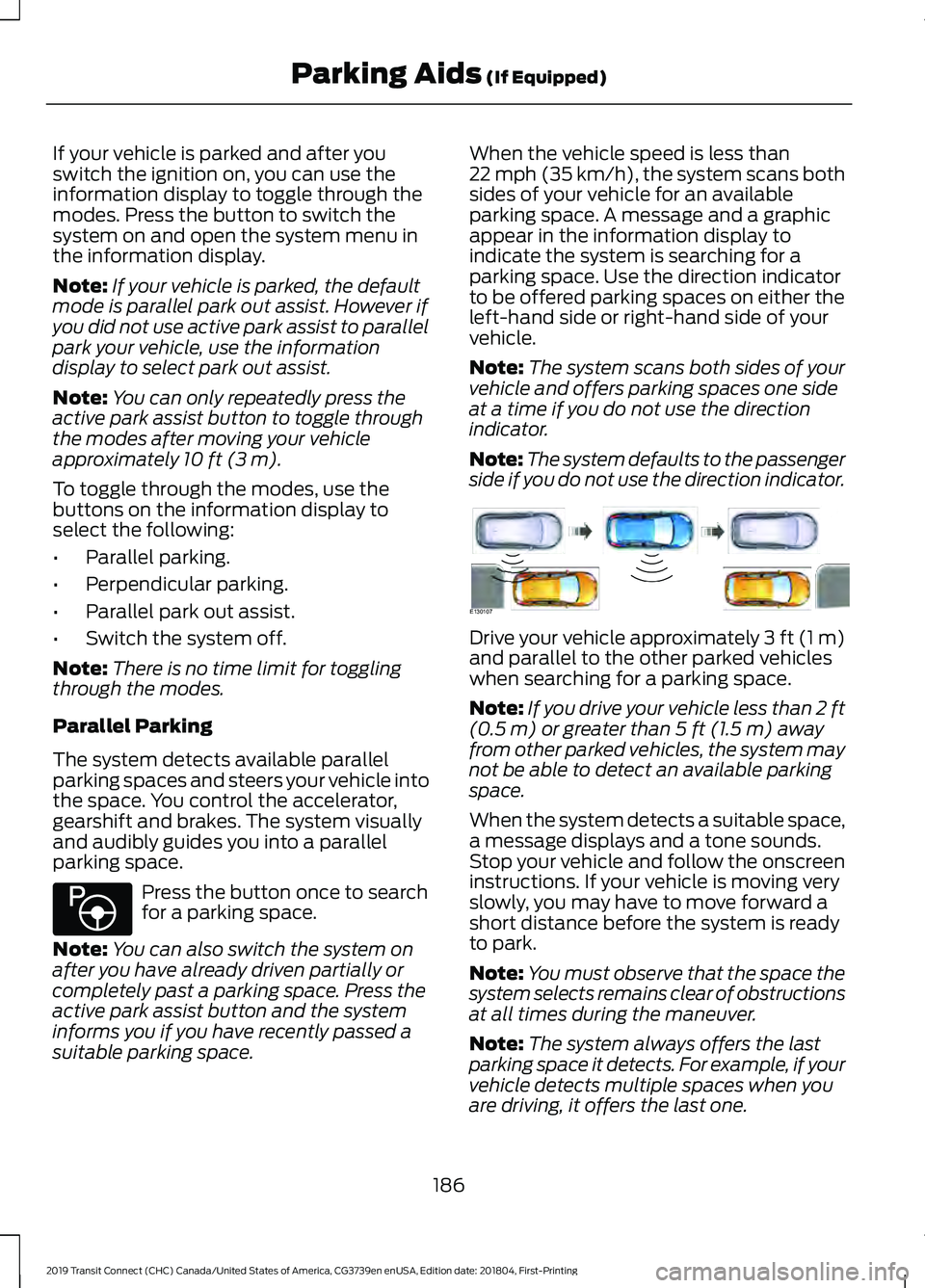
suitable parking space. When the vehicle speed is less than
22 mph (35 km/h), the system scans both
sides of your vehicle for an available
parking space. A message and a graphic
appear in the information display to
indicate the system is searching for a
parking space. Use the direction indicator
to be offered parking spaces on either the
left-hand side or right-hand side of your
vehicle.
Note:
The system scans both sides of your
vehicle and offers parking spaces one side
at a time if you do not use the direction
indicator.
Note: The system defaults to the passenger
side if you do not use the direction indicator. Drive your vehicle approximately 3 ft (1 m)
and parallel to the other parked vehicles
when searching for a parking space.
Note:
If you drive your vehicle less than 2 ft
(0.5 m)
or greater than 5 ft (1.5 m) away
from other parked vehicles, the system may
not be able to detect an available parking
space.
When the system detects a suitable space,
a message displays and a tone sounds.
Stop your vehicle and follow the onscreen
instructions. If your vehicle is moving very
slowly, you may have to move forward a
short distance before the system is ready
to park.
Note: You must observe that the space the
system selects remains clear of obstructions
at all times during the maneuver.
Note: The system always offers the last
parking space it detects. For example, if your
vehicle detects multiple spaces when you
are driving, it offers the last one.
186
2019 Transit Connect (CHC) Canada/United States of America, CG3739en enUSA, Edition date: 201804, First-Printing Parking Aids
(If Equipped)E146186 E130107
Page 279 of 493
Make sure that you dispose of old batteries
in an environmentally friendly way. Seek
advice from your local authority about
recycling old batteries.
CHECKING THE WIPER
BLADES
Run the tip of your fingers over the edge of
the blade to check for roughness.
Clean the wiper blades with washer fluid
or water applied with a soft sponge or
cloth.
CHANGING THE FRONT WIPER
BLADES
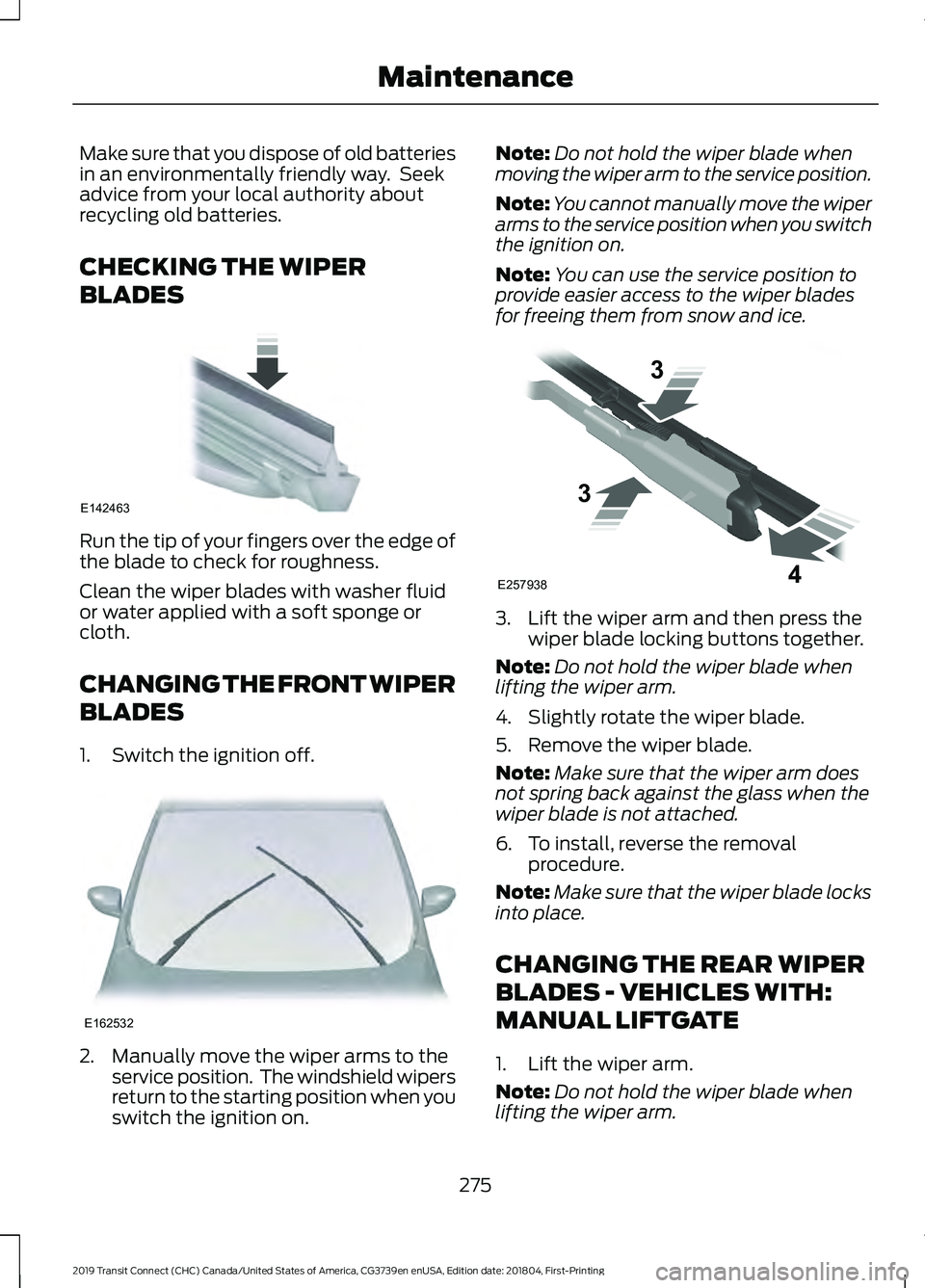
1. Switch the ignition off.
2. Manually move the wiper arms to the
service position. The windshield wipers
return to the starting position when you
switch the ignition on. Note:
Do not hold the wiper blade when
moving the wiper arm to the service position.
Note: You cannot manually move the wiper
arms to the service position when you switch
the ignition on.
Note: You can use the service position to
provide easier access to the wiper blades
for freeing them from snow and ice. 3. Lift the wiper arm and then press the
wiper blade locking buttons together.
Note: Do not hold the wiper blade when
lifting the wiper arm.
4. Slightly rotate the wiper blade.
5. Remove the wiper blade.
Note: Make sure that the wiper arm does
not spring back against the glass when the
wiper blade is not attached.
6. To install, reverse the removal procedure.
Note: Make sure that the wiper blade locks
into place.
CHANGING THE REAR WIPER
BLADES - VEHICLES WITH:
MANUAL LIFTGATE
1. Lift the wiper arm.
Note: Do not hold the wiper blade when
lifting the wiper arm.
275
2019 Transit Connect (CHC) Canada/United States of America, CG3739en enUSA, Edition date: 201804, First-Printing MaintenanceE142463 E162532 3
3 4
E257938
Page 358 of 493
Selecting the Radio
Press the button to select radio
mode.
Press the button again to display
the available radio sources. Repeatedly
press the button to scroll through the
available radio sources.
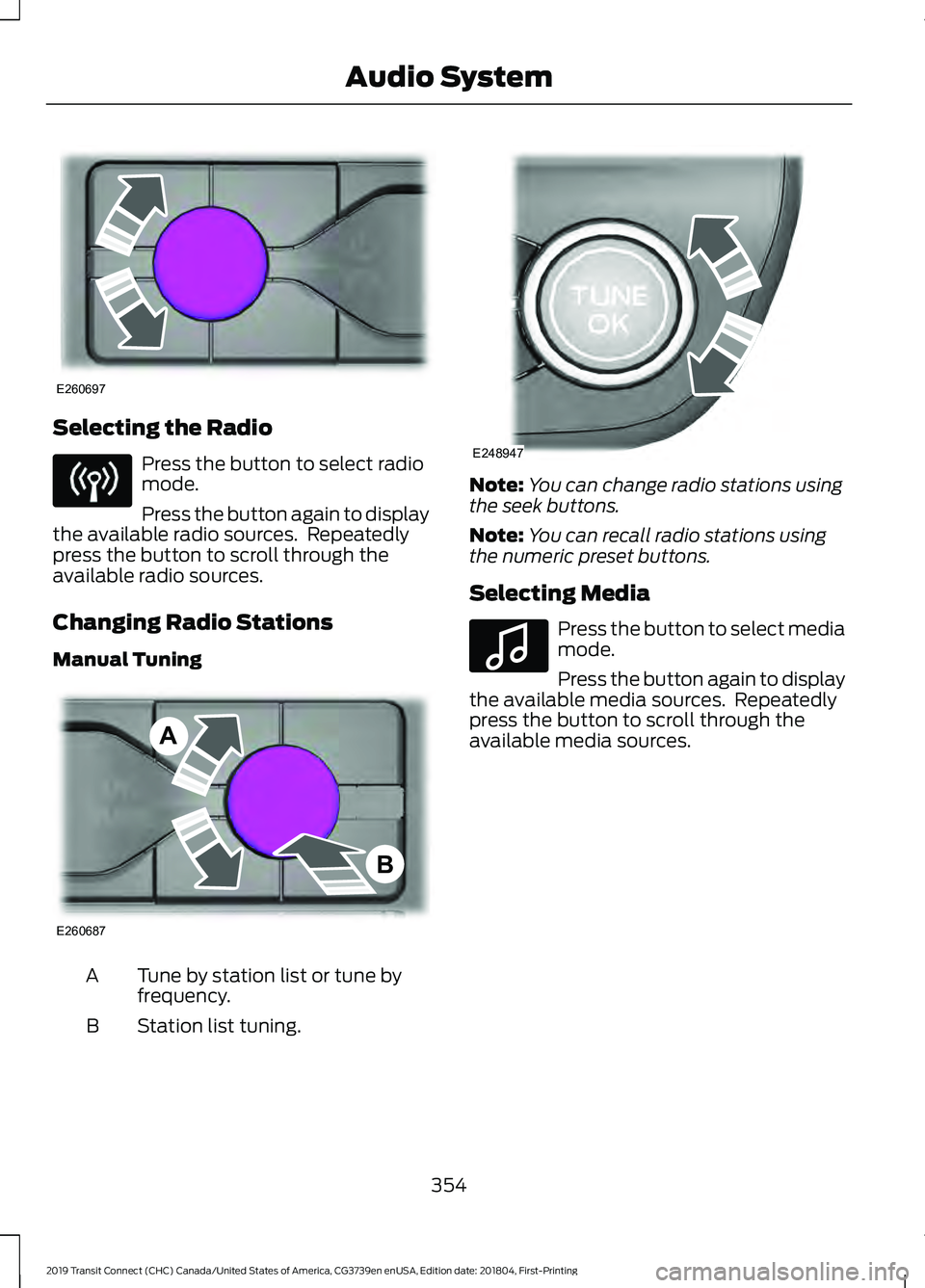
Changing Radio Stations
Manual Tuning Tune by station list or tune by
frequency.
A
Station list tuning.
B Note:
You can change radio stations using
the seek buttons.
Note: You can recall radio stations using
the numeric preset buttons.
Selecting Media Press the button to select media
mode.
Press the button again to display
the available media sources. Repeatedly
press the button to scroll through the
available media sources.
354
2019 Transit Connect (CHC) Canada/United States of America, CG3739en enUSA, Edition date: 201804, First-Printing Audio SystemE260697 E260687
A
B E248947 E100027
Page 361 of 493
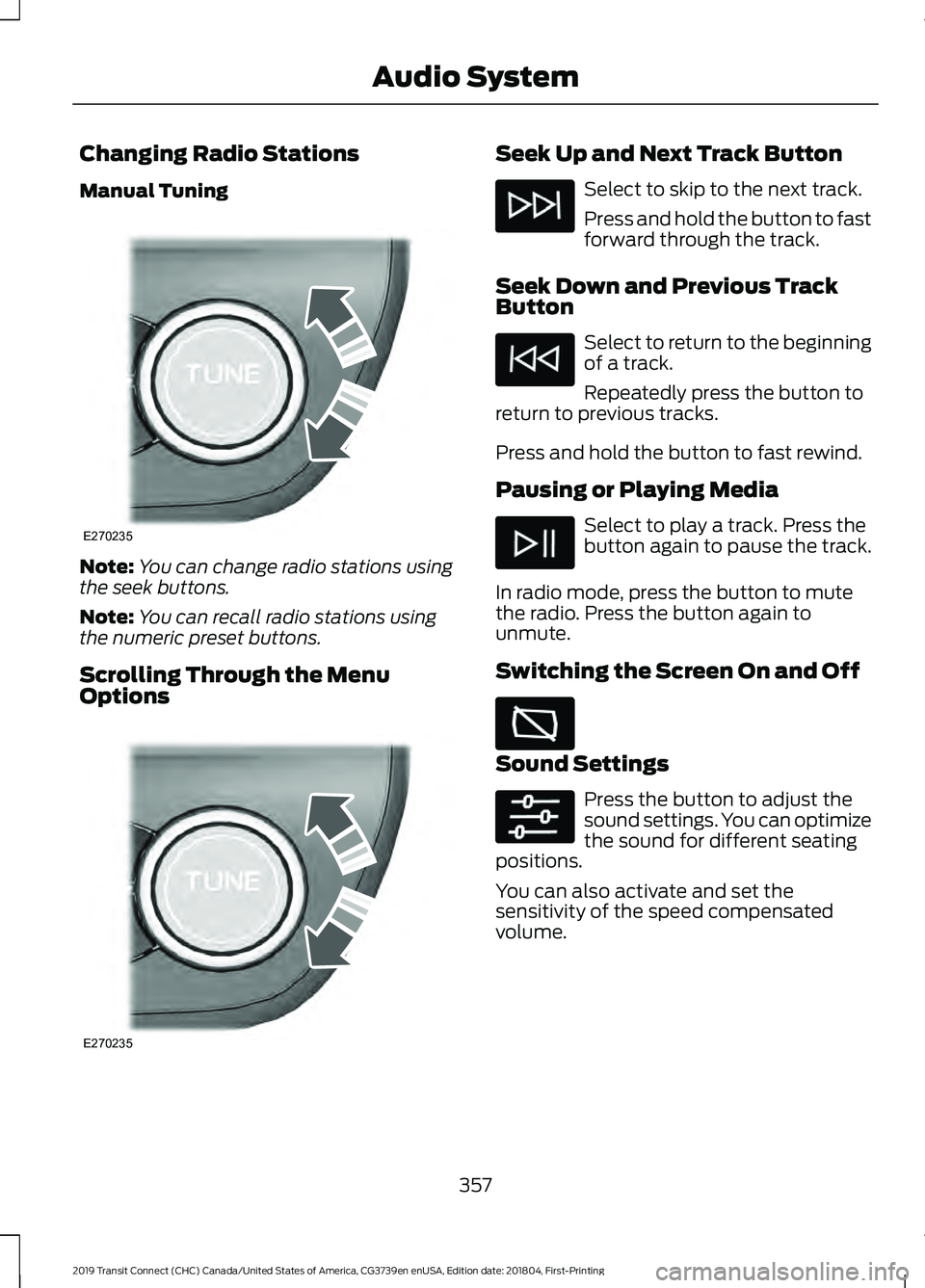
Changing Radio Stations
Manual Tuning
Note:
You can change radio stations using
the seek buttons.
Note: You can recall radio stations using
the numeric preset buttons.
Scrolling Through the Menu
Options Seek Up and Next Track Button
Select to skip to the next track.
Press and hold the button to fast
forward through the track.
Seek Down and Previous Track
Button Select to return to the beginning
of a track.
Repeatedly press the button to
return to previous tracks.
Press and hold the button to fast rewind.
Pausing or Playing Media Select to play a track. Press the
button again to pause the track.
In radio mode, press the button to mute
the radio. Press the button again to
unmute.
Switching the Screen On and Off Sound Settings
Press the button to adjust the
sound settings. You can optimize
the sound for different seating
positions.
You can also activate and set the
sensitivity of the speed compensated
volume.
357
2019 Transit Connect (CHC) Canada/United States of America, CG3739en enUSA, Edition date: 201804, First-Printing Audio SystemE270235 E270235
Page 362 of 493
AM/FM RADIO - VEHICLES
WITHOUT: SYNC 3
Selecting a Radio Source
Press the button to display the
available radio sources.
Repeatedly press the button to scroll to
the desired radio source.
Press the OK button.
Station Presets
To store a radio station, press and hold one
of the numeric preset buttons.
Note: Six presets can be stored for each
radio source.
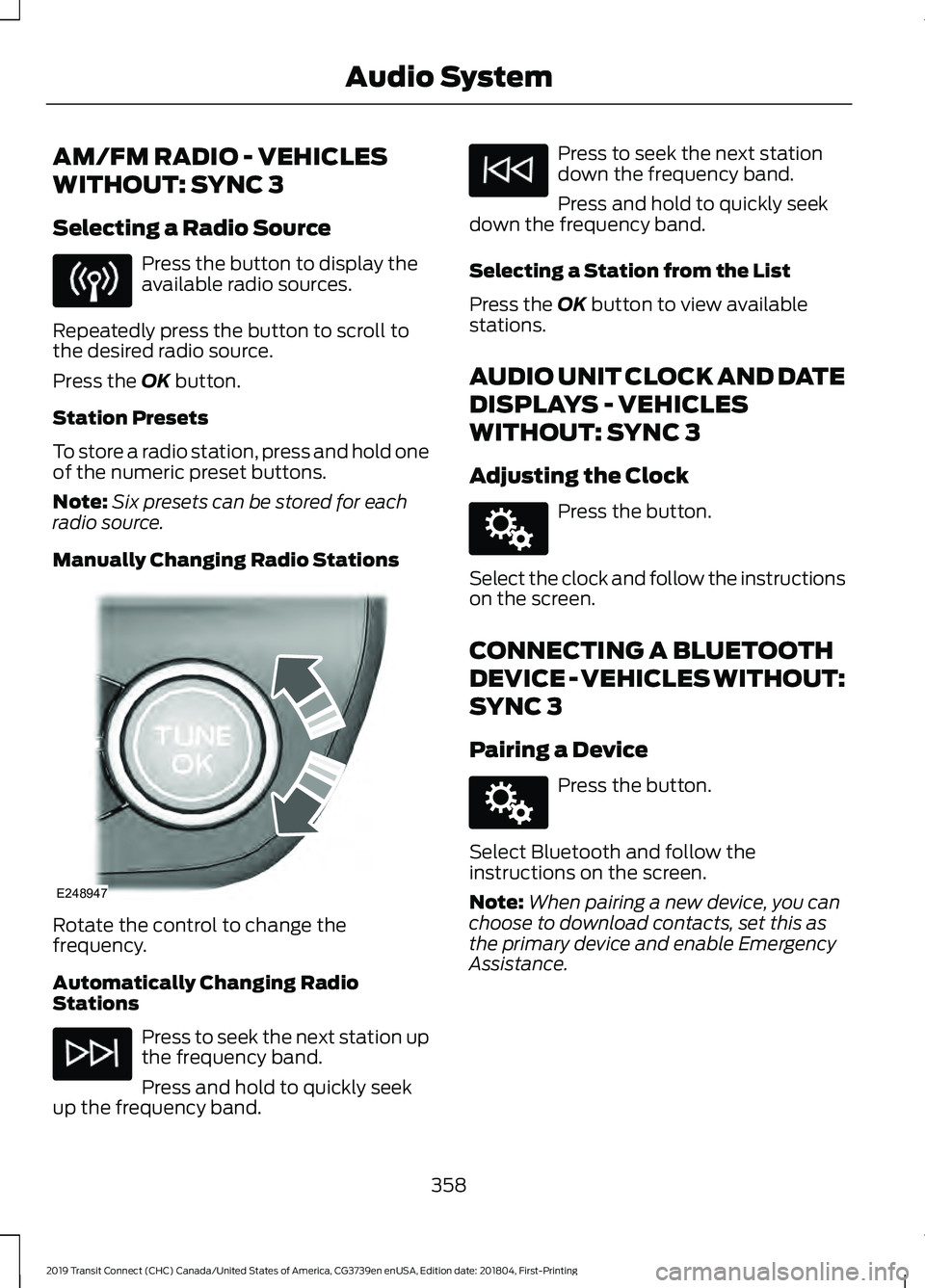
Manually Changing Radio Stations Rotate the control to change the
frequency.
Automatically Changing Radio
Stations
Press to seek the next station up
the frequency band.
Press and hold to quickly seek
up the frequency band. Press to seek the next station
down the frequency band.
Press and hold to quickly seek
down the frequency band.
Selecting a Station from the List
Press the
OK button to view available
stations.
AUDIO UNIT CLOCK AND DATE
DISPLAYS - VEHICLES
WITHOUT: SYNC 3
Adjusting the Clock Press the button.
Select the clock and follow the instructions
on the screen.
CONNECTING A BLUETOOTH
DEVICE - VEHICLES WITHOUT:
SYNC 3
Pairing a Device Press the button.
Select Bluetooth and follow the
instructions on the screen.
Note: When pairing a new device, you can
choose to download contacts, set this as
the primary device and enable Emergency
Assistance.
358
2019 Transit Connect (CHC) Canada/United States of America, CG3739en enUSA, Edition date: 201804, First-Printing Audio System E248947 E142607 E142607
Page 368 of 493
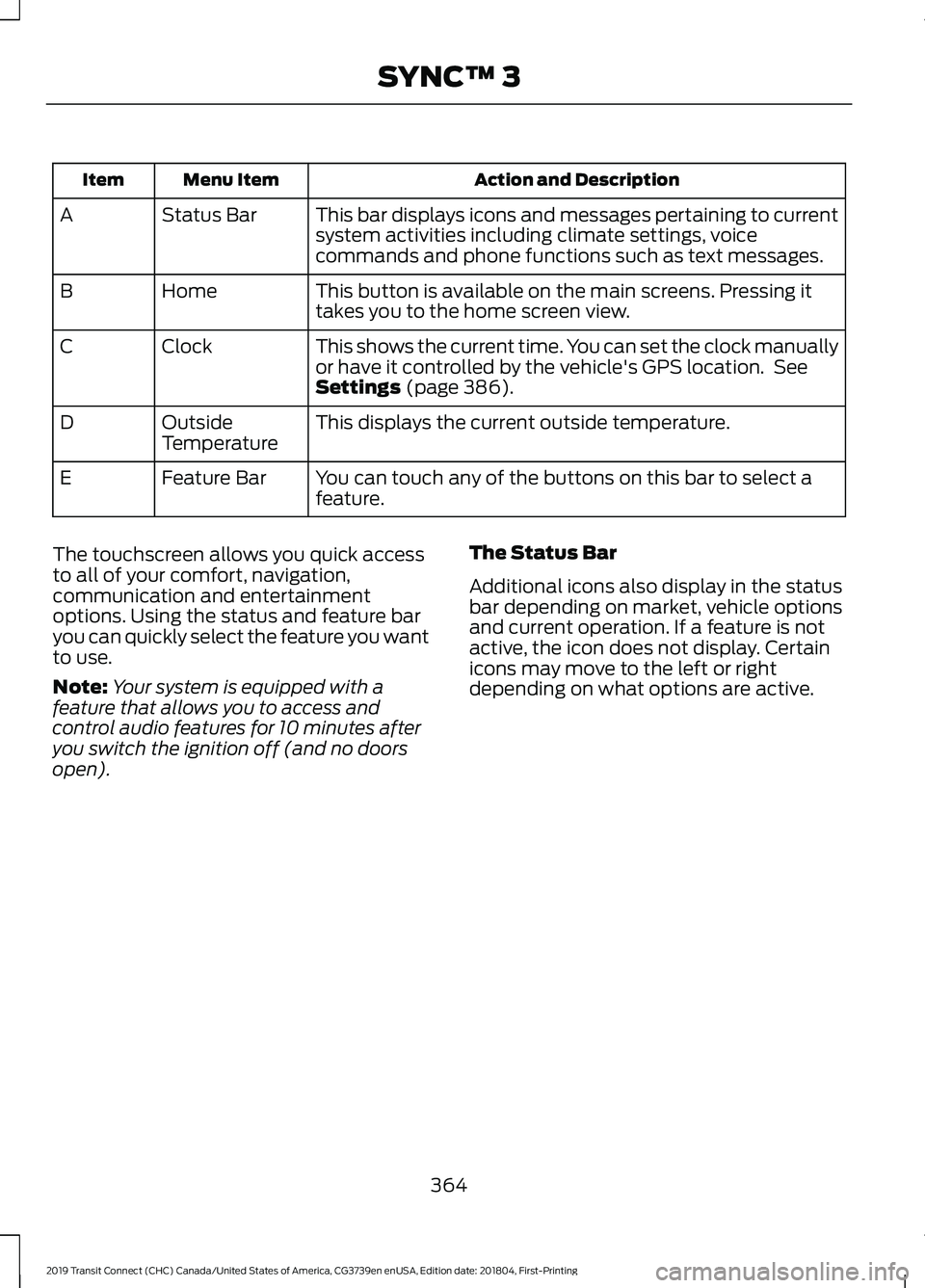
Action and Description
Menu Item
Item
This bar displays icons and messages pertaining to current
system activities including climate settings, voice
commands and phone functions such as text messages.
Status Bar
A
This button is available on the main screens. Pressing it
takes you to the home screen view.
Home
B
This shows the current time. You can set the clock manually
or have it controlled by the vehicle's GPS location. See
Settings (page 386).
Clock
C
This displays the current outside temperature.
Outside
Temperature
D
You can touch any of the buttons on this bar to select a
feature.
Feature Bar
E
The touchscreen allows you quick access
to all of your comfort, navigation,
communication and entertainment
options. Using the status and feature bar
you can quickly select the feature you want
to use.
Note: Your system is equipped with a
feature that allows you to access and
control audio features for 10 minutes after
you switch the ignition off (and no doors
open). The Status Bar
Additional icons also display in the status
bar depending on market, vehicle options
and current operation. If a feature is not
active, the icon does not display. Certain
icons may move to the left or right
depending on what options are active.
364
2019 Transit Connect (CHC) Canada/United States of America, CG3739en enUSA, Edition date: 201804, First-Printing SYNC™ 3
Page 372 of 493
•
SOUND: Press to access the Sound
menu where you can adjust sound and
other audio settings.
• 1-6:
Press and hold to store or press to
select an AM, FM or SIRIUS memory
preset. See Audio System (page 352).
• DISP:
Switch the display on or off. You
can also touch the screen to switch the
display back on.
• Temperature, fan and climate
control buttons:
Control the
temperature, fan speed or settings of
the climate control system. See
Climate Control
(page 108).
Safety Information WARNING:
Driving while distracted
can result in loss of vehicle control, crash
and injury. We strongly recommend that
you use extreme caution when using any
device that may take your focus off the
road. Your primary responsibility is the safe
operation of your vehicle. We recommend
against the use of any hand-held device
while driving and encourage the use of
voice-operated systems when possible.
Make sure you are aware of all applicable
local laws that may affect the use of
electronic devices while driving.
• Do not attempt to service or repair the
system. Have an authorized dealer
check your vehicle.
• Do not operate playing devices if the
power cords or cables are broken, split
or damaged. Place cords and cables
out of the way, so they do not interfere
with the operation of pedals, seats,
compartments or safe driving abilities. •
Do not leave playing devices in your
vehicle during extreme conditions as it
could cause them damage. See your
device's user guide for further
information.
• For your safety, some SYNC 3 functions
are speed-dependent. Their use is
limited to when your vehicle is traveling
at speeds under 3 mph (5 km/h). Make
sure that you review your device's
manual before using it with SYNC 3.
Speed-restricted Features
Some features of this system may be too
difficult to use while your vehicle is moving
so they are restricted from use unless your
vehicle is stationary.
• Screens crowded with information,
such as Point of Interest reviews and
ratings, SiriusXM Traffic and Travel Link
sports scores, movie times or ski
conditions.
• Any action that requires you to use a
keyboard is restricted, such as entering
a navigation destination or editing
information.
• All lists are limited so the user can view
fewer entries (such as phone contacts
or recent phone call entries).
See the following chart for more specific
examples.
368
2019 Transit Connect (CHC) Canada/United States of America, CG3739en enUSA, Edition date: 201804, First-Printing SYNC™ 3
Page 381 of 493
Voice Settings
Description
Voice Command
Go to the voice settings menu.
Voice Settings
Switch long voice prompts on.
Interaction Mode Novice
Switch short voice prompts on.
Interaction Mode Advanced
Switch call confirmation on. The system prompts
you to confirm before making a call.
Phone Confirmation On
Switch call confirmation off. The system does not
prompt you to confirm before making a call.
Phone Confirmation Off
Display the display of voice commands on.
Voice Command Lists On
Switch the display of voice commands off.
Voice Command Lists Off
Automatic Blower Motor Speed
Reduction
If necessary, the system decreases the
blower motor speed when you are using
voice commands to reduce the amount of
background noise in your vehicle. It returns
to normal when you are finished.
Switching Automatic Blower Motor
Speed Reduction Off
Simultaneously press the A/C and
recirculated air buttons.
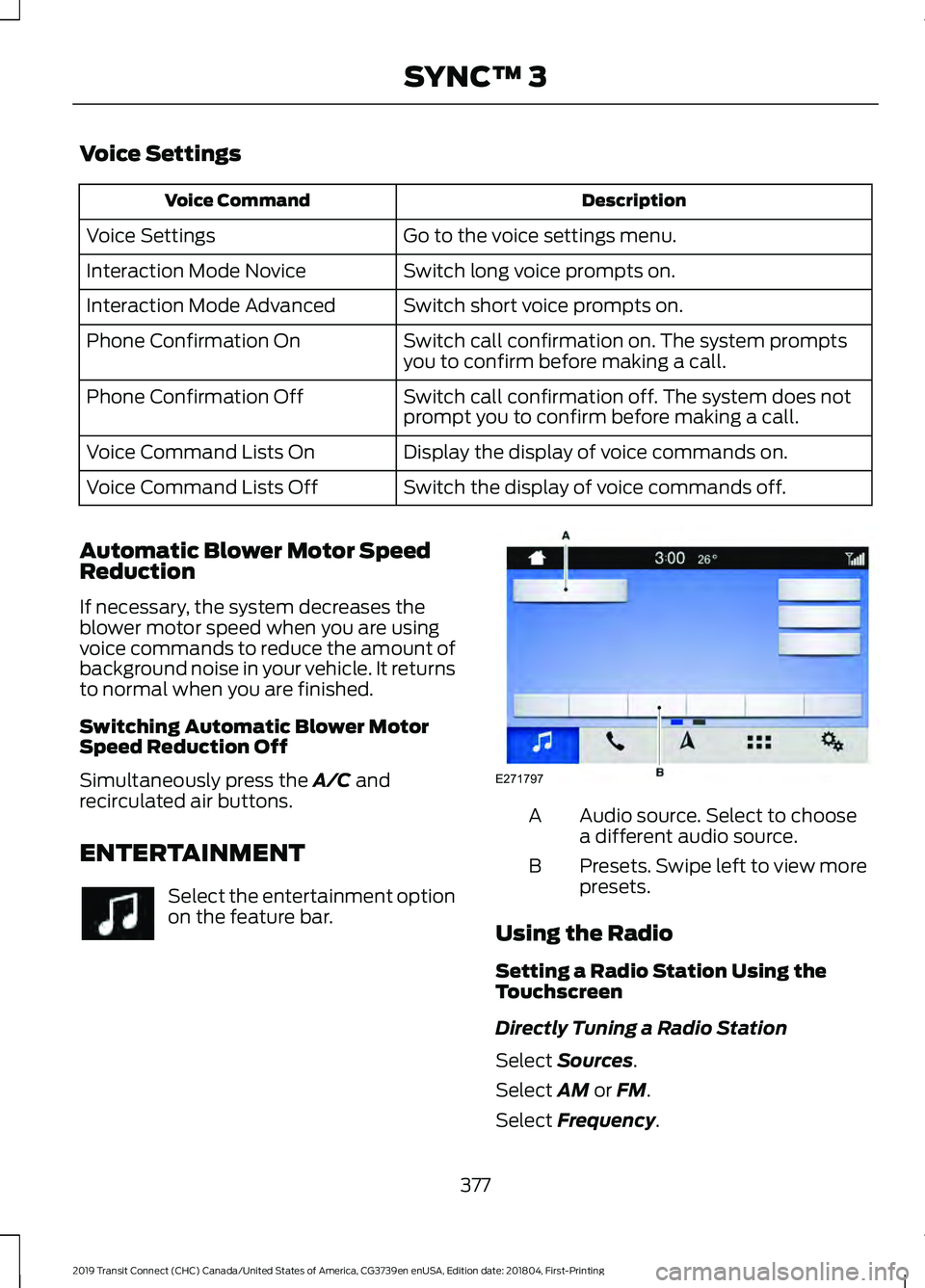
ENTERTAINMENT Select the entertainment option
on the feature bar. Audio source. Select to choose
a different audio source.
A
Presets. Swipe left to view more
presets.
B
Using the Radio
Setting a Radio Station Using the
Touchscreen
Directly Tuning a Radio Station
Select
Sources.
Select
AM or FM.
Select
Frequency.
377
2019 Transit Connect (CHC) Canada/United States of America, CG3739en enUSA, Edition date: 201804, First-Printing SYNC™ 3 E271797
Page 382 of 493
Enter the frequency of the radio station
and select Enter.
Note: You must enter the frequency to two
decimal places.
Selecting a Radio Station From a List
Select
Sources.
Select
FM or DAB.
Select
Station.
Select a radio station from the list.
Switching Traffic Announcements On
Select
Traffic (TA).
Note: If you switch traffic announcements
on, traffic announcements broadcast by
radio stations interrupt the current audio
source to help you plan your route.
Storing a Radio Station
You can use the different sets of presets
to allow different drivers to store their
favorite radio stations.
Set a radio station.
Select
Presets.
Note: Only do this if you wish to select a
different set of presets.
Press and hold one of the preset buttons.
Note: The radio briefly mutes to indicate
the radio station has been stored.
Streaming Music From a Bluetooth
Device
Check the compatibility of your device on
the regional Ford website.
Pair your device. See
Phone (page 379).
Select
Sources. Select Bluetooth. Searching for Tracks on a Bluetooth
Device
Select
Browse.
Select a track.
Note: Select the cover art to view
information about the current track.
Repeating Tracks on a Bluetooth
Device Select the repeat icon to repeat
tracks.
Note: You can repeat one track or all tracks
on an audio format Bluetooth device. You
can repeat one track, all tracks or all tracks
in one folder on a Bluetooth device.
Note: A small number one appears next to
the repeat icon to indicate that a track is set
to repeat. A small folder icon appears next
to it to indicate that a folder is set to repeat
Playing Tracks on a Bluetooth Device
in a Random Order Select to play tracks in a random
order.
Playing Music From a USB or Media
Player
Connect your device to a USB port.
Select
Sources. Select USB.
Note: The system indexes your music
before you can play it.
Searching for Tracks on a USB or Media
Player
Select
Browse.
Select a track.
Note: Select the cover art to view
information about the current track.
378
2019 Transit Connect (CHC) Canada/United States of America, CG3739en enUSA, Edition date: 201804, First-Printing SYNC™ 3
Page 412 of 493
AppLink issues
Possible solution(s)
Possible cause(s)
Issue
Unplug the USB cable from
the phone, wait a moment,
and plug the USB cable
back in to the phone. After a
few seconds, the app should
appear in SYNC 3's Mobile
Apps Menu. If not, "Force
Close" the application and
restart it.
You may need to reset the
USB connection to SYNC 3.
My iPhone is connected, my
app is running, I restarted
the app but I still cannot find
it on SYNC 3.
Increase the Bluetooth
volume of the device by
using the device's volume
control buttons which are
most often found on the
side of the device.
The Bluetooth volume on
the phone may be low.
I have an Android phone. I
found and started my media
app on SYNC 3, but there is
no sound or the sound is
very low.
Force close or uninstall the
apps you do not want SYNC
3 to find. If the app has a
"Ford SYNC" setting, disable
that setting in the app's
settings menu on the phone.
Some Android devices have
a limited number of
Bluetooth ports that apps
can use to connect. If you
have more AppLink apps on
your phone than the number
of available Bluetooth ports,
you will not see all of your
apps listed in the SYNC 3
mobile apps menu.
I can only see some of the
AppLink apps running on my
phone listed in the SYNC 3
Mobile Apps Menu. Voice command issues
Possible solution
Possible cause
Issue
Review the cell phone voice commands
and the media voice commands at the
beginning of their respective sections.
You may be using the
wrong voice commands.
SYNC 3 does
not understand
what I am
saying. Refer to the audio display during an active
voice session to find a list of voice
commands there.
Wait for the system to prompt you before
you state your command.
You may be speaking too
soon or at the wrong
time.
408
2019 Transit Connect (CHC) Canada/United States of America, CG3739en enUSA, Edition date: 201804, First-Printing SYNC™ 3