ignition FORD TRANSIT CONNECT 2019 User Guide
[x] Cancel search | Manufacturer: FORD, Model Year: 2019, Model line: TRANSIT CONNECT, Model: FORD TRANSIT CONNECT 2019Pages: 493, PDF Size: 7.43 MB
Page 63 of 493
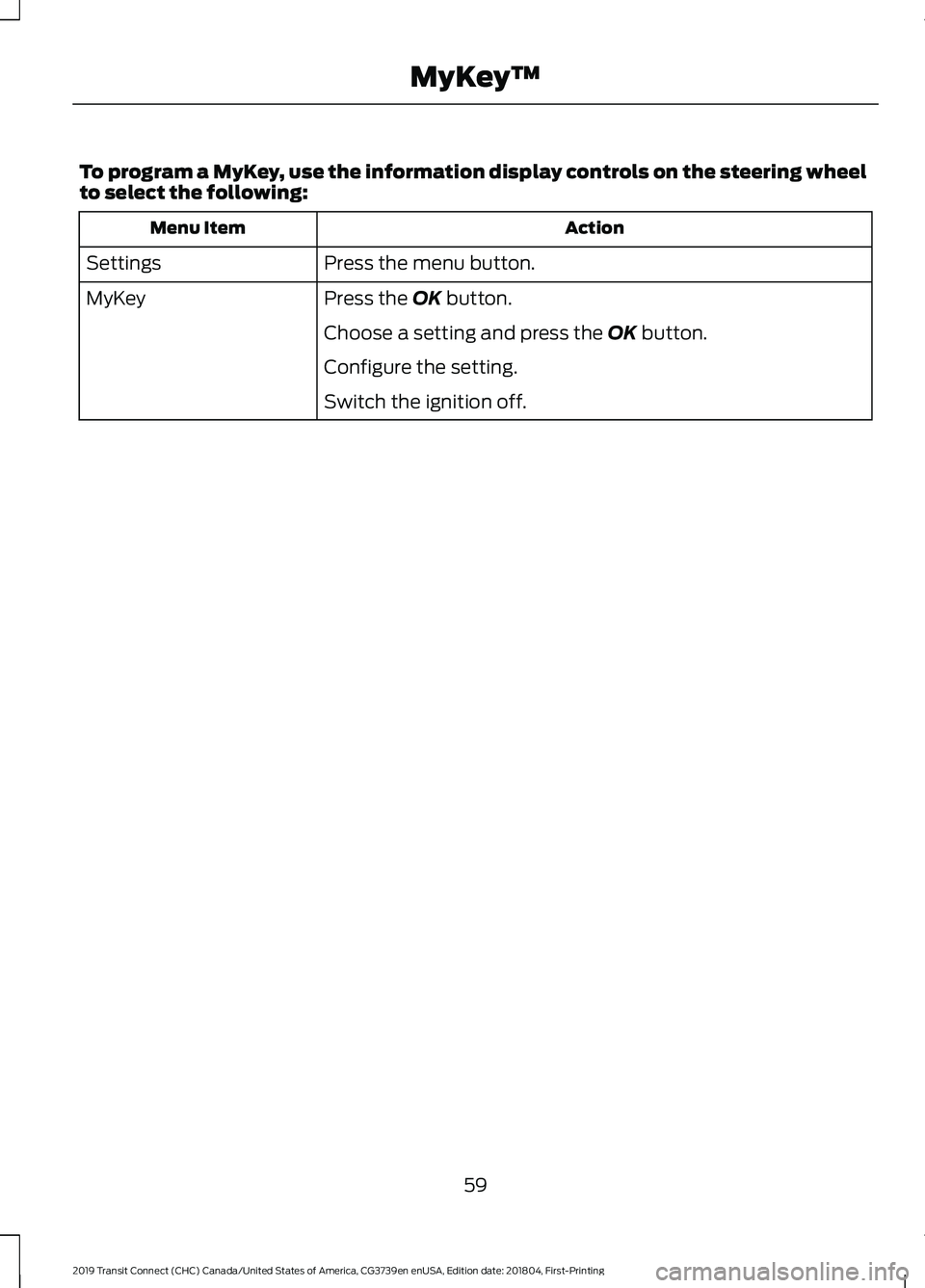
To program a MyKey, use the information display controls on the steering wheel
to select the following:
Action
Menu Item
Press the menu button.
Settings
Press the OK button.
MyKey
Choose a setting and press the
OK button.
Configure the setting.
Switch the ignition off.
59
2019 Transit Connect (CHC) Canada/United States of America, CG3739en enUSA, Edition date: 201804, First-Printing MyKey
™
Page 64 of 493
CLEARING ALL MYKEYS
When you clear all MyKeys, you remove all
restrictions and return all MyKeys to their
original admin key status.
Switch the ignition on using an admin key.
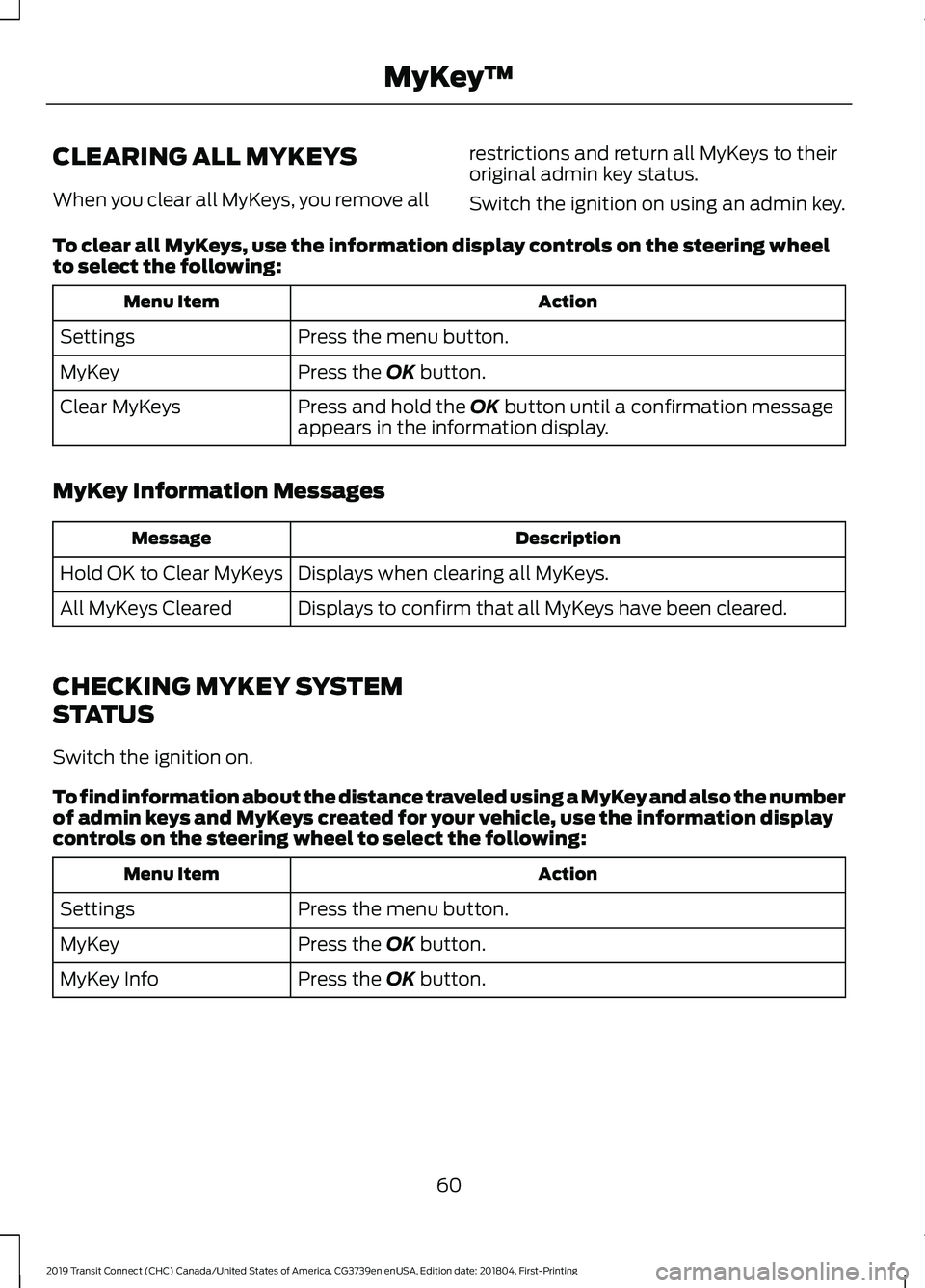
To clear all MyKeys, use the information display controls on the steering wheel
to select the following: Action
Menu Item
Press the menu button.
Settings
Press the OK button.
MyKey
Press and hold the
OK button until a confirmation message
appears in the information display.
Clear MyKeys
MyKey Information Messages Description
Message
Displays when clearing all MyKeys.
Hold OK to Clear MyKeys
Displays to confirm that all MyKeys have been cleared.
All MyKeys Cleared
CHECKING MYKEY SYSTEM
STATUS
Switch the ignition on.
To find information about the distance traveled using a MyKey and also the number
of admin keys and MyKeys created for your vehicle, use the information display
controls on the steering wheel to select the following: Action
Menu Item
Press the menu button.
Settings
Press the
OK button.
MyKey
Press the
OK button.
MyKey Info
60
2019 Transit Connect (CHC) Canada/United States of America, CG3739en enUSA, Edition date: 201804, First-Printing MyKey
™
Page 65 of 493
USING MYKEY WITH REMOTE
START SYSTEMS
The system is not compatible with
non-Ford remote start systems.
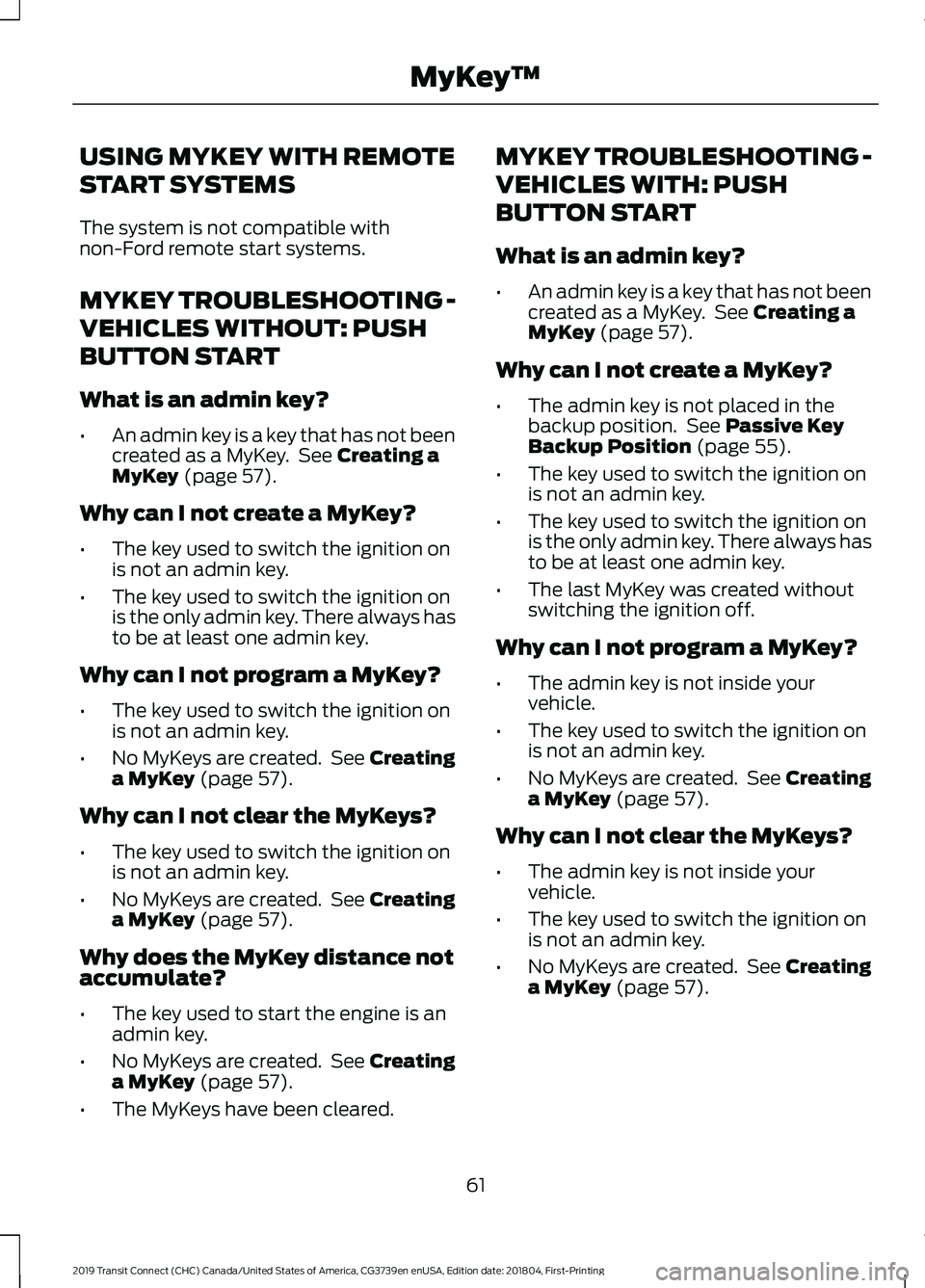
MYKEY TROUBLESHOOTING -
VEHICLES WITHOUT: PUSH
BUTTON START
What is an admin key?
•
An admin key is a key that has not been
created as a MyKey. See Creating a
MyKey (page 57).
Why can I not create a MyKey?
• The key used to switch the ignition on
is not an admin key.
• The key used to switch the ignition on
is the only admin key. There always has
to be at least one admin key.
Why can I not program a MyKey?
• The key used to switch the ignition on
is not an admin key.
• No MyKeys are created. See Creating
a MyKey
(page 57).
Why can I not clear the MyKeys?
• The key used to switch the ignition on
is not an admin key.
• No MyKeys are created. See Creating
a MyKey
(page 57).
Why does the MyKey distance not
accumulate?
• The key used to start the engine is an
admin key.
• No MyKeys are created. See Creating
a MyKey
(page 57).
• The MyKeys have been cleared. MYKEY TROUBLESHOOTING -
VEHICLES WITH: PUSH
BUTTON START
What is an admin key?
•
An admin key is a key that has not been
created as a MyKey. See
Creating a
MyKey (page 57).
Why can I not create a MyKey?
• The admin key is not placed in the
backup position. See
Passive Key
Backup Position (page 55).
• The key used to switch the ignition on
is not an admin key.
• The key used to switch the ignition on
is the only admin key. There always has
to be at least one admin key.
• The last MyKey was created without
switching the ignition off.
Why can I not program a MyKey?
• The admin key is not inside your
vehicle.
• The key used to switch the ignition on
is not an admin key.
• No MyKeys are created. See Creating
a MyKey
(page 57).
Why can I not clear the MyKeys?
• The admin key is not inside your
vehicle.
• The key used to switch the ignition on
is not an admin key.
• No MyKeys are created. See Creating
a MyKey
(page 57).
61
2019 Transit Connect (CHC) Canada/United States of America, CG3739en enUSA, Edition date: 201804, First-Printing MyKey
™
Page 67 of 493
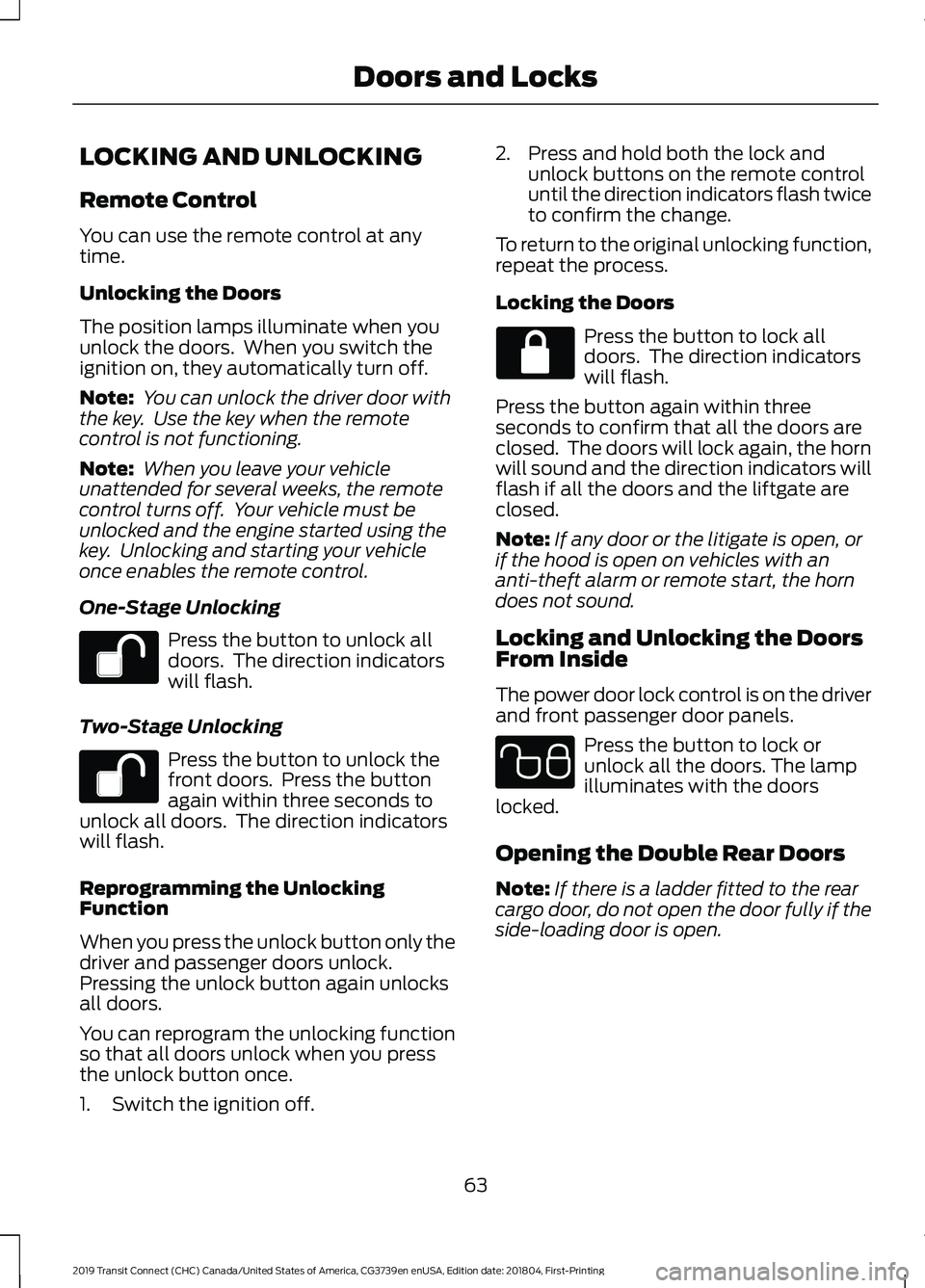
LOCKING AND UNLOCKING
Remote Control
You can use the remote control at any
time.
Unlocking the Doors
The position lamps illuminate when you
unlock the doors. When you switch the
ignition on, they automatically turn off.
Note:
You can unlock the driver door with
the key. Use the key when the remote
control is not functioning.
Note: When you leave your vehicle
unattended for several weeks, the remote
control turns off. Your vehicle must be
unlocked and the engine started using the
key. Unlocking and starting your vehicle
once enables the remote control.
One-Stage Unlocking Press the button to unlock all
doors. The direction indicators
will flash.
Two-Stage Unlocking Press the button to unlock the
front doors. Press the button
again within three seconds to
unlock all doors. The direction indicators
will flash.
Reprogramming the Unlocking
Function
When you press the unlock button only the
driver and passenger doors unlock.
Pressing the unlock button again unlocks
all doors.
You can reprogram the unlocking function
so that all doors unlock when you press
the unlock button once.
1. Switch the ignition off. 2. Press and hold both the lock and
unlock buttons on the remote control
until the direction indicators flash twice
to confirm the change.
To return to the original unlocking function,
repeat the process.
Locking the Doors Press the button to lock all
doors. The direction indicators
will flash.
Press the button again within three
seconds to confirm that all the doors are
closed. The doors will lock again, the horn
will sound and the direction indicators will
flash if all the doors and the liftgate are
closed.
Note: If any door or the litigate is open, or
if the hood is open on vehicles with an
anti-theft alarm or remote start, the horn
does not sound.
Locking and Unlocking the Doors
From Inside
The power door lock control is on the driver
and front passenger door panels. Press the button to lock or
unlock all the doors. The lamp
illuminates with the doors
locked.
Opening the Double Rear Doors
Note: If there is a ladder fitted to the rear
cargo door, do not open the door fully if the
side-loading door is open.
63
2019 Transit Connect (CHC) Canada/United States of America, CG3739en enUSA, Edition date: 201804, First-Printing Doors and Locks E102566
Page 68 of 493
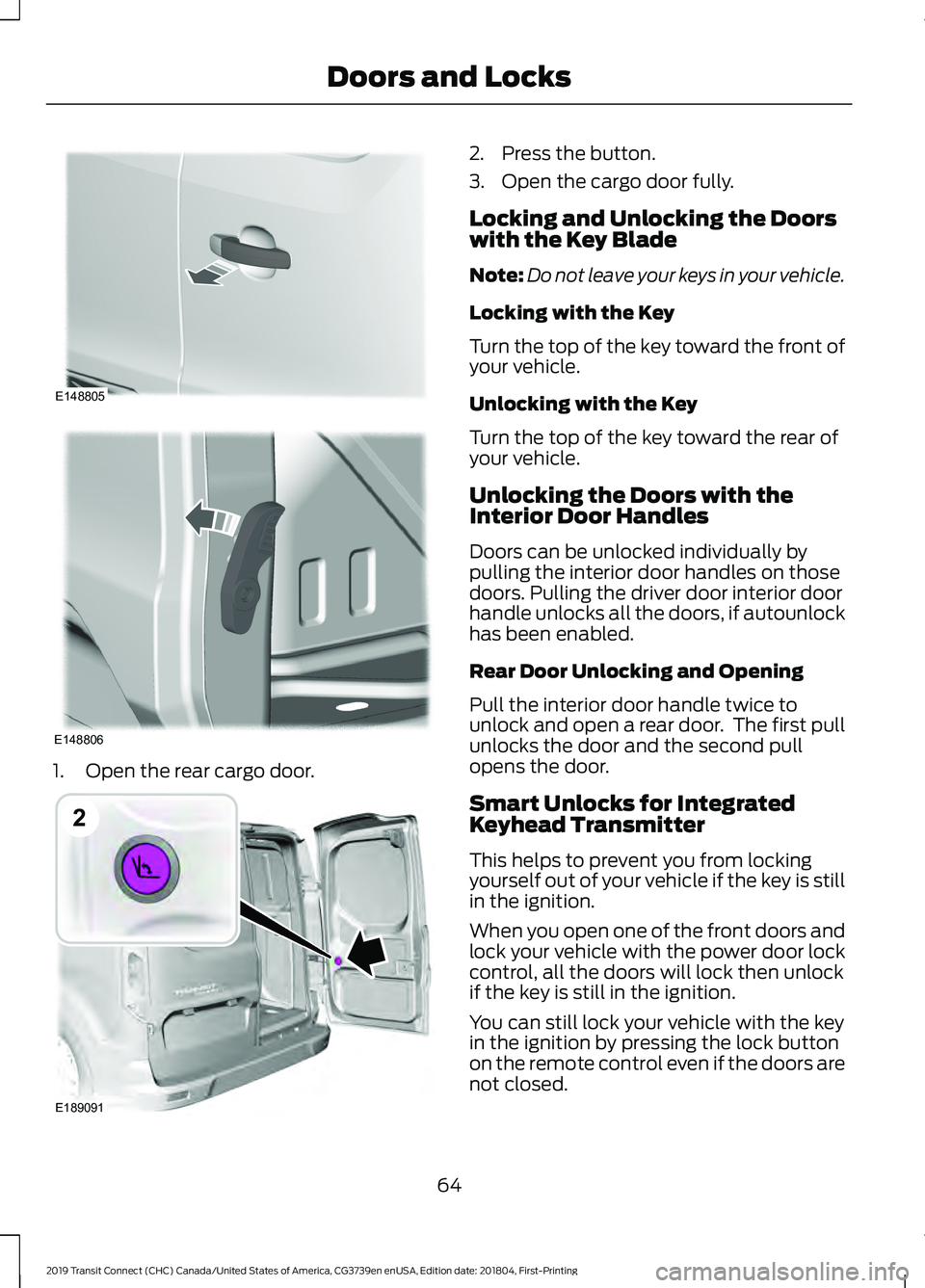
1. Open the rear cargo door. 2. Press the button.
3. Open the cargo door fully.
Locking and Unlocking the Doors
with the Key Blade
Note:
Do not leave your keys in your vehicle.
Locking with the Key
Turn the top of the key toward the front of
your vehicle.
Unlocking with the Key
Turn the top of the key toward the rear of
your vehicle.
Unlocking the Doors with the
Interior Door Handles
Doors can be unlocked individually by
pulling the interior door handles on those
doors. Pulling the driver door interior door
handle unlocks all the doors, if autounlock
has been enabled.
Rear Door Unlocking and Opening
Pull the interior door handle twice to
unlock and open a rear door. The first pull
unlocks the door and the second pull
opens the door.
Smart Unlocks for Integrated
Keyhead Transmitter
This helps to prevent you from locking
yourself out of your vehicle if the key is still
in the ignition.
When you open one of the front doors and
lock your vehicle with the power door lock
control, all the doors will lock then unlock
if the key is still in the ignition.
You can still lock your vehicle with the key
in the ignition by pressing the lock button
on the remote control even if the doors are
not closed.
64
2019 Transit Connect (CHC) Canada/United States of America, CG3739en enUSA, Edition date: 201804, First-Printing Doors and LocksE148805 E148806 E189091
2
Page 69 of 493
If both front doors are closed, you can lock
your vehicle by any method, regardless of
whether the key is in the ignition or not.
Autolock
Autolock locks all the doors and liftgate
when all of the following occur:
•
All doors are closed.
• The ignition is on.
• Your vehicle is moving at a speed
greater than 4 mph (7 km/h) for more
than two seconds. Autounlock
Autounlock unlocks all the doors when all
of the following occur:
•
The ignition is on, all doors are closed,
and your vehicle is moving at a speed
greater than
4 mph (7 km/h) for more
than two seconds.
• Your vehicle has come to a stop and
you switch the ignition off or to the
accessory position.
• The driver door is opened within 10
minutes of you switching the ignition
off or to the accessory position.
Note: The doors will not autounlock if your
vehicle has been electronically locked after
you switch the ignition off and before you
open the driver door.
Switching Autounlock On or Off
To switch autounlock on or off, use the information display controls on the steering
wheel to select the following: Action
Menu Item
Press the menu button.
Settings
Press the
OK button.
Vehicle Settings
Press the
OK button.
Locks
Press the
OK button.
Autounlock
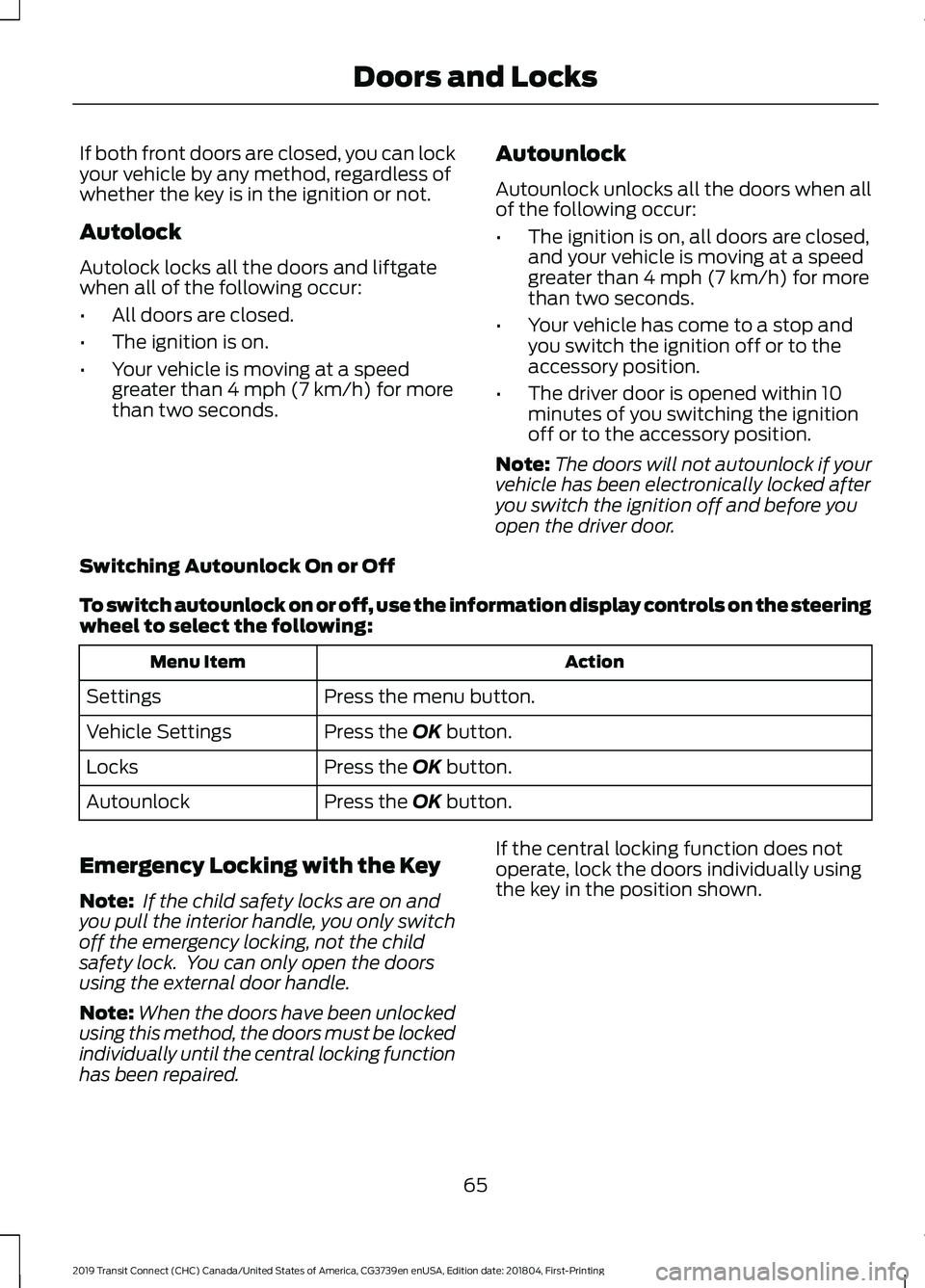
Emergency Locking with the Key
Note: If the child safety locks are on and
you pull the interior handle, you only switch
off the emergency locking, not the child
safety lock. You can only open the doors
using the external door handle.
Note: When the doors have been unlocked
using this method, the doors must be locked
individually until the central locking function
has been repaired. If the central locking function does not
operate, lock the doors individually using
the key in the position shown.
65
2019 Transit Connect (CHC) Canada/United States of America, CG3739en enUSA, Edition date: 201804, First-Printing Doors and Locks
Page 72 of 493
Note:
If a second valid passive key is
located within the liftgate detection range,
the liftgate can be closed.
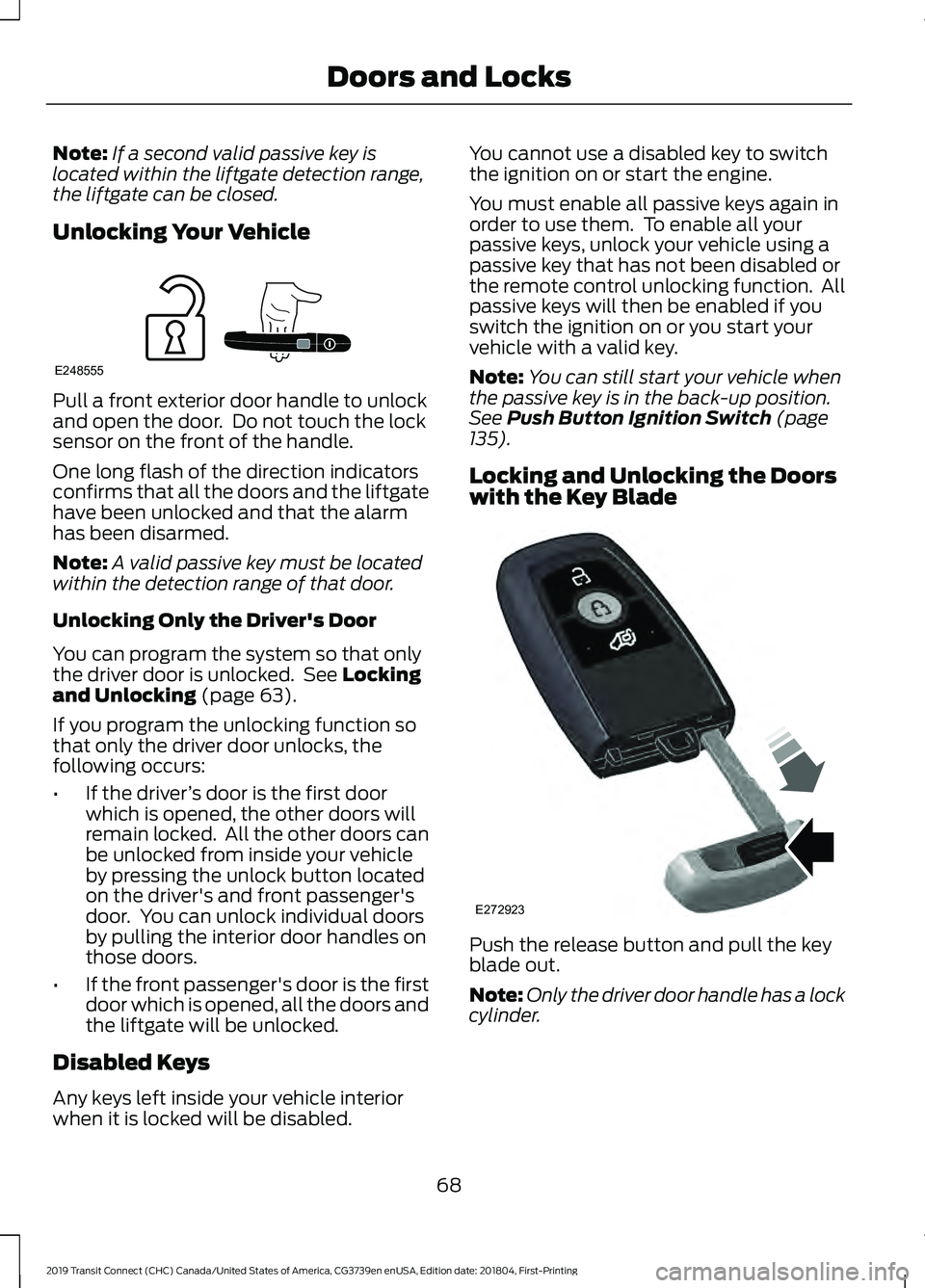
Unlocking Your Vehicle Pull a front exterior door handle to unlock
and open the door. Do not touch the lock
sensor on the front of the handle.
One long flash of the direction indicators
confirms that all the doors and the liftgate
have been unlocked and that the alarm
has been disarmed.
Note:
A valid passive key must be located
within the detection range of that door.
Unlocking Only the Driver's Door
You can program the system so that only
the driver door is unlocked. See Locking
and Unlocking (page 63).
If you program the unlocking function so
that only the driver door unlocks, the
following occurs:
• If the driver ’s door is the first door
which is opened, the other doors will
remain locked. All the other doors can
be unlocked from inside your vehicle
by pressing the unlock button located
on the driver's and front passenger's
door. You can unlock individual doors
by pulling the interior door handles on
those doors.
• If the front passenger's door is the first
door which is opened, all the doors and
the liftgate will be unlocked.
Disabled Keys
Any keys left inside your vehicle interior
when it is locked will be disabled. You cannot use a disabled key to switch
the ignition on or start the engine.
You must enable all passive keys again in
order to use them. To enable all your
passive keys, unlock your vehicle using a
passive key that has not been disabled or
the remote control unlocking function. All
passive keys will then be enabled if you
switch the ignition on or you start your
vehicle with a valid key.
Note:
You can still start your vehicle when
the passive key is in the back-up position.
See
Push Button Ignition Switch (page
135).
Locking and Unlocking the Doors
with the Key Blade Push the release button and pull the key
blade out.
Note:
Only the driver door handle has a lock
cylinder.
68
2019 Transit Connect (CHC) Canada/United States of America, CG3739en enUSA, Edition date: 201804, First-Printing Doors and LocksE248555 E272923
Page 74 of 493
PASSIVE ANTI-THEFT
SYSTEM
Note:
The system is not compatible with
non-Ford aftermarket remote start systems.
Use of these systems may result in vehicle
starting problems and a loss of security
protection.
Note: Metallic objects, electronic devices
or a second programmed key on the same
key chain may cause vehicle starting
problems if they are too close to the key
when starting the engine. Prevent these
objects from touching the programmed key
while starting the engine. Switch the ignition
off, move all objects on the key chain away
from the programmed key and restart the
engine if a problem occurs.
Note: Do not leave a duplicate
programmed key in your vehicle. Always
take your keys and lock all doors when
leaving your vehicle.
SecuriLock®
The system is an engine immobilization
system. It is designed to help prevent the
engine from being started unless a
programmed key for your vehicle is used.
Using an incorrectly programmed key may
prevent the engine from starting. A
message may appear in the information
display.
If you are unable to start the engine with a
programmed key, a malfunction has
happened and a message may appear in
the information display.
Automatic Arming
The engine immobilization system arms
immediately after you switch the ignition
off. Automatic Disarming
Switching the ignition on with a
programmed key disarms the engine
immobilization system.
Replacement Keys
If your keys are lost or stolen and you do
not have a spare programmed key, you will
need to have your vehicle towed to an
authorized dealer. You need to erase the
programmed keys from your vehicle and
program new keys.
Store an extra programmed key away from
your vehicle in a safe place to help prevent
any inconveniences. We recommend that
you contact an authorized dealer to
purchase additional spare or replacement
keys.
Note:
Your vehicle comes with two keys.
Programming a Remote Flip Key
The procedure programs both the vehicle
immobilizer keycode and the remote entry
portion of the remote control to your
vehicle.
To program a new key, you require two
programmed keys and one unprogrammed
key with you in your vehicle.
We recommend that you contact an
authorized dealer to have the key
programmed if you do not have two
programmed keys.
Make sure that you complete the
procedure within 30 seconds.
Stop and wait for at least one minute
before you start again if you miss a step.
Note: You can program a maximum of six
keys to your vehicle.
Read the entire procedure before you
begin.
1. Close all the doors.
70
2019 Transit Connect (CHC) Canada/United States of America, CG3739en enUSA, Edition date: 201804, First-Printing Security
Page 75 of 493
Note:
Keep the doors closed throughout
the procedure.
2. Switch the ignition off.
Note: Do not press the brake pedal or
accelerator pedal throughout the procedure.
3. Insert the first programmed key into the ignition.
4. Switch the ignition on.
5. Wait five seconds.
6. Switch the ignition off and remove the
key from the ignition.
7. Within 10 seconds, insert the second programmed key into the ignition.
8. Switch the ignition on.
9. Wait five seconds.
10. Switch the ignition off and remove the key from the ignition.
11. Within 10 seconds, insert the unprogrammed key into the ignition.
12. Switch the ignition on.
13. Wait five seconds.
14. Switch the ignition off and remove the key from the ignition.
Check that the remote control functions
operate and your vehicle starts with the
new key.
Note: Wait 10 seconds and repeat the
procedure if the remote control functions
do not operate and you cannot start the
engine.
Wait 20 seconds and repeat the procedure
to program an additional key.
Programming a Passive Key
The procedure programs both the vehicle
immobilizer keycode and the remote entry
portion of the remote control to your
vehicle. To program a new key, you require two
programmed keys and one unprogrammed
key with you in your vehicle.
We recommend that you contact an
authorized dealer to have the key
programmed if you do not have two
programmed keys.
Make sure that you complete the
procedure within 30 seconds.
Stop and wait for at least one minute
before you start again if you miss a step.
Note:
You can program a maximum of four
keys to your vehicle.
Read the entire procedure before you
begin.
1. Close all the doors.
Note: Keep the doors closed throughout
the procedure.
2. Switch the ignition off.
Note: Do not press the brake pedal or
accelerator throughout the procedure.
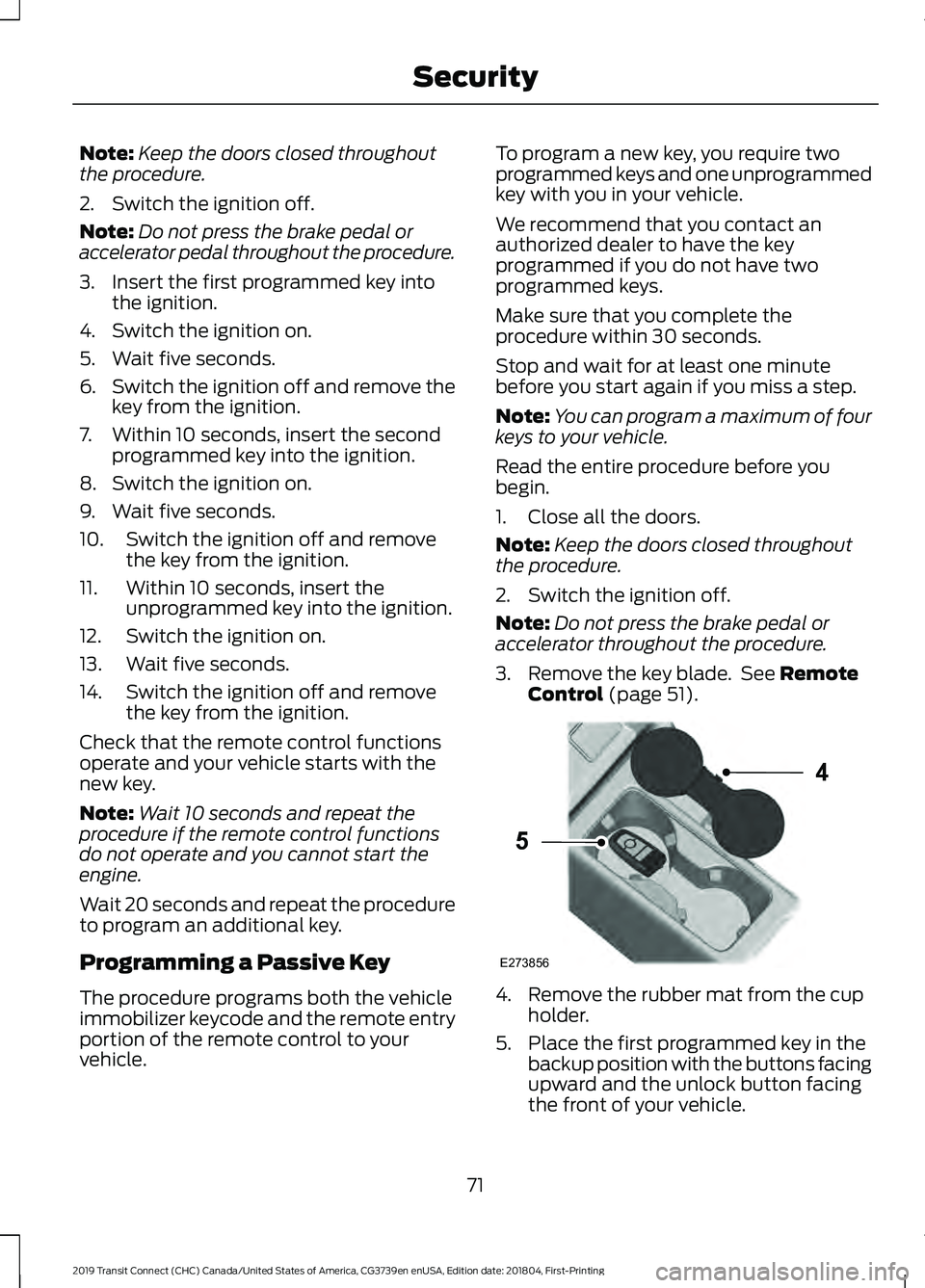
3. Remove the key blade. See Remote
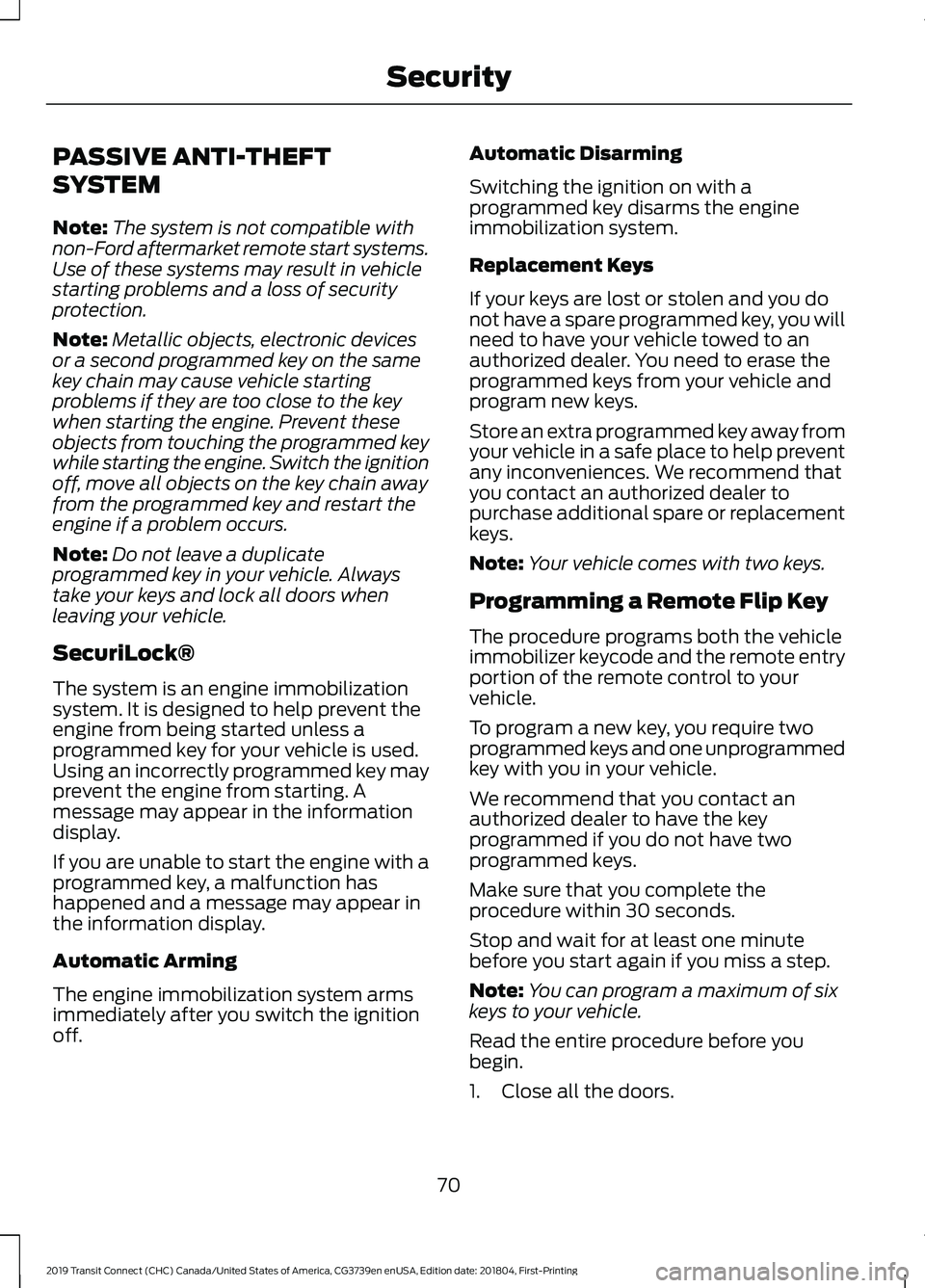
Control (page 51). 4. Remove the rubber mat from the cup
holder.
5. Place the first programmed key in the backup position with the buttons facing
upward and the unlock button facing
the front of your vehicle.
71
2019 Transit Connect (CHC) Canada/United States of America, CG3739en enUSA, Edition date: 201804, First-Printing SecurityE273856
4
5
Page 76 of 493
6. Press the push button ignition switch.
7. Wait five seconds.
8. Press the push button ignition switch.
9. Remove the key.
10. Within 10 seconds, place the second
programmed key in the backup
position.
11. Press the push button ignition switch.
12. Wait five seconds.
13. Press the push button ignition switch.
14. Remove the key.
15. Within 10 seconds, place the unprogrammed key in the backup
position.
16. Press the push button ignition switch.
Check that the remote control function
operate with the new key.
Note: Wait 10 seconds and repeat the
procedure if the key functions do not
operate.
Wait 20 seconds and repeat the procedure
to program an additional key.
ANTI-THEFT ALARM
Alarm System
The perimeter alarm is a deterrent against
unauthorized access to your vehicle
through the doors, luggage compartment
and the hood. It also protects the audio
unit.
Triggering the Alarm
Once armed, the alarm is triggered in any
of the following ways: •
If someone opens a door, luggage
compartment or the hood without a
valid key or remote control.
• If someone removes the audio or
navigation system.
• If you switch the ignition on without a
valid key.
If the alarm is triggered, the horn will sound
for 30 seconds and the hazard warning
flasher will flash for five minutes.
Any further attempts to perform one of the
above will trigger the alarm again.
Full Guard and Reduced Guard
Full Guard
Full guard is the standard setting.
In full guard, the interior sensors are on
when you arm the alarm.
Note: Do not arm the alarm with full guard
if passengers, animals or other moving
objects are inside your vehicle.
Reduced Guard
In reduced guard, the interior sensors are
off when you arm the alarm.
Selecting Full or Reduced Guard
You can select full or reduced guard using
the information display. See General
Information (page 92).
Ask on Exit
If you switch ask on exit on, you can choose
which level of guard you require after you
switch the ignition off.
Arming the Alarm
To arm the alarm, lock your vehicle. See
Doors and Locks
(page 63).
72
2019 Transit Connect (CHC) Canada/United States of America, CG3739en enUSA, Edition date: 201804, First-Printing Security