phone FORD TRANSIT CONNECT 2019 Workshop Manual
[x] Cancel search | Manufacturer: FORD, Model Year: 2019, Model line: TRANSIT CONNECT, Model: FORD TRANSIT CONNECT 2019Pages: 493, PDF Size: 7.43 MB
Page 412 of 493
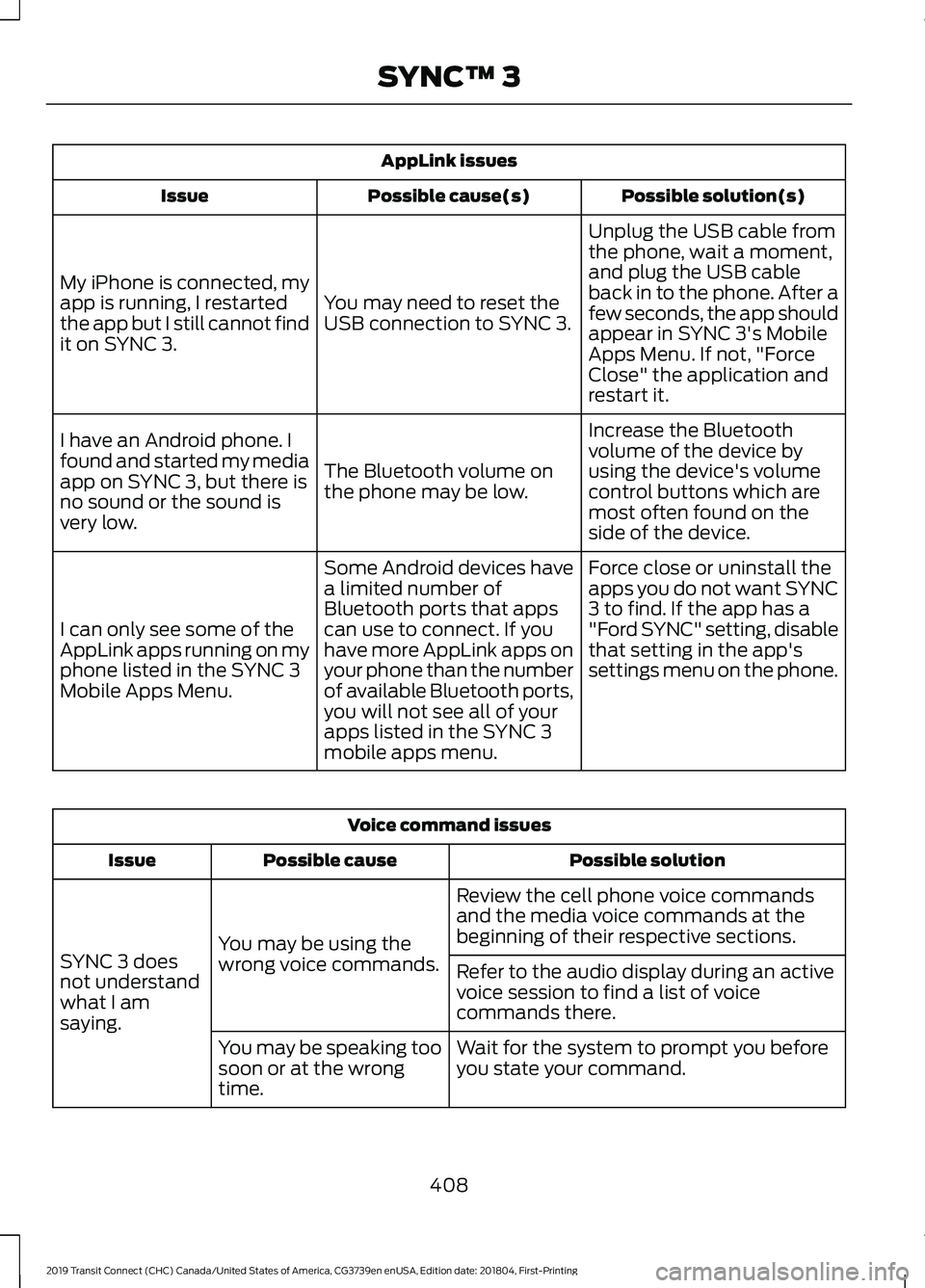
AppLink issues
Possible solution(s)
Possible cause(s)
Issue
Unplug the USB cable from
the phone, wait a moment,
and plug the USB cable
back in to the phone. After a
few seconds, the app should
appear in SYNC 3's Mobile
Apps Menu. If not, "Force
Close" the application and
restart it.
You may need to reset the
USB connection to SYNC 3.
My iPhone is connected, my
app is running, I restarted
the app but I still cannot find
it on SYNC 3.
Increase the Bluetooth
volume of the device by
using the device's volume
control buttons which are
most often found on the
side of the device.
The Bluetooth volume on
the phone may be low.
I have an Android phone. I
found and started my media
app on SYNC 3, but there is
no sound or the sound is
very low.
Force close or uninstall the
apps you do not want SYNC
3 to find. If the app has a
"Ford SYNC" setting, disable
that setting in the app's
settings menu on the phone.
Some Android devices have
a limited number of
Bluetooth ports that apps
can use to connect. If you
have more AppLink apps on
your phone than the number
of available Bluetooth ports,
you will not see all of your
apps listed in the SYNC 3
mobile apps menu.
I can only see some of the
AppLink apps running on my
phone listed in the SYNC 3
Mobile Apps Menu. Voice command issues
Possible solution
Possible cause
Issue
Review the cell phone voice commands
and the media voice commands at the
beginning of their respective sections.
You may be using the
wrong voice commands.
SYNC 3 does
not understand
what I am
saying. Refer to the audio display during an active
voice session to find a list of voice
commands there.
Wait for the system to prompt you before
you state your command.
You may be speaking too
soon or at the wrong
time.
408
2019 Transit Connect (CHC) Canada/United States of America, CG3739en enUSA, Edition date: 201804, First-Printing SYNC™ 3
Page 413 of 493
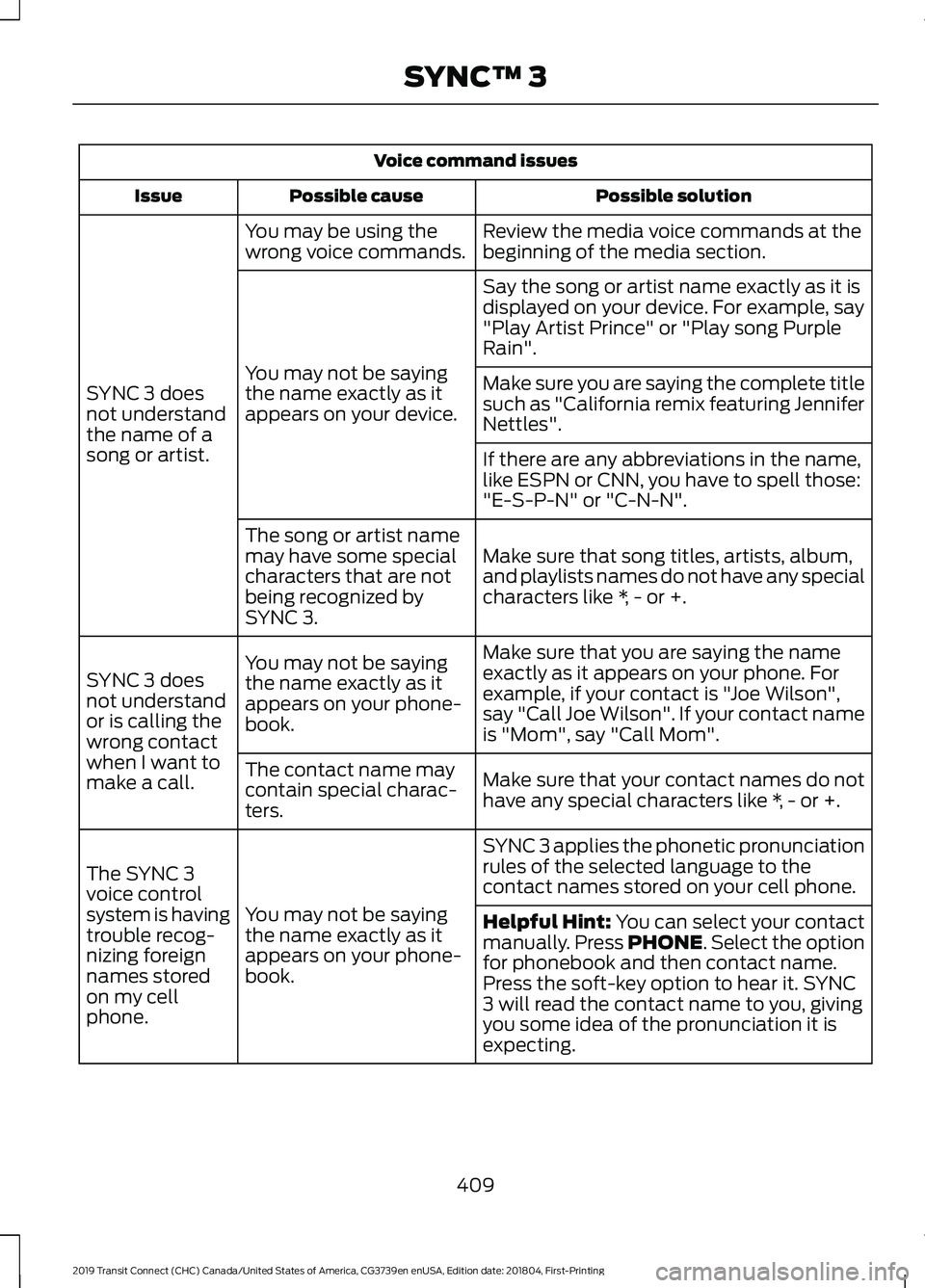
Voice command issues
Possible solution
Possible cause
Issue
Review the media voice commands at the
beginning of the media section.
You may be using the
wrong voice commands.
SYNC 3 does
not understand
the name of a
song or artist. Say the song or artist name exactly as it is
displayed on your device. For example, say
"Play Artist Prince" or "Play song Purple
Rain".
You may not be saying
the name exactly as it
appears on your device. Make sure you are saying the complete title
such as "California remix featuring Jennifer
Nettles".
If there are any abbreviations in the name,
like ESPN or CNN, you have to spell those:
"E-S-P-N" or "C-N-N".
Make sure that song titles, artists, album,
and playlists names do not have any special
characters like *, - or +.
The song or artist name
may have some special
characters that are not
being recognized by
SYNC 3.
Make sure that you are saying the name
exactly as it appears on your phone. For
example, if your contact is "Joe Wilson",
say "Call Joe Wilson". If your contact name
is "Mom", say "Call Mom".
You may not be saying
the name exactly as it
appears on your phone-
book.
SYNC 3 does
not understand
or is calling the
wrong contact
when I want to
make a call.
Make sure that your contact names do not
have any special characters like *, - or +.
The contact name may
contain special charac-
ters.
SYNC 3 applies the phonetic pronunciation
rules of the selected language to the
contact names stored on your cell phone.
You may not be saying
the name exactly as it
appears on your phone-
book.
The SYNC 3
voice control
system is having
trouble recog-
nizing foreign
names stored
on my cell
phone.
Helpful Hint: You can select your contact
manually. Press PHONE. Select the option
for phonebook and then contact name.
Press the soft-key option to hear it. SYNC
3 will read the contact name to you, giving
you some idea of the pronunciation it is
expecting.
409
2019 Transit Connect (CHC) Canada/United States of America, CG3739en enUSA, Edition date: 201804, First-Printing SYNC™ 3
Page 414 of 493
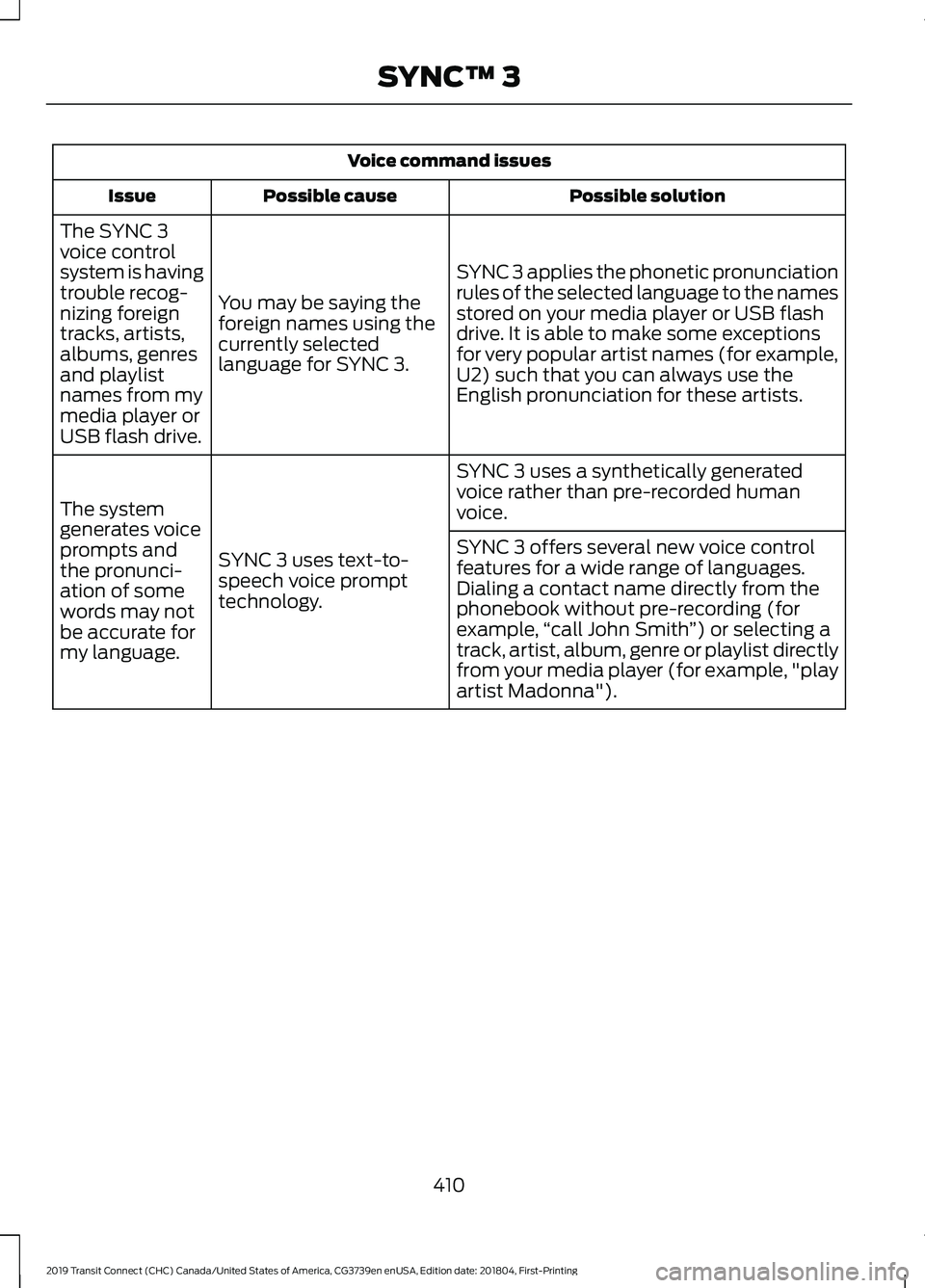
Voice command issues
Possible solution
Possible cause
Issue
SYNC 3 applies the phonetic pronunciation
rules of the selected language to the names
stored on your media player or USB flash
drive. It is able to make some exceptions
for very popular artist names (for example,
U2) such that you can always use the
English pronunciation for these artists.
You may be saying the
foreign names using the
currently selected
language for SYNC 3.
The SYNC 3
voice control
system is having
trouble recog-
nizing foreign
tracks, artists,
albums, genres
and playlist
names from my
media player or
USB flash drive.
SYNC 3 uses a synthetically generated
voice rather than pre-recorded human
voice.
SYNC 3 uses text-to-
speech voice prompt
technology.
The system
generates voice
prompts and
the pronunci-
ation of some
words may not
be accurate for
my language. SYNC 3 offers several new voice control
features for a wide range of languages.
Dialing a contact name directly from the
phonebook without pre-recording (for
example,
“call John Smith ”) or selecting a
track, artist, album, genre or playlist directly
from your media player (for example, "play
artist Madonna").
410
2019 Transit Connect (CHC) Canada/United States of America, CG3739en enUSA, Edition date: 201804, First-Printing SYNC™ 3
Page 415 of 493
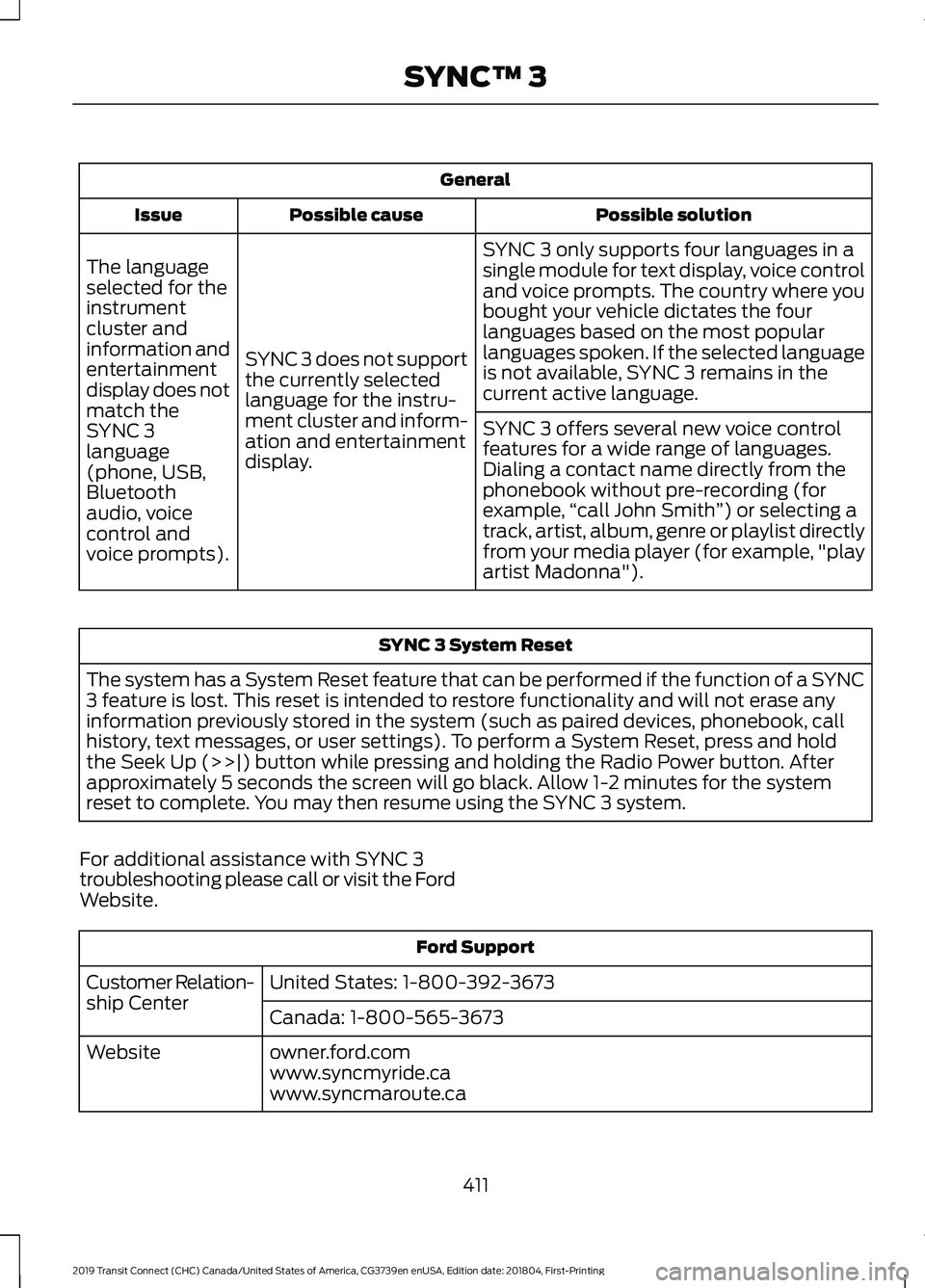
General
Possible solution
Possible cause
Issue
SYNC 3 only supports four languages in a
single module for text display, voice control
and voice prompts. The country where you
bought your vehicle dictates the four
languages based on the most popular
languages spoken. If the selected language
is not available, SYNC 3 remains in the
current active language.
SYNC 3 does not support
the currently selected
language for the instru-
ment cluster and inform-
ation and entertainment
display.
The language
selected for the
instrument
cluster and
information and
entertainment
display does not
match the
SYNC 3
SYNC 3 offers several new voice control
features for a wide range of languages.
Dialing a contact name directly from the
phonebook without pre-recording (for
example,
“call John Smith ”) or selecting a
track, artist, album, genre or playlist directly
from your media player (for example, "play
artist Madonna").
language
(phone, USB,
Bluetooth
audio, voice
control and
voice prompts). SYNC 3 System Reset
The system has a System Reset feature that can be performed if the function of a SYNC
3 feature is lost. This reset is intended to restore functionality and will not erase any
information previously stored in the system (such as paired devices, phonebook, call
history, text messages, or user settings). To perform a System Reset, press and hold
the Seek Up (>>|) button while pressing and holding the Radio Power button. After
approximately 5 seconds the screen will go black. Allow 1-2 minutes for the system
reset to complete. You may then resume using the SYNC 3 system.
For additional assistance with SYNC 3
troubleshooting please call or visit the Ford
Website. Ford Support
United States: 1-800-392-3673
Customer Relation-
ship Center
Canada: 1-800-565-3673
owner.ford.com
Website
www.syncmyride.ca
www.syncmaroute.ca
411
2019 Transit Connect (CHC) Canada/United States of America, CG3739en enUSA, Edition date: 201804, First-Printing SYNC™ 3
Page 417 of 493
For maximum vehicle performance, keep
the following information in mind when
adding accessories or equipment to your
vehicle:
•
When adding accessories, equipment,
passengers and luggage to your
vehicle, do not exceed the total weight
capacity of the vehicle or of the front
or rear axle (GVWR or GAWR as
indicated on the Safety Compliance
Certification label). Ask an authorized
dealer for specific weight information.
• The Federal Communications
Commission (FCC) and Canadian
Radio Telecommunications
Commission (CRTC) regulate the use
of mobile communications systems
that are equipped with radio
transmitters, for example two-way
radios, telephones and anti-theft
alarms. Any such equipment installed
in your vehicle should comply with
Federal Communications Commission
(FCC) and Canadian Radio
Telecommunications Commission
(CRTC) regulations and should be
installed only by an authorized dealer.
• Mobile communications systems may
harm the operation of your vehicle,
particularly if their manufacturer did
not design them specifically for
automotive use.
• If you or an authorized Ford dealer add
any non-Ford custom electrical or
electronic accessories or components
to your vehicle, you may adversely
affect battery performance and
durability, and may adversely affect
the performance of other electrical
systems in the vehicle.
413
2019 Transit Connect (CHC) Canada/United States of America, CG3739en enUSA, Edition date: 201804, First-Printing Accessories
Page 438 of 493
ELECTROMAGNETIC
COMPATIBILITY
WARNING: Do not place objects or
mount equipment on or near the airbag
cover, on the side of the seatbacks (of the
front seats), or in front seat areas that may
come into contact with a deploying airbag.
Failure to follow these instructions may
increase the risk of personal injury in the
event of a crash. WARNING:
Do not fasten antenna
cables to original vehicle wiring, fuel pipes
and brake pipes. WARNING:
Keep antenna and power
cables at least 4 in (10 cm) from any
electronic modules and airbags.
Note: We test and certify your vehicle to
meet electromagnetic compatibility
legislation (UNECE Regulation 10 or other
applicable local requirements). It is your
responsibility to make sure that any
equipment an authorized dealer installs on
your vehicle complies with applicable local
legislation and other requirements.
Note: Any radio frequency transmitter
equipment in your vehicle (such as cellular
telephones and amateur radio transmitters)
must keep to the parameters in the
following table. We do not provide special
provisions or conditions for installations or
use.
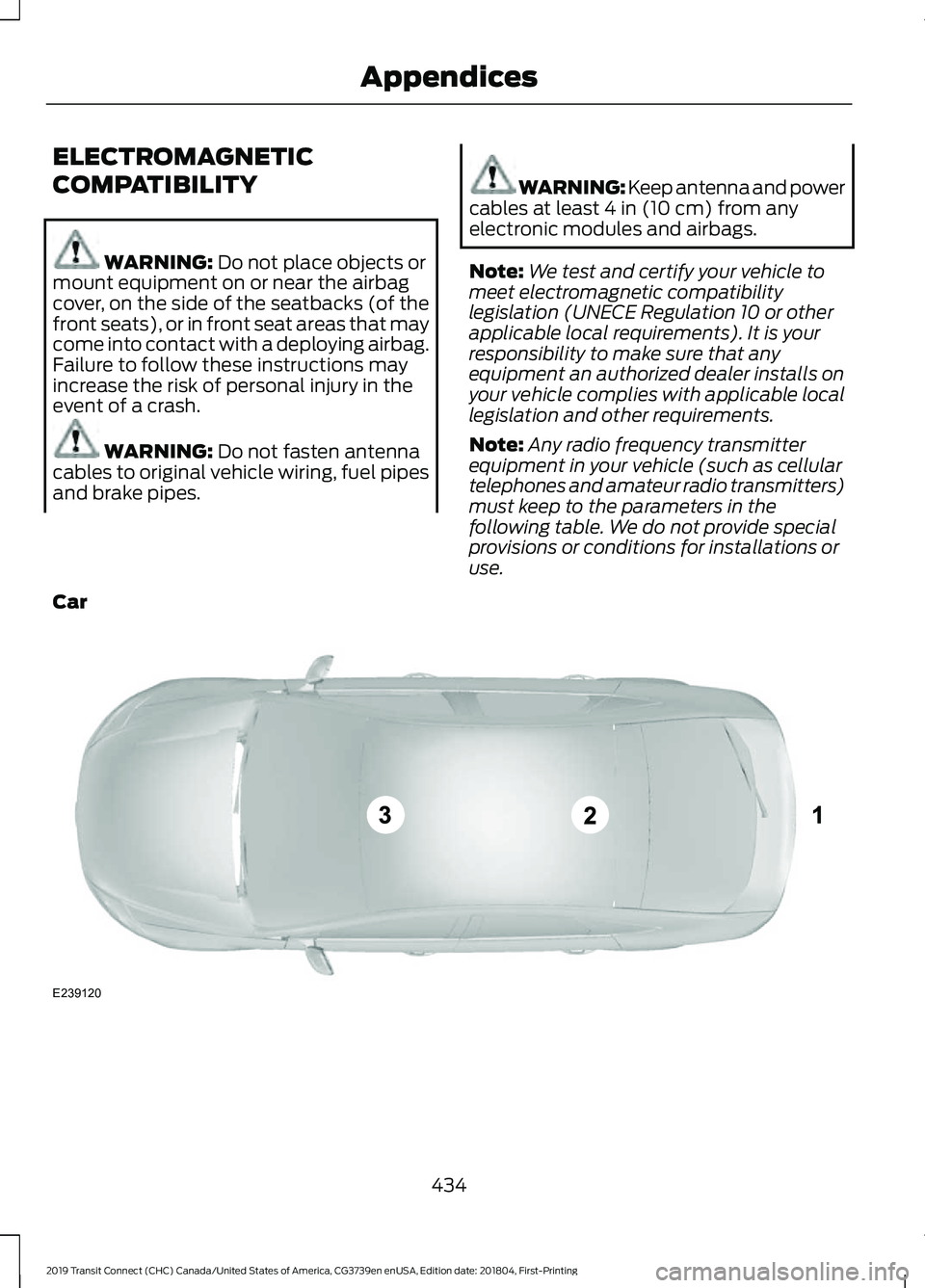
Car 434
2019 Transit Connect (CHC) Canada/United States of America, CG3739en enUSA, Edition date: 201804, First-Printing AppendicesE239120
Page 453 of 493
Restrictions. Except where you have been
specifically licensed to do so by Telenav,
and without limiting the preceding
paragraph, you may not use this Data (a)
with any products, systems, or applications
installed or otherwise connected to or in
communication with vehicles, capable of
vehicle navigation, positioning, dispatch,
real time route guidance, fleet
management or similar applications; or (b)
with or in communication with any
positioning devices or any mobile or
wireless-connected electronic or computer
devices, including without limitation
cellular phones, palmtop and handheld
computers, pagers, and personal digital
assistants or PDAs.
Warning. The Data may contain
inaccurate or incomplete information due
to the passage of time, changing
circumstances, sources used and the
nature of collecting comprehensive
geographic data, any of which may lead to
incorrect results.
No Warranty.
This Data is provided to you
“ as is, ” and you agree to use it at your own
risk. Telenav and its licensors (and their
licensors and suppliers) make no
guarantees, representations or warranties
of any kind, express or implied, arising by
law or otherwise, including but not limited
to, content, quality, accuracy,
completeness, effectiveness, reliability,
fitness for a particular purpose, usefulness,
use or results to be obtained from this
Data, or that the Data or server will be
uninterrupted or error-free.
Disclaimer of Warranty:
TELENAV AND
ITS LICENSORS (INCLUDING THEIR
LICENSORS AND SUPPLIERS) DISCLAIM
ANY WARRANTIES, EXPRESS OR IMPLIED,
OF QUALITY, PERFORMANCE,
MERCHANTABILITY, FITNESS FOR A PARTICULAR PURPOSE OR
NON-INFRINGEMENT. Some States,
Territories and Countries do not allow
certain warranty exclusions, so to that
extent the above exclusion may not apply
to you.
Disclaimer of Liability:
TELENAV AND
ITS LICENSORS (INCLUDING THEIR
LICENSORS AND SUPPLIERS) SHALL NOT
BE LIABLE TO YOU: IN RESPECT OF ANY
CLAIM, DEMAND OR ACTION,
IRRESPECTIVE OF THE NATURE OF THE
CAUSE OF THE CLAIM, DEMAND OR
ACTION ALLEGING ANY LOSS, INJURY OR
DAMAGES, DIRECT OR INDIRECT, WHICH
MAY RESULT FROM THE USE OR
POSSESSION OF THE INFORMATION; OR
FOR ANY LOSS OF PROFIT, REVENUE,
CONTRACTS OR SAVINGS, OR ANY
OTHER DIRECT, INDIRECT, INCIDENTAL,
SPECIAL OR CONSEQUENTIAL DAMAGES
ARISING OUT OF YOUR USE OF OR
INABILITY TO USE THIS INFORMATION,
ANY DEFECT IN THE INFORMATION, OR
THE BREACH OF THESE TERMS OR
CONDITIONS, WHETHER IN AN ACTION
IN CONTRACT OR TORT OR BASED ON A
WARRANTY, EVEN IF TELENAV OR ITS
LICENSORS HAVE BEEN ADVISED OF THE
POSSIBILITY OF SUCH DAMAGES. Some
States, Territories and Countries do not
allow certain liability exclusions or
damages limitations, so to that extent the
above may not apply to you.
Export Control.
You shall not export from
anywhere any part of the Data or any direct
product thereof except in compliance with,
and with all licenses and approvals
required under, applicable export laws,
rules and regulations, including but not
limited to the laws, rules and regulations
administered by the Office of Foreign
Assets Control of the U.S. Department of
Commerce and the Bureau of Industry and
Security of the U.S. Department of
Commerce. To the extent that any such
449
2019 Transit Connect (CHC) Canada/United States of America, CG3739en enUSA, Edition date: 201804, First-Printing Appendices
Page 461 of 493
view it, and (ii) save it, provided that you
do not remove any copyright notices that
appear and do not modify the Data in any
way. You agree not to otherwise reproduce,
copy, modify, decompile, disassemble or
reverse engineer any portion of this Data,
and may not transfer or distribute it in any
form, for any purpose, except to the extent
permitted by mandatory laws.
Restrictions
Except where you have been specifically
licensed to do so by NAV2 , and without
limiting the preceding paragraph, you may
not (a) use this Data with any products,
systems, or applications installed or
otherwise connected to or in
communication with vehicles, capable of
vehicle navigation, positioning, dispatch,
real time route guidance, fleet
management or similar applications; or (b)
with or in communication with any
positioning devices or any mobile or
wireless-connected electronic or computer
devices, including without limitation
cellular phones, palmtop and handheld
computers, pagers, and personal digital
assistants or PDAs. You agree to cease
using this Data if you fail to comply with
these terms and conditions.
Limited Warranty
NAV2 warrants that (a) the Data will
perform substantially in accordance with
the accompanying written materials for a
period of ninety (90) days from the date
of receipt, and (b) any support services
provided by NAV2 shall be substantially as
described in applicable written materials
provided to you by NAV2, and NAV2’
s
support engineers will make commercially
reasonable efforts to solve any problem
issues. rigCustomer Remedies
NAV2 and its suppliers’
entire liability and
your exclusive remedy shall be, at NAV2’ s
sole discretion, either (a) return of the price
paid, if any, or (b) repair or replacement of
the Data that do not meet NAV2’ s Limited
Warranty and that are returned to NAV2
with a copy of your receipt. This Limited
Warranty is void if failure of the Data has
resulted from accident, abuse, or
misapplication. Any replacement Data will
be warranted for the remainder of the
original warranty period or thirty (30) days,
whichever is longer. Neither these remedies
nor any product support services offered
by NAV2 are available without proof of
purchase from an authorized international
source.
No Other Warranty:
EXCEPT FOR THE LMITED WARRANTY
SET FORTH ABOVE AND TO THE EXTENT
PERMITTED BY APPLICABLE LAW, NAV2
AND ITS LICENSORS (INCLUDING THEIR
LICENSORS AND SUPPLIERS) DISCLAIM
ANY WARRANTIES, EXPRESS OR IMPLIED,
OF QUALITY, PERFORMANCE,
MERCHANTABILITY, FITNESS FOR A
PARTICULAR PURPOSE, OWNERSHIP OR
NON-INFRINGEMENT. Certain warranty
exclusions may not be permitted under
applicable law, so to that extent the above
exclusion may not apply to you.
Limited Liability:
TO THE EXTENT PERMITTED BY
APPLICABLE LAW, NAV2 AND ITS
LICENSORS (INCLUDING THEIR
LICENSORS AND SUPPLIERS) SHALL NOT
BE LIABLE TO YOU: IN RESPECT OF ANY
CLAIM, DEMAND OR ACTION,
IRRESPECTIVE OF THE NATURE OF THE
CAUSE OF THE CLAIM, DEMAND OR
ACTION ALLEGING ANY LOSS, INJURY OR
DAMAGES, DIRECT OR INDIRECT, WHICH
MAY RESULT FROM THE USE OR
POSSESSION OF THE INFORMATION; OR
457
2019 Transit Connect (CHC) Canada/United States of America, CG3739en enUSA, Edition date: 201804, First-Printing Appendices
Page 480 of 493
Selecting a Menu Option................................
355
Selecting Media.................................................. 354
Selecting the Radio.......................................... 354
Sound Settings................................................... 356
Switching the Audio Unit On and Off........353
Switching the Screen On and Off...............356
System Settings................................................. 356
Using a Cell Phone............................................ 356
Autolamps........................................................79 Windshield Wiper Activated
Headlamps........................................................ 79
Automatic Climate Control......................109 Adjusting the Auto Mode.................................. 110
Directing Air to the Footwell Air Vents........110
Directing Air to the Instrument Panel Air Vents................................................................... 110
Directing Air to the Windshield Air Vents................................................................... 110
Setting the Blower Motor Speed................... 110
Setting the Temperature.................................. 110
Switching Auto Mode On and Off.................110
Switching Dual Mode On and Off.................110
Switching Maximum Cooling On and Off........................................................................\
110
Switching Maximum Defrost On and Off....................................................................... 109
Switching the Air Conditioning On and Off....................................................................... 109
Switching the Climate Control On and Off....................................................................... 109
Switching the Recirculated Air On and Off....................................................................... 109
Automatic Crash Notification System............................................................49
Automatic High Beam Control.................80 Automatic High Beam Indicator...................... 81
Overriding the System......................................... 81
Switching the System On and Off................80
Automatic Transmission - 6-Speed Automatic Transmission........................169
Brake Shift Interlock.......................................... 169
Selector Lever Positions.................................. 169
SelectShift™........................................................ 169
Automatic Transmission - 8-Speed Automatic Transmission..........................171
Brake Shift Interlock............................................ 171
Selector Lever Positions.................................... 171
SelectShift™......................................................... 171Automatic Transmission Fluid
Check.............................................................272
Auto-Start-Stop...........................................146 Information Messages....................................... 147
Principle of Operation....................................... 146
Replacing the Battery........................................ 147
Switching the System On and Off................147
Using Auto-Start-Stop..................................... 146
Autowipers........................................................75
Auxiliary Power Points.................................131 12 Volt DC Power Point...................................... 131
B
Battery See: Changing the 12V Battery...................... 273
Blind Spot Information System.............209 ........................................................................\
.......... 209
Switching the System On and Off...............210
System Errors....................................................... 210
Using the Blind Spot Information System............................................................. 209
BLIS See: Blind Spot Information System.........209
Bonnet Lock See: Opening and Closing the Hood...........261
Booster Seats..................................................26 Types of Booster Seats....................................... 27
Brake Fluid Check.........................................272
Brakes................................................................173 General Information........................................... 173
Breaking-In.....................................................238
Bulb Specification Chart..........................350
C
Cabin Air Filter.................................................113
Capacities and Specifications - 1.5L Duratorq-TDCi Diesel..............................335
Air Conditioning System.................................. 335
Automatic Transmission................................. 339
Brake System...................................................... 339
Diesel Exhaust Fluid......................................... 338
Engine.................................................................... 336
Fuel Tank.............................................................. 338
Grease................................................................... 340
Locks...................................................................... 340
Washer Reservoir............................................... 338
476
2019 Transit Connect (CHC) Canada/United States of America, CG3739en enUSA, Edition date: 201804, First-Printing Index
Page 487 of 493
Michelin Travel Guide.......................................
385
Navigation Map Updates................................ 385
Route Guidance................................................. 383
Setting a Destination........................................ 381
Zoom...................................................................... 382
Normal Scheduled Maintenance...........419 Intelligent Oil-Life Monitor™......................... 419
Maintenance Intervals..................................... 420
O
Oil Change Indicator Reset.......................267
Resetting the Oil Life Monitoring
System.............................................................. 267
Oil Check See: Engine Oil Check...................................... 266
Opening and Closing the Hood...............261 Closing the Hood............................................... 262
Opening the Hood.............................................. 261
Ordering Additional Owner's Literature......................................................252
Obtaining a French Owner ’s Manual..........252
Overhead Console........................................133 Rear Door Storage Compartment................133
P
Parking Aids
....................................................179
Principle of Operation....................................... 179
Parking Brake
..................................................174
Passive Anti-Theft System.........................70 Programming a Passive Key.............................. 71
Programming a Remote Flip Key................... 70
SecuriLock®........................................................... 70
Passive Key Backup Position.....................55
PATS See: Passive Anti-Theft System..................... 70
Perchlorate........................................................13
Personalized Settings..................................94 Measure Units....................................................... 94
Switching Chimes Off........................................ 94
Personal Safety System ™
..........................39
How Does the Personal Safety System
Work?.................................................................. 39
Phone...............................................................379 Android Auto........................................................ 381
Apple CarPlay..................................................... 380Pairing Your Cell Phone for the First
Time................................................................... 379
Text Messaging.................................................. 380
Using Your Cell Phone..................................... 380
Playing Media From a USB Device - Vehicles Without: SYNC 3......................361
Selecting the USB Device................................ 361
Supported Audio File Formats...................... 361
Post-Crash Alert System..........................245
Power Door Locks See: Locking and Unlocking............................. 63
Power Seats....................................................119
Power Windows - Vehicles With: One-Touch Open Driver Window.........84
One-Touch Open................................................. 84
Power Windows - Vehicles With: Rear Power Windows ..........................................83
Bounce-Back......................................................... 83
One-Touch Close................................................. 83
One-Touch Open................................................. 83
Rear Window Lock............................................... 83
Pre-Collision Assist
......................................215
Distance Alert....................................................... 217
Distance Indication............................................. 217
Pre-Collision Assist Information Messages.......................................................... 219
Pre-Collision Assist System Sensors..........218
Pre-Collision Assist Warning Lamp.............219
Programming a MyKey
.................................58
Protecting the Environment........................16
Puncture See: Changing a Road Wheel....................... 320
Push Button Ignition Switch.....................135 Failure to Start - Vehicles with Manual
Transmission................................................... 135
Fast Restart.......................................................... 136
Key Outside Vehicle Audible Warning.........137
Starting System Information Messages........................................................... 137
Starting The Engine - Vehicles with Automatic Transmission............................. 135
Starting The Engine - Vehicles with Manual Transmission................................................... 135
Stopping the Engine When Your Vehicle is Moving - Vehicles with Automatic
Transmission................................................... 136
483
2019 Transit Connect (CHC) Canada/United States of America, CG3739en enUSA, Edition date: 201804, First-Printing Index