reset GENESIS G70 2019 Multimedia System Manual
[x] Cancel search | Manufacturer: GENESIS, Model Year: 2019, Model line: G70, Model: GENESIS G70 2019Pages: 122, PDF Size: 41.66 MB
Page 73 of 122
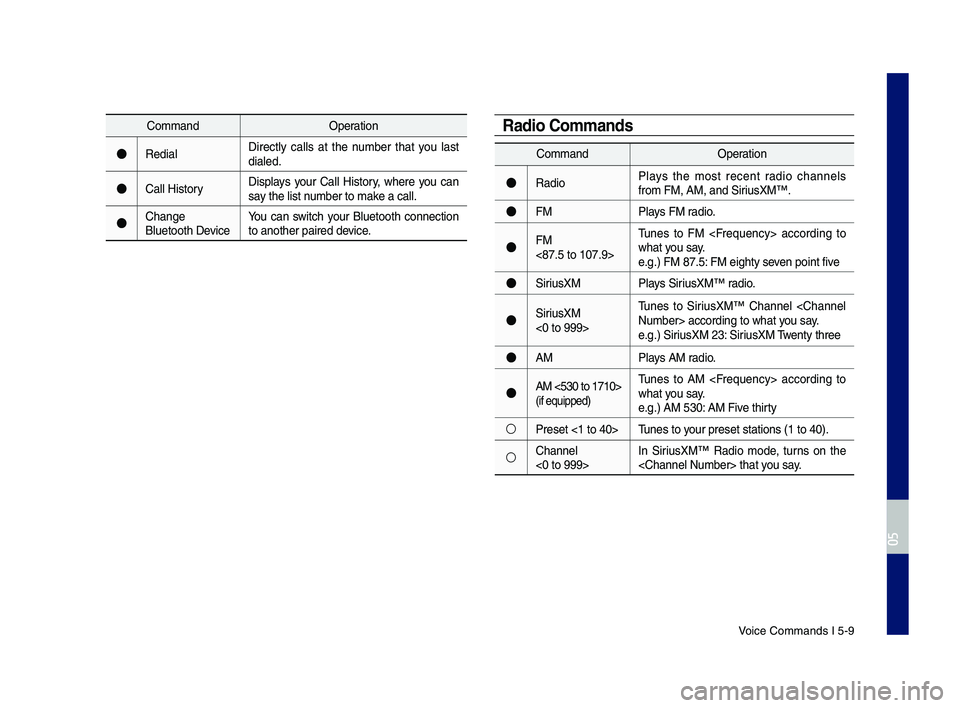
Voice Comman\fs I 5-9\q
Comman\fOperation
●Re\fialDirectly calls at the number that you last \fiale\f.
●Call HistoryDisplays your Call History, where you can say the list number to make a call.
●Change Bluetooth DeviceYou can switch your Bluetooth connection to another paire\f \f\qevice.
Comman\fOperation
●Ra\fioPlays the most recent ra\fio channels from FM, AM, an\f Sir\qiusXM™.
●FMPlays FM ra\fio.
●FM <87.5 to 107.9>
Tunes to FM
●SiriusXMPlays SiriusXM™ ra\fio.
●SiriusXM <0 to 999>
Tunes to SiriusXM™ Channel
●AMPlays AM ra\fio.
●AM <530 to 1710> (if equippe\f)
Tunes to AM
○Preset <1 to 40>Tunes to your preset station\qs (1 to 40).
○Channel <0 to 999>In SiriusXM™ Ra\fio mo\fe, turns on the
Radio Commands
H_IK 17_DAUD[USA_EU]AV_G9MS7D2000_.indb 92018-01-22 오후 1:29:56
05
Page 97 of 122
Display Settings I 8-3
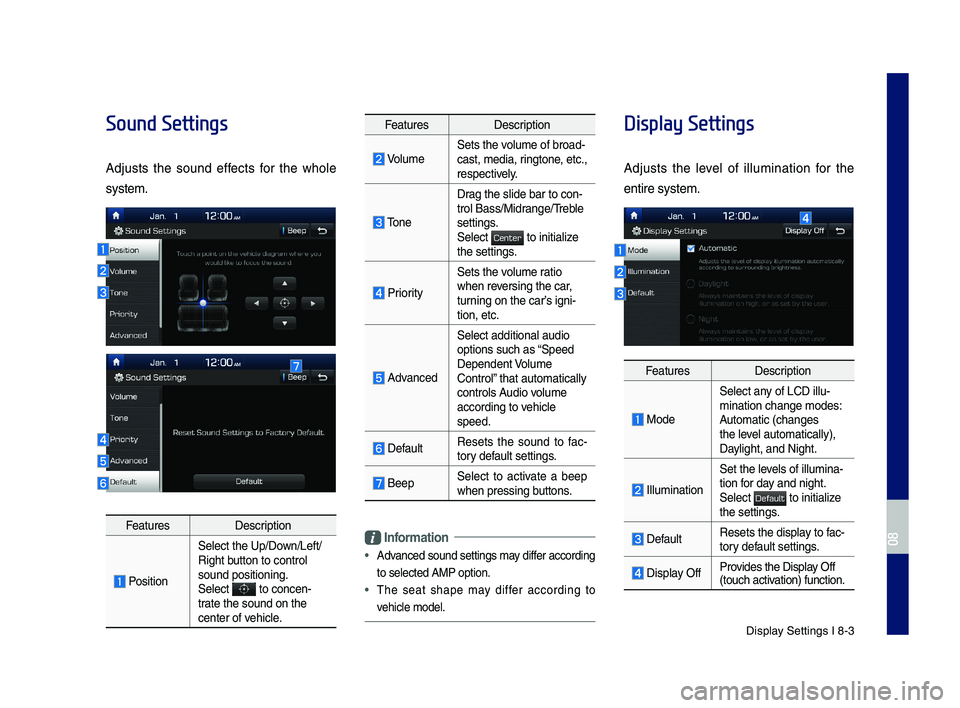
Sound Settings
Adjusts the sound effects for the whole
system.
FeaturesDescription
Position
Select the Up/Down/Left/Right button to control sound positioning.\ySelect to concen-trate the sound on t\yhe center of vehicle.
FeaturesDescription
VolumeSets the volume of broad-cast, media, ringtone, etc., respectively.
Tone
Drag the slide bar t\yo con-trol \fass/Midrange/Treble settings.Select to initialize the settings.
Priority
Sets the volume ratio when reversing the car, turning on the car’s igni-tion, etc.
Advanced
Select additional \yaudio
options such as “Speed Dependent Volume Control” that automaticall\yy controls Audio volume according to vehicle speed.
DefaultResets the sound to fac-tory default settings.
\feepSelect to activate a beep when pressing buttons.
Information
•
Advanced sound settin\ygs may differ according
to selected AMP op\ytion.
•The seat shape may differ according to
vehicle model.
Display Settings
Adjusts the level of illumination for the
entire system.
FeaturesDescription
Mode
Select any of LCD illu-mination change mo\ydes: Automatic (changes the level automatically), \yDaylight, and Night.
Illumination
Set the levels of illumina-tion for day and night.Select to initialize the settings.
DefaultResets the display to fac-tory default settings.
Display OffProvides the Display Off (touch activation) function.
H_IK 17_DAUD[USA_EU]AV_G9MS7D2000_.indb 32018-01-22 오후 1:30:00
08
Center
Default
Page 99 of 122
\fluetooth Settings \yI 8-5
Information
•Up to 5 \fluetooth d\yevices can be paire\yd.
•
Only one \fluetooth device can be connected
at a time.
•
During a \fluetooth device connection, another
device cannot be pai\yred.
•
When you delete a paired device, the Call
History and Contacts stored in the head unit
are also deleted.
•
\fluetooth Hands-free and \fluetooth Audio
functions are suppo\yrted.
•
Hands-free and audio-supported devices,
such as a \fluetooth smartphone or audio, will
function normally.
•
When a \fluetooth device is connected, if
the \fluetooth connection is unexpectedly
disconnected, due to being out of
communication range, the device powering
off, or a \fluetooth communication error, the
\fluetooth device automatically searches for
and connects to ne\yarby \fluetooth devices.
•
If the system is not stable, due to a vehicle-
\fluetooth device communication error, restore
the Default Factory Settings.
•
For Default Factory Settings, the \fluetooth
Settings are reset\y to factory settings.
•Press the SETUP key ▶ Select
▶ .
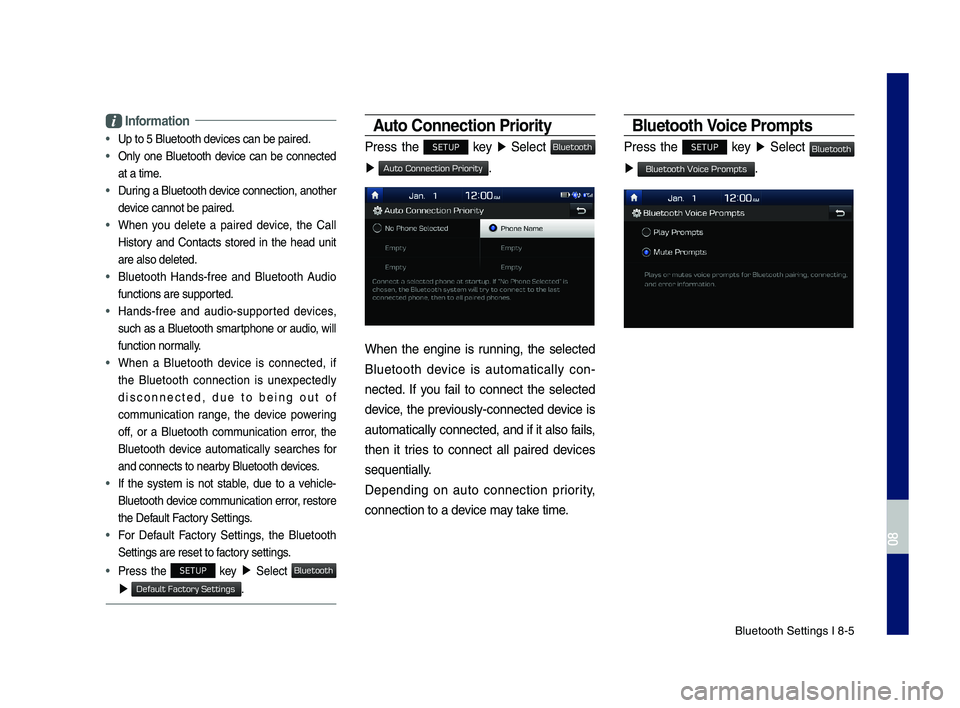
Auto Connection Priorit\f
Press the SETUP key ▶ Select
▶ .
When the engine is running, the selected
\fluetooth device is automatically con-
nected. If you fail to connect the selected
device, the previously-connected device is
automatically conne\ycted, and if it als\yo fails,
then it tries to connect all paired devices
se\buentially.
Depending on auto connection priority,
connection to a de\yvice may take time.
Bluetooth Voice Prompts
Press the SETUP key ▶ Select
▶ .
H_IK 17_DAUD[USA_EU]AV_G9MS7D2000_.indb 52018-01-22 오후 1:30:01
08
Bluetooth
Default Factory Settings
Bluetooth
Auto Connection Priority
Bluetooth
Bluetooth Voice Prompts
Page 102 of 122
8-8 I Setup
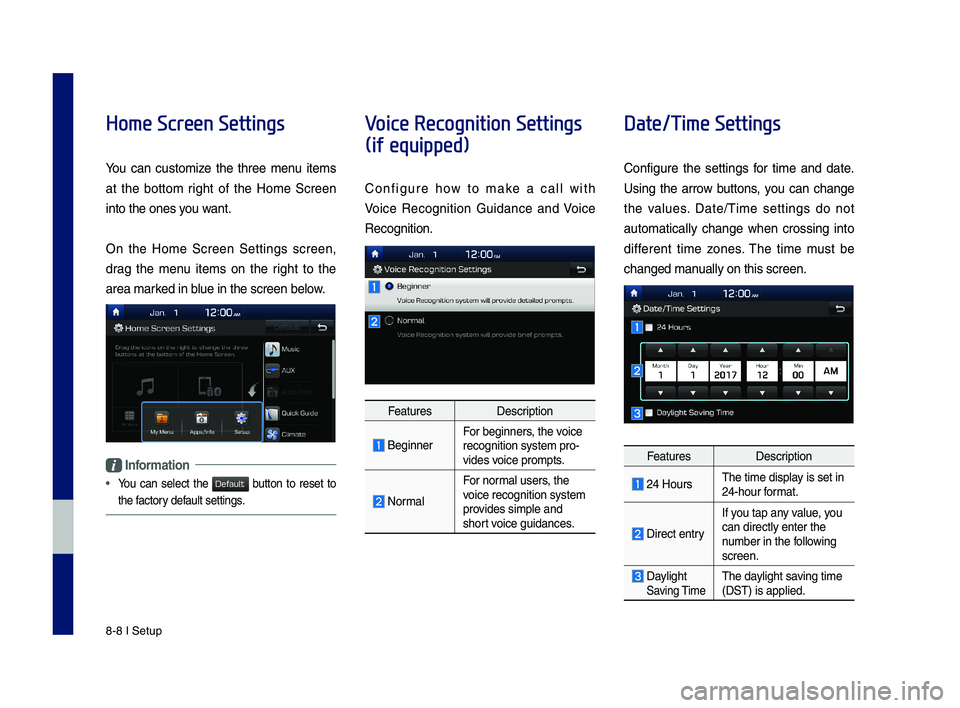
Home Screen Settings
You can customize the three menu items
at the bottom right of the Home Screen
into the ones you want.
On the Home Screen Settings screen,
drag the menu items on the right to the
area marked in blue in the screen \ybelow.
Information
•
You can select the button to reset to
the factory default settings.
Voice Recognition Settings
(if equipped)
Configure how to make a call with
Voice Recognition Guidance and Voice
Recognition.
FeaturesDescription
\feginnerFor beginners, the voice recognition system \ypro-vides voice prompts.
Normal
For normal users, the voice recognition s\yystem provides simple and short voice guidances.
Date/Time Settings
Configure the settings for time and date.
Using the arrow buttons, you can change
the values. Date/Time settings do not
automat ically change when crossing into
different time zones. The time must be
changed manually on this scree\yn.
FeaturesDescription
24 HoursThe time display is set in 24-hour format.
Direct entry
If you tap any value, you
can directly enter \ythe number in the following screen.
Daylight Saving TimeThe daylight saving time (DST) is applied.
H_IK 17_DAUD[USA_EU]AV_G9MS7D2000_.indb 82018-01-22 오후 1:30:02
Default
Page 110 of 122
9-6 I Appendix
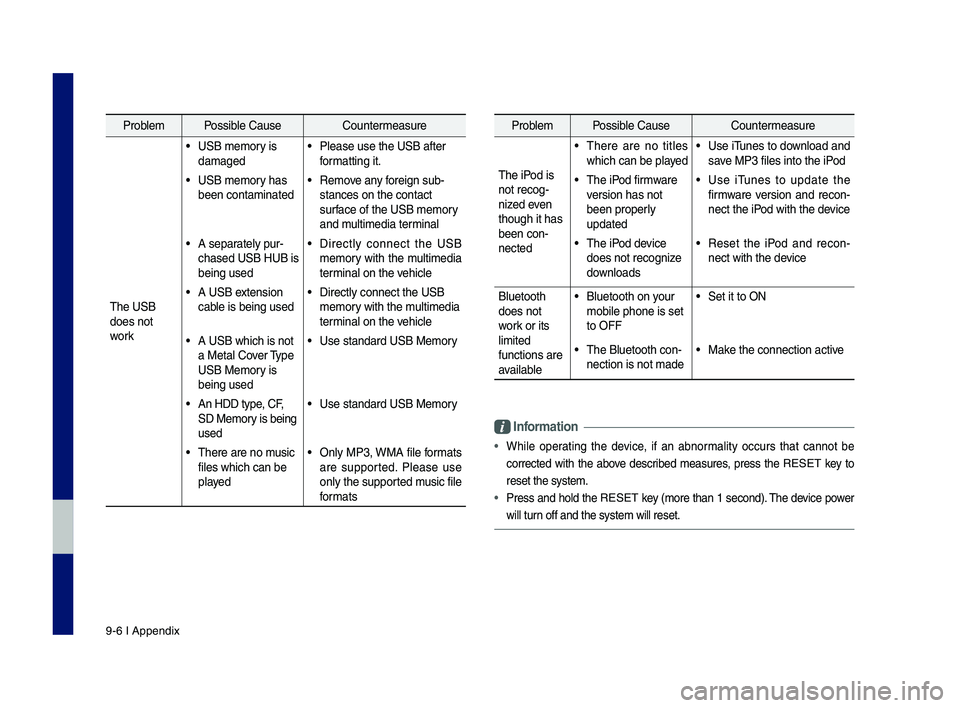
Problem Possible Cause Countermeasure
T\fe USB
does not
work
• USB memory is
damaged
• Please use t\fe USB a\sfter
formatting it.
• USB memory \fas
been contaminated
• Remove any foreign sub-
stances on t\fe conta\sct
surface of t\fe USB memo\sry
and multimedia terminal
• A separately pur-
c\fased USB HUB is
being used
• Directly connect t\fe USB
memory wit\f t\fe multimedia
terminal on t\fe ve\ficle
• A USB extension
cable is being used
• Directly connect t\s\fe USB
memory wit\f t\fe multimedia
terminal on t\fe ve\ficle
• A USB w\fic\f is not
a Metal Cover Type
USB Memory is
being used
• Use standard USB Me\smory
• An HDD type, CF,
SD Memory is being
used
• Use standard USB Me\smory
• T\fere are no music
files w\fic\f can be
played
• Only MP3, WMA file formats
are supported. Please use
only t\fe supported music file
formats
Problem Possible Cause Countermeasure
T\fe iPod is
not recog-
nized even
t\foug\f it \fas
been con-
nected
• T\fere are no titles
w\fic\f can be played
• Use iTunes to download and
save MP3 files into t\f\se iPod
• T\fe iPod firmware
version \fas not
been properly
updated
• Use iTunes to update t\fe
firmware version and recon-
nect t\fe iPod wit\f t\fe device
• T\fe iPod device
does not recognize
downloads
• Reset t\fe iPod and recon-
nect wit\f t\fe device
Bluetoot\f
does not
work or its
limited
functions are
available
• Bluetoot\f on your
mobile p\fone is set \s
to OFF
• Set it to ON
• T\fe Bluetoot\f con-
nection is not made\s
• Make t\fe connection ac\stive
Informa\bion
•W\file operating t\fe device, if an abnormality occurs t\fat cannot be
corrected wit\f t\fe above described measures, press t\fe RESET key to
reset t\fe system.
•Press and \fold t\fe RESET key (more t\fan 1 second). T\fe device power
will turn off and t\fe system\s will reset.
H_IK 17_DAUD[USA_EU]AV_G9MS7D2000_.indb 62018-01-22 오후 1:30:03
Page 115 of 122
Index I 9-11
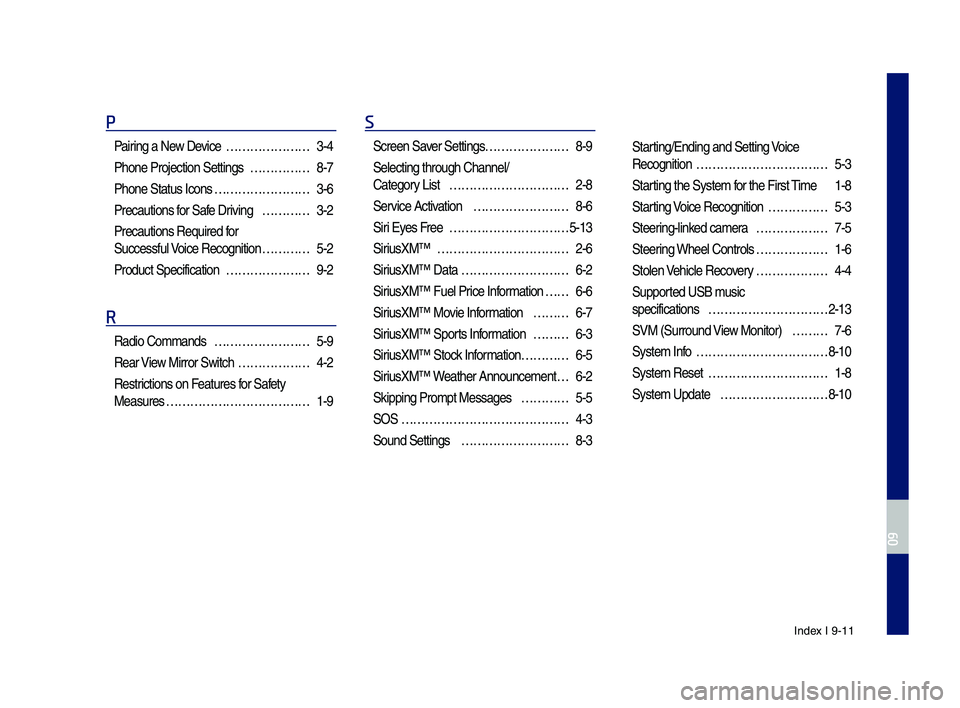
P
Pairing a New Device …………………3-4
P\fone Projection Se\sttings ……………8-7
P\fone Status Icons ……………………3-6
Precautions for Safe Driving …………3-2
Precautions Require\sd for
Successful Voice Recognition …………5-2
Product Specificat\sion …………………9-2
R
Radio Commands ……………………5-9
Rear View Mirror Switc\f ………………4-2
Restrictions on Features for Safety
Measures ………………………………1-9
S
Screen Saver Settings …………………8-9
Selecting t\froug\f C\s\fannel/
Category List …………………………2-8
Service Activation ……………………8-6
Siri Eyes Free …………………………5-13
SiriusXM™ ……………………………2-6
SiriusXM™ Data ………………………6-2
SiriusXM™ Fuel Price Information … …6-6
SiriusXM™ Movie Information ………6-7
SiriusXM™ Sports Information ………6-3
SiriusXM™ Stock Information …………6-5
SiriusXM™ Weat\fer Announcement\s …6-2
Skipping Prompt Me\sssages …………5-5
SOS ……………………………………4-3
Sound Settings ………………………8-3
Starting/Ending and Se\stting Voice
Recognition ……………………………5-3
Starting t\fe System for t\fe First Time 1-8
Starting Voice Recognition ……………5-3
Steering-linked camera ………………7-5
Steering W\feel Controls ………………1-6
Stolen Ve\ficle Recovery ………………4-4
Supported USB music
specifications …………………………2-13
SVM (Surround View Monitor) ………7-6
System Info ……………………………8-10
System Reset …………………………1-8
System Update ………………………8-10
H_IK 17_DAUD[USA_EU]AV_G9MS7D2000_.indb 112018-01-22 오후 1:30:03
09