change time GENESIS GV80 2021 User Guide
[x] Cancel search | Manufacturer: GENESIS, Model Year: 2021, Model line: GV80, Model: GENESIS GV80 2021Pages: 632, PDF Size: 9.37 MB
Page 157 of 632
05
5-15
Information
• After the battery has been reconnected
or the battery has been recharged,
it will take time for the digital key
(smart phone) to operate due to remote
security update. When locking or
unlocking the door with the smart
phone NFC antenna, touch and hold
the smart phone on the door handle
until the door(s) is locked or unlocked.
• If the mobile data connection of the
smart phone is weak, remote security
information update may fail. At this
time, use the card key to lock or unlock
the doors, or start the engine.
When you are in a place where the
mobile data connection of your smart
phone is available, place your smart
phone on the in-vehicle authentication
pad (wireless charger pad) and start
your vehicle, or touch the digital key on
the door handle to lock or unlock the
door, the remote security information
will be automatically updated. Even
though the engine is not started, wait
until the remote security information
is updated and the in-vehicle
authentication pad (wireless charging
pad) changes to charging mode.
WARNING
The engine can be started when the
registered smart phone is placed on the
in-vehicle authentication pad (wireless
charging pad). Therefore, do not leave
unsupervised children or people who
are not aware of the system since it can
result in serious injury or death.
In addition, always have the registered
smart phone with you to prevent
vehicle theft when leaving the vehicle.Digital key App remote control
Various control functions such as Door
Lock/Unlock, Remote Start, Panic and
Liftgate Open/Close are available using
the Digital Key App. To use the Digital
Key App functions, the smart phone’s
Bluetooth must be activated, and must
be approximately within 32 ft. (10 m)
from the vehicle.
• Connecting Digital Key App with the
vehicle
1. Open the Genesis Digital Key App
in the smart phone. Select the
vehicle you want to control from
the vehicle list in the App.
2. Approach the vehicle with
the Genesis Digital Key App
opened. The Digital Key App will
automatically connect with the
vehicle.
3. When the connection is complete,
the icons in the Digital Key App will
become active.
Page 182 of 632
Convenient Features
5-40
Tilt / Telescopic Steering
When adjusting the steering wheel to a
comfortable position, adjust the steering
wheel so that it points toward your chest,
not toward your face. Make sure you can
see the instrument cluster warning lights
and gauges. After adjusting, push the
steering wheel both up and down to be
certain it is locked in position.
Always adjust the position of the steering
wheel before driving.
WARNING
NEVER adjust the steering wheel while
driving. This may cause loss of vehicle
control resulting in an accident.
Manual adjustment
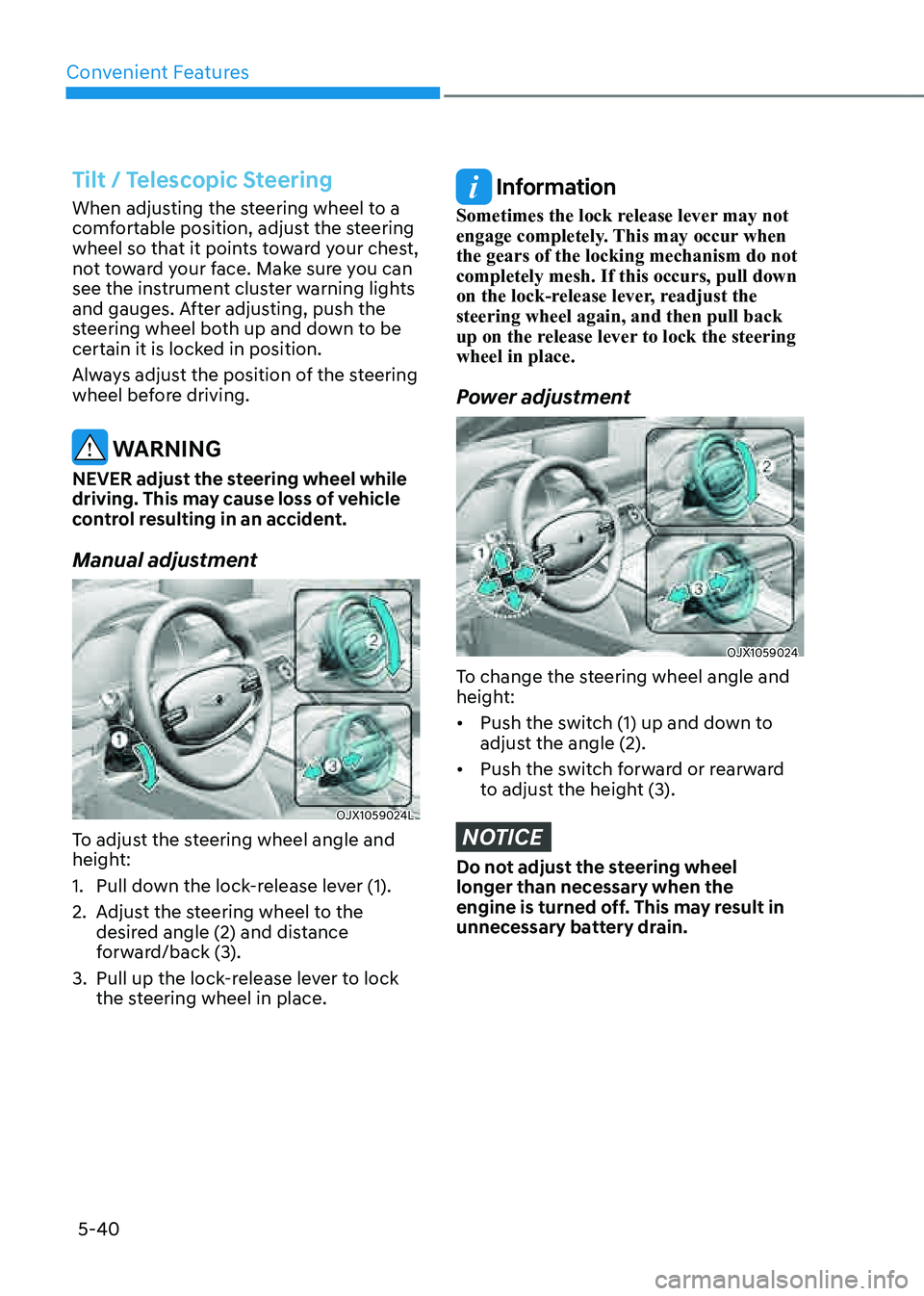
OJX1059024LOJX1059024L
To adjust the steering wheel angle and
height:
1. Pull down the lock-release lever (1).
2. Adjust the steering wheel to the
desired angle (2) and distance
forward/back (3).
3. Pull up the lock-release lever to lock
the steering wheel in place.
Information
Sometimes the lock release lever may not
engage completely. This may occur when
the gears of the locking mechanism do not
completely mesh. If this occurs, pull down
on the lock-release lever, readjust the
steering wheel again, and then pull back
up on the release lever to lock the steering
wheel in place.
Power adjustment
OJX1059024OJX1059024
To change the steering wheel angle and
height:
• Push the switch (1) up and down to
adjust the angle (2).
• Push the switch forward or rearward
to adjust the height (3).
NOTICE
Do not adjust the steering wheel
longer than necessary when the
engine is turned off. This may result in
unnecessary battery drain.
Page 184 of 632
Convenient Features
5-42
Heated Steering Wheel
(if equipped)
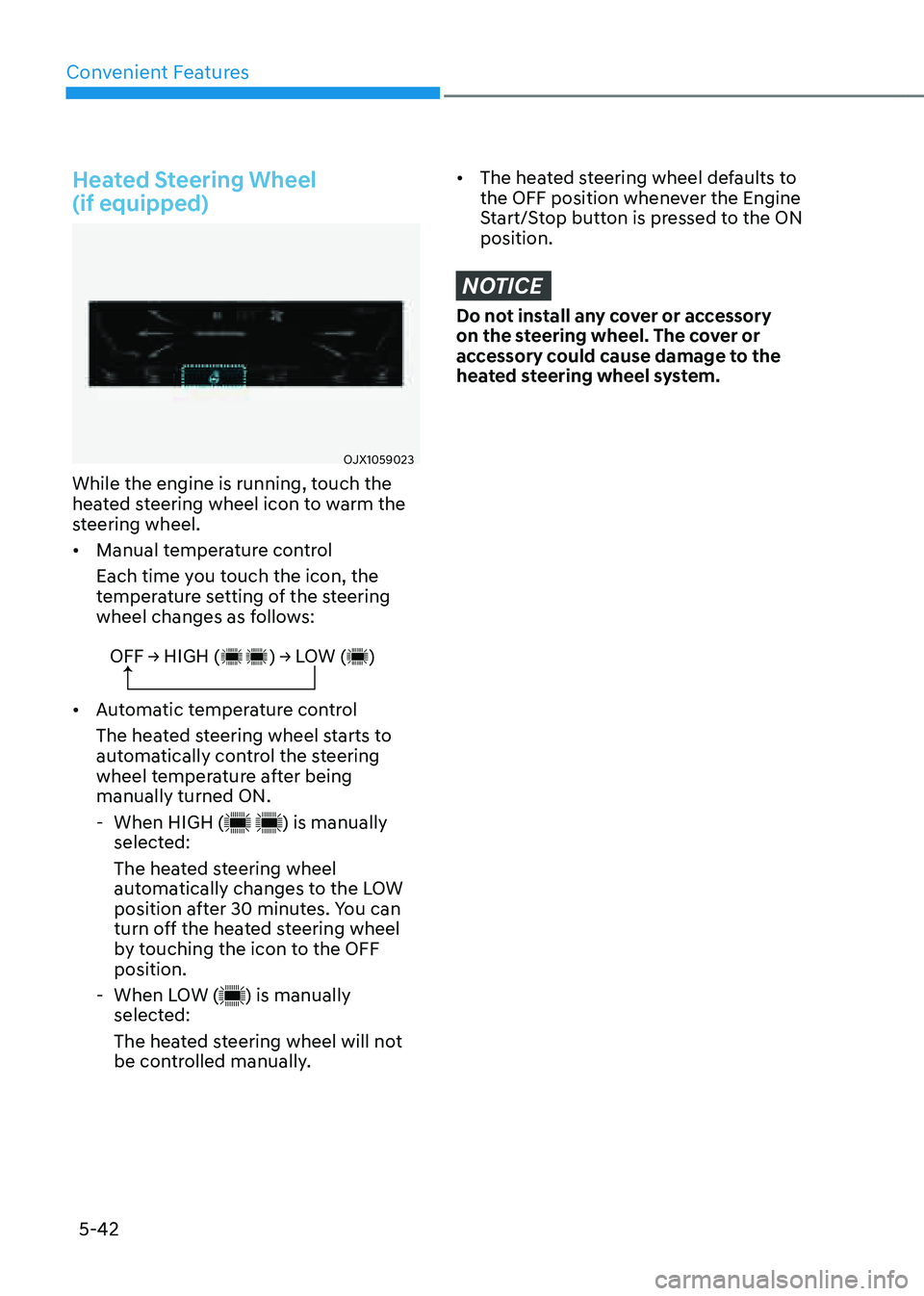
OJX1059023OJX1059023
While the engine is running, touch the
heated steering wheel icon to warm the
steering wheel.
• Manual temperature control
Each time you touch the icon, the
temperature setting of the steering
wheel changes as follows:
OFF → HIGH ( ) → LOW ( )
• Automatic temperature control
The heated steering wheel starts to
automatically control the steering
wheel temperature after being
manually turned ON.
-When HIGH () is manually
selected:
The heated steering wheel
automatically changes to the LOW
position after 30 minutes. You can
turn off the heated steering wheel
by touching the icon to the OFF
position.
- When LOW () is manually
selected:
The heated steering wheel will not
be controlled manually.
• The heated steering wheel defaults to
the OFF position whenever the Engine
Start/Stop button is pressed to the ON
position.
NOTICE
Do not install any cover or accessory
on the steering wheel. The cover or
accessory could cause damage to the
heated steering wheel system.
Page 189 of 632
05
5-47
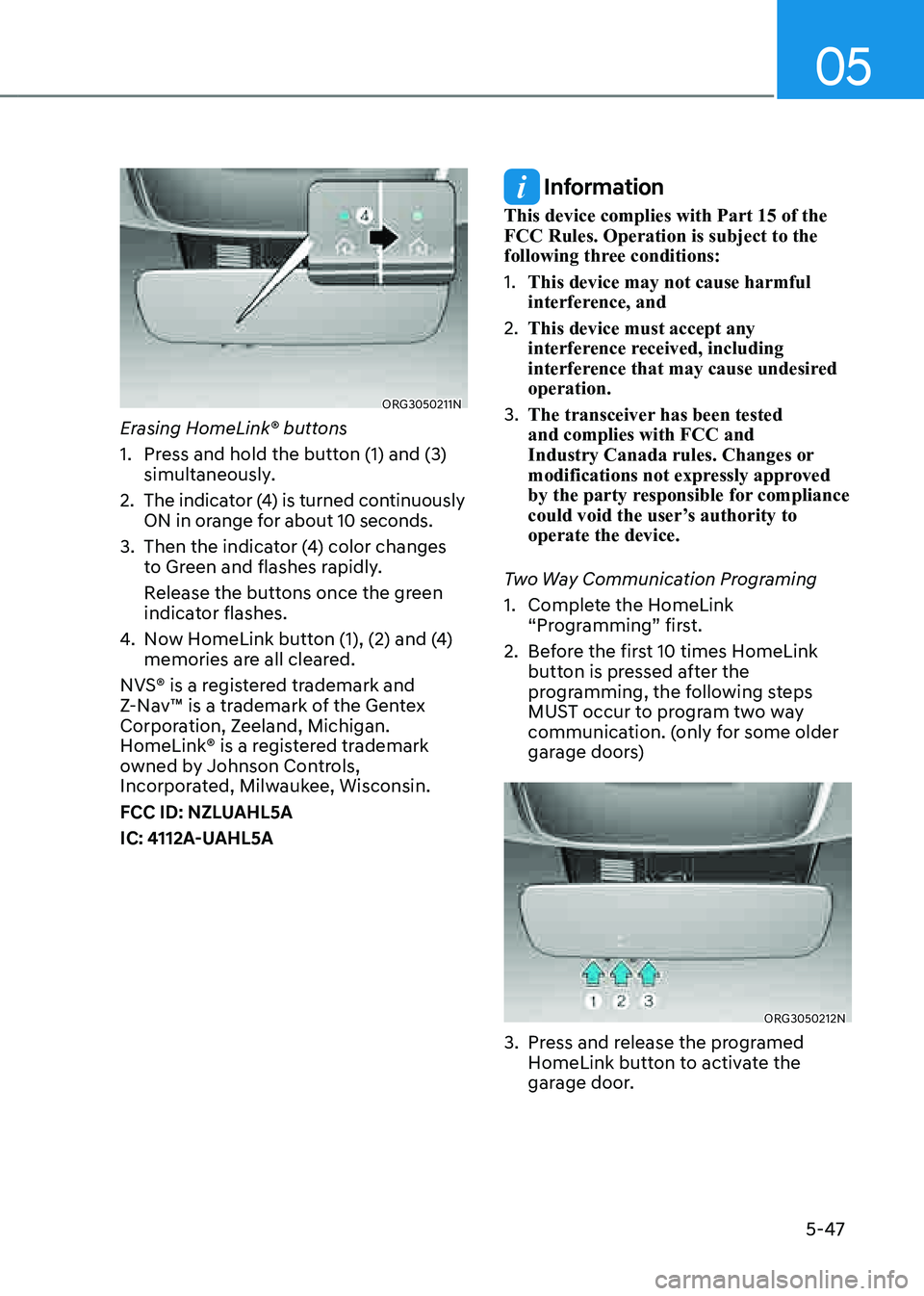
ORG3050211NORG3050211N
Erasing HomeLink® buttons
1. Press and hold the button (1) and (3)
simultaneously.
2. The indicator (4) is turned continuously
ON in orange for about 10 seconds.
3. Then the indicator (4) color changes
to Green and flashes rapidly.
Release the buttons once the green
indicator flashes.
4. Now HomeLink button (1), (2) and (4)
memories are all cleared.
NVS® is a registered trademark and
Z-Nav™ is a trademark of the Gentex
Corporation, Zeeland, Michigan.
HomeLink® is a registered trademark
owned by Johnson Controls,
Incorporated, Milwaukee, Wisconsin.
FCC ID: NZLUAHL5A
IC: 4112A-UAHL5A
Information
This device complies with Part 15 of the
FCC Rules. Operation is subject to the
following three conditions:
1. This device may not cause harmful
interference, and
2. This device must accept any
interference received, including
interference that may cause undesired
operation.
3. The transceiver has been tested
and complies with FCC and
Industry Canada rules. Changes or
modifications not expressly approved
by the party responsible for compliance
could void the user’s authority to
operate the device.
Two Way Communication Programing
1. Complete the HomeLink
“Programming” first.
2. Before the first 10 times HomeLink
button is pressed after the
programming, the following steps
MUST occur to program two way
communication. (only for some older
garage doors)
ORG3050212NORG3050212N
3. Press and release the programed
HomeLink button to activate the
garage door.
Page 194 of 632
Convenient Features
5-52
Reverse parking aid user settings
mode
You may change the angle of the side
view mirror if it is difficult to see the rear
view with the basic downward mirror
angle provided when reversing.
When the vehicle is first delivered, the
set downward angle of the left and right
side view mirror are different to ensure
driver visibility.
1. Make sure the vehicle is stopped.
2. Depress the brake pedal and shift
the gear to R (Reverse). When L (Left)
or R (Right) button is pressed, both
side view mirror angle will move
downward to the basic set position.
3. Press either L or R button to select
the side view mirror you would like
to adjust. Then press “▼, ▲, ◄, ►”
switch to adjust the side view mirror
to the desired angle.
4. After adjusting the angle to save the
adjusted side view mirror angle, shift
the gear to another position other
than R (Reverse), or change the L and
R buttons to the neutral position (L
and R buttons are not pressed).
5. Set the other side view mirror
following the above procedure 1 to 4.
Resetting reverse parking aid user settings
mode
To change the side view mirror angle
back to the basic angle, shift the gear to
R (Reverse), and adjust the mirror angle
higher than when the gear is in P (Park),
N (Neutral) and D (Drive).
NOTICE
When changing the angle of both side
view mirrors, it is recommended to
change the angle one side at a time
following the procedure 1 to 4.
Page 208 of 632

Convenient Features
5-66
NOTICE
• The power liftgate can be operated
when the engine is not running.
However, power liftgate operation
consumes a large amount of eclectic
power. To prevent the battery from
being discharged, do not operate it
excessively (e.g. more than 5 times
repeatedly).
• To prevent the battery from being
discharged, do not leave the power
liftgate in the open position for a
long time.
• Do not modify or repair any part
of the power liftgate by yourself.
This must be done by an authorized
retailer of Genesis Branded products.
• When jacking up the vehicle to
change a tire or repair the vehicle, do
not operate the power liftgate. This
could cause the power liftgate to
operate improperly.
• In cold and wet climates, the power
liftgate may not work properly due to
freezing conditions.
Automatic reverse
OJX1059048LOJX1059048L
During power opening or closing if the
power liftgate senses any obstacle, the
power liftgate will stop and move in the
opposite direction.
The auto reverse function may not work
if objects are too soft or thin, or if the
liftgate is almost fully closed near the
latched position.
Caution should be taken to prevent any
objects from obstructing the liftgate
opening.
If the automatic reverse feature operates
more than two times while attempting
to open or close the liftgate, the power
liftgate may stop at that position. If
this occurs, carefully close the liftgate
manually, and then try to operate the
power liftgate automatically again.
WARNING
Never intentionally place any object
or part of your body in the path of
the power liftgate to make sure the
automatic reverse function operates.
NOTICE
Do not put heavy objects on the power
liftgate before you operate the power
liftgate. Additional weight may damage
the operation of the system.
Page 217 of 632

05
5-75
Precautions While Using the
Head-Up Display
• It may sometimes be difficult to read
information on the Head-Up Display in
the following situations.
-The driver is improperly positioned
in the driver’s seat
-The driver wears polarizing-filter
sunglasses
-An object is located above the
Head-Up Display cover
-The vehicle is driven on a wet road
-Any improper lighting accessory is
installed inside the vehicle, or there
is incoming light from outside of the
vehicle
-The driver wears glasses
-The driver wears contact lenses
When it is difficult to read the Head-
Up Display information, adjust the
image height or brightness level from
the Settings menu in the infotainment
system screen.
• For your safety, make sure to stop the
vehicle before adjusting the settings.
• Do not tint the front windshield glass
or add other types of metallic coating.
Otherwise, the Head-Up Display
image may be invisible.
• Do not place any accessories on the
crash pad or attach any objects on the
windshield glass.
• When replacing the front windshield
glass, replace it with a windshield
glass designed for Head-Up Display
operation. Otherwise, duplicated
images may be displayed on the
windshield glass.
WARNING
Blind-Spot Collision Warning on the
Head-Up Display are supplemental. Do
not solely depend on them to change
lanes. Always take a look around before
changing lanes.
Page 220 of 632
Convenient Features
5-78
Turn signals and lane change signals
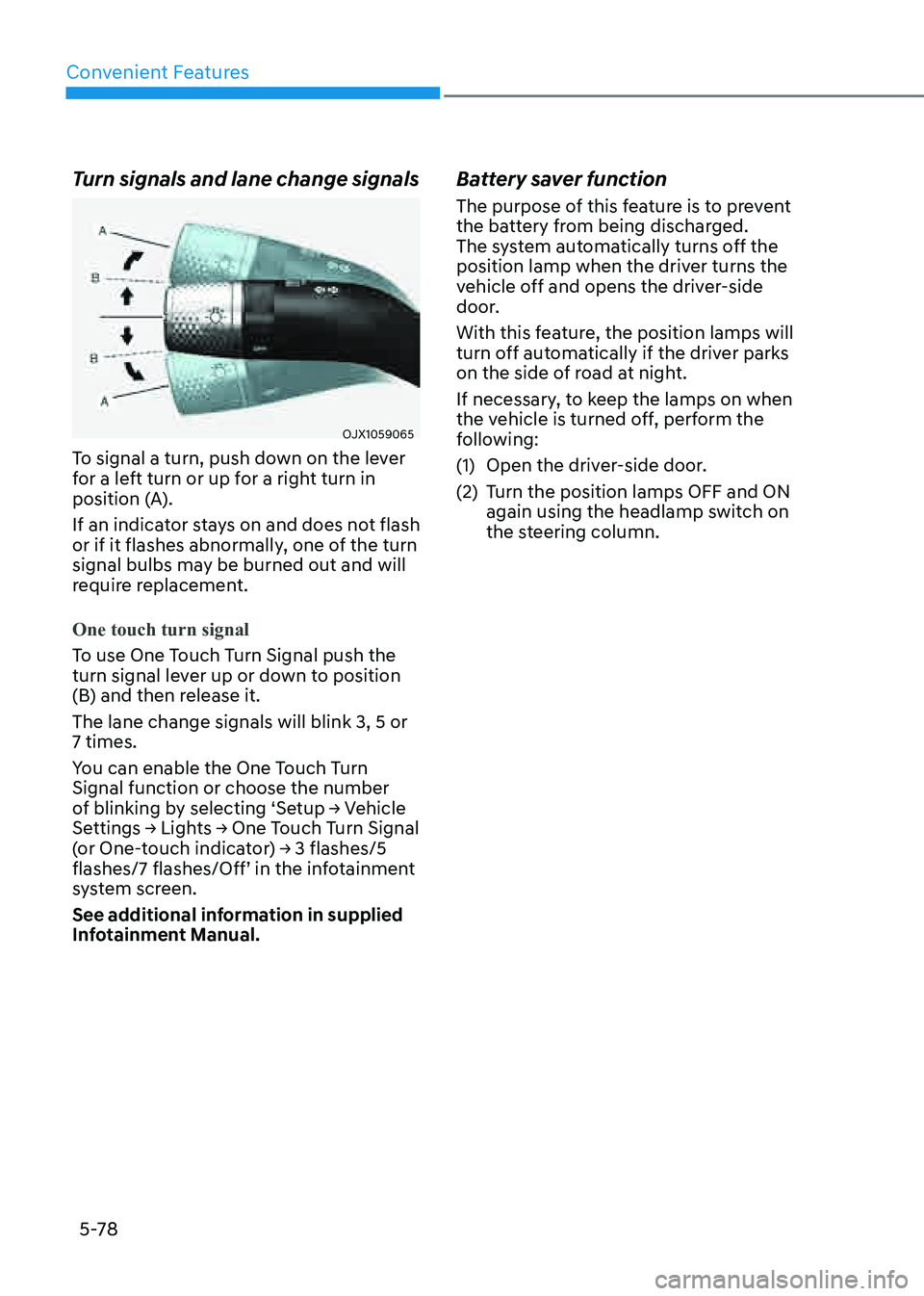
OJX1059065OJX1059065
To signal a turn, push down on the lever
for a left turn or up for a right turn in
position (A).
If an indicator stays on and does not flash
or if it flashes abnormally, one of the turn
signal bulbs may be burned out and will
require replacement.
One touch turn signal
To use One Touch Turn Signal push the
turn signal lever up or down to position
(B) and then release it.
The lane change signals will blink 3, 5 or
7 times.
You can enable the One Touch Turn
Signal function or choose the number
of blinking by selecting ‘Setup → Vehicle
Settings → Lights → One Touch Turn Signal
(or One-touch indicator) → 3 flashes/5
flashes/7 flashes/Off’ in the infotainment
system screen.
See additional information in supplied
Infotainment Manual.
Battery saver function
The purpose of this feature is to prevent
the battery from being discharged.
The system automatically turns off the
position lamp when the driver turns the
vehicle off and opens the driver-side
door.
With this feature, the position lamps will
turn off automatically if the driver parks
on the side of road at night.
If necessary, to keep the lamps on when
the vehicle is turned off, perform the
following:
(1) Open the driver-side door.
(2) Turn the position lamps OFF and ON
again using the headlamp switch on
the steering column.
Page 228 of 632

Convenient Features
5-86
Limitations of the system
High Beam Assist may not work properly
in the following situations:
• Light from a vehicle is not detected
because of lamp damage, or because
it is hidden from sight, etc.
• Headlamp of a vehicle is covered with
dust, snow or water
• A vehicle’s headlamps are off but the
fog lamps are on and etc.
• There is a lamp that has a similar
shape as a vehicle’s lamp
• Headlamps have been damaged or
not repaired properly
• Headlamps are not aimed properly
• Driving on a narrow curved road,
rough road, uphill or downhill
• Vehicle in front is partially visible on a
crossroad or curved road
• There is a traffic light, reflecting sign,
flashing sign or mirror ahead
• There is a temporary reflector or flash
ahead (construction area)
• The road conditions are bad such as
being wet, iced or covered with snow
• A vehicle suddenly appears from a
curve
• The vehicle is tilted from a flat tire or
is being towed
• Light from a vehicle is not detected
because of exhaust fume, smoke, fog,
snow, etc.
NOTICE
For more details on the limitations
of the front view camera, refer to
“Forward Collision-Avoidance Assist
(FCA)” section in chapter 7.
WARNING
• At times, High Beam Assist may
not work properly. The system is
for your convenience only. It is the
responsibility of the driver for safe
driving practices and always check
the road conditions for your safety.
• When High Beam Assist does
not operate normally, change
the headlamp position manually
between high beam and low beam.
Page 230 of 632
Convenient Features
5-88
NOTICE
• When washing the vehicle, set the
wiper switch in the OFF position to
stop the auto wiper operation. The
wiper may operate and be damaged
if the switch is set in the AUTO mode
while washing the vehicle.
• Do not remove the sensor cover
located on the upper end of the
passenger side windshield glass.
Damage to system components
could occur and may not be covered
by your vehicle warranty.
• Because of using a photo sensor,
temporary malfunction could occur
according to sudden ambient light
change made by stone and dust
while driving.
Front Windshield Washers
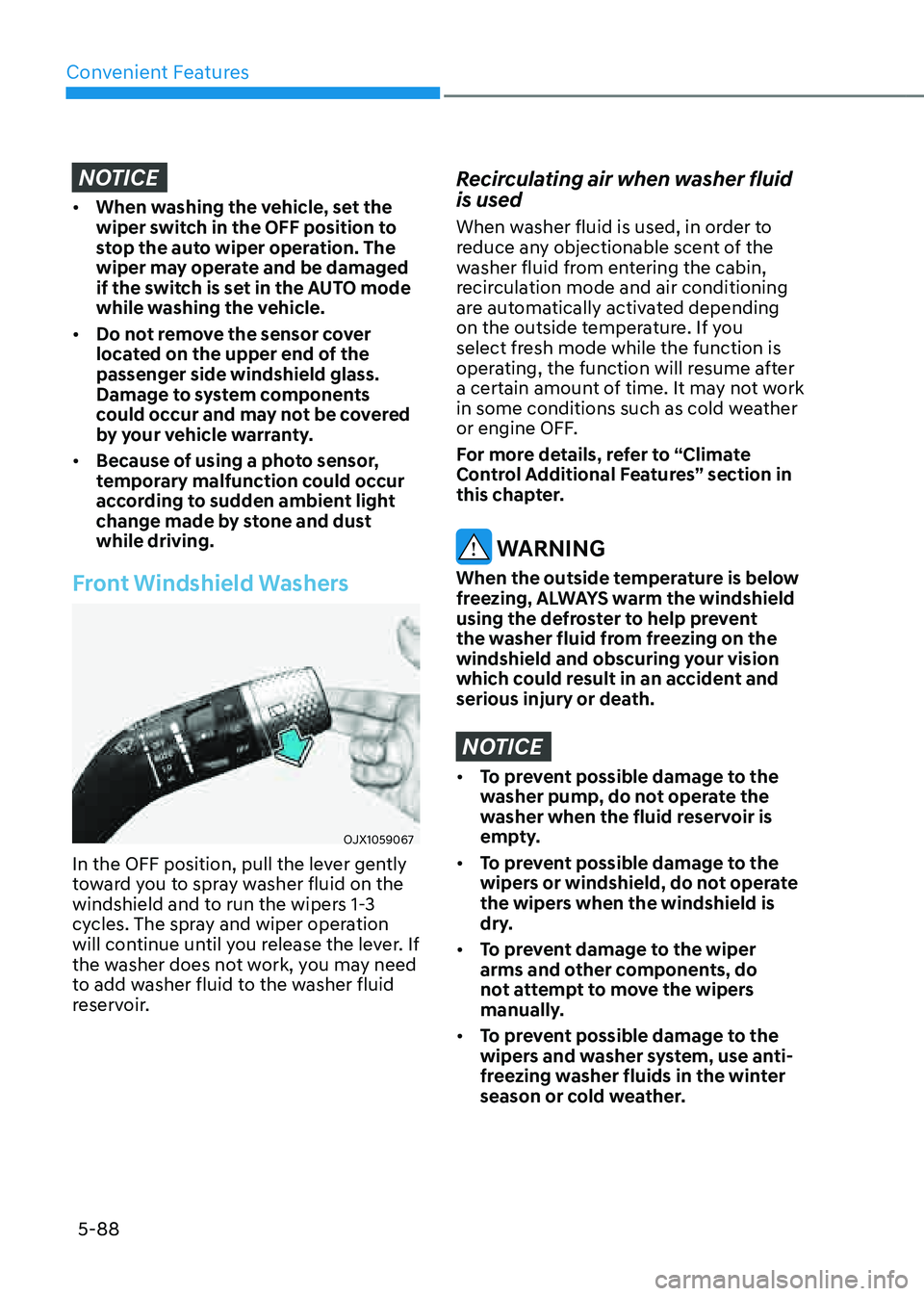
OJX1059067OJX1059067
In the OFF position, pull the lever gently
toward you to spray washer fluid on the
windshield and to run the wipers 1-3
cycles. The spray and wiper operation
will continue until you release the lever. If
the washer does not work, you may need
to add washer fluid to the washer fluid
reservoir.
Recirculating air when washer fluid
is used
When washer fluid is used, in order to
reduce any objectionable scent of the
washer fluid from entering the cabin,
recirculation mode and air conditioning
are automatically activated depending
on the outside temperature. If you
select fresh mode while the function is
operating, the function will resume after
a certain amount of time. It may not work
in some conditions such as cold weather
or engine OFF.
For more details, refer to “Climate
Control Additional Features” section in
this chapter.
WARNING
When the outside temperature is below
freezing, ALWAYS warm the windshield
using the defroster to help prevent
the washer fluid from freezing on the
windshield and obscuring your vision
which could result in an accident and
serious injury or death.
NOTICE
• To prevent possible damage to the
washer pump, do not operate the
washer when the fluid reservoir is
empty.
• To prevent possible damage to the
wipers or windshield, do not operate
the wipers when the windshield is
dry.
• To prevent damage to the wiper
arms and other components, do
not attempt to move the wipers
manually.
• To prevent possible damage to the
wipers and washer system, use anti-
freezing washer fluids in the winter
season or cold weather.