change GENESIS GV80 2021 Owner's Guide
[x] Cancel search | Manufacturer: GENESIS, Model Year: 2021, Model line: GV80, Model: GENESIS GV80 2021Pages: 632, PDF Size: 9.37 MB
Page 152 of 632
Convenient Features
5-10
NOTICE
• Keep the smart key away from
electromagnetic materials that
blocks electromagnetic waves to the
key surface.
• Always have the smart key with
you when leaving the vehicle. If the
smart key is left near the vehicle, the
vehicle battery may be discharged.
Information
This device complies with Part 15 of the
FCC rules. Operation is subject to the
following three conditions:
1. This device may not cause harmful
interference, and
2. This device must accept any
interference received, including
interference that may cause undesired
operation.
3. Changes or modifications not expressly
approved by the party responsible
for compliance could void the user’s
authority to operate the device.
Battery replacement
If the Smart Key is not working properly,
try replacing the battery with a new one.
Battery Type: CR2032
To replace the battery:
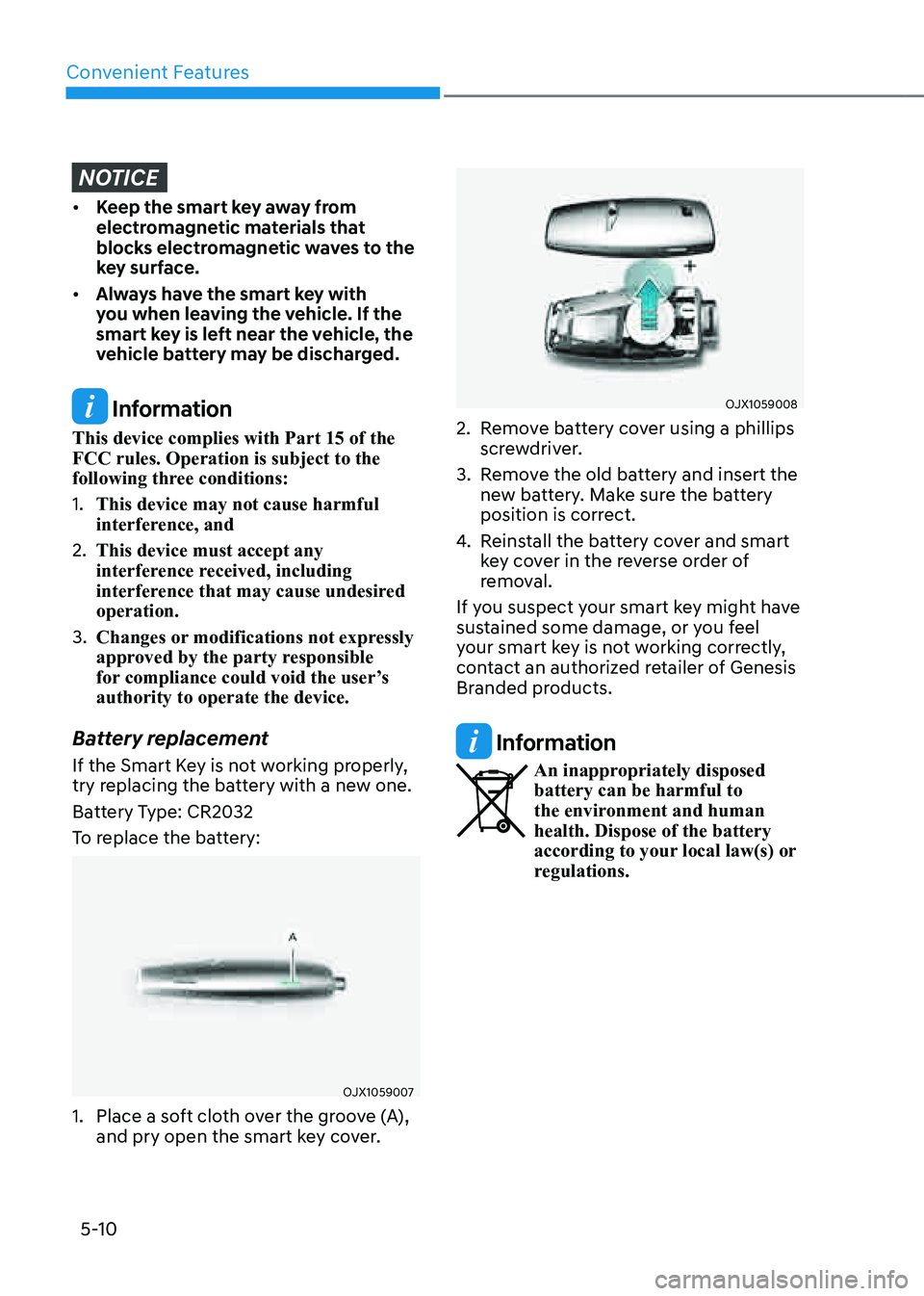
OJX1059007OJX1059007
1. Place a soft cloth over the groove (A),
and pry open the smart key cover.
OJX1059008OJX1059008
2. Remove battery cover using a phillips
screwdriver.
3. Remove the old battery and insert the
new battery. Make sure the battery
position is correct.
4. Reinstall the battery cover and smart
key cover in the reverse order of
removal.
If you suspect your smart key might have
sustained some damage, or you feel
your smart key is not working correctly,
contact an authorized retailer of Genesis
Branded products.
Information
An inappropriately disposed battery can be harmful to
the environment and human
health. Dispose of the battery
according to your local law(s) or
regulations.
Page 153 of 632
05
5-11
Immobilizer System
The immobilizer system helps protect
your vehicle from theft. If an improperly
coded key (or other device) is used, the
engine’s fuel system is disabled.
When the Engine Start/Stop button
is pressed to the ON position, the
immobilizer system indicator should
come on briefly, then go off. If the
indicator starts to blink, the system does
not recognize the coding of the key.
Press the Engine Start/Stop button to
the OFF position, then press the Engine
Start/Stop button to the ON position
again.
In some circumstances, the vehicle may
not recognize your smart key if another
smart key device is nearby or a metal
object such as a key chain is causing
interference with the smart key.
If this occurs, your vehicle may not
start. Remove any metal objects or
additional keys near the smart key before
attempting to start the vehicle again.
If the system repeatedly does not
recognize the coding of the key, contact
an authorized retailer of Genesis Branded
products.
Do not attempt to alter this system
or add other devices to it. Electrical
problems could result that may make
your vehicle inoperable. WARNING
In order to prevent theft of your
vehicle, do not leave spare keys
anywhere in your vehicle. Your
immobilizer password is a customer
unique password and should be kept
confidential.
NOTICE
The transponder in your key is an
important part of the immobilizer
system. It is designed to give years
of trouble-free service, however you
should avoid exposure to moisture,
static electricity and rough handling.
Immobilizer system malfunction could
occur.
Information
This device complies with Part 15 of the
FCC rules. Operation is subject to the
following three conditions:
1. This device may not cause harmful
interference, and
2. This device must accept any
interference received, including
interference that may cause undesired
operation.
3. Changes or modifications not expressly
approved by the party responsible
for compliance could void the user’s
authority to operate the device.
Page 154 of 632
Convenient Features
5-12
Genesis digital key provides convenience
to the driver, which the driver can use to
lock or unlock the driver and passenger
doors or the liftgate and turn on the
engine.
Digital Key (Smart Phone)
How to register Digital Key (Smart
phone)
To use the smart phone as a digital key
follow the following procedure.
This service is only available for Android
smart phones that has passed the internal
usability test. The driver can confirm
supported/compatible devices on our
website (https://owners.genesis.com).
In case of iPhone, Apple does not assist
any of the NFC services. (Services are
expected to be provided according to
policy change.)
Genesis Digital Key App
1. Search ‘Genesis Digital Key’ from
the Google Play Store and download
the app. Please refer to the detailed
manual of the digital key app or
Genesis website. The option can be
found under the following app menu:
Menu → Application Info → Tutorial.
Please read the manual before using
the app.
2. After downloading the app, sign up for
a Genesis account and service.Smart phone set up
• The driver can use the Digital Key NFC
(Near Field Communication) feature
after enabling it on the smart phone’s
settings menu. To change the NFC
setting of the smart phone, please
refer to the smart phone manual or
contact the customer service center
of smart phone manufacturers.
• The driver should unlock and turn on
the smart phone screen. (Unlock the
screen lock such as password, pattern
or fingerprint, etc.)
Smart phone registration
1. Turn the vehicle on with the smart key
and make sure to keep the smart key
inside the vehicle during digital key
registration.
2. Open Genesis Digital Key App in the
vehicle owner’s smart phone and
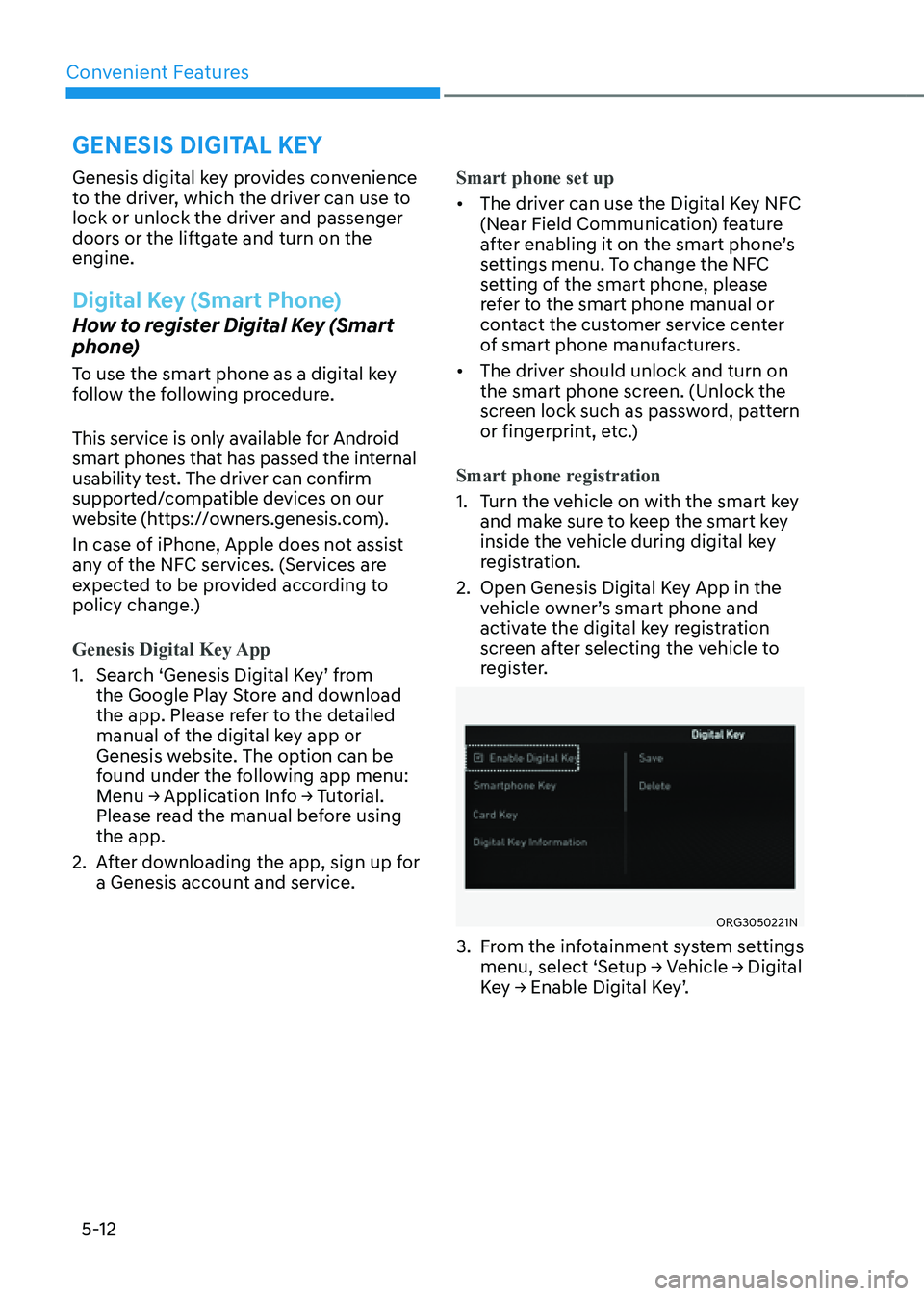
activate the digital key registration
screen after selecting the vehicle to
register.
ORG3050221NORG3050221N
3. From the infotainment system settings
menu, select ‘Setup → Vehicle → Digital
Key → Enable Digital Key’.
GENESIS DIGITAL KEY
Page 157 of 632
05
5-15
Information
• After the battery has been reconnected
or the battery has been recharged,
it will take time for the digital key
(smart phone) to operate due to remote
security update. When locking or
unlocking the door with the smart
phone NFC antenna, touch and hold
the smart phone on the door handle
until the door(s) is locked or unlocked.
• If the mobile data connection of the
smart phone is weak, remote security
information update may fail. At this
time, use the card key to lock or unlock
the doors, or start the engine.
When you are in a place where the
mobile data connection of your smart
phone is available, place your smart
phone on the in-vehicle authentication
pad (wireless charger pad) and start
your vehicle, or touch the digital key on
the door handle to lock or unlock the
door, the remote security information
will be automatically updated. Even
though the engine is not started, wait
until the remote security information
is updated and the in-vehicle
authentication pad (wireless charging
pad) changes to charging mode.
WARNING
The engine can be started when the
registered smart phone is placed on the
in-vehicle authentication pad (wireless
charging pad). Therefore, do not leave
unsupervised children or people who
are not aware of the system since it can
result in serious injury or death.
In addition, always have the registered
smart phone with you to prevent
vehicle theft when leaving the vehicle.Digital key App remote control
Various control functions such as Door
Lock/Unlock, Remote Start, Panic and
Liftgate Open/Close are available using
the Digital Key App. To use the Digital
Key App functions, the smart phone’s
Bluetooth must be activated, and must
be approximately within 32 ft. (10 m)
from the vehicle.
• Connecting Digital Key App with the
vehicle
1. Open the Genesis Digital Key App
in the smart phone. Select the
vehicle you want to control from
the vehicle list in the App.
2. Approach the vehicle with
the Genesis Digital Key App
opened. The Digital Key App will
automatically connect with the
vehicle.
3. When the connection is complete,
the icons in the Digital Key App will
become active.
Page 160 of 632
Convenient Features
5-18
How to delete Digital Key (Smart
Phone)
1. Turn the vehicle on with the smart key
and make sure to keep the smart key
inside the vehicle during the digital
key (smart phone) deleting process.
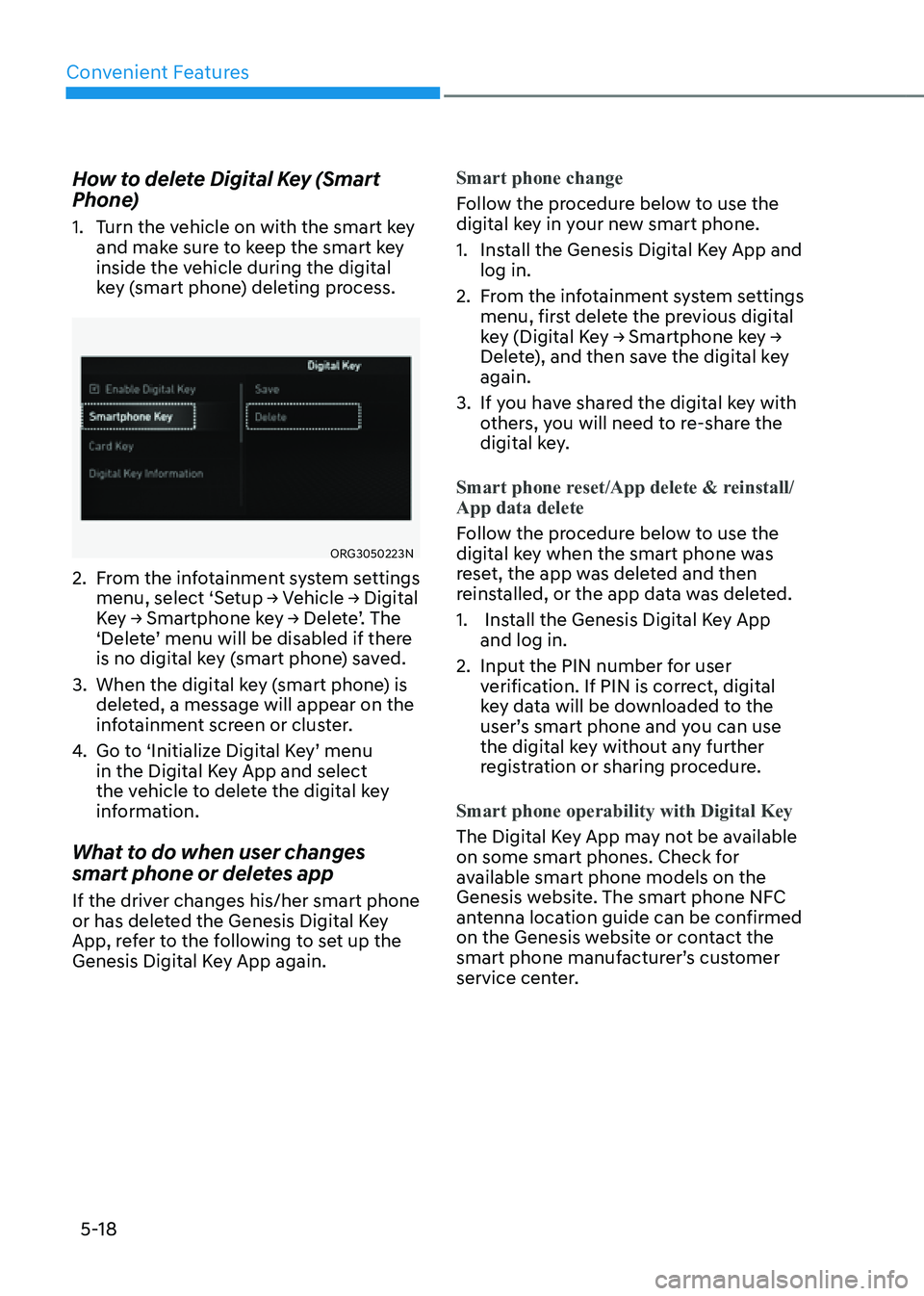
ORG3050223N ORG3050223N
2. From the infotainment system settings
menu, select ‘Setup → Vehicle → Digital
Key → Smartphone key → Delete’. The
‘Delete’ menu will be disabled if there
is no digital key (smart phone) saved.
3. When the digital key (smart phone) is
deleted, a message will appear on the
infotainment screen or cluster.
4. Go to ‘Initialize Digital Key’ menu
in the Digital Key App and select
the vehicle to delete the digital key
information.
What to do when user changes
smart phone or deletes app
If the driver changes his/her smart phone
or has deleted the Genesis Digital Key
App, refer to the following to set up the
Genesis Digital Key App again.Smart phone change
Follow the procedure below to use the
digital key in your new smart phone.
1. Install the Genesis Digital Key App and
log in.
2. From the infotainment system settings
menu, first delete the previous digital
key (Digital Key → Smartphone key →
Delete), and then save the digital key
again.
3. If you have shared the digital key with
others, you will need to re-share the
digital key.
Smart phone reset/App delete & reinstall/
App data delete
Follow the procedure below to use the
digital key when the smart phone was
reset, the app was deleted and then
reinstalled, or the app data was deleted.
1. Install the Genesis Digital Key App
and log in.
2. Input the PIN number for user
verification. If PIN is correct, digital
key data will be downloaded to the
user’s smart phone and you can use
the digital key without any further
registration or sharing procedure.
Smart phone operability with Digital Key
The Digital Key App may not be available
on some smart phones. Check for
available smart phone models on the
Genesis website. The smart phone NFC
antenna location guide can be confirmed
on the Genesis website or contact the
smart phone manufacturer’s customer
service center.
Page 165 of 632
05
5-23
Information
• Use profile cannot be linked to
both Driver 1 and Driver 2 that are
connected to a single smart phone.
Personalization will operate with the
recently linked user profile, and the
previously linked user profile will be
automatically canceled.
• User profile can be linked when digital
key is enabled (Set up→ Vehicle →
Digital Key → Enable Digital Key).
The linked user profile information is
maintained even when the digital key
function is disabled.
User profile can be linked to a smart
phone with the Digital Key App
installed.
• User profile can be linked when
a digital key is registered on the
smartphone and the vehicle. The smart
phone with another vehicle’s digital key
cannot be linked.
• If you remove the smart phone from the
in-vehicle authentication pad (wireless
charging pad) before completing the
user profile link, the linking process
will not be completed normally.
• To unlink the user profile, the smart
phone does not need to be on the in-
vehicle authentication pad (wireless
charging pad).
• Once the user profile linked digital
key in the smart phone is deleted, the
digital key should be re-registered and
personalized by linking the user profile
again.
Vehicle personalization operation
The personalization function linked with
digital key works under the following
conditions:
• Touch the driver’s door handle with
the profile linked smart phone to lock
or unlock the doors (Personalization
does not operate when locking or
unlocking the front passenger door.).
• When the remote door unlock with
the profile linked smartphone digital
key app works, the user profile linked
with digital key can be changed
manually from the infotainment
system settings.
Information
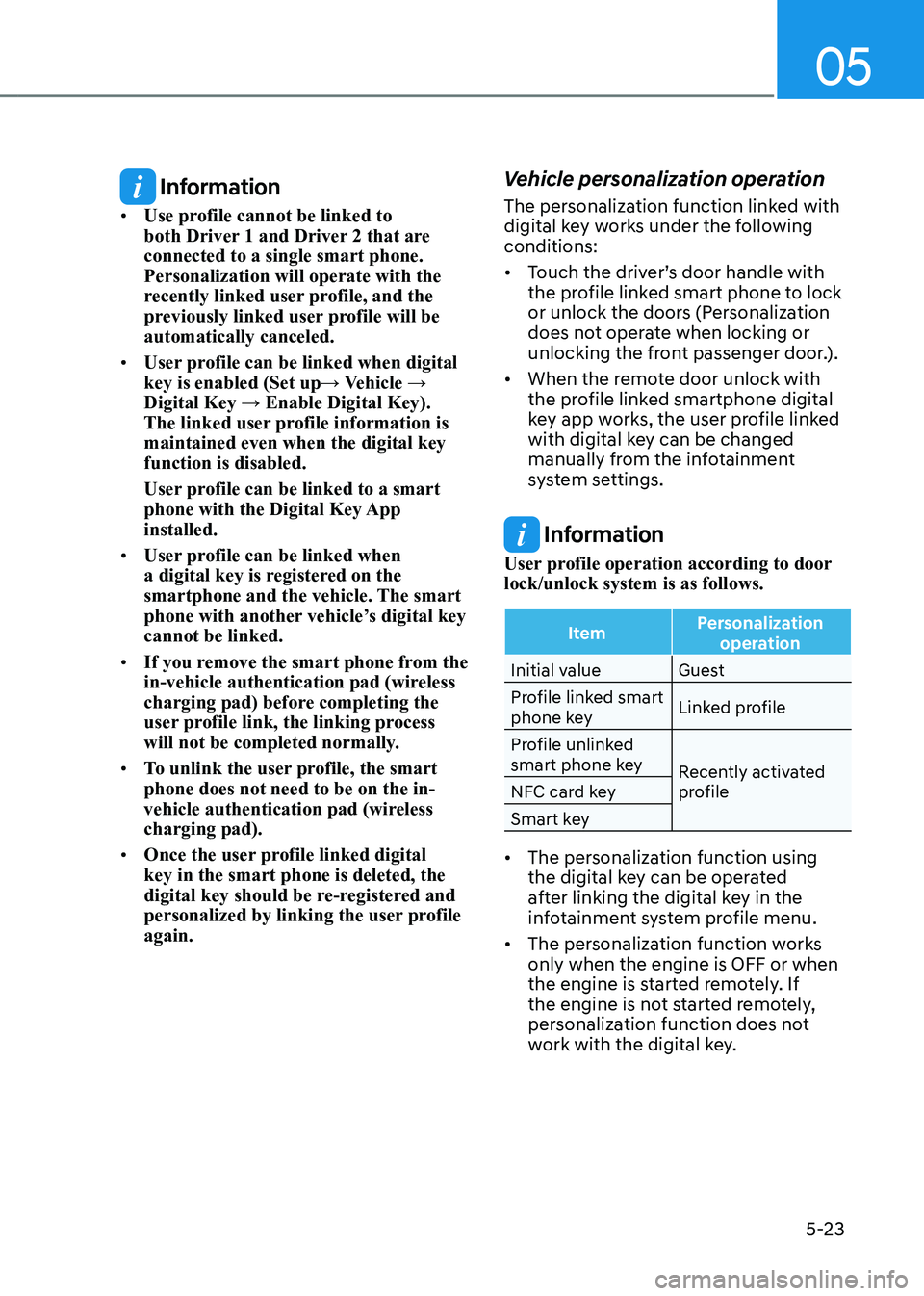
User profile operation according to door
lock/unlock system is as follows.
ItemPersonalization
operation
Initial value Guest
Profile linked smart
phone key Linked profile
Profile unlinked
smart phone key Recently activated
profile
NFC card key
Smart key
• The personalization function using
the digital key can be operated
after linking the digital key in the
infotainment system profile menu.
• The personalization function works
only when the engine is OFF or when
the engine is started remotely. If
the engine is not started remotely,
personalization function does not
work with the digital key.
Page 181 of 632
05
5-39
Electric Power Steering (EPS)
The system assists you with steering the
vehicle. If the vehicle is turned off or
if the power steering system becomes
inoperative, you may still steer the
vehicle, but it will require increased
steering effort.
Should you notice any change in the
effort required to steer during normal
vehicle operation, have the system
checked by an authorized retailer of
Genesis Branded products.
CAUTION
If Electric Power Steering does not
operate normally, the warning light and the message ‘Check motor driven
power steering’ will illuminate on the
instrument cluster. You may steer the
vehicle, but it will require increased
steering efforts. Take the vehicle to an
authorized retailer of Genesis Branded
products and have the system checked
as soon as possible.
Information
The following symptoms may occur during
normal vehicle operation:
• The steering effort may be high
immediately after pressing the Engine
Start/Stop button to the ON position.
This happens as the system performs
the EPS system diagnostics. When the
diagnostics are completed, the steering
wheel effort will return to its normal
condition.
• When the battery voltage is low, you
may have to put more steering effort.
However, it is a temporary condition so
that it will return to normal condition
after charging the battery.
• A click noise may be heard from the
EPS relay after the Engine Start/Stop
button is in the ON or OFF position.
• Motor noise may be heard when the
vehicle is at a stop or at a low driving
speed.
• When you operate the steering wheel
in low temperatures, abnormal noise
may occur. If the temperature rises, the
noise will disappear. This is a normal
condition.
• When an error is detected from EPS,
the steering effort assist function will
not be activated in order to prevent
accidents. Instrument cluster warning
lights may be on or the steering effort
may be high. If these symptoms occur,
drive the vehicle to a safe area as soon
as it is safe to do so. Have the system
checked by an authorized retailer of
Genesis Branded products as soon as
possible.
STEERING WHEEL
Page 182 of 632
Convenient Features
5-40
Tilt / Telescopic Steering
When adjusting the steering wheel to a
comfortable position, adjust the steering
wheel so that it points toward your chest,
not toward your face. Make sure you can
see the instrument cluster warning lights
and gauges. After adjusting, push the
steering wheel both up and down to be
certain it is locked in position.
Always adjust the position of the steering
wheel before driving.
WARNING
NEVER adjust the steering wheel while
driving. This may cause loss of vehicle
control resulting in an accident.
Manual adjustment
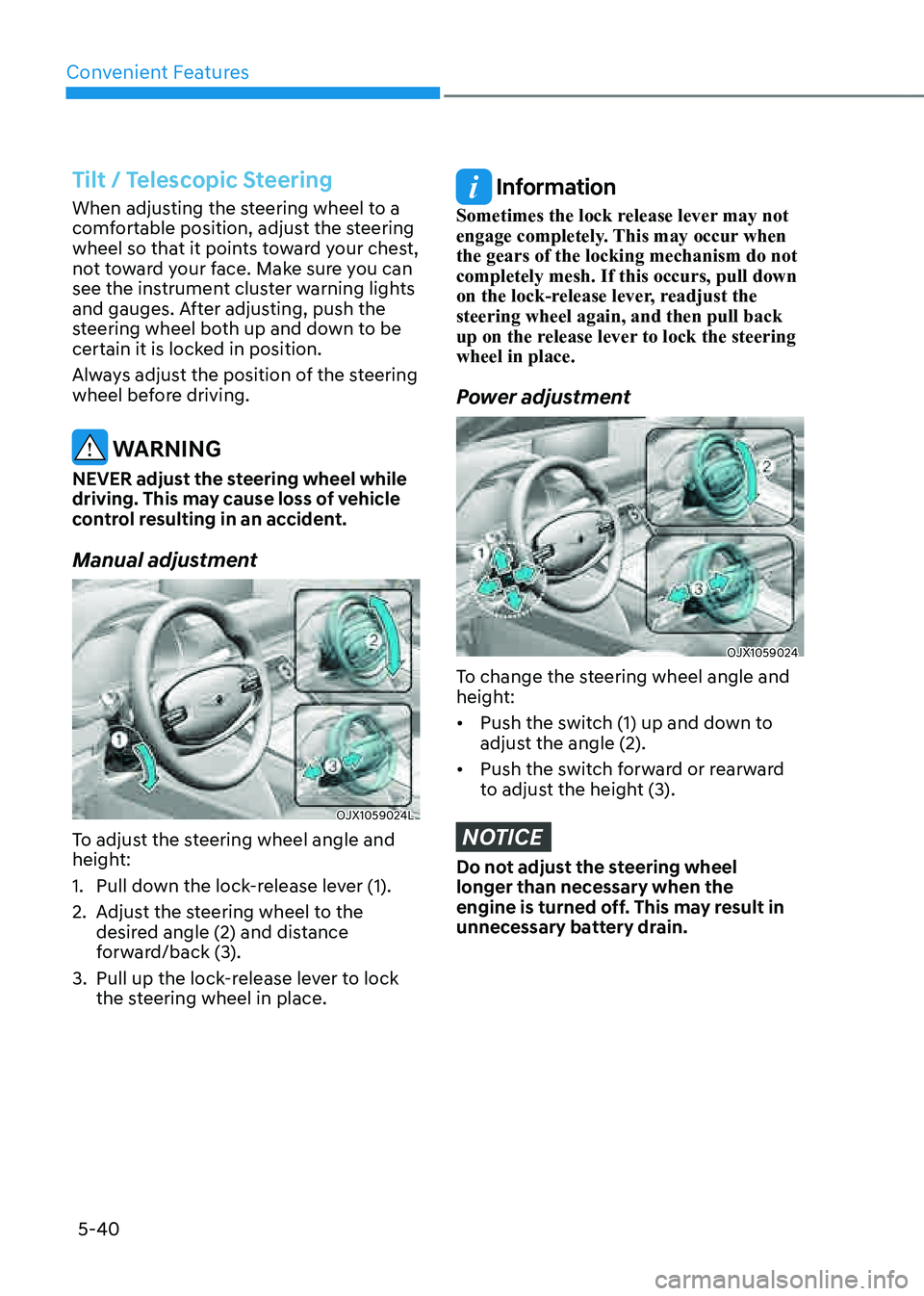
OJX1059024LOJX1059024L
To adjust the steering wheel angle and
height:
1. Pull down the lock-release lever (1).
2. Adjust the steering wheel to the
desired angle (2) and distance
forward/back (3).
3. Pull up the lock-release lever to lock
the steering wheel in place.
Information
Sometimes the lock release lever may not
engage completely. This may occur when
the gears of the locking mechanism do not
completely mesh. If this occurs, pull down
on the lock-release lever, readjust the
steering wheel again, and then pull back
up on the release lever to lock the steering
wheel in place.
Power adjustment
OJX1059024OJX1059024
To change the steering wheel angle and
height:
• Push the switch (1) up and down to
adjust the angle (2).
• Push the switch forward or rearward
to adjust the height (3).
NOTICE
Do not adjust the steering wheel
longer than necessary when the
engine is turned off. This may result in
unnecessary battery drain.
Page 184 of 632
Convenient Features
5-42
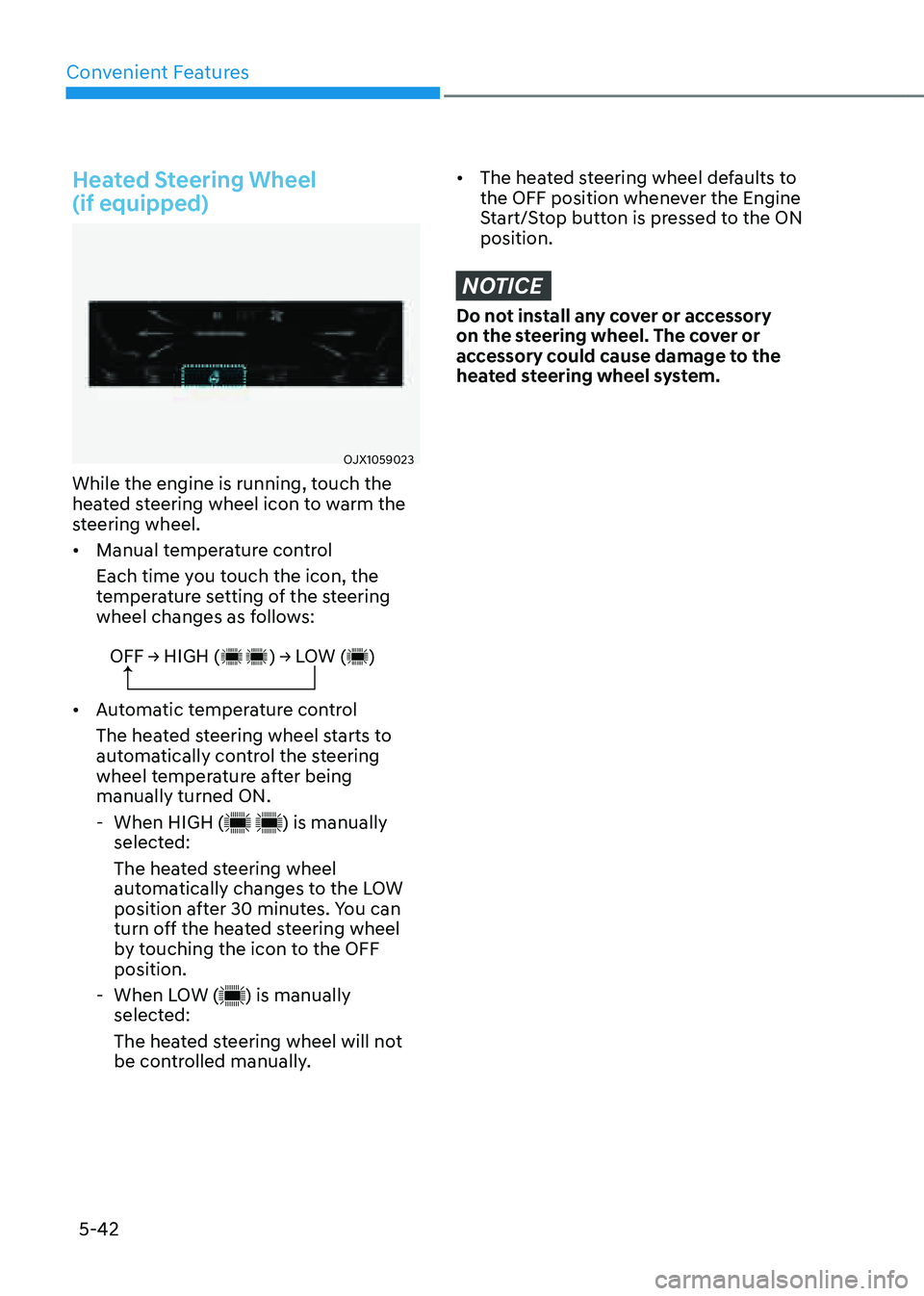
Heated Steering Wheel
(if equipped)
OJX1059023OJX1059023
While the engine is running, touch the
heated steering wheel icon to warm the
steering wheel.
• Manual temperature control
Each time you touch the icon, the
temperature setting of the steering
wheel changes as follows:
OFF → HIGH ( ) → LOW ( )
• Automatic temperature control
The heated steering wheel starts to
automatically control the steering
wheel temperature after being
manually turned ON.
-When HIGH () is manually
selected:
The heated steering wheel
automatically changes to the LOW
position after 30 minutes. You can
turn off the heated steering wheel
by touching the icon to the OFF
position.
- When LOW () is manually
selected:
The heated steering wheel will not
be controlled manually.
• The heated steering wheel defaults to
the OFF position whenever the Engine
Start/Stop button is pressed to the ON
position.
NOTICE
Do not install any cover or accessory
on the steering wheel. The cover or
accessory could cause damage to the
heated steering wheel system.
Page 189 of 632
05
5-47
ORG3050211NORG3050211N
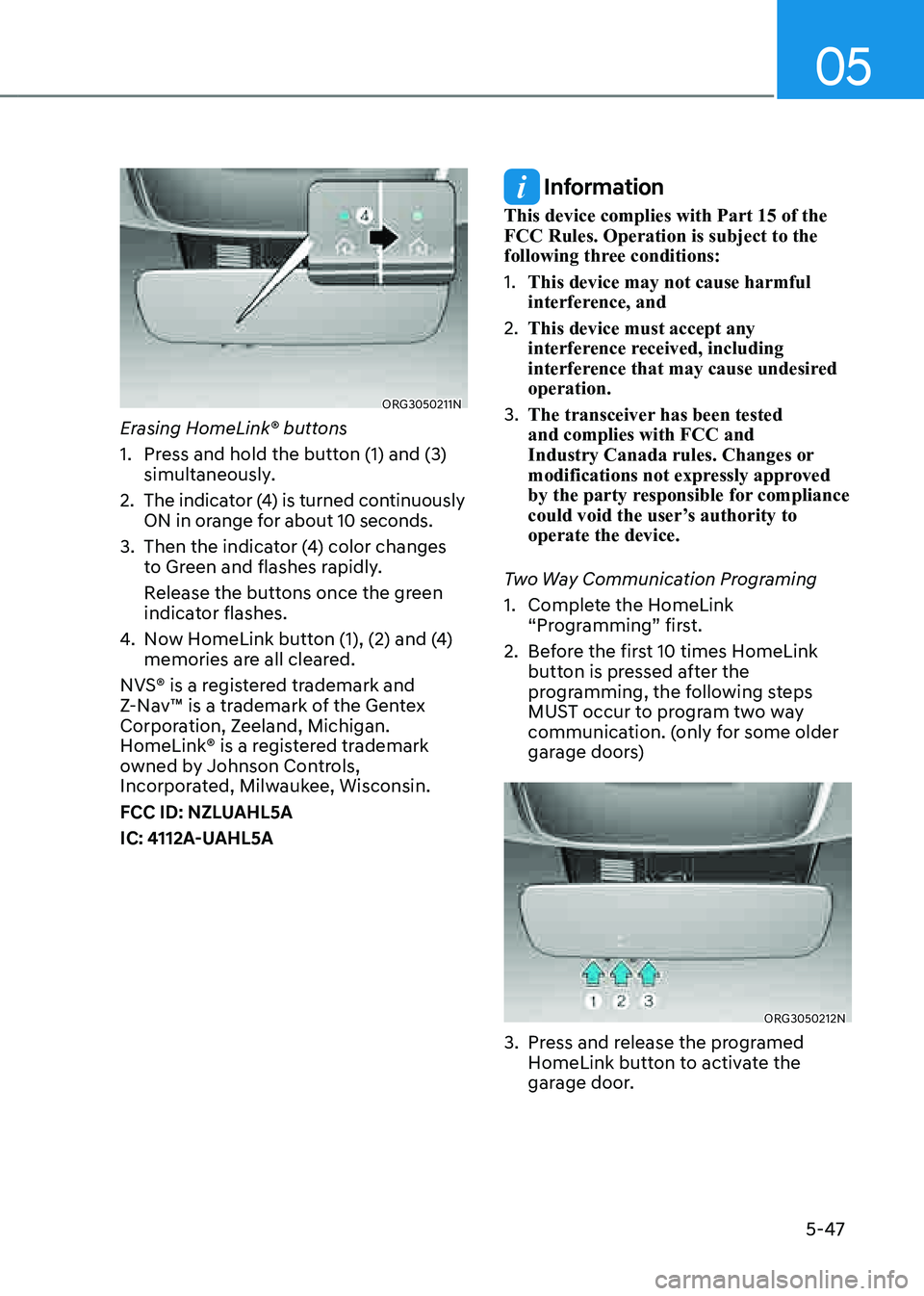
Erasing HomeLink® buttons
1. Press and hold the button (1) and (3)
simultaneously.
2. The indicator (4) is turned continuously
ON in orange for about 10 seconds.
3. Then the indicator (4) color changes
to Green and flashes rapidly.
Release the buttons once the green
indicator flashes.
4. Now HomeLink button (1), (2) and (4)
memories are all cleared.
NVS® is a registered trademark and
Z-Nav™ is a trademark of the Gentex
Corporation, Zeeland, Michigan.
HomeLink® is a registered trademark
owned by Johnson Controls,
Incorporated, Milwaukee, Wisconsin.
FCC ID: NZLUAHL5A
IC: 4112A-UAHL5A
Information
This device complies with Part 15 of the
FCC Rules. Operation is subject to the
following three conditions:
1. This device may not cause harmful
interference, and
2. This device must accept any
interference received, including
interference that may cause undesired
operation.
3. The transceiver has been tested
and complies with FCC and
Industry Canada rules. Changes or
modifications not expressly approved
by the party responsible for compliance
could void the user’s authority to
operate the device.
Two Way Communication Programing
1. Complete the HomeLink
“Programming” first.
2. Before the first 10 times HomeLink
button is pressed after the
programming, the following steps
MUST occur to program two way
communication. (only for some older
garage doors)
ORG3050212NORG3050212N
3. Press and release the programed
HomeLink button to activate the
garage door.