phone GENESIS GV80 2021 Owner's Guide
[x] Cancel search | Manufacturer: GENESIS, Model Year: 2021, Model line: GV80, Model: GENESIS GV80 2021Pages: 632, PDF Size: 9.37 MB
Page 167 of 632
05
5-25
Used Vehicle/Digital Key
Maintenance
Purchasing used vehicle
If any of the digital key devices
(smartphone key, card key) are registered
in the vehicle, the message ‘Digital key(s)
active’ will appear on the instrument
cluster once when the vehicle is turned
on after unlocking the vehicle door.
When purchasing a used car, be sure to
check the message and delete the smart
phone key and card key registered by
the previous user. Please let us know
the purchase of a used vehicle through
Genesis Customer Care.
Check whether the card key that came
with the used vehicle operates properly.
If the card key does not work properly,
delete the card key and register the
smartphone key, and then re-register the
card key.
Digital key maintenance
If you need to have your Digital Key
System repaired or replaced, the
registered smart key/card key can be
deleted. In this case, you should delete
the digital key on the smart phone and
re-register the key.
Limitations of the System
• Genesis Digital Key App on the
smartphone and card key may not
work if any of the following occurs:
-The Digital Key App in the
smartphone is deleted (reinstall the
app)
-Account log information of Genesis
Digital Key App is expired (required
to re-log in)
-When you try to log in from
another smart phone instead of the
registered smart phone with same
user account
-Smart phone rooting or app hacking
is detected
-Smart phone battery or the vehicle
battery is discharged
- Smartphone’s screen is off or
locked
-NFC or Bluetooth is turned off in the
smartphone settings
-Smartphone’s mobile network
setting is off or airplane mode is
activated
-A credit card is overlapped in the
back of your smart phone, or metal
or thick smart phone case is used
-Using the card key with other cards,
or using it in a wallet or card holder
-There is electronic interference by
other vehicles, objects, etc.
• The vehicle may not be controlled
by the smart phone if any of the
following occurs:
-Basic and necessary functions of
the smart phone are operating
(general call, urgent call, audio or
NFC payment)
-Using wireless earphone
Page 171 of 632
05
5-29
OJX1059231OJX1059231
Rear door
When the lock switch is pressed (door
indicator light ON), all the doors will lock.
However, if a door is opened, the doors
will not lock.
Note that the doors cannot be unlocked
with the rear door lock switch.
Information
If all doors are locked with the rear door
lock button, and the electronic child safety
lock button (if equipped) in the driver’s
seat is turned ON (indicator light ON), the
rear doors cannot be opened. If you want
to open the rear doors:
• Unlock the door with the smart key
from outside.
• Unlock the door with Genesis
Connected Service using your
smartphone.
• Press the electronic child safety lock
button on the driver’s door to turn
it off (indicator light OFF), then
unlock the doors with the driver’s or
passenger’s central door lock switch.
(Electronic child lock OFF → Door
unlocked)
• Press the electronic child safety lock
button on the driver’s door to turn it
off (indicator light OFF), then pull the
rear inner door handle twice.
In case of an emergency
OJX1059014LOJX1059014L
In case of emergency such as when the
battery is discharged, the only way to
lock the door(s) is with the mechanical
key from the outside key hole.
Doors without an outside key hole can be
locked as follows:
1. Open the door.
2. Insert the key into the emergency
door lock hole and turn the key to the
lock position.
3. Close the door securely.
Information
If the electrical power door lock switch
does not operate (ex. dead car battery) and
the liftgate is closed, you will not be able to
open the liftgate until power is restored.
Page 213 of 632
05
5-71
• The alert stops once the smart key is
moved outside of the detecting area
within the 3 second period.
Information
• Smart liftgate may not operate
properly if any of the following occur:
-The smart key is close to a radio
transmitter such as a radio station or
an airport which can interfere with
normal operation of the transmitter.
-The smart key is near a mobile two
way radio system or a mobile phone.
-Another vehicle’s smart key is being
operated close to your vehicle.
• Smart liftgate detecting area may
change when:
-The vehicle is parked on an incline
or slope.
-One side of the vehicle is raised or
lowered relative to the opposite side.
Fuel Filler Door
Opening the fuel filler door
OJX1059052OJX1059052
1. Turn the engine off.
2. Ensure the driver’s door is unlocked.
3. Push the fuel filler door near the 3
o’clock position.
OJX1059053LOJX1059053L
4. Pull the fuel filler door (1) outward to
access the fuel tank cap.
5. To remove the fuel tank cap (2), turn
it counterclockwise. You may hear a
hissing noise as the pressure inside
the tank equalizes.
6. Place the cap on the fuel filler door.
Page 214 of 632
Convenient Features
5-72
Information
If the fuel filler door does not open
because ice has formed around it, tap
lightly or push on the door to break the
ice and release the door. Do not pry on the
door. If necessary, spray around the door
with an approved deicer fluid (do not use
radiator antifreeze) or move the vehicle to
a warm place and allow the ice to melt.
Closing the fuel filler door
1. To install the fuel tank cap, turn it
clockwise until it “clicks” one time.
2. Close the fuel filler door until it is
latched securely.
Information
The fuel filler door will not close if the
driver’s door is locked. If you lock the
driver’s door while fueling, unlock it
before closing the fuel filler door.
WARNING
Gasoline is highly flammable and
explosive. Failure to follow these
guidelines may result in SERIOUS
INJURY or DEATH:
• Read and follow all warnings posted
at the gas station.
• Before refueling, note the location of
the Emergency Gasoline Shut-Off, if
available, at the gas station.
• Before touching the fuel nozzle, you
should eliminate the potential build-
up of static electricity by touching
a metal part of the vehicle, a safe
distance away from the fuel filler
neck, nozzle, or other gas source,
with your bare hand.
• Do not use mobile phones while
refueling. Electric current and/or
electronic interference from cellular
phones can potentially ignite fuel
vapors and cause a fire.
• Do not go back into the vehicle
once you have begun refueling.
You can generate a buildup of
static electricity by touching,
rubbing or sliding against any item
or fabric capable of producing
static electricity. Static electricity
discharge can ignite fuel vapors
causing a fire. If you must re-enter
the vehicle, you should once again
eliminate potentially dangerous
static electricity discharge by
touching a metal part of the vehicle,
away from the fuel filler neck, nozzle
or other gasoline source, with your
bare hand.
Page 260 of 632
Convenient Features
5-118
Disconnect the USB cable from the USB
port after use.
• A smart phone or a tablet PC may
get warmer during the re-charging
process. It does not indicate any
malfunction with the charging system.
• A smart phone or a tablet PC, which
adopts a different re-charging
method, may not be properly re-
charged. In this case, use an exclusive
charger of your device.
• The charging terminal is only to
recharge a device. Do not use the
charging terminal either to turn ON
an audio or to play media In the
infotainment system.
AC Inverter (if equipped)
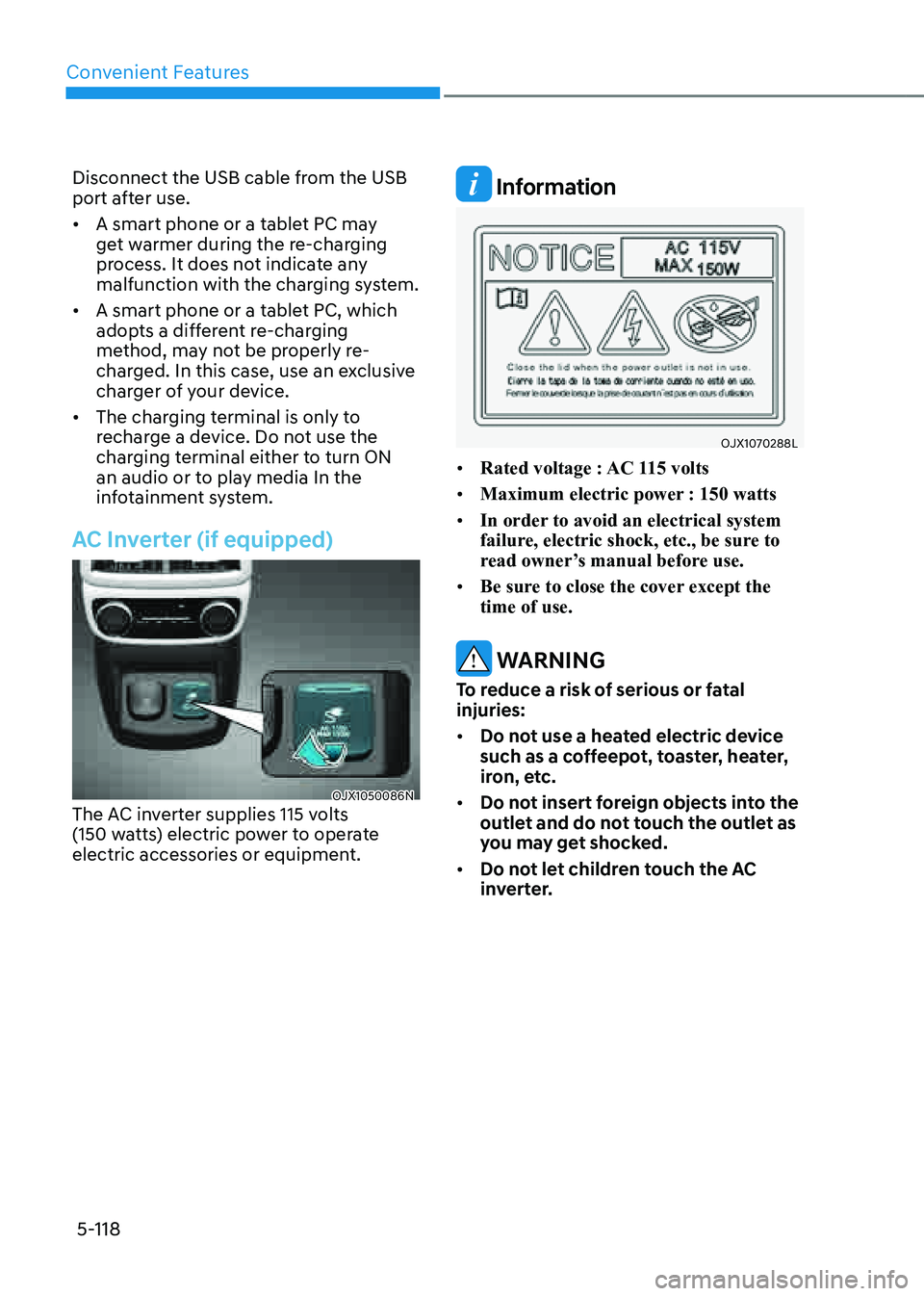
OJX1050086NOJX1050086NThe AC inverter supplies 115 volts (150 watts) electric power to operate electric accessories or equipment.
Information
OJX1070288LOJX1070288L
• Rated voltage : AC 115 volts
• Maximum electric power : 150 watts
• In order to avoid an electrical system
failure, electric shock, etc., be sure to
read owner’s manual before use.
• Be sure to close the cover except the
time of use.
WARNING
To reduce a risk of serious or fatal
injuries:
• Do not use a heated electric device
such as a coffeepot, toaster, heater,
iron, etc.
• Do not insert foreign objects into the
outlet and do not touch the outlet as
you may get shocked.
• Do not let children touch the AC
inverter.
Page 261 of 632
05
5-119
NOTICE
• To prevent the battery from being
discharged, do not use the AC
inverter while the engine is not
running.
• When not using the AC inverter,
make sure to close the AC inverter
cover.
• After using an electric accessory
or equipment, pull the plug out.
Leaving the accessory or equipment
plugged in for a long time may cause
battery discharge.
• Do not use an electric accessory or
equipment the power consumption
of which is greater than 115 volts
(150 watts).
• Some electric accessories or
equipment can cause electronic
interference. It may cause excessive
audio noise and malfunctions in
other electric systems or devices in
the vehicle.
• Do not use broken electric
accessories or equipment, which
may damage the AC inverter and
electrical systems of the vehicle.
• Do not use two or more electric
accessories or equipment at the
same time. It may cause damage to
the electrical systems of the vehicle.
• When the input voltage is lower,
outlet LED will blink and the AC
inverter will turn off automatically. If
the input voltage goes up to normal,
the AC inverter will turn on again.
Wireless Smart Phone Charging
System (if equipped)
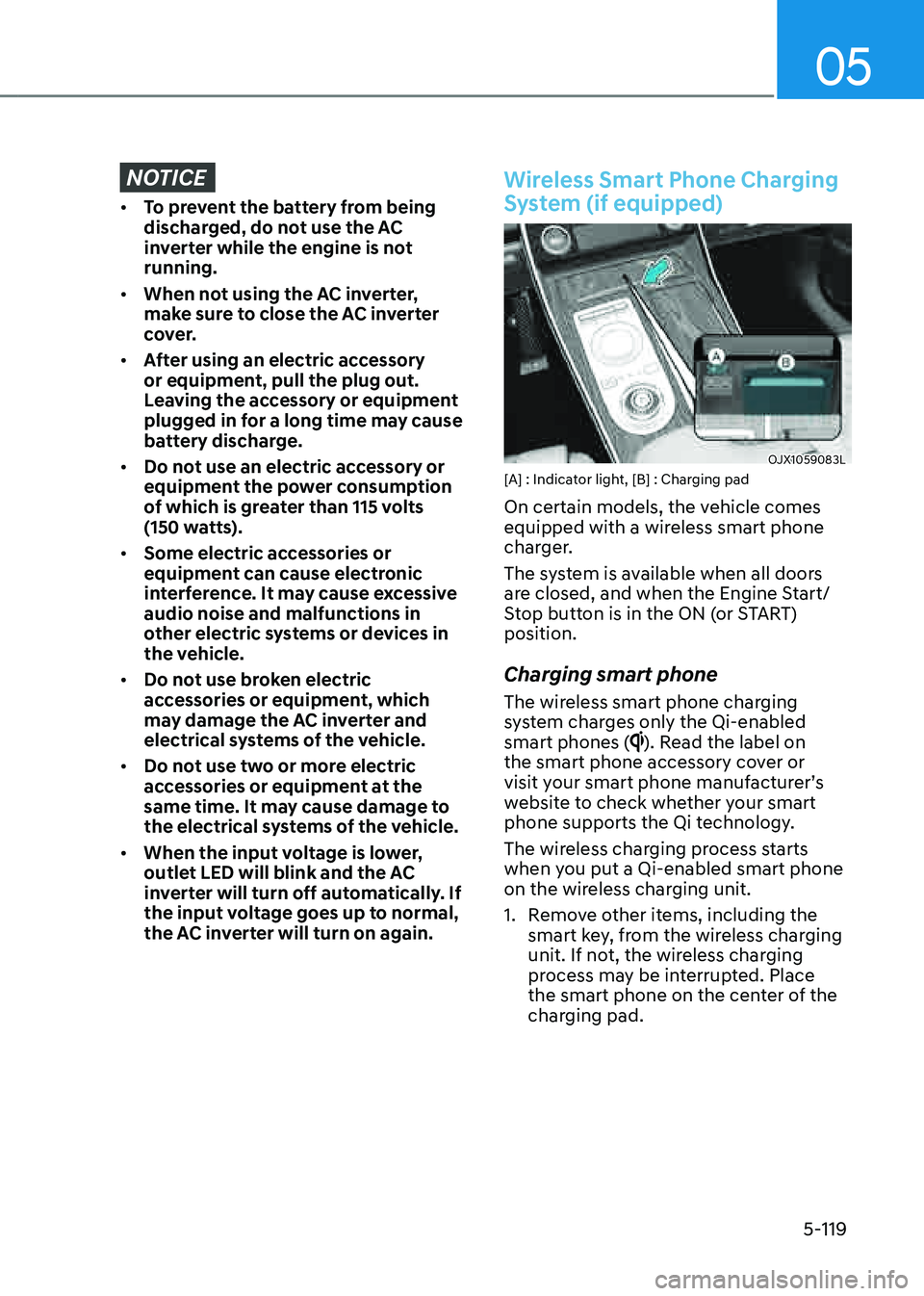
OJX1059083LOJX1059083L[A] : Indicator light, [B] : Charging pad
On certain models, the vehicle comes
equipped with a wireless smart phone
charger.
The system is available when all doors
are closed, and when the Engine Start/
Stop button is in the ON (or START)
position.
Charging smart phone
The wireless smart phone charging
system charges only the Qi-enabled
smart phones (
). Read the label on
the smart phone accessory cover or
visit your smart phone manufacturer’s
website to check whether your smart
phone supports the Qi technology.
The wireless charging process starts
when you put a Qi-enabled smart phone
on the wireless charging unit.
1. Remove other items, including the
smart key, from the wireless charging
unit. If not, the wireless charging
process may be interrupted. Place
the smart phone on the center of the
charging pad.
Page 262 of 632
Convenient Features
5-120
2. The indicator light is orange when the
smart phone is charging. The indicator
light will turn blue when phone
charging is complete.
3. You can turn ON or OFF the wireless
charging function from the Settings
menu in the infotainment system
screen. Select:
-Setup → Vehicle → Convenience →
Wireless Charging
See additional information in
supplied Infotainment Manual.
If your smart phone is not charging:
- Slightly change the position of the
smart phone on the charging pad.
-Make sure the indicator light is
orange.
The indicator light will blink orange for 10
seconds if there is a malfunction in the
wireless charging system.
In this case, temporarily stop the
charging process, and re-attempt to
charge your smart phone again.
The system warns you with a message on
the LCD display if the smart phone is still
on the wireless charging unit after the
vehicle is turned OFF and the front door
is opened.
For some manufacturer’s smart phones,
the system may not warn you even
though the smart phone is left on the
wireless charging unit. This is due to the
particular characteristic of the smart
phone and not a malfunction of the
wireless charging.
NOTICE
• The wireless smart phone charging
system may not support certain
smart phones, which are not verified
for the Qi specification (
).
• When placing your smart phone on
the charging pad, position the phone
in the middle of the mat for optimal
charging performance. If your smart
phone is off to the side, the charging
rate may be less and in some cases
the smart phone may experience
higher heat conduction.
• In some cases, the wireless charging
may stop temporarily when the
smart key is used, either when
starting the vehicle or locking/
unlocking the doors, etc.
• When charging certain smart
phones, the charging indicator may
not change to blue when the smart
phone is fully charged.
• The wireless charging process may
temporarily stop, when temperature
abnormally increases inside the
wireless smart phone charging
system. The wireless charging
process restarts, when temperature
falls to a certain level.
• The wireless charging process may
temporarily stop when there is
any metallic item, such as a coin,
between the wireless smart phone
charging system and smart phone.
Page 263 of 632
05
5-121
• When charging some smart phones
with a self-protection feature,
the wireless charging speed may
decrease and the wireless charging
may stop.
• If the smart phone has a thick cover,
the wireless charging may not be
possible.
• If the smart phone is not completely
contacting the charging pad,
wireless charging may not operate
properly.
• Some magnetic items like credit
cards, phone cards or rail tickets may
be damaged if left with the smart
phone during the charging process.
• When any smart phone without
a wireless charging function or a
metallic object is placed on the
charging pad, a small noise may
sound. This small sound is due to the
vehicle discerning compatibility of
the object placed on the charging
pad. It does not affect your vehicle or
the smart phone in any way.
Information
If the Engine Start/Stop button is in the
OFF position, the charging also stops.
Clock
The clock can be set from the
infotainment system.
See additional information in supplied
Infotainment Manual.
WARNING
Do not attempt to adjust the clock
while driving. Doing so may result in
distracted driving which may lead to
an accident involving personal injury or
death.
Coat Hook
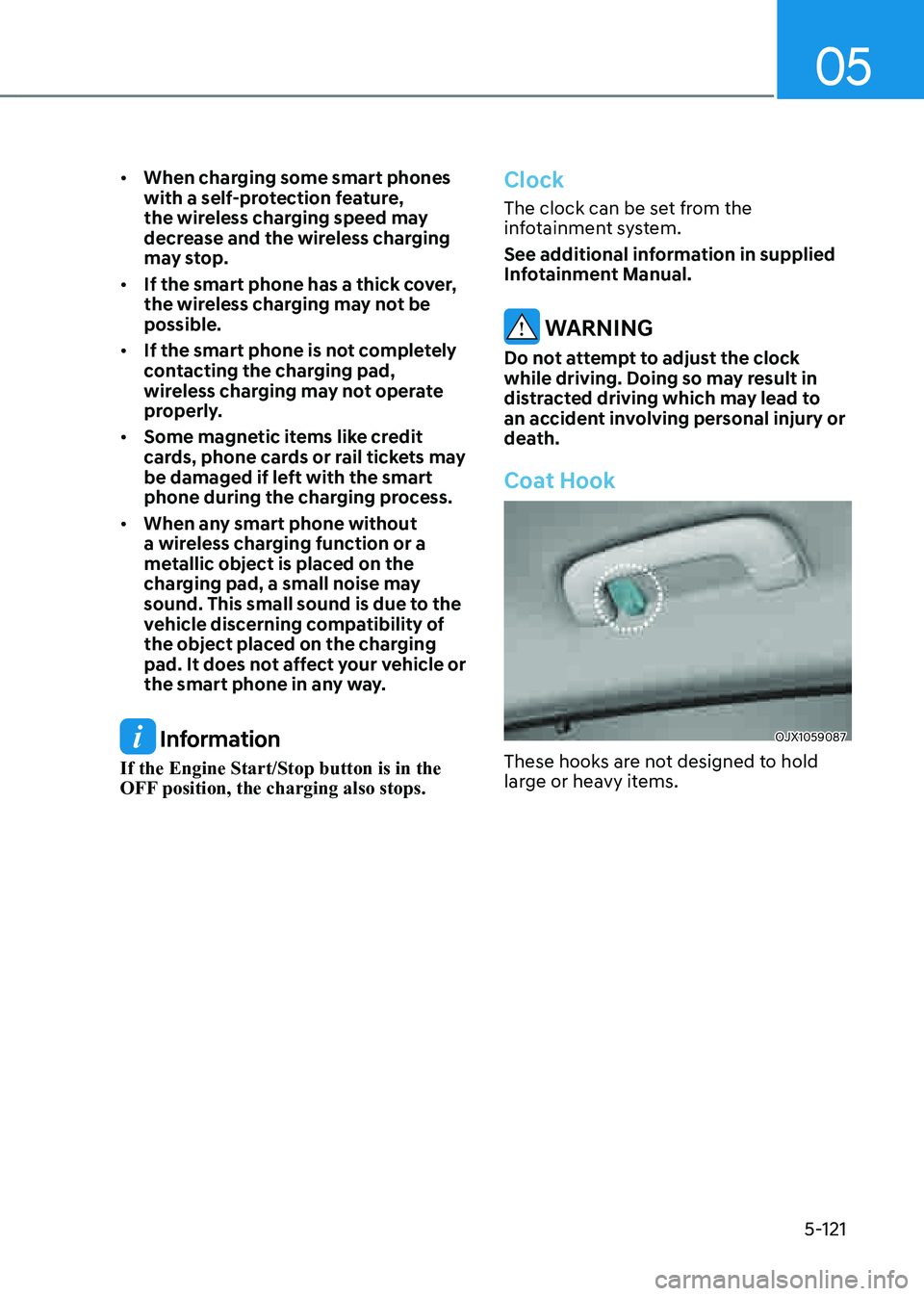
OJX1059087OJX1059087
These hooks are not designed to hold
large or heavy items.
Page 272 of 632

Convenient Features
5-130
Bluetooth® Wireless Technology
OJX1059095OJX1059095
OJX1050207NOJX1050207N
(1) Call / Answer / Call end button
(2) Microphone
See additional information in supplied
Infotainment Manual.
CAUTION
To avoid driver distractions, do not
excessively operate the device while
driving the vehicle which may lead to
an accident.
Lexicon Premium Sound System
(if equipped)
CAUTION
Lexicon premium sound system is
equipped with door speaker grills made
of stainless steel. The grill surface can
be heated when the vehicle is exposed
to hot weather for a long period of time.
Keep away from the speaker grill when
it is hot.
Page 328 of 632
Driving Your Vehicle6-56
ACTIVE SOUND DESIGN (IF
EQUIPPED)
Road Active Noise Control helps reduce
noise caused while driving.
The system may not operate properly in
the following conditions:
- Any of the window is open
-Any of the door is open
-The sunroof is open
-The liftgate is open
-Vehicle’s microphone and speaker is
blocked by loads
System Malfunction
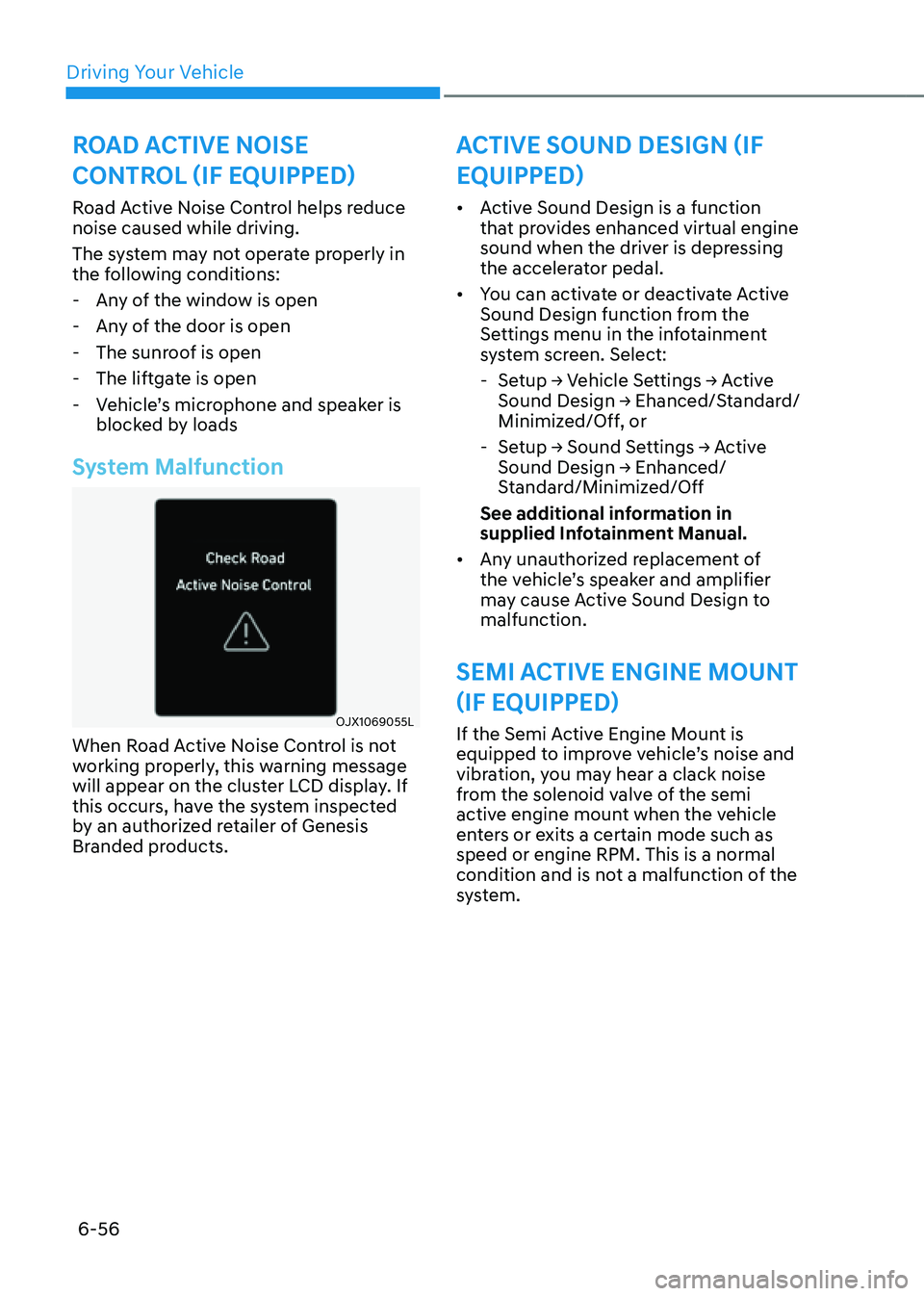
OJX1069055LOJX1069055L
When Road Active Noise Control is not
working properly, this warning message
will appear on the cluster LCD display. If
this occurs, have the system inspected
by an authorized retailer of Genesis
Branded products.
ROAD ACTIVE NOISE
CONTROL (IF EQUIPPED)
• Active Sound Design is a function
that provides enhanced virtual engine
sound when the driver is depressing
the accelerator pedal.
• You can activate or deactivate Active
Sound Design function from the
Settings menu in the infotainment
system screen. Select:
-Setup → Vehicle Settings → Active
Sound Design → Ehanced/Standard/
Minimized/Off, or
-Setup → Sound Settings → Active
Sound Design → Enhanced/
Standard/Minimized/Off
See additional information in
supplied Infotainment Manual.
• Any unauthorized replacement of
the vehicle’s speaker and amplifier
may cause Active Sound Design to
malfunction.
SEMI ACTIVE ENGINE MOUNT
(IF EQUIPPED)
If the Semi Active Engine Mount is
equipped to improve vehicle’s noise and
vibration, you may hear a clack noise
from the solenoid valve of the semi
active engine mount when the vehicle
enters or exits a certain mode such as
speed or engine RPM. This is a normal
condition and is not a malfunction of the
system.