audio GMC ACADIA 2007 User Guide
[x] Cancel search | Manufacturer: GMC, Model Year: 2007, Model line: ACADIA, Model: GMC ACADIA 2007Pages: 554, PDF Size: 2.76 MB
Page 264 of 554
Choose one of the available settings and press
the set/reset button while it is displayed on the
DIC to select it.
EXIT FEATURE SETTINGS
This feature allows you to exit the feature
settings menu.
Press the customization button until FEATURE
SETTINGS PRESS
VTO EXIT appears in
the DIC display. Press the set/reset button once
to exit the menu.
If you do not exit, pressing the customization
button again will return you to the beginning of
the feature settings menu.
Exiting the Feature Settings Menu
The feature settings menu will be exited when any
of the following occurs:
The vehicle is shifted out of PARK (P).
The vehicle is no longer in ON.
The trip/fuel or vehicle information DIC buttons
are pressed.
The end of the feature settings menu is
reached and exited.
A 40 second time period has elapsed with
no selection made.
Audio System(s)
Determine which radio your vehicle has and then
read the pages following to familiarize yourself
with its features.
Driving without distraction is a necessity for a
safer driving experience. SeeDefensive Driving
on page 330. By taking a few moments to read
this manual and get familiar with your vehicle’s
audio system, you can use it with less effort,
as well as take advantage of its features.
While your vehicle is parked, set up your audio
system by presetting your favorite radio stations,
setting the tone and adjusting the speakers.
Then, when driving conditions permit, you can
tune to your favorite stations using the presets and
steering wheel controls if the vehicle has them.
264
Page 265 of 554
{CAUTION:
This system provides you with a far greater
access to audio stations and song listings.
Giving extended attention to entertainment
tasks while driving can cause a crash and
you or others can be injured or killed.
Always keep your eyes on the road and
your mind on the drive — avoid engaging
in extended searching while driving.
Keeping your mind on the drive is important for
safe driving. Here are some ways in which you
can help avoid distraction while driving.
While your vehicle is parked:
Familiarize yourself with all of its controls.
Familiarize yourself with its operation.
Set up your audio system by presetting your
favorite radio stations, setting the tone, and
adjusting the speakers. Then, when driving
conditions permit, you can tune to your favorite
radio stations using the presets and steering
wheel controls if the vehicle has them.Notice:Before adding any sound equipment
to your vehicle, such as an audio system,
CD player, CB radio, mobile telephone,
or two-way radio, make sure that it can be
added by checking with your dealer/retailer.
Also, check federal rules covering mobile radio
and telephone units. If sound equipment can
be added, it is very important to do it properly.
Added sound equipment may interfere with
the operation of your vehicle’s engine, radio,
or other systems, and even damage them.
Your vehicle’s systems may interfere with
the operation of sound equipment that
has been added.
Your vehicle has a feature called Retained
Accessory Power (RAP). With RAP, the audio
system can be played even after the ignition
is turned off. SeeRetained Accessory
Power (RAP) on page 125for more information.
265
Page 268 of 554
Radio with CD
Radio Data System (RDS)
The audio system has a Radio Data System
(RDS). The RDS feature is available for use only
on FM stations that broadcast RDS information.
This system relies upon receiving specic
information from these stations and only
works when the information is available.While the radio is tuned to an FM-RDS station,
the station name or call letters appear on the
display. In rare cases, a radio station can
broadcast incorrect information that causes the
radio features to work improperly. If this happens,
contact the radio station.
XM™ Satellite Radio Service
XM™ is a satellite radio service that is based in
the 48 contiguous United States and Canada.
XM™ offers a large variety of coast-to-coast
channels including music, news, sports, talk,
traffic/weather (U.S. subscribers), and children’s
programming. XM™ provides digital quality
audio and text information that includes song title
and artist name. A service fee is required in
order to receive the XM™ service. For more
information, contact XM™; In the U.S. at
www.xmradio.com or call 1-800-852-XMXM (9696)
or in Canada at www.xmradio.ca or call
1-877-GET-XMSR (438-9677).
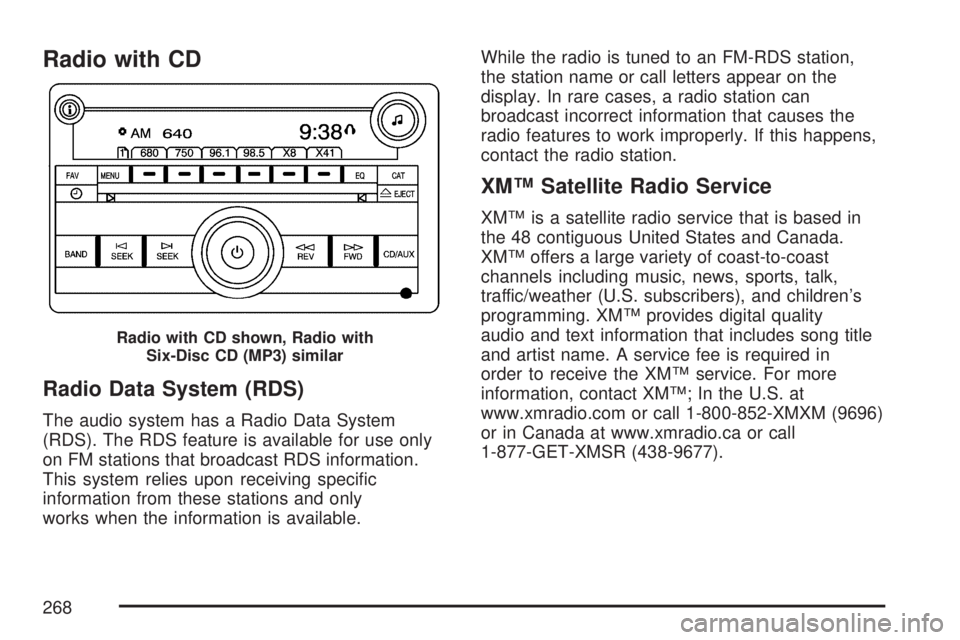
Radio with CD shown, Radio with
Six-Disc CD (MP3) similar
268
Page 273 of 554
Undesired XM™ categories can be removed
through the setup menu. To remove an undesired
category, perform the following:
1. Press the MENU button to display the radio
setup menu.
2. Press the pushbutton located below the
XM CAT label.
3. Rotate the tune knob to display the category
you want removed.
4. Press the pushbutton located under the
Remove label until the category name
along with the word Removed displays.
5. Repeat the steps to remove more categories.
Removed categories can be restored by pressing
the pushbutton under the Add label when a
removed category is displayed or by pressing the
pushbutton under the Restore All label.
You cannot remove or add categories while the
vehicle is moving faster than 5 mph (8 km/h).Radio Messages
Calibration Error:The audio system has been
calibrated for your vehicle from the factory.
If Calibration Error displays, it means that the
radio has not been congured properly for your
vehicle and it must be returned to your dealer/
retailer for service.
Locked:This message displays when the
THEFTLOCK
®system has locked up the radio.
Take the vehicle to your dealer/retailer for service.
If any error occurs repeatedly or if an error
cannot be corrected, contact your dealer/retailer.
Radio Messages for XM™ Only
SeeXM Radio Messages on page 309later in
this section for further detail.
Playing a CD (Single CD Player)
Insert a CD partway into the slot, label side up.
The player pulls it in and the CD should begin
playing.
273
Page 274 of 554
Playing a CD(s) (Six-Disc CD Player)
LOAD^:Press this button to load CDs into the
CD player. This CD player holds up to six CDs.
To insert one CD, do the following:
1. Press and release the load button.
2. Wait for the message to insert the disc.
3. Load a CD. Insert the CD partway into the slot,
label side up. The player pulls the CD in.
To insert multiple CDs, do the following:
1. Press and hold the load button for
two seconds. A beep sounds and
Load All Discs displays.
2. Follow the displayed instruction on when to
insert the discs. The CD player takes up to
six CDs.
3. Press the Load button again to cancel
loading more CDs.If the ignition or radio is turned off, with a CD
in the player, it stays in the player. When
the ignition or radio is turned on, the CD starts
playing where it stopped, if it was the last selected
audio source.
When a CD is inserted, the CD symbol displays.
As each new track starts to play, the track number
displays.
If playing a CD-R, the sound quality can be
reduced due to CD-R quality, the method of
recording, the quality of the music that has been
recorded, and the way the CD-R has been
handled. There can be an increase in skipping,
difficulty in nding tracks, and/or difficulty in loading
and ejecting. If these problems occur, check
the bottom surface of the CD. If the surface of the
CD is damaged, such as cracked, broken, or
scratched, the CD does not play properly. If the
surface of the CD is soiled, seeCare of Your CDs
and DVDs on page 328for more information.
274
Page 276 of 554
\FWD (Fast Forward):Press and hold this
button to advance playback quickly within a track.
You will hear sound at a reduced volume.
Release this button to resume playing the track.
The elapsed time of the track displays.
RDM (Random):With the random setting, the
tracks can be listened to in random, rather
than sequential order, on one CD or all CDs in a
six-disc CD player. To use random, do one of
the following:
Press the CD/AUX button, or for a single CD
player, insert a disc partway into the slot of
the CD player. A RDM label displays.
To play the tracks from the single CD in
random order, press the pushbutton positioned
under the RDM label until Random Current
Disc is displayed. Press the pushbutton again
to turn off random play.
Press the CD/AUX button, or for a six-disc CD
player, press and hold the LOAD button.
A beep sounds and Load All Discs displays.
Insert one or more discs partway into the
slot of the CD player.To play tracks from all CDs loaded in a six-disc
CD player in random order, press the
pushbutton positioned under the RDM label
until Randomize All Discs displays. Press the
same pushbutton again to turn off random play.
BAND:Press this button to listen to the radio
when a CD is playing. The CD remains inside the
radio for future listening.
CD/AUX (CD/Auxiliary):Press this button to play
a CD when listening to the radio. The CD icon
and a message showing disc and/or track number
displays when a CD is in the player. Press this
button again and the system automatically
searches for an auxiliary input device, such as a
portable audio player. If a portable audio player is
not connected, “no input device found” displays.
276
Page 277 of 554
Playing an MP3/WMA CD-R or
CD-RW Disc
If you have a radio with a six-disc CD player, it
has the capability of playing an MP3/WMA CD-R
or CD-RW disc. For more information on how
to play an MP3/WMA CD-R or CD-RW disc,
see “Using an MP3” in the index.
CD Messages
CHECK DISC:If this message displays and/or
the CD comes out, it could be for one of the
following reasons:
It is very hot. When the temperature
returns to normal, the CD should play.
You are driving on a very rough road.
When the road becomes smoother,
the CD should play.
The CD is dirty, scratched, wet,
or upside down.
The air is very humid. If so, wait about
an hour and try again.
There could have been a problem while
burning the CD.
The label could be caught in the CD player.If the CD is not playing correctly, for any other
reason, try a known good CD.
If any error occurs repeatedly or if an error cannot
be corrected, contact your dealer/retailer. If the
radio displays an error message, write it down and
provide it to your dealer/retailer when reporting
the problem.
Using the Auxiliary Input Jack
Your radio system has an auxiliary input jack
located on the lower right side of the faceplate.
This is not an audio output; do not plug the
headphone set into the front auxiliary input jack.
You can however, connect an external audio
device such as an iPod, laptop computer,
MP3 player, CD changer, or cassette tape player,
etc. to the auxiliary input jack for use as another
source for audio listening.
Drivers are encouraged to set up any auxiliary
device while the vehicle is in PARK (P).
SeeDefensive Driving on page 330for more
information on driver distraction.
277
Page 278 of 554
To use a portable audio player, connect a
3.5 mm (1/8 inch) cable to the radio’s front
auxiliary input jack. When a device is connected,
press the radio CD/AUX button to begin playing
audio from the device over the vehicle speakers.
O(Power/Volume):Turn this knob clockwise
or counterclockwise to increase or decrease
the volume of the portable player. You might
need to do additional volume adjustments from
the portable device if the volume does not go
loud or soft enough.
BAND:Press this button to listen to the radio
when a portable audio device is playing. The
portable audio device continues playing, so you
might want to stop it or turn it off.
CD/AUX (CD/Auxiliary):Press this button to play
a CD when a portable audio device is playing.
Press this button again and the system begins
playing audio from the connected portable
audio player. If a portable audio player is not
connected, “No input device found” displays.
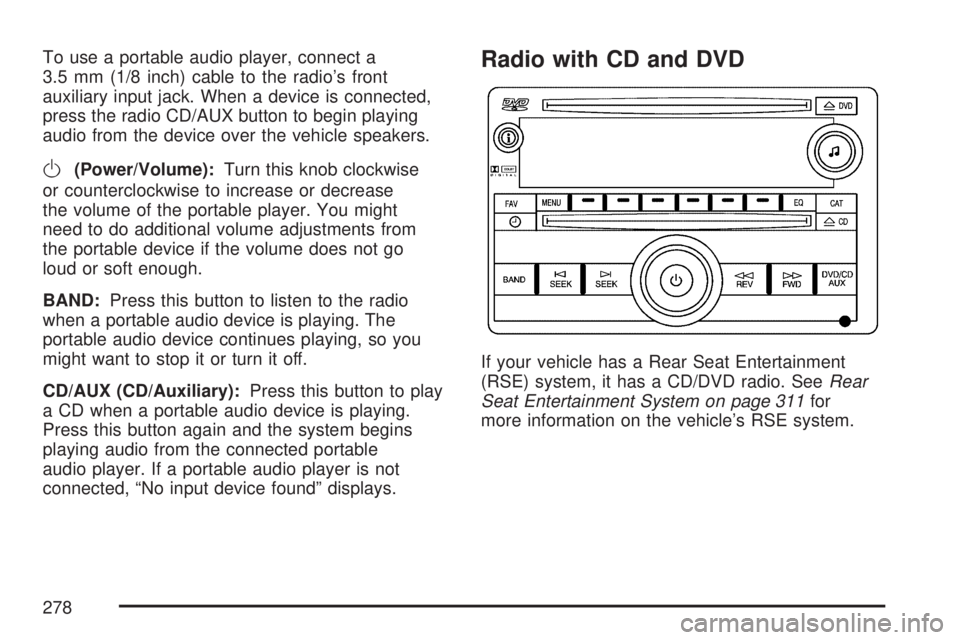
Radio with CD and DVD
If your vehicle has a Rear Seat Entertainment
(RSE) system, it has a CD/DVD radio. SeeRear
Seat Entertainment System on page 311for
more information on the vehicle’s RSE system.
278
Page 279 of 554
The DVD player is the top slot on the radio
faceplate. The player is capable of reading the
DTS programmed DVD Audio or DVD Video media
(DTS and DTS Digital Surround are registered
trademarks of Digital Theater Systems, Inc.).
Manufactured under license from Dolby
®
Laboratories. Dolby®and the double-D symbol
are trademarks of Dolby®Laboratories.
Radio Data System (RDS)
The audio system has a Radio Data System
(RDS). The RDS feature is available for use only
on FM stations that broadcast RDS information.
This system relies upon receiving specic
information from these stations and only works
when the information is available. While the
radio is tuned to an FM-RDS station, the station
name or call letters display. In rare cases, a radio
station can broadcast incorrect information that
causes the radio features to work improperly.
If this happens, contact the radio station.
XM™ Satellite Radio Service
XM™ is a satellite radio service that is based in
the 48 contiguous United States and Canada.
XM™ offers a large variety of coast-to-coast
channels including music, news, sports, talk,
traffic/weather (U.S. subscribers), and children’s
programming. XM™ provides digital quality
audio and text information that includes song title
and artist name. A service fee is required in
order to receive the XM™ service. For more
information, contact XM™; In the U.S. at
www.xmradio.com or call 1-800-852-XMXM (9696)
or in Canada at www.xmradio.ca or call
1-877-GET-XMSR (438-9677).
Playing the Radio
O
(Power/Volume):Press this knob to turn the
system on and off.
Turn this knob clockwise or counterclockwise to
increase or decrease the volume.
279
Page 283 of 554
Unique EQ settings can be saved for each source.
If your radio has a Bose
®audio system, the EQ
settings are either MANUAL or TALK.
Adjusting the Speakers (Balance/Fade)
BAL/FADE (Balance/Fade):To adjust balance
or fade, press the tune knob until the speaker
control labels display. Press the pushbutton
positioned under the desired label. Turn the tune
knob clockwise or counterclockwise to adjust
the highlighted setting. You can also adjust the
highlighted setting by pressing either the SEEK,
FWD, or REV button until the desired levels
are obtained.
To quickly adjust balance or fade to the middle
position, press the pushbutton positioned under the
BAL or FADE label for more than two seconds.
A beep sounds and the level adjusts to the
middle position.
To quickly adjust both the balance and fade to the
middle position at one time, press the tune knob for
more than two seconds until a beep sounds.
If the Rear Seat Audio (RSA) is turned on, the radio
disables FADE and mutes the rear speakers.
Finding a Category (CAT) Station
CAT (Category):The CAT button is used to nd
XM™ stations when the radio is in the XM™
mode. To nd XM™ channels within a desired
category, perform the following:
1. Press the BAND button until the XM™
frequency displays. Press the CAT button to
display the category labels on the radio
display. Continue pressing the CAT button
until the desired category name displays.
Another way to navigate the category list is
to press the REV button or the FWD button.
2. Press either of the two buttons below the
desired category label to immediately tune
to the rst XM™ station associated with that
category.
3. Turn the tune knob, press the buttons below
the right or left arrows displayed, or press the
right or left SEEK buttons to go to the next
or previous XM™ station within the selected
category.
4. To exit the category search mode, press the
FAV button or BAND button to display your
favorites again.
283