buttons GMC ACADIA 2007 Service Manual
[x] Cancel search | Manufacturer: GMC, Model Year: 2007, Model line: ACADIA, Model: GMC ACADIA 2007Pages: 554, PDF Size: 2.76 MB
Page 255 of 554
TURN SIGNAL ON
This message displays and a chime sounds if a
turn signal is left on for 3/4 of a mile (1.2 km).
Move the turn signal/multifunction lever to the
off position.
WASHER FLUID LOW ADD FLUID
This message displays when the windshield
washer uid is low. Fill the windshield washer uid
reservoir as soon as possible. SeeEngine
Compartment Overview on page 396for the
location of the windshield washer uid reservoir.
Also, seeWindshield Washer Fluid on page 420
for more information.
DIC Vehicle Customization
(With DIC Buttons)
Your vehicle may have customization capabilities
that allow you to program certain features to
one preferred setting. Customization features
can only be programmed to one setting on
the vehicle and cannot be programmed to a
preferred setting for two different drivers.
All of the customization options may not be
available on your vehicle. Only the options
available will be displayed on the DIC.
The default settings for the customization features
were set when your vehicle left the factory,
but may have been changed from their default
state since then.
The customization preferences are automatically
recalled.
255
Page 257 of 554
Choose one of the available settings and press
the set/reset button while it is displayed on the
DIC to select it.
You can also change the language by pressing
the trip odometer reset stem. See “Language”
under DIC Operation and Displays (Without DIC
Buttons) earlier in this section for more information.
AUTO DOOR LOCK
This feature allows you to select when the vehicle’s
doors will automatically lock. SeeProgrammable
Automatic Door Locks on page 107for more
information.
Press the customization button until AUTO DOOR
LOCK appears on the DIC display. Press the
set/reset button once to access the settings for this
feature. Then press the customization button to
scroll through the following settings:
SHIFT OUT OF PARK (default):The doors will
automatically lock when the vehicle is shifted out
of PARK (P).
AT VEHICLE SPEED:The doors will
automatically lock when the vehicle speed is
above 8 mph (13 km/h) for three seconds.NO CHANGE:No change will be made to this
feature. The current setting will remain.
Choose one of the available settings and press
the set/reset button while it is displayed on the
DIC to select it.
AUTO DOOR UNLOCK
This feature allows you to select whether or not to
turn off the automatic door unlocking feature. It also
allows you to select which doors and when the
doors will automatically unlock. SeeProgrammable
Automatic Door Locks on page 107for more
information.
Press the customization button until AUTO DOOR
UNLOCK appears on the DIC display. Press
the set/reset button once to access the settings
for this feature. Then press the customization
button to scroll through the following settings:
OFF:None of the doors will automatically unlock.
DRIVER AT KEY OUT:Only the driver’s door
will unlock when the key is taken out of the
ignition.
257
Page 263 of 554
ON:The driver’s seat and outside mirrors will
automatically move to the stored driving position
when the unlock button on the Remote Keyless
Entry (RKE) transmitter is pressed. See “Relearn
Remote Key” underDIC Operation and Displays
(With DIC Buttons) on page 233orDIC Operation
and Displays (Without DIC Buttons) on page 239
for more information on matching transmitters
to driver ID numbers.
NO CHANGE:No change will be made to this
feature. The current setting will remain.
Choose one of the available settings and press
the set/reset button while it is displayed on the
DIC to select it.
REMOTE START
If your vehicle has this feature, it allows you to
turn the remote start off or on. The remote
start feature allows you to start the engine from
outside of the vehicle using the Remote Keyless
Entry (RKE) transmitter. See “Remote Vehicle
Start” underRemote Keyless Entry (RKE) System
Operation on page 100for more information.
Press the customization button until REMOTE
START appears on the DIC display. Press
the set/reset button once to access thesettings for this feature. Then press the
customization button to scroll through the
following settings:
OFF:The remote start feature will be disabled.
ON (default):The remote start feature will
be enabled.
NO CHANGE:No change will be made to this
feature. The current setting will remain.
Choose one of the available settings and press
the set/reset button while it is displayed on the
DIC to select it.
FACTORY SETTINGS
This feature allows you to set all of the
customization features back to their factory
default settings.
Press the customization button until FACTORY
SETTINGS appears on the DIC display. Press the
set/reset button once to access the settings for
this feature. Then press the customization button
to scroll through the following settings:
RESTORE ALL (default):The customization
features will be set to their factory default settings.
DO NOT RESTORE:The customization features
will not be set to their factory default settings.
263
Page 264 of 554
Choose one of the available settings and press
the set/reset button while it is displayed on the
DIC to select it.
EXIT FEATURE SETTINGS
This feature allows you to exit the feature
settings menu.
Press the customization button until FEATURE
SETTINGS PRESS
VTO EXIT appears in
the DIC display. Press the set/reset button once
to exit the menu.
If you do not exit, pressing the customization
button again will return you to the beginning of
the feature settings menu.
Exiting the Feature Settings Menu
The feature settings menu will be exited when any
of the following occurs:
The vehicle is shifted out of PARK (P).
The vehicle is no longer in ON.
The trip/fuel or vehicle information DIC buttons
are pressed.
The end of the feature settings menu is
reached and exited.
A 40 second time period has elapsed with
no selection made.
Audio System(s)
Determine which radio your vehicle has and then
read the pages following to familiarize yourself
with its features.
Driving without distraction is a necessity for a
safer driving experience. SeeDefensive Driving
on page 330. By taking a few moments to read
this manual and get familiar with your vehicle’s
audio system, you can use it with less effort,
as well as take advantage of its features.
While your vehicle is parked, set up your audio
system by presetting your favorite radio stations,
setting the tone and adjusting the speakers.
Then, when driving conditions permit, you can
tune to your favorite stations using the presets and
steering wheel controls if the vehicle has them.
264
Page 270 of 554
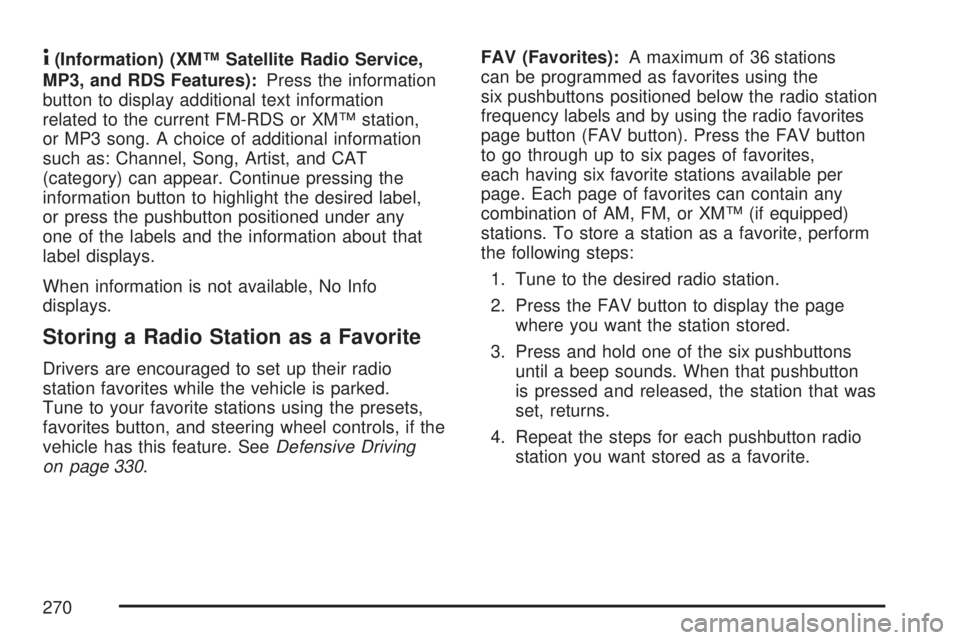
4(Information) (XM™ Satellite Radio Service,
MP3, and RDS Features):Press the information
button to display additional text information
related to the current FM-RDS or XM™ station,
or MP3 song. A choice of additional information
such as: Channel, Song, Artist, and CAT
(category) can appear. Continue pressing the
information button to highlight the desired label,
or press the pushbutton positioned under any
one of the labels and the information about that
label displays.
When information is not available, No Info
displays.
Storing a Radio Station as a Favorite
Drivers are encouraged to set up their radio
station favorites while the vehicle is parked.
Tune to your favorite stations using the presets,
favorites button, and steering wheel controls, if the
vehicle has this feature. SeeDefensive Driving
on page 330.FAV (Favorites):A maximum of 36 stations
can be programmed as favorites using the
six pushbuttons positioned below the radio station
frequency labels and by using the radio favorites
page button (FAV button). Press the FAV button
to go through up to six pages of favorites,
each having six favorite stations available per
page. Each page of favorites can contain any
combination of AM, FM, or XM™ (if equipped)
stations. To store a station as a favorite, perform
the following steps:
1. Tune to the desired radio station.
2. Press the FAV button to display the page
where you want the station stored.
3. Press and hold one of the six pushbuttons
until a beep sounds. When that pushbutton
is pressed and released, the station that was
set, returns.
4. Repeat the steps for each pushbutton radio
station you want stored as a favorite.
270
Page 272 of 554
Adjusting the Speakers (Balance/Fade)
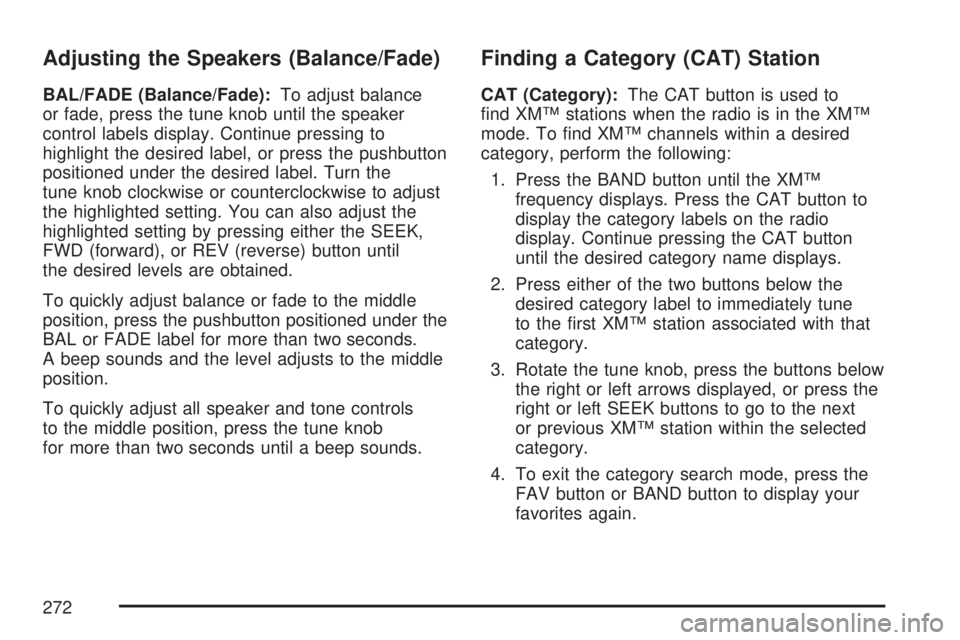
BAL/FADE (Balance/Fade):To adjust balance
or fade, press the tune knob until the speaker
control labels display. Continue pressing to
highlight the desired label, or press the pushbutton
positioned under the desired label. Turn the
tune knob clockwise or counterclockwise to adjust
the highlighted setting. You can also adjust the
highlighted setting by pressing either the SEEK,
FWD (forward), or REV (reverse) button until
the desired levels are obtained.
To quickly adjust balance or fade to the middle
position, press the pushbutton positioned under the
BAL or FADE label for more than two seconds.
A beep sounds and the level adjusts to the middle
position.
To quickly adjust all speaker and tone controls
to the middle position, press the tune knob
for more than two seconds until a beep sounds.
Finding a Category (CAT) Station
CAT (Category):The CAT button is used to
nd XM™ stations when the radio is in the XM™
mode. To nd XM™ channels within a desired
category, perform the following:
1. Press the BAND button until the XM™
frequency displays. Press the CAT button to
display the category labels on the radio
display. Continue pressing the CAT button
until the desired category name displays.
2. Press either of the two buttons below the
desired category label to immediately tune
to the rst XM™ station associated with that
category.
3. Rotate the tune knob, press the buttons below
the right or left arrows displayed, or press the
right or left SEEK buttons to go to the next
or previous XM™ station within the selected
category.
4. To exit the category search mode, press the
FAV button or BAND button to display your
favorites again.
272
Page 281 of 554
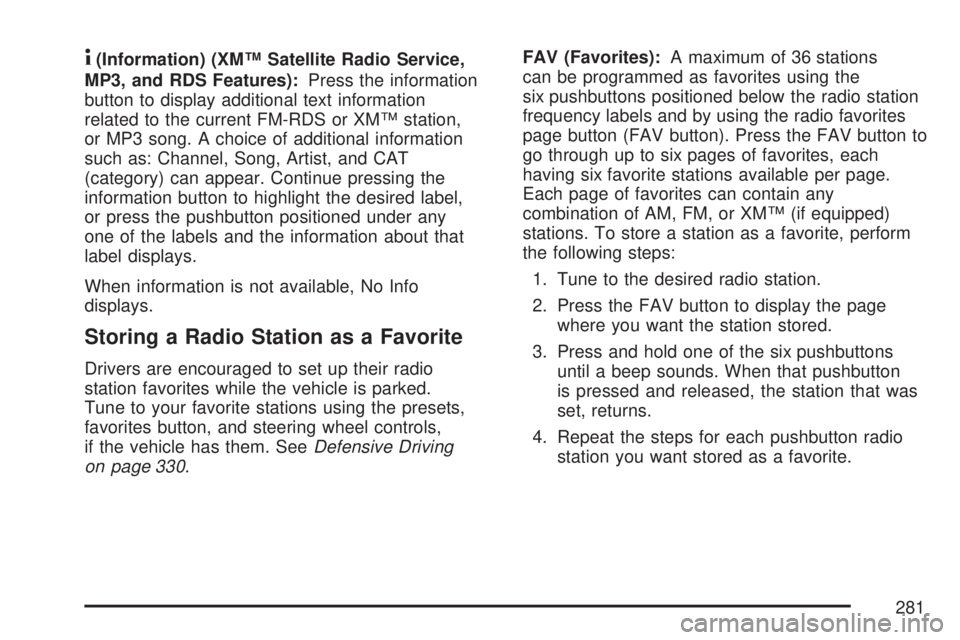
4(Information) (XM™ Satellite Radio Service,
MP3, and RDS Features):Press the information
button to display additional text information
related to the current FM-RDS or XM™ station,
or MP3 song. A choice of additional information
such as: Channel, Song, Artist, and CAT
(category) can appear. Continue pressing the
information button to highlight the desired label,
or press the pushbutton positioned under any
one of the labels and the information about that
label displays.
When information is not available, No Info
displays.
Storing a Radio Station as a Favorite
Drivers are encouraged to set up their radio
station favorites while the vehicle is parked.
Tune to your favorite stations using the presets,
favorites button, and steering wheel controls,
if the vehicle has them. SeeDefensive Driving
on page 330.FAV (Favorites):A maximum of 36 stations
can be programmed as favorites using the
six pushbuttons positioned below the radio station
frequency labels and by using the radio favorites
page button (FAV button). Press the FAV button to
go through up to six pages of favorites, each
having six favorite stations available per page.
Each page of favorites can contain any
combination of AM, FM, or XM™ (if equipped)
stations. To store a station as a favorite, perform
the following steps:
1. Tune to the desired radio station.
2. Press the FAV button to display the page
where you want the station stored.
3. Press and hold one of the six pushbuttons
until a beep sounds. When that pushbutton
is pressed and released, the station that was
set, returns.
4. Repeat the steps for each pushbutton radio
station you want stored as a favorite.
281
Page 283 of 554
Unique EQ settings can be saved for each source.
If your radio has a Bose
®audio system, the EQ
settings are either MANUAL or TALK.
Adjusting the Speakers (Balance/Fade)
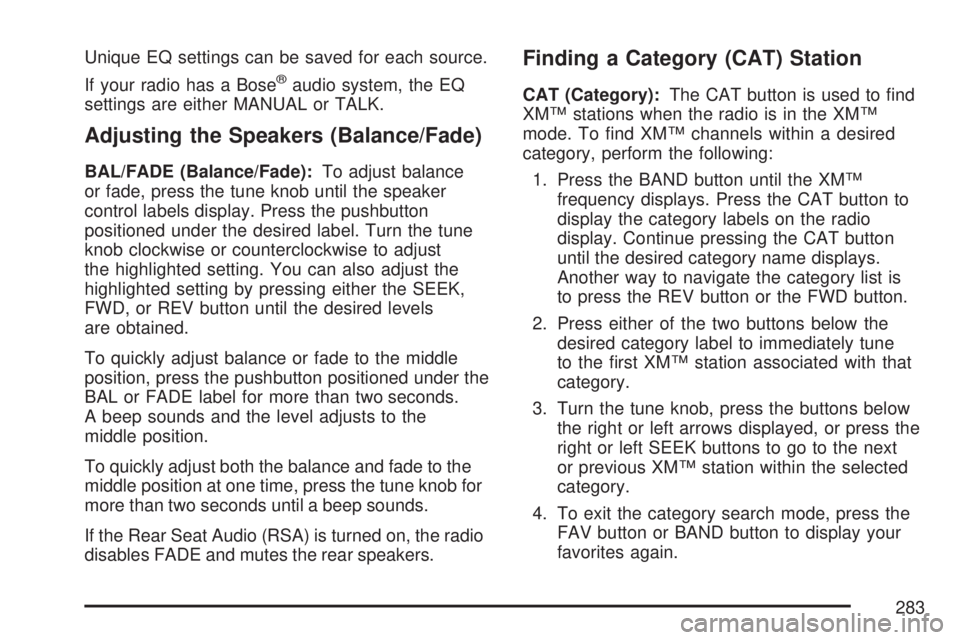
BAL/FADE (Balance/Fade):To adjust balance
or fade, press the tune knob until the speaker
control labels display. Press the pushbutton
positioned under the desired label. Turn the tune
knob clockwise or counterclockwise to adjust
the highlighted setting. You can also adjust the
highlighted setting by pressing either the SEEK,
FWD, or REV button until the desired levels
are obtained.
To quickly adjust balance or fade to the middle
position, press the pushbutton positioned under the
BAL or FADE label for more than two seconds.
A beep sounds and the level adjusts to the
middle position.
To quickly adjust both the balance and fade to the
middle position at one time, press the tune knob for
more than two seconds until a beep sounds.
If the Rear Seat Audio (RSA) is turned on, the radio
disables FADE and mutes the rear speakers.
Finding a Category (CAT) Station
CAT (Category):The CAT button is used to nd
XM™ stations when the radio is in the XM™
mode. To nd XM™ channels within a desired
category, perform the following:
1. Press the BAND button until the XM™
frequency displays. Press the CAT button to
display the category labels on the radio
display. Continue pressing the CAT button
until the desired category name displays.
Another way to navigate the category list is
to press the REV button or the FWD button.
2. Press either of the two buttons below the
desired category label to immediately tune
to the rst XM™ station associated with that
category.
3. Turn the tune knob, press the buttons below
the right or left arrows displayed, or press the
right or left SEEK buttons to go to the next
or previous XM™ station within the selected
category.
4. To exit the category search mode, press the
FAV button or BAND button to display your
favorites again.
283
Page 285 of 554
If the ignition or radio is turned off, with a CD in
the player, it stays in the player. When the ignition
or radio is turned on, the CD starts playing
where it stopped, if it was the last selected audio
source. The CD is controlled by the buttons
on the radio faceplate or by the RSA unit. See
Rear Seat Audio (RSA) on page 322for more
information. The DVD/CD decks, (upper slot is the
DVD deck and the lower slot is the CD deck) of
the radio are compatible with most audio CDs,
CD-R, CD-RW, and MP3s.
When a CD is inserted, the text label DVD or CD
symbol appears on the left side of the radio
display. As each new track starts to play, the
track number displays.
If playing a CD-R, the sound quality can be
reduced due to CD-R quality, the method of
recording, the quality of the music that has been
recorded, and the way the CD-R has been
handled. There can be an increase in skipping,
difficulty in nding tracks, and/or difficulty in loading
and ejecting. If these problems occur, check the
bottom surface of the CD. If the surface of the CD
is damaged, such as cracked, broken, orscratched, the CD does not play properly. If the
surface of the CD is soiled, seeCare of Your CDs
and DVDs on page 328for more information.
If there is no apparent damage, try a known
good CD.
Notice:If a label is added to a CD, or more
than one CD is inserted into the slot at a time,
or an attempt is made to play scratched or
damaged CDs, the CD player could be
damaged. While using the CD player, use
only CDs in good condition without any label,
load one CD at a time, and keep the CD
player and the loading slot free of foreign
materials, liquids, and debris.
Do not add any label to a CD, it could get caught
in the CD player. If a CD is recorded on a
personal computer and a description label is
needed, try labeling the top of the recorded CD
with a marking pen.
If an error displays, see “CD Messages” later in
this section.
285
Page 289 of 554
If any error occurs repeatedly or if an error cannot
be corrected, contact your dealer/retailer. If the
radio displays an error message, write it down and
provide it to your dealer/retailer when reporting
the problem.
Using the DVD Player
The DVD player is controlled by the buttons on
the remote control, or by the RSA system,
or by the buttons on the radio faceplate. See
“Remote Control”, underRear Seat Entertainment
System on page 311andRear Seat Audio
(RSA) on page 322for more information.
The DVD player is only compatible with DVDs of
the appropriate region code that is printed on
the jacket of most DVDs.
The DVD slot of the radio is compatible with
most audio CDs, CD-R, CD-RW, DVD-Video,
DVD-Audio, DVD-R/RW, DVD+R/RW media along
with MP3 and WMA formats.
If an error message appears on the video screen
or the radio, see “DVD Display Error Messages”
under,Rear Seat Entertainment System on
page 311and “DVD Radio Error Messages” in
this section for more information.
Playing a DVD
DVD/CD AUX (Auxiliary):Press this button
to cycle through DVD, CD, or Auxiliary when
listening to the radio. The DVD/CD text label and
a message showing track or chapter number
displays when a disc is in either slot. Press
this button again and the system automatically
searches for an auxiliary input device, such as a
portable audio player. If a portable audio player
is not connected, “No aux input device” displays.
If a disc is in both the DVD slot and the CD
slot the DVD/CD AUX button cycles between
the two sources and not indicate “No aux input
device”. If a front auxiliary device is connected,
the DVD/CD AUX button cycles through all
available options, such as: DVD slot, CD slot,
Front Auxiliary, and Rear Auxiliary (if available).
See “Using the Auxiliary Input Jack(s)” later in
this section, or “Audio/Video (A/V) Jacks” under,
Rear Seat Entertainment System on page 311
for more information.
289