park GMC ACADIA 2008 Service Manual
[x] Cancel search | Manufacturer: GMC, Model Year: 2008, Model line: ACADIA, Model: GMC ACADIA 2008Pages: 472, PDF Size: 5.72 MB
Page 223 of 472
PARK TILT MIRRORS
If your vehicle has this feature, it allows you to select
whether or not the outside mirror(s) will automatically
tilt down when the vehicle is shifted into REVERSE (R).
SeeOutside Power Foldaway Mirrors on page 2-43
for more information.
Press the customization button until PARK TILT
MIRRORS appears on the DIC display. Press the
set/reset button once to access the settings for
this feature. Then press the customization button to
scroll through the following settings:
OFF (default):Neither outside mirror will be tilted
down when the vehicle is shifted into REVERSE (R).
DRIVER MIRROR:The driver’s outside mirror will
be tilted down when the vehicle is shifted into
REVERSE (R).
PASSENGER MIRROR:The passenger’s outside
mirror will be tilted down when the vehicle is shifted
into REVERSE (R).
BOTH MIRRORS:The driver’s and passenger’s
outside mirrors will be tilted down when the vehicle
is shifted into REVERSE (R).
NO CHANGE:No change will be made to this feature.
The current setting will remain.
To select a setting, press the set/reset button while the
desired setting is displayed on the DIC.
EASY EXIT SEAT
If your vehicle has this feature, it allows you to select
your preference for the automatic easy exit seat feature.
SeeMemory Seat and Mirrors on page 1-6for more
information.
Press the customization button until EASY EXIT SEAT
appears on the DIC display. Press the set/reset
button once to access the settings for this feature.
Then press the customization button to scroll through
the following settings:
OFF (default):No automatic seat exit recall will occur.
ON:The driver’s seat will move back when the key
is removed from the ignition.
The automatic easy exit seat movement will only occur
one time after the key is removed from the ignition. If the
automatic movement has already occurred, and you put
the key back in the ignition and remove it again, the seat
will stay in the original exit position, unless a memory
recall took place prior to removing the key again.
NO CHANGE:No change will be made to this feature.
The current setting will remain.
To select a setting, press the set/reset button while the
desired setting is displayed on the DIC.
3-81
Page 225 of 472
FACTORY SETTINGS
This feature allows you to set all of the customization
features back to their factory default settings.
Press the customization button until FACTORY
SETTINGS appears on the DIC display. Press the
set/reset button once to access the settings for
this feature. Then press the customization button to
scroll through the following settings:
RESTORE ALL (default):The customization features
will be set to their factory default settings.
DO NOT RESTORE:The customization features will
not be set to their factory default settings.
To select a setting, press the set/reset button while the
desired setting is displayed on the DIC.
EXIT FEATURE SETTINGS
This feature allows you to exit the feature
settings menu.
Press the customization button until FEATURE
SETTINGS PRESS
VTO EXIT appears in the DIC
display. Press the set/reset button once to exit the menu.
If you do not exit, pressing the customization button
again will return you to the beginning of the feature
settings menu.
Exiting the Feature Settings Menu
The feature settings menu will be exited when any
of the following occurs:
The vehicle is shifted out of PARK (P).
The vehicle is no longer in ON/RUN.
The trip/fuel or vehicle information DIC buttons
are pressed.
The end of the feature settings menu is reached
and exited.
A 40 second time period has elapsed with no
selection made.
3-83
Page 226 of 472
Audio System(s)
Determine which radio your vehicle has and then
read the pages following to familiarize yourself with
its features.
{CAUTION:
This system provides you with far greater
access to audio stations and song listings.
Giving extended attention to entertainment
tasks while driving can cause a crash and
you or others can be injured or killed.
Always keep your eyes on the road and
your mind on the drive — avoid engaging
in extended searching while driving.
Keeping your mind on the drive is important for
safe driving. SeeDefensive Driving on page 4-2.
Here are some ways in which you can help avoid
distraction while driving.While your vehicle is parked:
Familiarize yourself with all of its controls.
Familiarize yourself with its operation.
Set up your audio system by presetting your
favorite radio stations, setting the tone, and
adjusting the speakers. Then, when driving
conditions permit, you can tune to your favorite
radio stations using the presets and steering
wheel controls if the vehicle has them.
Notice:Before adding any sound equipment to
your vehicle, such as an audio system, CD player,
CB radio, mobile telephone, or two-way radio,
make sure that it can be added by checking with
your dealer/retailer. Also, check federal rules
covering mobile radio and telephone units. If sound
equipment can be added, it is very important to
do it properly. Added sound equipment may
interfere with the operation of your vehicle’s engine,
radio, or other systems, and even damage them.
Your vehicle’s systems may interfere with the
operation of sound equipment that has been added.
Your vehicle has a feature called Retained Accessory
Power (RAP). With RAP, the audio system can be
played even after the ignition is turned off. SeeRetained
Accessory Power (RAP) on page 2-27for more
information.
3-84
Page 231 of 472
Finding a Station
BAND:Press to switch between AM, FM, or XM™
(if equipped). The selection displays.
f(Tune):Turn to select radio stations.
©SEEK¨:Press the arrows to go to the previous
or to the next station and stay there.
To scan stations, press and hold either arrow for a
few seconds until a beep sounds. The radio goes to
a station, plays for a few seconds, then goes to the
next station. Press either arrow again to stop scanning.
The radio only seeks and scans stations with a
strong signal that are in the selected band.
4(Information) (XM™ Satellite Radio Service,
MP3, and RDS Features):Press to display additional
text information related to the current FM-RDS or
XM™ station, or MP3 song. A choice of additional
information such as: Channel, Song, Artist, and
CAT (category) can display. Continue pressing to
highlight the desired label, or press the pushbutton
positioned under any one of the labels and the
information about that label displays.
When information is not available, No Info displays.
Storing a Radio Station as a Favorite
Drivers are encouraged to set up their radio station
favorites while the vehicle is in PARK (P). Tune to your
favorite stations using the presets, favorites button,
and steering wheel controls. SeeDefensive Driving
on page 4-2.
FAV (Favorites):A maximum of 36 stations can be
programmed as favorites using the six pushbuttons
positioned below the radio station frequency labels and
by using the radio favorites page button (FAV button).
Press to go through up to six pages of favorites,
each having six favorite stations available per page.
Each page of favorites can contain any combination of
AM, FM, or XM™ (if equipped) stations.
The balance/fade and tone settings that were previously
adjusted, are stored with the favorite stations.
To store a station as a favorite, perform the
following steps:
1. Tune to the desired radio station.
2. Press the FAV button to display the page where
you want the station stored.
3. Press and hold one of the six pushbuttons until a
beep sounds. When that pushbutton is pressed
and released, the station that was set, returns.
4. Repeat the steps for each pushbutton radio
station you want stored as a favorite.
3-89
Page 245 of 472
Using the Auxiliary Input Jack
Your radio system has an auxiliary input jack located
on the lower right side of the faceplate. This is not
an audio output; do not plug the headphone set into
the front auxiliary input jack. You can however, connect
an external audio device such as an iPod, laptop
computer, MP3 player, CD player, or cassette tape
player, etc. to the auxiliary input jack for use as another
source for audio listening.
Drivers are encouraged to set up any auxiliary device
while the vehicle is in PARK (P). SeeDefensive Driving
on page 4-2for more information on driver distraction.
To use a portable audio player, connect a 3.5 mm
(1/8 inch) cable to the radio’s front auxiliary input jack.
When a device is connected, press the radio CD/AUX
button to begin playing audio from the device over
the vehicle speakers.
O(Power/Volume):Turn clockwise or
counterclockwise to increase or decrease the volume
of the portable player. Additional volume adjustments
might have to be made from the portable device if
the volume is not loud or soft enough.BAND:Press to listen to the radio when a portable audio
device is playing. The portable audio device continues
playing, so you might want to stop it or turn it off.
CD/AUX (CD/Auxiliary):Press to play a CD when a
portable audio device is playing. Press again and
the system begins playing audio from the connected
portable audio player. If a portable audio player is
not connected, “No Input Device Found” displays.
DVD/CD AUX (DVD/CD/Auxiliary):Press to cycle
through DVD, CD, or Auxiliary when listening to
the radio. The DVD/CD text label and a message
showing track or chapter number displays when a
disc is in either slot. Press again and the system
automatically searches for an auxiliary input device,
such as a portable audio player. If a portable audio
player is not connected, “No Aux Input Device” displays.
If a disc is in both the DVD slot and the CD slot the
DVD/CD AUX button cycles between the two sources
and not indicate “No Aux Input Device”. If a front
auxiliary device is connected, the DVD/CD AUX button
cycles through all available options, such as: DVD
slot, CD slot, Front Auxiliary, and Rear Auxiliary
(if available). See “Using the Auxiliary Input Jack(s)”
later in this section, or “Audio/Video (A/V) Jacks” under,
Rear Seat Entertainment (RSE) System on page 3-115
for more information.
3-103
Page 281 of 472
All-Wheel Drive (AWD) System
If your vehicle has this feature, engine power is sent to all
four wheels when extra traction is needed. This is like
four-wheel drive, but there is no separate lever or switch
to engage or disengage the front axle. It is fully automatic,
and adjusts itself as needed for road conditions.
When using a compact spare tire on your AWD
equipped vehicle, the AWD system automatically detects
the presence of the compact spare and the AWD is
disabled. To restore the AWD operation and prevent
excessive wear on the clutch in your AWD system,
replace the compact spare with a full-size tire as soon
as possible. SeeCompact Spare Tire on page 5-88
for more information.
Steering
Power Steering
If you lose power steering assist because the engine
stops or the system is not functioning, you can steer but
it will take much more effort.
Variable Effort Steering
If your vehicle has this steering system, the system
continuously adjusts the effort you feel when steering at
all vehicle speeds. It provides ease when parking,
yet a rm, solid feel at highway speeds.
Steering Tips
It is important to take curves at a reasonable speed.
A lot of the “driver lost control” accidents mentioned on
the news happen on curves. Here is why:
Experienced driver or beginner, each of us is subject to
the same laws of physics when driving on curves.
The traction of the tires against the road surface makes
it possible for the vehicle to change its path when
you turn the front wheels. If there is no traction, inertia
will keep the vehicle going in the same direction. If
you have ever tried to steer a vehicle on wet ice, you
will understand this.
The traction you can get in a curve depends on the
condition of the tires and the road surface, the angle at
which the curve is banked, and your speed. While
you are in a curve, speed is the one factor you
can control.
Suppose you are steering through a sharp curve.
Then you suddenly accelerate. Both control
systems — steering and acceleration — have to do their
work where the tires meet the road. Adding the
sudden acceleration can demand too much of those
places. You can lose control. SeeStabiliTrak
®System
on page 4-6.
What should you do if this ever happens? Ease up on
the accelerator pedal, steer the vehicle the way you
want it to go, and slow down.
4-9
Page 282 of 472
Speed limit signs near curves warn that you should
adjust your speed. Of course, the posted speeds
are based on good weather and road conditions. Under
less favorable conditions you will want to go slower.
If you need to reduce your speed as you approach
a curve, do it before you enter the curve, while the front
wheels are straight ahead.
Try to adjust your speed so you can drive through the
curve. Maintain a reasonable, steady speed. Wait
to accelerate until you are out of the curve, and then
accelerate gently into the straightaway.
Adding non-dealer/non-retailer accessories can affect
your vehicle’s performance. SeeAccessories and
Modifications on page 5-4.
Steering in Emergencies
There are times when steering can be more effective than
braking. For example, you come over a hill and nd a
truck stopped in your lane, or a car suddenly pulls out
from nowhere, or a child darts out from between parked
cars and stops right in front of you. You can avoid these
problems by braking — if you can stop in time. But
sometimes you cannot; there is not room. That is the time
for evasive action — steering around the problem.
Your vehicle can perform very well in emergencies like
these. First, apply the brakes. SeeBraking on
page 4-4. It is better to remove as much speed as youcan from a possible collision. Then steer around the
problem, to the left or right depending on the space
available.
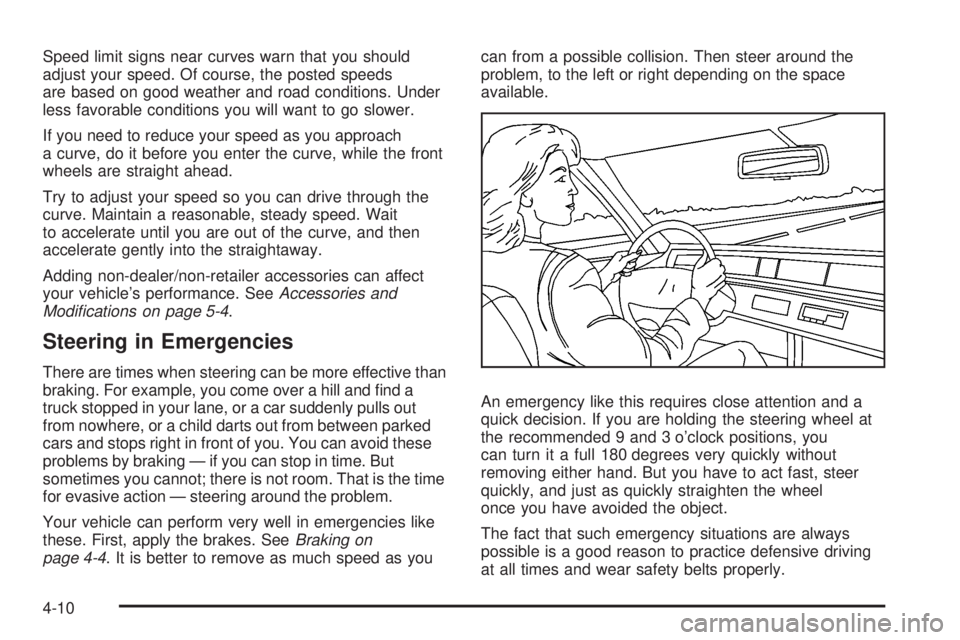
An emergency like this requires close attention and a
quick decision. If you are holding the steering wheel at
the recommended 9 and 3 o’clock positions, you
can turn it a full 180 degrees very quickly without
removing either hand. But you have to act fast, steer
quickly, and just as quickly straighten the wheel
once you have avoided the object.
The fact that such emergency situations are always
possible is a good reason to practice defensive driving
at all times and wear safety belts properly.
4-10
Page 287 of 472
Before Leaving on a Long Trip
To prepare your vehicle for a long trip, consider having
it serviced by your dealer/retailer before departing.
Things to check on your own include:
Windshield Washer Fluid:Reservoir full? Windows
clean — inside and outside?
Wiper Blades:In good shape?
Fuel, Engine Oil, Other Fluids:All levels checked?
Lamps:Do they all work and are lenses clean?
Tires:Are treads good? Are tires inated to
recommended pressure?
Weather and Maps:Safe to travel? Have
up-to-date maps?
Highway Hypnosis
Always be alert and pay attention to your surroundings
while driving. If you become tired or sleepy, nd a
safe place to park your vehicle and rest.
Other driving tips include:
Keep the vehicle well ventilated.
Keep interior temperature cool.
Keep your eyes moving — scan the road ahead
and to the sides.
Check the rearview mirror and vehicle instruments
often.
4-15
Page 300 of 472
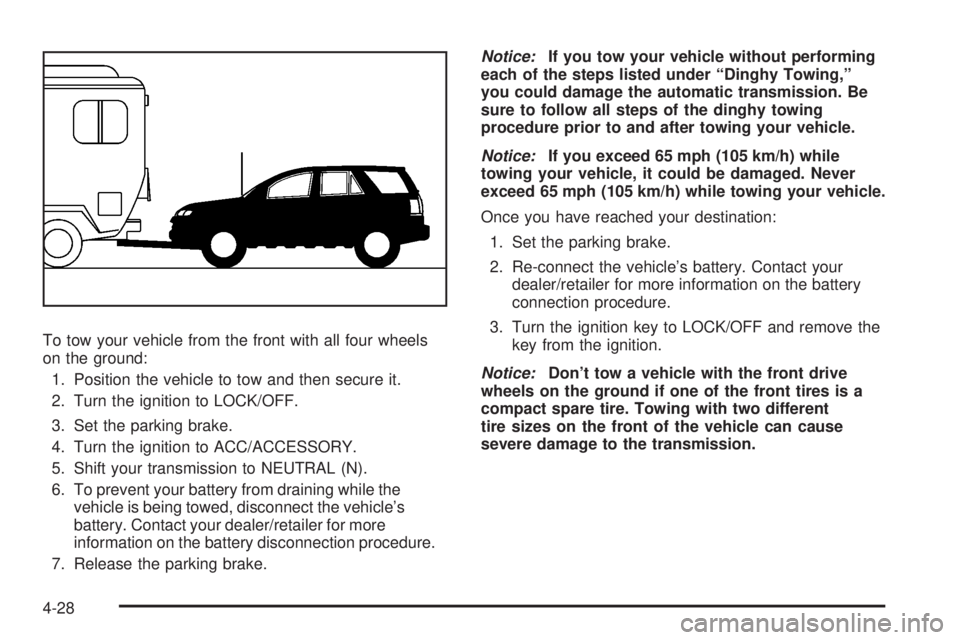
To tow your vehicle from the front with all four wheels
on the ground:
1. Position the vehicle to tow and then secure it.
2. Turn the ignition to LOCK/OFF.
3. Set the parking brake.
4. Turn the ignition to ACC/ACCESSORY.
5. Shift your transmission to NEUTRAL (N).
6. To prevent your battery from draining while the
vehicle is being towed, disconnect the vehicle’s
battery. Contact your dealer/retailer for more
information on the battery disconnection procedure.
7. Release the parking brake.Notice:If you tow your vehicle without performing
each of the steps listed under “Dinghy Towing,”
you could damage the automatic transmission. Be
sure to follow all steps of the dinghy towing
procedure prior to and after towing your vehicle.
Notice:If you exceed 65 mph (105 km/h) while
towing your vehicle, it could be damaged. Never
exceed 65 mph (105 km/h) while towing your vehicle.
Once you have reached your destination:
1. Set the parking brake.
2. Re-connect the vehicle’s battery. Contact your
dealer/retailer for more information on the battery
connection procedure.
3. Turn the ignition key to LOCK/OFF and remove the
key from the ignition.
Notice:Don’t tow a vehicle with the front drive
wheels on the ground if one of the front tires is a
compact spare tire. Towing with two different
tire sizes on the front of the vehicle can cause
severe damage to the transmission.
4-28
Page 301 of 472
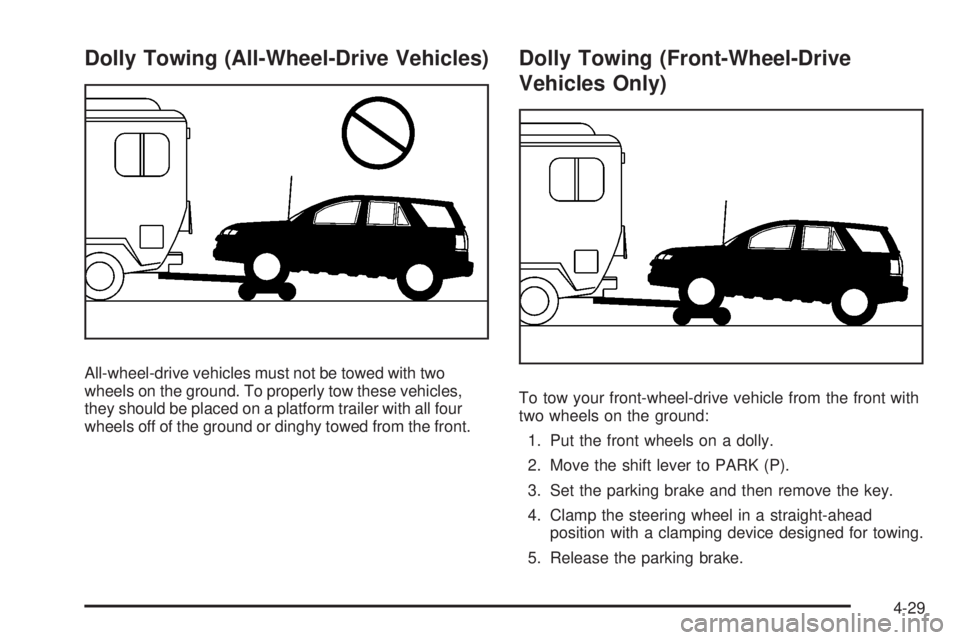
Dolly Towing (All-Wheel-Drive Vehicles)
All-wheel-drive vehicles must not be towed with two
wheels on the ground. To properly tow these vehicles,
they should be placed on a platform trailer with all four
wheels off of the ground or dinghy towed from the front.
Dolly Towing (Front-Wheel-Drive
Vehicles Only)
To tow your front-wheel-drive vehicle from the front with
two wheels on the ground:
1. Put the front wheels on a dolly.
2. Move the shift lever to PARK (P).
3. Set the parking brake and then remove the key.
4. Clamp the steering wheel in a straight-ahead
position with a clamping device designed for towing.
5. Release the parking brake.
4-29