clock GMC ACADIA 2009 User Guide
[x] Cancel search | Manufacturer: GMC, Model Year: 2009, Model line: ACADIA, Model: GMC ACADIA 2009Pages: 420, PDF Size: 2.23 MB
Page 205 of 420
If an error message displays on the
video screen or the radio, see
“DVD Display Error Messages”
under,Rear Seat Entertainment
(RSE) System on page 3-109and
“DVD Radio Error Messages” in this
section for more information.
Playing a DVD
f(Tune):Turn to change tracks on
a CD or DVD, to manually tune a
radio station, or to change clock or
date settings, while in the clock or
date setting mode. See the
information given earlier in this
section specic to the radio, CD, and
the DVD. Also, see “Setting the
Clock” in the index, for setting the
clock and date.
©SEEK (Previous Track/
Chapter):Press to return to the
start of the current track or chapter.
Press
©again to go to the
previous track or chapter. This
button may not work when the DVD
is playing the copyright information
or the previews.SEEK
¨(Next Track/Chapter):
Press to go to the next track or
chapter. This button may not work
when the DVD is playing the
copyright information or the
previews.
sREV (Fast Reverse):Press to
quickly reverse the DVD at ve times
the normal speed. The radio displays
the elapsed time while in fast
reverse. To stop fast reversing, press
again. This button may not work
when the DVD is playing the
copyright information or the
previews.
\FWD (Fast Forward):Press to
fast forward the DVD. The radio
displays the elapsed time and fast
forwards ve times the normal
speed. To stop fast forwarding,
press again. This button may
not work when the DVD is playing
the copyright information or the
previews.
Z(Eject):Press to eject a DVD.
If the DVD is ejected, but not
removed, the player automatically
pulls it back in after 15 seconds.
If loading and reading of a
DVD cannot be completed, because
of an unknown format, etc., and
the disc fails to eject, press and hold
for more than ve seconds to
force the disc to eject.
DVD-V (Video) Display Buttons
Once a DVD-V is inserted, the radio
display menu shows several
icons. Press the pushbuttons
located under any desired icon
during DVD playback. See the icon
list below for more information.
The rear seat passenger can
navigate the DVD-V menus and
controls through the remote control.
See “Remote Control”, under
Rear Seat Entertainment (RSE)
System on page 3-109for
more information. The Video Screen
automatically turns on when the
DVD-V is inserted into the DVD slot.
Instrument Panel 3-85
Page 208 of 420
The DVD should resume play from
where it last stopped if the disc
has not been ejected and the stop
button has not been pressed twice
on the remote control. If the disc
has been ejected or the stop button
has been pressed twice on the
remote control, the disc resumes
playing at the beginning of the disc.
Ejecting a Disc
Press
ZDVD on the radio to eject
the disc. If a disc is ejected from the
radio, but not removed, the radio
reloads the disc after a short period
of time. The disc is stored in the
radio. The radio does not resume
play of the disc automatically. If the
movie is reloaded and the RSA
system is sourced to the DVD, the
player begins to play again. If loading
and reading a DVD or CD cannot be
completed, and the disc fails to eject,
press and hold
ZDVD for more
than ve seconds to force the disc
to eject.
DVD Radio Error Messages
Player Error:This message
displays when there are disc load or
eject problems.
Disc Format Error:This message
displays, if the disc is inserted
with the disc label wrong side up, or
if the disc is damaged.
Disc Region Error:This message
displays, if the disc is not from a
correct region.
No Disc Inserted:This message
displays, if no disc is present
when
ZDVD or DVD/CD AUX is
pressed on the radio.
Using the Auxiliary Input Jack
The radio system has an auxiliary
input jack located on the lower right
side of the faceplate. This is not
an audio output; do not plug
a headphone set into the front
auxiliary input jack. Connect
an auxiliary input device such as
an iPod, laptop computer, MP3player, CD player, or cassette tape
player, etc. to the auxiliary input
jack for use as another source for
audio listening.
Drivers are encouraged to set up
any auxiliary device while the
vehicle is in P (Park). SeeDefensive
Driving on page 4-2for more
information on driver distraction.
To use an auxiliary input device,
connect a 3.5 mm (1/8 inch) cable to
the radio’s front auxiliary input jack.
O(Power/Volume):Turn
clockwise or counterclockwise to
increase or decrease the volume of
the portable player. Additional
volume adjustments might have to
be made from the portable device
if the volume is not loud or soft
enough.
BAND:Press to listen to the radio
when a portable audio device is
playing. The portable audio device
continues playing, so you might
want to stop it or turn it off.
3-88 Instrument Panel
Page 250 of 420
Steering
Power Steering
If power steering assist is lost
because the engine stops or the
system is not functioning, the vehicle
can be steered but it will take
more effort.
Variable Effort Steering
If the vehicle has this steering
system, the system continuously
adjusts the effort felt when steering
at all vehicle speeds. It provides
ease when parking, yet a rm, solid
feel at highway speeds.
Steering Tips
It is important to take curves at a
reasonable speed.
Traction in a curve depends on the
condition of the tires and the
road surface, the angle at which the
curve is banked, and vehicle
speed. While in a curve, speed is
the one factor that can be controlled.If there is a need to reduce speed,
do it before entering the curve,
while the front wheels are straight.
Try to adjust the speed so you
can drive through the curve.
Maintain a reasonable, steady
speed. Wait to accelerate until out
of the curve, and then accelerate
gently into the straightaway.
Steering in Emergencies
There are times when steering can
be more effective than braking.
For example, you come over a hill
and nd a truck stopped in your
lane, or a car suddenly pulls
out from nowhere, or a child darts
out from between parked cars
and stops right in front of you.
These problems can be avoided
by braking — if you can stop in time.
But sometimes you cannot stop in
time because there is no room.
That is the time for evasive
action — steering around the
problem.The vehicle can perform very well in
emergencies like these. First,
apply the brakes. SeeBraking on
page 4-3. It is better to remove
as much speed as possible from a
collision. Then steer around the
problem, to the left or right
depending on the space available.
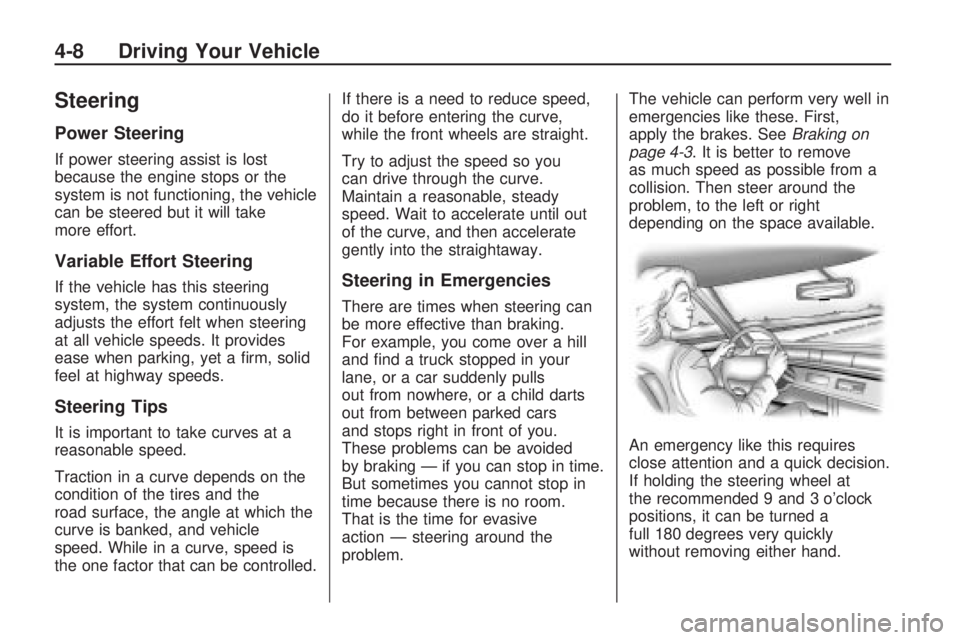
An emergency like this requires
close attention and a quick decision.
If holding the steering wheel at
the recommended 9 and 3 o’clock
positions, it can be turned a
full 180 degrees very quickly
without removing either hand.
4-8 Driving Your Vehicle
Page 283 of 420
Filling the Tank
{CAUTION
Fuel vapor burns violently and a
fuel re can cause bad injuries.
To help avoid injuries to you and
others, read and follow all the
instructions on the pump island.
Turn off the engine when you are
refueling. Do not smoke if you are
near fuel or refueling the vehicle.
Do not use cellular phones. Keep
sparks, ames, and smoking
materials away from fuel. Do not
leave the fuel pump unattended
when refueling the vehicle. This is
against the law in some places.
Do not re-enter the vehicle while
pumping fuel. Keep children away
from the fuel pump; never let
children pump fuel.
The tethered fuel cap is located
behind a hinged fuel door on
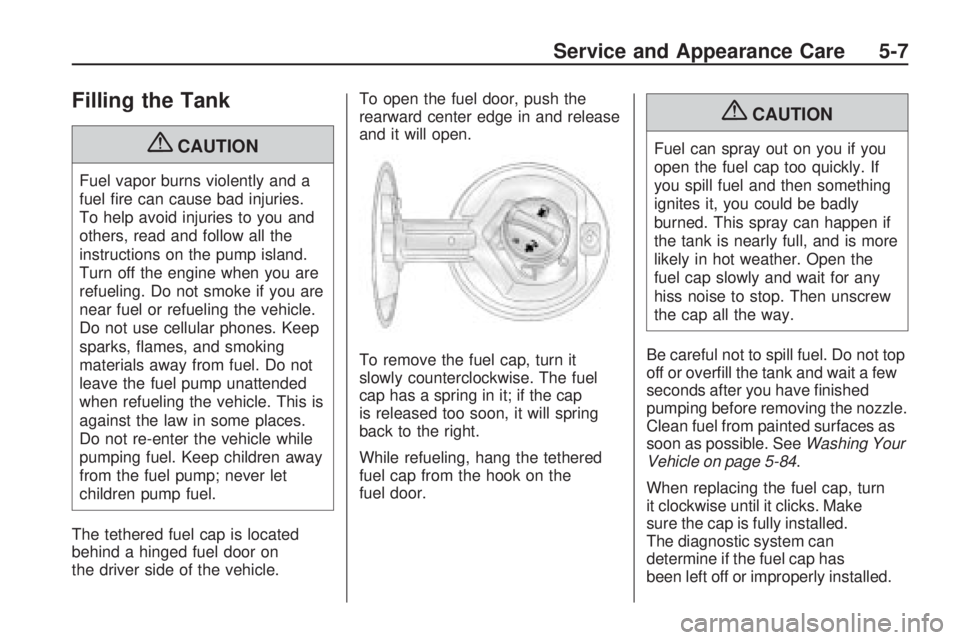
the driver side of the vehicle.To open the fuel door, push the
rearward center edge in and release
and it will open.
To remove the fuel cap, turn it
slowly counterclockwise. The fuel
cap has a spring in it; if the cap
is released too soon, it will spring
back to the right.
While refueling, hang the tethered
fuel cap from the hook on the
fuel door.
{CAUTION
Fuel can spray out on you if you
open the fuel cap too quickly. If
you spill fuel and then something
ignites it, you could be badly
burned. This spray can happen if
the tank is nearly full, and is more
likely in hot weather. Open the
fuel cap slowly and wait for any
hiss noise to stop. Then unscrew
the cap all the way.
Be careful not to spill fuel. Do not top
off or overll the tank and wait a few
seconds after you have nished
pumping before removing the nozzle.
Clean fuel from painted surfaces as
soon as possible. SeeWashing Your
Vehicle on page 5-84.
When replacing the fuel cap, turn
it clockwise until it clicks. Make
sure the cap is fully installed.
The diagnostic system can
determine if the fuel cap has
been left off or improperly installed.
Service and Appearance Care 5-7
Page 295 of 420
How to Add Coolant to the
Radiator
{CAUTION
An electric engine cooling fan
under the hood can start up even
when the engine is not running
and can cause injury. Keep
hands, clothing, and tools away
from any underhood electric fan.
{CAUTION
Steam and scalding liquids from a
hot cooling system can blow out
and burn you badly. They are
under pressure, and if you turn the
surge tank pressure cap — even a
little — they can come out at high
speed. Never turn the cap when
the cooling system, including the
surge tank pressure cap, is hot.
Wait for the cooling system and
surge tank pressure cap to cool
if you ever have to turn the
pressure cap.
If coolant is needed, add the proper
mixture directly to the radiator,
but be sure the cooling system is
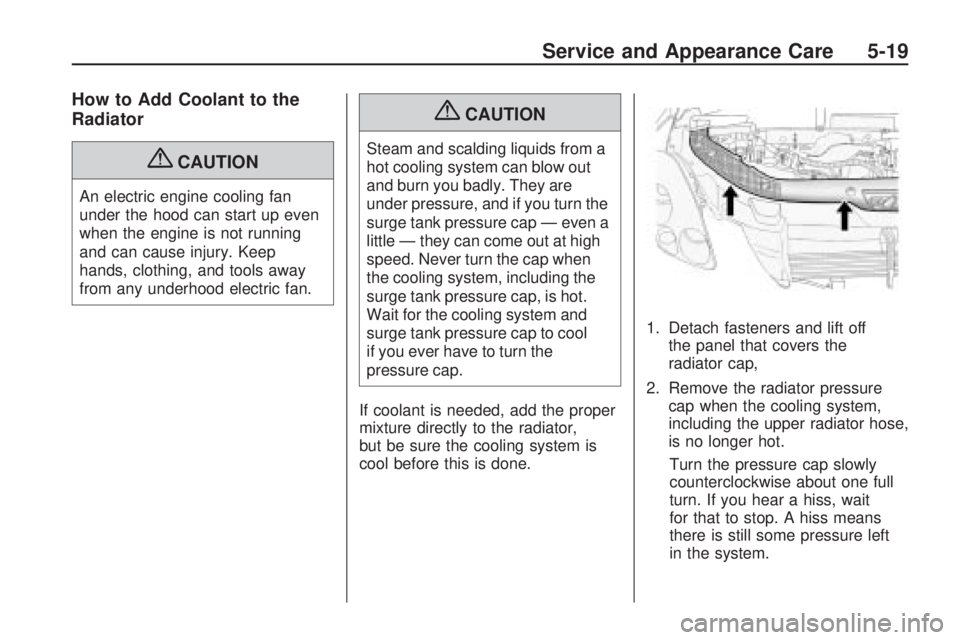
cool before this is done.1. Detach fasteners and lift off
the panel that covers the
radiator cap,
2. Remove the radiator pressure
cap when the cooling system,
including the upper radiator hose,
is no longer hot.
Turn the pressure cap slowly
counterclockwise about one full
turn. If you hear a hiss, wait
for that to stop. A hiss means
there is still some pressure left
in the system.
Service and Appearance Care 5-19
Page 310 of 420
License Plate Lamp
To replace one of these bulbs:
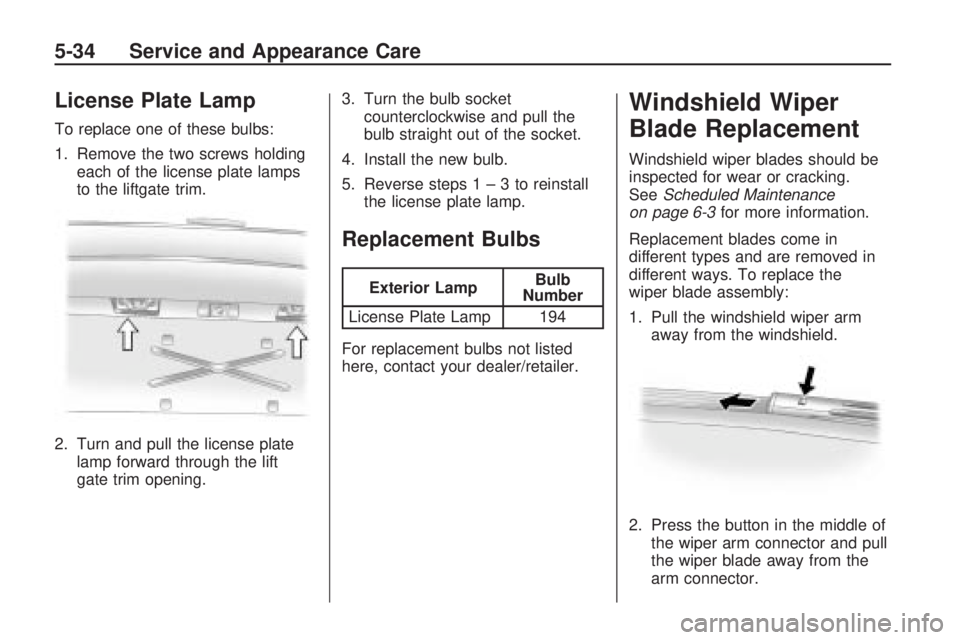
1. Remove the two screws holding
each of the license plate lamps
to the liftgate trim.
2. Turn and pull the license plate
lamp forward through the lift
gate trim opening.3. Turn the bulb socket
counterclockwise and pull the
bulb straight out of the socket.
4. Install the new bulb.
5. Reverse steps1–3toreinstall
the license plate lamp.
Replacement Bulbs
Exterior LampBulb
Number
License Plate Lamp 194
For replacement bulbs not listed
here, contact your dealer/retailer.
Windshield Wiper
Blade Replacement
Windshield wiper blades should be
inspected for wear or cracking.
SeeScheduled Maintenance
on page 6-3for more information.
Replacement blades come in
different types and are removed in
different ways. To replace the
wiper blade assembly:
1. Pull the windshield wiper arm
away from the windshield.
2. Press the button in the middle of
the wiper arm connector and pull
the wiper blade away from the
arm connector.
5-34 Service and Appearance Care
Page 338 of 420
When using the tire sealant and
compressor kit during cold
temperatures, warm the kit in a
heated environment for 5 minutes.
This will help to inate the tire faster.
Always do a safety check rst.
SeeIf a Tire Goes Flat on
page 5-55. Do not remove any
objects that have penetrated the tire.
1. Remove the tire sealant and
compressor kit from its storage
location. SeeTire Sealant
and Compressor Kit Storage
on page 5-68.
2. Unwrap the sealant/air hose (F)
and the power plug (H).
3. Place the kit on the ground.
Make sure the tire valve
stem is positioned close to the
ground so the hose will reach it.4. Remove the valve stem cap
from the at tire by turning it
counterclockwise.
5. Attach the sealant/air hose (F)
onto the tire valve stem. Turn
it clockwise until it is tight.
6. Plug the power plug (H) into the
accessory power outlet in the
vehicle. Unplug all items from
other accessory power outlets.
SeeAccessory Power Outlet(s)
on page 3-20.
If the vehicle has an accessory
power outlet, do not use the
cigarette lighter.
If the vehicle only has a cigarette
lighter, use the cigarette lighter.
Do not pinch the power plug
cord in the door or window.7. Start the vehicle. The vehicle
must be running while using
the air compressor.
8. Turn the selector switch (A)
counterclockwise to the
Sealant + Air position.
9. Press the on/off (B) button
to turn the tire sealant and
compressor kit on.
The compressor will inject
sealant and air into the tire.
The pressure gage (C) will initially
show a high pressure while the
compressor pushes the sealant
into the tire. Once the sealant is
completely dispersed into the tire,
the pressure will quickly drop and
start to rise again as the tire
inates with air only.
5-62 Service and Appearance Care
Page 339 of 420
10. Inate the tire to the
recommended ination pressure
using the pressure gage (C).
The recommended ination
pressure can be found on the
Tire and Loading Information
label. SeeInflation - Tire
Pressure on page 5-41.
The pressure gage (C) may
read higher than the actual tire
pressure while the compressor is
on. Turn the compressor off to get
an accurate pressure reading.
The compressor may be turned
on/off until the correct pressure is
reached.
Notice:If the recommended
pressure cannot be reached after
approximately 25 minutes, the
vehicle should not be driven
farther. The tire is too severely
damaged and the tire sealant and
compressor kit cannot inate the
tire. Remove the power plug from
the accessory power outlet and
unscrew the inating hose from
the tire valve. SeeRoadside
Assistance Program on page 7-6.11. Press the on/off button (B)
to turn the tire sealant and
compressor kit off.
The tire is not sealed and will
continue to leak air until the
vehicle is driven and the sealant
is distributed in the tire, therefore,
Steps 12 through 18 must be
done immediately after Step 11.
Be careful while handling the tire
sealant and compressor kit as
it could be warm after usage.
12. Unplug the power plug (H) from
the accessory power outlet in
the vehicle.
13. Turn the sealant/air hose (F)
counterclockwise to remove it
from the tire valve stem.
14. Replace the tire valve stem cap.15. Replace the sealant/air
hose (F), and the power
plug (H) back in their original
location.
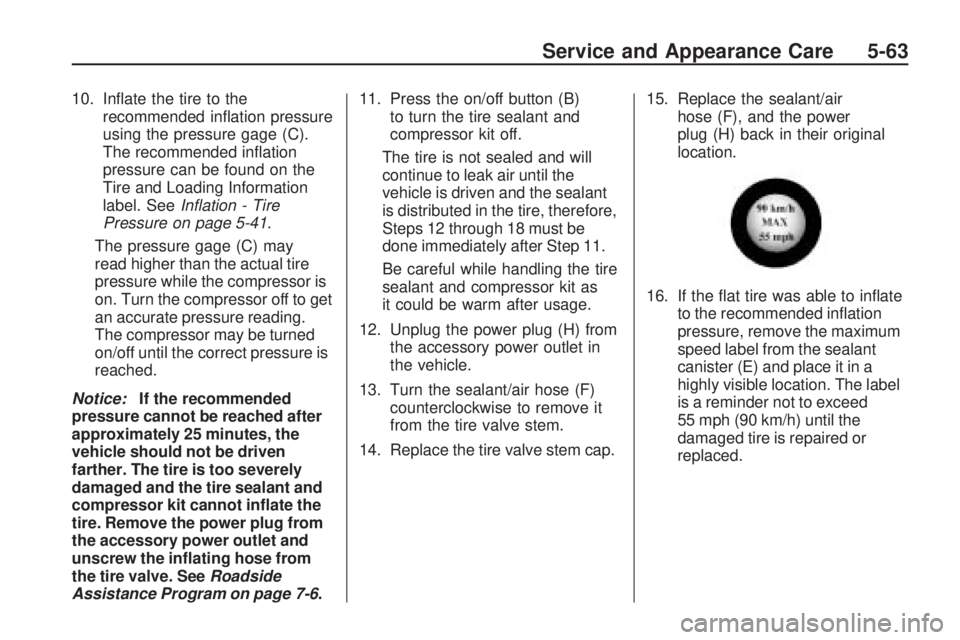
16. If the at tire was able to inate
to the recommended ination
pressure, remove the maximum
speed label from the sealant
canister (E) and place it in a
highly visible location. The label
is a reminder not to exceed
55 mph (90 km/h) until the
damaged tire is repaired or
replaced.
Service and Appearance Care 5-63
Page 343 of 420
Always do a safety check rst. See
If a Tire Goes Flat on page 5-55.
1. Remove the tire sealant and
compressor kit from its storage
location. SeeTire Sealant
and Compressor Kit Storage
on page 5-68.
2. Unwrap the air only hose (G)
and the power plug (H).
3. Place the kit on the ground.
Make sure the tire valve
stem is positioned close to the
ground so the hose will reach it.
4. Remove the tire valve stem cap
from the at tire by turning it
counterclockwise.
5. Attach the air only hose (G) onto
the tire valve stem by turning it
clockwise until it is tight.
6. Plug the power plug (H) into the
accessory power outlet in the
vehicle. Unplug all items from
other accessory power outlets.
SeeAccessory Power Outlet(s)
on page 3-20.If the vehicle has an accessory
power outlet, do not use the
cigarette lighter.
If the vehicle only has a cigarette
lighter, use the cigarette lighter.
Do not pinch the power plug
cord in the door or window.
7. Start the vehicle. The vehicle
must be running while using
the air compressor.
8. Turn the selector switch (A)
clockwise to the Air Only position.
9. Press the on/off (B) button to turn
the compressor on.
The compressor will inate the
tire with air only.
10. Inate the tire to the
recommended ination pressure
using the pressure gage (C).
The recommended ination
pressure can be found on the
Tire and Loading Information
label. SeeInflation - Tire
Pressure on page 5-41.The pressure gage (C) may
read higher than the actual tire
pressure while the compressor
is on. Turn the compressor
off to get an accurate reading.
The compressor may be
turned on/off until the correct
pressure is reached.
If you inate the tire higher than
the recommended pressure you
can adjust the excess pressure
by pressing the pressure
deation button (D), if equipped,
until the proper pressure reading
is reached. This option is only
functional when using the air
only hose (G).
11. Press the on/off button (B) to
turn the tire sealant and
compressor kit off.
Be careful while handling the tire
sealant and compressor kit as it
could be warm after usage.
12. Unplug the power plug (H) from
the accessory power outlet in
the vehicle.
Service and Appearance Care 5-67
Page 344 of 420
13. Disconnect the air only hose (G)
from the tire valve stem, by
turning it counterclockwise, and
replace the tire valve stem cap.
14. Replace the air only hose (G)
and the power plug (H) and
cord back in its original location.
15. Place the equipment in
the original storage location
in the vehicle.
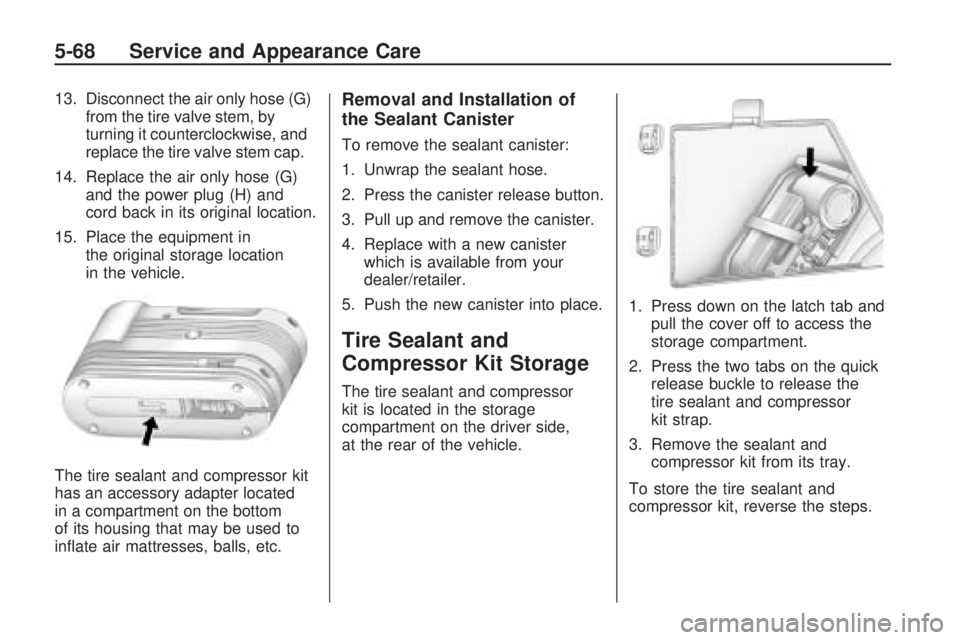
The tire sealant and compressor kit
has an accessory adapter located
in a compartment on the bottom
of its housing that may be used to
inate air mattresses, balls, etc.Removal and Installation of
the Sealant Canister
To remove the sealant canister:
1. Unwrap the sealant hose.
2. Press the canister release button.
3. Pull up and remove the canister.
4. Replace with a new canister
which is available from your
dealer/retailer.
5. Push the new canister into place.
Tire Sealant and
Compressor Kit Storage
The tire sealant and compressor
kit is located in the storage
compartment on the driver side,
at the rear of the vehicle.1. Press down on the latch tab and
pull the cover off to access the
storage compartment.
2. Press the two tabs on the quick
release buckle to release the
tire sealant and compressor
kit strap.
3. Remove the sealant and
compressor kit from its tray.
To store the tire sealant and
compressor kit, reverse the steps.
5-68 Service and Appearance Care