radio controls GMC ACADIA 2009 User Guide
[x] Cancel search | Manufacturer: GMC, Model Year: 2009, Model line: ACADIA, Model: GMC ACADIA 2009Pages: 420, PDF Size: 2.23 MB
Page 138 of 420
The HUD temporarily displays
CHECK GAGES and ICE
POSSIBLE when these messages
are on the DIC trip computer.
The HUD also displays the following
messages on vehicles with these
systems, when they are active:
TRACTION CONTROL ACTIVE
STABILITRAK ACTIVE
Notice:If you try to use the HUD
image as a parking aid, you may
misjudge the distance and
damage your vehicle. Do not use
the HUD image as a parking aid.
When the HUD is on, the
speedometer reading is continually
displayed. The current radio
station or CD track number will
display for a short period of
time after the radio or CD track
status changes. This happens
whenever radio information is
changed. The speedometer sizeis reduced when radio, CD
information, warnings, or
turn-by-turn navigation information
are displayed on the HUD.
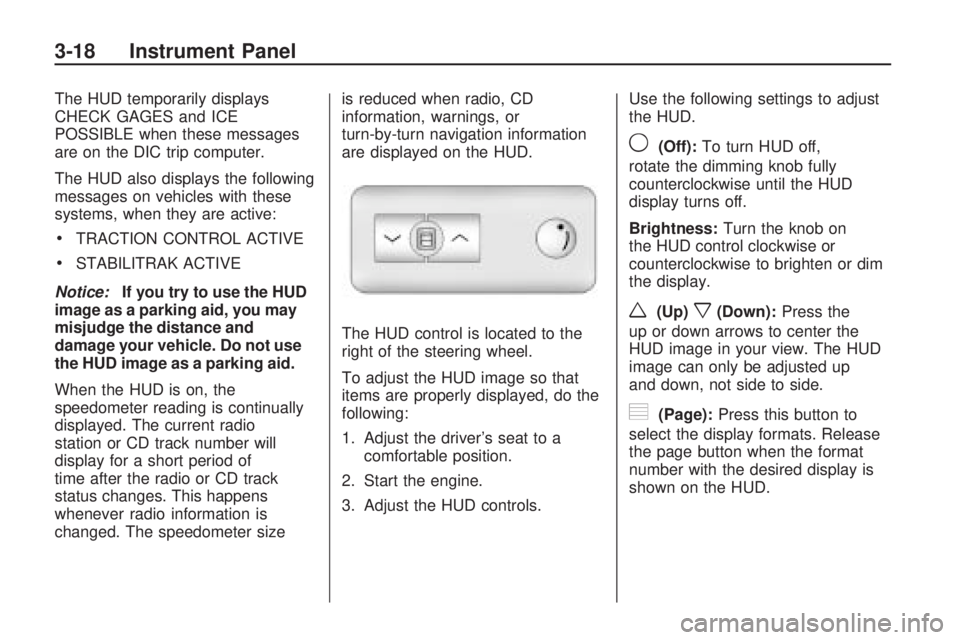
The HUD control is located to the
right of the steering wheel.
To adjust the HUD image so that
items are properly displayed, do the
following:
1. Adjust the driver’s seat to a
comfortable position.
2. Start the engine.
3. Adjust the HUD controls.Use the following settings to adjust
the HUD.
9(Off):To turn HUD off,
rotate the dimming knob fully
counterclockwise until the HUD
display turns off.
Brightness:Turn the knob on
the HUD control clockwise or
counterclockwise to brighten or dim
the display.
w(Up)x(Down):Press the
up or down arrows to center the
HUD image in your view. The HUD
image can only be adjusted up
and down, not side to side.
?(Page):Press this button to
select the display formats. Release
the page button when the format
number with the desired display is
shown on the HUD.
3-18 Instrument Panel
Page 192 of 420
Exiting the Feature
Settings Menu
The feature settings menu will be
exited when any of the following
occurs:
The vehicle is shifted out of
P (Park).
The vehicle is no longer in
ON/RUN.
The trip/fuel or vehicle
information DIC buttons
are pressed.
The end of the feature settings
menu is reached and exited.
A 40 second time period has
elapsed with no selection made.
Audio System(s)
Determine which radio the vehicle
has and read the following pages to
become familiar with its features.
{CAUTION
Taking your eyes off the road for
extended periods could cause a
crash resulting in injury or death
to you or others. Do not give
extended attention to
entertainment tasks while driving.
This system provides access to
many audio and non audio listings.
To minimize taking your eyes off
the road while driving, do the
following while the vehicle is parked:
Become familiar with the
operation and controls of
the audio system.
Set up the tone, speaker
adjustments, and preset
radio stations.For more information, seeDefensive
Driving on page 4-2.
Notice:Contact your dealer/
retailer before adding any
equipment.
Adding audio or communication
equipment could interfere
with the operation of the vehicle’s
engine, radio, or other systems,
and could damage them.
Follow federal rules covering
mobile radio and telephone
equipment.
The vehicle has Retained Accessory
Power (RAP). With RAP, the
audio system can be played even
after the ignition is turned off.
SeeRetained Accessory Power
(RAP) on page 2-21for more
information.
3-72 Instrument Panel
Page 197 of 420
©SEEK¨:Press to go to the
previous or to the next station
and stay there.
To scan stations, press and hold
©or¨until a beep sounds.
The radio goes to a station, plays
for a few seconds, then goes to the
next station. Press either arrow
again to stop scanning.
The radio only seeks and scans
stations with a strong signal that are
in the selected band.
Storing a Radio Station as a
Favorite
Drivers are encouraged to set up
their radio station favorites while the
vehicle is in P (Park). Tune to
favorite stations using the presets,
favorites button, and steering
wheel controls. SeeDefensive
Driving on page 4-2.
FAV (Favorites):A maximum of
36 stations can be programmed as
favorites using the six pushbuttonspositioned below the radio station
frequency labels and by using
the radio favorites page button
(FAV button). Press to go through
up to six pages of favorites,
each having six favorite stations
available per page. Each page
of favorites can contain any
combination of AM, FM, or XM
stations.
The balance/fade and tone settings
that were previously adjusted,
are stored with the favorite stations.
To store a station as a favorite:
1. Tune to the desired radio station.
2. Press FAV to display the page
where to store the station.
3. Press and hold one of the
six pushbuttons until a beep
sounds. When that pushbutton is
pressed and released, the
station that was set, returns.
4. Repeat the steps for each
pushbutton radio station to
be stored as a favorite.To setup the number of favorites
pages:
1. Press MENU to display the radio
setup menu.
2. Press the pushbutton located
below the FAV 1-6 label.
3. Select the desired number of
favorites pages by pressing
the pushbutton located below the
displayed page numbers.
4. Press FAV, or let the menu time
out, to return to the original main
radio screen showing the
radio station frequency labels
and to begin the process
of programming favorites for the
chosen amount of numbered
pages.
Auto Text (Satellite Radio Service,
CD, MP3, and WMA features):
If additional information is available
for the current song being played,
Auto Text will automatically
page/scroll the information every
ve seconds above the FAV presets
on the radio display.
Instrument Panel 3-77
Page 198 of 420
To activate Auto Text:
1. Press MENU to display the radio
setup menu.
2. Press the pushbutton under
AUTO TXT label on the radio
display.
3. Press the pushbutton under the
ON label on the radio display.
If
4is pressed and the song title or
artist information is longer than
what can be displayed, the extra
information will page every
ve seconds when Auto Text is
activated.
Setting the Tone
(Bass/Midrange/Treble)
BASS/MID/TREB (Bass, Midrange,
or Treble):To adjust bass,
midrange, or treble:
1. Press
funtil the tone control
labels display.
2. Continue pressing
fto highlight
the desired label, or press the
pushbutton under the desired
label.3. To adjust the highlighted setting,
do one of the following until the
desired levels are obtained.
Turnfclockwise or
counterclockwise.
Press\FWD, orsREV.
If a station’s frequency is weak or if
there is static, decrease the treble.
To quickly adjust bass, midrange, or
treble to the middle position,
press the pushbutton positioned
under the BASS, MID, or TREB
label for more than two seconds.
A beep sounds and the level adjusts
to the middle position.
To quickly adjust all tone and
speaker controls to the middle
position, press
ffor more than
two seconds until a beep sounds.
EQ (Equalization):Press to choose
bass and treble equalization
settings designed for different types
of music. The choices are pop,rock, country, talk, jazz, and
classical. Selecting MANUAL or
changing bass or treble, returns the
EQ to the manual bass and
treble settings.
Unique EQ settings can be saved
for each source.
If the radio has a Bose
®audio
system, the EQ settings are either
MANUAL or TALK.
Adjusting the Speakers
(Balance/Fade)
BAL/FADE (Balance/Fade):
To adjust the balance or fade:
1. Press
funtil the speaker control
labels display.
2. Continue pressing
fto highlight
the desired label, or press the
pushbutton under the desired
label.
3-78 Instrument Panel
Page 199 of 420
3. To adjust the highlighted setting,
do one of the following until the
desired levels are obtained.
Turnfclockwise or
counterclockwise.
Press\FWD, orsREV.
To quickly adjust balance or fade to
the middle position, press the
pushbutton positioned under the
BAL or FADE label for more than
two seconds. A beep sounds and the
level adjusts to the middle position.
To quickly adjust all speaker and
tone controls to the middle position,
press
ffor more than two seconds
until a beep sounds.
Radios with CD and DVD fade
differently depending on the DVD
Media type:
With DVD-A 5.1 Surround media,
the left front and right front
speakers fade rearward, leaving
the center front speakers
unaffected until the last fade step,
then all front speakers mute.
With DVD-V 5.1 Surround media,
surround sound is maintained
until Step 4 of the Fade control is
reached while fading rearward. At
that point the audio system output
changes to Stereo to prevent the
loss of Center channel output
when the full rearward fade
position is reached.
If the Rear Seat Audio (RSA) is
turned on, the radio disables FADE
and mutes the rear speakers.
Finding a Category (CAT)
Station
CAT (Category):The CAT button
is used to nd XM stations when
the radio is in the XM mode. To nd
XM channels within a desired
category:
1. Press BAND until the XM
frequency displays.
2. Press CAT to display the
category labels.3. Continue pressing CAT until the
desired category name displays.
Radios with CD and DVD
can also navigate the
category list by pressing
sREV or\FWD.
4. Press either of the two buttons
below the desired category
label to immediately tune to the
rst XM station associated
with that category.
5. To go to the next or previous XM
station within the selected
category, do one of the following:
Turnf.
Press the buttons below the
right or left arrows on the
display.
Press either SEEK arrow.
6. To exit the category search
mode, press the FAV button
or BAND button to display
the favorites again.
Instrument Panel 3-79
Page 205 of 420
If an error message displays on the
video screen or the radio, see
“DVD Display Error Messages”
under,Rear Seat Entertainment
(RSE) System on page 3-109and
“DVD Radio Error Messages” in this
section for more information.
Playing a DVD
f(Tune):Turn to change tracks on
a CD or DVD, to manually tune a
radio station, or to change clock or
date settings, while in the clock or
date setting mode. See the
information given earlier in this
section specic to the radio, CD, and
the DVD. Also, see “Setting the
Clock” in the index, for setting the
clock and date.
©SEEK (Previous Track/
Chapter):Press to return to the
start of the current track or chapter.
Press
©again to go to the
previous track or chapter. This
button may not work when the DVD
is playing the copyright information
or the previews.SEEK
¨(Next Track/Chapter):
Press to go to the next track or
chapter. This button may not work
when the DVD is playing the
copyright information or the
previews.
sREV (Fast Reverse):Press to
quickly reverse the DVD at ve times
the normal speed. The radio displays
the elapsed time while in fast
reverse. To stop fast reversing, press
again. This button may not work
when the DVD is playing the
copyright information or the
previews.
\FWD (Fast Forward):Press to
fast forward the DVD. The radio
displays the elapsed time and fast
forwards ve times the normal
speed. To stop fast forwarding,
press again. This button may
not work when the DVD is playing
the copyright information or the
previews.
Z(Eject):Press to eject a DVD.
If the DVD is ejected, but not
removed, the player automatically
pulls it back in after 15 seconds.
If loading and reading of a
DVD cannot be completed, because
of an unknown format, etc., and
the disc fails to eject, press and hold
for more than ve seconds to
force the disc to eject.
DVD-V (Video) Display Buttons
Once a DVD-V is inserted, the radio
display menu shows several
icons. Press the pushbuttons
located under any desired icon
during DVD playback. See the icon
list below for more information.
The rear seat passenger can
navigate the DVD-V menus and
controls through the remote control.
See “Remote Control”, under
Rear Seat Entertainment (RSE)
System on page 3-109for
more information. The Video Screen
automatically turns on when the
DVD-V is inserted into the DVD slot.
Instrument Panel 3-85
Page 206 of 420

r/j(Play/Pause):Press either
the play or pause icon displayed on
the radio system, to toggle between
pausing or restarting playback of
a DVD.
If the forward arrow is showing
on display, the system is in
pause mode.
If the pause icon is showing
on display, the system is in
playback mode.
If the DVD screen is off, press the
play button to turn the screen on.
Some DVDs begin playing after the
previews have nished, although
there could be a delay of up
to 30 seconds. If the DVD does
not begin playing the movie
automatically, press the pushbutton
located under the play/pause
icon displayed on the radio. If the
DVD still does not play, refer to the
on-screen instructions, if available.
c(Stop):Press to stop playing,
rewinding, or fast forwarding a DVD.
r(Enter):Press to select the
choices that are highlighted in
any menu.
y(Menu):Press to access the
DVD menu. The DVD menu is
different on every DVD. Use the
pushbuttons located under the
navigation arrows to navigate the
cursor through the DVD menu.
After making a selection press this
button. This button only operates
when using a DVD.
Nav (Navigate):Press to display
directional arrows for navigating
through the menus.
q(Return):Press to exit the
current active menu and return
to the previous menu. This button
operates only when a DVD is
playing and a menu is active.DVD-A (Audio) Display Buttons
Once a DVD-A is inserted, the radio
display menu shows several
icons. Press the pushbuttons
located under any desired icon
during DVD playback. See the icon
list below for more information.
The rear seat operator can navigate
the DVD-A menus and controls
through the remote control.
See “Remote Control”, underRear
Seat Entertainment (RSE) System
on page 3-109for more information.
The Video Screen does not
automatically power on when the
DVD-A is inserted into the DVD slot.
It must be manually turned on by
the rear seat occupant through
the remote control power button.
3-86 Instrument Panel
Page 239 of 420
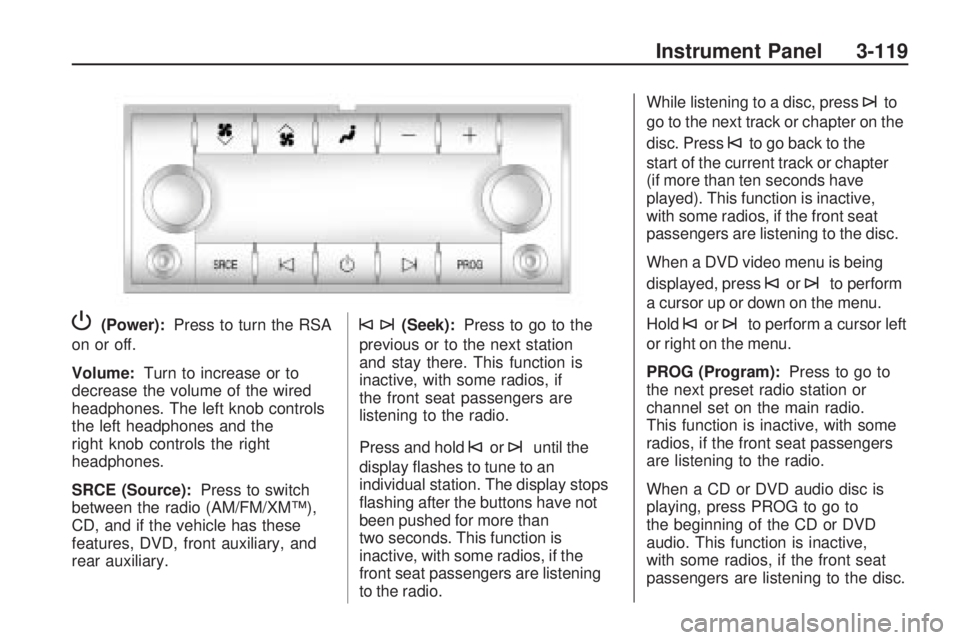
P(Power):Press to turn the RSA
on or off.
Volume: Turn to increase or to
decrease the volume of the wired
headphones. The left knob controls
the left headphones and the
right knob controls the right
headphones.
SRCE (Source): Press to switch
between the radio (AM/FM/XM™),
CD, and if the vehicle has these
features, DVD, front auxiliary, and
rear auxiliary.©¨(Seek): Press to go to the
previous or to the next station
and stay there. This function is
inactive, with some radios, if
the front seat passengers are
listening to the radio.
Press and hold
©or¨until the
display ashes to tune to an
individual station. The display stops
ashing after the buttons have not
been pushed for more than
two seconds. This function is
inactive, with some radios, if the
front seat passengers are listening
to the radio. While listening to a disc, press
¨to
go to the next track or chapter on the
disc. Press
©to go back to the
start of the current track or chapter
(if more than ten seconds have
played). This function is inactive,
with some radios, if the front seat
passengers are listening to the disc.
When a DVD video menu is being
displayed, press
©or¨to perform
a cursor up or down on the menu.
Hold
©or¨to perform a cursor left
or right on the menu.
PROG (Program): Press to go to
the next preset radio station or
channel set on the main radio.
This function is inactive, with some
radios, if the front seat passengers
are listening to the radio.
When a CD or DVD audio disc is
playing, press PROG to go to
the beginning of the CD or DVD
audio. This function is inactive,
with some radios, if the front seat
passengers are listening to the disc.
Instrument Panel 3-119
Page 241 of 420
Audio Steering Wheel
Controls
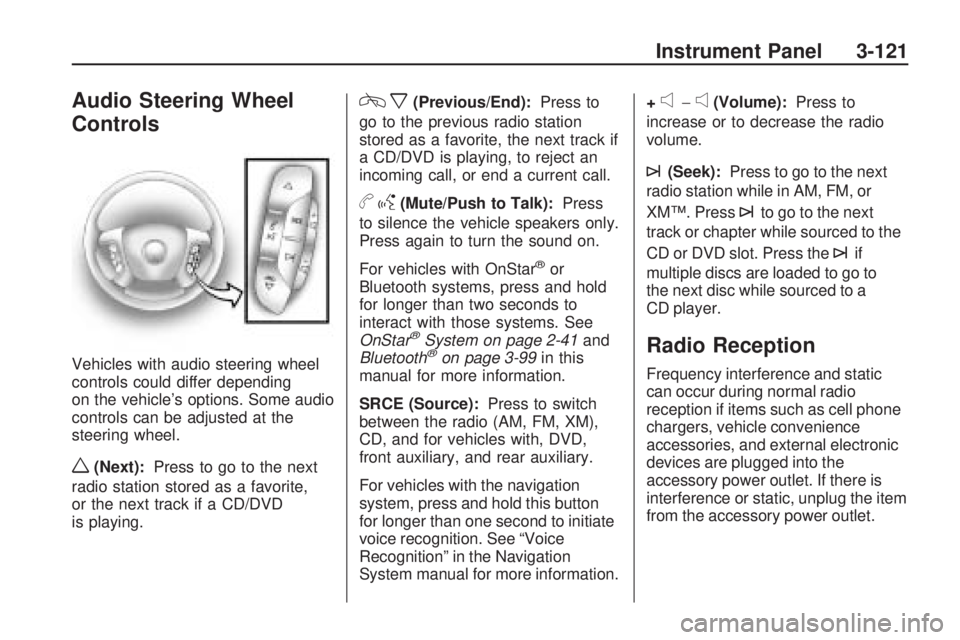
Vehicles with audio steering wheel
controls could differ depending
on the vehicle’s options. Some audio
controls can be adjusted at the
steering wheel.
w(Next):Press to go to the next
radio station stored as a favorite,
or the next track if a CD/DVD
is playing.
cx(Previous/End):Press to
go to the previous radio station
stored as a favorite, the next track if
a CD/DVD is playing, to reject an
incoming call, or end a current call.
bg(Mute/Push to Talk):Press
to silence the vehicle speakers only.
Press again to turn the sound on.
For vehicles with OnStar
®or
Bluetooth systems, press and hold
for longer than two seconds to
interact with those systems. See
OnStar
®System on page 2-41and
Bluetooth®on page 3-99in this
manual for more information.
SRCE (Source):Press to switch
between the radio (AM, FM, XM),
CD, and for vehicles with, DVD,
front auxiliary, and rear auxiliary.
For vehicles with the navigation
system, press and hold this button
for longer than one second to initiate
voice recognition. See “Voice
Recognition” in the Navigation
System manual for more information.+
e−e(Volume):Press to
increase or to decrease the radio
volume.
¨(Seek):Press to go to the next
radio station while in AM, FM, or
XM™. Press
¨to go to the next
track or chapter while sourced to the
CD or DVD slot. Press the
¨if
multiple discs are loaded to go to
the next disc while sourced to a
CD player.
Radio Reception
Frequency interference and static
can occur during normal radio
reception if items such as cell phone
chargers, vehicle convenience
accessories, and external electronic
devices are plugged into the
accessory power outlet. If there is
interference or static, unplug the item
from the accessory power outlet.
Instrument Panel 3-121
Page 409 of 420
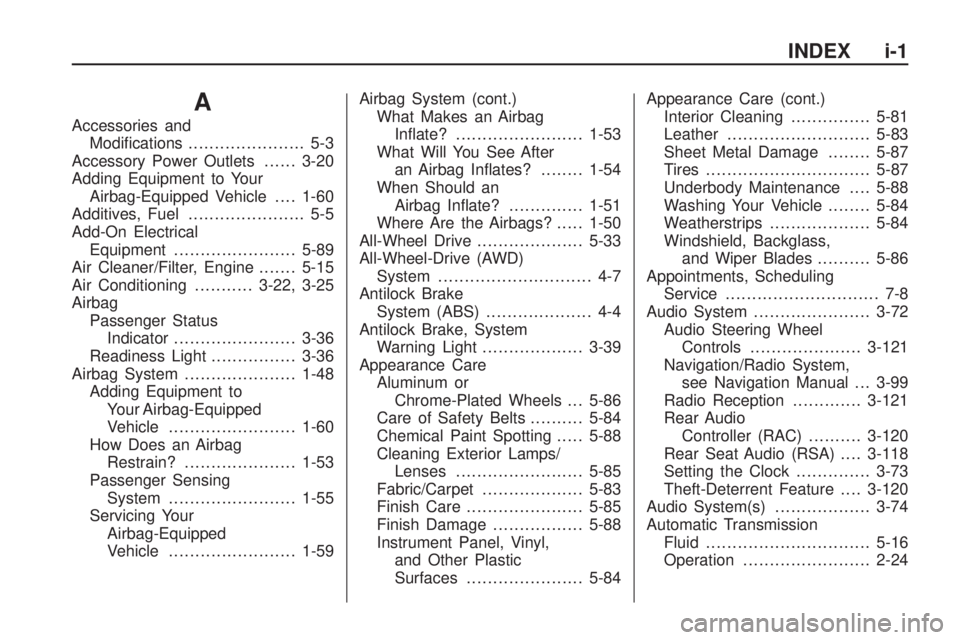
A
Accessories and
Modications...................... 5-3
Accessory Power Outlets......3-20
Adding Equipment to Your
Airbag-Equipped Vehicle....1-60
Additives, Fuel...................... 5-5
Add-On Electrical
Equipment.......................5-89
Air Cleaner/Filter, Engine.......5-15
Air Conditioning...........3-22, 3-25
Airbag
Passenger Status
Indicator.......................3-36
Readiness Light................3-36
Airbag System.....................1-48
Adding Equipment to
Your Airbag-Equipped
Vehicle........................1-60
How Does an Airbag
Restrain?.....................1-53
Passenger Sensing
System........................1-55
Servicing Your
Airbag-Equipped
Vehicle........................1-59Airbag System (cont.)
What Makes an Airbag
Inate?........................1-53
What Will You See After
an Airbag Inates?........1-54
When Should an
Airbag Inate?..............1-51
Where Are the Airbags?.....1-50
All-Wheel Drive....................5-33
All-Wheel-Drive (AWD)
System............................. 4-7
Antilock Brake
System (ABS).................... 4-4
Antilock Brake, System
Warning Light...................3-39
Appearance Care
Aluminum or
Chrome-Plated Wheels . . . 5-86
Care of Safety Belts..........5-84
Chemical Paint Spotting.....5-88
Cleaning Exterior Lamps/
Lenses........................5-85
Fabric/Carpet...................5-83
Finish Care......................5-85
Finish Damage.................5-88
Instrument Panel, Vinyl,
and Other Plastic
Surfaces......................5-84Appearance Care (cont.)
Interior Cleaning...............5-81
Leather...........................5-83
Sheet Metal Damage........5-87
Tires...............................5-87
Underbody Maintenance....5-88
Washing Your Vehicle........5-84
Weatherstrips...................5-84
Windshield, Backglass,
and Wiper Blades..........5-86
Appointments, Scheduling
Service............................. 7-8
Audio System......................3-72
Audio Steering Wheel
Controls.....................3-121
Navigation/Radio System,
see Navigation Manual . . . 3-99
Radio Reception.............3-121
Rear Audio
Controller (RAC)..........3-120
Rear Seat Audio (RSA)....3-118
Setting the Clock..............3-73
Theft-Deterrent Feature....3-120
Audio System(s)..................3-74
Automatic Transmission
Fluid...............................5-16
Operation........................2-24
INDEX i-1