keyless GMC ACADIA 2010 User Guide
[x] Cancel search | Manufacturer: GMC, Model Year: 2010, Model line: ACADIA, Model: GMC ACADIA 2010Pages: 444, PDF Size: 2.58 MB
Page 54 of 444
3-4 Seats and Restraints
Move the seat forward or rearward
by sliding the power seat
adjustment control (A) forward or
rearward.
The vehicle may have additional
features to adjust the power seat:
.Raise or lower the entire seat by
moving the power seat
adjustment control (A) up
or down.
.Raise or lower the front part of
the seat cushion by moving the
front of the control up or down.
.Raise or lower the rear part of
the seat cushion by moving the
rear of the control up or down.
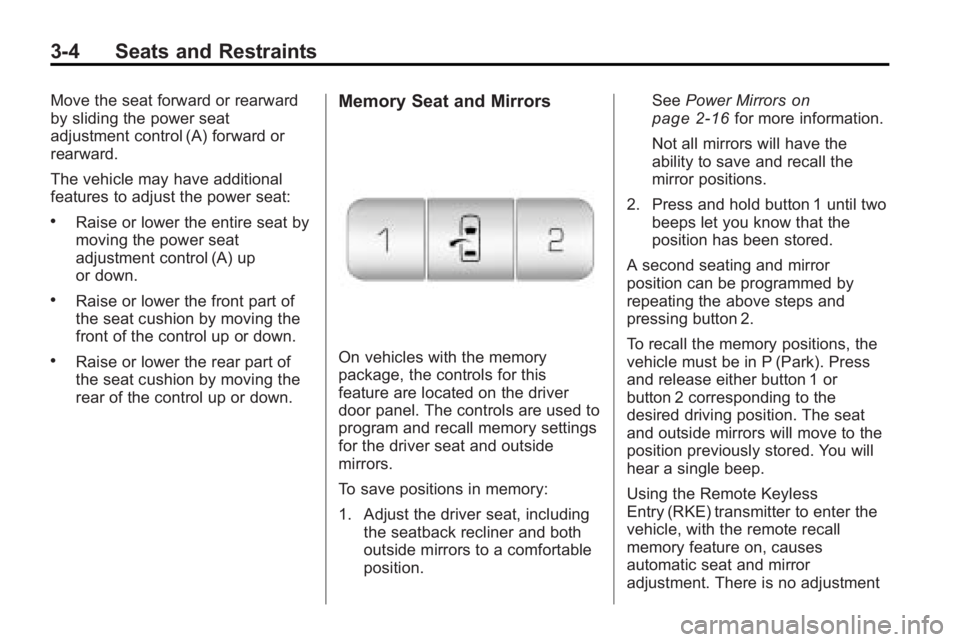
Memory Seat and Mirrors
On vehicles with the memory
package, the controls for this
feature are located on the driver
door panel. The controls are used to
program and recall memory settings
for the driver seat and outside
mirrors.
To save positions in memory:
1. Adjust the driver seat, includingthe seatback recliner and both
outside mirrors to a comfortable
position. See
Power Mirrors
on
page 2‑16for more information.
Not all mirrors will have the
ability to save and recall the
mirror positions.
2. Press and hold button 1 until two beeps let you know that the
position has been stored.
A second seating and mirror
position can be programmed by
repeating the above steps and
pressing button 2.
To recall the memory positions, the
vehicle must be in P (Park). Press
and release either button 1 or
button 2 corresponding to the
desired driving position. The seat
and outside mirrors will move to the
position previously stored. You will
hear a single beep.
Using the Remote Keyless
Entry (RKE) transmitter to enter the
vehicle, with the remote recall
memory feature on, causes
automatic seat and mirror
adjustment. There is no adjustment
Page 58 of 444
3-8 Seats and Restraints
Heated Front Seats
{WARNING
If you cannot feel temperature
change or pain to the skin, the
seat heater may cause burns
even at low temperatures. To
reduce the risk of burns, people
with such a condition should use
care when using the seat heater,
especially for long periods of
time. Do not place anything on
the seat that insulates against
heat, such as a blanket, cushion,
cover or similar item. This may
cause the seat heater to
overheat. An overheated seat
heater may cause a burn or may
damage the seat.On vehicles with heated front seats,
the controls are located on the
center console. To operate the
heated seats the engine must be
running.
I
(Heated Seatback): Press to
turn on the heated seatback.
J (Heated Seat and Seatback):
Press to turn on or off the heated
seat and seatback.
The light on the button will come on
to indicate that the feature is on.
Each time the button is pressed, the
temperature settings change from
high, to medium, to low, to off.
Indicator lights above the button will
show the level of heat selected:
three for high, two for medium, and
one for low. The passenger seat may take
longer to heat up.
If the vehicle has remote vehicle
start and is started using the RKE
transmitter, the front heated seats
will be turned on to the high setting
if it is cold outside. See
“Remote
Vehicle Start” underRemote
Keyless Entry (RKE) System
Operation
on page 2‑3. When the
ignition is turned on, the heated seat
feature will turn off. To turn the
heated seat feature back on, press
the desired button.
Page 142 of 444
5-24 Instruments and Controls
on vehicles with this feature,
Remote Keyless Entry (RKE)
transmitter programming, and
compass calibration and zone
setting on vehicles with this feature.
3(Trip/Fuel):Press this button
to display the odometer, trip
odometers, fuel range, average
economy, timer, fuel used, and
average speed.
Vehicle Information Menu
Items
T(Vehicle Information): Press
this button to scroll through the
following menu items:
OIL LIFE
Press the vehicle information button
until OIL LIFE REMAINING
displays. This display shows an
estimate of the oil's remaining useful
life. If you see 99% OIL LIFE
REMAINING on the display, that
means 99% of the current oil life
remains. The engine oil life system will alert you to change the oil on a
schedule consistent with your
driving conditions.
When the remaining oil life is low,
the CHANGE ENGINE OIL SOON
message will appear on the display.
See
“CHANGE ENGINE OIL SOON”
under Engine Oil Messages
on
page 5‑37. You should change the
oil as soon as you can. See Engine
Oil
on page 10‑8. In addition to the
engine oil life system monitoring the
oil life, additional maintenance is
recommended in the Maintenance
Schedule in this manual. See
Scheduled Maintenance
on
page 11‑2for more information.
Remember, you must reset the OIL
LIFE display yourself after each oil
change. It will not reset itself. Also,
be careful not to reset the OIL LIFE
display accidentally at any time
other than when the oil has just
been changed. It cannot be reset
accurately until the next oil change.
To reset the engine oil life system,
see Engine Oil Life System
on
page 10‑10. PARK ASSIST
If your vehicle has the Ultrasonic
Rear Parking Assist (URPA) system,
press the vehicle information button
until PARK ASSIST displays. This
display allows the system to be
turned on or off. Once in this
display, press the set/reset button to
select between ON or OFF. If you
choose ON, the system will be
turned on. If you choose OFF, the
system will be turned off. The URPA
system automatically turns back on
after each vehicle start. When the
URPA system is turned off and the
vehicle is shifted out of P (Park), the
DIC will display the PARK ASSIST
OFF message as a reminder that
the system has been turned off. See
Object Detection System Messages
on page 5‑39and
Ultrasonic
Parking Assiston page 9‑32for
more information.
Page 143 of 444
Instruments and Controls 5-25
UNITS
Press the vehicle information button
until UNITS displays. This display
allows you to select between
English or Metric units of
measurement. Once in this display,
press the set/reset button to select
between ENGLISH or METRIC
units. All of the vehicle information
will then be displayed in the unit of
measurement selected.
FRONT TIRES or REAR TIRES
On vehicles with the Tire Pressure
Monitor System (TPMS), the
pressure for each tire can be viewed
in the DIC. The tire pressure will be
shown in either pounds per square
inch (psi) or kilopascals (kPa).
Press the vehicle information button
until the DIC displays FRONT
TIRES PSI (kPa) LEFT ##
RIGHT ##. Press the vehicle
information button again until the
DIC displays REAR TIRES
PSI (kPa) LEFT ## RIGHT ##.If a low tire pressure condition is
detected by the system while
driving, a message advising you
add air to a specific tire will appear
in the display. See
Tire Pressure
on
page 10‑43and Tire Messageson
page 5‑41for more information.
If the tire pressure display shows
dashes instead of a value, there
may be a problem with your vehicle.
If this consistently occurs, see your
dealer/retailer for service.
RELEARN REMOTE KEY
This display allows you to match
Remote Keyless Entry (RKE)
transmitters to your vehicle. This
procedure will erase all previously
learned transmitters. Therefore, they
must be relearned as additional
transmitters.
To match an RKE transmitter to your
vehicle:
1. Press the vehicle information button until PRESS
VTO
RELEARN REMOTE KEY
displays. 2. Press the set/reset button until
REMOTE KEY LEARNING
ACTIVE is displayed.
3. Press and hold the lock and unlock buttons on the first
transmitter at the same time for
about 15 seconds.
On vehicles with memory recall
seats, the first transmitter
learned will match driver 1 and
the second will match driver 2.
A chime will sound indicating
that the transmitter is matched.
4. To match additional transmitters at this time, repeat Step 3.
Each vehicle can have a
maximum of eight transmitters
matched to it.
5. To exit the programming mode, you must cycle the key to
LOCK/OFF.
Page 146 of 444
5-28 Instruments and Controls
since the last reset of this value. To
reset the value to zero, press and
hold the set/reset button.
Blank Display
This display shows no information.
Driver Information Center
(DIC) (Without DIC
Buttons)
If your vehicle does not have DIC
buttons, the information below
explains the operation of this
system.
The DIC has different displays
which can be accessed by pressing
the trip odometer reset stem located
on the instrument panel cluster.
Pressing the trip odometer reset
stem will also turn off,
or acknowledge, DIC messages.
The DIC displays trip and vehicle
system information, and warning
messages if a system problem is
detected.If your vehicle does not have DIC
buttons, you can use the trip
odometer reset stem to view the
following displays: odometer, trip
odometers, oil life, park assist menu
for vehicles with the Ultrasonic Rear
Parking Assist (URPA) system,
Remote Keyless Entry (RKE)
transmitter programming, units, and
display language.
If your vehicle has DIC buttons, you
can use the trip odometer reset
stem to view the following displays:
odometer and trip odometers.
Trip Odometer Reset Stem
Menu Items
ODOMETER
Press the trip odometer reset stem
until ODOMETER displays. This
display shows the distance the
vehicle has been driven in either
miles (mi) or kilometers (km).
To switch between English and
metric measurements, see
“UNITS”
later in this section. TRIP A or TRIP B
Press the trip odometer reset stem
until TRIP A or TRIP B displays. This
display shows the current distance
traveled in either miles (mi) or
kilometers (km) since the last reset
for each trip odometer. Both trip
odometers can be used at the
same time.
Each trip odometer can be reset to
zero separately by pressing and
holding the trip odometer reset stem
while the desired trip odometer is
displayed.
The trip odometer has a feature
called the retro-active reset. This
can be used to set the trip odometer
to the number of miles (kilometers)
driven since the ignition was last
turned on. This can be used if the
trip odometer is not reset at the
beginning of the trip.
To use the retro-active reset feature,
press and hold the trip odometer
reset stem for at least four seconds.
The trip odometer will display the
number of miles (mi) or
Page 148 of 444
5-30 Instruments and Controls
on page 5‑39andUltrasonic
Parking Assiston page 9‑32for
more information.
RELEARN REMOTE KEY
To access this display, the vehicle
must be in P (Park). This display
allows you to match Remote
Keyless Entry (RKE) transmitters to
your vehicle. This procedure will
erase all previously learned
transmitters. Therefore, they must
be relearned as additional
transmitters.
To match an RKE transmitter to your
vehicle:
1. Press the trip odometer reset stem until RELEARN REMOTE
KEY displays.
2. Press and hold the trip odometer reset stem until REMOTE KEY
LEARNING ACTIVE is
displayed.
3. Press and hold the lock and unlock buttons on the first
transmitter at the same time for
about 15 seconds. On vehicles with memory recall
seats, the first transmitter
learned will match driver 1 and
the second will match driver 2.
A chime will sound indicating
that the transmitter is matched.
4. To match additional transmitters at this time, repeat Step 3.
Each vehicle can have a
maximum of eight transmitters
matched to it.
5. To exit the programming mode, you must cycle the key to
LOCK/OFF.
UNITS
To access this display, the vehicle
must be in P (Park). Press the trip
odometer reset stem until UNITS
displays. This display allows you to
select between English or Metric
units of measurement. Once in this
display, press and hold the trip
odometer reset stem to select
between ENGLISH or METRIC units. All of the vehicle information
will then be displayed in the unit of
measurement selected.
DISPLAY LANGUAGE
To access this display, the vehicle
must be in P (Park). This display
allows you to select the language in
which the DIC messages will
appear. To select a language:
1. Press the trip odometer reset
stem until DISPLAY LANGUAGE
displays.
2. Continue to press and hold the trip odometer reset stem to scroll
through all of the available
languages.
The available languages are
ENGLISH (default), FRANCAIS
(French), ESPANOL (Spanish),
and NO CHANGE.
3. Once the desired language is displayed, release the trip
odometer reset stem to set your
choice.
Page 157 of 444

Instruments and Controls 5-39
Key and Lock Messages
REMOTE KEY LEARNING
ACTIVE
This message displays while you
are matching a Remote Keyless
Entry (RKE) transmitter to your
vehicle. See“Matching
Transmitter(s) to Your Vehicle”
under Remote Keyless Entry (RKE)
System Operation
on page 2‑3and Driver Information Center (DIC)
(With DIC Buttons)on page 5‑23or
Driver Information Center (DIC)
(Without DIC Buttons)
on
page 5‑28for more information.
REPLACE BATTERY IN
REMOTE KEY
This message displays if a Remote
Keyless Entry (RKE) transmitter
battery is low. The battery needs to
be replaced in the transmitter. See
“Battery Replacement” under
Remote Keyless Entry (RKE)
System Operation on page 2‑3.
Lamp Messages
AUTOMATIC LIGHT
CONTROL OFF
This message displays when the
automatic headlamps are turned off.
This message clears itself after
10 seconds.
AUTOMATIC LIGHT
CONTROL ON
This message displays when the
automatic headlamps are turned on.
This message clears itself after
10 seconds.
TURN SIGNAL ON
This message displays and a chime
sounds if a turn signal is left on for
3/4 of a mile (1.2 km). Move the turn
signal/multifunction lever to the off
position.
Object Detection System
Messages
PARK ASSIST OFF
If your vehicle has the Ultrasonic
Rear Parking Assist (URPA) system,
after the vehicle has been started
and shifted out of P (Park), this
message displays to remind the
driver that the URPA system has
been turned off or to notify the driver
that the system has turned itself off.
Press the set/reset button or the trip
odometer reset stem to
acknowledge this message and
clear it from the DIC display. For
more information see Ultrasonic
Parking Assist on page 9‑32.
SERVICE PARK ASSIST
If your vehicle has the Ultrasonic
Rear Parking Assist (URPA) system,
this message displays if there is a
problem with the URPA system. Do
not use this system to help you
park. See Ultrasonic Parking Assist
on page 9‑32for more information.
See your dealer/retailer for service.
Page 164 of 444
5-46 Instruments and Controls
DRIVER IN PARK:Only the
driver's door will unlock when the
vehicle is shifted into P (Park) .
ALL AT KEY OUT: All of the doors
will unlock when the key is taken
out of the ignition.
ALL IN PARK (default): All of the
doors will unlock when the vehicle is
shifted into P (Park).
NO CHANGE: No change will be
made to this feature. The current
setting will remain.
To select a setting, press the set/
reset button while the desired
setting is displayed on the DIC.
REMOTE DOOR LOCK
This feature allows you to select the
type of feedback you will receive
when locking the vehicle with the
Remote Keyless Entry (RKE)
transmitter. You will not receive
feedback when locking the vehicle
with the RKE transmitter if the doors
are open. See Remote Keyless
Entry (RKE) System Operation
on
page 2‑3for more information. Press the customization button until
REMOTE DOOR LOCK appears on
the DIC display. Press the set/reset
button once to access the settings
for this feature. Then press the
customization button to scroll
through the following settings:
OFF:
There will be no feedback
when you press the lock button on
the RKE transmitter.
LIGHTS ONLY: The exterior lamps
will flash when you press the lock
button on the RKE transmitter.
HORN ONLY: The horn will sound
on the second press of the lock
button on the RKE transmitter.
HORN & LIGHTS (default): The
exterior lamps will flash when you
press the lock button on the RKE
transmitter, and the horn will sound
when the lock button is pressed
again within five seconds of the
previous command.
NO CHANGE: No change will be
made to this feature. The current
setting will remain. To select a setting, press the set/
reset button while the desired
setting is displayed on the DIC.
REMOTE DOOR UNLOCK
This feature allows you to select the
type of feedback you will receive
when unlocking the vehicle with the
Remote Keyless Entry (RKE)
transmitter. You will not receive
feedback when unlocking the
vehicle with the RKE transmitter if
the doors are open. See
Remote
Keyless Entry (RKE) System
Operation
on page 2‑3for more
information.
Press the customization button until
REMOTE DOOR UNLOCK appears
on the DIC display. Press the set/
reset button once to access the
settings for this feature. Then press
the customization button to scroll
through the following settings:
LIGHTS OFF: The exterior lamps
will not flash when you press the
unlock button on the RKE
transmitter.
Page 166 of 444
5-48 Instruments and Controls
APPROACH LIGHTING
This feature allows you to select
whether or not to have the exterior
lights turn on briefly during low light
periods after unlocking the vehicle
using the Remote Keyless Entry
(RKE) transmitter.
Press the customization button until
APPROACH LIGHTING appears on
the DIC display. Press the set/reset
button once to access the settings
for this feature. Then press the
customization button to scroll
through the following settings:
OFF:The exterior lights will not
turn on when you unlock the vehicle
with the RKE transmitter.
ON (default): If it is dark enough
outside, the exterior lights will turn
on briefly when you unlock the
vehicle with the RKE transmitter.
The lights will remain on for
20 seconds or until the lock button
on the RKE transmitter is pressed,
or the vehicle is no longer off. See Remote Keyless Entry (RKE)
System Operationon page 2‑3for
more information.
NO CHANGE : No change will be
made to this feature. The current
setting will remain.
To select a setting, press the set/
reset button while the desired
setting is displayed on the DIC.
CHIME VOLUME
This feature allows you to select the
volume level of the chime.
Press the customization button until
CHIME VOLUME appears on the
DIC display. Press the set/reset
button once to access the settings
for this feature. Then press the
customization button to scroll
through the following settings:
NORMAL: The chime volume will
be set to a normal level.
LOUD: The chime volume will be
set to a loud level. NO CHANGE:
No change will be
made to this feature. The current
setting will remain.
There is no default for chime
volume. The volume will stay at the
last known setting.
To select a setting, press the set/
reset button while the desired
setting is displayed on the DIC.
PARK TILT MIRRORS
If your vehicle has this feature, it
allows you to select whether or not
the outside mirror(s) will
automatically tilt down when the
vehicle is shifted into R (Reverse).
See Park Tilt Mirrors
on page 2‑18for more information.
Page 168 of 444
5-50 Instruments and Controls
Press the customization button until
MEMORY SEAT RECALL appears
on the DIC display. Press the set/
reset button once to access the
settings for this feature. Then press
the customization button to scroll
through the following settings:
OFF (default):No remote memory
seat recall will occur.
ON: The driver's seat and outside
mirrors will automatically move to
the stored driving position when the
unlock button on the Remote
Keyless Entry (RKE) transmitter is
pressed. See “Relearn Remote Key”
under Driver Information Center
(DIC) (With DIC Buttons)
on
page 5‑23or Driver Information
Center (DIC) (Without DIC Buttons)
on page 5‑28for more information
on matching transmitters to driver ID
numbers.
NO CHANGE: No change will be
made to this feature. The current
setting will remain. To select a setting, press the set/
reset button while the desired
setting is displayed on the DIC.
REMOTE START
If your vehicle has this feature, it
allows you to turn the remote start
off or on. The remote start feature
allows you to start the engine from
outside of the vehicle using the
Remote Keyless Entry (RKE)
transmitter. See
Remote Vehicle
Start
on page 2‑5for more
information.
Press the customization button until
REMOTE START appears on the
DIC display. Press the set/reset
button once to access the settings
for this feature. Then press the
customization button to scroll
through the following settings:
OFF: The remote start feature will
be disabled.
ON (default): The remote start
feature will be enabled. NO CHANGE:
No change will be
made to this feature. The current
setting will remain.
To select a setting, press the set/
reset button while the desired
setting is displayed on the DIC.
FACTORY SETTINGS
This feature allows you to set all of
the customization features back to
their factory default settings.
Press the customization button until
FACTORY SETTINGS appears on
the DIC display. Press the set/reset
button once to access the settings
for this feature. Then press the
customization button to scroll
through the following settings:
RESTORE ALL (default): The
customization features will be set to
their factory default settings.
DO NOT RESTORE: The
customization features will not be
set to their factory default settings.