instrument panel GMC ACADIA 2010 Owner's Guide
[x] Cancel search | Manufacturer: GMC, Model Year: 2010, Model line: ACADIA, Model: GMC ACADIA 2010Pages: 444, PDF Size: 2.58 MB
Page 124 of 444
5-6 Instruments and Controls
WASHER FLUID LOW ADD FLUID
is displayed on the Driver
Information Center (DIC) when the
washer fluid is low. SeeWasher
Fluid Messages on page 5‑43.
Rear Window Wiper/
Washer
The rear wiper and rear wash button
is located on the instrument panel
below the climate control system.
Z (Rear Wiper): Press to turn the
rear wiper on and off. The wiper
speed cannot be changed.
Y (Wash): Press to spray washer
fluid on the rear window. The
window wiper will also come on.
Release the button when enough
fluid has been sprayed on the
window. The rear wiper will run a
few more cycles after it is released.
If the rear wiper function was
already on, prior to pressing the
wash button, it stays on until the
wiper button is pressed again. The rear window washer uses the
same fluid that is in the windshield
washer reservoir. See
Washer Fluid
on page 10‑22.
Compass
Your vehicle may have a compass
in the Driver Information Center
(DIC). SeeDriver Information
Center (DIC) (With DIC Buttons)
on
page 5‑23or Driver Information
Center (DIC) (Without DIC Buttons)
on page 5‑28for more information
about the DIC.
Compass Zone
The zone is set to zone eight upon
leaving the factory. Your dealer/
retailer will set the correct zone for
your location.
Under certain circumstances, such
as during a long distance
cross-country trip or moving to a
new state or province, it will be
necessary to compensate for
compass variance by resetting the
zone through the DIC if the zone is
not set correctly. Compass variance is the difference
between the earth's magnetic north
and true geographic north. If the
compass is not set to the zone
where you live, the compass may
give false readings. The compass
must be set to the variance zone in
which the vehicle is traveling.
To adjust for compass variance, use
the following procedure:
Compass Variance (Zone)
Procedure
1. Do not set the compass zone
when the vehicle is moving. Only
set it when the vehicle is in
P (Park).
Press the vehicle information
button until PRESS
VTO
CHANGE COMPASS ZONE
displays.
Page 126 of 444
5-8 Instruments and Controls
4. The DIC will displayCALIBRATING: DRIVE IN
CIRCLES. Drive the vehicle in
tight circles at less than 5 mph
(8 km/h) to complete the
calibration. The DIC will display
CALIBRATION COMPLETE for a
few seconds when the
calibration is complete. The DIC
display will then return to the
previous menu.
Clock
To adjust the time and date:
1. Turn the ignition key to ACC/
ACCESSORY or ON/RUN, then
press
O, to turn the radio on.
2. Press
Gto display HR, MIN,
MM, DD, YYYY (hour, minute,
month, day, and year).
3. Press the pushbutton located under any one of the labels to be
changed. 4. To increase the time or date, do
one of the following:
.Press the pushbutton below
the selected label.
.Press¨SEEK.
.Press\FWD.
.Turnfclockwise.
5. To decrease the time or date, do one of the following:
.Press©SEEK.
.PresssREV.
.Turnfcounter-clockwise.
To change the time default setting
from 12 hour to 24 hour or to
change the date default setting from
month/day/year to day/month/year:
1. Press
Gand then the
pushbutton located under the
forward arrow that displays on
the radio screen until the time
12H (hour) and 24H (hour), and the date MM/DD (month and
day) and DD/MM (day and
month) displays.
2. Press the pushbutton located under the desired option.
3. Press
Gagain to apply the
selected default, or let the
screen time out.
Power Outlets
The vehicle has three 12-volt outlets
which can be used to plug in
electrical equipment, such as a
cellular telephone, a compact disc
player, etc.
The power outlets are located on
the instrument panel below the
climate controls, at the rear of the
center console, and in the rear
cargo area. Lift the cover to access
the outlet. Close the cover when not
using the outlet.
Notice: Leaving electrical
equipment plugged in for an
extended period of time while the
vehicle is off will drain the
Page 132 of 444
5-14 Instruments and Controls
Safety Belt Reminders
Driver Safety Belt Reminder
Light
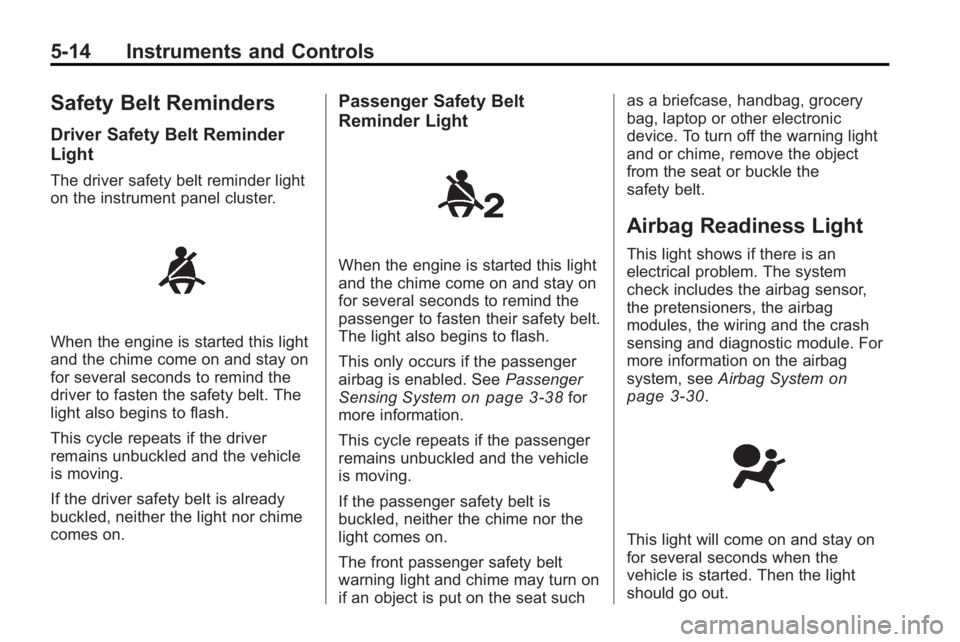
The driver safety belt reminder light
on the instrument panel cluster.
When the engine is started this light
and the chime come on and stay on
for several seconds to remind the
driver to fasten the safety belt. The
light also begins to flash.
This cycle repeats if the driver
remains unbuckled and the vehicle
is moving.
If the driver safety belt is already
buckled, neither the light nor chime
comes on.
Passenger Safety Belt
Reminder Light
When the engine is started this light
and the chime come on and stay on
for several seconds to remind the
passenger to fasten their safety belt.
The light also begins to flash.
This only occurs if the passenger
airbag is enabled. SeePassenger
Sensing System
on page 3‑38for
more information.
This cycle repeats if the passenger
remains unbuckled and the vehicle
is moving.
If the passenger safety belt is
buckled, neither the chime nor the
light comes on.
The front passenger safety belt
warning light and chime may turn on
if an object is put on the seat such as a briefcase, handbag, grocery
bag, laptop or other electronic
device. To turn off the warning light
and or chime, remove the object
from the seat or buckle the
safety belt.
Airbag Readiness Light
This light shows if there is an
electrical problem. The system
check includes the airbag sensor,
the pretensioners, the airbag
modules, the wiring and the crash
sensing and diagnostic module. For
more information on the airbag
system, see
Airbag System
on
page 3‑30.
This light will come on and stay on
for several seconds when the
vehicle is started. Then the light
should go out.
Page 133 of 444
Instruments and Controls 5-15
If the airbag readiness light stays on
after the vehicle has been started or
comes on when while driving, the
airbag system may not work
properly. Have the vehicle serviced
right away.
{WARNING
If the airbag readiness light stays
on after the vehicle is started or
comes on while driving, it means
the airbag system might not be
working properly. The airbags in
the vehicle might not inflate in a
crash, or they could even inflate
without a crash. To help avoid
injury, have the vehicle serviced
right away.
Passenger Airbag Status
Indicator
The vehicle has a passenger
sensing system. SeePassenger
Sensing System
on page 3‑38for
important safety information. The
instrument panel has a passenger
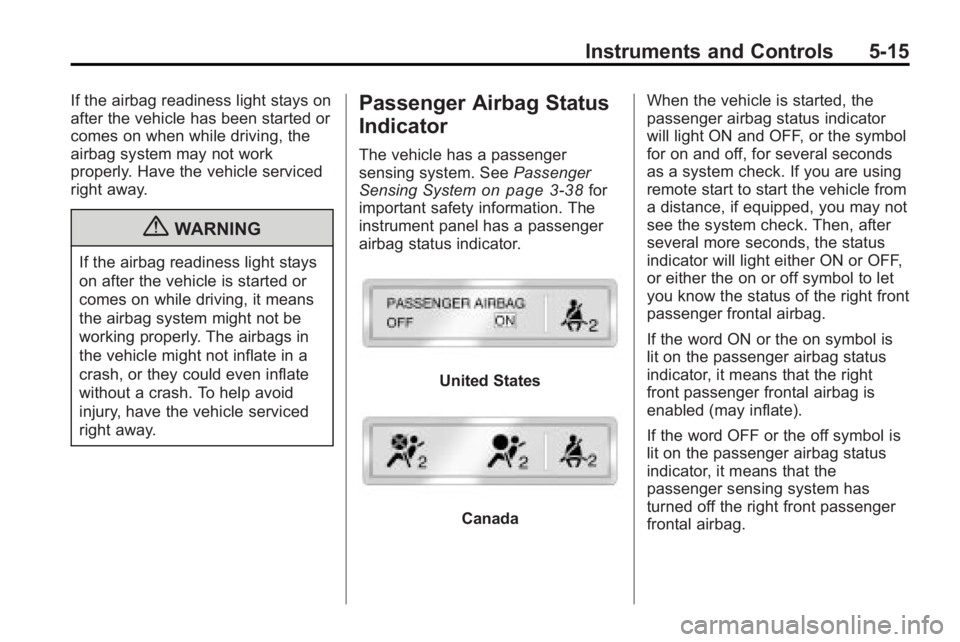
airbag status indicator.
United States
Canada When the vehicle is started, the
passenger airbag status indicator
will light ON and OFF, or the symbol
for on and off, for several seconds
as a system check. If you are using
remote start to start the vehicle from
a distance, if equipped, you may not
see the system check. Then, after
several more seconds, the status
indicator will light either ON or OFF,
or either the on or off symbol to let
you know the status of the right front
passenger frontal airbag.
If the word ON or the on symbol is
lit on the passenger airbag status
indicator, it means that the right
front passenger frontal airbag is
enabled (may inflate).
If the word OFF or the off symbol is
lit on the passenger airbag status
indicator, it means that the
passenger sensing system has
turned off the right front passenger
frontal airbag.
Page 141 of 444
Instruments and Controls 5-23
Information Displays
Driver Information Center
(DIC) (With DIC Buttons)
If your vehicle has DIC buttons, the
information below explains the
operation of this system.
The DIC displays information about
your vehicle. It also displays
warning messages if a system
problem is detected.
All messages will appear in the DIC
display located at the top of the
instrument panel cluster.
The DIC comes on when the ignition
is on. After a short delay, the DIC
will display the information that was
last displayed before the engine
was turned off.
The DIC also displays a shift lever
position indicator on the bottom line
of the display. SeeAutomatic
Transmission
on page 9‑22for
more information. The outside air temperature and
compass, if equipped, also display
on the DIC when viewing the trip
and fuel information. The outside air
temperature automatically appears
in the top right corner of the DIC
display. If there is a problem with
the system that controls the
temperature display, the numbers
will be replaced with dashes. If this
occurs, have the vehicle serviced.
The compass will be shown in the
bottom right corner of the DIC
display. See
Compass
on
page 5‑6for more information.
The DIC has different displays
which can be accessed by pressing
the DIC buttons located on the
instrument panel.
The DIC also allows some features
to be customized. See Vehicle
Personalization (With DIC Buttons)
on page 5‑44for more information.
If your vehicle has DIC buttons, you
can also use the trip odometer reset
stem to view the odometer and trip
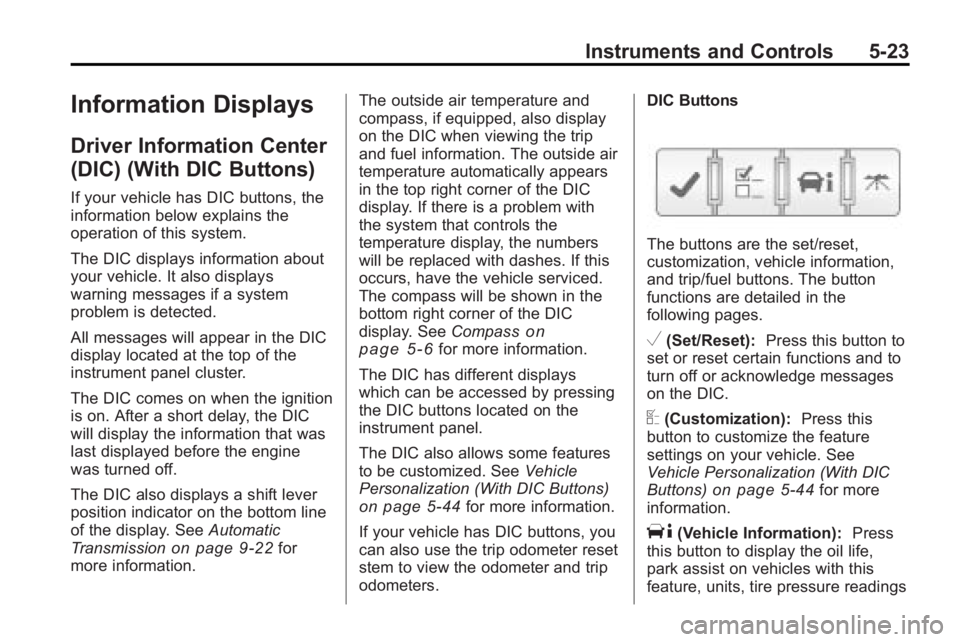
odometers. DIC Buttons
The buttons are the set/reset,
customization, vehicle information,
and trip/fuel buttons. The button
functions are detailed in the
following pages.
V(Set/Reset):
Press this button to
set or reset certain functions and to
turn off or acknowledge messages
on the DIC.
U(Customization): Press this
button to customize the feature
settings on your vehicle. See
Vehicle Personalization (With DIC
Buttons)
on page 5‑44for more
information.
T(Vehicle Information): Press
this button to display the oil life,
park assist on vehicles with this
feature, units, tire pressure readings
Page 146 of 444
5-28 Instruments and Controls
since the last reset of this value. To
reset the value to zero, press and
hold the set/reset button.
Blank Display
This display shows no information.
Driver Information Center
(DIC) (Without DIC
Buttons)
If your vehicle does not have DIC
buttons, the information below
explains the operation of this
system.
The DIC has different displays
which can be accessed by pressing
the trip odometer reset stem located
on the instrument panel cluster.
Pressing the trip odometer reset
stem will also turn off,
or acknowledge, DIC messages.
The DIC displays trip and vehicle
system information, and warning
messages if a system problem is
detected.If your vehicle does not have DIC
buttons, you can use the trip
odometer reset stem to view the
following displays: odometer, trip
odometers, oil life, park assist menu
for vehicles with the Ultrasonic Rear
Parking Assist (URPA) system,
Remote Keyless Entry (RKE)
transmitter programming, units, and
display language.
If your vehicle has DIC buttons, you
can use the trip odometer reset
stem to view the following displays:
odometer and trip odometers.
Trip Odometer Reset Stem
Menu Items
ODOMETER
Press the trip odometer reset stem
until ODOMETER displays. This
display shows the distance the
vehicle has been driven in either
miles (mi) or kilometers (km).
To switch between English and
metric measurements, see
“UNITS”
later in this section. TRIP A or TRIP B
Press the trip odometer reset stem
until TRIP A or TRIP B displays. This
display shows the current distance
traveled in either miles (mi) or
kilometers (km) since the last reset
for each trip odometer. Both trip
odometers can be used at the
same time.
Each trip odometer can be reset to
zero separately by pressing and
holding the trip odometer reset stem
while the desired trip odometer is
displayed.
The trip odometer has a feature
called the retro-active reset. This
can be used to set the trip odometer
to the number of miles (kilometers)
driven since the ignition was last
turned on. This can be used if the
trip odometer is not reset at the
beginning of the trip.
To use the retro-active reset feature,
press and hold the trip odometer
reset stem for at least four seconds.
The trip odometer will display the
number of miles (mi) or
Page 149 of 444
Instruments and Controls 5-31
Head-Up Display (HUD)
{WARNING
If the HUD image is too bright or
too high in your field of view, it
may take you more time to see
things you need to see when it is
dark outside. Be sure to keep the
HUD image dim and placed low in
your field of view.
For vehicles with the Head-Up
Display (HUD), some information
concerning the operation of the
vehicle is projected onto the
windshield. This includes the
speedometer reading, RPM reading,
transmission position, outside air
temperature, the tap shift gear, and
a brief display of the current radio
station, including XM information or
CD track. It will also display turn-by-turn navigation information if
the vehicle has a navigation radio.
The images are projected by the
HUD lens located on the driver's
side of the instrument panel.
The tap shift gear will also appear
on the HUD if the vehicle has tap
shift and it is active.
The HUD information can be
displayed in one of three languages,
English, French, or Spanish. The
speedometer reading and other
numerical values can be displayed
in either English or metric units.
The language selection and the
units of measurement are changed
through the trip computer in the
Driver Information Center (DIC).
See
Vehicle Personalization (With
DIC Buttons) on page 5‑44.
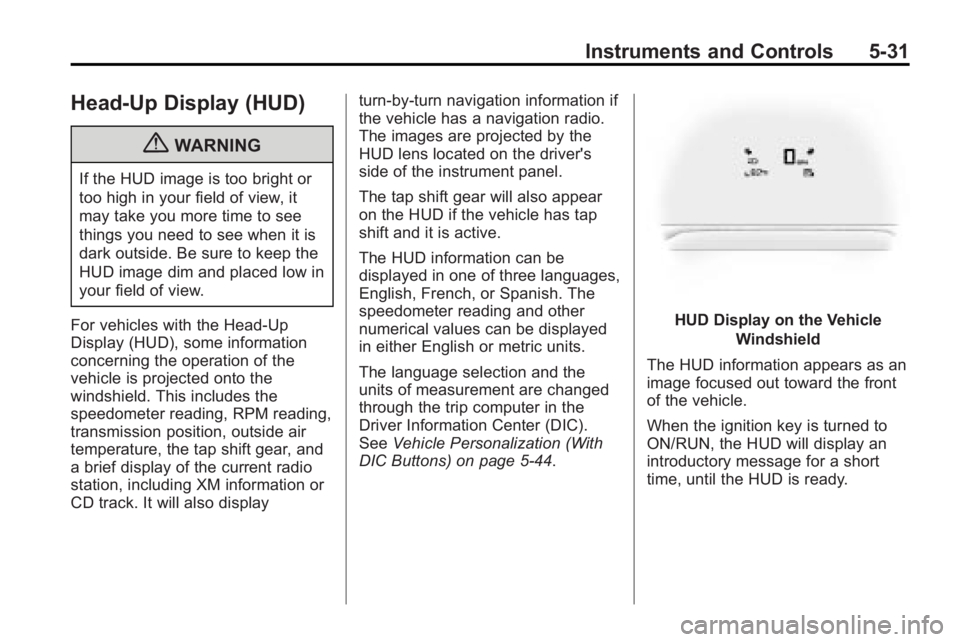
HUD Display on the Vehicle
Windshield
The HUD information appears as an
image focused out toward the front
of the vehicle.
When the ignition key is turned to
ON/RUN, the HUD will display an
introductory message for a short
time, until the HUD is ready.
Page 150 of 444
5-32 Instruments and Controls
The following indicator lights come
on the instrument panel when
activated and also appear on
the HUD:
.Turn Signal Indicators
.High-Beam Indicator Symbol
The HUD temporarily displays
CHECK GAGES and ICE
POSSIBLE when these messages
are on the DIC trip computer.
The HUD also displays the following
messages on vehicles with these
systems, when they are active:
.TRACTION CONTROL ACTIVE
.STABILITRAK ACTIVE
Notice: If you try to use the HUD
image as a parking aid, you may
misjudge the distance and
damage your vehicle. Do not use
the HUD image as a parking aid.
When the HUD is on, the
speedometer reading is continually
displayed. The current radio station
or CD track number will display for a
short period of time after the radio or CD track status changes. This
happens whenever radio information
is changed. The speedometer size
is reduced when radio, CD
information, warnings,
or turn-by-turn navigation
information are displayed on
the HUD.
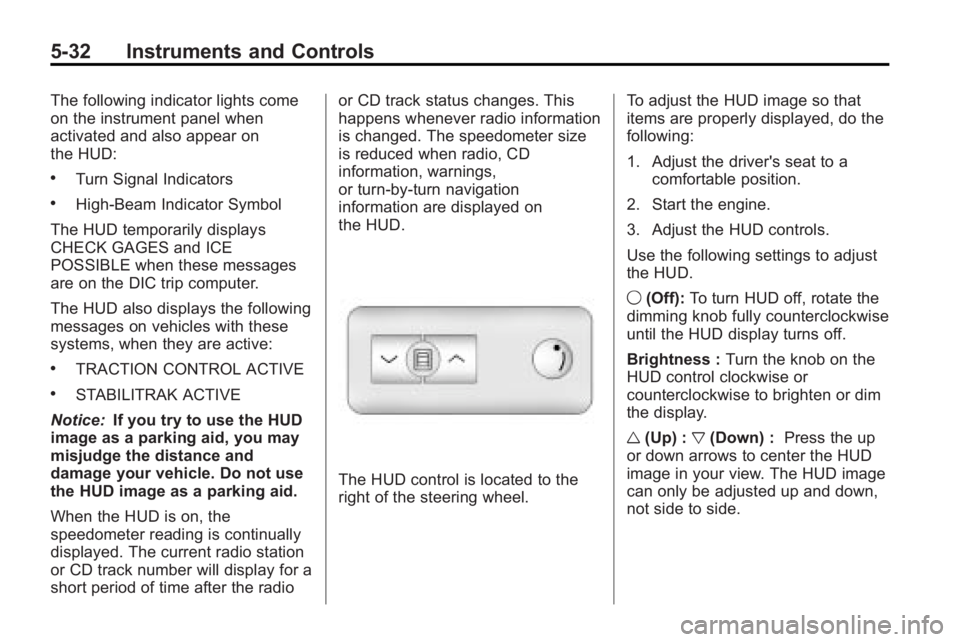
The HUD control is located to the
right of the steering wheel.
To adjust the HUD image so that
items are properly displayed, do the
following:
1. Adjust the driver's seat to a
comfortable position.
2. Start the engine.
3. Adjust the HUD controls.
Use the following settings to adjust
the HUD.
9 (Off): To turn HUD off, rotate the
dimming knob fully counterclockwise
until the HUD display turns off.
Brightness : Turn the knob on the
HUD control clockwise or
counterclockwise to brighten or dim
the display.
w (Up) : x(Down) : Press the up
or down arrows to center the HUD
image in your view. The HUD image
can only be adjusted up and down,
not side to side.
Page 152 of 444
5-34 Instruments and Controls
The HUD image displayed on the
windshield will automatically dim
and brighten to compensate for
outside lighting.
The HUD image can temporarily
light up depending on the angle and
position of the sunlight on the HUD
display. This is normal and will
change when the angle of the
sunlight on the HUD display
changes.
Polarized sunglasses could make
the HUD image harder to see.
Care of the HUD
Clean the inside of the windshield
as needed to remove any dirt or film
that could reduce the sharpness or
clarity of the HUD image.
To clean the HUD lens, use a soft,
clean cloth that has household glass
cleaner sprayed on it. Wipe the
HUD lens gently, then dry it. Do not
spray cleaner directly on the lens
because the cleaner could leak into
the unit.
If You Cannot See the HUD
Image When the Ignition Is On
.Is anything covering the
HUD lens?
.Is the HUD dimmer setting bright
enough?
.Is the HUD image adjusted to
the proper height?
.Are you wearing polarized
sunglasses?
.Still no HUD image? Check the
fuse in the instrument panel fuse
block. SeeInstrument Panel
Fuse Block on page 10‑34.
If the HUD Image Is Not Clear
.Is the HUD image too bright?
.Are the windshield and HUD
lens clean?
If the HUD image is not correct,
contact your dealer/retailer.
Keep in mind that the windshield is
part of the HUD system.
Vehicle Messages
Messages are displayed on the DIC
to notify the driver that the status of
the vehicle has changed and that
some action may be needed by the
driver to correct the condition.
Multiple messages may appear one
after another.
Some messages may not require
immediate action, but you can press
any of the DIC buttons on the
instrument panel or the trip
odometer reset stem on the
instrument panel cluster to
acknowledge that you received the
messages and to clear them from
the display.
Some messages cannot be cleared
from the DIC display because they
are more urgent. These messages
require action before they can be
cleared. You should take any
messages that appear on the
display seriously and remember that
clearing the messages will only
make the messages disappear, not
correct the problem.
Page 153 of 444
Instruments and Controls 5-35
The following are the possible
messages that can be displayed
and some information about them.
Battery Voltage and
Charging Messages
BATTERY SAVER ACTIVE
This message displays when the
system detects that the battery
voltage is dropping below expected
levels. The battery saver system
starts reducing certain features of
the vehicle that you may be able to
notice. At the point that the features
are disabled, this message is
displayed. It means that the vehicle
is trying to save the charge in the
battery.
Turn off all unnecessary
accessories to allow the battery to
recharge.
The normal battery voltage range is
11.5 to 15.5 volts.
SERVICE BATTERY
CHARGING SYSTEM
On some vehicles, this message
displays if there is a problem with
the battery charging system. Under
certain conditions, the charging
system light may also turn on in the
instrument panel cluster. See
Charging System Light
on
page 5‑16. Driving with this
problem could drain the battery.
Turn off all unnecessary
accessories. Have the electrical
system checked as soon as
possible. See your dealer/retailer.
Brake System Messages
SERVICE BRAKE SYSTEM
This message displays along with
the brake system warning light if
there is a problem with the brake
system. See Brake System Warning
Light
on page 5‑19. If this message
appears, stop as soon as possible
and turn off the vehicle. Restart the
vehicle and check for the message
on the DIC display. If the message is still displayed or appears again
when you begin driving, the brake
system needs service as soon as
possible. See your dealer/retailer.
Cruise Control Messages
CRUISE SET TO XXX
This message displays whenever
the cruise control is set. See
Cruise
Control
on page 9‑30for more
information.
Door Ajar Messages
DRIVER DOOR OPEN
This message displays and a chime
sounds if the driver door is not fully
closed and the vehicle is shifted out
of P (Park). Stop and turn off the
vehicle, check the door for
obstructions, and close the door
again. Check to see if the message
still appears on the DIC.