seat GMC ACADIA 2011 Owners Manual
[x] Cancel search | Manufacturer: GMC, Model Year: 2011, Model line: ACADIA, Model: GMC ACADIA 2011Pages: 478, PDF Size: 5.52 MB
Page 166 of 478
Black plate (34,1)GMC Acadia/Acadia Denali Owner Manual - 2011
5-34 Instruments and Controls
The following indicator lights come
on the instrument panel when
activated and also appear on
the HUD:
.Turn Signal Indicators
.High-Beam Indicator Symbol
The HUD temporarily displays
CHECK GAGES and ICE
POSSIBLE when these messages
are on the DIC trip computer.
The HUD also displays the following
messages on vehicles with these
systems, when they are active:
.TRACTION CONTROL ACTIVE
.STABILITRAK ACTIVE
Notice: If you try to use the
HUD image as a parking aid, you
may misjudge the distance and
damage your vehicle. Do not use
the HUD image as a parking aid.
When the HUD is on, the
speedometer reading is continually
displayed. The current radio station or CD track number will display
for a short period of time after
the radio or CD track status
changes. This happens whenever
radio information is changed.
The speedometer size is reduced
when radio, CD information,
warnings, or turn-by-turn navigation
information are displayed on
the HUD.
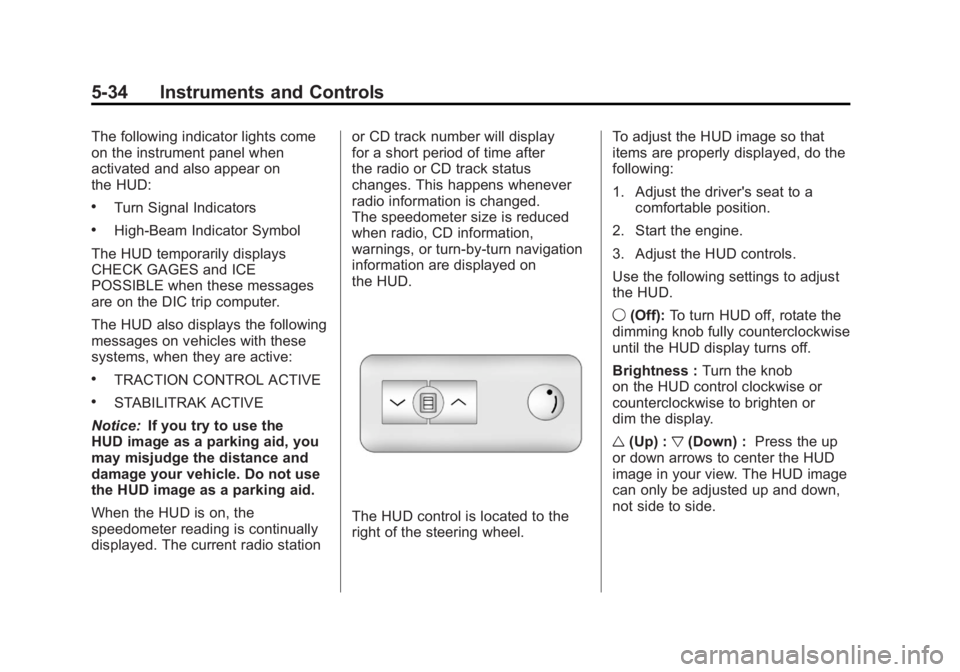
The HUD control is located to the
right of the steering wheel.
To adjust the HUD image so that
items are properly displayed, do the
following:
1. Adjust the driver's seat to a
comfortable position.
2. Start the engine.
3. Adjust the HUD controls.
Use the following settings to adjust
the HUD.
9 (Off): To turn HUD off, rotate the
dimming knob fully counterclockwise
until the HUD display turns off.
Brightness : Turn the knob
on the HUD control clockwise or
counterclockwise to brighten or
dim the display.
w (Up) : x(Down) : Press the up
or down arrows to center the HUD
image in your view. The HUD image
can only be adjusted up and down,
not side to side.
Page 185 of 478
Black plate (53,1)GMC Acadia/Acadia Denali Owner Manual - 2011
Instruments and Controls 5-53
EASY EXIT SEAT
If your vehicle has this feature, it
allows you to select your preference
for the automatic easy exit seat
feature. SeeDelayed Locking on
page 2‑8 for more information.
Press the customization button until
EASY EXIT SEAT appears on the
DIC display. Press the set/reset
button once to access the settings
for this feature. Then press the
customization button to scroll
through the following settings:
OFF (default): No automatic seat
exit recall will occur.
ON: The driver's seat will move
back when the key is removed from
the ignition.
The automatic easy exit seat
movement will only occur one time
after the key is removed from the ignition. If the automatic movement
has already occurred, and you put
the key back in the ignition and
remove it again, the seat and
steering column will stay in the
original exit position, unless a
memory recall took place prior
to removing the key again.
NO CHANGE:
No change will be
made to this feature. The current
setting will remain.
To select a setting, press the
set/reset button while the desired
setting is displayed on the DIC.
MEMORY SEAT RECALL
If your vehicle has this feature, it
allows you to select your preference
for the remote memory seat recall
feature. See Delayed Locking on
page 2‑8 for more information. Press the customization button
until MEMORY SEAT RECALL
appears on the DIC display. Press
the set/reset button once to access
the settings for this feature. Then
press the customization button to
scroll through the following settings:
OFF (default):
No remote memory
seat recall will occur.
ON: The driver's seat and outside
mirrors will automatically move to
the stored driving position when
the unlock button on the Remote
Keyless Entry (RKE) transmitter is
pressed.
NO CHANGE: No change will be
made to this feature. The current
setting will remain.
To select a setting, press the
set/reset button while the desired
setting is displayed on the DIC.
Page 197 of 478
Black plate (5,1)GMC Acadia/Acadia Denali Owner Manual - 2011
Lighting 6-5
Interior Lighting
Instrument Panel
Illumination Control
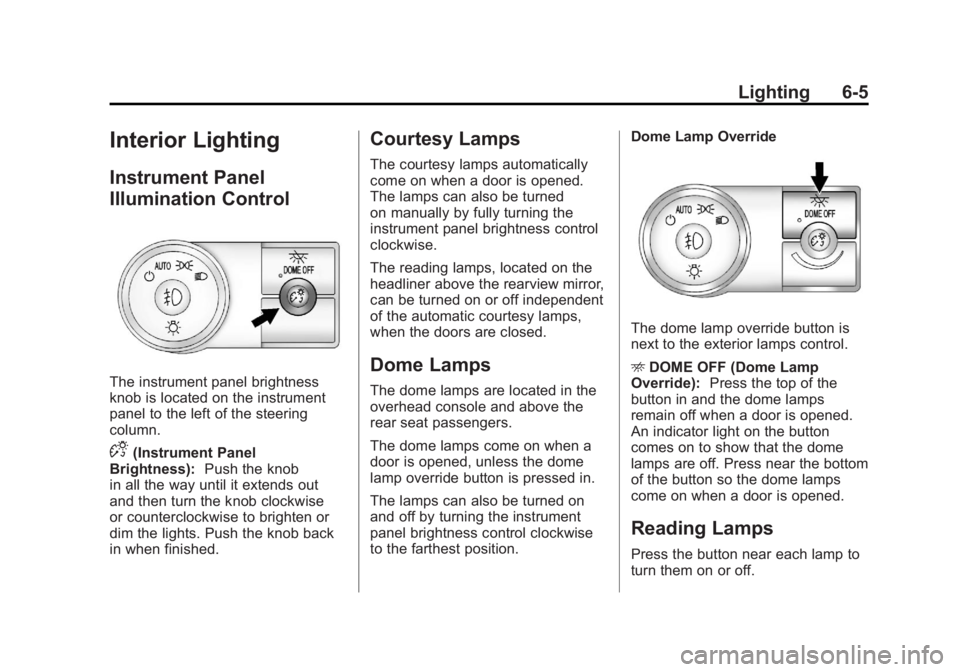
The instrument panel brightness
knob is located on the instrument
panel to the left of the steering
column.
D(Instrument Panel
Brightness): Push the knob
in all the way until it extends out
and then turn the knob clockwise
or counterclockwise to brighten or
dim the lights. Push the knob back
in when finished.
Courtesy Lamps
The courtesy lamps automatically
come on when a door is opened.
The lamps can also be turned
on manually by fully turning the
instrument panel brightness control
clockwise.
The reading lamps, located on the
headliner above the rearview mirror,
can be turned on or off independent
of the automatic courtesy lamps,
when the doors are closed.
Dome Lamps
The dome lamps are located in the
overhead console and above the
rear seat passengers.
The dome lamps come on when a
door is opened, unless the dome
lamp override button is pressed in.
The lamps can also be turned on
and off by turning the instrument
panel brightness control clockwise
to the farthest position. Dome Lamp Override
The dome lamp override button is
next to the exterior lamps control.
E
DOME OFF (Dome Lamp
Override): Press the top of the
button in and the dome lamps
remain off when a door is opened.
An indicator light on the button
comes on to show that the dome
lamps are off. Press near the bottom
of the button so the dome lamps
come on when a door is opened.
Reading Lamps
Press the button near each lamp to
turn them on or off.
Page 199 of 478
Black plate (7,1)GMC Acadia/Acadia Denali Owner Manual - 2011
Lighting 6-7
Delayed Exit Lighting
Delayed exit lighting illuminates the
interior for a period of time after the
key is removed from the ignition.
The ignition must be off for delayed
exit lighting to work. When the key
is removed, interior illumination
activates and remains on until
one of the following occurs:
.The ignition is in ON/RUN.
.The power door locks are
activated.
.An illumination period of
20 seconds has elapsed.
If during the illumination period
a door is opened, the timed
illumination period will be canceled
and the interior lamps will remain
on because a door is open.
Parade Dimming
This feature automatically prohibits
the dimming of the instrument
panel displays in daylight while
the headlamps are on so that the
displays are still able to be seen.
Battery Load
Management
The vehicle has Electric Power
Management (EPM) that estimates
the battery's temperature and state
of charge. It then adjusts the voltage
for best performance and extended
life of the battery.
When the battery's state of charge
is low, the voltage is raised slightly
to quickly bring the charge back up.
When the state of charge is high,
the voltage is lowered slightly to
prevent overcharging. If the vehicle
has a voltmeter gauge or a voltage
display on the Driver Information
Center (DIC), you may see the voltage move up or down. This is
normal. If there is a problem, an
alert will be displayed.
The battery can be discharged at
idle if the electrical loads are very
high. This is true for all vehicles.
This is because the generator
(alternator) may not be spinning
fast enough at idle to produce
all the power needed for very
high electrical loads.
A high electrical load occurs when
several of the following are on,
such as: headlamps, high beams,
fog lamps, rear window defogger,
climate control fan at high speed,
heated seats, engine cooling fans,
trailer loads, and loads plugged into
accessory power outlets.
EPM works to prevent excessive
discharge of the battery. It does this
by balancing the generator's output
and the vehicle's electrical needs.
Page 201 of 478
Black plate (1,1)GMC Acadia/Acadia Denali Owner Manual - 2011
Infotainment System 7-1
Infotainment
System
Introduction
Infotainment . . . . . . . . . . . . . . . . . . . 7-1
Theft-Deterrent Feature . . . . . . . 7-2
Operation . . . . . . . . . . . . . . . . . . . . . 7-2
Radio
AM-FM Radio . . . . . . . . . . . . . . . . . 7-7
Satellite Radio . . . . . . . . . . . . . . . . 7-8
Radio Reception . . . . . . . . . . . . . 7-12
Multi-Band Antenna . . . . . . . . . . 7-13
Audio Players
CD Player . . . . . . . . . . . . . . . . . . . 7-14
CD/DVD Player . . . . . . . . . . . . . . 7-16
MP3 (Radios withCD/USB) . . . . . . . . . . . . . . . . . . . 7-24
MP3 (Radios with
CD/DVD) . . . . . . . . . . . . . . . . . . . 7-30
Auxiliary Devices . . . . . . . . . . . . 7-37
Rear Seat Infotainment
Rear Seat Entertainment (RSE) System . . . . . . . . . . . . . . 7-39
Rear Seat Audio (RSA) System . . . . . . . . . . . . . . . . . . . . . 7-48
Rear Audio Controller (RAC) . . . . . . . . . . . 7-50
Phone
Bluetooth . . . . . . . . . . . . . . . . . . . . 7-50
Introduction
Infotainment
Read the following pages to
become familiar with the audio
system's features.
{WARNING
Taking your eyes off the road
for extended periods could
cause a crash resulting in
injury or death to you or others.
Do not give extended attention to
entertainment tasks while driving.
This system provides access to
many audio and non audio listings.
To minimize taking your eyes off the
road while driving, do the following
while the vehicle is parked:
.Become familiar with the
operation and controls of
the audio system.
Page 203 of 478
Black plate (3,1)GMC Acadia/Acadia Denali Owner Manual - 2011
Infotainment System 7-3
Radio with CD, DVD, and USB
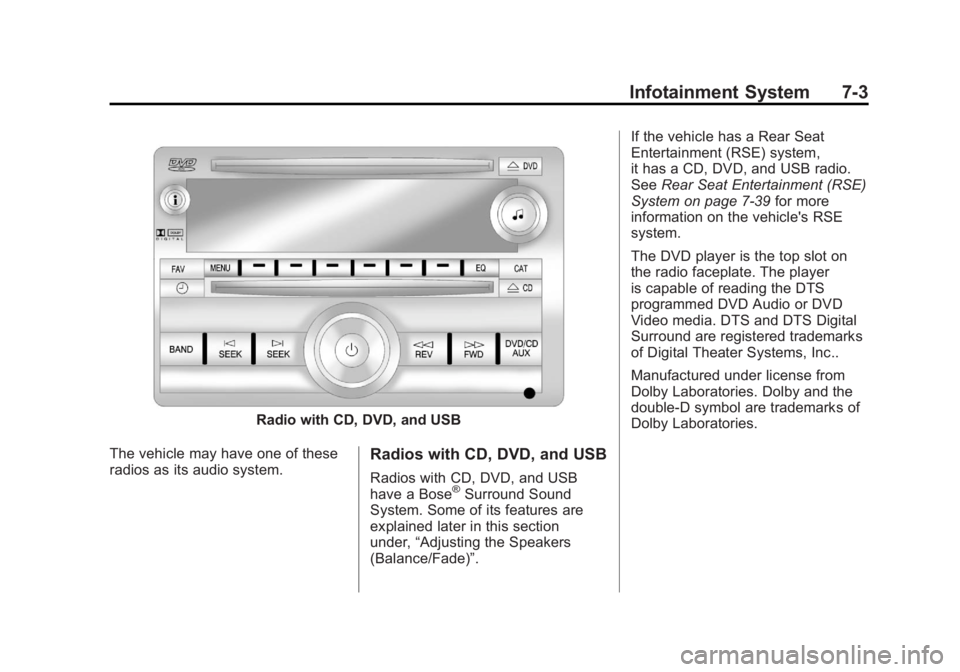
The vehicle may have one of these
radios as its audio system.
Radios with CD, DVD, and USB
Radios with CD, DVD, and USB
have a Bose®Surround Sound
System. Some of its features are
explained later in this section
under, “Adjusting the Speakers
(Balance/Fade)”. If the vehicle has a Rear Seat
Entertainment (RSE) system,
it has a CD, DVD, and USB radio.
See
Rear Seat Entertainment (RSE)
System on page 7‑39 for more
information on the vehicle's RSE
system.
The DVD player is the top slot on
the radio faceplate. The player
is capable of reading the DTS
programmed DVD Audio or DVD
Video media. DTS and DTS Digital
Surround are registered trademarks
of Digital Theater Systems, Inc..
Manufactured under license from
Dolby Laboratories. Dolby and the
double-D symbol are trademarks of
Dolby Laboratories.
Page 204 of 478
Black plate (4,1)GMC Acadia/Acadia Denali Owner Manual - 2011
7-4 Infotainment System
Playing the Radio
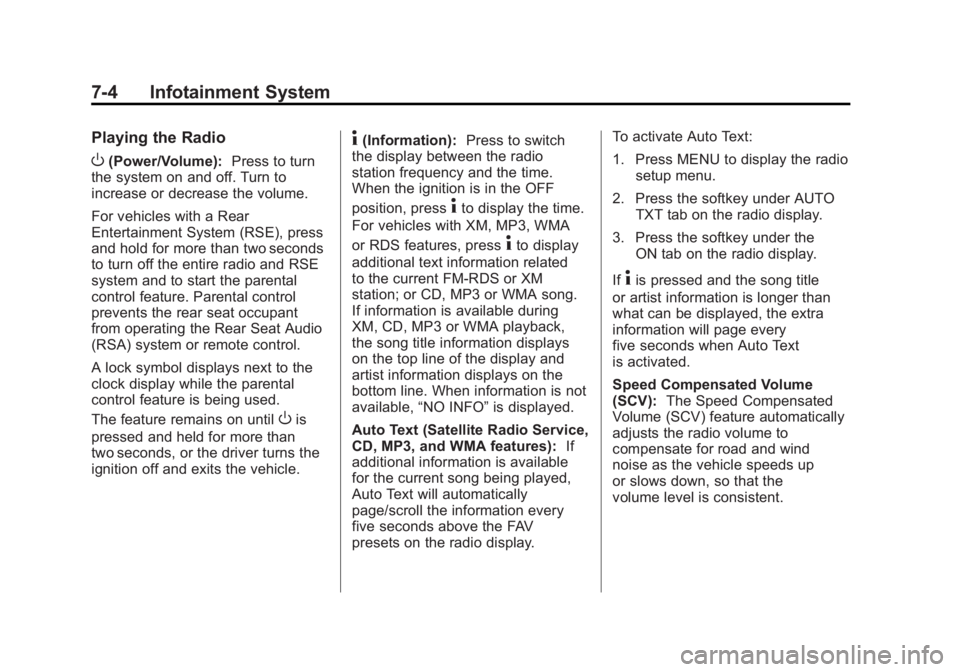
O(Power/Volume):Press to turn
the system on and off. Turn to
increase or decrease the volume.
For vehicles with a Rear
Entertainment System (RSE), press
and hold for more than two seconds
to turn off the entire radio and RSE
system and to start the parental
control feature. Parental control
prevents the rear seat occupant
from operating the Rear Seat Audio
(RSA) system or remote control.
A lock symbol displays next to the
clock display while the parental
control feature is being used.
The feature remains on until
Ois
pressed and held for more than
two seconds, or the driver turns the
ignition off and exits the vehicle.
4(Information): Press to switch
the display between the radio
station frequency and the time.
When the ignition is in the OFF
position, press
4to display the time.
For vehicles with XM, MP3, WMA
or RDS features, press
4to display
additional text information related
to the current FM-RDS or XM
station; or CD, MP3 or WMA song.
If information is available during
XM, CD, MP3 or WMA playback,
the song title information displays
on the top line of the display and
artist information displays on the
bottom line. When information is not
available, “NO INFO” is displayed.
Auto Text (Satellite Radio Service,
CD, MP3, and WMA features): If
additional information is available
for the current song being played,
Auto Text will automatically
page/scroll the information every
five seconds above the FAV
presets on the radio display. To activate Auto Text:
1. Press MENU to display the radio
setup menu.
2. Press the softkey under AUTO TXT tab on the radio display.
3. Press the softkey under the ON tab on the radio display.
If
4is pressed and the song title
or artist information is longer than
what can be displayed, the extra
information will page every
five seconds when Auto Text
is activated.
Speed Compensated Volume
(SCV): The Speed Compensated
Volume (SCV) feature automatically
adjusts the radio volume to
compensate for road and wind
noise as the vehicle speeds up
or slows down, so that the
volume level is consistent.
Page 206 of 478
Black plate (6,1)GMC Acadia/Acadia Denali Owner Manual - 2011
7-6 Infotainment System
Adjusting the Speakers
(Balance/Fade)
BAL/FADE (Balance/Fade):
To adjust the balance or fade:
1. Press
funtil the speaker control
tabs display.
2. Continue pressing
fto highlight
the tab, or press the softkey
under the tab.
3. To adjust the highlighted setting, do one of the following until the
levels are obtained.
.Turnfclockwise or
counterclockwise.
.Press\FWD, orsREV.
To quickly adjust balance or fade
to the middle position, press the
softkey under the BAL or FADE tab
for more than two seconds. A beep
sounds and the level adjusts to the
middle position. To quickly adjust all speaker and
tone controls to the middle position,
press
ffor more than two seconds
until a beep sounds.
Radios with CD and DVD fade
differently depending on the DVD
Media type:
.With DVD‐A 5.1 Surround
media, the left front and right
front speakers fade rearward,
leaving the center front
speakers unaffected until the
last fade step, then all front
speakers mute.
.With DVD‐V 5.1 Surround
media, surround sound is
maintained until Step 4 of the
Fade control is reached while
fading rearward. At that point
the audio system output
changes to Stereo to prevent
the loss of Center channel
output when the full rearward
fade position is reached. If the Rear Seat Audio (RSA) is
turned on, the radio disables FADE
and mutes the rear speakers.
Radio Messages
Calibration Error:
The audio
system has been calibrated
for the vehicle from the factory.
If Calibration Error displays, it
means that the radio has not been
configured properly for the vehicle
and it must be returned to your
dealer for service.
Locked: This message displays
when the TheftLock
®system has
locked up the radio. Take the
vehicle to your dealer for service.
If any error occurs repeatedly or
if an error cannot be corrected,
contact your dealer.
Page 216 of 478
Black plate (16,1)GMC Acadia/Acadia Denali Owner Manual - 2011
7-16 Infotainment System
Player Error:There are disc LOAD
or disc EJECT problems.
.It is very hot. When the
temperature returns to normal,
the CD should play.
.The road is very rough. When
the road becomes smoother,
the CD should play.
.The CD is dirty, scratched, wet,
or upside down.
.The air is very humid. If so, wait
about an hour and try again.
.There could have been a
problem while burning the CD.
.The label could be caught in the
CD player.
If the CD is not playing correctly
for any other reason, try a known
good CD.
If any error occurs repeatedly or
if an error cannot be corrected,
contact your dealer. If the radio
displays an error message, write it
down and provide it to your dealer
when reporting the problem.
CD/DVD Player
Playing a CD (In Either the
DVD or CD Slot)
Insert a CD partway into the slot,
label side up. The player pulls it in
and the CD should begin playing
(loading a disc into the system,
depending on media type and
format ranges from 5 to 20 seconds
for a CD, and up to 30 seconds
for a DVD to begin playing).
If the ignition or radio is turned off,
while a CD is in the player, it stays
in the player. When the ignition or
radio is turned on, the CD starts
playing where it stopped, if it was
the last selected audio source.
The CD is controlled by the buttons
on the radio faceplate or by the RSA
unit. See Rear Seat Audio (RSA)
System on page 7‑48 for more
information. The DVD/CD decks,
(upper slot is the DVD deck and
the lower slot is the CD deck) of
the radio are compatible with most
audio CDs, CD-R, CD-RW, and
MP3/WMAs. When a CD is inserted, the text
label DVD or CD symbol displays
on the left side of the radio display.
As each new track starts to play,
the track number displays.ZCD (Eject):
Press and release
to eject the disc that is currently
playing. The disc ejects from the
bottom slot. A beep sounds and
Ejecting Disc displays. Once
the disc is ejected, Remove
Disc displays. The disc can be
removed. If the disc is not removed,
after several seconds, the disc
automatically pulls back into the
player.
ZDVD (Eject): Press and
release to eject the disc that is
currently playing in the top slot.
A beep sounds and Ejecting Disc
displays.
If loading and reading of a disc
cannot be completed, and the
disc fails to eject, press and
hold
ZDVD for more than
five seconds to force the disc
to eject.
Page 217 of 478
Black plate (17,1)GMC Acadia/Acadia Denali Owner Manual - 2011
Infotainment System 7-17
f(Tune):Turn to select tracks on
the CD that is currently playing.
©SEEK¨: Press©to go to the
start of the current track if the track
has played more than five seconds.
If the track has played less than
five seconds the previous track
will play.
Press
¨to go to the next track.
If either arrow is held, or pressed
multiple times, the player continues
moving backward or forward
through the tracks on the CD.
sREV (Fast Reverse): Press
and hold to reverse playback
quickly within a track. Sound will
be heard at a reduced volume.
Release to resume playing the
track. The elapsed time of the
track displays.
\FWD (Fast Forward): Press
and hold to advance playback
quickly within a track. Sound will be
heard at a reduced volume. Release
to resume playing the track. The
elapsed time of the track displays. RDM (Random):
CD tracks can be
listened to in random, rather than
sequential order with the random
setting. To use random, press the
softkey under the RDM tab until
Random Current Disc displays.
Press the softkey again to turn
off random play.
BAND: Press to listen to the radio
when a CD or DVD is playing.
The CD or DVD remains inside
the radio for future listening or
for viewing entertainment.
DVD/CD AUX (Auxiliary): Press
to select between DVD, CD,
or Auxiliary.
.If an auxiliary input device is
not connected, “No Aux Input
Device” displays.
.When a disc is in either slot, the
DVD/CD text tab and a message
showing the track or chapter
number displays.
.If an auxiliary input device is not
connected, and a disc is in both
the DVD slot and the CD slot the
DVD/CD AUX button only cycles
between the two sources and
does not indicate “No Aux Input
Device”.
.If a front auxiliary input device
is connected, the DVD/CD AUX
button cycles through all
available options.
If a disc is inserted into the top DVD
slot, the rear seat operator can turn
on the video screen and use the
remote control to only navigate
the CD tracks through the remote
control.
See “Using the Auxiliary Input
Jack(s)” later in this section,
or “Audio/Video (A/V) Jacks” under,
Rear Seat Entertainment (RSE)
System on page 7‑39 for more
information.