ECO mode GMC ACADIA 2011 User Guide
[x] Cancel search | Manufacturer: GMC, Model Year: 2011, Model line: ACADIA, Model: GMC ACADIA 2011Pages: 478, PDF Size: 5.52 MB
Page 224 of 478
Black plate (24,1)GMC Acadia/Acadia Denali Owner Manual - 2011
7-24 Infotainment System
DVD Error Messages
Player Error:This message
displays when there are disc load
or eject problems.
Disc Format Error: This message
displays, if the disc is inserted with
the disc label wrong side up, or if
the disc is damaged.
Disc Region Error: This message
displays, if the disc is not from a
correct region.
No Disc Inserted: This message
displays, if no disc is present when
ZDVD or DVD/CD AUX is
pressed on the radio.
MP3 (Radios with
CD/USB)
Format
Radios that have the capability
of playing MP3s can play .mp3
or .wma files that were recorded
onto a CD-R or CD-RW disc.
The files can be recorded with the
following fixed bit rates: 32 kbps,
40 kbps, 56 kbps, 64 kbps, 80 kbps,
96 kbps, 112 kbps, 128 kbps,
160 kbps, 192 kbps, 224 kbps,
256 kbps, and 320 kbps or a
variable bit rate.
Radios that have a USB port can
play .mp3 and .wma files that are
stored on a USB storage device as
well as AAC files that are stored on
an iPod
®. Compressed Audio or Mixed Mode
Discs
The radio can play discs that
contain both uncompressed CD
audio and MP3/WMA files. If both
formats are on the disc, the radio
plays both file formats in the order
in which they were recorded to
the disc.
CD‐R or CD‐RW Supported File
and Folder Structure
The radio supports:
.Up to 50 folders.
.Up to 8 folders in depth.
.Up to 15 playlists.
.Up to 512 files and folders.
.Playlists with an .m3u or .wpl
extension.
.Files with an .mp3, .wma,
or .cda file extension.
Page 227 of 478
Black plate (27,1)GMC Acadia/Acadia Denali Owner Manual - 2011
Infotainment System 7-27
When the scan is finished, the disc
begins playing files in order by
artist. The current artist playing is
shown on the second line of the
display. Once all songs by that artist
are played, the player moves to the
next artist in alphabetical order and
begins playing files by that artist.
To listen to files by another artist,
press the softkey located below
either arrow tab. The disc goes
to the next or previous artist in
alphabetical order. Continue
pressing either softkey below the
arrow tab until the artist displays.To change from playback by artist to
playback by album:
1. Press the softkey located below
the Sort By tab.
2. Press one of the softkeys below the album tab from the sort
screen.
3. Press the softkey below the back tab to return to the main
music navigator screen.
The album name displays on the
second line between the arrows
and songs from the current album
begins to play. Once all songs
from that album have played, the
player moves to the next album in
alphabetical order on the CD and
begins playing MP3 files from that
album.
To exit music navigator mode, press
the softkey below the Back tab to
return to normal MP3 playback.Connecting a USB Storage
Device or iPod®
A. USB Port
To connect a USB storage device,
connect the device to the USB port
located in the instrument panel
storage area. See Instrument
Panel Storage on page 4‑1 for
more information.
The USB Port can be used to
control an iPod or a USB storage
device.
Page 228 of 478
Black plate (28,1)GMC Acadia/Acadia Denali Owner Manual - 2011
7-28 Infotainment System
To connect an iPod, connect one
end of the USB cable that came
with the iPod to the iPod’s dock
connector and connect the other
end to the USB port located in the
center console. If the vehicle is on
and the USB connection works,
“OK to disconnect”and a GM logo
may appear on the iPod and iPod
appears on the radio's display.
The iPod music appears on the
radio’s display and begins playing.
The iPod charges while it is
connected to the vehicle if the
vehicle is in the ACC/ACCESSORY
or ON/RUN position. When the
vehicle is turned off, the iPod
automatically powers off and
will not charge or draw power
from the vehicle's battery.
If you have an older iPod model that
is not supported, it can still be used
by connecting it to the Auxiliary
Input Jack using a standard 3.5 mm
(1/8 in) stereo cable. See “Using the
Auxiliary Input Jack” earlier for more
information.Using the Radio to Control a
USB Storage Device or iPod
The radio can control a USB
storage device or an iPod using
the radio buttons and knobs and
display song information on the
radio’s display.
f(Tune): Turn to select files.
©SEEK:Press to go to the start of
the track, if more than ten seconds
have played. Press and hold or
press multiple times to continue
moving backward through tracks.
¨SEEK: Press to go to the next
track. Press and hold or press
multiple times to continue moving
forward through tracks.
sREV (Reverse): Press and hold
to reverse playback quickly. Sound
is heard at a reduced volume.
Release
sREV to resume playing.
The elapsed time of the file
displays.
\FWD (Fast Forward): Press
and hold to advance playback
quickly. Sound is heard at a
reduced volume. Release
\FWD
to resume playing. The elapsed time
of the file displays.
4(Information): Press to display
additional information about the
selected track.
Using Softkeys to Control a
USB Storage Device or iPod
The five softkeys below the radio
display are used to control the
functions listed below.
To use the softkeys:
1. Press the first or fifth softkey below the radio display to
display the functions listed
below, or press the softkey
below the function if it is
currently displayed.
2. Press the softkey below the tab with the function on it to use that
function.
Page 230 of 478
Black plate (30,1)GMC Acadia/Acadia Denali Owner Manual - 2011
7-30 Infotainment System
To skip through large lists, the five
softkeys can be used to navigate in
the following order:
.First softkey, first item in the list.
.Second softkey, 1% through
the list each time the softkey is
pressed.
.Third softkey, 5% through the list
each time the softkey is pressed.
.Fourth softkey, 10% through
the list each time the softkey
is pressed.
.Fifth softkey, end of the list.
Repeat Functionality
To use Repeat:
Press the softkey below
"or'
to select between Repeat All and
Repeat Track.
"(Repeat All): Press the softkey
below
"to repeat all tracks.
The tab appears lowered when
Repeat All is being used. This is the
default mode when a USB storage
device or iPod is first connected.
'(Repeat Track): Press the
softkey below
'to repeat one
track. The tab appears raised
when Repeat Track is being used.
Shuffle Functionality
To use Shuffle:
Press the softkey below
>,2,
Shuffle Songs, Shuffle Album,
or Shuffle Folder.
>(Shuffle Off): This is the
default mode when a USB storage
device or iPod is first connected.
2(Shuffle All Songs / Shuffle
Songs): Shuffles all songs on the
USB storage device or iPod.
<(Shuffle Album): Shuffles
all songs in the current album on
an iPod.
=(Shuffle Folder): Shuffles all
songs in the current folder on a USB
storage device.
MP3 (Radios
with CD/DVD)
Format
The radio can play .mp3 or
.wma files that were recorded
onto a CD-R or CD-RW disc.
The USB port can play .mp3 and
.wma files that are stored on a USB
storage device as well as AAC files
that are stored on an iPod
®.
Compressed Audio or Mixed
Mode Discs
The radio plays discs that contain
both uncompressed CD audio and
MP3/WMA files depending on which
slot the disc is loaded into.
The DVD Player only reads
uncompressed audio and ignores
MP3/WMA files on a mixed
mode disc.
Page 232 of 478
Black plate (32,1)GMC Acadia/Acadia Denali Owner Manual - 2011
7-32 Infotainment System
The next and previous folder
function does not function on a
disc that was recorded without
folders or playlists. When displaying
the name of the folder the radio
displays ROOT.
When the disc contains only
playlists and compressed audio
files, but no folders, all files are
located under the root folder.
The folder down and the folder up
buttons search playlists first and
then goes to the root folder. When
the radio displays the name of the
folder the radio displays ROOT.
Order of Play
Compressed audio files are
accessed in the following order:
.Playlists.
.Files stored in the root directory.
.Files stored in folders in the root
directory.Tracks are played in the following
order:
.Play begins from the first track
in the first playlist and continues
sequentially through all tracks
in each playlist. When the last
track of the last playlist has
played, play continues from the
first track of the first playlist.
.Play begins from the first track
in the first folder and continues
sequentially through all tracks in
each folder. When the last track
of the last folder has played,
play continues from the first
track of the first folder.
When play enters a new folder, the
display does not automatically show
the new folder name unless the
folder mode has been chosen as
the default display. The new track
name displays. File System and Naming
The song name that displays is the
song name that is contained in the
ID3 tag. If the song name is not
present in the ID3 tag, then the
radio displays the file name without
the extension (such as .mp3) as
the track name.
Track names longer than
32 characters or four pages are
shortened. Parts of words on the
last page of text and the extension
of the filename does not display.
Preprogrammed Playlists
Preprogrammed playlists that
were created using WinAmp™,
MusicMatch™, or Real Jukebox™
software can be accessed, however,
they cannot be edited using the
radio. These playlists are treated
as special folders containing
compressed audio song files.
Playlists that have an .m3u or
.pls file extension and are stored
on a USB device may be supported
by the radio with a USB port.
Page 234 of 478
Black plate (34,1)GMC Acadia/Acadia Denali Owner Manual - 2011
7-34 Infotainment System
alphabetical order. Continue
pressing either softkey below the
arrow tab until the artist displays.
To change from playback by artist to
playback by album:
1. Press the softkey located belowthe Sort By tab.
2. Press one of the softkeys below the album tab from the sort
screen.
3. Press the softkey below the back tab to return to the main
music navigator screen.
The album name displays on the
second line between the arrows
and songs from the current album
begins to play. Once all songs
from that album have played, the
player moves to the next album in
alphabetical order on the CD and
begins playing MP3 files from that
album.
To exit music navigator mode, press
the softkey below the Back tab to
return to normal MP3 playback.Connecting a USB Storage
Device or iPod®
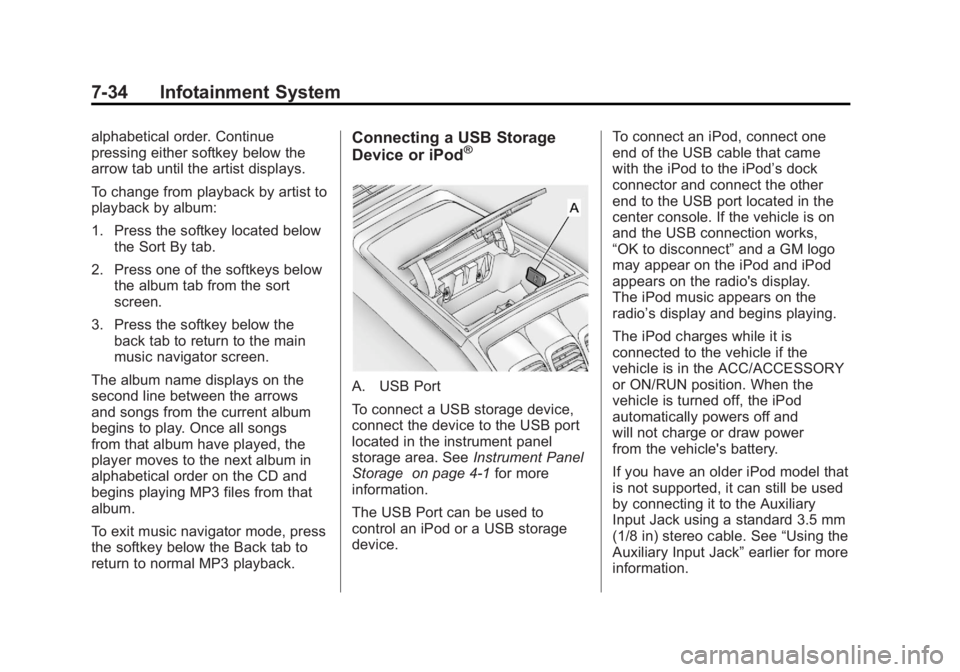
A. USB Port
To connect a USB storage device,
connect the device to the USB port
located in the instrument panel
storage area. See Instrument Panel
Storage on page 4‑1 for more
information.
The USB Port can be used to
control an iPod or a USB storage
device. To connect an iPod, connect one
end of the USB cable that came
with the iPod to the iPod’s dock
connector and connect the other
end to the USB port located in the
center console. If the vehicle is on
and the USB connection works,
“OK to disconnect”
and a GM logo
may appear on the iPod and iPod
appears on the radio's display.
The iPod music appears on the
radio’s display and begins playing.
The iPod charges while it is
connected to the vehicle if the
vehicle is in the ACC/ACCESSORY
or ON/RUN position. When the
vehicle is turned off, the iPod
automatically powers off and
will not charge or draw power
from the vehicle's battery.
If you have an older iPod model that
is not supported, it can still be used
by connecting it to the Auxiliary
Input Jack using a standard 3.5 mm
(1/8 in) stereo cable. See “Using the
Auxiliary Input Jack” earlier for more
information.
Page 246 of 478
Black plate (46,1)GMC Acadia/Acadia Denali Owner Manual - 2011
7-46 Infotainment System
\(Clear):Press within
three seconds after entering a
numeric selection, to clear all
numerical inputs.
}10 (Double Digit Entries): Press
to select chapter or track numbers
greater than nine. Press this button
before entering the number.
If the remote control becomes
lost or damaged, a new universal
remote control can be purchased.
If this happens, make sure the
universal remote control uses a
Toshiba
®code set.
Battery Replacement
To change the remote control
batteries:
1. Slide the rear cover back, on the remote control.
2. Replace the two batteries in the compartment. Make sure that
they are installed correctly, using
the diagram on the inside of the
battery compartment.
3. Replace the battery cover. If the remote control is to be stored for a long period of time, remove the
batteries and keep them in a cool, dry place.
Tips and Troubleshooting Chart
Problem
Recommended Action
There is no power. The ignition might not be turned to
ON/RUN or ACC/ACCESSORY.
The picture does not fill the screen.
There are black borders on the top
and bottom or on both sides, or the
picture looks stretched out. Check the display mode settings
in the setup menu by pressing the
display menu button on the remote
control.
In auxiliary mode, the picture moves
or scrolls. Check the auxiliary input
connections at both devices.
The remote control does not work. Check to make sure there is no obstruction between the remote
control and the transmitter window.
Check the batteries to make sure
they are not dead or installed
incorrectly.
Page 247 of 478
Black plate (47,1)GMC Acadia/Acadia Denali Owner Manual - 2011
Infotainment System 7-47
Tips and Troubleshooting Chart (cont'd)
ProblemRecommended Action
After stopping the player, and
pushing Play, sometimes the
DVD starts where it left off and
sometimes at the beginning. If the stop button was pressed one
time, the DVD player resumes
playing where the DVD was
stopped. If the stop button was
pressed two times, the DVD player
begins to play from the beginning
of the DVD.
The auxiliary source is running,
but there is no picture or sound. Check that the RSE video screen
is in the auxiliary source mode.
Check the auxiliary input
connections at both devices.
Sometimes the wireless headphone
audio cuts out or buzzes. Check for obstructions, low
batteries, reception range, and
interference from cellular telephone
towers, or use a cellular telephone
in the vehicle.
Check that the headphones are
on correctly using the L (left) and
R (right) on the headphones.
The remote and/or the headphones
are lost. See your dealer for assistance.
The DVD is playing, but there is no
picture or sound. Check that the RSE video screen is
sourced to the DVD player.
DVD Display Error Messages
The DVD display error message
depends on which radio the vehicle
has. The video screen might display
one of the following:
Disc Load/Eject Error:
This
message displays when there are
disc load or eject problems.
Disc Format Error: This message
displays if the disc is inserted with
the disc label wrong side up, or if
the disc is damaged.
Disc Region Error: This message
displays if the disc is not from a
correct region.
No Disc Inserted: This message
displays if no disc is present when
the
ZEJECT button is pressed on
the radio.
Page 250 of 478
Black plate (50,1)GMC Acadia/Acadia Denali Owner Manual - 2011
7-50 Infotainment System
Rear Audio
Controller (RAC)
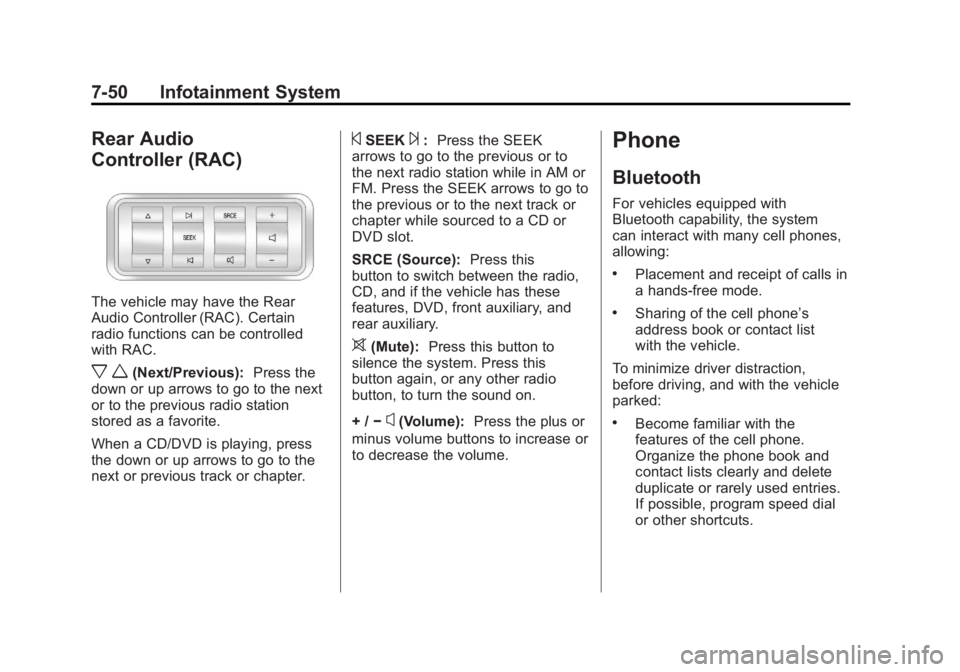
The vehicle may have the Rear
Audio Controller (RAC). Certain
radio functions can be controlled
with RAC.
x w(Next/Previous):Press the
down or up arrows to go to the next
or to the previous radio station
stored as a favorite.
When a CD/DVD is playing, press
the down or up arrows to go to the
next or previous track or chapter.
©SEEK¨: Press the SEEK
arrows to go to the previous or to
the next radio station while in AM or
FM. Press the SEEK arrows to go to
the previous or to the next track or
chapter while sourced to a CD or
DVD slot.
SRCE (Source): Press this
button to switch between the radio,
CD, and if the vehicle has these
features, DVD, front auxiliary, and
rear auxiliary.
>(Mute): Press this button to
silence the system. Press this
button again, or any other radio
button, to turn the sound on.
+ / −
x(Volume): Press the plus or
minus volume buttons to increase or
to decrease the volume.
Phone
Bluetooth
For vehicles equipped with
Bluetooth capability, the system
can interact with many cell phones,
allowing:
.Placement and receipt of calls in
a hands-free mode.
.Sharing of the cell phone’s
address book or contact list
with the vehicle.
To minimize driver distraction,
before driving, and with the vehicle
parked:
.Become familiar with the
features of the cell phone.
Organize the phone book and
contact lists clearly and delete
duplicate or rarely used entries.
If possible, program speed dial
or other shortcuts.
Page 260 of 478
Black plate (2,1)GMC Acadia/Acadia Denali Owner Manual - 2011
8-2 Climate Controls
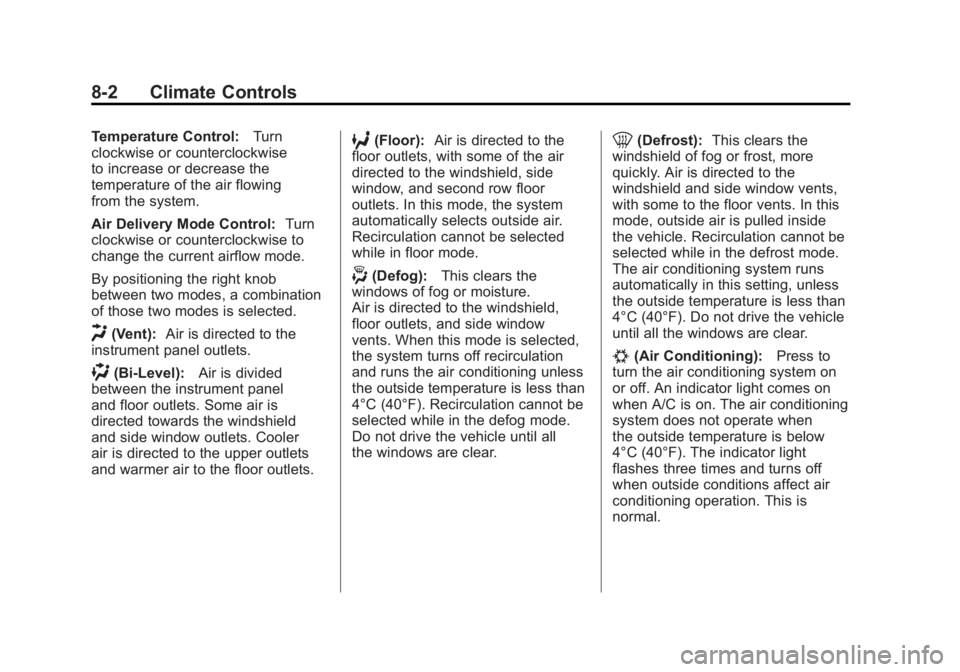
Temperature Control:Turn
clockwise or counterclockwise
to increase or decrease the
temperature of the air flowing
from the system.
Air Delivery Mode Control: Turn
clockwise or counterclockwise to
change the current airflow mode.
By positioning the right knob
between two modes, a combination
of those two modes is selected.
H(Vent): Air is directed to the
instrument panel outlets.
)(Bi-Level): Air is divided
between the instrument panel
and floor outlets. Some air is
directed towards the windshield
and side window outlets. Cooler
air is directed to the upper outlets
and warmer air to the floor outlets.
6(Floor): Air is directed to the
floor outlets, with some of the air
directed to the windshield, side
window, and second row floor
outlets. In this mode, the system
automatically selects outside air.
Recirculation cannot be selected
while in floor mode.
-(Defog): This clears the
windows of fog or moisture.
Air is directed to the windshield,
floor outlets, and side window
vents. When this mode is selected,
the system turns off recirculation
and runs the air conditioning unless
the outside temperature is less than
4°C (40°F). Recirculation cannot be
selected while in the defog mode.
Do not drive the vehicle until all
the windows are clear.
0(Defrost): This clears the
windshield of fog or frost, more
quickly. Air is directed to the
windshield and side window vents,
with some to the floor vents. In this
mode, outside air is pulled inside
the vehicle. Recirculation cannot be
selected while in the defrost mode.
The air conditioning system runs
automatically in this setting, unless
the outside temperature is less than
4°C (40°F). Do not drive the vehicle
until all the windows are clear.
#(Air Conditioning): Press to
turn the air conditioning system on
or off. An indicator light comes on
when A/C is on. The air conditioning
system does not operate when
the outside temperature is below
4°C (40°F). The indicator light
flashes three times and turns off
when outside conditions affect air
conditioning operation. This is
normal.