Reverse GMC ACADIA 2012 User Guide
[x] Cancel search | Manufacturer: GMC, Model Year: 2012, Model line: ACADIA, Model: GMC ACADIA 2012Pages: 468, PDF Size: 5.57 MB
Page 211 of 468
Black plate (25,1)GMC Acadia/Acadia Denali Owner Manual - 2012
Infotainment System 7-25
File System and Naming
The song name that displays is the
song name contained in the ID3 tag.
If the song name is not present in
the ID3 tag, the radio displays the
file name without the extension
(such as .mp3) as the track name.
Track names longer than
32 characters or four pages are
shortened. Parts of words on the
last page of text and the extension
of the filename do not display.
Preprogrammed Playlists
Preprogrammed playlists that
were created using WinAmp™,
MusicMatch™, or Real Jukebox™
software can be accessed; however,
they cannot be edited using the
radio. These playlists are treated
as special folders containing
compressed audio song files.Playlists that have an .m3u or .pls
file extension and are stored on a
USB device may be supported by
the radio with a USB port.
Playing a CD-R or CD-RW MP3
f(Tune):
Turn to select MP3/WMA
files.
©SEEK: Press to go to the start of
the track, if more than 10 seconds
have played. Press and hold or
press multiple times to continue
moving backward through tracks.
¨SEEK: Press to go to the next
track. Press and hold or press
multiple times to continue moving
forward through tracks.
sREV (Reverse): Press and hold
to reverse playback quickly. Sound
is heard at a reduced volume and
the elapsed time of the file displays.
Release
sREV to resume playing.
\FWD (Fast Forward): Press
and hold to advance playback
quickly. Sound is heard at a reduced
volume and the elapsed time of the
file displays. Release
\FWD to
resume playing. The elapsed time
of the file displays.
S c(Previous Folder): Press
the softkey below
S cto go to the
first track in the previous folder.
cT (Next Folder): Press the
softkey below
cT to go to the first
track in the next folder.
RDM (Random): Files on the disc
can be listened to in random,
rather than sequential order. To use
random, press the softkey under the
RDM tab until Random Current Disc
displays to play songs in random
order. Press the same softkey again
to turn off random play.
Page 213 of 468

Black plate (27,1)GMC Acadia/Acadia Denali Owner Manual - 2012
Infotainment System 7-27
To connect an iPod, connect one
end of the USB cable that came
with the iPod to the iPod’s dock
connector and connect the other
end to the USB port located in the
instrument panel storage area.
If the vehicle is on and the USB
connection works,“OK to
disconnect” and a GM logo may
appear on the iPod, and iPod
appears on the radio's display.
The iPod music appears on the
radio’s display and begins playing.
The iPod charges while it is
connected to the vehicle if the
vehicle is in the ACC/ACCESSORY
or ON/RUN position. When the
vehicle is turned off, the iPod
automatically powers off and will not
charge or draw power from the
vehicle's battery.
If you have an older iPod model that
is not supported, it can still be used
by connecting it to the Auxiliary
Input Jack using a standard 3.5 mm
(1/8 in) stereo cable. See Clock on
page 5‑8 for more information.Using the Radio to Control a
USB Storage Device or iPod
The radio can control a USB
storage device or an iPod using the
radio buttons and knobs and display
song information on the radio’s
display.
f(Tune):Turn to select files.
©SEEK:Press to go to the start of
the track, if more than 10 seconds
have played. Press and hold or
press multiple times to continue
moving backward through tracks.
¨SEEK: Press to go to the next
track. Press and hold or press
multiple times to continue moving
forward through tracks.
sREV (Reverse): Press and
hold to reverse playback quickly.
Sound is heard at a reduced
volume. Release
sREV to resume
playing. The elapsed time of the file
displays.
\FWD (Fast Forward): Press
and hold to advance playback
quickly. Sound is heard at a reduced
volume. Release
\FWD to
resume playing. The elapsed time of
the file displays.
4(Information): Press to display
additional information about the
selected track.
Using Softkeys to Control a
USB Storage Device or iPod
The five softkeys below the radio
display are used to control the
functions listed below.
To use the softkeys:
1. Press the first or fifth softkey below the radio display to
display the functions listed
below, or press the softkey
below the function if it is
currently displayed.
2. Press the softkey below the tab with the function on it to
use that function.
Page 218 of 468
Black plate (32,1)GMC Acadia/Acadia Denali Owner Manual - 2012
7-32 Infotainment System
Playing an MP3/WMA File
From a Disc (In Either the DVD
or CD Slot)
If a disc is inserted into the top DVD
slot, the rear seat operator can turn
on the video screen and use the
remote control to navigate the CD
(tracks only).
f(Tune):Turn to select MP3/WMA
files.
©SEEK: Press to go to the start of
the track, if more than five seconds
have played. Press to go to the
previous track if less than
five seconds have played. Press
and hold or press multiple times to
continue moving backward through
tracks.
¨SEEK: Press to go to the next
track. Press and hold or press
multiple times to continue moving
forward through tracks.
sREV (Reverse): Press and hold
to reverse playback quickly. Sound
is heard at a reduced volume and
the elapsed time of the file displays.
Release
sREV to resume playing.
\FWD (Fast Forward): Press
and hold to advance playback
quickly. Sound is heard at a reduced
volume and the elapsed time of the
file displays. Release
\FWD to
resume playing. The elapsed time of
the file displays.
S c(Previous Folder): Press
the softkey below
S cto go to the
first track in the previous folder.
cT (Next Folder): Press the
softkey below
cT to go to the first
track in the next folder.
RDM (Random): Files on the disc
can be listened to in random, rather
than sequential order. To use
random, press the softkey under the
RDM tab until Random Current Disc displays to play songs in random
order. Press the same softkey again
to turn off random play.
h(Music Navigator):
Press the
softkey below
hto play files in
order by artist or album.
The player scans the disc to sort the
files by artist and album ID3 tag
information. It can take several
minutes to scan the disc depending
on the number of files on the disc.
The radio may begin playing while it
is scanning in the background.
When the scan is finished, the disc
begins playing files in order by
artist. The current artist playing is
shown on the second line of the
display. Once all songs by that artist
are played, the player moves to the
next artist in alphabetical order and
begins playing files by that artist.
To listen to files by another artist,
press the softkey located below
either arrow tab. The disc goes to
the next or previous artist in
Page 220 of 468
Black plate (34,1)GMC Acadia/Acadia Denali Owner Manual - 2012
7-34 Infotainment System
Using the Radio to Control a
USB Storage Device or iPod
The radio can control a USB
storage device or an iPod using the
radio buttons and knobs and display
song information on the radio’s
display.
f(Tune):Turn to select files.
©SEEK:Press to go to the start of
the track, if more than ten seconds
have played. Press and hold or
press multiple times to continue
moving backward through tracks.
¨SEEK: Press to go to the next
track. Press and hold or press
multiple times to continue moving
forward through tracks.
sREV (Reverse): Press and
hold to reverse playback quickly.
Sound is heard at a reduced
volume. Release
sREV to resume
playing. The elapsed time of the file
displays.
\FWD (Fast Forward): Press
and hold to advance playback
quickly. Sound is heard at a reduced
volume. Release
\FWD to
resume playing. The elapsed time
of the file displays.
4(Information): Press to display
additional information about the
selected track.
Using Softkeys to Control a
USB Storage Device or iPod
The five softkeys below the radio
display are used to control the
functions listed below.
To use the softkeys:
1. Press the first or fifth softkey below the radio display to
display the functions listed
below, or press the softkey
below the function if it is
currently displayed.
2. Press the softkey below the tab with the function on it to use that
function.
j(Pause): Press the softkey
below
jto pause the track. The tab
appears raised when pause is being
used. Press the softkey below
j
again to resume playback.
Back: Press the softkey below the
Back tab to go back to the main
display screen on an iPod, or the
root directory on a USB storage
device.
c(Folder View): Press the
softkey below
cto view the
contents of the current folder on
the USB drive. To browse and
select files:
1. Press the softkey below
c.
2. Turn
fto scroll through the list
of folders.
3. Press
fto select the folder.
If there is more than one folder,
repeat Steps 1 and 2 until the
folder is reached.
Page 229 of 468
Black plate (43,1)GMC Acadia/Acadia Denali Owner Manual - 2012
Infotainment System 7-43
n,q,p,o(Menu Navigation
Arrows): Use the arrow buttons to
navigate through a menu.
r(Enter): Press to select the
choice that is highlighted in
any menu.
z(Display Menu): Press to adjust
the brightness, screen display mode
(normal, full, or zoom), and display
the language menu.
q(Return): Press to exit the
current active menu and return to
the previous menu. This button
operates only when the display
menu or a DVD menu is active.
c(Stop): Press to stop playing,
rewinding, or fast forwarding a DVD.
Press twice to return to the
beginning of the DVD.
s(Play/Pause): Press to start
playing a DVD. Press while a DVD
is playing to pause it. Press again to
continue playing the DVD.
When the DVD is playing,
depending on the radio, play may
be slowed down by pressing
s
then[. The DVD continues playing
in a slow play mode. Depending on
the radio, perform reverse slow play
by pressing
sthenr. To cancel
slow play mode, press
sagain.
t(Previous Track/Chapter):
Press to return to the start of the
current track or chapter. Press again
to go to the previous track or
chapter. This button might not work
when the DVD is playing the
copyright information or the
previews.
u(Next Track/Chapter): Press to
go to the beginning of the next
chapter or track. This button might
not work when the DVD is playing
the copyright information or the
previews.
r(Fast Reverse): Press to
quickly reverse the DVD or CD.
To stop fast reversing a DVD video,
press
s. To stop fast reversing a
DVD audio or CD, release
r.
This button might not work when
the DVD is playing the copyright
information or the previews.
[(Fast Forward): Press to fast
forward the DVD or CD. To stop fast
forwarding a DVD video, press
s.
To stop fast forwarding a DVD audio
or CD, release
[. This button might
not work when the DVD is playing
the copyright information or the
previews.
Page 268 of 468
Black plate (10,1)GMC Acadia/Acadia Denali Owner Manual - 2012
9-10 Driving and Operating
If the Vehicle Is Stuck
Slowly and cautiously spin the
wheels to free the vehicle when
stuck in sand, mud, ice, or snow.
If the vehicle has a traction system,
it can often help to free a stuck
vehicle. Refer to the vehicle's
traction system in the Index. If stuck
too severely for the traction system
to free the vehicle, turn the traction
system off and use the rocking
method.
{WARNING
If the vehicle's tires spin at high
speed, they can explode, and
you or others could be injured.
The vehicle can overheat,
causing an engine compartment
fire or other damage. Spin the
wheels as little as possible and
avoid going above 55 km/h
(35 mph).For information about using tire
chains on the vehicle, see
Tire
Chains on page 10‑57.
Rocking the Vehicle to Get
It Out
Turn the steering wheel left and
right to clear the area around the
front wheels. Turn off any traction or
stability system. Shift back and forth
between R (Reverse) and a forward
gear, spinning the wheels as little as
possible. To prevent transmission
wear, wait until the wheels stop
spinning before shifting gears.
Release the accelerator pedal
while shifting, and press lightly on
the accelerator pedal when the
transmission is in gear. Slowly
spinning the wheels in the forward
and reverse directions causes a
rocking motion that could free the
vehicle. If that does not get the
vehicle out after a few tries, it might
need to be towed out. If the vehicle
does need to be towed out, see
Towing the Vehicle on page 10‑82.
Vehicle Load Limits
It is very important to know how
much weight your vehicle can
carry. This weight is called the
vehicle capacity weight and
includes the weight of all
occupants, cargo, and all
nonfactory-installed options.
Two labels on your vehicle
show how much weight it may
properly carry, the Tire and
Loading Information label and
the Certification/Tire label.
{WARNING
Do not load the vehicle any
heavier than the Gross
Vehicle Weight Rating
(GVWR), or either the
maximum front or rear Gross
Axle Weight Rating (GAWR).
(Continued)
Page 282 of 468
Black plate (24,1)GMC Acadia/Acadia Denali Owner Manual - 2012
9-24 Driving and Operating
{WARNING
It is dangerous to get out of the
vehicle if the shift lever is not fully
in P (Park) with the parking brake
firmly set. The vehicle can roll.
Do not leave the vehicle when the
engine is running unless you
have to. If you have left the
engine running, the vehicle can
move suddenly. You or others
could be injured. To be sure the
vehicle will not move, even when
you are on fairly level ground,
always set the parking brake and
move the shift lever to P (Park).
SeeShifting Into Park on
page 9‑20. If you are pulling a
trailer, see Driving Characteristics
and Towing Tips on page 9‑45. Make sure the shift lever is fully in
P (Park) before starting the engine.
The vehicle has an automatic
transmission shift lock control
system. You must fully apply the
regular brake first and then press
the shift lever button before shifting
from P (Park) when the ignition key
is in ON/RUN. If you cannot shift out
of P (Park), ease pressure on the
shift lever, then push the shift lever
all the way into P (Park) as you
maintain brake application. Then
press the shift lever button and
move the shift lever into another
gear. See
Shifting out of Park on
page 9‑21.
R (Reverse): Use this gear to
back up.
Notice: Shifting to R (Reverse)
while the vehicle is moving
forward could damage the
transmission. The repairs would
not be covered by the vehicle
warranty. Shift to R (Reverse)
only after the vehicle is stopped. To rock the vehicle back and forth to
get out of snow, ice, or sand without
damaging the transmission, see
If the Vehicle Is Stuck on page 9‑10.
N (Neutral):
In this position, the
engine does not connect with the
wheels. To restart the engine when
the vehicle is already moving, use
N (Neutral) only. Also, use
N (Neutral) when the vehicle is
being towed.
{WARNING
Shifting into a drive gear while the
engine is running at high speed is
dangerous. Unless your foot is
firmly on the brake pedal, the
vehicle could move very rapidly.
You could lose control and hit
people or objects. Do not shift
into a drive gear while the engine
is running at high speed.
Page 287 of 468
Black plate (29,1)GMC Acadia/Acadia Denali Owner Manual - 2012
Driving and Operating 9-29
Notice:Driving with the parking
brake on can overheat the brake
system and cause premature
wear or damage to brake system
parts. Make sure that the parking
brake is fully released and the
brake warning light is off before
driving.
To release the parking brake, hold
the regular brake pedal down, then
push down momentarily on the
parking brake pedal until you feel
the pedal release. Slowly pull your
foot up off the park brake pedal.
If the parking brake is not released
when you begin to drive, the brake
system warning light will be on and
a chime will sound warning you that
the parking brake is still on.
If you are towing a trailer and are
parking on a hill, see Driving
Characteristics and Towing Tips on
page 9‑45.Brake Assist
This vehicle has a brake assist
feature designed to assist the
driver in stopping or decreasing
vehicle speed in emergency driving
conditions. This feature uses the
stability system hydraulic brake
control module to supplement
the power brake system under
conditions where the driver has
quickly and forcefully applied the
brake pedal in an attempt to quickly
stop or slow down the vehicle.
The stability system hydraulic brake
control module increases brake
pressure at each corner of the
vehicle until the ABS activates.
Minor brake pedal pulsation or
pedal movement during this time
is normal and the driver should
continue to apply the brake pedal
as the driving situation dictates.
The brake assist feature will
automatically disengage when
the brake pedal is released or
brake pedal pressure is quickly
decreased.
Hill Start Assist (HSA)
This vehicle has a Hill Start Assist
(HSA) feature, which may be useful
when the vehicle is stopped on a
grade. This feature is designed to
prevent the vehicle from rolling,
either forward or rearward, during
vehicle drive off. After the driver
completely stops and holds the
vehicle in a complete standstill on a
grade, HSA will be automatically
activated. During the transition
period between when the driver
releases the brake pedal and starts
to accelerate to drive off on a grade,
HSA holds the braking pressure
to ensure that there is no rolling.
The brakes will automatically
release when the accelerator pedal
is applied within the two‐second
window. It will not activate if the
vehicle is in a drive gear and facing
downhill or if the vehicle is facing
uphill and in R (Reverse).
Page 292 of 468
Black plate (34,1)GMC Acadia/Acadia Denali Owner Manual - 2012
9-34 Driving and Operating
Object Detection
Systems
Ultrasonic Parking Assist
If available, the Ultrasonic Rear
Parking Assist (URPA) system
assists the driver with parking
and avoiding objects while in
R (Reverse). URPA operates at
speeds less than 8 km/h (5 mph).
The sensors on the rear bumper
are used to detect objects up to
2.5 m (8 ft) behind the vehicle, and
at least 25 cm (10 in) off the ground.
{WARNING
The URPA system does not
detect pedestrians, bicyclists,
animals, or any other objects
located below the bumper or that
are too close or too far from the(Continued)
WARNING (Continued)
vehicle. To prevent injury, death,
or vehicle damage, even with
URPA, always check behind the
vehicle and check all mirrors
before backing.
How the System Works
URPA comes on automatically
when the shift lever is moved into
R (Reverse). A single tone sounds
to indicate the system is working.
URPA operates only at speeds less
than 8 km/h (5 mph).
An obstacle is indicated by audible
beeps. The interval between the
beeps becomes shorter as the
vehicle gets closer to the obstacle.
When the distance is less than
30 cm (12 in) the beeping is a
continuous tone for five seconds. To be detected, objects must be at
least 25 cm (10 in) off the ground
and below liftgate level. Objects
must also be within 2.5 m (8 ft) from
the rear bumper. This distance may
be less during warmer or humid
weather.
Turning the System On and Off
The system can be disabled through
the Driver Information Center (DIC).
See
“Park Assist” underVehicle
Personalization (With DIC Buttons)
on page 5‑46 for more information.
URPA defaults to the on setting
each time the vehicle is started.
When the System Does Not
Seem to Work Properly
The following messages may be
displayed on the DIC:
SERVICE PARK ASSIST: If this
message occurs, take the vehicle to
your dealer to repair the system.
Page 294 of 468
Black plate (36,1)GMC Acadia/Acadia Denali Owner Manual - 2012
9-36 Driving and Operating
When the key is in the ON/RUN
position and the driver shifts the
vehicle into R (Reverse), the video
image automatically appears on the
inside rear view mirror. Once the
driver shifts out of R (Reverse),
the video image automatically
disappears from the inside rear view
mirror.
Turning the Rear Vision Camera
System Off or On
To turn off the rear vision camera
system, press and hold
z, located
on the inside rearview mirror, until
the left indicator light turns off.
The rear vision camera display is
now disabled.
To turn the rear vision camera
system on again, press and
hold
zuntil the left indicator light
illuminates. The rear vision camera
system display is now enabled and
the display will appear in the mirror
normally.
Vehicles with Navigation
System
The rear vision camera system is
designed to help the driver when
backing up by displaying a view
of the area behind the vehicle.
When the driver shifts the vehicle
into R (Reverse), the video image
automatically appears on the
navigation screen. Once the driver
shifts out of R (Reverse), the
navigation screen will go back to the
last screen that had been displayed,
after a delay.
Turning the Rear Vision Camera
System On or Off
To turn the rear vision camera
system on or off:
1. Shift into P (Park).
2. Press the MENU button to enter the configure menu options,
then press the MENU hard key
to select Display or touch the
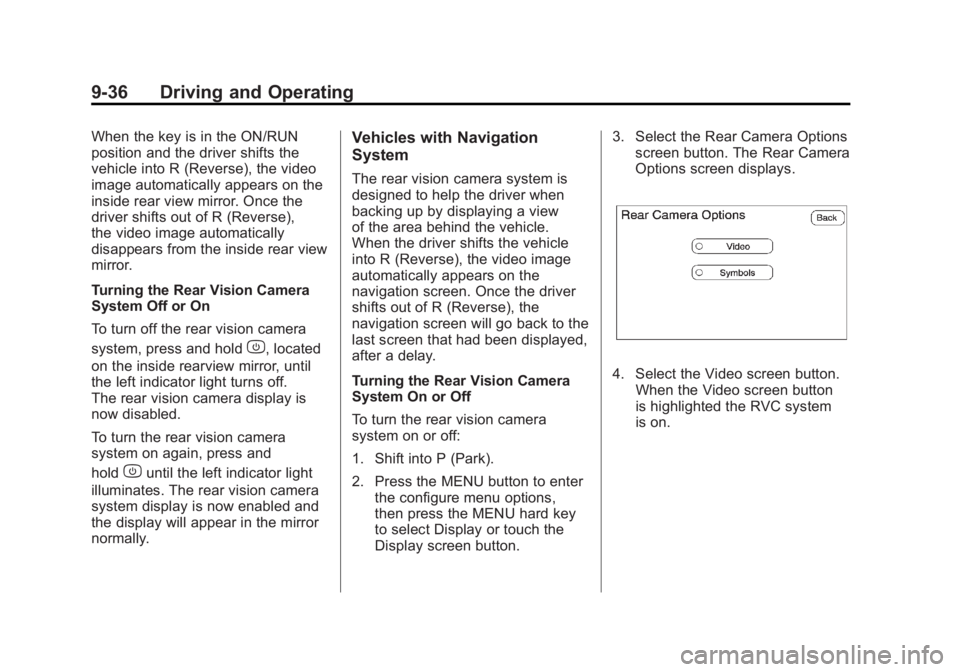
Display screen button. 3. Select the Rear Camera Options
screen button. The Rear Camera
Options screen displays.
4. Select the Video screen button.
When the Video screen button
is highlighted the RVC system
is on.