console GMC ACADIA 2012 User Guide
[x] Cancel search | Manufacturer: GMC, Model Year: 2012, Model line: ACADIA, Model: GMC ACADIA 2012Pages: 468, PDF Size: 5.57 MB
Page 129 of 468
Black plate (9,1)GMC Acadia/Acadia Denali Owner Manual - 2012
Instruments and Controls 5-9
Power Outlets
The vehicle has 12‐volt outlets that
can be used to plug in electrical
equipment, such as a cell phone or
MP3 player.
The power outlets are located on
the instrument panel below the
climate controls, inside the center
floor console, at the rear of the
center console, and in the rear
cargo area. Lift the cover to access
the outlet and replace when not
in use.
{WARNING
Power is always supplied to the
outlets. Do not leave electrical
equipment plugged in when the
vehicle is not in use because the
vehicle could catch fire and cause
injury or death.Notice:
Leaving electrical
equipment plugged in for an
extended period of time while
the vehicle is off will drain the
battery. Always unplug electrical
equipment when not in use and
do not plug in equipment that
exceeds the maximum 20 ampere
rating.
Certain accessory plugs may not be
compatible with the accessory
power outlet and could overload
vehicle and adapter fuses. If a
problem is experienced, see your
dealer. When adding electrical equipment,
be sure to follow the proper
installation instructions included
with the equipment. See
Add-On
Electrical Equipment on page 9‑53.
Notice: Hanging heavy
equipment from the power
outlet can cause damage not
covered by the vehicle warranty.
The power outlets are designed
for accessory power plugs only,
such as cell phone charge cords.
Page 130 of 468
Black plate (10,1)GMC Acadia/Acadia Denali Owner Manual - 2012
5-10 Instruments and Controls
Power Outlet 120 Volt
Alternating Current
The vehicle may have a power
outlet that can be used to plug in
electrical equipment that uses a
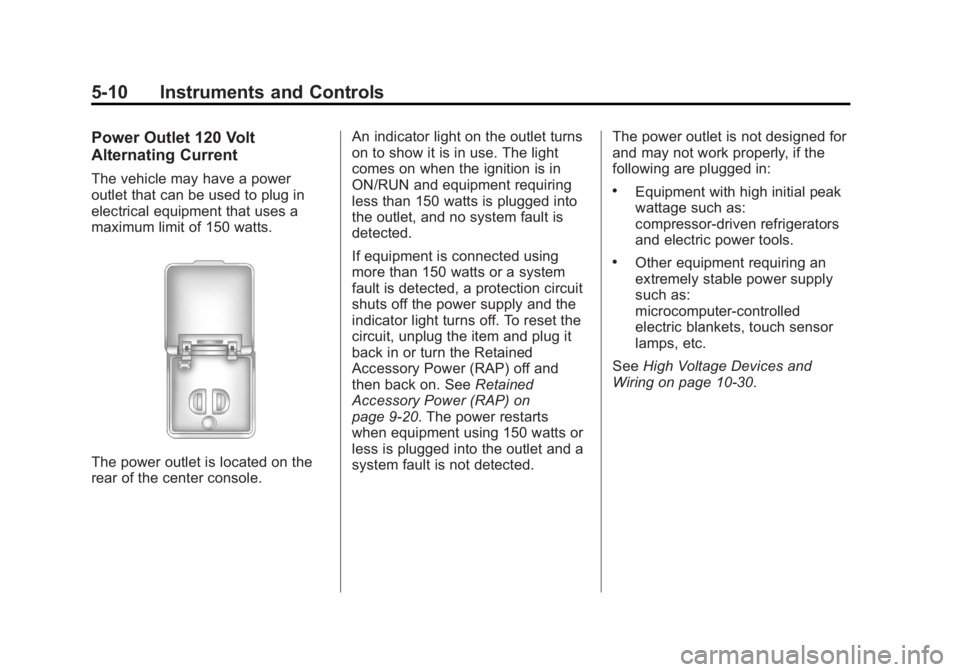
maximum limit of 150 watts.
The power outlet is located on the
rear of the center console.An indicator light on the outlet turns
on to show it is in use. The light
comes on when the ignition is in
ON/RUN and equipment requiring
less than 150 watts is plugged into
the outlet, and no system fault is
detected.
If equipment is connected using
more than 150 watts or a system
fault is detected, a protection circuit
shuts off the power supply and the
indicator light turns off. To reset the
circuit, unplug the item and plug it
back in or turn the Retained
Accessory Power (RAP) off and
then back on. See
Retained
Accessory Power (RAP) on
page 9‑20. The power restarts
when equipment using 150 watts or
less is plugged into the outlet and a
system fault is not detected. The power outlet is not designed for
and may not work properly, if the
following are plugged in:
.Equipment with high initial peak
wattage such as:
compressor-driven refrigerators
and electric power tools.
.Other equipment requiring an
extremely stable power supply
such as:
microcomputer-controlled
electric blankets, touch sensor
lamps, etc.
See High Voltage Devices and
Wiring on page 10‑30.
Page 158 of 468
Black plate (38,1)GMC Acadia/Acadia Denali Owner Manual - 2012
5-38 Instruments and Controls
Brake System Messages
SERVICE BRAKE SYSTEM
This message displays along with
the brake system warning light if
there is a problem with the brake
system. SeeBrake System Warning
Light on page 5‑21. If this message
appears, stop as soon as possible
and turn off the vehicle. Restart the
vehicle and check for the message
on the DIC display. If the message
is still displayed or appears again
when you begin driving, the brake
system needs service as soon as
possible. See your dealer.
Cruise Control Messages
CRUISE SET TO XXX
This message displays whenever
the cruise control is set. See Cruise
Control on page 9‑32 for more
information.
Door Ajar Messages
DRIVER DOOR OPEN
This message displays and a chime
sounds if the driver door is not fully
closed and the vehicle is shifted out
of P (Park). Stop and turn off the
vehicle, check the door for
obstructions, and close the door
again. Check to see if the message
still appears on the DIC.
HOOD OPEN
On some models, this message
displays and a chime sounds if the
hood is not fully closed. Stop and
turn off the vehicle, check the hood
for obstructions, and close the hood
again. Check to see if the message
still appears on the DIC.
LEFT REAR DOOR OPEN
This message displays and a
chime sounds if the driver side rear
door is not fully closed and the
vehicle is shifted out of P (Park). Stop and turn off the vehicle, check
the door for obstructions, and close
the door again. Check to see if the
message still appears on the DIC.
LIFTGATE OPEN
This message displays and a chime
sounds if the liftgate is open while
the ignition is in ON/RUN. Turn off
the vehicle and check the liftgate.
Restart the vehicle and check for
the message on the DIC display.
PASSENGER DOOR OPEN
This message displays and a chime
sounds if the passenger door is
not fully closed and the vehicle is
shifted out of P (Park). Stop and turn
off the vehicle, check the door for
obstructions, and close the door
again. Check to see if the message
still appears on the DIC.
POWER LIFTGATE OFF
This message displays when the
power liftgate has been turned off
by pressing the power liftgate button
on the center console.
Page 183 of 468
Black plate (5,1)GMC Acadia/Acadia Denali Owner Manual - 2012
Lighting 6-5
Fog Lamps
Use the fog lamps for better vision
in foggy or misty conditions.
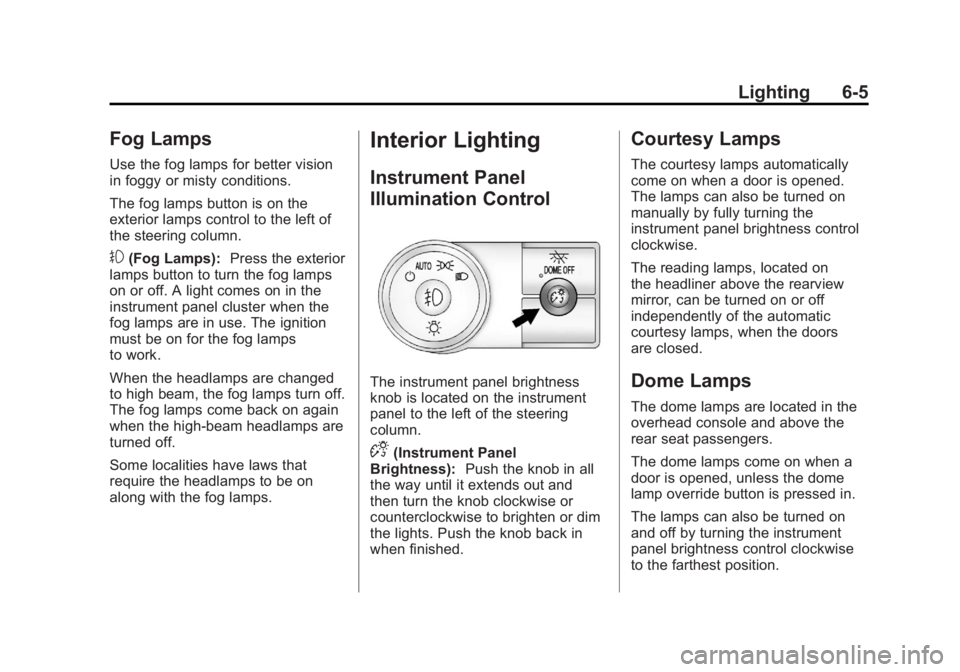
The fog lamps button is on the
exterior lamps control to the left of
the steering column.
#(Fog Lamps):Press the exterior
lamps button to turn the fog lamps
on or off. A light comes on in the
instrument panel cluster when the
fog lamps are in use. The ignition
must be on for the fog lamps
to work.
When the headlamps are changed
to high beam, the fog lamps turn off.
The fog lamps come back on again
when the high-beam headlamps are
turned off.
Some localities have laws that
require the headlamps to be on
along with the fog lamps.
Interior Lighting
Instrument Panel
Illumination Control
The instrument panel brightness
knob is located on the instrument
panel to the left of the steering
column.
D(Instrument Panel
Brightness): Push the knob in all
the way until it extends out and
then turn the knob clockwise or
counterclockwise to brighten or dim
the lights. Push the knob back in
when finished.
Courtesy Lamps
The courtesy lamps automatically
come on when a door is opened.
The lamps can also be turned on
manually by fully turning the
instrument panel brightness control
clockwise.
The reading lamps, located on
the headliner above the rearview
mirror, can be turned on or off
independently of the automatic
courtesy lamps, when the doors
are closed.
Dome Lamps
The dome lamps are located in the
overhead console and above the
rear seat passengers.
The dome lamps come on when a
door is opened, unless the dome
lamp override button is pressed in.
The lamps can also be turned on
and off by turning the instrument
panel brightness control clockwise
to the farthest position.
Page 225 of 468
Black plate (39,1)GMC Acadia/Acadia Denali Owner Manual - 2012
Infotainment System 7-39
while Channel 2 is dedicated to RSA
selections. These headphones are
used to listen to media such as
CDs, DVDs, MP3/WMAs, DVD-As,
radio, any auxiliary source
connected to A/V jacks, or the
auxiliary input jack, if the vehicle
has this feature. The wireless
headphones have a power button,
channel 1 or 2 switch, and a volume
control. Switch the headphones off
when not in use.
Push the power button to turn on
the headphones. An indicator light
located on the headphones comes
on. If the light does not come on,
the batteries might need to be
replaced. Intermittent sound or static
on the headphones can also be
an indication of weak batteries.
See“Battery Replacement” later in
this section for more information.
To adjust the volume on the
headphones, use the volume
control located on the right side. Infrared transmitters are located at
the rear of the RSE overhead
console. The headphones shut off
automatically to save the battery
power if the RSE system and RSA
are shut off or if the headphones are
out of range of the transmitters for
more than three minutes. Moving too
far forward or stepping out of the
vehicle, can cause the headphones
to lose the audio signal.
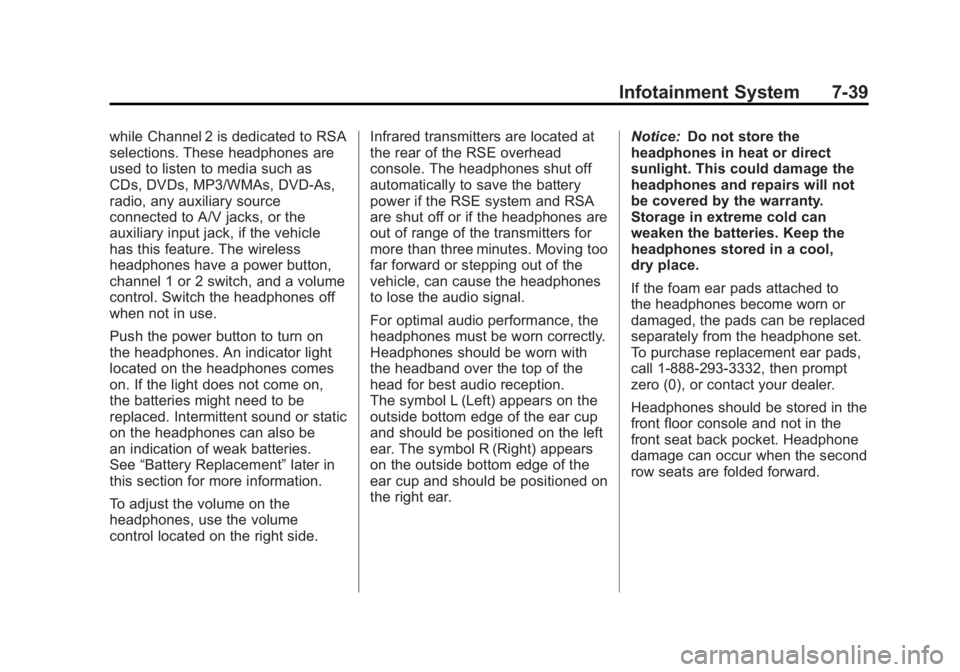
For optimal audio performance, the
headphones must be worn correctly.
Headphones should be worn with
the headband over the top of the
head for best audio reception.
The symbol L (Left) appears on the
outside bottom edge of the ear cup
and should be positioned on the left
ear. The symbol R (Right) appears
on the outside bottom edge of the
ear cup and should be positioned on
the right ear.
Notice:
Do not store the
headphones in heat or direct
sunlight. This could damage the
headphones and repairs will not
be covered by the warranty.
Storage in extreme cold can
weaken the batteries. Keep the
headphones stored in a cool,
dry place.
If the foam ear pads attached to
the headphones become worn or
damaged, the pads can be replaced
separately from the headphone set.
To purchase replacement ear pads,
call 1‐888‐293‐3332, then prompt
zero (0), or contact your dealer.
Headphones should be stored in the
front floor console and not in the
front seat back pocket. Headphone
damage can occur when the second
row seats are folded forward.
Page 226 of 468
Black plate (40,1)GMC Acadia/Acadia Denali Owner Manual - 2012
7-40 Infotainment System
Battery Replacement
To change the batteries on the
headphones:
1. Turn the screw to loosen thebattery door located on the
left side of the headphones.
Slide the battery door open.
2. Replace the two batteries in the compartment. Make sure that
they are installed correctly, using
the diagram on the inside of the
battery compartment.
3. Replace the battery door and tighten the door screw.
If the headphones are to be stored
for a long period of time, remove the
batteries and keep them in a cool,
dry place.Audio/Video (A/V) Jacks
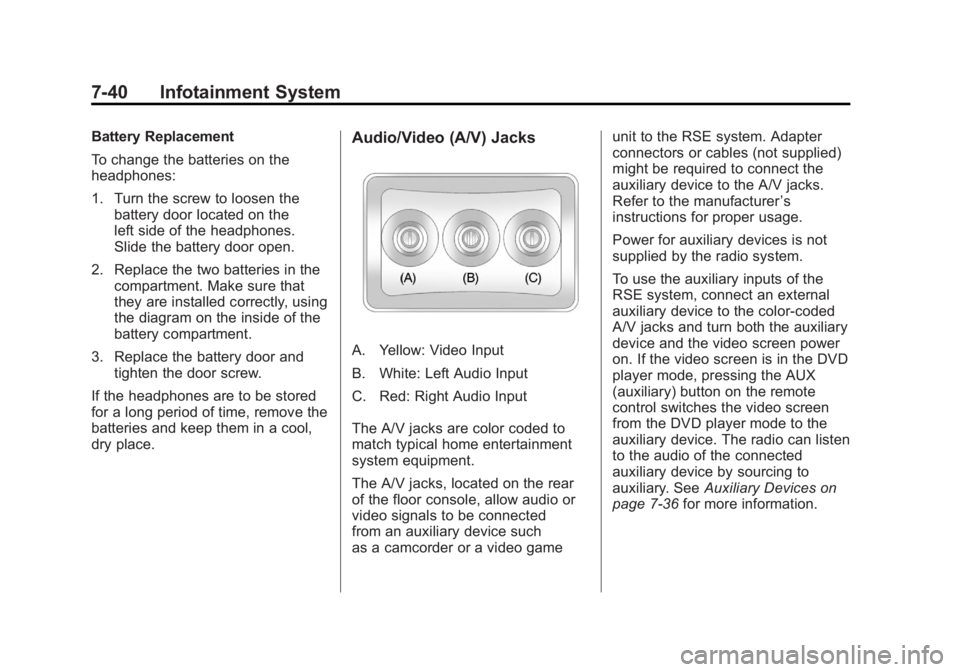
A. Yellow: Video Input
B. White: Left Audio Input
C. Red: Right Audio Input
The A/V jacks are color coded to
match typical home entertainment
system equipment.
The A/V jacks, located on the rear
of the floor console, allow audio or
video signals to be connected
from an auxiliary device such
as a camcorder or a video game unit to the RSE system. Adapter
connectors or cables (not supplied)
might be required to connect the
auxiliary device to the A/V jacks.
Refer to the manufacturer
’s
instructions for proper usage.
Power for auxiliary devices is not
supplied by the radio system.
To use the auxiliary inputs of the
RSE system, connect an external
auxiliary device to the color-coded
A/V jacks and turn both the auxiliary
device and the video screen power
on. If the video screen is in the DVD
player mode, pressing the AUX
(auxiliary) button on the remote
control switches the video screen
from the DVD player mode to the
auxiliary device. The radio can listen
to the audio of the connected
auxiliary device by sourcing to
auxiliary. See Auxiliary Devices on
page 7‑36 for more information.
Page 227 of 468
Black plate (41,1)GMC Acadia/Acadia Denali Owner Manual - 2012
Infotainment System 7-41
How to Change the RSE Video
Screen Settings
The screen display mode (normal,
full, and zoom), screen brightness,
and setup menu language can be
changed from the on screen setup
menu by using the remote control.
To change a setting:
1. Press
z.
2. Use
n,q,p,oandrto
navigate and use the
setup menu.
3. Press
zagain to remove the
setup menu from the screen.
Audio Output
Audio from the DVD player or
auxiliary inputs can be heard
through the following sources:
.Wireless headphones
.Vehicle speakers
.Vehicle‐wired headphone jacks
on the RSA system, if the
vehicle has this feature. The RSE system always transmits
the audio signal to the wireless
headphones, if there is audio
available. See
“Headphones” earlier
in this section for more information.
The DVD player is capable of
outputting audio to the wired
headphone jacks on the RSA
system, if the vehicle has this
feature. The DVD player can be
selected as an audio source on the
RSA system. See Rear Seat Audio
(RSA) System on page 7‑47 for
more information.
When a device is connected to the
A/V jacks, or the radio's auxiliary
input jack, if the vehicle has this
feature, the rear seat passengers
are able to hear audio from the
auxiliary device through the wireless
or wired headphones. The front seat
passengers are able to listen to
playback from this device through
the vehicle speakers by selecting
AUX as the source on the radio.
Video Screen
The video screen is located in the
overhead console. When the video
screen is not in use, push it up into
its locked position.
To use the video screen:
1. Push the release button located on the overhead console.
2. Move the screen to the desired position.
If a DVD is playing and the screen
is raised to its locked position, the
screen remains on; this is normal,
and the DVD continues to play
through the previous audio source.
Press
Pon the remote control or
eject the disc to turn off the screen.
The infrared receivers for the
wireless headphones and the
remote control are located at the
rear of the overhead console.
Notice: Avoid directly touching
the video screen, as damage may
occur. See “Cleaning the Video
Screens” later in this section for
more information.
Page 228 of 468
Black plate (42,1)GMC Acadia/Acadia Denali Owner Manual - 2012
7-42 Infotainment System
Remote Control
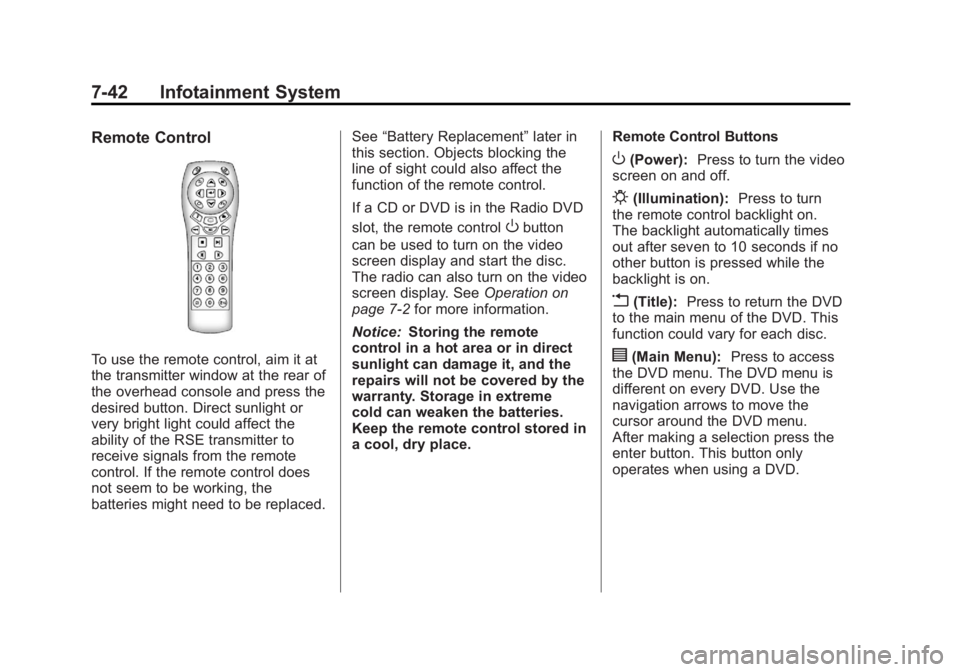
To use the remote control, aim it at
the transmitter window at the rear of
the overhead console and press the
desired button. Direct sunlight or
very bright light could affect the
ability of the RSE transmitter to
receive signals from the remote
control. If the remote control does
not seem to be working, the
batteries might need to be replaced.See
“Battery Replacement” later in
this section. Objects blocking the
line of sight could also affect the
function of the remote control.
If a CD or DVD is in the Radio DVD
slot, the remote control
Obutton
can be used to turn on the video
screen display and start the disc.
The radio can also turn on the video
screen display. See Operation on
page 7‑2 for more information.
Notice: Storing the remote
control in a hot area or in direct
sunlight can damage it, and the
repairs will not be covered by the
warranty. Storage in extreme
cold can weaken the batteries.
Keep the remote control stored in
a cool, dry place. Remote Control Buttons
O(Power):
Press to turn the video
screen on and off.
P(Illumination): Press to turn
the remote control backlight on.
The backlight automatically times
out after seven to 10 seconds if no
other button is pressed while the
backlight is on.
v(Title): Press to return the DVD
to the main menu of the DVD. This
function could vary for each disc.
y(Main Menu): Press to access
the DVD menu. The DVD menu is
different on every DVD. Use the
navigation arrows to move the
cursor around the DVD menu.
After making a selection press the
enter button. This button only
operates when using a DVD.
Page 232 of 468
Black plate (46,1)GMC Acadia/Acadia Denali Owner Manual - 2012
7-46 Infotainment System
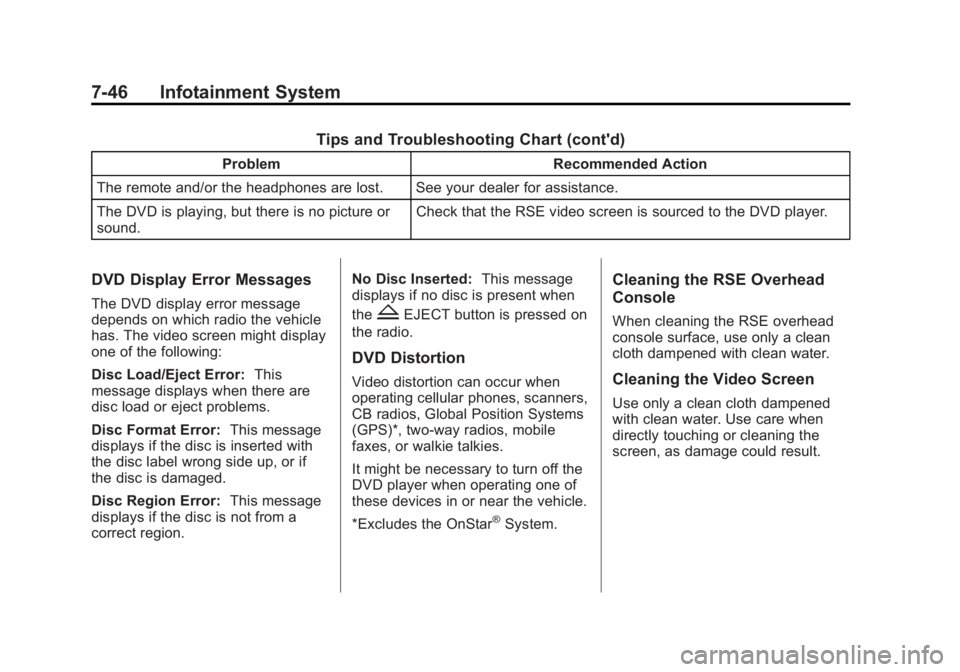
Tips and Troubleshooting Chart (cont'd)
ProblemRecommended Action
The remote and/or the headphones are lost. See your dealer for assistance.
The DVD is playing, but there is no picture or
sound. Check that the RSE video screen is sourced to the DVD player.
DVD Display Error Messages
The DVD display error message
depends on which radio the vehicle
has. The video screen might display
one of the following:
Disc Load/Eject Error:
This
message displays when there are
disc load or eject problems.
Disc Format Error: This message
displays if the disc is inserted with
the disc label wrong side up, or if
the disc is damaged.
Disc Region Error: This message
displays if the disc is not from a
correct region. No Disc Inserted:
This message
displays if no disc is present when
theZEJECT button is pressed on
the radio.
DVD Distortion
Video distortion can occur when
operating cellular phones, scanners,
CB radios, Global Position Systems
(GPS)*, two-way radios, mobile
faxes, or walkie talkies.
It might be necessary to turn off the
DVD player when operating one of
these devices in or near the vehicle.
*Excludes the OnStar
®System.
Cleaning the RSE Overhead
Console
When cleaning the RSE overhead
console surface, use only a clean
cloth dampened with clean water.
Cleaning the Video Screen
Use only a clean cloth dampened
with clean water. Use care when
directly touching or cleaning the
screen, as damage could result.
Page 254 of 468
Black plate (10,1)GMC Acadia/Acadia Denali Owner Manual - 2012
8-10 Climate Controls
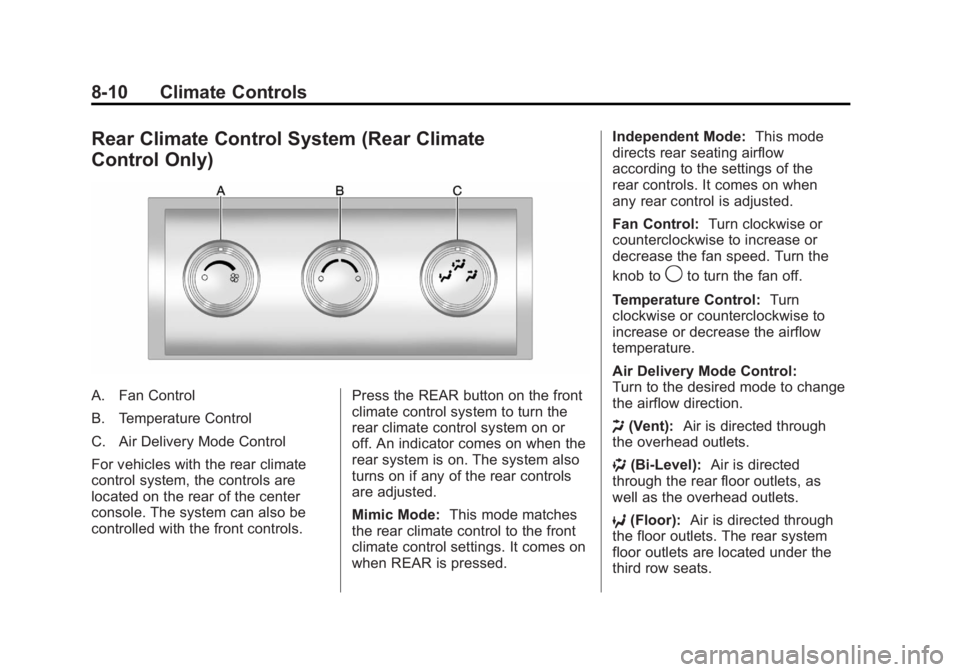
Rear Climate Control System (Rear Climate
Control Only)
A. Fan Control
B. Temperature Control
C. Air Delivery Mode Control
For vehicles with the rear climate
control system, the controls are
located on the rear of the center
console. The system can also be
controlled with the front controls.Press the REAR button on the front
climate control system to turn the
rear climate control system on or
off. An indicator comes on when the
rear system is on. The system also
turns on if any of the rear controls
are adjusted.
Mimic Mode:
This mode matches
the rear climate control to the front
climate control settings. It comes on
when REAR is pressed. Independent Mode:
This mode
directs rear seating airflow
according to the settings of the
rear controls. It comes on when
any rear control is adjusted.
Fan Control: Turn clockwise or
counterclockwise to increase or
decrease the fan speed. Turn the
knob to
9to turn the fan off.
Temperature Control: Turn
clockwise or counterclockwise to
increase or decrease the airflow
temperature.
Air Delivery Mode Control:
Turn to the desired mode to change
the airflow direction.
H (Vent): Air is directed through
the overhead outlets.
) (Bi-Level): Air is directed
through the rear floor outlets, as
well as the overhead outlets.
6 (Floor): Air is directed through
the floor outlets. The rear system
floor outlets are located under the
third row seats.