buttons GMC ACADIA 2012 Owner's Guide
[x] Cancel search | Manufacturer: GMC, Model Year: 2012, Model line: ACADIA, Model: GMC ACADIA 2012Pages: 468, PDF Size: 5.57 MB
Page 150 of 468
Black plate (30,1)GMC Acadia/Acadia Denali Owner Manual - 2012
5-30 Instruments and Controls
FUEL USED
Press the trip/fuel button until
FUEL USED displays. This display
shows the number of liters (L) or
gallons (gal) of fuel used since the
last reset of this menu item. To reset
the fuel used information, press and
hold the set/reset button while FUEL
USED is displayed.
AVG (Average) SPEED
Press the trip/fuel button until
AVG SPEED displays. This display
shows the average speed of the
vehicle in kilometers per hour
(km/h) or miles per hour (mph).
This average is calculated based on
the various vehicle speeds recorded
since the last reset of this value.
To reset the value to zero, press
and hold the set/reset button.
Blank Display
This display shows no information.Driver Information Center
(DIC) (Without DIC
Buttons)
If your vehicle does not have DIC
buttons, the information below
explains the operation of this
system.
The DIC has different displays
which can be accessed by pressing
the trip odometer reset stem
located on the instrument panel
cluster. Pressing the trip odometer
reset stem will also turn off,
or acknowledge, DIC messages.
The DIC displays trip and vehicle
system information, and warning
messages if a system problem is
detected.
If your vehicle does not have
DIC buttons, you can use the trip
odometer reset stem to view the
following displays: odometer, trip
odometers, oil life, park assist menu
for vehicles with the Ultrasonic
Rear Parking Assist (URPA) system,
units, and display language.If your vehicle has DIC buttons, you
can use the trip odometer reset
stem to view the following displays:
odometer and trip odometers.Trip Odometer Reset Stem
Menu Items
ODOMETER
Press the trip odometer reset stem
until ODOMETER displays. This
display shows the distance the
vehicle has been driven in either
kilometers (km) or miles (mi).
To switch between English and
metric measurements, see
“UNITS”
later in this section.
TRIP A or TRIP B
Press the trip odometer reset stem
until TRIP A or TRIP B displays.
This display shows the current
distance traveled in either
kilometers (km) or miles (mi) since
the last reset for each trip odometer.
Both trip odometers can be used at
the same time.
Page 153 of 468
Black plate (33,1)GMC Acadia/Acadia Denali Owner Manual - 2012
Instruments and Controls 5-33
Head-Up Display (HUD)
{WARNING
If the HUD image is too bright or
too high in your field of view, it
may take you more time to see
things you need to see when it is
dark outside. Be sure to keep the
HUD image dim and placed low in
your field of view.
For vehicles with the Head-Up
Display (HUD), some information
concerning the operation of the
vehicle is projected onto the
windshield. This includes the
speedometer reading, rpm reading,
transmission position, outside air
temperature, the manual mode gear
range, and a brief display of the current radio station, including XM
information or CD track. It will also
display turn-by-turn navigation
information if the vehicle has a
navigation radio. The images are
projected by the HUD lens located
on the driver side of the instrument
panel.
The HUD information can be
displayed in one of three languages,
English, French, or Spanish.
The speedometer reading and
other numerical values can be
displayed in either English or
metric units.
The language selection and the
units of measurement are changed
through the trip computer in the
Driver Information Center (DIC).
See
Vehicle Personalization
(With DIC Buttons) on page 5‑46.
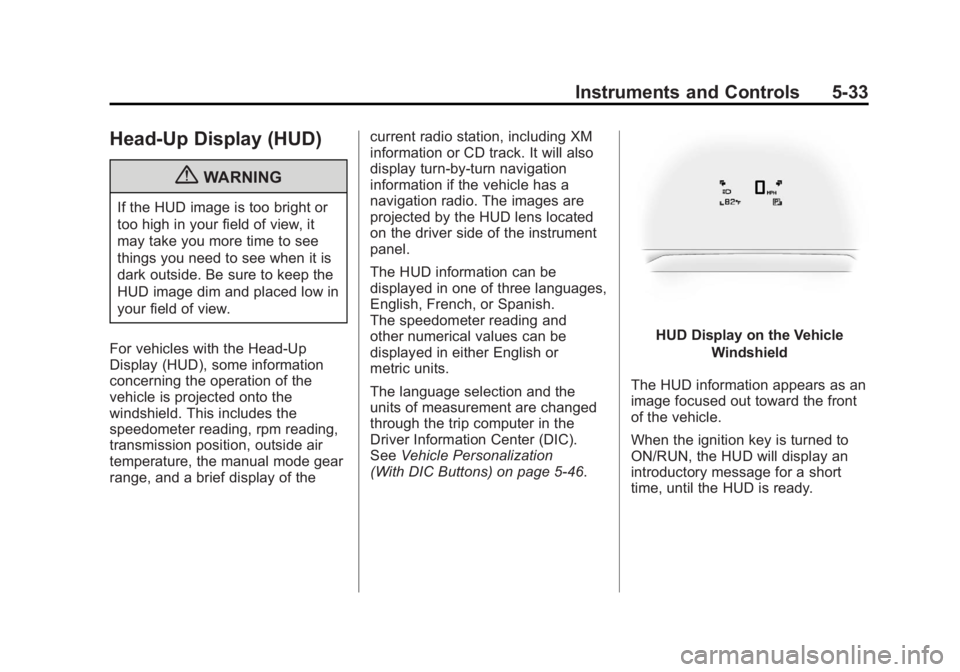
HUD Display on the Vehicle
Windshield
The HUD information appears as an
image focused out toward the front
of the vehicle.
When the ignition key is turned to
ON/RUN, the HUD will display an
introductory message for a short
time, until the HUD is ready.
Page 157 of 468
Black plate (37,1)GMC Acadia/Acadia Denali Owner Manual - 2012
Instruments and Controls 5-37
Vehicle Messages
Messages are displayed on the DIC
to notify the driver that the status of
the vehicle has changed and that
some action may be needed by the
driver to correct the condition.
Multiple messages may appear one
after another.
Some messages may not require
immediate action, but you can
press any of the DIC buttons on
the instrument panel or the trip
odometer reset stem on the
instrument panel cluster to
acknowledge that you received the
messages and to clear them from
the display.
Some messages cannot be
cleared from the DIC display
because they are more urgent.
These messages require action
before they can be cleared.You should take any messages
that appear on the display seriously
and remember that clearing the
messages will only make the
messages disappear, not correct
the problem.
The following are the possible
messages that can be displayed
and some information about them.
Battery Voltage and
Charging Messages
BATTERY SAVER ACTIVE
This message displays when the
system detects that the battery
voltage is dropping below expected
levels. The battery saver system
starts reducing certain features of
the vehicle that you may be able to
notice. At the point that the features
are disabled, this message is
displayed. It means that the vehicle
is trying to save the charge in the
battery.Turn off all unnecessary
accessories to allow the battery
to recharge.
The normal battery voltage range
is 11.5 to 15.5 volts.
SERVICE BATTERY
CHARGING SYSTEM
On some vehicles, this message
displays if there is a problem with
the battery charging system.
Under certain conditions, the
charging system light may also turn
on in the instrument panel cluster.
See
Charging System Light on
page 5‑18. Driving with this problem
could drain the battery. Turn off all
unnecessary accessories. Have the
electrical system checked as soon
as possible. See your dealer.
Page 164 of 468
Black plate (44,1)GMC Acadia/Acadia Denali Owner Manual - 2012
5-44 Instruments and Controls
The DIC also shows the tire
pressure values. SeeDriver
Information Center (DIC)
(Without DIC Buttons) on page 5‑30
or Driver Information Center (DIC)
(With DIC Buttons) on page 5‑25.
SERVICE TIRE MONITOR
SYSTEM
On vehicles with the Tire Pressure
Monitor System (TPMS), this
message displays if a part on the
TPMS is not working properly.
The tire pressure light also flashes
and then remains on during the
same ignition cycle. See Tire
Pressure Light on page 5‑23.
Several conditions may cause this
message to appear. See Tire
Pressure Monitor Operation on
page 10‑46 for more information.
If the warning comes on and stays
on, there may be a problem with
the TPMS. See your dealer.
TIRE LEARNING ACTIVE
This message displays when the
Tire Pressure Monitor System
(TPMS) is relearning the tire
positions on your vehicle. The tire
positions must be relearned after
rotating the tires or after replacing a
tire or sensor. See Tire Rotation on
page 10‑50, Tire Pressure Monitor
System on page 10‑45, and Tire
Pressure on page 10‑44 for more
information.
Transmission Messages
ALL WHEEL DRIVE OFF
If your vehicle has the All-Wheel
Drive (AWD) system, this message
displays when there is a compact
spare tire on the vehicle, when the
Antilock Brake System (ABS)
warning light comes on, or when the
rear differential fluid is overheating.
This message turns off when the
differential fluid cools. The AWD system is disabled until
the compact spare tire is replaced
by a full-size tire. If the warning
message is still on after putting on
the full-size tire, you need to reset
the warning message. To reset the
warning message, turn the ignition
off and then back on again after
30 seconds. If the message stays
on, see your dealer right away.
See
All-Wheel Drive on page 9‑27
for more information.
SERVICE ALL WHEEL DRIVE
If your vehicle has the All-Wheel
Drive (AWD) system, this message
displays if there is a problem
with this system. If this message
appears, stop as soon as possible
and turn off the vehicle. Restart the
vehicle after 30 seconds and check
for the message on the DIC display.
If the message is still displayed or
appears again when you begin
driving, the AWD system needs
service. See your dealer.
Page 166 of 468
Black plate (46,1)GMC Acadia/Acadia Denali Owner Manual - 2012
5-46 Instruments and Controls
Vehicle
Personalization
Vehicle Personalization
(With DIC Buttons)
Your vehicle may have
customization capabilities that allow
you to program certain features to
one preferred setting. Customization
features can only be programmed
to one setting on the vehicle and
cannot be programmed to a
preferred setting for two different
drivers.
All of the customization options may
not be available on your vehicle.
Only the options available will be
displayed on the DIC.
The default settings for the
customization features were set
when your vehicle left the factory,
but may have been changed from
their default state since then.The customization preferences are
automatically recalled.
To change customization
preferences, use the following
procedure.Entering the Feature
Settings Menu
1. Turn the ignition on and place
the vehicle in P (Park).
To avoid excessive drain on the
battery, it is recommended that
the headlamps are turned off.
2. Press the customization button to enter the feature
settings menu.
If the menu is not available,
FEATURE SETTINGS
AVAILABLE IN PARK will
display. Before entering the
menu, make sure the vehicle
is in P (Park).
Feature Settings Menu Items
The following are customization
features that allow you to program
settings to the vehicle:
DISPLAY IN ENGLISH
This feature will only display if a
language other than English has
been set. This feature allows you to
change the language in which the
DIC messages appear to English.
Press the customization button until
the PRESS
VTO DISPLAY IN
ENGLISH screen appears on the
DIC display. Press the set/reset
button once to display all DIC
messages in English.
DISPLAY LANGUAGE
This feature allows you to select
the language in which the DIC
messages will appear.
Press the customization button
until the DISPLAY LANGUAGE
screen appears on the DIC display.
Press the set/reset button once to
access the settings for this feature.
Page 167 of 468
Black plate (47,1)GMC Acadia/Acadia Denali Owner Manual - 2012
Instruments and Controls 5-47
Then press the customization
button to scroll through the following
settings:
ENGLISH (default):All messages
will appear in English.
FRANCAIS: All messages will
appear in French.
ESPANOL: All messages will
appear in Spanish.
NO CHANGE: No change will be
made to this feature. The current
setting will remain.
To select a setting, press the set/
reset button while the desired
setting is displayed on the DIC.
You can also change the language
by pressing the trip odometer reset
stem. See “DISPLAY LANGUAGE” under Driver Information Center
(DIC) (Without DIC Buttons) earlier
in this section for more information.
AUTO DOOR LOCK
This feature allows you to select
when the doors will automatically
lock. See
Automatic Door Locks on
page 2‑9 for more information.
Press the customization button until
AUTO DOOR LOCK appears on the
DIC display. Press the set/reset
button once to access the settings
for this feature. Then press the
customization button to scroll
through the following settings:
SHIFT OUT OF PARK (default):
The doors will automatically lock
when the vehicle is shifted out of
P (Park).
AT VEHICLE SPEED: The doors
will automatically lock when the
vehicle speed is above 13 km/h
(8 mph) for three seconds. NO CHANGE:
No change will be
made to this feature. The current
setting will remain.
To select a setting, press the
set/reset button while the desired
setting is displayed on the DIC.
AUTO DOOR UNLOCK
This feature allows you to select
whether or not to turn off the
automatic door unlocking feature.
It also allows you to select which
doors and when the doors will
automatically unlock. See Automatic
Door Locks on page 2‑9 for more
information.
Press the customization button
until AUTO DOOR UNLOCK
appears on the DIC display.
Press the set/reset button once to
access the settings for this feature.
Page 173 of 468
Black plate (53,1)GMC Acadia/Acadia Denali Owner Manual - 2012
Instruments and Controls 5-53
FACTORY SETTINGS
This feature allows you to set all of
the customization features back to
their factory default settings.
Press the customization button until
FACTORY SETTINGS appears on
the DIC display. Press the set/reset
button once to access the settings
for this feature. Then press the
customization button to scroll
through the following settings:
RESTORE ALL (default):
The customization features will be
set to their factory default settings.
DO NOT RESTORE:The
customization features will not be
set to their factory default settings.
To select a setting, press the
set/reset button while the desired
setting is displayed on the DIC. EXIT FEATURE SETTINGS
This feature allows you to exit the
feature settings menu.
Press the customization button until
FEATURE SETTINGS PRESS
V
TO EXIT appears in the DIC display.
Press the set/reset button once to
exit the menu.
If you do not exit, pressing the
customization button again will
return you to the beginning of the
feature settings menu.
Exiting the Feature
Settings Menu
The feature settings menu will be
exited when any of the following
occurs:
.The vehicle is shifted out of
P (Park).
.The vehicle is no longer in
ON/RUN.
.The trip/fuel or vehicle
information DIC buttons are
pressed.
.The end of the feature settings
menu is reached and exited.
.A 40-second time period has
elapsed with no selection made.
Page 174 of 468
Black plate (54,1)GMC Acadia/Acadia Denali Owner Manual - 2012
5-54 Instruments and Controls
Universal Remote
System
SeeRadio Frequency Statement on
page 13‑22 for information
regarding Part 15 of the Federal
Communications Commission (FCC)
rules and Industry Canada
Standards RSS-GEN/210/220/310.
Universal Remote System
Programming
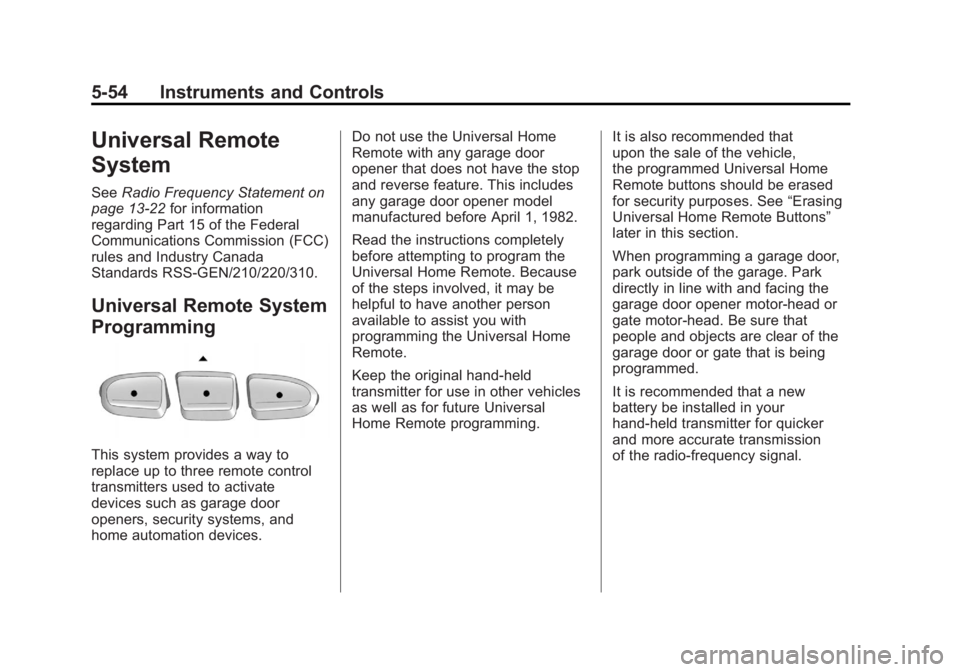
This system provides a way to
replace up to three remote control
transmitters used to activate
devices such as garage door
openers, security systems, and
home automation devices. Do not use the Universal Home
Remote with any garage door
opener that does not have the stop
and reverse feature. This includes
any garage door opener model
manufactured before April 1, 1982.
Read the instructions completely
before attempting to program the
Universal Home Remote. Because
of the steps involved, it may be
helpful to have another person
available to assist you with
programming the Universal Home
Remote.
Keep the original hand-held
transmitter for use in other vehicles
as well as for future Universal
Home Remote programming.
It is also recommended that
upon the sale of the vehicle,
the programmed Universal Home
Remote buttons should be erased
for security purposes. See
“Erasing
Universal Home Remote Buttons”
later in this section.
When programming a garage door,
park outside of the garage. Park
directly in line with and facing the
garage door opener motor-head or
gate motor-head. Be sure that
people and objects are clear of the
garage door or gate that is being
programmed.
It is recommended that a new
battery be installed in your
hand-held transmitter for quicker
and more accurate transmission
of the radio-frequency signal.
Page 175 of 468
Black plate (55,1)GMC Acadia/Acadia Denali Owner Manual - 2012
Instruments and Controls 5-55
Programming the Universal
Home Remote System
For questions or help programming
the Universal Home Remote
System, call 1‐800‐355‐3515 or
go to www.homelink.com.
Programming a garage door opener
involves time-sensitive actions, so
read the entire procedure before
starting. Otherwise, the device will
time out and the procedure will have
to be repeated.
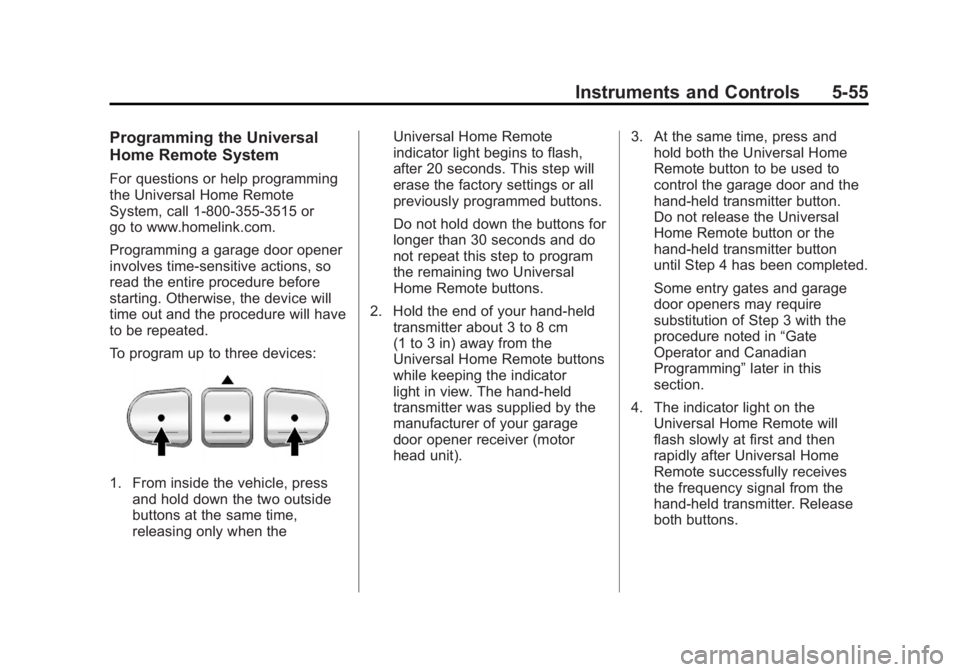
To program up to three devices:
1. From inside the vehicle, pressand hold down the two outside
buttons at the same time,
releasing only when the Universal Home Remote
indicator light begins to flash,
after 20 seconds. This step will
erase the factory settings or all
previously programmed buttons.
Do not hold down the buttons for
longer than 30 seconds and do
not repeat this step to program
the remaining two Universal
Home Remote buttons.
2. Hold the end of your hand-held transmitter about 3 to 8 cm
(1 to 3 in) away from the
Universal Home Remote buttons
while keeping the indicator
light in view. The hand-held
transmitter was supplied by the
manufacturer of your garage
door opener receiver (motor
head unit). 3. At the same time, press and
hold both the Universal Home
Remote button to be used to
control the garage door and the
hand-held transmitter button.
Do not release the Universal
Home Remote button or the
hand-held transmitter button
until Step 4 has been completed.
Some entry gates and garage
door openers may require
substitution of Step 3 with the
procedure noted in “Gate
Operator and Canadian
Programming” later in this
section.
4. The indicator light on the Universal Home Remote will
flash slowly at first and then
rapidly after Universal Home
Remote successfully receives
the frequency signal from the
hand-held transmitter. Release
both buttons.
Page 176 of 468
Black plate (56,1)GMC Acadia/Acadia Denali Owner Manual - 2012
5-56 Instruments and Controls
5. Press and hold the newly trainedUniversal Home Remote button
and observe the indicator light.
.If the indicator light
stays on continuously, the
programming is complete
and the garage door should
move when the Universal
Home Remote button is
pressed and released.
There is no need to
continue programming
Steps 6 through 8.
.If the Universal Home
Remote indicator light
blinks rapidly for
two seconds and then
turns to a constant light,
continue with the
programming Steps 6
through 8.
It may be helpful to have
another person assist with
the remaining steps.
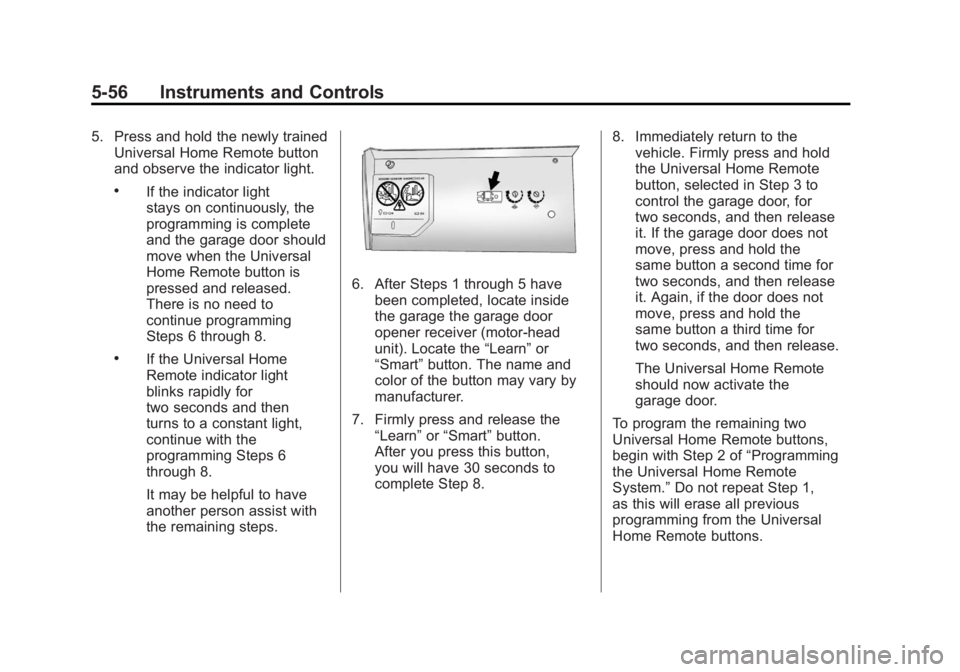
6. After Steps 1 through 5 have
been completed, locate inside
the garage the garage door
opener receiver (motor-head
unit). Locate the “Learn”or
“Smart” button. The name and
color of the button may vary by
manufacturer.
7. Firmly press and release the “Learn” or“Smart” button.
After you press this button,
you will have 30 seconds to
complete Step 8. 8. Immediately return to the
vehicle. Firmly press and hold
the Universal Home Remote
button, selected in Step 3 to
control the garage door, for
two seconds, and then release
it. If the garage door does not
move, press and hold the
same button a second time for
two seconds, and then release
it. Again, if the door does not
move, press and hold the
same button a third time for
two seconds, and then release.
The Universal Home Remote
should now activate the
garage door.
To program the remaining two
Universal Home Remote buttons,
begin with Step 2 of “Programming
the Universal Home Remote
System.” Do not repeat Step 1,
as this will erase all previous
programming from the Universal
Home Remote buttons.