radio controls GMC ACADIA 2012 Owner's Guide
[x] Cancel search | Manufacturer: GMC, Model Year: 2012, Model line: ACADIA, Model: GMC ACADIA 2012Pages: 468, PDF Size: 5.57 MB
Page 207 of 468
Black plate (21,1)GMC Acadia/Acadia Denali Owner Manual - 2012
Infotainment System 7-21
begin playing the movie
automatically, press the softkey
under the play/pause icon displayed
on the radio. If the DVD still does
not play, refer to the on-screen
instructions, if available.
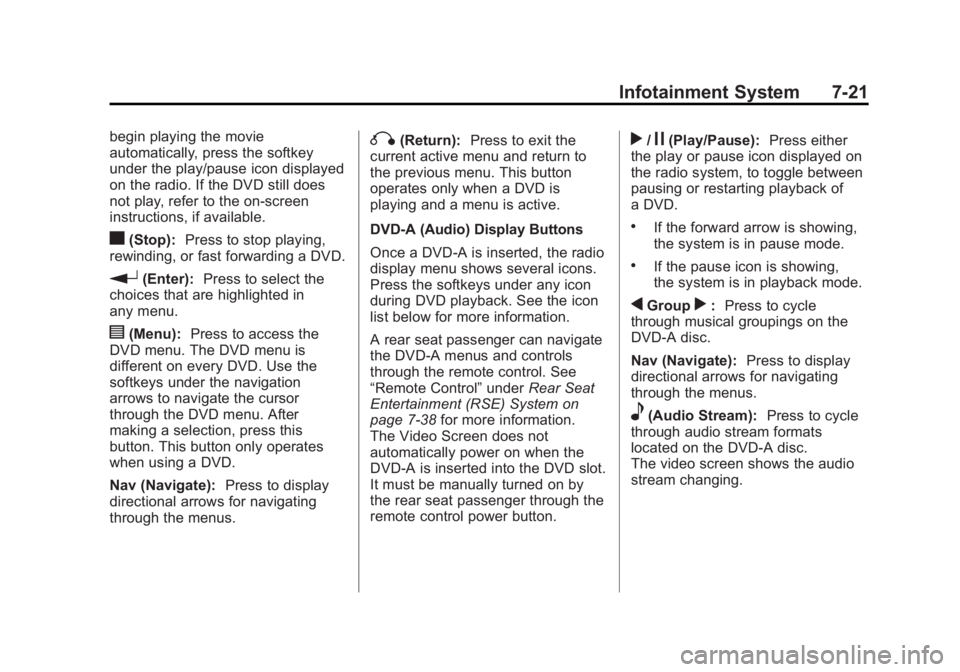
c(Stop):Press to stop playing,
rewinding, or fast forwarding a DVD.
r(Enter): Press to select the
choices that are highlighted in
any menu.
y(Menu): Press to access the
DVD menu. The DVD menu is
different on every DVD. Use the
softkeys under the navigation
arrows to navigate the cursor
through the DVD menu. After
making a selection, press this
button. This button only operates
when using a DVD.
Nav (Navigate): Press to display
directional arrows for navigating
through the menus.
q(Return): Press to exit the
current active menu and return to
the previous menu. This button
operates only when a DVD is
playing and a menu is active.
DVD-A (Audio) Display Buttons
Once a DVD-A is inserted, the radio
display menu shows several icons.
Press the softkeys under any icon
during DVD playback. See the icon
list below for more information.
A rear seat passenger can navigate
the DVD-A menus and controls
through the remote control. See
“Remote Control” underRear Seat
Entertainment (RSE) System on
page 7‑38 for more information.
The Video Screen does not
automatically power on when the
DVD-A is inserted into the DVD slot.
It must be manually turned on by
the rear seat passenger through the
remote control power button.r/j(Play/Pause): Press either
the play or pause icon displayed on
the radio system, to toggle between
pausing or restarting playback of
a DVD.
.If the forward arrow is showing,
the system is in pause mode.
.If the pause icon is showing,
the system is in playback mode.
qGroupr: Press to cycle
through musical groupings on the
DVD-A disc.
Nav (Navigate): Press to display
directional arrows for navigating
through the menus.
e(Audio Stream): Press to cycle
through audio stream formats
located on the DVD-A disc.
The video screen shows the audio
stream changing.
Page 233 of 468
Black plate (47,1)GMC Acadia/Acadia Denali Owner Manual - 2012
Infotainment System 7-47
Rear Seat Audio (RSA)
System
For vehicles with Rear Seat Audio
(RSA), rear seat passengers can
listen to and control any of the
music sources: radio, CDs, DVDs,
or other auxiliary sources. The rear
seat passengers can only control
the music sources the front seat
passengers are not listening to
(except on some radios where dual
control is allowed). For example,
rear seat passengers can control a
CD and listen to it through the
headphones, while the driver listens
to the radio through the front
speakers. The rear seat passengers
have control of the volume for each
set of headphones.The RSA functions operate even
when the main radio is off. The front
audio system displaysXwhen the
RSA is on, and disappears from the
display when it is off.
Audio can be heard through wired
headphones (not included) plugged
into the jacks on the RSA. If the
vehicle has this feature, audio can
also be heard on Channel 2 of the
wireless headphones.
The audio system mutes the rear
speakers when the RSA audio is
active through the headphones.
To listen to an iPod or portable
audio device through the RSA,
attach the iPod or portable audio
device to the front auxiliary input
(if available), located on the front
audio system. Turn the iPod on,
then choose the front auxiliary input
with the RSA SRCE button.
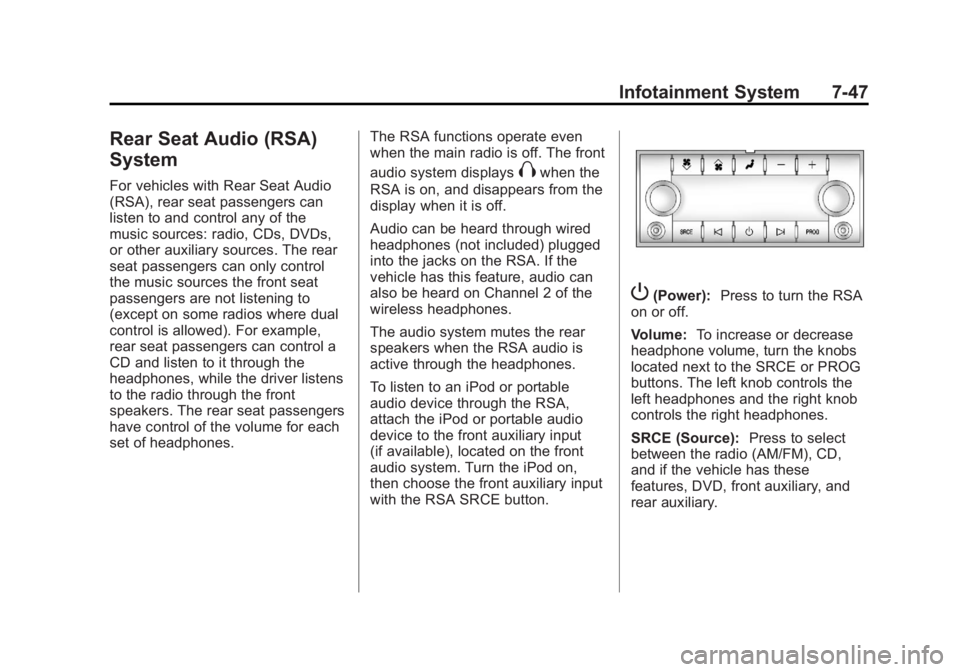
P(Power): Press to turn the RSA
on or off.
Volume: To increase or decrease
headphone volume, turn the knobs
located next to the SRCE or PROG
buttons. The left knob controls the
left headphones and the right knob
controls the right headphones.
SRCE (Source): Press to select
between the radio (AM/FM), CD,
and if the vehicle has these
features, DVD, front auxiliary, and
rear auxiliary.
Page 235 of 468
Black plate (49,1)GMC Acadia/Acadia Denali Owner Manual - 2012
Infotainment System 7-49
¨SEEK©:Press the SEEK
arrows to go to the next or to the
previous radio station while in AM or
FM. Press the SEEK arrows to go to
the next or the previous track or
chapter while sourced to a CD or
DVD slot.
SRCE (Source): Press this button
to switch between the radio, CD,
and if the vehicle has these
features, DVD, front auxiliary, and
rear auxiliary.
>(Mute): Press this button to
silence the system. Press this
button again, or any other radio
button, to turn the sound on.
+
x− (Volume): Press the plus or
minus volume buttons to increase or
to decrease the volume.
Phone
Bluetooth
For vehicles equipped with
Bluetooth capability, the system can
interact with many cell phones,
allowing:
.Placement and receipt of calls in
a hands-free mode.
.Sharing of the cell phone’s
address book or contact list with
the vehicle.
To minimize driver distraction,
before driving, and with the vehicle
parked:
.Become familiar with the
features of the cell phone.
Organize the phone book and
contact lists clearly and delete
duplicate or rarely used entries.
If possible, program speed dial
or other shortcuts.
.Review the controls and
operation of the infotainment
system.
.Pair cell phone(s) to the vehicle.
The system may not work with
all cell phones. See “Pairing”in
this section for more information.
.If the cell phone has voice
dialing capability, learn to use
that feature to access the
address book or contact list.
See “Voice Pass-Thru” in this
section for more information.
.See “Storing and Deleting Phone
Numbers” in this section for
more information.
Page 466 of 468
Black plate (10,1)GMC Acadia/Acadia Denali Owner Manual - 2012
i-10 INDEX
S
Safety Belts . . . . . . . . . . . . . . . . . . . 3-15Care . . . . . . . . . . . . . . . . . . . . . . . . . . 3-23
Extender . . . . . . . . . . . . . . . . . . . . . . 3-22
How to Wear Safety BeltsProperly . . . . . . . . . . . . . . . . . . . . . 3-16
Lap-Shoulder Belt . . . . . . . . . . . . 3-17
Reminders . . . . . . . . . . . . . . . . . . . . 5-15
Replacing after a Crash . . . . . . 3-23
Use During Pregnancy . . . . . . . . 3-22
Safety Defects Reporting
Canadian Government . . . . . . 13-20
General Motors . . . . . . . . . . . . . 13-20
U.S. Government . . . . . . . . . . . 13-19
Safety Locks . . . . . . . . . . . . . . . . . . . . 2-9
Safety System Check . . . . . . . . . . 3-23
Satellite Radio . . . . . . . . . . . . . . . . . . 7-8
Scheduling Appointments . . . . . 13-14
Sealant Kit, Tire . . . . . . . . . . . . . . 10-60
Seats Adjustment, Front . . . . . . . . . . . . . . 3-3
Head Restraints . . . . . . . . . . . . . . . 3-2
Heated and Ventilated Front . . . 3-9
Lumbar Adjustment, Front . . . . . 3-4
Memory . . . . . . . . . . . . . . . . . . . . . . . . 3-7
Power Adjustment, Front . . . . . . 3-4 Seats (cont'd)
Rear . . . . . . . . . . . . . . . . . . . . . . . . . . 3-10
Reclining Seatbacks . . . . . . . . . . . 3-5
Third Row Seat . . . . . . . . . . . . . . . 3-12
Securing Child Restraints . . . . . . . . . . . . . . 3-54, 3-56
Security Light . . . . . . . . . . . . . . . . . . . . . . . . . . 5-24
OnStar
®. . . . . . . . . . . . . . . . . . . . . . 14-2
Vehicle . . . . . . . . . . . . . . . . . . . . . . . 2-13
Service Accessories andModifications . . . . . . . . . . . . . . . . 10-3
Doing Your Own Work . . . . . . . . 10-4
Engine Soon Light . . . . . . . . . . . . 5-18
Maintenance Records . . . . . . .11-14
Maintenance, General Information . . . . . . . . . . . . . . . . . . 11-1
Parts Identification Label . . . . . 12-1
Publications Ordering Information . . . . . . . . . . . . . . . . 13-18
Scheduling Appointments . . . 13-14
Vehicle Messages . . . . . . . . . . . . 5-43
Servicing the Airbag . . . . . . . . . . . 3-35
Shift Lock Control Function Check, Automatic
Transmission . . . . . . . . . . . . . . . . 10-26 Shifting
Into Park . . . . . . . . . . . . . . . . . . . . . . 9-20
Out of Park . . . . . . . . . . . . . . . . . . . 9-21
Signals, Turn and Lane-Change . . . . . . . . . . . . . . . . . 6-4
Spare Tire Compact . . . . . . . . . . . . . . . . . . . . 10-77
Specifications and Capacities . . . . . . . . . . . . . . . . . . . . 12-2
Speedometer . . . . . . . . . . . . . . . . . . 5-13
StabiliTrak Indicator Light . . . . . . . . . . . . . . . . 5-22
System . . . . . . . . . . . . . . . . . . . . . . . 9-30
Start Assist, Hills . . . . . . . . . . . . . . 9-29
Start Vehicle, Remote . . . . . . . . . . 2-5
Starter Switch Check . . . . . . . . . 10-26
Starting the Engine . . . . . . . . . . . . 9-18
Steering . . . . . . . . . . . . . . . . . . . . . . . . 9-4 Fluid, Power . . . . . . . . . . . . . . . . 10-21
Wheel Adjustment . . . . . . . . . . . . . 5-2
Wheel Controls . . . . . . . . . . . . . . . . 5-2
Storage Areas Armrest . . . . . . . . . . . . . . . . . . . . . . . . 4-2
Cargo Cover . . . . . . . . . . . . . . . . . . . 4-4
Cargo Management System . . . 4-4
Center Console . . . . . . . . . . . . . . . . 4-2