radio GMC ACADIA 2014 Owner's Guide
[x] Cancel search | Manufacturer: GMC, Model Year: 2014, Model line: ACADIA, Model: GMC ACADIA 2014Pages: 414, PDF Size: 4.21 MB
Page 181 of 414
Black plate (7,1)GMC Acadia/Acadia Denali Owner Manual (GMNA-Localizing-U.S./Canada/
Mexico-6014315) - 2014 - crc - 8/15/13
Infotainment System 7-7
.Balance: Press the L or R button
for more sound from the left or
right speakers. The middle
position balances the sound
between the left and right
speakers.
Finding a Station
Press SRCE to select AM, FM,
or SiriusXM (if equipped).
Turn the PUSH/SEL knob to find a
radio station. To select a preset
station, press FAV to scroll through
the favorite pages and then press a
preset button on the radio or the
screen button.
Seeking a Station
Press
©SEEK or SEEK¨to search
for a station. You may also use the
¨on the steering wheel
control (SWC). AM
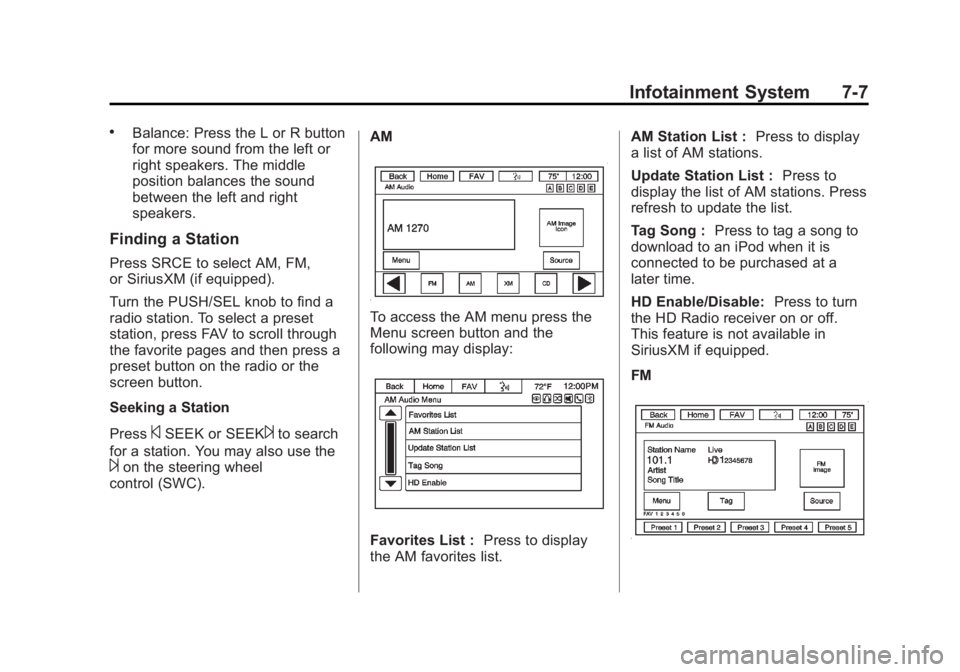
To access the AM menu press the
Menu screen button and the
following may display:
Favorites List :
Press to display
the AM favorites list. AM Station List :
Press to display
a list of AM stations.
Update Station List : Press to
display the list of AM stations. Press
refresh to update the list.
Tag Song : Press to tag a song to
download to an iPod when it is
connected to be purchased at a
later time.
HD Enable/Disable: Press to turn
the HD Radio receiver on or off.
This feature is not available in
SiriusXM if equipped.
FM
Page 182 of 414
Black plate (8,1)GMC Acadia/Acadia Denali Owner Manual (GMNA-Localizing-U.S./Canada/
Mexico-6014315) - 2014 - crc - 8/15/13
7-8 Infotainment System
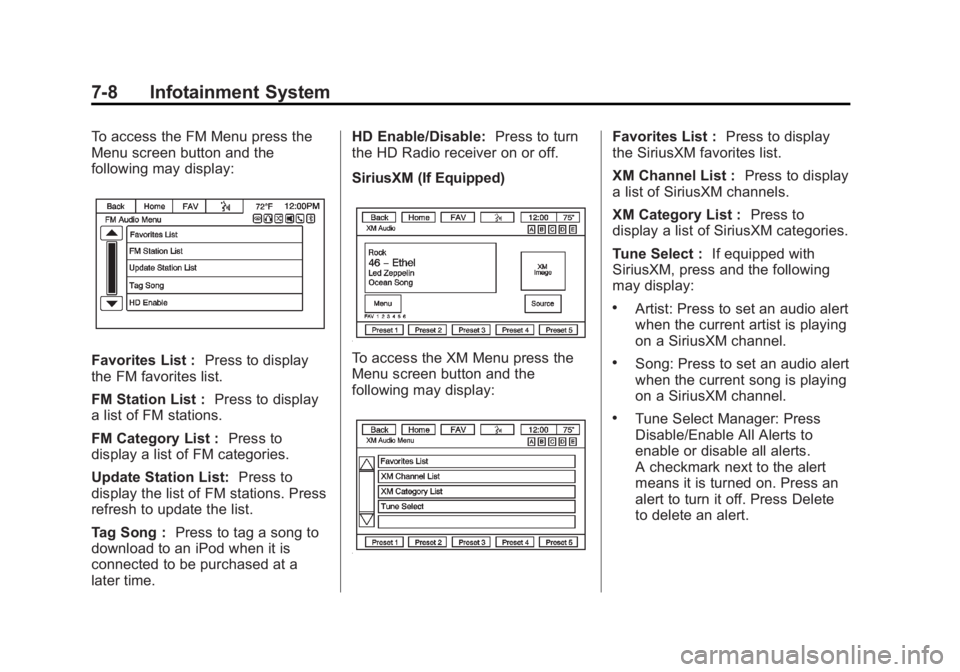
To access the FM Menu press the
Menu screen button and the
following may display:
Favorites List :Press to display
the FM favorites list.
FM Station List : Press to display
a list of FM stations.
FM Category List : Press to
display a list of FM categories.
Update Station List: Press to
display the list of FM stations. Press
refresh to update the list.
Tag Song : Press to tag a song to
download to an iPod when it is
connected to be purchased at a
later time. HD Enable/Disable:
Press to turn
the HD Radio receiver on or off.
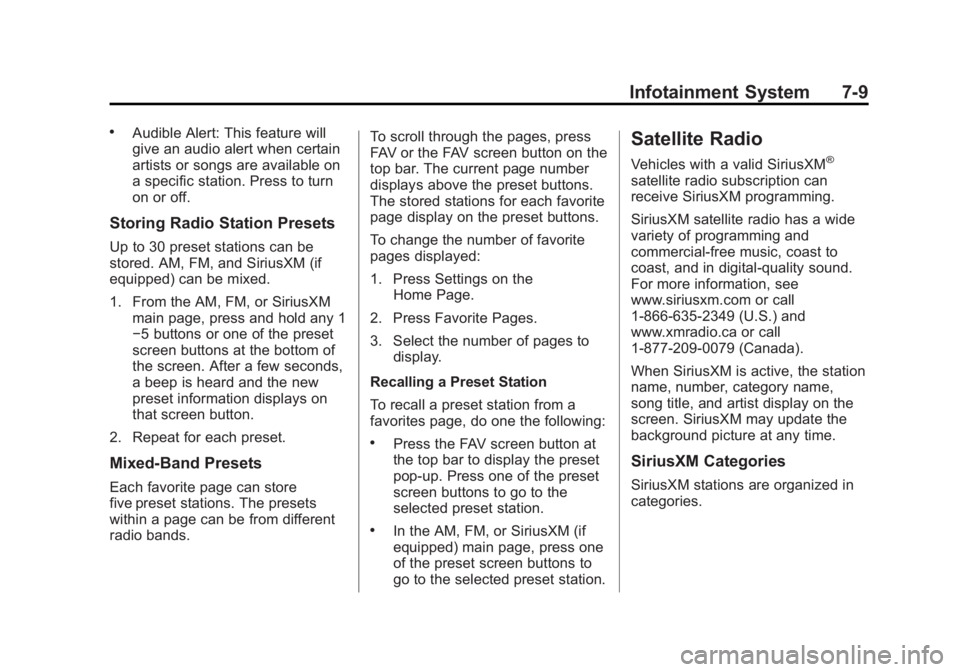
SiriusXM (If Equipped)To access the XM Menu press the
Menu screen button and the
following may display:
Favorites List : Press to display
the SiriusXM favorites list.
XM Channel List : Press to display
a list of SiriusXM channels.
XM Category List : Press to
display a list of SiriusXM categories.
Tune Select : If equipped with
SiriusXM, press and the following
may display:
.Artist: Press to set an audio alert
when the current artist is playing
on a SiriusXM channel.
.Song: Press to set an audio alert
when the current song is playing
on a SiriusXM channel.
.Tune Select Manager: Press
Disable/Enable All Alerts to
enable or disable all alerts.
A checkmark next to the alert
means it is turned on. Press an
alert to turn it off. Press Delete
to delete an alert.
Page 183 of 414
Black plate (9,1)GMC Acadia/Acadia Denali Owner Manual (GMNA-Localizing-U.S./Canada/
Mexico-6014315) - 2014 - crc - 8/15/13
Infotainment System 7-9
.Audible Alert: This feature will
give an audio alert when certain
artists or songs are available on
a specific station. Press to turn
on or off.
Storing Radio Station Presets
Up to 30 preset stations can be
stored. AM, FM, and SiriusXM (if
equipped) can be mixed.
1. From the AM, FM, or SiriusXMmain page, press and hold any 1
−5 buttons or one of the preset
screen buttons at the bottom of
the screen. After a few seconds,
a beep is heard and the new
preset information displays on
that screen button.
2. Repeat for each preset.
Mixed-Band Presets
Each favorite page can store
five preset stations. The presets
within a page can be from different
radio bands. To scroll through the pages, press
FAV or the FAV screen button on the
top bar. The current page number
displays above the preset buttons.
The stored stations for each favorite
page display on the preset buttons.
To change the number of favorite
pages displayed:
1. Press Settings on the
Home Page.
2. Press Favorite Pages.
3. Select the number of pages to display.
Recalling a Preset Station
To recall a preset station from a
favorites page, do one the following:
.Press the FAV screen button at
the top bar to display the preset
pop-up. Press one of the preset
screen buttons to go to the
selected preset station.
.In the AM, FM, or SiriusXM (if
equipped) main page, press one
of the preset screen buttons to
go to the selected preset station.
Satellite Radio
Vehicles with a valid SiriusXM®
satellite radio subscription can
receive SiriusXM programming.
SiriusXM satellite radio has a wide
variety of programming and
commercial-free music, coast to
coast, and in digital-quality sound.
For more information, see
www.siriusxm.com or call
1-866-635-2349 (U.S.) and
www.xmradio.ca or call
1-877-209-0079 (Canada).
When SiriusXM is active, the station
name, number, category name,
song title, and artist display on the
screen. SiriusXM may update the
background picture at any time.
SiriusXM Categories
SiriusXM stations are organized in
categories.
Page 184 of 414
Black plate (10,1)GMC Acadia/Acadia Denali Owner Manual (GMNA-Localizing-U.S./Canada/
Mexico-6014315) - 2014 - crc - 8/15/13
7-10 Infotainment System
Adding or Removing SiriusXM
Categories
Using the home page:
1. Press the Settings screen buttonon the Home Page.
2. Select XM Categories.
3. Select or deselect a category. A checkmark will indicate that
the category is selected.
Press “Show All XM Categories” to
restore all SiriusXM categories.
Using the XM playing screen:
1. Press the Menu screen button.
2. Select XM Categories.
3. Select or deselect a category. A checkmark will indicate that
the category is selected.
SiriusXM Messages
XL (Explicit Language
Channels): These stations, or any
others, can be blocked by request,
by calling 1-866-635-2349 (U.S.),
and 1-877-209-0079 (Canada). XM Updating:
The encryption code
in the receiver is being updated. No
action is required.
Loading XM: The audio system is
acquiring and processing audio and
text data. No action is needed.
Channel Off Air: This station is not
currently in service.
Channel Unauth: This station is
blocked or cannot be received.
Channel Unavailable: This
previously assigned station is no
longer assigned.
No Artist Info: No artist
information is available at this time
on this station.
No Title Info: No song title
information is available at this time
on this station.
No CAT Info: No category
information is available at this time
on this station.
No Information: No text or
informational messages are
available at this time on this station. No XM Signal:
The vehicle may be
in a location where the SiriusXM
signal is being blocked. When the
vehicle is moved into an open area,
the signal should return.
CAT Not Found: There are no
stations available for the selected
category.
XM Radio ID: If tuned to station 0,
this message alternates with the
SiriusXM radio eight-digit radio ID
label. This label is needed to
activate the service.
Unknown: If this message is
received when tuned to station 0,
there could be a receiver fault.
Consult with your dealer.
XM Not Available: If this message
does not clear within a short period
of time, the receiver could have a
fault. Consult with your dealer.
Page 185 of 414
Black plate (11,1)GMC Acadia/Acadia Denali Owner Manual (GMNA-Localizing-U.S./Canada/
Mexico-6014315) - 2014 - crc - 8/15/13
Infotainment System 7-11
Radio Reception
Frequency interference and static
can occur during normal radio
reception if items such as phone
chargers, vehicle convenience
accessories, and external electronic
devices are plugged into the
accessory power outlet. If there is
interference or static, unplug the
item from the accessory power
outlet.
FM
FM signals only reach about 16 to
65 km (10 to 40 mi). Although the
radio has a built-in electronic circuit
that automatically works to reduce
interference, some static can occur,
especially around tall buildings or
hills, causing the sound to fade in
and out.
AM
The range for most AM stations is
greater than for FM, especially at
night. The longer range can cause
station frequencies to interfere with
each other. Static can also occurwhen things like storms and power
lines interfere with radio reception.
When this happens, try reducing the
treble on the radio.
SiriusXM Satellite Radio
Service
SiriusXM Satellite Radio Service
provides digital radio reception. Tall
buildings or hills can interfere with
satellite radio signals, causing the
sound to fade in and out. In
addition, traveling or standing under
heavy foliage, bridges, garages,
or tunnels may cause loss of the
SiriusXM signal for a period of time.
Cell Phone Usage
Cell phone usage, such as making
or receiving phone calls, charging,
or just having the phone on may
cause static interference in the
radio. Unplug the phone or turn it off
if this happens.
Multi-Band Antenna
The multi-band antenna is located
on the roof of the vehicle. This type
of antenna is used with the AM/FM
radio, as well as OnStar and the
SiriusXM Satellite Radio Service
System, if the vehicle has these
features. Keep this antenna clear of
snow and ice build up for clear radio
reception. If the vehicle has a
sunroof, the performance of the
radio system may be affected if the
sunroof is open. Loading items onto
the roof of the vehicle can interfere
with the performance of the radio
system and, if the vehicle has this
feature, OnStar. Make sure the
multi-band antenna is not
obstructed.
Page 189 of 414
Black plate (15,1)GMC Acadia/Acadia Denali Owner Manual (GMNA-Localizing-U.S./Canada/
Mexico-6014315) - 2014 - crc - 8/15/13
Infotainment System 7-15
Root Directory
The root directory is treated as a
folder. All files contained directly
under the root directory are
accessed prior to any root directory
folders.
Empty Folders
If a root directory or folder is empty
or contains only folders, the player
advances to the next folder in the
file structure that contains a
compressed audio file. The empty
folder(s) are not displayed or
numbered.
No Folder
When the CD only contains
compressed audio files without any
folders or playlists, all files are
under the root folder.
File System and Naming
The song titles, artists, albums, and
genres are taken from the file's ID3
tag and are only displayed if present
in the tag. If a song title is notpresent in the ID3 tag, the radio
displays the file name as the
track name.
Preprogrammed Playlists
The radio recognizes
preprogrammed playlists; however,
there is no editing capability. These
playlists are treated as special
folders containing compressed
audio song files.
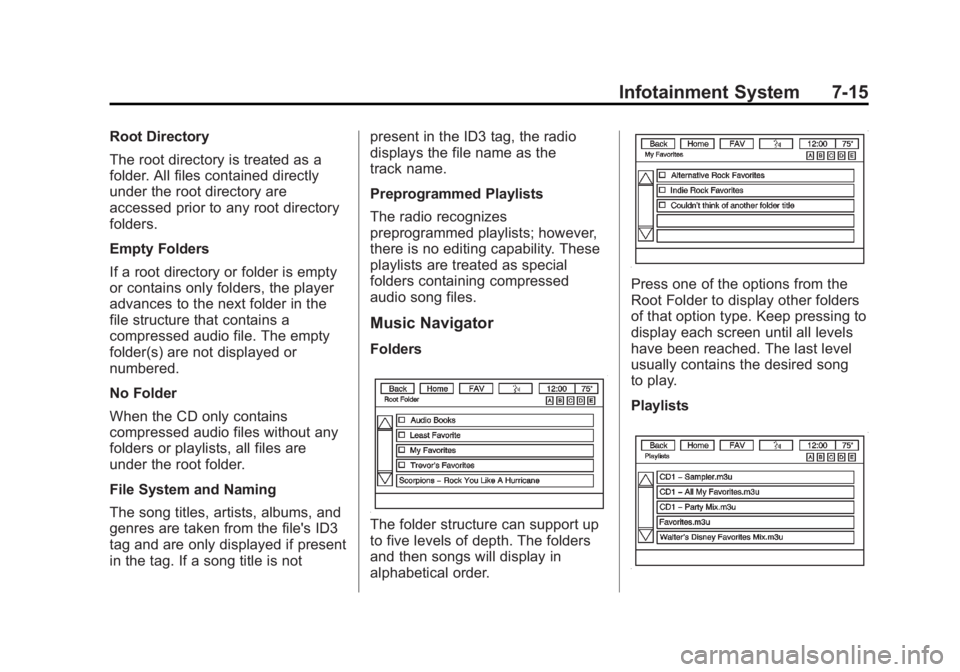
Music Navigator
Folders
The folder structure can support up
to five levels of depth. The folders
and then songs will display in
alphabetical order.
Press one of the options from the
Root Folder to display other folders
of that option type. Keep pressing to
display each screen until all levels
have been reached. The last level
usually contains the desired song
to play.
Playlists
Page 191 of 414
Black plate (17,1)GMC Acadia/Acadia Denali Owner Manual (GMNA-Localizing-U.S./Canada/
Mexico-6014315) - 2014 - crc - 8/15/13
Infotainment System 7-17
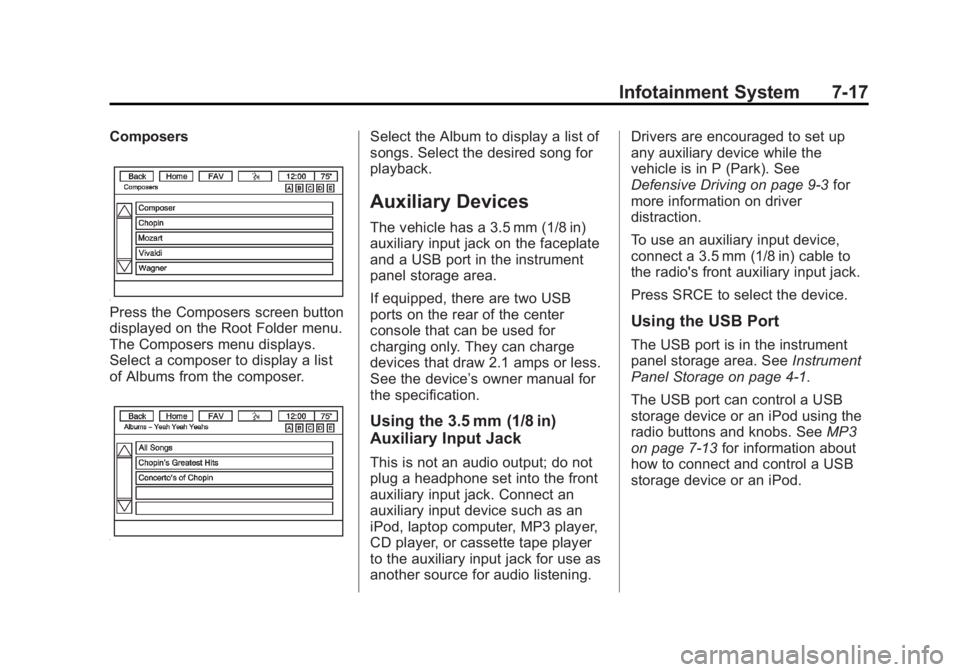
Composers
Press the Composers screen button
displayed on the Root Folder menu.
The Composers menu displays.
Select a composer to display a list
of Albums from the composer.
Select the Album to display a list of
songs. Select the desired song for
playback.
Auxiliary Devices
The vehicle has a 3.5 mm (1/8 in)
auxiliary input jack on the faceplate
and a USB port in the instrument
panel storage area.
If equipped, there are two USB
ports on the rear of the center
console that can be used for
charging only. They can charge
devices that draw 2.1 amps or less.
See the device’s owner manual for
the specification.
Using the 3.5 mm (1/8 in)
Auxiliary Input Jack
This is not an audio output; do not
plug a headphone set into the front
auxiliary input jack. Connect an
auxiliary input device such as an
iPod, laptop computer, MP3 player,
CD player, or cassette tape player
to the auxiliary input jack for use as
another source for audio listening. Drivers are encouraged to set up
any auxiliary device while the
vehicle is in P (Park). See
Defensive Driving on page 9-3
for
more information on driver
distraction.
To use an auxiliary input device,
connect a 3.5 mm (1/8 in) cable to
the radio's front auxiliary input jack.
Press SRCE to select the device.
Using the USB Port
The USB port is in the instrument
panel storage area. See Instrument
Panel Storage on page 4-1.
The USB port can control a USB
storage device or an iPod using the
radio buttons and knobs. See MP3
on page 7-13 for information about
how to connect and control a USB
storage device or an iPod.
Page 192 of 414
Black plate (18,1)GMC Acadia/Acadia Denali Owner Manual (GMNA-Localizing-U.S./Canada/
Mexico-6014315) - 2014 - crc - 8/15/13
7-18 Infotainment System
USB Supported Devices
.USB Flash Drives
.Portable USB Hard Drives
.Fifth generation or later iPod
.iPod classic®(6th generation)
.iPod nano®(3G, 4G, 5G,
and 6G)
.iPod touch®(1G, 2G, 3G,
and 4G)
.iPhone®(2G, 3G, 3GS, 4, and 5)
.iPad®(1G, 2G)
Not all iPods and USB drives are
compatible with the USB port.
Make sure the iPod has the latest
firmware from Apple
®for proper
operation. iPod firmware can be
updated using the latest iTunes
®
application. See www.apple.com/
itunes.
For help identifying your iPod, go to
www.apple.com/support.
Rear Seat
Infotainment
Rear Seat Audio (RSA)
System
If equipped with RSA, rear seat
passengers can listen to and control
any of the music sources: radio,
CDs, DVDs, or other auxiliary
sources. The rear seat passengers
can only control the music sources
the front seat passengers are not
listening to (except on some radios
where dual control is allowed). For
example, rear seat passengers can
control a CD and listen to it through
the headphones, while the driver
listens to the radio through the front
speakers. The rear seat passengers
have control of the volume for each
set of headphones.
The RSA functions operate even
when the main radio is off. The front
audio system displays
Xwhen the
RSA is on, and disappears from the
display when it is off. Audio can be heard through wired
headphones (not included) plugged
into the jacks on the RSA. If the
vehicle has this feature, audio can
also be heard on Channel 2 of the
wireless headphones.
The audio system mutes the rear
speakers when the RSA audio is
active through the headphones.
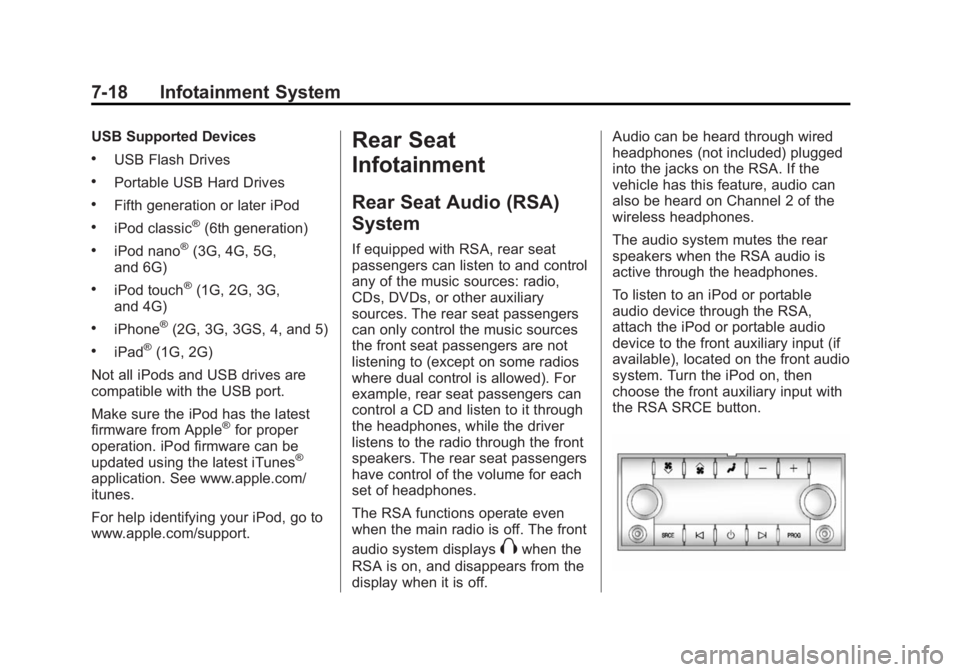
To listen to an iPod or portable
audio device through the RSA,
attach the iPod or portable audio
device to the front auxiliary input (if
available), located on the front audio
system. Turn the iPod on, then
choose the front auxiliary input with
the RSA SRCE button.
Page 193 of 414
Black plate (19,1)GMC Acadia/Acadia Denali Owner Manual (GMNA-Localizing-U.S./Canada/
Mexico-6014315) - 2014 - crc - 8/15/13
Infotainment System 7-19
P(Power):Press to turn the RSA
on or off.
Volume: Turn to increase or to
decrease the volume of the wired
headphones. The left knob controls
the left headphones and the right
knob controls the right headphones.
SRCE (Source): Press to select
between the radio, CD, and if the
vehicle has these features, DVD,
front auxiliary, and rear auxiliary.
© ¨(Seek): Press to go to the
previous or to the next station and
stay there. This function is inactive,
with some radios, if the front seat
passengers are listening to the
radio.
Press and hold
©or¨until the
display flashes to tune to an
individual station. The display stops
flashing after the buttons have not
been pushed for more than
two seconds. This function is
inactive, with some radios, if the
front seat passengers are listening
to the radio. While listening to a disc, press
¨to
go to the next track or chapter on
the disc. Press
©to go back to the
start of the current track or chapter
(if more than 10 seconds have
played). This function is inactive,
with some radios, if the front seat
passengers are listening to the disc.
When a DVD video menu is being
displayed, press
©or¨to perform a
cursor up or down on the menu.
Hold
©or¨to perform a cursor left
or right on the menu.
PROG (Program): Press to go to
the next preset radio station or
channel set on the main radio. This
function is inactive, with some
radios, if the front seat passengers
are listening to the radio.
When a CD or DVD audio disc is
playing, press PROG to go to the
beginning of the CD or DVD audio.
This function is inactive, with some
radios, if the front seat passengers
are listening to the disc. When a disc is playing in the CD or
DVD changer, press PROG to
select the next disc, if multiple discs
are loaded. This function is inactive,
with some radios, if the front seat
passengers are listening to the disc.
When a DVD video menu is being
displayed, press PROG to perform
the ENTER menu function.
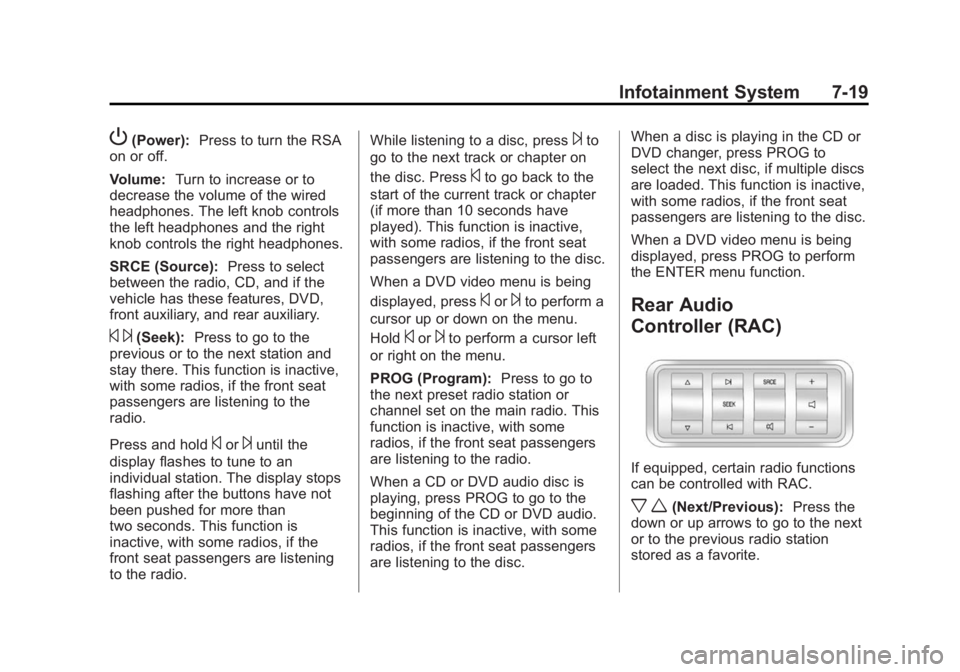
Rear Audio
Controller (RAC)
If equipped, certain radio functions
can be controlled with RAC.
x w(Next/Previous):
Press the
down or up arrows to go to the next
or to the previous radio station
stored as a favorite.
Page 194 of 414
Black plate (20,1)GMC Acadia/Acadia Denali Owner Manual (GMNA-Localizing-U.S./Canada/
Mexico-6014315) - 2014 - crc - 8/15/13
7-20 Infotainment System
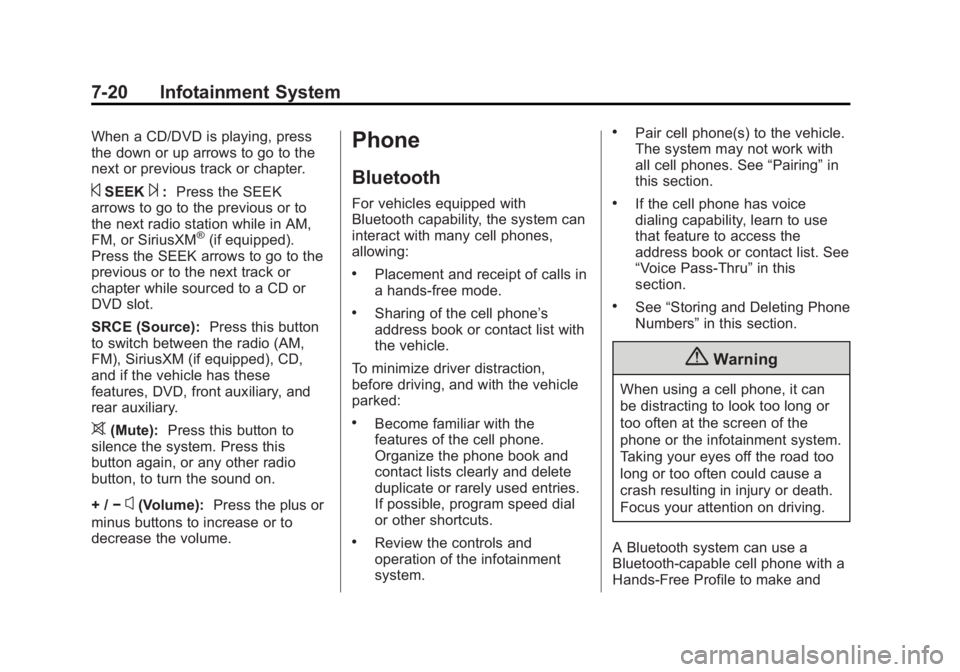
When a CD/DVD is playing, press
the down or up arrows to go to the
next or previous track or chapter.
©SEEK¨:Press the SEEK
arrows to go to the previous or to
the next radio station while in AM,
FM, or SiriusXM
®(if equipped).
Press the SEEK arrows to go to the
previous or to the next track or
chapter while sourced to a CD or
DVD slot.
SRCE (Source): Press this button
to switch between the radio (AM,
FM), SiriusXM (if equipped), CD,
and if the vehicle has these
features, DVD, front auxiliary, and
rear auxiliary.
>(Mute): Press this button to
silence the system. Press this
button again, or any other radio
button, to turn the sound on.
+ / −
x(Volume): Press the plus or
minus buttons to increase or to
decrease the volume.
Phone
Bluetooth
For vehicles equipped with
Bluetooth capability, the system can
interact with many cell phones,
allowing:
.Placement and receipt of calls in
a hands-free mode.
.Sharing of the cell phone’s
address book or contact list with
the vehicle.
To minimize driver distraction,
before driving, and with the vehicle
parked:
.Become familiar with the
features of the cell phone.
Organize the phone book and
contact lists clearly and delete
duplicate or rarely used entries.
If possible, program speed dial
or other shortcuts.
.Review the controls and
operation of the infotainment
system.
.Pair cell phone(s) to the vehicle.
The system may not work with
all cell phones. See “Pairing”in
this section.
.If the cell phone has voice
dialing capability, learn to use
that feature to access the
address book or contact list. See
“Voice Pass-Thru” in this
section.
.See “Storing and Deleting Phone
Numbers” in this section.
{Warning
When using a cell phone, it can
be distracting to look too long or
too often at the screen of the
phone or the infotainment system.
Taking your eyes off the road too
long or too often could cause a
crash resulting in injury or death.
Focus your attention on driving.
A Bluetooth system can use a
Bluetooth-capable cell phone with a
Hands-Free Profile to make and