change wheel GMC ACADIA 2014 Owner's Manual
[x] Cancel search | Manufacturer: GMC, Model Year: 2014, Model line: ACADIA, Model: GMC ACADIA 2014Pages: 414, PDF Size: 4.21 MB
Page 5 of 414
Black plate (5,1)GMC Acadia/Acadia Denali Owner Manual (GMNA-Localizing-U.S./Canada/
Mexico-6014315) - 2014 - crc - 8/15/13
Introduction v
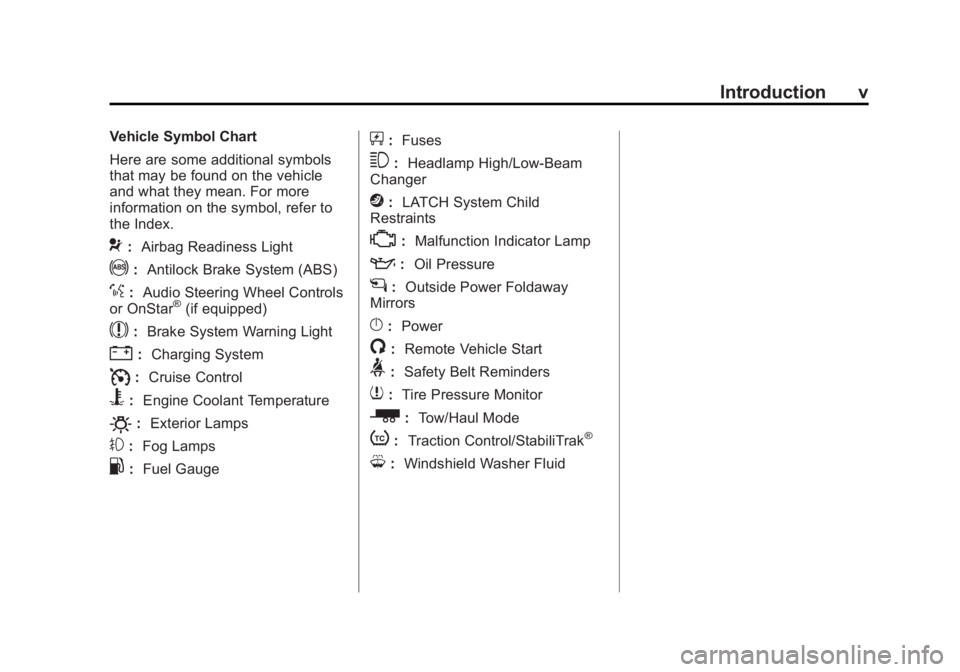
Vehicle Symbol Chart
Here are some additional symbols
that may be found on the vehicle
and what they mean. For more
information on the symbol, refer to
the Index.
9:Airbag Readiness Light
!:Antilock Brake System (ABS)
%:Audio Steering Wheel Controls
or OnStar®(if equipped)
$: Brake System Warning Light
":Charging System
I:Cruise Control
B: Engine Coolant Temperature
O:Exterior Lamps
#:Fog Lamps
.: Fuel Gauge
+:Fuses
3: Headlamp High/Low-Beam
Changer
j: LATCH System Child
Restraints
*: Malfunction Indicator Lamp
::Oil Pressure
g:Outside Power Foldaway
Mirrors
}: Power
/:Remote Vehicle Start
>:Safety Belt Reminders
7:Tire Pressure Monitor
_: Tow/Haul Mode
t:Traction Control/StabiliTrak®
M:Windshield Washer Fluid
Page 9 of 414
Black plate (3,1)GMC Acadia/Acadia Denali Owner Manual (GMNA-Localizing-U.S./Canada/
Mexico-6014315) - 2014 - crc - 8/15/13
In Brief 1-3
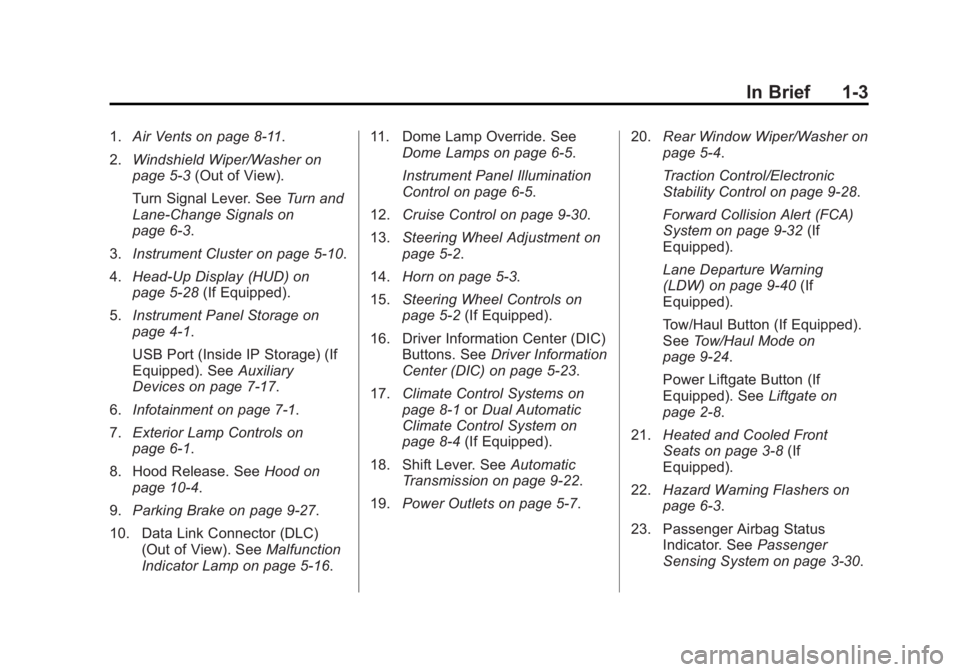
1.Air Vents on page 8-11.
2. Windshield Wiper/Washer on
page 5-3 (Out of View).
Turn Signal Lever. See Turn and
Lane-Change Signals on
page 6-3.
3. Instrument Cluster on page 5-10.
4. Head-Up Display (HUD) on
page 5-28 (If Equipped).
5. Instrument Panel Storage on
page 4-1.
USB Port (Inside IP Storage) (If
Equipped). See Auxiliary
Devices on page 7-17.
6. Infotainment on page 7-1.
7. Exterior Lamp Controls on
page 6-1.
8. Hood Release. See Hood on
page 10-4.
9. Parking Brake on page 9-27.
10. Data Link Connector (DLC) (Out of View). See Malfunction
Indicator Lamp on page 5-16. 11. Dome Lamp Override. See
Dome Lamps on page 6-5.
Instrument Panel Illumination
Control on page 6-5.
12. Cruise Control on page 9-30.
13. Steering Wheel Adjustment on
page 5-2.
14. Horn on page 5-3.
15. Steering Wheel Controls on
page 5-2 (If Equipped).
16. Driver Information Center (DIC) Buttons. See Driver Information
Center (DIC) on page 5-23.
17. Climate Control Systems on
page 8-1 orDual Automatic
Climate Control System on
page 8-4 (If Equipped).
18. Shift Lever. See Automatic
Transmission on page 9-22.
19. Power Outlets on page 5-7. 20.
Rear Window Wiper/Washer on
page 5-4.
Traction Control/Electronic
Stability Control on page 9-28.
Forward Collision Alert (FCA)
System on page 9-32 (If
Equipped).
Lane Departure Warning
(LDW) on page 9-40 (If
Equipped).
Tow/Haul Button (If Equipped).
See Tow/Haul Mode on
page 9-24.
Power Liftgate Button (If
Equipped). See Liftgate on
page 2-8.
21. Heated and Cooled Front
Seats on page 3-8 (If
Equipped).
22. Hazard Warning Flashers on
page 6-3.
23. Passenger Airbag Status Indicator. See Passenger
Sensing System on page 3-30.
Page 24 of 414
Black plate (18,1)GMC Acadia/Acadia Denali Owner Manual (GMNA-Localizing-U.S./Canada/
Mexico-6014315) - 2014 - crc - 8/15/13
1-18 In Brief
etc. can be connected to the
auxiliary port using a 3.5 mm (1/8 in)
input jack or the USB port
depending on the audio system.
If equipped, there are two USB
ports on the rear of the center
console that can be used for
charging only. They can charge
devices that draw 2.1 amps or less.
See the device’s owner manual for
the specification.
See Auxiliary Devices on page 7-17.
Bluetooth®
The Bluetooth®system allows users
with a Bluetooth-enabled mobile
phone to make and receive
hands-free calls using the vehicle
audio system and controls.
The Bluetooth-enabled mobile
phone must be paired with the
in-vehicle Bluetooth system before it
can be used in the vehicle. Not all
phones will support all functions.
See Bluetooth on page 7-20.
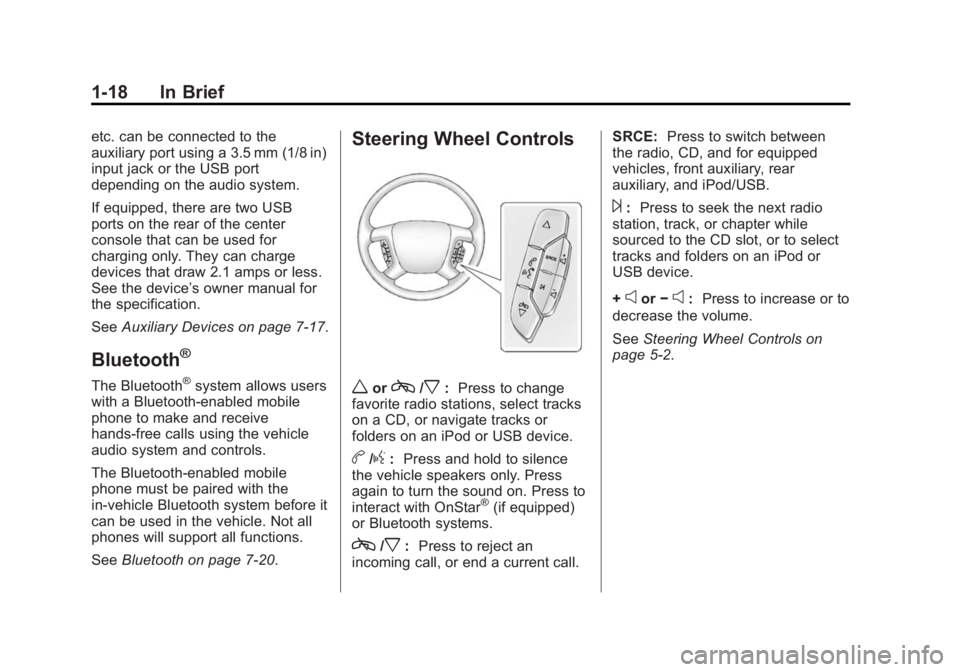
Steering Wheel Controls
worc/x:Press to change
favorite radio stations, select tracks
on a CD, or navigate tracks or
folders on an iPod or USB device.
b/g: Press and hold to silence
the vehicle speakers only. Press
again to turn the sound on. Press to
interact with OnStar
®(if equipped)
or Bluetooth systems.
c/x: Press to reject an
incoming call, or end a current call. SRCE:
Press to switch between
the radio, CD, and for equipped
vehicles, front auxiliary, rear
auxiliary, and iPod/USB.
¨: Press to seek the next radio
station, track, or chapter while
sourced to the CD slot, or to select
tracks and folders on an iPod or
USB device.
+
eor −e:Press to increase or to
decrease the volume.
See Steering Wheel Controls on
page 5-2.
Page 143 of 414
Black plate (29,1)GMC Acadia/Acadia Denali Owner Manual (GMNA-Localizing-U.S./Canada/
Mexico-6014315) - 2014 - crc - 8/15/13
Instruments and Controls 5-29
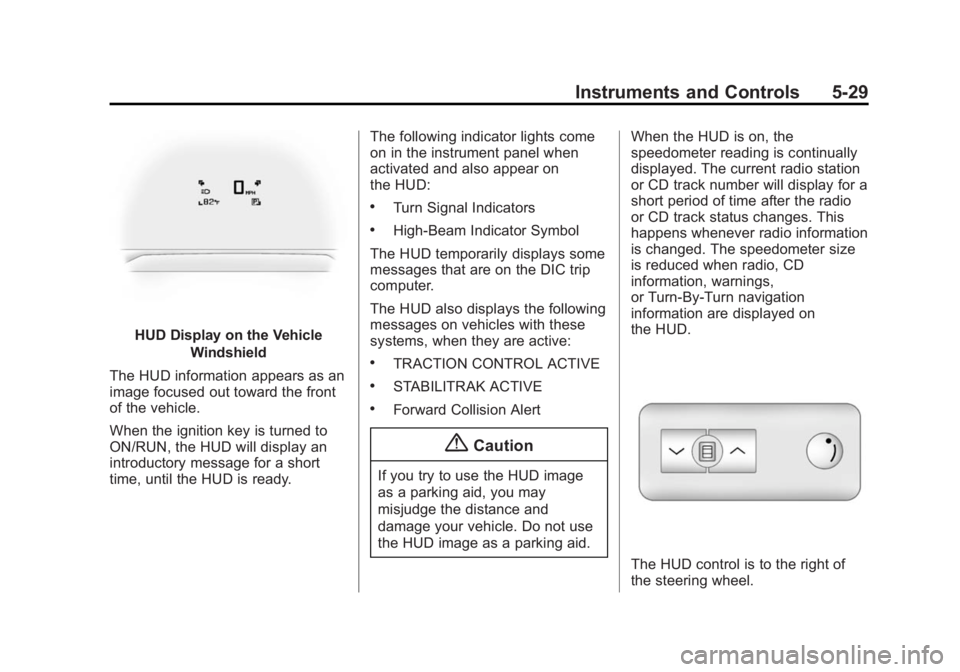
HUD Display on the VehicleWindshield
The HUD information appears as an
image focused out toward the front
of the vehicle.
When the ignition key is turned to
ON/RUN, the HUD will display an
introductory message for a short
time, until the HUD is ready. The following indicator lights come
on in the instrument panel when
activated and also appear on
the HUD:
.Turn Signal Indicators
.High-Beam Indicator Symbol
The HUD temporarily displays some
messages that are on the DIC trip
computer.
The HUD also displays the following
messages on vehicles with these
systems, when they are active:
.TRACTION CONTROL ACTIVE
.STABILITRAK ACTIVE
.Forward Collision Alert
{Caution
If you try to use the HUD image
as a parking aid, you may
misjudge the distance and
damage your vehicle. Do not use
the HUD image as a parking aid. When the HUD is on, the
speedometer reading is continually
displayed. The current radio station
or CD track number will display for a
short period of time after the radio
or CD track status changes. This
happens whenever radio information
is changed. The speedometer size
is reduced when radio, CD
information, warnings,
or Turn-By-Turn navigation
information are displayed on
the HUD.
The HUD control is to the right of
the steering wheel.
Page 161 of 414
Black plate (47,1)GMC Acadia/Acadia Denali Owner Manual (GMNA-Localizing-U.S./Canada/
Mexico-6014315) - 2014 - crc - 8/15/13
Instruments and Controls 5-47
Press the customization button until
EASY EXIT SEAT appears on the
DIC display. Press the set/reset
button once to access the settings
for this feature. Then press the
customization button to scroll
through the following settings:
OFF (default):No automatic seat
exit recall will occur.
ON: The driver seat will move back
when the key is removed from the
ignition. The steering column will
also move up and forward on
vehicles with the power tilt and
telescopic steering feature. See
Steering Wheel Adjustment on
page 5-2.
The automatic easy exit seat
movement will only occur one time
after the key is removed from the
ignition. If the automatic movement
has already occurred, and you put
the key back in the ignition and
remove it again, the seat and
steering column will stay in the original exit position, unless a
memory recall took place prior to
removing the key again.
NO CHANGE:
No change will be
made to this feature. The current
setting will remain.
To select a setting, press the set/
reset button while the desired
setting is displayed on the DIC.
MEMORY SEAT RECALL
If your vehicle has this feature, it
allows you to select your preference
for the remote memory seat recall
feature. See Memory Seats on
page 3-6.
Press the customization button until
MEMORY SEAT RECALL appears
on the DIC display. Press the set/
reset button once to access the
settings for this feature. Then press
the customization button to scroll
through the following settings:
OFF (default): No remote memory
seat recall will occur. ON:
The driver seat and outside
mirrors will automatically move to
the stored driving position when the
unlock button on the Remote
Keyless Entry (RKE) transmitter is
pressed. The steering column will
also move on vehicles with the
power tilt and telescopic steering
feature. See Steering Wheel
Adjustment on page 5-2. See
“Memory Remote Recall” under
Memory Seats on page 3-6 for
information on matching transmitters
to driver positions.
NO CHANGE: No change will be
made to this feature. The current
setting will remain.
To select a setting, press the set/
reset button while the desired
setting is displayed on the DIC.
REMOTE START
If your vehicle has this feature, it
allows you to turn the remote start
off or on. The remote start feature
allows you to start the engine from
outside of the vehicle using the
Page 167 of 414
Black plate (1,1)GMC Acadia/Acadia Denali Owner Manual (GMNA-Localizing-U.S./Canada/
Mexico-6014315) - 2014 - crc - 8/15/13
Lighting 6-1
Lighting
Exterior Lighting
Exterior Lamp Controls . . . . . . . . 6-1
Headlamp High/Low-BeamChanger . . . . . . . . . . . . . . . . . . . . . 6-2
Flash-to-Pass . . . . . . . . . . . . . . . . . 6-2
Daytime Running Lamps (DRL)/Automatic Headlamp
System . . . . . . . . . . . . . . . . . . . . . . 6-2
Delayed Headlamps . . . . . . . . . . 6-3
Hazard Warning Flashers . . . . . 6-3
Turn and Lane-Change Signals . . . . . . . . . . . . . . . . . . . . . . 6-3
Fog Lamps . . . . . . . . . . . . . . . . . . . . 6-4
Interior Lighting
Instrument Panel Illumination Control . . . . . . . . . . . . . . . . . . . . . . 6-5
Courtesy Lamps . . . . . . . . . . . . . . 6-5
Dome Lamps . . . . . . . . . . . . . . . . . 6-5
Reading Lamps . . . . . . . . . . . . . . . 6-6
Lighting Features
Entry Lighting . . . . . . . . . . . . . . . . . 6-6
Delayed Entry Lighting . . . . . . . . 6-6
Delayed Exit Lighting . . . . . . . . . 6-7
Parade Dimming . . . . . . . . . . . . . . 6-7
Battery Load Management . . . . 6-7
Battery Power Protection . . . . . . 6-8
Exterior Lighting
Exterior Lamp Controls
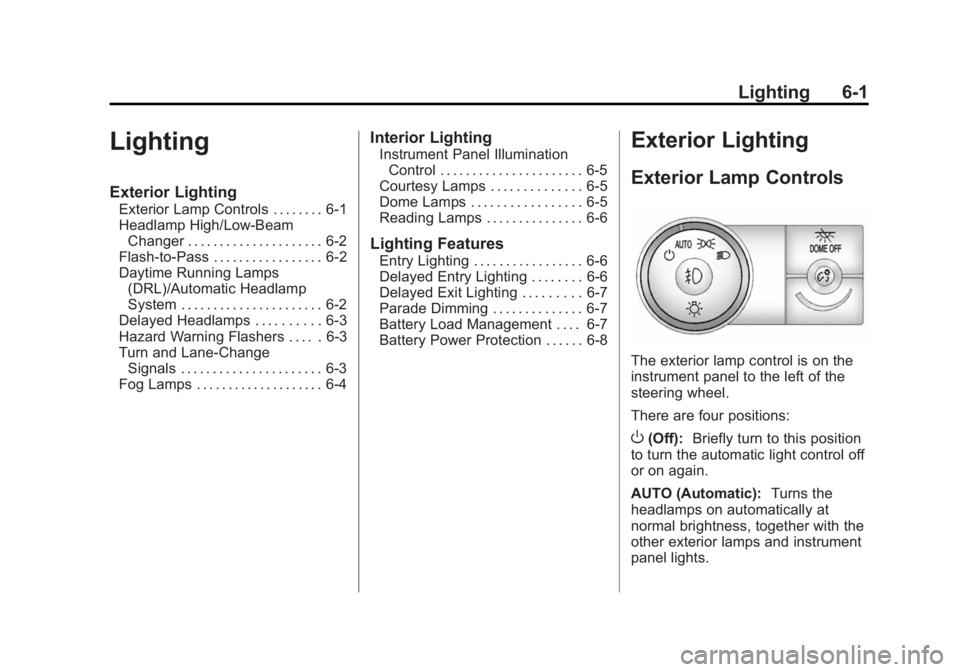
The exterior lamp control is on the
instrument panel to the left of the
steering wheel.
There are four positions:
O(Off): Briefly turn to this position
to turn the automatic light control off
or on again.
AUTO (Automatic): Turns the
headlamps on automatically at
normal brightness, together with the
other exterior lamps and instrument
panel lights.
Page 180 of 414
Black plate (6,1)GMC Acadia/Acadia Denali Owner Manual (GMNA-Localizing-U.S./Canada/
Mexico-6014315) - 2014 - crc - 8/15/13
7-6 Infotainment System
.Fade: Press F for more sound
from the front speakers or R for
more sound from the rear
speakers. The middle position
balances the sound between the
front and rear speakers.
DSP Mode: Press
oorpto adjust
the DSP mode (if equipped).
Language
To change the language of the
screens. See Vehicle
Personalization on page 5-42.
English or Metric Units
To change the screens from English
or metric. See Driver Information
Center (DIC) on page 5-23.
Radio
AM-FM Radio
Playing the Radio
PUSH/O(Power/Volume):
.Press to turn the radio on or off.
.Turn to increase or decrease the
volume of the active source.
The steering wheel controls can
also be used to adjust the volume.
See Steering Wheel Controls on
page 5-2.
Audio Source
To access AM, FM, or SiriusXM
®if
equipped, do one of the following:
.Press the AM, FM, or XM (if
equipped) screen button.
.Press the SRCE radio button to
scroll through the options.
A source ribbon will appear at
the bottom of the screen
allowing you to select the one
you want.
Infotainment System Settings
Tone Settings
To access the tone settings, press
the Tone Settings button on the
Home Page.
To adjust the settings:
.Bass: Press + or −to change
the level.
.Middle: Press + or −to change
the level.
.Treble: Press + or −to change
the level.
.EQ: Pressoorpto scroll
through the preset EQ options.
.DSP Mode: Pressoorpto
scroll through the preset DSP
modes.
.Fade: Press the F or R button
for more sound from the front or
rear speakers. The middle
position balances the sound
between the front and rear
speakers.
Page 195 of 414
Black plate (21,1)GMC Acadia/Acadia Denali Owner Manual (GMNA-Localizing-U.S./Canada/
Mexico-6014315) - 2014 - crc - 8/15/13
Infotainment System 7-21
receive phone calls. The system
can be used while the key is in the
ON/RUN or ACC/ACCESSORY
position. The range of the Bluetooth
system can be up to 9.1 m (30 ft).
Not all phones support all functions,
and not all phones work with the
in-vehicle Bluetooth system. See
www.gm.com/bluetooth for more
information on compatible phones.
Voice Recognition
The Bluetooth system uses voice
recognition to interpret voice
commands to dial phone numbers
and name tags.
For additional information, say
“Help”while you are in a voice
recognition menu.
Noise: Keep interior noise levels to
a minimum. The system may not
recognize voice commands if there
is too much background noise. When to Speak:
A short tone
sounds after the system responds
indicating when it is waiting for a
voice command. Wait until the tone
and then speak.
How to Speak: Speak clearly in a
calm and natural voice.
Audio System
When using the in-vehicle Bluetooth
system, sound comes through the
vehicle's front audio system
speakers and overrides the audio
system. Use the audio system
volume knob, during a call, to
change the volume level. The
adjusted volume level remains in
memory for later calls. To prevent
missed calls, a minimum volume
level is used if the volume is turned
down too low.
Bluetooth Controls
Use the buttons located on the
steering wheel to operate the
in-vehicle Bluetooth system. See
Steering Wheel Controls on
page 5-2.
b/g(Push To Talk): Press to
answer incoming calls, confirm
system information, and start
speech recognition.
c/x(End): Press to end a call,
reject a call, or cancel an operation.
Pairing
A Bluetooth enabled cell phone
must be paired to the Bluetooth
system and then connected to the
vehicle before it can be used. See
the cell phone manufacturer's user
guide for Bluetooth functions before
pairing the cell phone. If a Bluetooth
phone is not connected, calls will be
made using OnStar Hands-Free
Calling, if equipped. See “OnStar”if
equipped.
Pairing Information
.A Bluetooth phone with MP3
capability cannot be paired to
the vehicle as a phone and an
MP3 player at the same time.
.Up to five cell phones can be
paired to the Bluetooth system.
Page 215 of 414
Black plate (11,1)GMC Acadia/Acadia Denali Owner Manual (GMNA-Localizing-U.S./Canada/
Mexico-6014315) - 2014 - crc - 8/15/13
Climate Controls 8-11
DandC(Fan Control):Press the
fan up or down buttons to increase
or decrease the fan speed.
Temperature Control: Press + or
− to increase or decrease the air
temperature. The temperature
settings will display in
0-12 increments, going from the
coolest (0) to the warmest (12)
setting.
N(Air Delivery Mode Control):
Press to manually change the
direction of the airflow. Repeatedly
press the button until the desired
mode appears on the display.
H(Vent): Air is directed through
the overhead outlets.
)(Bi-Level): Air is directed
through the rear floor outlets, as
well as the overhead outlets.
6(Floor): Air is directed through
the floor outlets. The rear system
floor outlets are located under the
third row seats.
Air Vents
Use the slider switch in the center of
the outlet, to change the direction of
the airflow. Use the thumbwheel
near the outlet to control the amount
of airflow or to shut off the airflow.
Keep all outlets open whenever
possible for best system
performance.
Operation Tips
.Clear away any ice, snow,
or leaves from the air inlets at
the base of the windshield that
can block the flow of air into the
vehicle.
.Use of non-GM approved hood
deflectors can adversely affect
the performance of the system.
.Keep the path under all seats
clear of objects to help circulate
the air inside the vehicle more
effectively.
.If fogging reoccurs while in vent
or bi-level modes with mild
temperature throughout the
vehicle, turn on the air
conditioner to reduce windshield
fogging.
Page 232 of 414
Black plate (16,1)GMC Acadia/Acadia Denali Owner Manual (GMNA-Localizing-U.S./Canada/
Mexico-6014315) - 2014 - crc - 8/15/13
9-16 Driving and Operating
If the vehicle cannot be pulled over,
and must be shut off while driving,
turn the ignition to ACC/
ACCESSORY.
ACC (ACC/ACCESSORY):This is
the position in which you can
operate the electrical accessories or
items plugged into the accessory
power outlets. This position unlocks
the ignition and steering wheel. Use
this position if the vehicle must be
pushed or towed.
R(ON/RUN): This position can be
used to operate the electrical
accessories and to display some
instrument panel warning and
indicator lights. This position can
also be used for service and
diagnostics, and to verify the proper
operation of the malfunction
indicator lamp as may be required
for emission inspection purposes.
The switch stays in this position
when the engine is running. The
transmission is also unlocked in this
position. If you leave the key in the
ACC/ACCESSORY or ON/RUN
position with the engine off, the battery could be drained. You may
not be able to start the vehicle if the
battery is allowed to drain for an
extended period of time.
/(START):
This is the position
that starts the engine. When the
engine starts, release the key. The
ignition switch will return to ON/RUN
for driving.
Key Lock Release
The vehicle has an electronic key
lock release system. This system is
to prevent ignition key removal
unless the shift lever is in P (Park).
The key lock release will not work if
the battery is charged less than
9-volts, or uncharged. Try charging
or jump starting the battery. See
Jump Starting on page 10-68
Starting the Engine
Move the shift lever to P (Park) or
N (Neutral). The engine will not start
in any other position. To restart the
engine when the vehicle is already
moving, use N (Neutral) only.
{Caution
Do not try to shift to P (Park) if the
vehicle is moving. If you do, you
could damage the transmission.
Shift to P (Park) only when the
vehicle is stopped.
{Caution
If you add electrical parts or
accessories, you could change
the way the engine operates. Any
resulting damage would not be
covered by the vehicle warranty.
See Add-On Electrical Equipment
on page 9-53.