CD player GMC ACADIA 2015 Owner's Manual
[x] Cancel search | Manufacturer: GMC, Model Year: 2015, Model line: ACADIA, Model: GMC ACADIA 2015Pages: 407, PDF Size: 4.46 MB
Page 2 of 407
Black plate (1,1)GMC Acadia/Acadia Denali Owner Manual (GMNA-Localizing-U.S./Canada/
Mexico-7576030) - 2015 - CRC - 8/18/14
2015 GMC Acadia/Acadia Denali Owner ManualM
In Brief. . . . . . . . . . . . . . . . . . . . . . . . 1-1
Instrument Panel . . . . . . . . . . . . . . 1-2
Initial Drive Information . . . . . . . . 1-4
Vehicle Features . . . . . . . . . . . . . 1-16
Performance and Maintenance . . . . . . . . . . . . . . . . 1-21
Keys, Doors, and Windows . . . . . . . . . . . . . . . . . . . . 2-1
Keys and Locks . . . . . . . . . . . . . . . 2-1
Doors . . . . . . . . . . . . . . . . . . . . . . . . . . 2-8
Vehicle Security . . . . . . . . . . . . . . 2-11
Exterior Mirrors . . . . . . . . . . . . . . . 2-14
Interior Mirrors . . . . . . . . . . . . . . . . 2-16
Windows . . . . . . . . . . . . . . . . . . . . . 2-17
Roof . . . . . . . . . . . . . . . . . . . . . . . . . . 2-19
Seats and Restraints . . . . . . . . . 3-1
Head Restraints . . . . . . . . . . . . . . . 3-2
Front Seats . . . . . . . . . . . . . . . . . . . . 3-3
Rear Seats . . . . . . . . . . . . . . . . . . . . 3-9
Safety Belts . . . . . . . . . . . . . . . . . . 3-14
Airbag System . . . . . . . . . . . . . . . . 3-22
Child Restraints . . . . . . . . . . . . . . 3-36 Storage
. . . . . . . . . . . . . . . . . . . . . . . 4-1
Storage Compartments . . . . . . . . 4-1
Additional Storage Features . . . 4-3
Roof Rack System . . . . . . . . . . . . . 4-4
Instruments and Controls . . . . 5-1
Controls . . . . . . . . . . . . . . . . . . . . . . . 5-2
Warning Lights, Gauges, and
Indicators . . . . . . . . . . . . . . . . . . . . 5-9
Information Displays . . . . . . . . . . 5-23
Vehicle Messages . . . . . . . . . . . . 5-32
Vehicle Personalization . . . . . . . 5-42
Universal Remote System . . . . 5-49
Lighting . . . . . . . . . . . . . . . . . . . . . . . 6-1
Exterior Lighting . . . . . . . . . . . . . . . 6-1
Interior Lighting . . . . . . . . . . . . . . . . 6-5
Lighting Features . . . . . . . . . . . . . . 6-6
Infotainment System . . . . . . . . . 7-1
Introduction . . . . . . . . . . . . . . . . . . . . 7-1
Radio . . . . . . . . . . . . . . . . . . . . . . . . . . 7-6
Audio Players . . . . . . . . . . . . . . . . 7-11
Rear Seat Infotainment . . . . . . . 7-16
Phone . . . . . . . . . . . . . . . . . . . . . . . . 7-18 Settings . . . . . . . . . . . . . . . . . . . . . . 7-25
Trademarks and License
Agreements . . . . . . . . . . . . . . . . . 7-27
Climate Controls . . . . . . . . . . . . . 8-1
Climate Control Systems . . . . . . 8-1
Air Vents . . . . . . . . . . . . . . . . . . . . . 8-11
Maintenance . . . . . . . . . . . . . . . . . 8-12
Driving and Operating . . . . . . . . 9-1
Driving Information . . . . . . . . . . . . . 9-2
Starting and Operating . . . . . . . 9-14
Engine Exhaust . . . . . . . . . . . . . . 9-21
Automatic Transmission . . . . . . 9-22
Drive Systems . . . . . . . . . . . . . . . . 9-26
Brakes . . . . . . . . . . . . . . . . . . . . . . . 9-26
Ride Control Systems . . . . . . . . 9-28
Cruise Control . . . . . . . . . . . . . . . . 9-30
Driver Assistance Systems . . . 9-33
Fuel . . . . . . . . . . . . . . . . . . . . . . . . . . 9-42
Trailer Towing . . . . . . . . . . . . . . . . 9-46
Conversions and Add-Ons . . . 9-53
Page 23 of 407
Black plate (16,1)GMC Acadia/Acadia Denali Owner Manual (GMNA-Localizing-U.S./Canada/
Mexico-7576030) - 2015 - CRC - 8/18/14
1-16 In Brief
Vehicle Features
Radio(s)
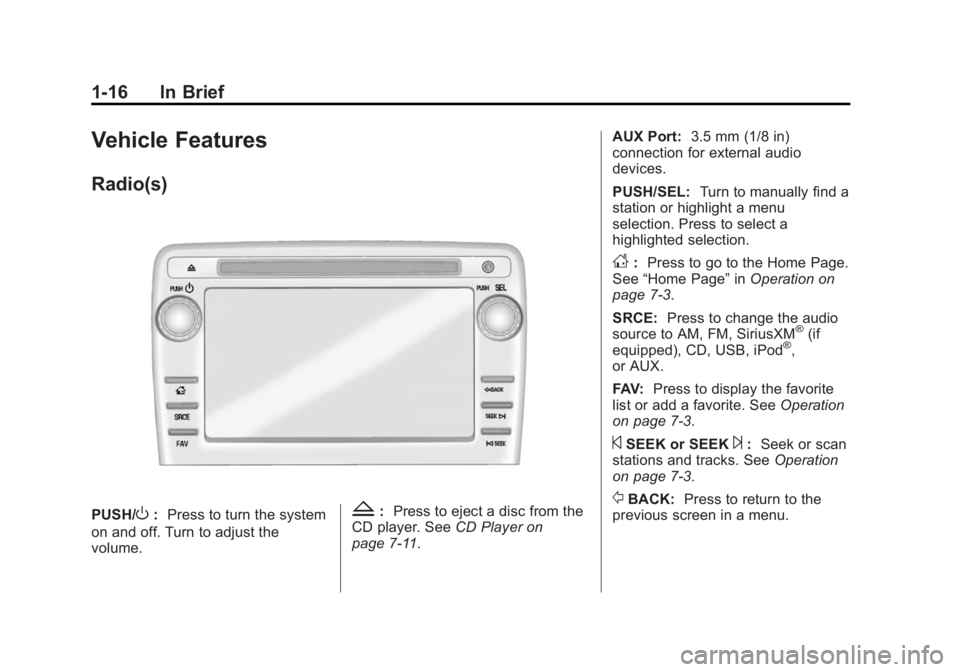
PUSH/O:Press to turn the system
on and off. Turn to adjust the
volume.Z: Press to eject a disc from the
CD player. See CD Player on
page 7-11. AUX Port:
3.5 mm (1/8 in)
connection for external audio
devices.
PUSH/SEL: Turn to manually find a
station or highlight a menu
selection. Press to select a
highlighted selection.
D: Press to go to the Home Page.
See “Home Page” inOperation on
page 7-3.
SRCE: Press to change the audio
source to AM, FM, SiriusXM
®(if
equipped), CD, USB, iPod®,
or AUX.
FAV: Press to display the favorite
list or add a favorite. See Operation
on page 7-3.
©SEEK or SEEK¨: Seek or scan
stations and tracks. See Operation
on page 7-3.
/BACK: Press to return to the
previous screen in a menu.
Page 25 of 407
Black plate (18,1)GMC Acadia/Acadia Denali Owner Manual (GMNA-Localizing-U.S./Canada/
Mexico-7576030) - 2015 - CRC - 8/18/14
1-18 In Brief
Portable Audio Devices
The vehicle has a 3.5 mm (1/8 in)
auxiliary input jack on the faceplate
and a USB port in the center stack.
External devices such as iPods,
laptop computers, MP3 players, CD
changers, USB storage devices,
etc. can be connected to the
auxiliary port using a 3.5 mm (1/8 in)
input jack or the USB port
depending on the audio system.
If equipped, there are two USB
ports on the rear of the center
console that can be used for
charging only. They can charge
devices that draw 2.1 amps or less.
See the device’s owner manual for
the specification.
See Auxiliary Devices on page 7-15.
Bluetooth®
The Bluetooth®system allows users
with a Bluetooth-enabled mobile
phone to make and receive
hands-free calls using the vehicle
audio system and controls. The Bluetooth-enabled mobile
phone must be paired with the
in-vehicle Bluetooth system before it
can be used in the vehicle. Not all
phones will support all functions.
See
Bluetooth on page 7-18.
Steering Wheel Controls
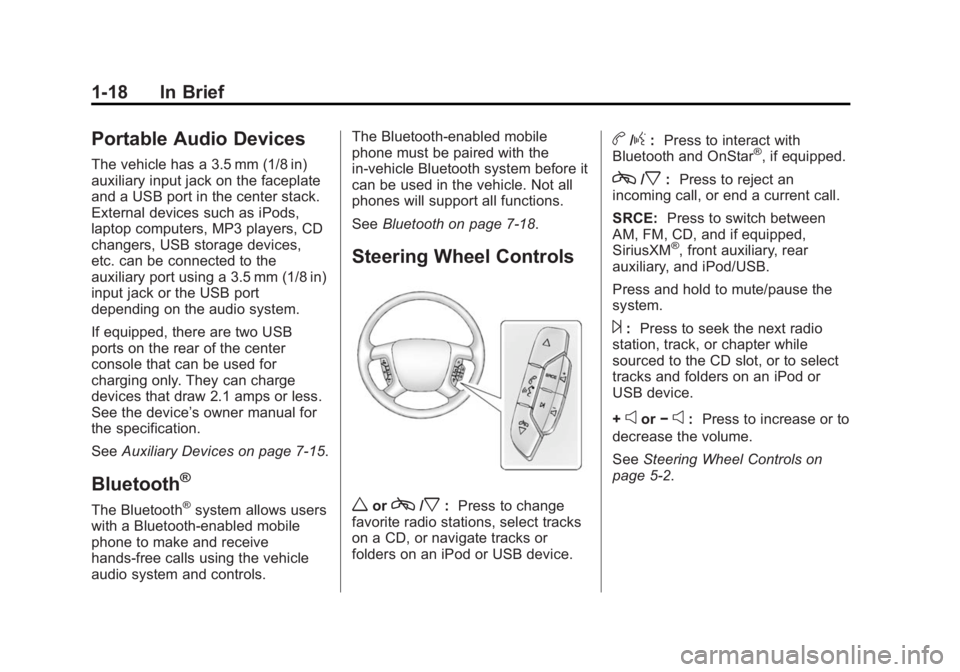
worc/x:Press to change
favorite radio stations, select tracks
on a CD, or navigate tracks or
folders on an iPod or USB device.
b/g: Press to interact with
Bluetooth and OnStar®, if equipped.
c/x: Press to reject an
incoming call, or end a current call.
SRCE: Press to switch between
AM, FM, CD, and if equipped,
SiriusXM
®, front auxiliary, rear
auxiliary, and iPod/USB.
Press and hold to mute/pause the
system.
¨: Press to seek the next radio
station, track, or chapter while
sourced to the CD slot, or to select
tracks and folders on an iPod or
USB device.
+
eor −e:Press to increase or to
decrease the volume.
See Steering Wheel Controls on
page 5-2.
Page 27 of 407

Black plate (20,1)GMC Acadia/Acadia Denali Owner Manual (GMNA-Localizing-U.S./Canada/
Mexico-7576030) - 2015 - CRC - 8/18/14
1-20 In Brief
SeeSide Blind Zone Alert (SBZA)
on page 9-36.
Rear Vision
Camera (RVC)
If equipped, RVC displays a view of
the area behind the vehicle, on the
center stack display, when the
vehicle is shifted into R (Reverse).
See Rear Vision Camera (RVC) on
page 9-38.
Rear Cross Traffic Alert
(RCTA) System
If equipped, the RCTA system uses
a triangle with an arrow displayed
on the RVC screen to warn of traffic
behind your vehicle that may cross
your vehicle's path while in
R (Reverse). In addition, beeps will
sound.
See “Rear Cross Traffic Alert
(RCTA)” underRear Vision Camera
(RVC) on page 9-38.
Parking Assist
If equipped, this system uses
sensors on the rear bumper to
assist with parking and avoiding
objects while in R (Reverse).
It operates at speeds less than
8 km/h (5 mph). Rear Parking Assist
(RPA) uses audible beeps to
provide distance and system
information.
Keep the sensors on the vehicle's
rear bumper clean to ensure proper
operation.
See Parking Assist on page 9-35.
Power Outlets
The vehicle has 12-volt accessory
power outlets, which can be used to
plug in electrical equipment, such as
a cell phone or MP3 player.
The power outlets are located:
.On the center stack below the
climate controls.
.Inside the center console.
.At the rear of the center console.
.In the rear cargo area.
To use the outlets, remove the
cover.
See Power Outlets on page 5-7.
Universal Remote System
If equipped, the Universal Home
Remote System allows for garage
door openers, security systems, and
home automation devices to be
programmed to work with these
buttons in the vehicle.
SeeUniversal Remote System on
page 5-49.
Page 120 of 407
Black plate (7,1)GMC Acadia/Acadia Denali Owner Manual (GMNA-Localizing-U.S./Canada/
Mexico-7576030) - 2015 - CRC - 8/18/14
Instruments and Controls 5-7
Power Outlets
The vehicle has 12-volt outlets that
can be used to plug in electrical
equipment, such as a cell phone or
MP3 player.
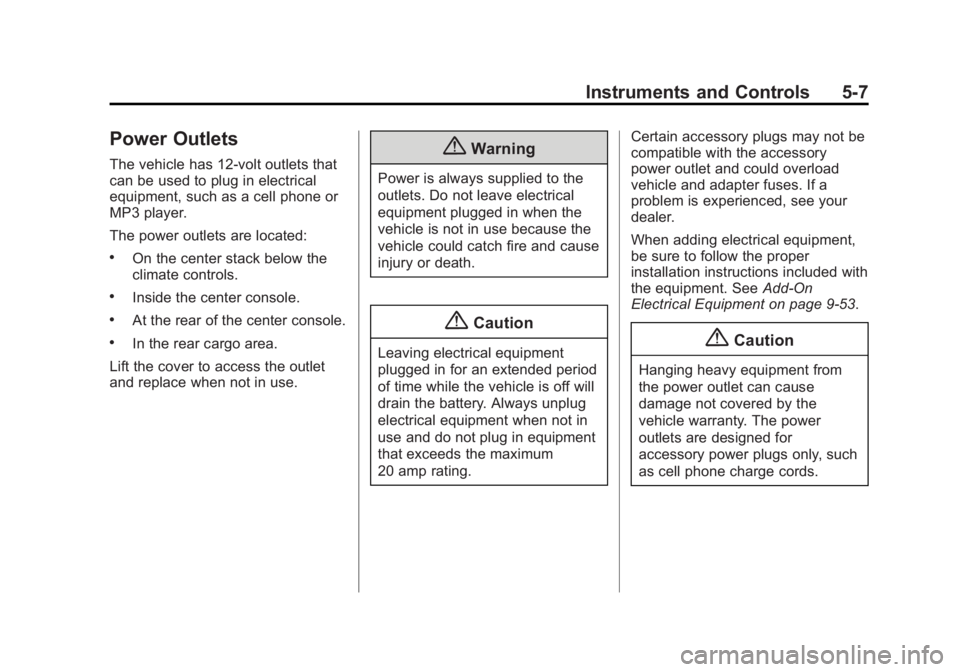
The power outlets are located:
.On the center stack below the
climate controls.
.Inside the center console.
.At the rear of the center console.
.In the rear cargo area.
Lift the cover to access the outlet
and replace when not in use.
{Warning
Power is always supplied to the
outlets. Do not leave electrical
equipment plugged in when the
vehicle is not in use because the
vehicle could catch fire and cause
injury or death.
{Caution
Leaving electrical equipment
plugged in for an extended period
of time while the vehicle is off will
drain the battery. Always unplug
electrical equipment when not in
use and do not plug in equipment
that exceeds the maximum
20 amp rating. Certain accessory plugs may not be
compatible with the accessory
power outlet and could overload
vehicle and adapter fuses. If a
problem is experienced, see your
dealer.
When adding electrical equipment,
be sure to follow the proper
installation instructions included with
the equipment. See
Add-On
Electrical Equipment on page 9-53.{Caution
Hanging heavy equipment from
the power outlet can cause
damage not covered by the
vehicle warranty. The power
outlets are designed for
accessory power plugs only, such
as cell phone charge cords.
Page 174 of 407
Black plate (1,1)GMC Acadia/Acadia Denali Owner Manual (GMNA-Localizing-U.S./Canada/
Mexico-7576030) - 2015 - CRC - 8/18/14
Infotainment System 7-1
Infotainment
System
Introduction
Infotainment . . . . . . . . . . . . . . . . . . . 7-1
Theft-Deterrent Feature . . . . . . . 7-2
Overview . . . . . . . . . . . . . . . . . . . . . . 7-3
Operation . . . . . . . . . . . . . . . . . . . . . 7-3
Radio
AM-FM Radio . . . . . . . . . . . . . . . . . 7-6
Satellite Radio . . . . . . . . . . . . . . . . 7-9
Radio Reception . . . . . . . . . . . . . 7-10
Multi-Band Antenna . . . . . . . . . . 7-11
Audio Players
CD Player . . . . . . . . . . . . . . . . . . . . 7-11
MP3 . . . . . . . . . . . . . . . . . . . . . . . . . 7-13
Auxiliary Devices . . . . . . . . . . . . 7-15
Rear Seat Infotainment
Rear Seat Audio (RSA)System . . . . . . . . . . . . . . . . . . . . . 7-16
Rear Audio Controller (RAC) . . . . . . . . . . . 7-17
Phone
Bluetooth . . . . . . . . . . . . . . . . . . . . 7-18
Settings
Settings . . . . . . . . . . . . . . . . . . . . . . 7-25
Trademarks and License
Agreements
Trademarks and LicenseAgreements . . . . . . . . . . . . . . . . 7-27
Introduction
Infotainment
Base radio information is included in
this manual. See the infotainment
manual for information on other
available infotainment systems.
Read the following pages to
become familiar with these features.
{Warning
Taking your eyes off the road for
too long or too often while using
any infotainment feature can
cause a crash. You or others
could be injured or killed. Do not
give extended attention to
infotainment tasks while driving.
Limit your glances at the vehicle
displays and focus your attention
on driving. Use voice commands
whenever possible.
Page 176 of 407
Black plate (3,1)GMC Acadia/Acadia Denali Owner Manual (GMNA-Localizing-U.S./Canada/
Mexico-7576030) - 2015 - CRC - 8/18/14
Infotainment System 7-3
Overview
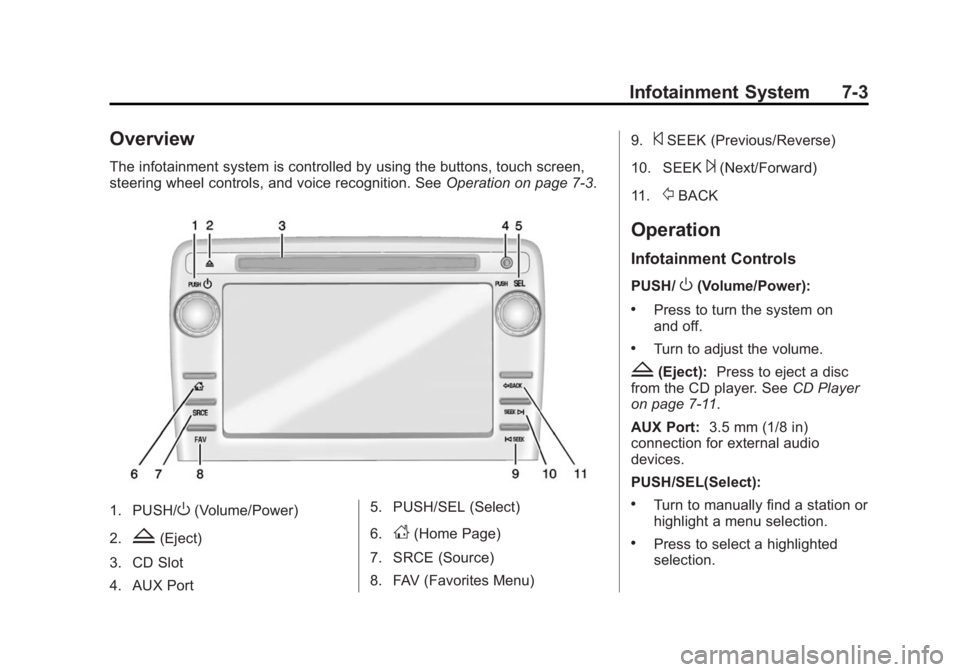
The infotainment system is controlled by using the buttons, touch screen,
steering wheel controls, and voice recognition. SeeOperation on page 7-3.
1. PUSH/O(Volume/Power)
2.
Z(Eject)
3. CD Slot
4. AUX Port 5. PUSH/SEL (Select)
6.D(Home Page)
7. SRCE (Source)
8. FAV (Favorites Menu) 9.
©SEEK (Previous/Reverse)
10. SEEK
¨(Next/Forward)
11.
/BACK
Operation
Infotainment Controls
PUSH/O(Volume/Power):
.Press to turn the system on
and off.
.Turn to adjust the volume.
Z(Eject): Press to eject a disc
from the CD player. See CD Player
on page 7-11.
AUX Port: 3.5 mm (1/8 in)
connection for external audio
devices.
PUSH/SEL(Select):
.Turn to manually find a station or
highlight a menu selection.
.Press to select a highlighted
selection.
Page 177 of 407
Black plate (4,1)GMC Acadia/Acadia Denali Owner Manual (GMNA-Localizing-U.S./Canada/
Mexico-7576030) - 2015 - CRC - 8/18/14
7-4 Infotainment System
D(Home Page):Press to go to
the Home Page. See “Home Page”
in this section.
SRCE (Source): Press to switch
between AM, FM, CD, and if
equipped, SiriusXM
®, front auxiliary,
rear auxiliary, and iPod/USB.
Press and hold to mute/pause the
system. Press and hold again to
unmute/resume the system.
FAV (Favorites Menu): In AM, FM,
or SiriusXM, press to change the
current favorite page number above
the preset buttons. Keep pressing to
scroll through the favorites pages.
The stored stations for each list
display on the bottom of the screen.
The number of preset Favorite
Pages can be changed by pressing
the Settings button on a Home
Page, then pressing Favorites
Pages, and then selecting the
number of Favorite Pages.
©SEEK (Previous/Reverse):
.AM, FM, SiriusXM (if equipped):
Press to seek to the previous
strong station. Press and hold
for Scan. Press
©again to stop
the scan.
.CD, USB: Press to seek to the
beginning of the current or
previous track.
.CD, USB: Press and hold to
quickly reverse through a track.
Release the button to return to
playing speed. See CD Player
on page 7-11 andAuxiliary
Devices on page 7-15.
SEEK
¨(Next/Forward):
.AM, FM, SiriusXM (if equipped):
Press to seek to the next strong
station. Press and hold for Scan.
Press
¨again to stop the scan.
.CD, USB: Press to seek or skip
the next track or program.
.CD, USB: Press and hold to fast
forward through a track. Release
the button to return to playing
speed. See CD Player on
page 7-11 andAuxiliary Devices
on page 7-15.
/BACK: Press to return to the
previous screen in a menu.
Touchscreen Buttons
Touchscreen buttons show visibly
on the screen when available. When
a function is unavailable, the button
may gray-out. When a function is
selected, the button may highlight,
or animate.
Page 184 of 407
Black plate (11,1)GMC Acadia/Acadia Denali Owner Manual (GMNA-Localizing-U.S./Canada/
Mexico-7576030) - 2015 - CRC - 8/18/14
Infotainment System 7-11
Multi-Band Antenna
The multi-band antenna is located
on the roof of the vehicle. This type
of antenna is used with the AM/FM
radio, as well as OnStar and the
SiriusXM Satellite Radio Service
System, if the vehicle has these
features. Keep this antenna clear of
snow and ice build up for clear radio
reception. If the vehicle has a
sunroof, the performance of the
radio system may be affected if the
sunroof is open. Loading items onto
the roof of the vehicle can interfere
with the performance of the radio
system and, if the vehicle has this
feature, OnStar. Make sure the
multi-band antenna is not
obstructed.
Audio Players
CD Player
The player can be used for CD and
MP3 audio.
With the vehicle on, insert a disc
into the slot, label side up. The
player pulls it in and begins playing.
The system is capable of playing:
.Most audio CDs
.CD-R
.CD-RW
.MP3 or unprotected WMA
formats
When playing any compatible
recordable disc, the sound quality
can be reduced due to disc quality,
the method of recording, the quality
of the music that has been
recorded, or the way the disc has
been handled. There can be increased skipping,
difficulty in recording tracks,
difficulty in finding tracks, and/or
difficulty in loading and ejecting.
If these problems occur, check the
disc for damage or try a known
good disc.
To avoid damage to the CD player:
.Do not use scratched or
damaged discs.
.Do not apply labels to discs. The
labels could get caught in the
player.
.Insert only one disc at a time.
.Keep the loading slot free of
foreign materials, liquids, and
debris.
.Use a marking pen to label the
top of the disc.
Page 185 of 407
Black plate (12,1)GMC Acadia/Acadia Denali Owner Manual (GMNA-Localizing-U.S./Canada/
Mexico-7576030) - 2015 - CRC - 8/18/14
7-12 Infotainment System
Loading and Ejecting Discs
To load a disc:
1. Turn the radio on.
2. Insert a disc into the slot, labelside up. The player pulls it in the
rest of the way. If the disc is
damaged or improperly loaded,
there is an error and the disc
ejects.
The disc automatically plays once
loaded.
Press
Zto eject a disc from the
CD player. If the disc is not removed
within a short period of time, it is
automatically pulled back into the
player.
Playing an Audio CD
Make sure a disc is inserted in the
player.
1. Press the Disc screen button on the Home Page or from the
SRCE/Source banner. 2. Press the Menu screen button
on the CD Audio screen to
display a list of Tracks/Songs.
3. Press the desired track/song.
On the Disc main page a track
number displays at the beginning of
each track. Song, Artist, Elapsed
Time, and Album information
displays when available.
Use the following controls to play
the disc:
©SEEK:
.Press to seek to the beginning of
the current or previous track.
If the track has been playing for
less than eight seconds, it seeks
to the previous track. If longer
than eight seconds, the current
track starts from the beginning.
.Press and hold to fast reverse
through a track. Release the
button to return to playing
speed. Elapsed time displays. SEEK
¨:
.Press to seek to the next track.
.Press and hold to fast forward
through a track. Release the
button to return to playing
speed. Elapsed time displays.
PUSH/SEL (Select): Turn to the
right or left to select the next or
previous track.
Error Messages
If Disc Error displays and/or the disc
comes out, it could be for one of the
following reasons:
.The disc has an invalid or
unknown format.
.The disc is very hot. Try the disc
again when the temperature
returns to normal.
.The road is very rough. Try the
disc again when the road is
smoother.
.The disc is dirty, scratched, wet,
or upside down.