Display setting GMC ACADIA 2017 User Guide
[x] Cancel search | Manufacturer: GMC, Model Year: 2017, Model line: ACADIA, Model: GMC ACADIA 2017Pages: 419, PDF Size: 5.89 MB
Page 160 of 419
GMC Acadia/Acadia Denali Owner Manual (GMNA-Localizing-U.S./Canada/
Mexico-9803770) - 2017 - crc - 7/12/16
Instruments and Controls 159
.Tone Settings
. Auto Volume
. Bose Audio Pilot
. Maximum Start Up Volume
Manage Favorites
This allows favorites to be edited.
See “Manage Favorites” in
“Settings” under“Radio” in the
infotainment manual.
Number of Favorites Shown
Touch to set the number of favorites
to display.
Select the desired number or select
Auto and the infotainment system
will automatically adjust the number
of favorites shown.
Audible Touch Feedback
This allows Audible Touch
Feedback to be turned on or off.
Select Off or On.
Text Scroll
Select to see text scroll on the
screen.
Select Off or On. Auto Volume
This feature adjusts the volume
based on vehicle speed and
ambient noise.
Select Off, Low, Medium-Low,
Medium, Medium-High, or High.
Bose Audio Pilot
This feature adjusts the volume
based on the noise in the vehicle.
See
“Bose AudioPilot Noise
Compensation Technology” under
“Infotainment System Settings” in
the infotainment manual.
Select Off or On.
Maximum Start Up Volume
This feature sets the maximum
startup volume. If the vehicle is
started and the volume is greater
than this level, the volume is
adjusted to this level.
To set the maximum startup volume,
touch + or −to increase or
decrease.Vehicle
Select and the following may
display:
. Climate and Air Quality
. Collision/Detection Systems
. Comfort and Convenience
. Lighting
. Power Door Locks
. Remote Lock, Unlock, Start
Climate and Air Quality
Select and the following may
display:
. Auto Fan Speed
. Auto Defog
. Auto Rear Defog
Auto Fan Speed
This feature will set the maximum
auto fan speed.
Select Low, Medium, or High.
Page 161 of 419
GMC Acadia/Acadia Denali Owner Manual (GMNA-Localizing-U.S./Canada/
Mexico-9803770) - 2017 - crc - 7/12/16
160 Instruments and Controls
Auto Defog
When set to On, the front defog will
automatically react to temperature
and humidity conditions that may
cause fogging.
Select Off or On.
Auto Rear Defog
If equipped, this allows the Auto
Rear Defog to be turned on or off.
This feature will automatically turn
on the rear window defogger when it
is cold outside.
Select Off or On.
Collision/Detection Systems
Select the Collision/Detection
Systems menu and the following
may be displayed if equipped:
.Alert Type
. Forward Collision System
. Front Pedestrian Detection
. Rear Cross Traffic Alert
. Go Notifier or Adaptive Cruise
Go Notifier
. Lane Change Alert Alert Type
This feature will set crash alerts to
beeps or seat vibrations. This
setting affects all crash alerts
including Forward Collision, Lane
Departure Warning, Adaptive Cruise
Control, Parking Assist, and
Backing Warning alerts.
Select Beeps or Safety Alert Seat.
Forward Collision System
This feature will turn on or off the
Forward Collision Alert (FCA) and
Forward Automatic Braking (FAB).
The Off setting disables all FCA and
FAB functions. With the Alert and
Brake setting, both FCA and FAB
are available. The Alert setting
disables FAB. See
Forward
Automatic Braking (FAB) 0261.
Select Off, Alert and Brake, or Alert.
Front Pedestrian Detection
This feature may help avoid or
reduce the harm caused by
front-end crashes with nearby
pedestrians.
See Front Pedestrian Braking (FPB)
System 0262. Select Off, Alert, or Alert and Brake.
Rear Cross Traffic Alert
This allows the Rear Cross Traffic
Alert feature to be turned on or off.
Select Off or On.
Go Notifier or Adaptive Cruise Go
Notifier
This feature will give a reminder that
Adaptive Cruise Control provides
when it has brought the vehicle to a
complete stop behind another
stopping vehicle, and then that
vehicle drives on.
Select Off or On.
Lane Change Alert
This allows the feature to be turned
on or off. See
Lane Change Alert
(LCA) 0265.
Select Off or On.
Comfort and Convenience
Select and the following may
display:
. Auto Memory Recall
. Easy Exit Options
Page 166 of 419
GMC Acadia/Acadia Denali Owner Manual (GMNA-Localizing-U.S./Canada/
Mexico-9803770) - 2017 - crc - 7/12/16
Instruments and Controls 165
Rear Camera
This allows for Rear Parking Assist
Symbols and Guidance Lines to be
turned off or on.
Select Off or On for the desired
feature.
SeeAssistance Systems for Parking
or Backing 0255.
Return to Factory Settings
Select and the following may
display:
.
Restore Vehicle Settings
. Clear All Private Data
. Restore Radio Settings
Restore Vehicle Settings
This allows selection of restoring
vehicle settings.
Select Restore or Cancel.
Clear All Private Data
This allows selection to clear all
private information from the vehicle.
Select Delete or Cancel. Restore Radio Settings
This allows selection to restore
radio settings.
Select Restore or Cancel.
Software Information
Touch to view the version of the
infotainment system software.
Wi-Fi
Select and the following may
display:
.
Wi-Fi
. Manage Wi-Fi Networks
Wi-Fi
This feature allows Wi-Fi networks
to be turned off or on.
Select Off or On.
Manage Wi-Fi Networks
Select to manage Wi-Fi networks.
Wi-Fi must be on for this feature to
be accessed.
Universal Remote
System
See Radio Frequency
Statement 0394.
Universal Remote System
Programming
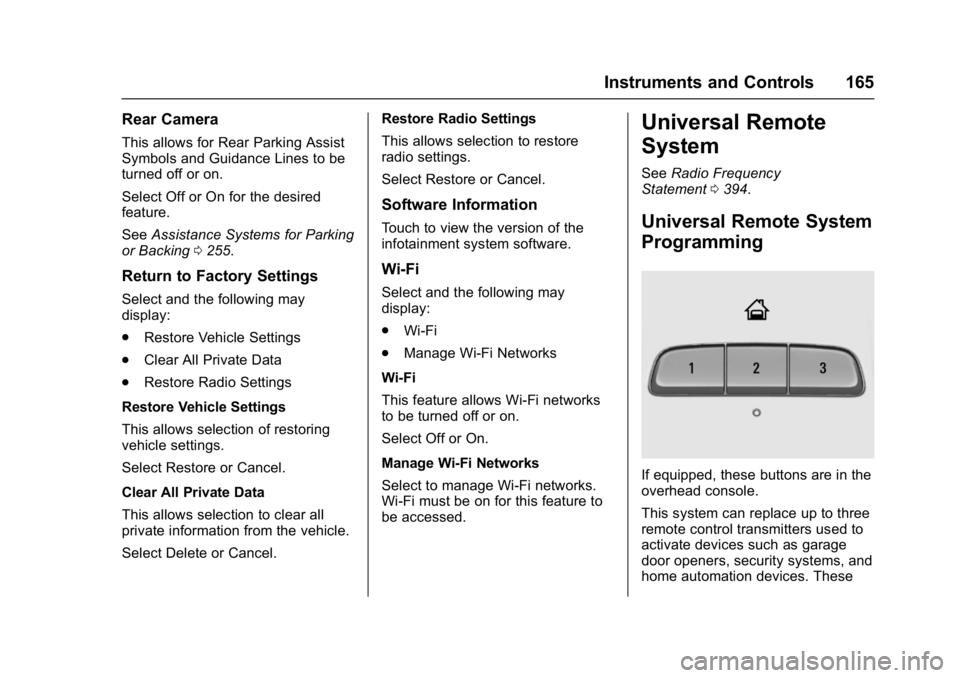
If equipped, these buttons are in the
overhead console.
This system can replace up to three
remote control transmitters used to
activate devices such as garage
door openers, security systems, and
home automation devices. These
Page 182 of 419
GMC Acadia/Acadia Denali Owner Manual (GMNA-Localizing-U.S./Canada/
Mexico-9803770) - 2017 - crc - 7/12/16
Infotainment System 181
.USB/Music/Pictures: Press
to go to the next content.
Press and hold to fast
forward.
5.
5
. Press and release to
access the phone screen,
answer an incoming call,
or access the device home
screen.
Home Page
Touchscreen Buttons
Touchscreen buttons show on the
screen when available. When a
function is unavailable, the button
may gray out. When a function is
selected, the button may highlight.
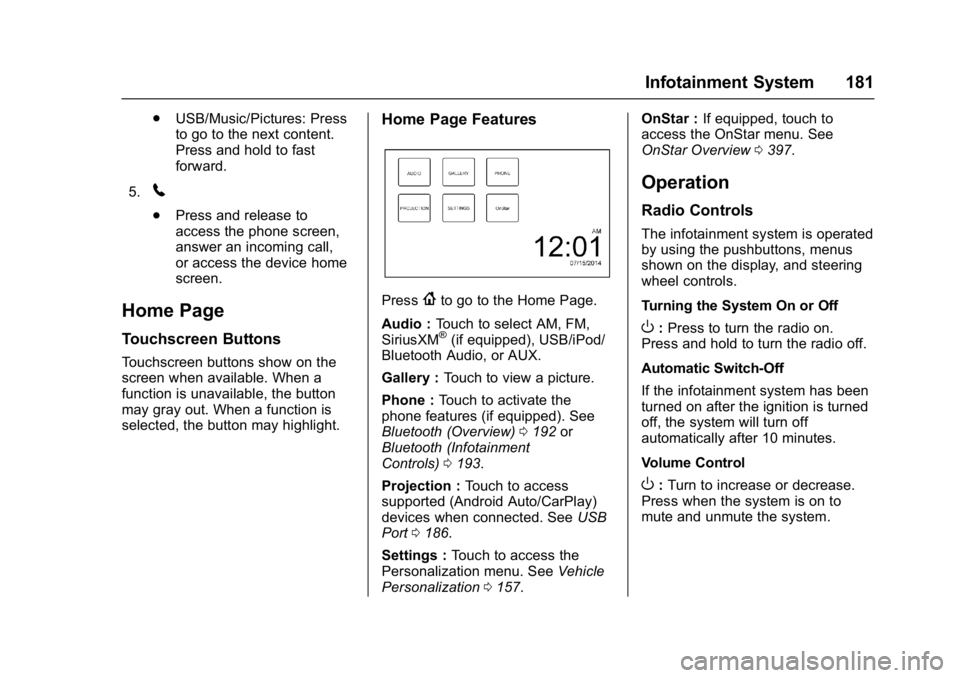
Home Page Features
Press{to go to the Home Page.
Audio : Touch to select AM, FM,
SiriusXM
®(if equipped), USB/iPod/
Bluetooth Audio, or AUX.
Gallery : Touch to view a picture.
Phone : Touch to activate the
phone features (if equipped). See
Bluetooth (Overview) 0192 or
Bluetooth (Infotainment
Controls) 0193.
Projection : Touch to access
supported (Android Auto/CarPlay)
devices when connected. See USB
Port 0186.
Settings : Touch to access the
Personalization menu. See Vehicle
Personalization 0157. OnStar :
If equipped, touch to
access the OnStar menu. See
OnStar Overview 0397.
Operation
Radio Controls
The infotainment system is operated
by using the pushbuttons, menus
shown on the display, and steering
wheel controls.
Turning the System On or Off
O:Press to turn the radio on.
Press and hold to turn the radio off.
Automatic Switch-Off
If the infotainment system has been
turned on after the ignition is turned
off, the system will turn off
automatically after 10 minutes.
Volume Control
O: Turn to increase or decrease.
Press when the system is on to
mute and unmute the system.
Page 185 of 419
GMC Acadia/Acadia Denali Owner Manual (GMNA-Localizing-U.S./Canada/
Mexico-9803770) - 2017 - crc - 7/12/16
184 Infotainment System
Listening to SiriusXM Radio
1. Press{.
2. Touch AUDIO.
3. Touch Source.
4. Touch SXM and the most recent listened to SiriusXM
channel will display.
Selecting a Category
From Menu, touch Categories, then
touch the desired category or from
Categories, touch
QorRto find the
desired channel. Touch the channel
to select it.
Selecting a Channel
Pressgordto seek the previous
or next channel.
Using the Preset Buttons
Up to five favorites pages can be
saved, and each page can store up
to five channels.
To change a preset button, tune to
the new desired channel and hold
the button. Listening to Preset Channels
1. Touch
SorTrepeatedly to
select the desired
favorites page.
2. Touch the preset button to listen to the channel.
Using the SiriusXM Menu
Operation
1. Touch MENU on the SXM radio screen.
2. Touch the menu to select the desired item or to display the
detail menu item.
3. Touch
0to return to the
previous menu.
Channel List 1. Touch Channel List from the SXM menu. The channel list is
displayed.
2. Touch
QorRto find the
desired channel. Touch the
channel to select it. Tone Settings
1. Touch Tone Settings. See “Tone Settings” under
Operation 0181.
2. Touch
0.
Auto Volume 1. Touch Auto Volume. See “Auto
Volume” under
Operation 0181.
2. Touch
0.
Categories 1. Touch Categories.
2. Touch
QorRto find the
desired category. Touch the
category to select it.
Explicit Content Filter
When on, only a filtered list of
channels will be received. When off,
all regular SXM programming
subscribed to will be received. 1. Touch SXM Explicit Filter.
2. Select to enable or disable.
Page 190 of 419
GMC Acadia/Acadia Denali Owner Manual (GMNA-Localizing-U.S./Canada/
Mexico-9803770) - 2017 - crc - 7/12/16
Infotainment System 189
Changing to Next/Previous Files
.Touch
lto change to the
next file.
. Touch
gwithin five seconds of
the playback time to play the
previous file.
Returning to the Beginning of the
Current File
Touch
gafter five seconds of the
playback time.
Scanning Forward or Backward
Touch and hold
gorlduring
playback to rewind or fast forward.
Release the button to resume
playback at normal speed.
Playing a File Randomly
Touch
Zduring playback.
. ON: Plays all files randomly.
. OFF: Returns to normal
playback.
Using the USB Music Menu
. Touch Menu during playback.
.Touch the desired menu.
Browse Music 1. Touch Browse Music.
2. Touch the desired music.
Tone Settings
. Touch Tone Settings. The Tone
Settings menu is displayed. See
“Tone Settings” under“Radio
Controls” inOperation 0181.
Auto Volume
. Touch Auto Volume. The Auto
Volume menu is displayed. See
“Auto Volume” under“Radio
Controls” inOperation 0181.
Traffic Program (If Equipped)
. Touch On or Off. MTP (Media Transfer Protocol)
.
Connect an MTP supported
device.
. Play will start automatically after
the system has finished reading
the MTP device.
. If a non-readable MTP device is
connected, an error message
displays and the system will
switch to the previous audio
function.
iPod/iPhone Player
This feature is limited to models
supporting the iPod/iPhone
connection.
Playing Music Files
. Connect the iPod/iPhone to the
USB port.
. Play will start from the previously
played point after the system
has finished reading the USB
device.
. If a non-readable USB device is
connected, an error message
displays and the system will
switch to the previous audio
function.
Page 191 of 419
GMC Acadia/Acadia Denali Owner Manual (GMNA-Localizing-U.S./Canada/
Mexico-9803770) - 2017 - crc - 7/12/16
190 Infotainment System
If the iPod/iPhone is already
connected:1. Press
{.
2. Touch AUDIO.
3. Touch Source.
4. Touch iPod.
To stop the device and select
another media source, touch
Source, then select the other
source.
To remove the device, select
another function, then remove the
device.
Pause
. Touch
jto pause.
. Touch
rto resume.
Changing to the Next/
Previous Song
. Touch
lto change to the
next song.
. Touch
gwithin two seconds of
the playback time to play the
previous file. Returning to the Beginning of the
Current File
Touch
gafter two seconds of the
playback time.
Scanning Forward or Backward
Touch and hold
gorlduring
playback to rewind or fast forward.
Release the button to resume
playback at normal speed.
Playing a File Randomly
Touch
Zduring playback.
. ON: Plays all files randomly.
. OFF: Returns to normal
playback.
Using the iPod Menu
. Touch Menu during playback.
. Touch the appropriate
play mode.
Browse Music 1. Touch Browse Music.
2. Touch the desired music. Tone Settings
.
Touch Tone Settings. The Tone
Settings menu is displayed. See
“Tone Settings” under“Radio
Controls” inOperation 0181.
Auto Volume
. Touch Auto Volume. The Auto
Volume menu is displayed. See
“Auto Volume” under“Radio
Controls” inOperation 0181.
Picture System Information
The infotainment system can view
picture files stored on a USB
storage device and devices that
support Media Transfer
Protocol (MTP).
.
Supported file extensions: .jpg,
.bmp, .png, .gif.
. Animated GIF files are not
supported.
. Some files may not operate due
to a different recording format or
the condition of the file.
Page 192 of 419
GMC Acadia/Acadia Denali Owner Manual (GMNA-Localizing-U.S./Canada/
Mexico-9803770) - 2017 - crc - 7/12/16
Infotainment System 191
Viewing Pictures1. Connect the USB device to the USB port.
2. Touch the screen to open to full screen. Touch the screen again
to return to the previous
screen.
If the USB device is already
connected:
1. Press
{.
2. Touch GALLERY.
Some features are disabled while
the vehicle is in motion.
Viewing a Slide Show
1. Touch
zfrom the picture
screen.
2. Touch the screen to cancel the slide show during the slide
show playback.
Viewing a Previous or Next
Picture
Touch
SorTfrom the picture
screen. Rotating a Picture
Touch
wfrom the picture screen.
Enlarging a Picture
Touch
xfrom the picture screen.
Using the USB Picture Menu 1. Touch MENU from the picture screen.
2. Touch the appropriate menu: .Slide Show Time: Allows
selection of the slide show
interval.
. Clock, Temp. Display:
Allows selection of On or
Off to show the clock and
temperature on the full
screen.
. Display Settings: Adjusts
for Brightness and Contrast.
3. Touch
0to exit.
Auxiliary Devices
Using the Auxiliary Input Jack
Settings menus and functions may
vary depending on vehicle options.
The auxiliary input jack can be used
to connect external audio devices
such as an iPod
®, iPhone®, MP3
player, CD player, and other
supported devices for use as
another source for audio listening.
This input jack is not an audio
output; do not plug headphones into
the front auxiliary input jack.
The auxiliary input jack is in the
center stack. The infotainment
system can play music connected
by the auxiliary device.
Play will begin when the system has
finished reading the information on
the device.
Page 195 of 419
GMC Acadia/Acadia Denali Owner Manual (GMNA-Localizing-U.S./Canada/
Mexico-9803770) - 2017 - crc - 7/12/16
194 Infotainment System
does not occur, proceed with the
phone book download on the
phone.
Pairing a Phone–SSP and No
Paired Device
When there is no paired device on
the infotainment system and Simple
Secure Pairing (SSP) is supported:
1. Press
{.
2. Touch PHONE, or press
gon
the steering wheel without
OnStar.
3. Touch Search Device.
4. Touch the desired device to pair on the searched list
screen.
5. Touch Yes on the pop-up screen of the Bluetooth device
and infotainment system.
6. When the Bluetooth device and infotainment system are
successfully paired, the phone
screen is displayed on the
infotainment system. Pairing a Phone
–SSP and Paired
Device
When a paired device is on the
infotainment system and SSP is
supported:
1. Press
{.
2. Touch SETTINGS.
3. Touch Bluetooth, then Device Management.
4. Touch the desired device to pair. When the Bluetooth
device and infotainment system
are successfully paired,
Z/5
is displayed on the pair device
screen. If no desired device is
available go to Step 5.
5. Touch Search Device to search for the desired device.
6. Touch the desired device to pair on the searched list
screen.
7. Touch Yes on the pop-up screen of the Bluetooth device
and infotainment system.
. The connected phone is
highlighted by
5. .
Z/5indicates the hands-free
and phone music functions are
enabled.
.
5indicates only the hands-free
function is enabled.
.
Zindicates only Bluetooth
music is enabled.
Pairing a Phone –No SSP and No
Paired Device
When there is no paired device on
the infotainment system and SSP is
not supported:
1. Press
{.
2. Touch PHONE, or press
gon
the steering wheel without
OnStar.
3. Touch Search Device.
4. Touch the desired device to pair on the searched list
screen.
5. Input the Personal Identification Number (PIN)
code (default: 1234) to the
Bluetooth device. When the
Bluetooth device and
Page 196 of 419
GMC Acadia/Acadia Denali Owner Manual (GMNA-Localizing-U.S./Canada/
Mexico-9803770) - 2017 - crc - 7/12/16
Infotainment System 195
infotainment system are
successfully paired, the
PHONE screen is displayed on
the infotainment system.
When the connection fails, a failure
message is displayed on the
infotainment system.
If a Bluetooth device was previously
connected, the infotainment system
executes the auto connection.
However, if the Bluetooth setting on
the Bluetooth device is turned off, a
failure message is displayed on the
infotainment system.
Pairing a Phone –No SSP and
Paired Device
When a paired device is on the
infotainment system and SSP is not
supported:
1. Press
{.
2. Touch SETTINGS.
3. Touch Bluetooth, then Device Management.
4. Touch the desired device to pair. When the Bluetooth
device and infotainment system are successfully paired,
Z/5
is displayed on the pair device
screen. If no desired device is
available go to Step 5.
5. Touch Search Device to search for the desired device.
6. Touch the desired device to pair on the searched list
screen.
7. Input the Personal Identification Number (PIN)
code (default: 1234) to the
Bluetooth device. When the
Bluetooth device and
infotainment system are
successfully paired,
Z/5is
displayed on the pair device
screen.
. The connected phone is
highlighted by
5.
.
Z/5indicates the hands-free
and phone music functions are
enabled.
.
5indicates only the hands-free
function is enabled. .
Zindicates only Bluetooth
music is enabled.
Connecting a Paired Bluetooth
Device
1. Press
{.
2. Touch SETTINGS.
3. Touch Bluetooth, then Device Management.
4. Touch the device to be connected.
Checking the Bluetooth
Connection
1. Press
{.
2. Touch SETTINGS.
3. Touch Bluetooth, then Device Management.
4. The paired device will show.
Disconnecting a Bluetooth Device
1. Press
{.
2. Touch SETTINGS.
3. Touch Bluetooth, then Device Management.