Rke GMC ACADIA 2017 Owner's Guide
[x] Cancel search | Manufacturer: GMC, Model Year: 2017, Model line: ACADIA, Model: GMC ACADIA 2017Pages: 419, PDF Size: 5.89 MB
Page 162 of 419
GMC Acadia/Acadia Denali Owner Manual (GMNA-Localizing-U.S./Canada/
Mexico-9803770) - 2017 - crc - 7/12/16
Instruments and Controls 161
.Chime Volume
. Reverse Tilt Mirror
. Auto Wipe in Reverse Gear
. Automatic Vehicle Hold
Auto Memory Recall
This feature automatically recalls
the current driver ’s previously stored
1 or 2 button positions when
entering the vehicle. See Memory
Seats 060.
Select Off or On.
Easy Exit Options
This feature automatically recalls
the current driver ’s previously stored
Exit button position when exiting the
vehicle. See Memory Seats 060.
Select Off or On.
Chime Volume
This allows the selection of the
chime volume level.
Touch + or −to adjust the volume. Reverse Tilt Mirror
When on, both the driver and
passenger outside mirrors will tilt
downward when the vehicle is
shifted to R (Reverse) to improve
visibility of the ground near the rear
wheels. They will return to their
previous driving position when the
vehicle is shifted out of R (Reverse)
or the engine is turned off.
Select Off, On - Driver and
Passenger, On - Driver, or On -
Passenger.
Auto Wipe in Reverse Gear
When on and the front wiper is on,
the rear wiper will automatically
activate when the vehicle is shifted
to R (Reverse).
Select Off or On.
Automatic Vehicle Hold
This allows the duration of the
Automatic Vehicle Hold to be
changed. See
Automatic Vehicle
Hold (AVH) 0239.
Select Long and Auto Park Brake
On or Short and Auto Park
Brake Off.Lighting
Select and the following may
display:
. Vehicle Locator Lights
. Exit Lighting
Vehicle Locator Lights
This feature will flash the exterior
lamps and allows some of the
exterior lamps and most of the
interior lamps to turn on briefly when
Kon the Remote Keyless Entry
(RKE) transmitter is pressed to
locate the vehicle.
Select Off or On.
Exit Lighting
This allows the selection of how
long the exterior lamps stay on
when leaving the vehicle when it is
dark outside.
Select Off, 30 Seconds, 60
Seconds, or 120 Seconds.
Power Door Locks
Select and the following may
display:
. Unlocked Door Anti-Lockout
Page 163 of 419
GMC Acadia/Acadia Denali Owner Manual (GMNA-Localizing-U.S./Canada/
Mexico-9803770) - 2017 - crc - 7/12/16
162 Instruments and Controls
.Auto Door Unlock
. Delayed Door Lock
Unlocked Door Anti-Lockout
When on, this feature will keep the
driver door from locking when the
door is open. If Off is selected, the
Delayed Door Lock menu will be
available.
Select Off or On.
Auto Door Unlock
This allows selection of which of the
doors will automatically unlock when
the vehicle is shifted into P (Park).
Select Off, All Doors, or Driver Door.
Delayed Door Lock
When on, this feature will delay the
locking of the doors. To override the
delay, press the power door lock
switch on the door.
Select Off or On.
Remote Lock, Unlock, Start
Select and the following may
display:
. Remote Unlock Light Feedback .
Remote Lock Feedback
. Remote Door Unlock
. Remote Start Auto Cool Seats
. Remote Start Auto Heat Seats
. Remote Window Operation
. Passive Door Unlock
. Passive Door Lock
. Remote Left in Vehicle Alert
Remote Unlock Light Feedback
When on, the exterior lamps will
flash when unlocking the vehicle
with the RKE transmitter.
Select Off or Flash Lights.
Remote Lock Feedback
This allows selection of what type of
feedback is given when locking the
vehicle with the RKE transmitter.
Select Off, Lights and Horn, Lights
Only, or Horn Only.
Remote Door Unlock
This allows selection of which doors
will unlock when pressing
Kon the
RKE transmitter. Select All Doors or Driver Door.
Remote Start Auto Cool Seats
If equipped and turned on, this
feature will turn the ventilated seats
on when using remote start on
warm days.
Select Off or On.
Remote Start Auto Heat Seats
If equipped and turned on, this
feature will turn the heated seats on
when using remote start on
cold days.
Select Off or On.
Remote Window Operation
If equipped, this feature enables the
remote operation of all windows
from the RKE transmitter. See
“Remote Window Operation”
in
Power Windows 050.
Select Off or On.
Passive Door Unlock
This allows the selection of what
doors will unlock when using the
button on the driver door to unlock
the vehicle.
Page 164 of 419
GMC Acadia/Acadia Denali Owner Manual (GMNA-Localizing-U.S./Canada/
Mexico-9803770) - 2017 - crc - 7/12/16
Instruments and Controls 163
Select All Doors or Driver Door.
Passive Door Lock
This allows passive locking to be
turned on or off and selects
feedback. SeeRemote Keyless
Entry (RKE) System Operation 029.
Select Off, On with Horn
Chirp, or On.
Remote Left in Vehicle Alert
This feature sounds an alert when
the RKE transmitter is left in the
vehicle. This menu also enables
Remote No Longer In Vehicle Alert.
Select Off or On.
Bluetooth
Select and the following may
display:
. Device Information
. Pair New Device
. Device Management
. Change Pairing PIN
. Ringtones
. Sort Order
. Voice Mail Numbers .
Text Message Alerts
Device Information
See information about the device
name, address, and PIN code.
Pair New Device
Select to pair a new device. See
“Pairing” in“Infotainment Controls”
under “Bluetooth” in the infotainment
manual.
Device Management
Select to connect to a different
phone source, disconnect a phone,
or delete a phone.
Change Pairing PIN
Select to change the PIN of a
device.
Ringtones
Touch to change the ring tone for
the specific phone. The phone does
not need to be connected to change
the ring tone.
Sort Order
Select to change the order of the
contacts list. Select First/Last or Last/First.
Voice Mail Numbers
This feature displays the voice mail
number for all connected phones.
To change the voice mail number,
select EDIT or press the EDIT
button. Type a new number, then
select SAVE or press the SAVE
button.
Text Message Alerts
This allows the feature to be turned
on or off.
Select Off or On.
Apple CarPlay
Select and the following may
display:
.
Apple CarPlay
. Manage Apple CarPlay Devices
Apple CarPlay
This feature allows Apple devices to
be connected to the infotainment
system through a USB port.
Select Off or On.
Page 176 of 419
GMC Acadia/Acadia Denali Owner Manual (GMNA-Localizing-U.S./Canada/
Mexico-9803770) - 2017 - crc - 7/12/16
Lighting 175
+ON/OFF : Press to turn the dome
lamps on manually.
Reading Lamps
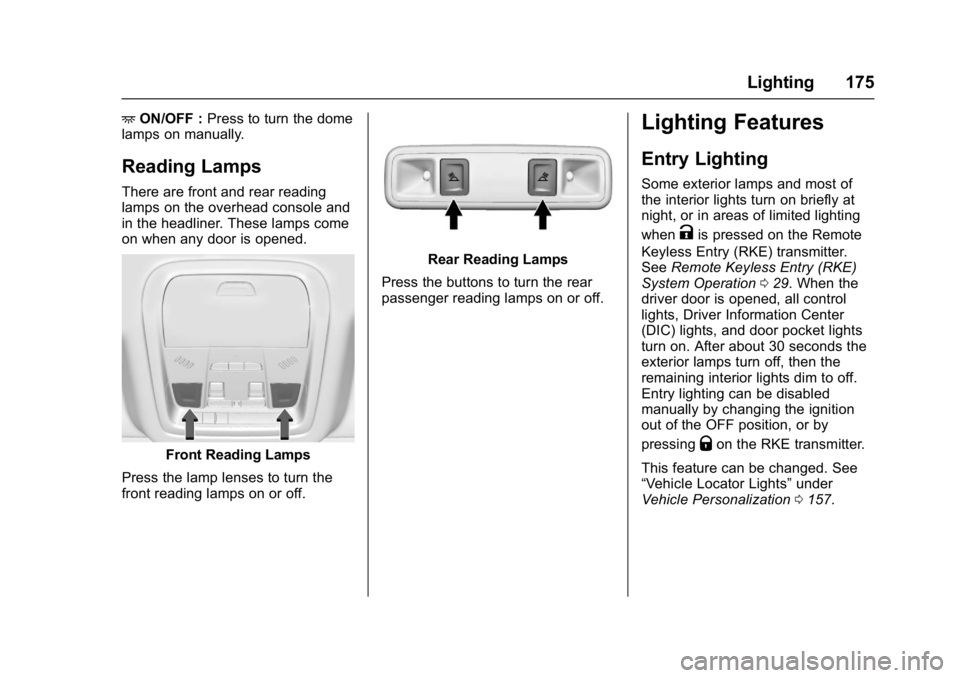
There are front and rear reading
lamps on the overhead console and
in the headliner. These lamps come
on when any door is opened.
Front Reading Lamps
Press the lamp lenses to turn the
front reading lamps on or off.
Rear Reading Lamps
Press the buttons to turn the rear
passenger reading lamps on or off.
Lighting Features
Entry Lighting
Some exterior lamps and most of
the interior lights turn on briefly at
night, or in areas of limited lighting
when
Kis pressed on the Remote
Keyless Entry (RKE) transmitter.
See Remote Keyless Entry (RKE)
System Operation 029. When the
driver door is opened, all control
lights, Driver Information Center
(DIC) lights, and door pocket lights
turn on. After about 30 seconds the
exterior lamps turn off, then the
remaining interior lights dim to off.
Entry lighting can be disabled
manually by changing the ignition
out of the OFF position, or by
pressing
Qon the RKE transmitter.
This feature can be changed. See
“Vehicle Locator Lights” under
Vehicle Personalization 0157.
Page 193 of 419
GMC Acadia/Acadia Denali Owner Manual (GMNA-Localizing-U.S./Canada/
Mexico-9803770) - 2017 - crc - 7/12/16
192 Infotainment System
Playing Music
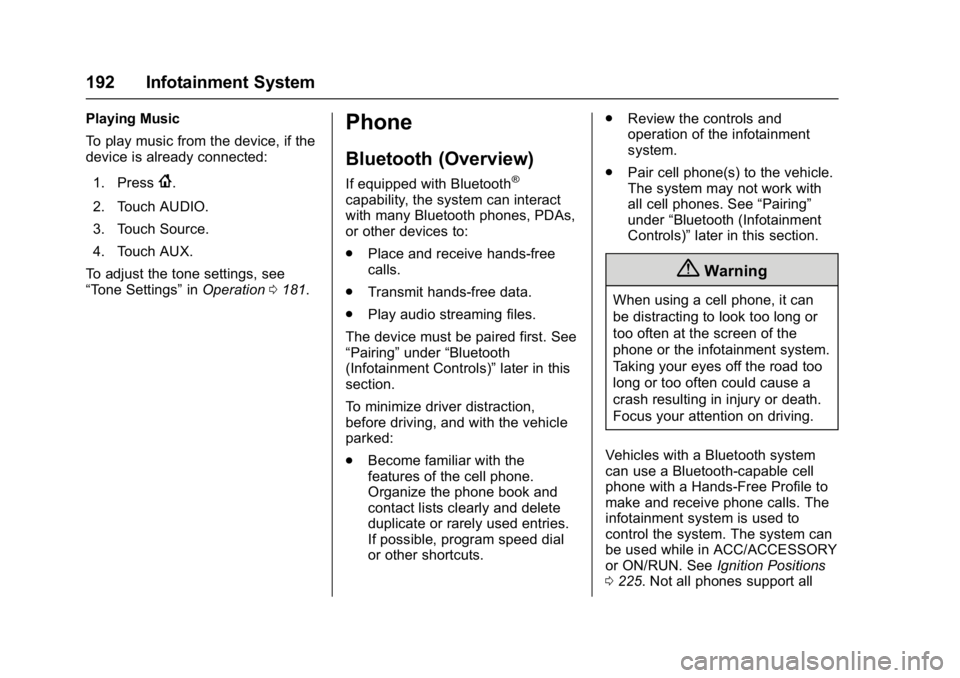
To play music from the device, if the
device is already connected:1. Press
{.
2. Touch AUDIO.
3. Touch Source.
4. Touch AUX.
To adjust the tone settings, see
“Tone Settings” inOperation 0181.
Phone
Bluetooth (Overview)
If equipped with Bluetooth®
capability, the system can interact
with many Bluetooth phones, PDAs,
or other devices to:
.
Place and receive hands-free
calls.
. Transmit hands-free data.
. Play audio streaming files.
The device must be paired first. See
“Pairing” under“Bluetooth
(Infotainment Controls)” later in this
section.
To minimize driver distraction,
before driving, and with the vehicle
parked:
. Become familiar with the
features of the cell phone.
Organize the phone book and
contact lists clearly and delete
duplicate or rarely used entries.
If possible, program speed dial
or other shortcuts. .
Review the controls and
operation of the infotainment
system.
. Pair cell phone(s) to the vehicle.
The system may not work with
all cell phones. See “Pairing”
under “Bluetooth (Infotainment
Controls)” later in this section.
{Warning
When using a cell phone, it can
be distracting to look too long or
too often at the screen of the
phone or the infotainment system.
Taking your eyes off the road too
long or too often could cause a
crash resulting in injury or death.
Focus your attention on driving.
Vehicles with a Bluetooth system
can use a Bluetooth-capable cell
phone with a Hands-Free Profile to
make and receive phone calls. The
infotainment system is used to
control the system. The system can
be used while in ACC/ACCESSORY
or ON/RUN. See Ignition Positions
0 225. Not all phones support all
Page 198 of 419
GMC Acadia/Acadia Denali Owner Manual (GMNA-Localizing-U.S./Canada/
Mexico-9803770) - 2017 - crc - 7/12/16
Infotainment System 197
Playing Music Randomly
Touch
Zduring playback. Touch
again to return to normal play.
This function may not be supported
depending on the Bluetooth device.
Do not change the track too quickly
when playing Bluetooth music.
Conditions that may occur when
playing Bluetooth music:
. It takes time to transmit data
from the Bluetooth device to the
infotainment system.
. If the cell phone or Bluetooth
device is not in the waiting
screen mode, it may not
automatically play.
. The infotainment system
transmits the order to play from
the Bluetooth device in the
Bluetooth music play mode.
If this is done in a different
mode, then the device transmits
the order to stop. Depending on
the Bluetooth device options,
this order to play/stop may take
time to activate. .
If the Bluetooth music playback
is not functioning, then check to
see if the Bluetooth device is in
the waiting screen mode.
. Sounds may be cut off during
the Bluetooth music playback.
. The infotainment system outputs
the audio from the cell phone or
Bluetooth device as it is
transmitted.
Apple CarPlay and
Android Auto
If equipped, Android Auto™ and/or
Apple CarPlay™ capability may be
available through a compatible
smartphone. If available, a
PROJECTION icon will appear on
the Home Page of the infotainment
display.
To use Android Auto and/or Apple
CarPlay:
1. Download the Android Auto app to your phone from the
Google™ Play store. There is
no app required for Apple
CarPlay. 2. Connect your Android phone or
Apple iPhone by using the
compatible phone USB cable
and plugging into a USB data
port. For best performance, use
the device’ s factory-provided
USB cable. Aftermarket or
third-party cables may
not work.
The PROJECTION icon on the
Home Page will change to
ANDROID AUTO or APPLE
CARPLAY depending on the phone.
Android Auto and/or Apple CarPlay
may automatically launch upon USB
connection. If not, press the
ANDROID AUTO and/or APPLE
CARPLAY icon on the Home Page
to launch.
For further information on how to set
up Android Auto and Apple CarPlay
in the vehicle, see my. gmc.com or
see Customer Assistance
Offices 0386.
Android Auto is provided by Google
and is subject to Google’s terms
and privacy policy. CarPlay is
provided by Apple and is subject to
Apple’ s terms and privacy policy.
Page 202 of 419
GMC Acadia/Acadia Denali Owner Manual (GMNA-Localizing-U.S./Canada/
Mexico-9803770) - 2017 - crc - 7/12/16
Infotainment System 201
Fees and Taxes: Subscription fee,
taxes, one time activation fee, and
other fees may apply. Subscription
fee is consumer only. All fees and
programming subject to change.
Subscriptions subject to Customer
Agreement available at
www.siriusxm.com or
www.siriusxm.ca. SiriusXM
®service
only available in the 48 contiguous
United States and Canada.
In Canada: Some deterioration of
service may occur in extreme
northern latitudes. This is beyond
the control of SiriusXM
®Satellite
Radio.
It is prohibited to copy, decompile,
disassemble, reverse engineer,
hack, manipulate, or otherwise
make available any technology or
software incorporated in receivers
compatible with the SiriusXM
Satellite Radio System or that
support the SiriusXM website, the
Online Service or any of its content.
Furthermore, the AMBER voice
compression software included in
this product is protected by
intellectual property rights including patent rights, copyrights, and trade
secrets of Digital Voice
Systems, Inc.
General Requirements:
1. A License Agreement from SiriusXM is required for any
product that incorporates
SiriusXM Technology and/or for
use of any of the SiriusXM
marks to be manufactured,
distributed, or marketed in the
SiriusXM Service Area.
2. For products to be distributed, marketed, and/or sold in
Canada, a separate agreement
is required with Canadian
Satellite Radio Inc. (operating
as SiriusXM Canada). FreeType 2
Portions of this software are
copyright
®2007-2012 The
FreeType Project
(www.freetype.org). All rights
reserved.
Libjpeg
The navigation software is based in
part on the work of the independent
JPEG Group.
Page 210 of 419
GMC Acadia/Acadia Denali Owner Manual (GMNA-Localizing-U.S./Canada/
Mexico-9803770) - 2017 - crc - 7/12/16
Driving and Operating 209
Driving and
Operating
Driving Information
Distracted Driving . . . . . . . . . . . . 210
Defensive Driving . . . . . . . . . . . . . 211
Drunk Driving . . . . . . . . . . . . . . . . . 211
Control of a Vehicle . . . . . . . . . . . 211
Braking . . . . . . . . . . . . . . . . . . . . . . . 211
Steering . . . . . . . . . . . . . . . . . . . . . . 212
Off-Road Recovery . . . . . . . . . . . 212
Loss of Control . . . . . . . . . . . . . . . 213
Off-Road Driving . . . . . . . . . . . . . 213
Driving on Wet Roads . . . . . . . . 218
Hill and Mountain Roads . . . . . 218
Winter Driving . . . . . . . . . . . . . . . . 219
If the Vehicle Is Stuck . . . . . . . . 220
Vehicle Load Limits . . . . . . . . . . . 221
Starting and Operating
New Vehicle Break-In . . . . . . . . . 225
Ignition Positions . . . . . . . . . . . . . 225
Starting the Engine . . . . . . . . . . . 227
Engine Heater . . . . . . . . . . . . . . . . 228
Retained AccessoryPower (RAP) . . . . . . . . . . . . . . . . 230
Shifting Into Park . . . . . . . . . . . . . 230
Shifting out of Park . . . . . . . . . . . 231 Parking over Things
That Burn . . . . . . . . . . . . . . . . . . . 231
Extended Parking . . . . . . . . . . . . 232
Engine Exhaust
Engine Exhaust . . . . . . . . . . . . . . 232
Running the Vehicle While Parked . . . . . . . . . . . . . . . . . . . . . . 233
Automatic Transmission
Automatic Transmission . . . . . . 233
Manual Mode . . . . . . . . . . . . . . . . . 235
Tow/Haul Mode . . . . . . . . . . . . . . . 236
Drive Systems
All-Wheel Drive . . . . . . . . . . . . . . . 236
Brakes
Antilock BrakeSystem (ABS) . . . . . . . . . . . . . . . 236
Electric Parking Brake . . . . . . . . 237
Brake Assist . . . . . . . . . . . . . . . . . . 239
Automatic Vehicle Hold (AVH) . . . . . . . . . . . . . . . . . . 239
Ride Control Systems
Traction Control/ElectronicStability Control . . . . . . . . . . . . . 240
Hill Descent Control (HDC) . . . 242
Driver Mode Control . . . . . . . . . . 242
Cruise Control
Cruise Control . . . . . . . . . . . . . . . . 244 Adaptive Cruise Control . . . . . . 246
Driver Assistance Systems
Driver Assistance Systems . . . 254
Assistance Systems for
Parking or Backing . . . . . . . . . . 255
Assistance Systems for Driving . . . . . . . . . . . . . . . . . . . . . . 259
Forward Collision Alert (FCA) System . . . . . . . . . . . . . . . . . . . . . . 259
Forward Automatic Braking (FAB) . . . . . . . . . . . . . . . 261
Front Pedestrian Braking (FPB) System . . . . . . . . . . . . . . . 262
Side Blind Zone Alert (SBZA) . . . . . . . . . . . . . . . . 264
Lane Change Alert (LCA) . . . . . 265
Lane Departure
Warning (LDW) . . . . . . . . . . . . . 267
Lane Keep Assist (LKA) . . . . . . 267
Fuel
Fuel . . . . . . . . . . . . . . . . . . . . . . . . . . 269
California Fuel Requirements . . . . . . . . . . . . . . . 269
Fuels in Foreign Countries . . . 270
Fuel Additives . . . . . . . . . . . . . . . . 270
Filling the Tank . . . . . . . . . . . . . . . 270
Filling a Portable Fuel Container . . . . . . . . . . . . . . . . . . . 272
Page 211 of 419
GMC Acadia/Acadia Denali Owner Manual (GMNA-Localizing-U.S./Canada/
Mexico-9803770) - 2017 - crc - 7/12/16
210 Driving and Operating
Trailer Towing
General TowingInformation . . . . . . . . . . . . . . . . . . 272
Driving Characteristics and Towing Tips . . . . . . . . . . . . . . . . . 272
Trailer Towing . . . . . . . . . . . . . . . . 276
Towing Equipment . . . . . . . . . . . . 278
Conversions and Add-Ons
Add-On Electrical
Equipment . . . . . . . . . . . . . . . . . . 280
Driving Information
Distracted Driving
Distraction comes in many forms
and can take your focus from the
task of driving. Exercise good
judgment and do not let other
activities divert your attention away
from the road. Many local
governments have enacted laws
regarding driver distraction. Become
familiar with the local laws in
your area.
To avoid distracted driving, keep
your eyes on the road, keep your
hands on the steering wheel, and
focus your attention on driving.
. Do not use a phone in
demanding driving situations.
Use a hands-free method to
place or receive necessary
phone calls.
. Watch the road. Do not read,
take notes, or look up
information on phones or other
electronic devices. .
Designate a front seat
passenger to handle potential
distractions.
. Become familiar with vehicle
features before driving, such as
programming favorite radio
stations and adjusting climate
control and seat settings.
Program all trip information into
any navigation device prior to
driving.
. Wait until the vehicle is parked
to retrieve items that have fallen
to the floor.
. Stop or park the vehicle to tend
to children.
. Keep pets in an appropriate
carrier or restraint.
. Avoid stressful conversations
while driving, whether with a
passenger or on a cell phone.
{Warning
Taking your eyes off the road too
long or too often could cause a
crash resulting in injury or death.
Focus your attention on driving.
Page 226 of 419
GMC Acadia/Acadia Denali Owner Manual (GMNA-Localizing-U.S./Canada/
Mexico-9803770) - 2017 - crc - 7/12/16
Driving and Operating 225
Starting and
Operating
New Vehicle Break-In
Caution
The vehicle does not need an
elaborate break-in. But it will
perform better in the long run if
you follow these guidelines:. Do not drive at any one
constant speed, fast or slow,
for the first 805 km (500 mi).
Do not make full-throttle
starts. Avoid downshifting to
brake or slow the vehicle.
. Avoid making hard stops for
the first 322 km (200 mi) or
so. During this time the new
brake linings are not yet
broken in. Hard stops with
new linings can mean
premature wear and earlier
replacement. Follow this
(Continued)
Caution (Continued)
breaking-in guideline every
time you get new brake
linings.
Following break-in, engine speed
and load can be gradually
increased.
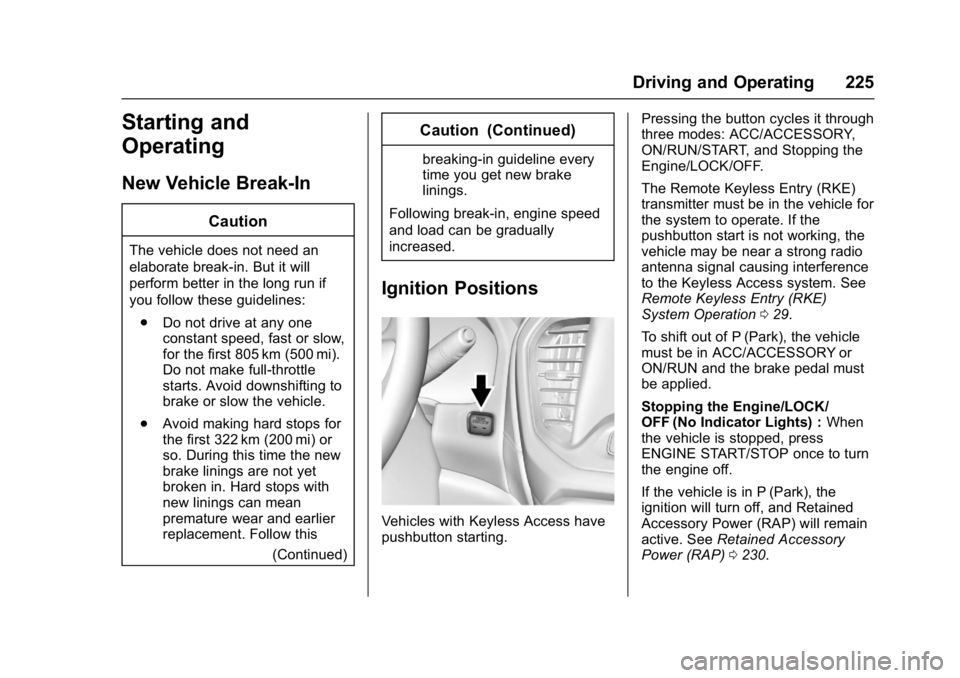
Ignition Positions
Vehicles with Keyless Access have
pushbutton starting. Pressing the button cycles it through
three modes: ACC/ACCESSORY,
ON/RUN/START, and Stopping the
Engine/LOCK/OFF.
The Remote Keyless Entry (RKE)
transmitter must be in the vehicle for
the system to operate. If the
pushbutton start is not working, the
vehicle may be near a strong radio
antenna signal causing interference
to the Keyless Access system. See
Remote Keyless Entry (RKE)
System Operation
029.
To shift out of P (Park), the vehicle
must be in ACC/ACCESSORY or
ON/RUN and the brake pedal must
be applied.
Stopping the Engine/LOCK/
OFF (No Indicator Lights) : When
the vehicle is stopped, press
ENGINE START/STOP once to turn
the engine off.
If the vehicle is in P (Park), the
ignition will turn off, and Retained
Accessory Power (RAP) will remain
active. See Retained Accessory
Power (RAP) 0230.