display GMC ACADIA 2018 Owner's Guide
[x] Cancel search | Manufacturer: GMC, Model Year: 2018, Model line: ACADIA, Model: GMC ACADIA 2018Pages: 423, PDF Size: 7.26 MB
Page 131 of 423
GMC Acadia/Acadia Denali Owner Manual (GMNA-Localizing-U.S./Canada/
Mexico-11349114) - 2018 - crc - 9/21/17
130 Instruments and Controls
Cluster Menu
There is an interactive display area
in the center of the instrument
cluster.
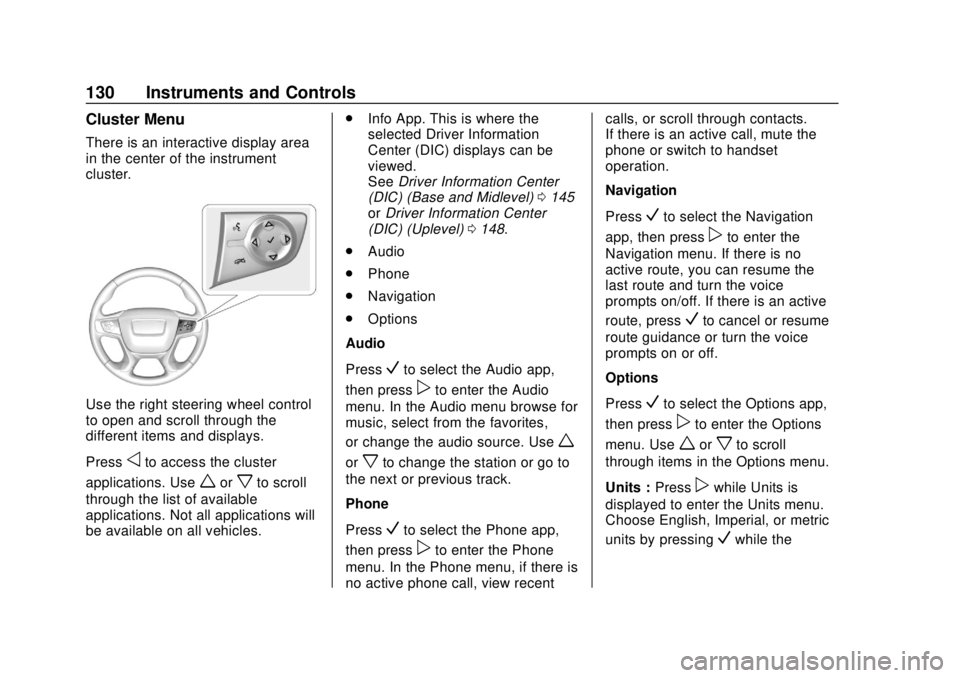
Use the right steering wheel control
to open and scroll through the
different items and displays.
Press
oto access the cluster
applications. Use
worxto scroll
through the list of available
applications. Not all applications will
be available on all vehicles. .
Info App. This is where the
selected Driver Information
Center (DIC) displays can be
viewed.
See Driver Information Center
(DIC) (Base and Midlevel) 0145
or Driver Information Center
(DIC) (Uplevel) 0148.
. Audio
. Phone
. Navigation
. Options
Audio
Press
Vto select the Audio app,
then press
pto enter the Audio
menu. In the Audio menu browse for
music, select from the favorites,
or change the audio source. Use
w
orxto change the station or go to
the next or previous track.
Phone
Press
Vto select the Phone app,
then press
pto enter the Phone
menu. In the Phone menu, if there is
no active phone call, view recent calls, or scroll through contacts.
If there is an active call, mute the
phone or switch to handset
operation.
Navigation
Press
Vto select the Navigation
app, then press
pto enter the
Navigation menu. If there is no
active route, you can resume the
last route and turn the voice
prompts on/off. If there is an active
route, press
Vto cancel or resume
route guidance or turn the voice
prompts on or off.
Options
Press
Vto select the Options app,
then press
pto enter the Options
menu. Use
worxto scroll
through items in the Options menu.
Units : Press
pwhile Units is
displayed to enter the Units menu.
Choose English, Imperial, or metric
units by pressing
Vwhile the
Page 132 of 423
GMC Acadia/Acadia Denali Owner Manual (GMNA-Localizing-U.S./Canada/
Mexico-11349114) - 2018 - crc - 9/21/17
Instruments and Controls 131
desired item is highlighted.
A checkmark will be displayed next
to the selected item.
Display Themes (Uplevel) :There
are two instrument cluster display
configurations to choose from: Sport
and Touring.
Info Pages : Press
pwhile Info
Pages is displayed to enter the Info
Pages menu and select the items to
be displayed in the Info app.
See Driver Information Center (DIC)
(Base and Midlevel) 0145 orDriver
Information Center (DIC) (Uplevel)
0 148.
Speed Warning : The Speed
Warning display allows the driver to
set a speed that they do not want to
exceed. To set the Speed Warning
press
pwhen Speed Warning is
displayed.
For the Base and Midlevel Cluster,
press
worxto adjust the value.
Press
Vto set the speed. For the Uplevel Cluster, scroll to set
speed and press
p. Pressworx
to adjust the value. PressVto set
the speed.
Once the speed is set, this feature
can be turned off by pressing
V
while viewing this page. If the
selected speed limit is exceeded, a
pop-up warning is displayed with a
chime.
Software Information : Displays
open source software information.
Speedometer
The speedometer shows the
vehicle's speed in either kilometers
per hour (km/h) or miles per
hour (mph).
Odometer
The odometer shows how far the
vehicle has been driven, in either
kilometers or miles.
Trip Odometer
The trip odometer shows how far
the vehicle has been driven since
the trip odometer was last reset.
The trip odometer is accessed and
reset through the Driver Information
Center (DIC).
See Driver Information Center (DIC)
(Base and Midlevel) 0145 orDriver
Information Center (DIC) (Uplevel)
0 148.
Tachometer
The tachometer displays the engine
speed in revolutions per
minute (rpm).
For vehicles with the Stop/Start
system, when the ignition is on, the
tachometer indicates the vehicle
status. When pointing to AUTO
STOP, the engine is off but the
vehicle is on and can move. The
engine could auto start at any time.
When the indicator points to OFF,
the vehicle is off.
Page 137 of 423
GMC Acadia/Acadia Denali Owner Manual (GMNA-Localizing-U.S./Canada/
Mexico-11349114) - 2018 - crc - 9/21/17
136 Instruments and Controls
several more seconds, the status
indicator will light either ON or OFF,
or either the on or off symbol, to let
you know the status of the front
outboard passenger frontal airbag.
If the word ON or the on symbol is
lit on the passenger airbag status
indicator, it means that the front
outboard passenger frontal airbag is
allowed to inflate.
If the word OFF or the off symbol is
lit on the passenger airbag status
indicator, it means that the
passenger sensing system has
turned off the front outboard
passenger frontal airbag.
If, after several seconds, both status
indicator lights remain on, or if there
are no lights at all, there may be a
problem with the lights or the
passenger sensing system. See
your dealer for service.{Warning
If the airbag readiness light ever
comes on and stays on, it means
that something may be wrong
with the airbag system. To help
avoid injury to yourself or others,
have the vehicle serviced right
away. SeeAirbag Readiness
Light 0135 for more information,
including important safety
information.
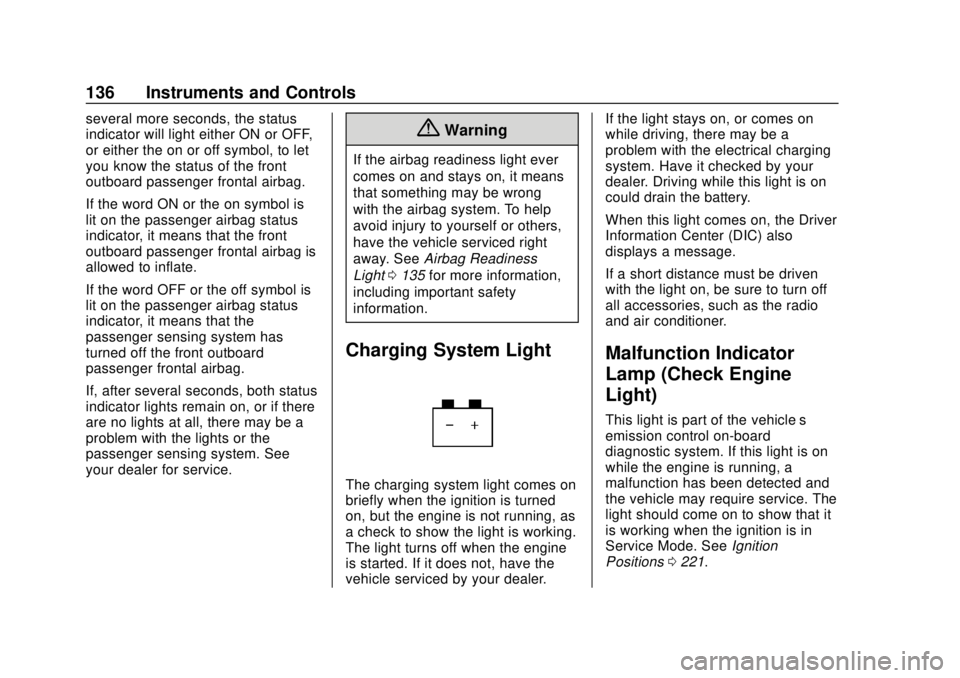
Charging System Light
The charging system light comes on
briefly when the ignition is turned
on, but the engine is not running, as
a check to show the light is working.
The light turns off when the engine
is started. If it does not, have the
vehicle serviced by your dealer. If the light stays on, or comes on
while driving, there may be a
problem with the electrical charging
system. Have it checked by your
dealer. Driving while this light is on
could drain the battery.
When this light comes on, the Driver
Information Center (DIC) also
displays a message.
If a short distance must be driven
with the light on, be sure to turn off
all accessories, such as the radio
and air conditioner.
Malfunction Indicator
Lamp (Check Engine
Light)
This light is part of the vehicle’s
emission control on-board
diagnostic system. If this light is on
while the engine is running, a
malfunction has been detected and
the vehicle may require service. The
light should come on to show that it
is working when the ignition is in
Service Mode. See
Ignition
Positions 0221.
Page 140 of 423
GMC Acadia/Acadia Denali Owner Manual (GMNA-Localizing-U.S./Canada/
Mexico-11349114) - 2018 - crc - 9/21/17
Instruments and Controls 139
MetricEnglish
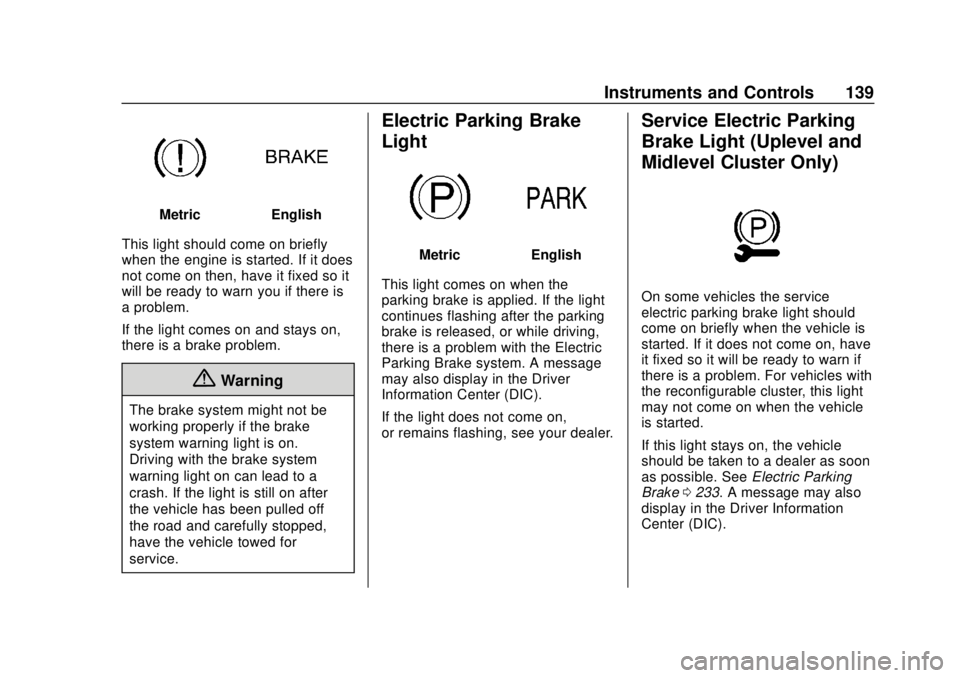
This light should come on briefly
when the engine is started. If it does
not come on then, have it fixed so it
will be ready to warn you if there is
a problem.
If the light comes on and stays on,
there is a brake problem.
{Warning
The brake system might not be
working properly if the brake
system warning light is on.
Driving with the brake system
warning light on can lead to a
crash. If the light is still on after
the vehicle has been pulled off
the road and carefully stopped,
have the vehicle towed for
service.
Electric Parking Brake
Light
MetricEnglish
This light comes on when the
parking brake is applied. If the light
continues flashing after the parking
brake is released, or while driving,
there is a problem with the Electric
Parking Brake system. A message
may also display in the Driver
Information Center (DIC).
If the light does not come on,
or remains flashing, see your dealer.
Service Electric Parking
Brake Light (Uplevel and
Midlevel Cluster Only)
On some vehicles the service
electric parking brake light should
come on briefly when the vehicle is
started. If it does not come on, have
it fixed so it will be ready to warn if
there is a problem. For vehicles with
the reconfigurable cluster, this light
may not come on when the vehicle
is started.
If this light stays on, the vehicle
should be taken to a dealer as soon
as possible. See Electric Parking
Brake 0233. A message may also
display in the Driver Information
Center (DIC).
Page 142 of 423
GMC Acadia/Acadia Denali Owner Manual (GMNA-Localizing-U.S./Canada/
Mexico-11349114) - 2018 - crc - 9/21/17
Instruments and Controls 141
LKA may assist by gently turning
the steering wheel if the vehicle
approaches a detected lane marking
without using the turn signal in that
direction. The LKA light will turn
amber.
This light is amber and flashes as a
Lane Departure Warning (LDW)
alert, to indicate that the lane
marking has been crossed.
SeeLane Keep Assist (LKA) 0265.
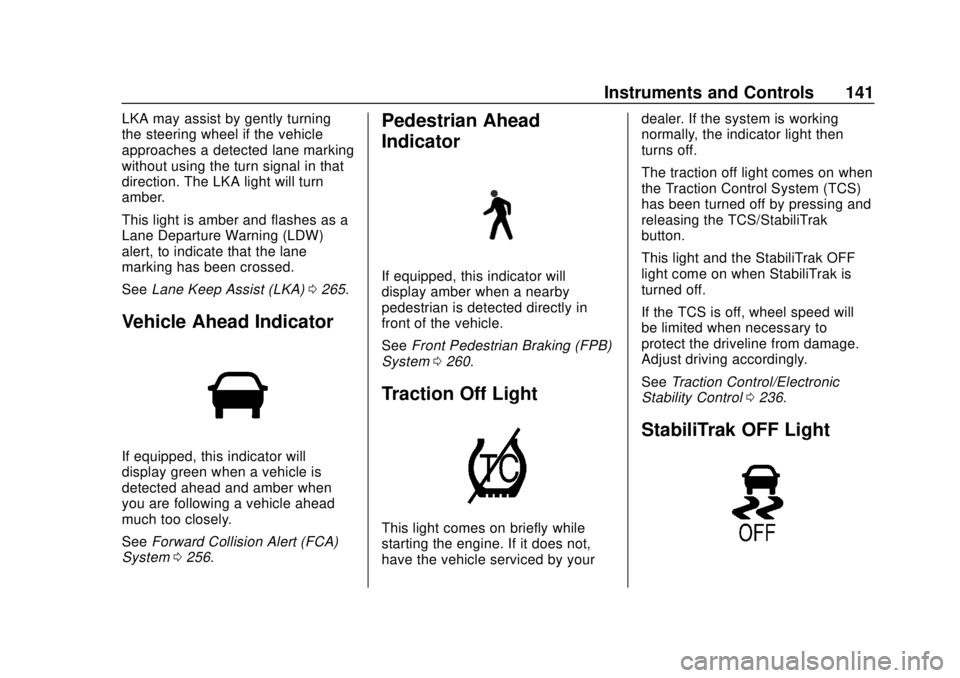
Vehicle Ahead Indicator
If equipped, this indicator will
display green when a vehicle is
detected ahead and amber when
you are following a vehicle ahead
much too closely.
See Forward Collision Alert (FCA)
System 0256.
Pedestrian Ahead
Indicator
If equipped, this indicator will
display amber when a nearby
pedestrian is detected directly in
front of the vehicle.
See Front Pedestrian Braking (FPB)
System 0260.
Traction Off Light
This light comes on briefly while
starting the engine. If it does not,
have the vehicle serviced by your dealer. If the system is working
normally, the indicator light then
turns off.
The traction off light comes on when
the Traction Control System (TCS)
has been turned off by pressing and
releasing the TCS/StabiliTrak
button.
This light and the StabiliTrak OFF
light come on when StabiliTrak is
turned off.
If the TCS is off, wheel speed will
be limited when necessary to
protect the driveline from damage.
Adjust driving accordingly.
See
Traction Control/Electronic
Stability Control 0236.
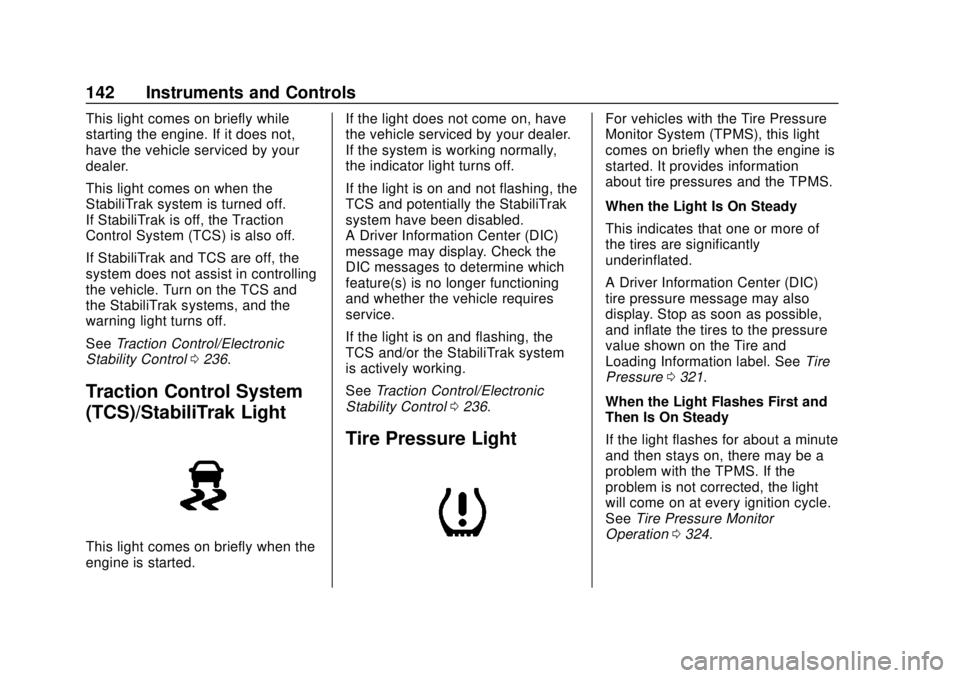
StabiliTrak OFF Light
Page 143 of 423
GMC Acadia/Acadia Denali Owner Manual (GMNA-Localizing-U.S./Canada/
Mexico-11349114) - 2018 - crc - 9/21/17
142 Instruments and Controls
This light comes on briefly while
starting the engine. If it does not,
have the vehicle serviced by your
dealer.
This light comes on when the
StabiliTrak system is turned off.
If StabiliTrak is off, the Traction
Control System (TCS) is also off.
If StabiliTrak and TCS are off, the
system does not assist in controlling
the vehicle. Turn on the TCS and
the StabiliTrak systems, and the
warning light turns off.
SeeTraction Control/Electronic
Stability Control 0236.
Traction Control System
(TCS)/StabiliTrak Light
This light comes on briefly when the
engine is started. If the light does not come on, have
the vehicle serviced by your dealer.
If the system is working normally,
the indicator light turns off.
If the light is on and not flashing, the
TCS and potentially the StabiliTrak
system have been disabled.
A Driver Information Center (DIC)
message may display. Check the
DIC messages to determine which
feature(s) is no longer functioning
and whether the vehicle requires
service.
If the light is on and flashing, the
TCS and/or the StabiliTrak system
is actively working.
See
Traction Control/Electronic
Stability Control 0236.
Tire Pressure Light
For vehicles with the Tire Pressure
Monitor System (TPMS), this light
comes on briefly when the engine is
started. It provides information
about tire pressures and the TPMS.
When the Light Is On Steady
This indicates that one or more of
the tires are significantly
underinflated.
A Driver Information Center (DIC)
tire pressure message may also
display. Stop as soon as possible,
and inflate the tires to the pressure
value shown on the Tire and
Loading Information label. See Tire
Pressure 0321.
When the Light Flashes First and
Then Is On Steady
If the light flashes for about a minute
and then stays on, there may be a
problem with the TPMS. If the
problem is not corrected, the light
will come on at every ignition cycle.
See Tire Pressure Monitor
Operation 0324.
Page 146 of 423
GMC Acadia/Acadia Denali Owner Manual (GMNA-Localizing-U.S./Canada/
Mexico-11349114) - 2018 - crc - 9/21/17
Instruments and Controls 145
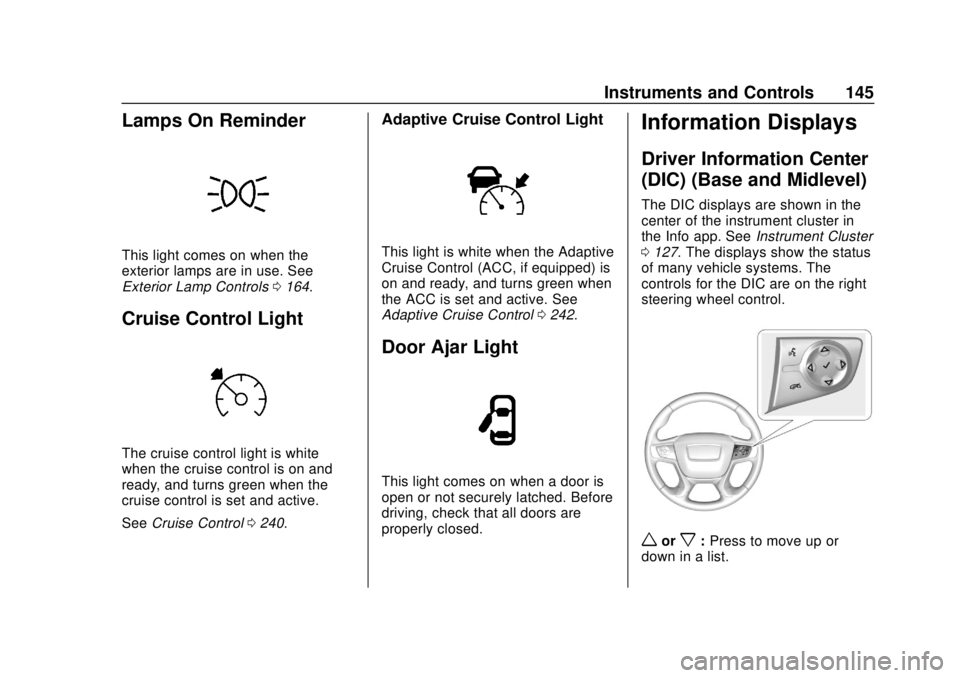
Lamps On Reminder
This light comes on when the
exterior lamps are in use. See
Exterior Lamp Controls0164.
Cruise Control Light
The cruise control light is white
when the cruise control is on and
ready, and turns green when the
cruise control is set and active.
See Cruise Control 0240.
Adaptive Cruise Control Light
This light is white when the Adaptive
Cruise Control (ACC, if equipped) is
on and ready, and turns green when
the ACC is set and active. See
Adaptive Cruise Control 0242.
Door Ajar Light
This light comes on when a door is
open or not securely latched. Before
driving, check that all doors are
properly closed.
Information Displays
Driver Information Center
(DIC) (Base and Midlevel)
The DIC displays are shown in the
center of the instrument cluster in
the Info app. See Instrument Cluster
0 127. The displays show the status
of many vehicle systems. The
controls for the DIC are on the right
steering wheel control.
worx: Press to move up or
down in a list.
Page 147 of 423
GMC Acadia/Acadia Denali Owner Manual (GMNA-Localizing-U.S./Canada/
Mexico-11349114) - 2018 - crc - 9/21/17
146 Instruments and Controls
oorp:Press to move between
the interactive display zones in the
cluster.
V: Press to open a menu or select
a menu item. Press and hold to
reset values on certain screens.
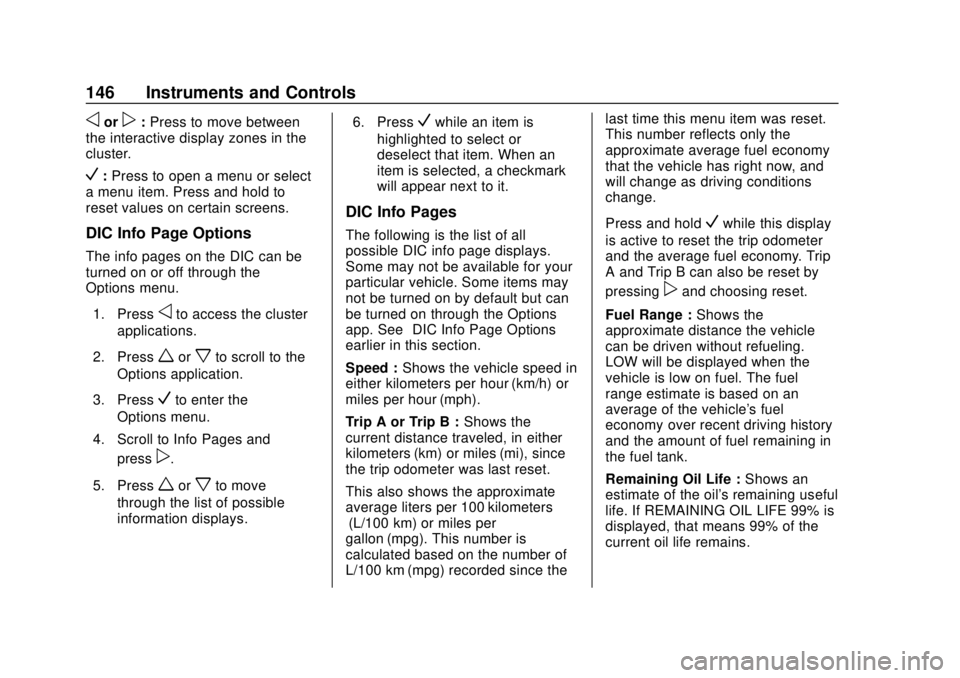
DIC Info Page Options
The info pages on the DIC can be
turned on or off through the
Options menu.
1. Press
oto access the cluster
applications.
2. Press
worxto scroll to the
Options application.
3. Press
Vto enter the
Options menu.
4. Scroll to Info Pages and press
p.
5. Press
worxto move
through the list of possible
information displays. 6. Press
Vwhile an item is
highlighted to select or
deselect that item. When an
item is selected, a checkmark
will appear next to it.
DIC Info Pages
The following is the list of all
possible DIC info page displays.
Some may not be available for your
particular vehicle. Some items may
not be turned on by default but can
be turned on through the Options
app. See “DIC Info Page Options”
earlier in this section.
Speed : Shows the vehicle speed in
either kilometers per hour (km/h) or
miles per hour (mph).
Trip A or Trip B : Shows the
current distance traveled, in either
kilometers (km) or miles (mi), since
the trip odometer was last reset.
This also shows the approximate
average liters per 100 kilometers (L/100 km) or miles per
gallon (mpg). This number is
calculated based on the number of
L/100 km (mpg) recorded since the last time this menu item was reset.
This number reflects only the
approximate average fuel economy
that the vehicle has right now, and
will change as driving conditions
change.
Press and holdVwhile this display
is active to reset the trip odometer
and the average fuel economy. Trip
A and Trip B can also be reset by
pressing
pand choosing reset.
Fuel Range : Shows the
approximate distance the vehicle
can be driven without refueling.
LOW will be displayed when the
vehicle is low on fuel. The fuel
range estimate is based on an
average of the vehicle's fuel
economy over recent driving history
and the amount of fuel remaining in
the fuel tank.
Remaining Oil Life : Shows an
estimate of the oil's remaining useful
life. If REMAINING OIL LIFE 99% is
displayed, that means 99% of the
current oil life remains.
Page 148 of 423
GMC Acadia/Acadia Denali Owner Manual (GMNA-Localizing-U.S./Canada/
Mexico-11349114) - 2018 - crc - 9/21/17
Instruments and Controls 147
When the remaining oil life is low,
the CHANGE ENGINE OIL SOON
message will appear on the display.
The oil should be changed as soon
as possible. SeeEngine Oil0286.
In addition to the engine oil life
system monitoring the oil life,
additional maintenance is
recommended in the Maintenance
Schedule. See Maintenance
Schedule 0369.
The Oil Life display must be reset
after each oil change. It will not
reset itself. Do not to reset the Oil
Life display at any time other than
when the oil has just been changed.
It cannot be reset accurately until
the next oil change. To reset the
engine oil life system, press and
hold
Vfor several seconds while
the Oil Life display is active. See
Engine Oil Life System 0288.
Tire Pressure : Shows the
approximate pressures of all four
tires. Tire pressure is displayed in
either kilopascal (kPa) or in pounds
per square inch (psi). If the pressure
is low, the value for that tire is
shown in amber. See
Tire Pressure Monitor System
0 323 andTire Pressure Monitor
Operation 0324.
Instantaneous Fuel Economy
(Mid-Level) : Displays the current
fuel economy in liters per
100 kilometers (L/100 km) or miles
per gallon (mpg). This number
reflects only the approximate fuel
economy that the vehicle has right
now and changes frequently as
driving conditions change. This
display cannot be reset.
Average Vehicle Speed : Displays
the average vehicle speed of the
vehicle in kilometers per hour (km/h)
or miles per hour (mph). This
average is based on the various
vehicle speeds recorded since the
last reset. Reset the average speed
by pressing
Vwhen it is displayed.
Fuel Economy : The center
displays the approximate
instantaneous fuel economy as a
number and bar graph. Displayed
above the bar graph is a running
average of fuel economy for the
most recently traveled selected distance. Displayed below the bar
graph is the best average fuel
economy that has been achieved for
the selected distance. The selected
distance is displayed at the top of
the page as
“last xxx mi/km.”
Press
pto select the distance or
reset best value. Use
wandxto
choose the distance and press
V.
Press
wandxto select “Reset
Best Score.” Press
Vto reset the
best average fuel economy. After
reset, the best value displays “-,-”
until the selected distance has been
traveled.
The display provides information on
how current driving behavior affects
the running average and how well
recent driving compares to the best
that has been achieved for the
selected distance.
Economy Trend : Shows history of
the Average Fuel Economy from the
last 50 km (30 mi). Each bar
represents about 5 km (3 mi) of
driving. During driving the bars will
shift to always reflect the most
Page 149 of 423
GMC Acadia/Acadia Denali Owner Manual (GMNA-Localizing-U.S./Canada/
Mexico-11349114) - 2018 - crc - 9/21/17
148 Instruments and Controls
recent distance on the right side.
Press and hold
Vto clear the graph
or press
pto reset through
the menu.
ECO Index : Provides feedback on
the efficiency of current driving
behavior. The bar graph shows a
value that is based on current fuel
consumption compared to what is
expected from the vehicle with good
and bad driving habits.
Timer : This display can be used as
a timer. To start the timer, press
V
while this display is active. The
display will show the amount of time
that has passed since the timer was
last reset. To stop the timer, press
V
briefly while this display is active
and the timer is running. To reset
the timer to zero, press and hold
V
while this display is active, or presspand select reset.
Speed Limit (Mid-Level) : Shows
sign information, which comes from
a roadway database in the onboard
navigation, if equipped. Battery Voltage :
Displays the
current battery voltage, if equipped.
Battery voltage changes are normal
while driving. See Charging System
Light 0136. If there is a problem
with the battery charging system,
the DIC will display a message.
Transmission Fluid
Temperature : Shows the
temperature of the automatic
transmission fluid in either degrees
Celsius (°C) or degrees
Fahrenheit (°F).
Blank Page : Shows no
information.
Driver Information Center
(DIC) (Uplevel)
The DIC displays are shown in the
center of the instrument cluster in
the Info app. See Instrument Cluster
0 127. The displays show the status
of many vehicle systems. The
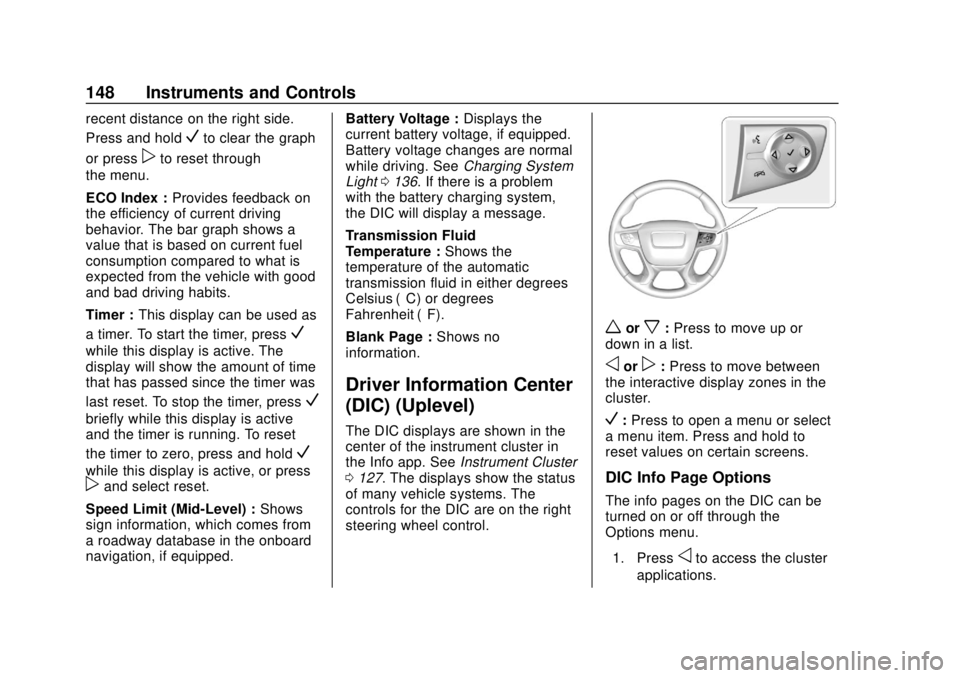
controls for the DIC are on the right
steering wheel control.
worx: Press to move up or
down in a list.
oorp: Press to move between
the interactive display zones in the
cluster.
V: Press to open a menu or select
a menu item. Press and hold to
reset values on certain screens.
DIC Info Page Options
The info pages on the DIC can be
turned on or off through the
Options menu.
1. Press
oto access the cluster
applications.