display GMC ACADIA 2018 User Guide
[x] Cancel search | Manufacturer: GMC, Model Year: 2018, Model line: ACADIA, Model: GMC ACADIA 2018Pages: 423, PDF Size: 7.26 MB
Page 37 of 423
GMC Acadia/Acadia Denali Owner Manual (GMNA-Localizing-U.S./Canada/
Mexico-11349114) - 2018 - crc - 9/21/17
36 Keys, Doors, and Windows
Battery Replacement
Replace the battery in the
transmitter soon if the REPLACE
BATTERY IN REMOTE KEY
message displays in the DIC.
Caution
When replacing the battery, do
not touch any of the circuitry on
the transmitter. Static from your
body could damage the
transmitter.
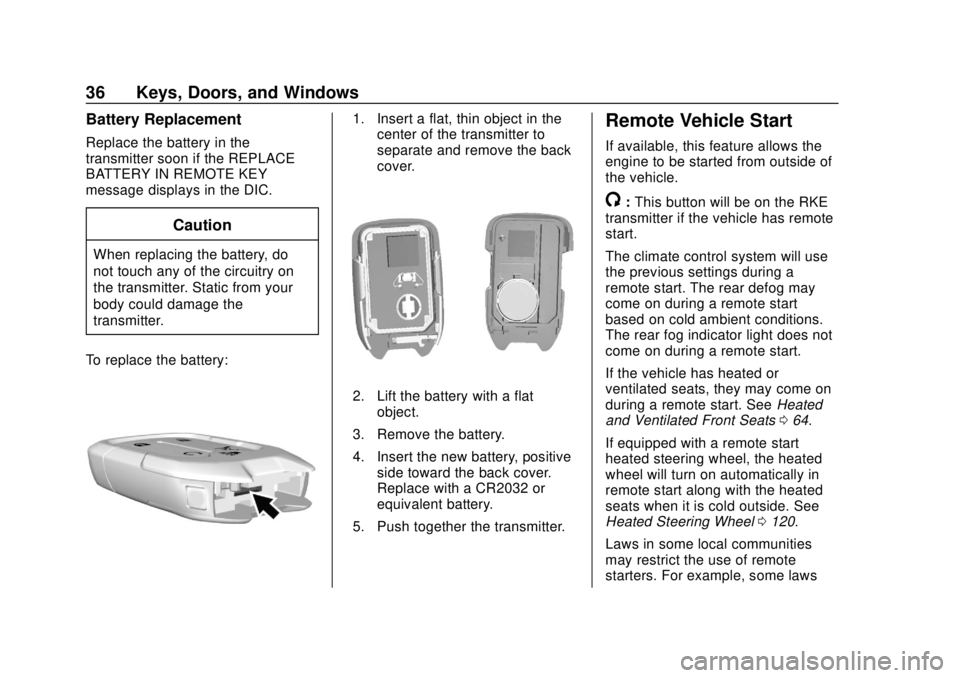
To replace the battery:
1. Insert a flat, thin object in the center of the transmitter to
separate and remove the back
cover.
2. Lift the battery with a flat
object.
3. Remove the battery.
4. Insert the new battery, positive side toward the back cover.
Replace with a CR2032 or
equivalent battery.
5. Push together the transmitter.
Remote Vehicle Start
If available, this feature allows the
engine to be started from outside of
the vehicle.
/: This button will be on the RKE
transmitter if the vehicle has remote
start.
The climate control system will use
the previous settings during a
remote start. The rear defog may
come on during a remote start
based on cold ambient conditions.
The rear fog indicator light does not
come on during a remote start.
If the vehicle has heated or
ventilated seats, they may come on
during a remote start. See Heated
and Ventilated Front Seats 064.
If equipped with a remote start
heated steering wheel, the heated
wheel will turn on automatically in
remote start along with the heated
seats when it is cold outside. See
Heated Steering Wheel 0120.
Laws in some local communities
may restrict the use of remote
starters. For example, some laws
Page 63 of 423
GMC Acadia/Acadia Denali Owner Manual (GMNA-Localizing-U.S./Canada/
Mexico-11349114) - 2018 - crc - 9/21/17
62 Seats and Restraints
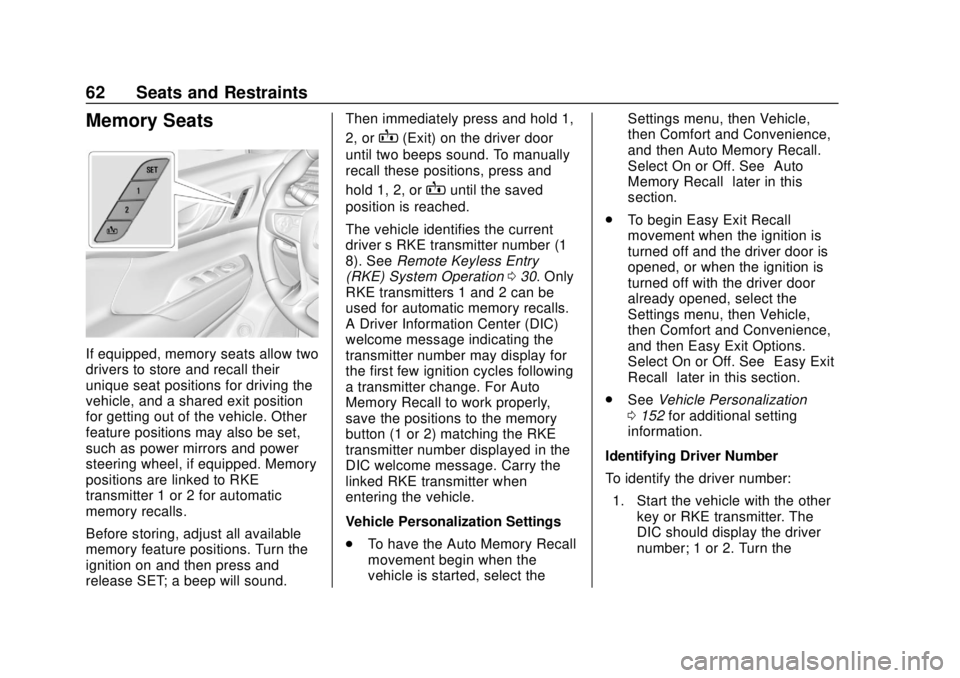
Memory Seats
If equipped, memory seats allow two
drivers to store and recall their
unique seat positions for driving the
vehicle, and a shared exit position
for getting out of the vehicle. Other
feature positions may also be set,
such as power mirrors and power
steering wheel, if equipped. Memory
positions are linked to RKE
transmitter 1 or 2 for automatic
memory recalls.
Before storing, adjust all available
memory feature positions. Turn the
ignition on and then press and
release SET; a beep will sound.Then immediately press and hold 1,
2, or
B(Exit) on the driver door
until two beeps sound. To manually
recall these positions, press and
hold 1, 2, or
Buntil the saved
position is reached.
The vehicle identifies the current
driver ’s RKE transmitter number (1–
8). See Remote Keyless Entry
(RKE) System Operation 030. Only
RKE transmitters 1 and 2 can be
used for automatic memory recalls.
A Driver Information Center (DIC)
welcome message indicating the
transmitter number may display for
the first few ignition cycles following
a transmitter change. For Auto
Memory Recall to work properly,
save the positions to the memory
button (1 or 2) matching the RKE
transmitter number displayed in the
DIC welcome message. Carry the
linked RKE transmitter when
entering the vehicle.
Vehicle Personalization Settings
. To have the Auto Memory Recall
movement begin when the
vehicle is started, select the Settings menu, then Vehicle,
then Comfort and Convenience,
and then Auto Memory Recall.
Select On or Off. See
“Auto
Memory Recall” later in this
section.
. To begin Easy Exit Recall
movement when the ignition is
turned off and the driver door is
opened, or when the ignition is
turned off with the driver door
already opened, select the
Settings menu, then Vehicle,
then Comfort and Convenience,
and then Easy Exit Options.
Select On or Off. See “Easy Exit
Recall” later in this section.
. See Vehicle Personalization
0 152 for additional setting
information.
Identifying Driver Number
To identify the driver number: 1. Start the vehicle with the other key or RKE transmitter. The
DIC should display the driver
number; 1 or 2. Turn the
Page 64 of 423
GMC Acadia/Acadia Denali Owner Manual (GMNA-Localizing-U.S./Canada/
Mexico-11349114) - 2018 - crc - 9/21/17
Seats and Restraints 63
ignition off and remove the key
or RKE transmitter from the
vehicle.
2. Start the vehicle with the initial key or RKE transmitter. The
DIC should display the other
driver number not shown in
step 1.
Saving Memory Positions
Read these instructions completely
before saving memory positions.
To save preferred driving positions
1 and 2: 1. Turn the ignition on or to ACC/ ACCESSORY.
A DIC welcome message may
be displayed indicating number
1 or 2 for memory recalls.
2. Adjust all available memory features to the desired driving
position.
3. Press and release SET; a beep will sound. 4. Immediately press and hold the
1 or 2 memory button matching
the above DIC welcome
message until two beeps
sound.
If too much time passes
between releasing SET and
pressing 1, the memory
position will not be saved and
two beeps will not sound.
Repeat Steps 3 and 4.
1 or 2 corresponds to the driver
number. See “Identifying Driver
Number” in this section.
5. Repeat Steps 1–4 for a second driver using 1 or 2.
To save the position for
Band
easy exit features, repeat Steps 1–4
using
B. This stores the position
for getting out of the vehicle.
Save preferred memory feature
positions to both 1 and 2 if you are
the only driver. Manually Recalling Memory
Positions
Press and hold 1, 2, or
Bto recall
the previously stored memory
positions.
To stop manual recall movement,
release 1, 2, or
B. Recall can also
be stopped by pressing a power
seat, SET, power mirror, or power
steering wheel control, if memory
equipped. The driver or passenger
side mirror must be selected.
Auto Memory Recall
The vehicle identifies the number of
the current driver ’s RKE transmitter
(1–8). See Remote Keyless Entry
(RKE) System Operation 030. If the
RKE transmitter is 1 or 2, and Auto
Memory Recall is programmed on in
vehicle personalization, the
positions saved to the same
memory button number 1 or 2 are
automatically recalled when the
ignition is turned on, or turned from
off to ACC/ACCESSORY. RKE
transmitters 3–8 will not provide
automatic memory recalls.
Page 67 of 423
GMC Acadia/Acadia Denali Owner Manual (GMNA-Localizing-U.S./Canada/
Mexico-11349114) - 2018 - crc - 9/21/17
66 Seats and Restraints
Rear Seats
Rear Seat Reminder
If equipped, the message REAR
SEAT REMINDER LOOK IN REAR
SEAT displays under certain
conditions indicating there may be
an item or passenger in the rear
seat. Check before exiting the
vehicle.
This feature will activate when a
second row door is opened while
the vehicle is on or up to 10 minutes
before the vehicle is turned on.
There will be an alert when the
vehicle is turned off. The alert does
not directly detect objects in the rear
seat; instead, under certain
conditions, it detects when a rear
door is opened and closed,
indicating that there may be
something in the rear seat.
The feature is active only once each
time the vehicle is turned on and off,
and will require reactivation by
opening and closing the second row
doors. There may be an alert even
when there is nothing in the rear
seat; for example, if a child enteredthe vehicle through the rear door
and left the vehicle without the
vehicle being shut off.
The feature can be turned on or off.
See
Vehicle Personalization 0152.
Rear Seat Adjustment
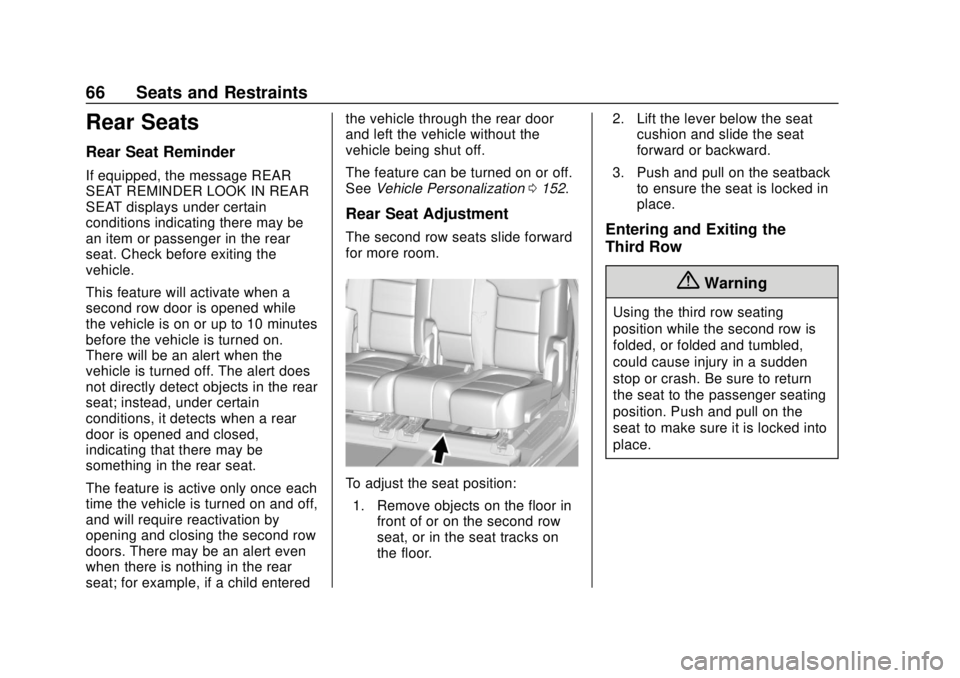
The second row seats slide forward
for more room.
To adjust the seat position:
1. Remove objects on the floor in front of or on the second row
seat, or in the seat tracks on
the floor. 2. Lift the lever below the seat
cushion and slide the seat
forward or backward.
3. Push and pull on the seatback to ensure the seat is locked in
place.
Entering and Exiting the
Third Row
{Warning
Using the third row seating
position while the second row is
folded, or folded and tumbled,
could cause injury in a sudden
stop or crash. Be sure to return
the seat to the passenger seating
position. Push and pull on the
seat to make sure it is locked into
place.
Page 70 of 423
GMC Acadia/Acadia Denali Owner Manual (GMNA-Localizing-U.S./Canada/
Mexico-11349114) - 2018 - crc - 9/21/17
Seats and Restraints 69
seatback to make sure it is locked.
Push on the head restraint to return
it to the upright, locked position.
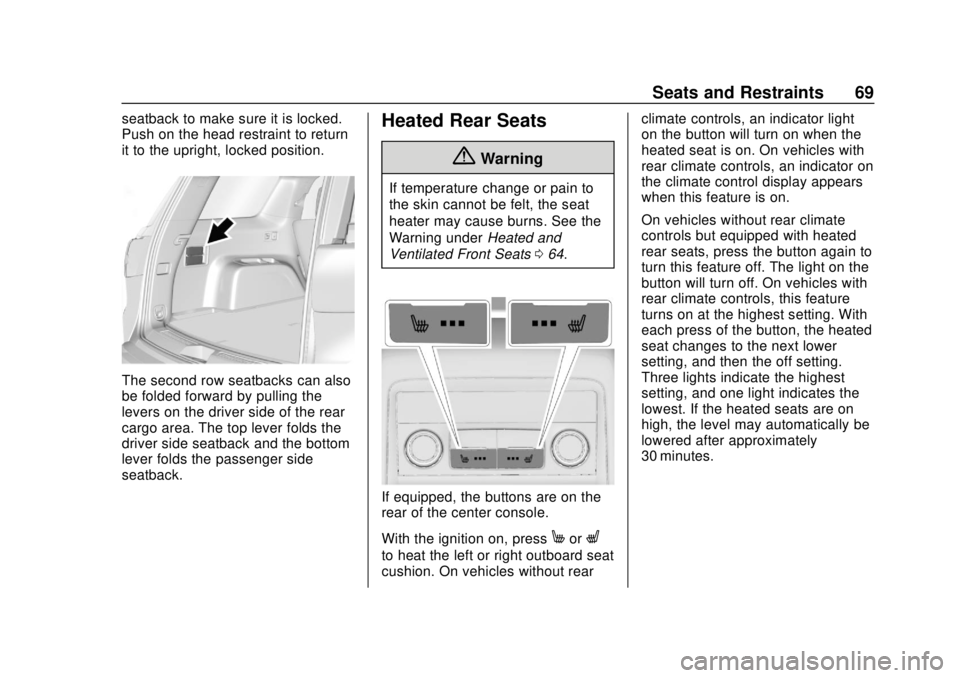
The second row seatbacks can also
be folded forward by pulling the
levers on the driver side of the rear
cargo area. The top lever folds the
driver side seatback and the bottom
lever folds the passenger side
seatback.
Heated Rear Seats
{Warning
If temperature change or pain to
the skin cannot be felt, the seat
heater may cause burns. See the
Warning underHeated and
Ventilated Front Seats 064.
If equipped, the buttons are on the
rear of the center console.
With the ignition on, press
MorL
to heat the left or right outboard seat
cushion. On vehicles without rear climate controls, an indicator light
on the button will turn on when the
heated seat is on. On vehicles with
rear climate controls, an indicator on
the climate control display appears
when this feature is on.
On vehicles without rear climate
controls but equipped with heated
rear seats, press the button again to
turn this feature off. The light on the
button will turn off. On vehicles with
rear climate controls, this feature
turns on at the highest setting. With
each press of the button, the heated
seat changes to the next lower
setting, and then the off setting.
Three lights indicate the highest
setting, and one light indicates the
lowest. If the heated seats are on
high, the level may automatically be
lowered after approximately
30 minutes.
Page 119 of 423
GMC Acadia/Acadia Denali Owner Manual (GMNA-Localizing-U.S./Canada/
Mexico-11349114) - 2018 - crc - 9/21/17
118 Instruments and Controls
Instruments and
Controls
Controls
Steering Wheel Adjustment . . . 119
Steering Wheel Controls . . . . . . 119
Heated Steering Wheel . . . . . . . 120
Horn . . . . . . . . . . . . . . . . . . . . . . . . . . 120
Windshield Wiper/Washer . . . . 120
Rear Window Wiper/Washer . . . . . . . . . . . . . . . . . . . . . 121
Compass . . . . . . . . . . . . . . . . . . . . . 122
Clock . . . . . . . . . . . . . . . . . . . . . . . . . 122
Power Outlets . . . . . . . . . . . . . . . . 124
Warning Lights, Gauges, and
Indicators
Warning Lights, Gauges, and Indicators . . . . . . . . . . . . . . . . . . . 126
Instrument Cluster . . . . . . . . . . . . 127
Speedometer . . . . . . . . . . . . . . . . . 131
Odometer . . . . . . . . . . . . . . . . . . . . . 131
Trip Odometer . . . . . . . . . . . . . . . . 131
Tachometer . . . . . . . . . . . . . . . . . . . 131
Fuel Gauge . . . . . . . . . . . . . . . . . . . 132
Engine Coolant Temperature Gauge . . . . . . . . . . . . . . . . . . . . . . 133
Seat Belt Reminders . . . . . . . . . 134 Airbag Readiness Light . . . . . . . 135
Passenger Airbag Status
Indicator . . . . . . . . . . . . . . . . . . . . 135
Charging System Light . . . . . . . 136
Malfunction Indicator Lamp (Check Engine Light) . . . . . . . . 136
Brake System Warning Light . . . . . . . . . . . . . . . . . . . . . . . . 138
Electric Parking Brake Light . . . . . . . . . . . . . . . . . . . . . . . . 139
Service Electric Parking Brake Light (Uplevel and Midlevel
Cluster Only) . . . . . . . . . . . . . . . . 139
Antilock Brake System (ABS) Warning Light . . . . . . . . . . . . . . . 140
Tow/Haul Mode Light . . . . . . . . . 140
Hill Descent Control Light . . . . 140
Lane Keep Assist (LKA) Light . . . . . . . . . . . . . . . . . . . . . . . . 140
Vehicle Ahead Indicator . . . . . . 141
Pedestrian Ahead Indicator . . . 141
Traction Off Light . . . . . . . . . . . . . 141
StabiliTrak OFF Light . . . . . . . . . 141
Traction Control System (TCS)/ StabiliTrak Light . . . . . . . . . . . . . 142
Tire Pressure Light . . . . . . . . . . . 142
Engine Oil Pressure Light . . . . 143
Low Fuel Warning Light (Base Level) . . . . . . . . . . . . . . . . . . . . . . . 143 Low Fuel Warning Light
(Midlevel and Uplevel) . . . . . . 144
Security Light . . . . . . . . . . . . . . . . . 144
High-Beam On Light . . . . . . . . . . 144
Front Fog Lamp Light . . . . . . . . . 144
Lamps On Reminder . . . . . . . . . 145
Cruise Control Light . . . . . . . . . . 145
Door Ajar Light . . . . . . . . . . . . . . . 145
Information Displays
Driver Information Center (DIC) (Base and Midlevel) . . . . . . . . . 145
Driver Information Center (DIC) (Uplevel) . . . . . . . . . . . . . . . . . . . . 148
Vehicle Messages
Vehicle Messages . . . . . . . . . . . . 151
Engine Power Messages . . . . . 151
Vehicle Speed Messages . . . . . 152
Vehicle Personalization
Vehicle Personalization . . . . . . . 152
Universal Remote System
Universal Remote System . . . . 160
Universal Remote SystemProgramming . . . . . . . . . . . . . . . 160
Universal Remote System Operation . . . . . . . . . . . . . . . . . . . 163
Page 121 of 423
GMC Acadia/Acadia Denali Owner Manual (GMNA-Localizing-U.S./Canada/
Mexico-11349114) - 2018 - crc - 9/21/17
120 Instruments and Controls
oorp:Press to go to the
previous or next menu option.
worx: Press to go to the next or
previous selection.
V: Press to select a highlighted
menu option.
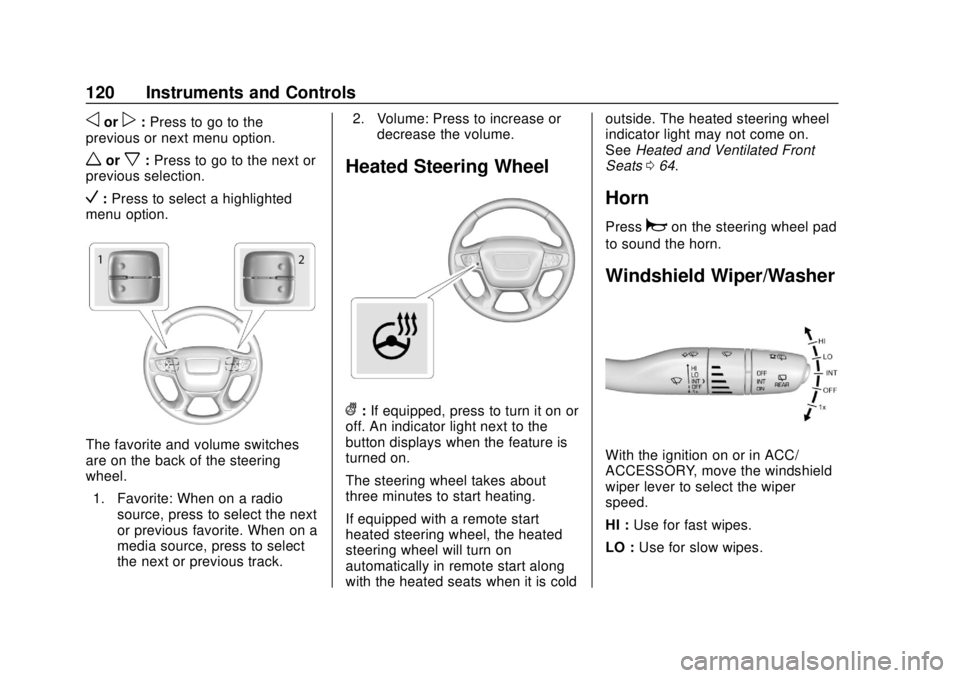
The favorite and volume switches
are on the back of the steering
wheel.
1. Favorite: When on a radio source, press to select the next
or previous favorite. When on a
media source, press to select
the next or previous track. 2. Volume: Press to increase or
decrease the volume.
Heated Steering Wheel
(:If equipped, press to turn it on or
off. An indicator light next to the
button displays when the feature is
turned on.
The steering wheel takes about
three minutes to start heating.
If equipped with a remote start
heated steering wheel, the heated
steering wheel will turn on
automatically in remote start along
with the heated seats when it is cold outside. The heated steering wheel
indicator light may not come on.
See
Heated and Ventilated Front
Seats 064.
Horn
Pressaon the steering wheel pad
to sound the horn.
Windshield Wiper/Washer
With the ignition on or in ACC/
ACCESSORY, move the windshield
wiper lever to select the wiper
speed.
HI : Use for fast wipes.
LO : Use for slow wipes.
Page 123 of 423
GMC Acadia/Acadia Denali Owner Manual (GMNA-Localizing-U.S./Canada/
Mexico-11349114) - 2018 - crc - 9/21/17
122 Instruments and Controls
OFF :Turns the wiper off.
INT : Turns on the rear wiper with a
delay between wipes.
ON : Turns on the rear wiper.
1:Push the windshield wiper
lever forward to spray washer fluid
on the rear window. The wipers will
clear the rear window and either
stop or return to your preset speed.
For more washer cycles, press and
hold the lever.
The rear window wiper/washer will
not operate if the liftgate is open or
ajar. If the liftgate is opened while
the rear wiper is on, the wiper
returns to the parked position and
stops.
Rear Wiper Arm Assembly
Protection
When using an automatic car wash,
move the rear wiper control to OFF
to disable the rear wiper. In some
vehicles, if the transmission is in
N (Neutral) and the vehicle speed is
very slow, the rear wiper will
automatically park. The wiper operations return to
normal when the transmission is no
longer in N (Neutral) or the vehicle
speed has increased.
Reverse Gear Wipes
If the rear wiper control is off, the
rear wiper will automatically operate
continuously when the vehicle is in
R (Reverse) and the front
windshield wiper is performing low
or high speed wipes. If the rear
wiper control is off, the vehicle is in
R (Reverse), and the front
windshield wiper is performing
interval wipes, then the rear wiper
automatically performs interval
wipes.
This feature can be turned on or off.
See
Vehicle Personalization 0152.
The windshield washer reservoir is
used for the windshield and the rear
window. Check the fluid level in the
reservoir if either washer is not
working. See Washer Fluid 0296.
Compass
The vehicle may have a compass
display on the Driver Information
Center (DIC). The compass receives
its heading and other information
from the Global Positioning
System (GPS) antenna, StabiliTrak,
and vehicle speed information.
The compass system is designed to
operate for a certain number of
miles or degrees of turn before
needing a signal from the GPS
satellites. When the compass
display shows CAL, drive the
vehicle for a short distance in an
open area where it can receive a
GPS signal. The compass system
will automatically determine when a
GPS signal is restored and provide
a heading again.
Clock
Base Radio
The infotainment system controls
are used to access the time and
date settings through the menu
system. See Operation0176 on
how to use the menu system.
Page 124 of 423
GMC Acadia/Acadia Denali Owner Manual (GMNA-Localizing-U.S./Canada/
Mexico-11349114) - 2018 - crc - 9/21/17
Instruments and Controls 123
Setting the Time and Date
When Auto Set is enabled the time
cannot be manually set.1. Press
{, then touch
SETTINGS.
2. Touch Time and Date, then Set Time or Set Date.
3. Touch + or −to adjust the
value.
4. Touch
RorQto adjust AM or
PM for 12 hour format.
5. Touch
0.
Using Auto Set
1. Press{, then touch
SETTINGS.
2. Touch Time and Date, then Auto Set.
3. Select from the available selections.
4. Touch
0.
Setting the 12/24 Hour Format
1. Press{, then touch
SETTINGS.
2. Touch Time and Date, then select 12h or 24h format.
3. Touch
0.
Setting the Month and Day
Format
1. Press{, then touch
SETTINGS.
2. Touch Time and Date, then Set Date Format.
3. Select DD/MM/YYYY (day/ month/year), MM/DD/YYYY
(month/day/year), or YYYY/
MM/DD (year/month/day)
format.
4. Touch
0.
Uplevel Radio Using Center
Stack Controls
The infotainment system controls
are used to access the time and
date settings through the menu system. See
“Using the System”
under “Introduction” in the
infotainment manual.
To set the time or date:
1. Press
{, then select
SETTINGS.
2. Select Time and Date, then the desired function.
3. Turn the MENU knob to increase or decrease the value.
4. Press the MENU knob to go to the next value. After the last
value is selected, the system
will update and return to the
Settings menu. Press
oBACK
to go to the last menu and
save the changes.
Auto Set requires an OnStar
service plan.
If auto timing is set, the time
displayed on the clock may not
update immediately when driving
into a new time zone.
Page 125 of 423
GMC Acadia/Acadia Denali Owner Manual (GMNA-Localizing-U.S./Canada/
Mexico-11349114) - 2018 - crc - 9/21/17
124 Instruments and Controls
To set the clock display:1. Select SETTINGS from the Home Page, then select Time
and Date.
2. Select Clock Display.
3. Turn the MENU knob to Off or On.
4. Press the MENU knob to select.
Press
oBACK to go to the last
menu and save the changes.
Uplevel Radio Using
Infotainment Display Controls
To set the time:
1. Touch SETTINGS from the Home Page, then touch Time
and Date.
2. Touch Set Time and touch
«
orªto increase or decrease
hours, minutes, and AM or PM.
Touch 12–24 Hr for 12 or
24 hour clock.
3. Touch
}to go back to the
previous menu. Auto Set requires an OnStar
service plan.
If auto timing is set, the time
displayed on the clock may not
update immediately when driving
into a new time zone.
To set the date:
1. Touch SETTINGS from the Home Page, then touch Time
and Date.
2. Touch Set Date and touch
«
orªto increase or decrease
month, day, or year.
3. Touch
}to go back to the
previous menu.
To set the clock display: 1. Touch SETTINGS and touch Time and Date.
2. Touch Clock Display and touch OFF or ON to turn the clock
display off or on.
3. Touch
}to go back to the
previous menu. The clock settings can also be
accessed by touching the time
display, then touching Set.
Power Outlets
Power Outlets 12 Volt Direct
Current
The vehicle has two 12-volt outlets
that can be used to plug in electrical
equipment, such as a cell phone or
MP3 player.
The power outlets are located:
.
On the center stack below the
climate controls.
. In the rear cargo area.
Lift the cover to access the outlet
and replace when not in use.
{Warning
Power is always supplied to the
rear cargo power outlet. Do not
leave electrical equipment
plugged in when the vehicle is not (Continued)