lock GMC ACADIA 2018 Workshop Manual
[x] Cancel search | Manufacturer: GMC, Model Year: 2018, Model line: ACADIA, Model: GMC ACADIA 2018Pages: 423, PDF Size: 7.26 MB
Page 117 of 423
GMC Acadia/Acadia Denali Owner Manual (GMNA-Localizing-U.S./Canada/
Mexico-11349114) - 2018 - crc - 9/21/17
116 Storage
Cargo Management System
Removal1. Turn both knobs to the unlock position.
2. Press the buttons and pull up to remove the divider.
3. Store the divider outside of the vehicle.Roof Rack System
{Warning
If something is carried on top of
the vehicle that is longer or wider
than the roof rack —like paneling,
plywood, or a mattress —the
wind can catch it while the vehicle
is being driven. The item being
carried could be violently torn off,
and this could cause a collision
and damage the vehicle. Never
carry something longer or wider
than the roof rack on top of the
vehicle unless using a GM
certified accessory carrier.
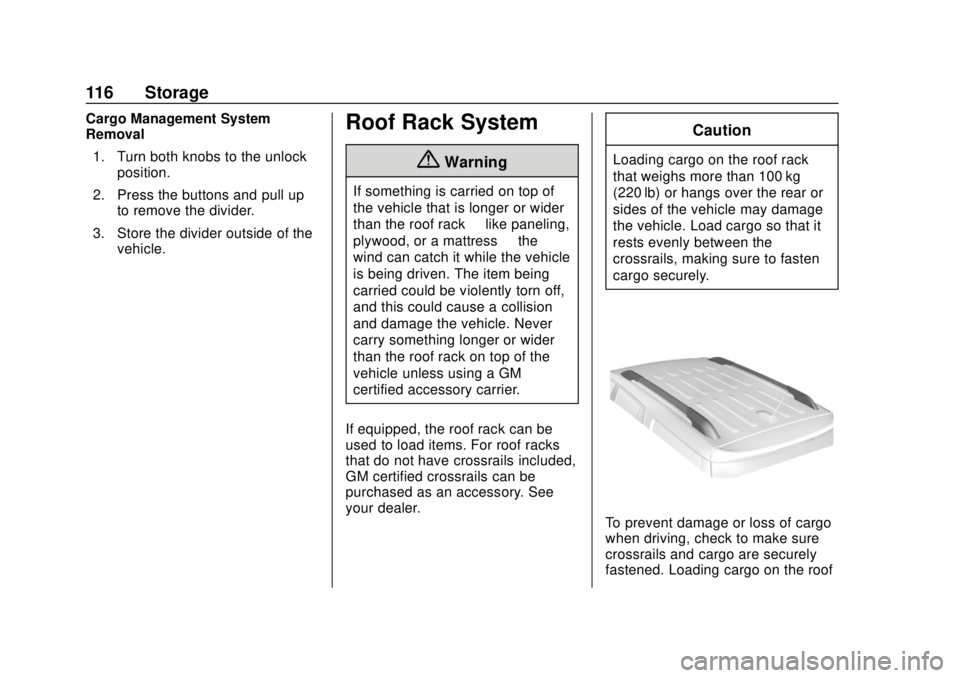
If equipped, the roof rack can be
used to load items. For roof racks
that do not have crossrails included,
GM certified crossrails can be
purchased as an accessory. See
your dealer.
Caution
Loading cargo on the roof rack
that weighs more than 100 kg
(220 lb) or hangs over the rear or
sides of the vehicle may damage
the vehicle. Load cargo so that it
rests evenly between the
crossrails, making sure to fasten
cargo securely.
To prevent damage or loss of cargo
when driving, check to make sure
crossrails and cargo are securely
fastened. Loading cargo on the roof
Page 119 of 423
GMC Acadia/Acadia Denali Owner Manual (GMNA-Localizing-U.S./Canada/
Mexico-11349114) - 2018 - crc - 9/21/17
118 Instruments and Controls
Instruments and
Controls
Controls
Steering Wheel Adjustment . . . 119
Steering Wheel Controls . . . . . . 119
Heated Steering Wheel . . . . . . . 120
Horn . . . . . . . . . . . . . . . . . . . . . . . . . . 120
Windshield Wiper/Washer . . . . 120
Rear Window Wiper/Washer . . . . . . . . . . . . . . . . . . . . . 121
Compass . . . . . . . . . . . . . . . . . . . . . 122
Clock . . . . . . . . . . . . . . . . . . . . . . . . . 122
Power Outlets . . . . . . . . . . . . . . . . 124
Warning Lights, Gauges, and
Indicators
Warning Lights, Gauges, and Indicators . . . . . . . . . . . . . . . . . . . 126
Instrument Cluster . . . . . . . . . . . . 127
Speedometer . . . . . . . . . . . . . . . . . 131
Odometer . . . . . . . . . . . . . . . . . . . . . 131
Trip Odometer . . . . . . . . . . . . . . . . 131
Tachometer . . . . . . . . . . . . . . . . . . . 131
Fuel Gauge . . . . . . . . . . . . . . . . . . . 132
Engine Coolant Temperature Gauge . . . . . . . . . . . . . . . . . . . . . . 133
Seat Belt Reminders . . . . . . . . . 134 Airbag Readiness Light . . . . . . . 135
Passenger Airbag Status
Indicator . . . . . . . . . . . . . . . . . . . . 135
Charging System Light . . . . . . . 136
Malfunction Indicator Lamp (Check Engine Light) . . . . . . . . 136
Brake System Warning Light . . . . . . . . . . . . . . . . . . . . . . . . 138
Electric Parking Brake Light . . . . . . . . . . . . . . . . . . . . . . . . 139
Service Electric Parking Brake Light (Uplevel and Midlevel
Cluster Only) . . . . . . . . . . . . . . . . 139
Antilock Brake System (ABS) Warning Light . . . . . . . . . . . . . . . 140
Tow/Haul Mode Light . . . . . . . . . 140
Hill Descent Control Light . . . . 140
Lane Keep Assist (LKA) Light . . . . . . . . . . . . . . . . . . . . . . . . 140
Vehicle Ahead Indicator . . . . . . 141
Pedestrian Ahead Indicator . . . 141
Traction Off Light . . . . . . . . . . . . . 141
StabiliTrak OFF Light . . . . . . . . . 141
Traction Control System (TCS)/ StabiliTrak Light . . . . . . . . . . . . . 142
Tire Pressure Light . . . . . . . . . . . 142
Engine Oil Pressure Light . . . . 143
Low Fuel Warning Light (Base Level) . . . . . . . . . . . . . . . . . . . . . . . 143 Low Fuel Warning Light
(Midlevel and Uplevel) . . . . . . 144
Security Light . . . . . . . . . . . . . . . . . 144
High-Beam On Light . . . . . . . . . . 144
Front Fog Lamp Light . . . . . . . . . 144
Lamps On Reminder . . . . . . . . . 145
Cruise Control Light . . . . . . . . . . 145
Door Ajar Light . . . . . . . . . . . . . . . 145
Information Displays
Driver Information Center (DIC) (Base and Midlevel) . . . . . . . . . 145
Driver Information Center (DIC) (Uplevel) . . . . . . . . . . . . . . . . . . . . 148
Vehicle Messages
Vehicle Messages . . . . . . . . . . . . 151
Engine Power Messages . . . . . 151
Vehicle Speed Messages . . . . . 152
Vehicle Personalization
Vehicle Personalization . . . . . . . 152
Universal Remote System
Universal Remote System . . . . 160
Universal Remote SystemProgramming . . . . . . . . . . . . . . . 160
Universal Remote System Operation . . . . . . . . . . . . . . . . . . . 163
Page 120 of 423
GMC Acadia/Acadia Denali Owner Manual (GMNA-Localizing-U.S./Canada/
Mexico-11349114) - 2018 - crc - 9/21/17
Instruments and Controls 119
Controls
Steering Wheel
Adjustment
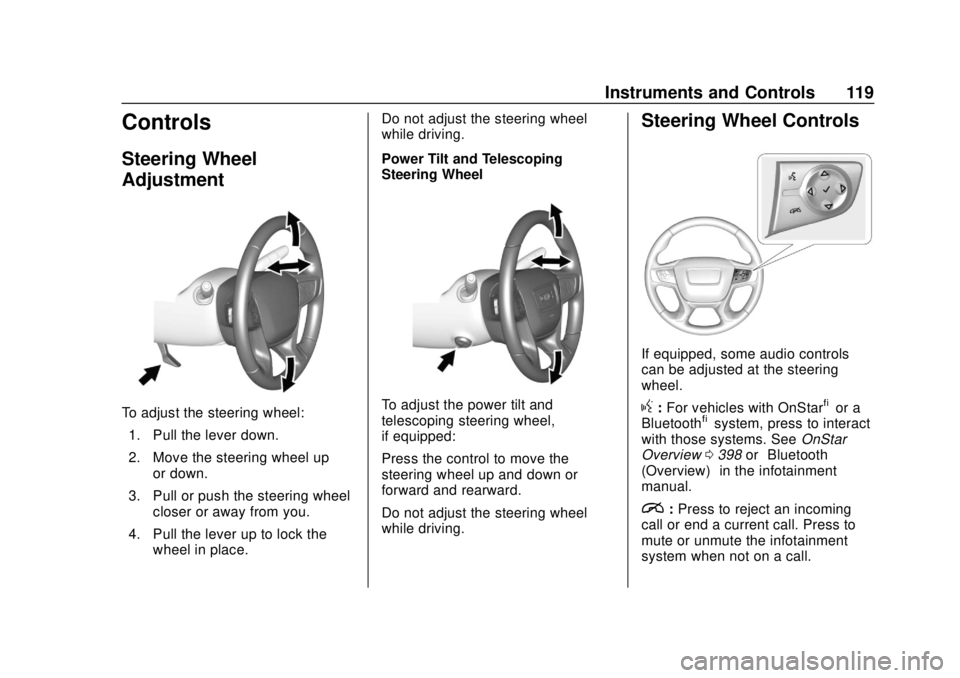
To adjust the steering wheel:1. Pull the lever down.
2. Move the steering wheel up or down.
3. Pull or push the steering wheel closer or away from you.
4. Pull the lever up to lock the wheel in place. Do not adjust the steering wheel
while driving.
Power Tilt and Telescoping
Steering WheelTo adjust the power tilt and
telescoping steering wheel,
if equipped:
Press the control to move the
steering wheel up and down or
forward and rearward.
Do not adjust the steering wheel
while driving.
Steering Wheel Controls
If equipped, some audio controls
can be adjusted at the steering
wheel.
g:
For vehicles with OnStar®or a
Bluetooth®system, press to interact
with those systems. See OnStar
Overview 0398 or“Bluetooth
(Overview)” in the infotainment
manual.
i: Press to reject an incoming
call or end a current call. Press to
mute or unmute the infotainment
system when not on a call.
Page 122 of 423
GMC Acadia/Acadia Denali Owner Manual (GMNA-Localizing-U.S./Canada/
Mexico-11349114) - 2018 - crc - 9/21/17
Instruments and Controls 121
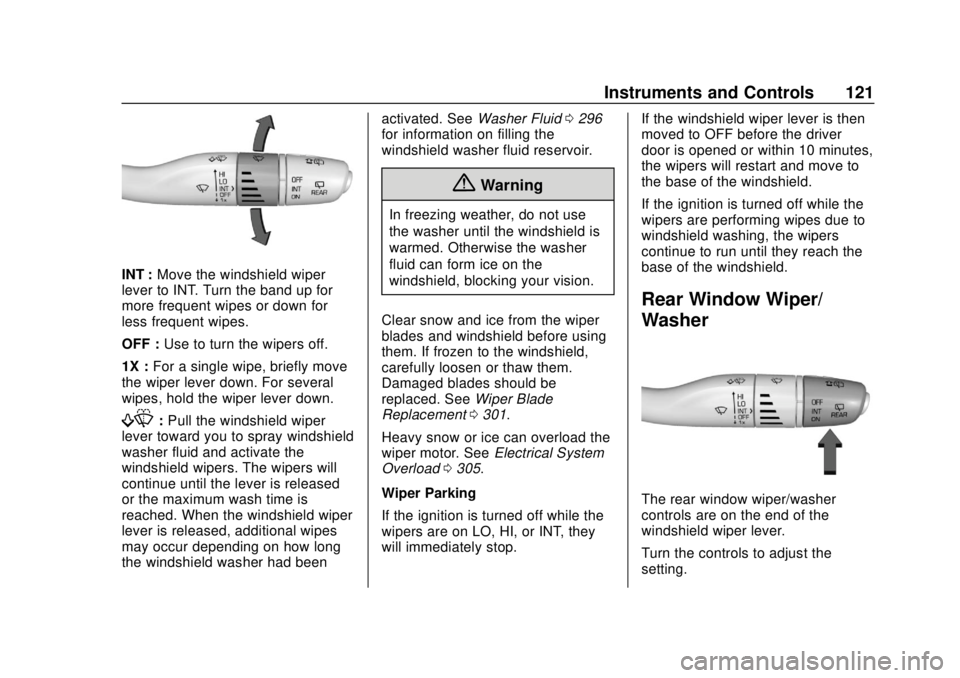
INT :Move the windshield wiper
lever to INT. Turn the band up for
more frequent wipes or down for
less frequent wipes.
OFF : Use to turn the wipers off.
1X : For a single wipe, briefly move
the wiper lever down. For several
wipes, hold the wiper lever down.
f: Pull the windshield wiper
lever toward you to spray windshield
washer fluid and activate the
windshield wipers. The wipers will
continue until the lever is released
or the maximum wash time is
reached. When the windshield wiper
lever is released, additional wipes
may occur depending on how long
the windshield washer had been activated. See
Washer Fluid0296
for information on filling the
windshield washer fluid reservoir.
{Warning
In freezing weather, do not use
the washer until the windshield is
warmed. Otherwise the washer
fluid can form ice on the
windshield, blocking your vision.
Clear snow and ice from the wiper
blades and windshield before using
them. If frozen to the windshield,
carefully loosen or thaw them.
Damaged blades should be
replaced. See Wiper Blade
Replacement 0301.
Heavy snow or ice can overload the
wiper motor. See Electrical System
Overload 0305.
Wiper Parking
If the ignition is turned off while the
wipers are on LO, HI, or INT, they
will immediately stop. If the windshield wiper lever is then
moved to OFF before the driver
door is opened or within 10 minutes,
the wipers will restart and move to
the base of the windshield.
If the ignition is turned off while the
wipers are performing wipes due to
windshield washing, the wipers
continue to run until they reach the
base of the windshield.
Rear Window Wiper/
Washer
The rear window wiper/washer
controls are on the end of the
windshield wiper lever.
Turn the controls to adjust the
setting.
Page 123 of 423
GMC Acadia/Acadia Denali Owner Manual (GMNA-Localizing-U.S./Canada/
Mexico-11349114) - 2018 - crc - 9/21/17
122 Instruments and Controls
OFF :Turns the wiper off.
INT : Turns on the rear wiper with a
delay between wipes.
ON : Turns on the rear wiper.
1:Push the windshield wiper
lever forward to spray washer fluid
on the rear window. The wipers will
clear the rear window and either
stop or return to your preset speed.
For more washer cycles, press and
hold the lever.
The rear window wiper/washer will
not operate if the liftgate is open or
ajar. If the liftgate is opened while
the rear wiper is on, the wiper
returns to the parked position and
stops.
Rear Wiper Arm Assembly
Protection
When using an automatic car wash,
move the rear wiper control to OFF
to disable the rear wiper. In some
vehicles, if the transmission is in
N (Neutral) and the vehicle speed is
very slow, the rear wiper will
automatically park. The wiper operations return to
normal when the transmission is no
longer in N (Neutral) or the vehicle
speed has increased.
Reverse Gear Wipes
If the rear wiper control is off, the
rear wiper will automatically operate
continuously when the vehicle is in
R (Reverse) and the front
windshield wiper is performing low
or high speed wipes. If the rear
wiper control is off, the vehicle is in
R (Reverse), and the front
windshield wiper is performing
interval wipes, then the rear wiper
automatically performs interval
wipes.
This feature can be turned on or off.
See
Vehicle Personalization 0152.
The windshield washer reservoir is
used for the windshield and the rear
window. Check the fluid level in the
reservoir if either washer is not
working. See Washer Fluid 0296.
Compass
The vehicle may have a compass
display on the Driver Information
Center (DIC). The compass receives
its heading and other information
from the Global Positioning
System (GPS) antenna, StabiliTrak,
and vehicle speed information.
The compass system is designed to
operate for a certain number of
miles or degrees of turn before
needing a signal from the GPS
satellites. When the compass
display shows CAL, drive the
vehicle for a short distance in an
open area where it can receive a
GPS signal. The compass system
will automatically determine when a
GPS signal is restored and provide
a heading again.
Clock
Base Radio
The infotainment system controls
are used to access the time and
date settings through the menu
system. See Operation0176 on
how to use the menu system.
Page 124 of 423
GMC Acadia/Acadia Denali Owner Manual (GMNA-Localizing-U.S./Canada/
Mexico-11349114) - 2018 - crc - 9/21/17
Instruments and Controls 123
Setting the Time and Date
When Auto Set is enabled the time
cannot be manually set.1. Press
{, then touch
SETTINGS.
2. Touch Time and Date, then Set Time or Set Date.
3. Touch + or −to adjust the
value.
4. Touch
RorQto adjust AM or
PM for 12 hour format.
5. Touch
0.
Using Auto Set
1. Press{, then touch
SETTINGS.
2. Touch Time and Date, then Auto Set.
3. Select from the available selections.
4. Touch
0.
Setting the 12/24 Hour Format
1. Press{, then touch
SETTINGS.
2. Touch Time and Date, then select 12h or 24h format.
3. Touch
0.
Setting the Month and Day
Format
1. Press{, then touch
SETTINGS.
2. Touch Time and Date, then Set Date Format.
3. Select DD/MM/YYYY (day/ month/year), MM/DD/YYYY
(month/day/year), or YYYY/
MM/DD (year/month/day)
format.
4. Touch
0.
Uplevel Radio Using Center
Stack Controls
The infotainment system controls
are used to access the time and
date settings through the menu system. See
“Using the System”
under “Introduction” in the
infotainment manual.
To set the time or date:
1. Press
{, then select
SETTINGS.
2. Select Time and Date, then the desired function.
3. Turn the MENU knob to increase or decrease the value.
4. Press the MENU knob to go to the next value. After the last
value is selected, the system
will update and return to the
Settings menu. Press
oBACK
to go to the last menu and
save the changes.
Auto Set requires an OnStar
service plan.
If auto timing is set, the time
displayed on the clock may not
update immediately when driving
into a new time zone.
Page 125 of 423
GMC Acadia/Acadia Denali Owner Manual (GMNA-Localizing-U.S./Canada/
Mexico-11349114) - 2018 - crc - 9/21/17
124 Instruments and Controls
To set the clock display:1. Select SETTINGS from the Home Page, then select Time
and Date.
2. Select Clock Display.
3. Turn the MENU knob to Off or On.
4. Press the MENU knob to select.
Press
oBACK to go to the last
menu and save the changes.
Uplevel Radio Using
Infotainment Display Controls
To set the time:
1. Touch SETTINGS from the Home Page, then touch Time
and Date.
2. Touch Set Time and touch
«
orªto increase or decrease
hours, minutes, and AM or PM.
Touch 12–24 Hr for 12 or
24 hour clock.
3. Touch
}to go back to the
previous menu. Auto Set requires an OnStar
service plan.
If auto timing is set, the time
displayed on the clock may not
update immediately when driving
into a new time zone.
To set the date:
1. Touch SETTINGS from the Home Page, then touch Time
and Date.
2. Touch Set Date and touch
«
orªto increase or decrease
month, day, or year.
3. Touch
}to go back to the
previous menu.
To set the clock display: 1. Touch SETTINGS and touch Time and Date.
2. Touch Clock Display and touch OFF or ON to turn the clock
display off or on.
3. Touch
}to go back to the
previous menu. The clock settings can also be
accessed by touching the time
display, then touching Set.
Power Outlets
Power Outlets 12 Volt Direct
Current
The vehicle has two 12-volt outlets
that can be used to plug in electrical
equipment, such as a cell phone or
MP3 player.
The power outlets are located:
.
On the center stack below the
climate controls.
. In the rear cargo area.
Lift the cover to access the outlet
and replace when not in use.
{Warning
Power is always supplied to the
rear cargo power outlet. Do not
leave electrical equipment
plugged in when the vehicle is not (Continued)
Page 141 of 423
GMC Acadia/Acadia Denali Owner Manual (GMNA-Localizing-U.S./Canada/
Mexico-11349114) - 2018 - crc - 9/21/17
140 Instruments and Controls
Antilock Brake System
(ABS) Warning Light
This light comes on briefly when the
engine is started.
If the light does not come on, have it
fixed so it will be ready to warn if
there is a problem.
If the light comes on while driving,
stop as soon as it is safely possible
and turn off the vehicle. Then start
the engine again to reset the
system. If the ABS light stays on,
or comes on again while driving, the
vehicle needs service. A chime may
also sound when the light comes on
steady.
If the ABS light is the only light on,
the vehicle has regular brakes, but
the antilock brakes are not
functioning.If both the ABS and the brake
system warning light are on, the
vehicle's antilock brakes are not
functioning and there is a problem
with the regular brakes. See your
dealer for service.
See
Brake System Warning Light
0 138.Tow/Haul Mode Light
For vehicles with the Tow/Haul
Mode feature, this light comes on
when the Tow/Haul Mode has been
activated.
See Tow/Haul Mode 0232.
Hill Descent Control Light
If equipped, the Hill Descent Control
light comes on when the system is
ready for use. When the light
flashes, the system is active.
See Hill Descent Control (HDC)
0 238.
Lane Keep Assist (LKA)
Light
This light is green if LKA is available
to assist.
Page 154 of 423
GMC Acadia/Acadia Denali Owner Manual (GMNA-Localizing-U.S./Canada/
Mexico-11349114) - 2018 - crc - 9/21/17
Instruments and Controls 153
.Wi-Fi
Each menu is detailed in the
following information.
Time and Date
Manually set the time and date. See
Clock 0122.
Rear Seat Reminder
This allows for a chime and a
message when the rear door has
been opened before or during
operation of the vehicle.
Select Off or On.
Language
Select Language, then select from
the available language(s).
The selected language will display
on the system, and voice
recognition will reflect the selected
language.
Valet Mode
This will lock the infotainment
system and steering wheel controls.
It may also limit access to vehicle
storage locations, if equipped. To enable valet mode:
1. Enter a four-digit code on the keypad.
2. Select Enter to go to the confirmation screen.
3. Re-enter the four-digit code.
Touch Lock or Unlock to lock or
unlock the system. Touch Back to
go back to the previous menu.
Teen Driver
See “Teen Driver” under“Settings”
in the infotainment manual.
Radio
Touch and the following may
display:
. Manage Favorites
. Number of Favorites Shown
. Audible Touch Feedback
. Text Scroll
. Tone Settings
. Auto Volume
. Bose Audio Pilot
. Maximum Startup Volume Manage Favorites
This allows favorites to be edited.
See
“Manage Favorites” in
“Settings” under“Radio” in the
infotainment manual.
Number of Favorites Shown
Touch to set the number of favorites
to display.
Select the desired number or select
Auto and the infotainment system
will automatically adjust the number
of favorites shown.
Audible Touch Feedback
This allows Audible Touch
Feedback to be turned on or off.
Select Off or On.
Text Scroll
Select to see text scroll on the
screen.
Select Off or On.
Page 155 of 423
GMC Acadia/Acadia Denali Owner Manual (GMNA-Localizing-U.S./Canada/
Mexico-11349114) - 2018 - crc - 9/21/17
154 Instruments and Controls
Tone Settings
Select to adjust the radio tone. See
Operation0176 or“Tone Settings”
under “AM-FM Radio” in the
infotainment manual.
Auto Volume
This feature adjusts the volume
based on vehicle speed and
ambient noise.
Select Off, Low, Medium-Low,
Medium, Medium-High, or High.
Bose Audio Pilot
This feature adjusts the volume
based on the noise in the vehicle.
See “Bose AudioPilot Noise
Compensation Technology” under
“Infotainment System Settings” in
the infotainment manual.
Select Off or On.
Maximum Startup Volume
This feature sets the maximum
startup volume. If the vehicle is
started and the volume is greater
than this level, the volume is
adjusted to this level. To set the maximum startup volume,
touch + or
−to increase or
decrease.
Vehicle
Select and the following may
display:
. Climate and Air Quality
. Collision/Detection Systems
. Comfort and Convenience
. Lighting
. Power Door Locks
. Remote Lock, Unlock, Start
Climate and Air Quality
Select and the following may
display:
.Auto Fan Speed
. Auto Defog
. Auto Rear Defog
Auto Fan Speed
This feature will set the maximum
auto fan speed.
Select Low, Medium, or High. Auto Defog
When set to On, the front defog will
automatically react to temperature
and humidity conditions that may
cause fogging.
Select Off or On.
Auto Rear Defog
If equipped, this allows the Auto
Rear Defog to be turned on or off.
This feature will automatically turn
on the rear window defogger when it
is cold outside.
Select Off or On.
Collision/Detection Systems
Select the Collision/Detection
Systems menu and the following
may be displayed if equipped:
.
Alert Type
. Forward Collision System
. Front Pedestrian Detection
. Rear Cross Traffic Alert
. Adaptive Cruise Go Notifier
. Lane Change Alert