USB GMC ACADIA 2019 User Guide
[x] Cancel search | Manufacturer: GMC, Model Year: 2019, Model line: ACADIA, Model: GMC ACADIA 2019Pages: 429, PDF Size: 6.38 MB
Page 184 of 429

GMC Acadia/Acadia Denali Owner Manual (GMNA-Localizing-U.S./Canada/
Mexico-12146149) - 2019 - crc - 7/30/18
Infotainment System 183
.Connection with i-Stick Type
USB storage devices may be
faulty due to vehicle vibration.
. Do not touch the USB
connecting terminal.
. Only USB storage devices
formatted in FAT16/32 or exFAT
file systems are recognized.
NTFS and other file systems are
not recognized.
. The time it takes to process files
will depend on the USB storage
device type and capacity, and
the type of files stored.
. Some USB storage device files
may not be compatible.
. Up to two USB devices and one
iPod can be played through a
USB hub. All devices may not be
supported, depending on the
performance of the USB hub.
If there is not enough power
supply, it may not operate
normally. .
Do not disconnect the USB
storage device while it is playing.
This may cause damage to the
product or affect the
performance of the USB device.
. Disconnect the USB storage
device when the ignition is
turned off. If the ignition is turned
on while the USB device is
connected, the USB device may
be damaged or may not operate
normally.
. USB storage devices can only
be connected for playing music,
viewing photo files,
or upgrading.
. Do not use the USB terminal to
charge USB accessory
equipment. The heat generated
may cause performance issues
or damage.
. Music files to which Digital Right
Management (DRM) is applied
cannot be played.
. USB storage devices can have a
capacity with a limit of 5,000
files, such as music, photo,
video, 15 stages of folder structure. Normal usage cannot
be guaranteed for a storage
device that exceeds this limit.
The iPod/iPhone can play all
music files that are supported.
The music file lists will only
display up to 5,000 files on the
screen. These files are sorted in
alphabetical order.
. Some iPod/iPhone product
models may not support the
connectivity or functionality of
this product.
. Only connect the iPod/iPhone
with connection cables
supported by iPod/iPhone
products. Other connection
cables cannot be used.
. The iPod/iPhone may be
damaged if it is connected to the
vehicle with the ignition on.
When not in use, disconnect the
iPod/iPhone.
. When the iPod/iPhone is
connected to the USB port by
using the iPod/iPhone cable, the
Bluetooth music is not
supported.
Page 185 of 429
GMC Acadia/Acadia Denali Owner Manual (GMNA-Localizing-U.S./Canada/
Mexico-12146149) - 2019 - crc - 7/30/18
184 Infotainment System
.The iPod/iPhone playback
functions and the information
displayed may be different when
played on the infotainment
system.
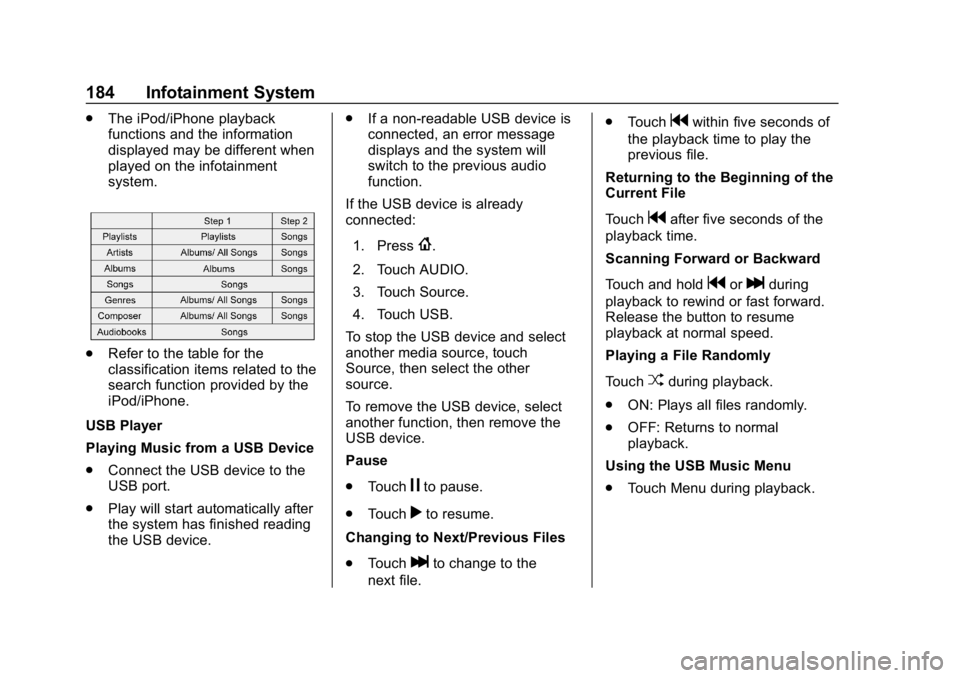
.Refer to the table for the
classification items related to the
search function provided by the
iPod/iPhone.
USB Player
Playing Music from a USB Device
. Connect the USB device to the
USB port.
. Play will start automatically after
the system has finished reading
the USB device. .
If a non-readable USB device is
connected, an error message
displays and the system will
switch to the previous audio
function.
If the USB device is already
connected:
1. Press
{.
2. Touch AUDIO.
3. Touch Source.
4. Touch USB.
To stop the USB device and select
another media source, touch
Source, then select the other
source.
To remove the USB device, select
another function, then remove the
USB device.
Pause
. Touch
jto pause.
. Touch
rto resume.
Changing to Next/Previous Files
. Touch
lto change to the
next file. .
Touch
gwithin five seconds of
the playback time to play the
previous file.
Returning to the Beginning of the
Current File
Touch
gafter five seconds of the
playback time.
Scanning Forward or Backward
Touch and hold
gorlduring
playback to rewind or fast forward.
Release the button to resume
playback at normal speed.
Playing a File Randomly
Touch
Zduring playback.
. ON: Plays all files randomly.
. OFF: Returns to normal
playback.
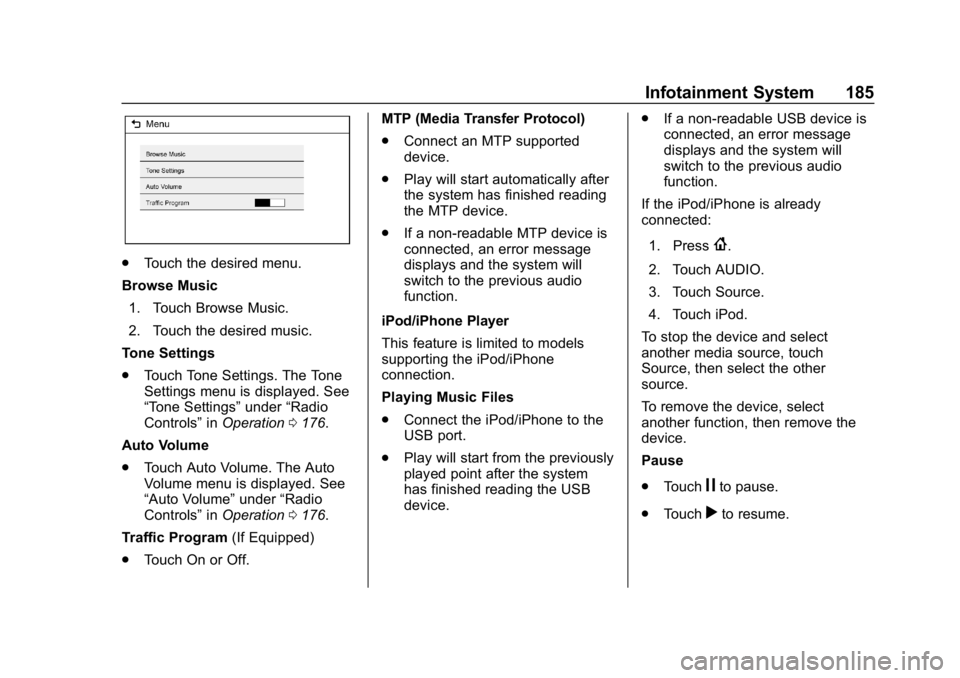
Using the USB Music Menu
. Touch Menu during playback.
Page 186 of 429
GMC Acadia/Acadia Denali Owner Manual (GMNA-Localizing-U.S./Canada/
Mexico-12146149) - 2019 - crc - 7/30/18
Infotainment System 185
.Touch the desired menu.
Browse Music 1. Touch Browse Music.
2. Touch the desired music.
Tone Settings
. Touch Tone Settings. The Tone
Settings menu is displayed. See
“Tone Settings” under“Radio
Controls” inOperation 0176.
Auto Volume
. Touch Auto Volume. The Auto
Volume menu is displayed. See
“Auto Volume” under“Radio
Controls” inOperation 0176.
Traffic Program (If Equipped)
. Touch On or Off. MTP (Media Transfer Protocol)
.
Connect an MTP supported
device.
. Play will start automatically after
the system has finished reading
the MTP device.
. If a non-readable MTP device is
connected, an error message
displays and the system will
switch to the previous audio
function.
iPod/iPhone Player
This feature is limited to models
supporting the iPod/iPhone
connection.
Playing Music Files
. Connect the iPod/iPhone to the
USB port.
. Play will start from the previously
played point after the system
has finished reading the USB
device. .
If a non-readable USB device is
connected, an error message
displays and the system will
switch to the previous audio
function.
If the iPod/iPhone is already
connected:
1. Press
{.
2. Touch AUDIO.
3. Touch Source.
4. Touch iPod.
To stop the device and select
another media source, touch
Source, then select the other
source.
To remove the device, select
another function, then remove the
device.
Pause
. Touch
jto pause.
. Touch
rto resume.
Page 187 of 429
GMC Acadia/Acadia Denali Owner Manual (GMNA-Localizing-U.S./Canada/
Mexico-12146149) - 2019 - crc - 7/30/18
186 Infotainment System
Changing to the Next/
Previous Song
.Touch
lto change to the
next song.
. Touch
gwithin two seconds of
the playback time to play the
previous file.
Returning to the Beginning of the
Current File
Touch
gafter two seconds of the
playback time.
Scanning Forward or Backward
Touch and hold
gorlduring
playback to rewind or fast forward.
Release the button to resume
playback at normal speed.
Playing a File Randomly
Touch
Zduring playback.
. ON: Plays all files randomly.
. OFF: Returns to normal
playback.
Using the iPod Menu
. Touch Menu during playback. .
Touch the appropriate
play mode.
Browse Music 1. Touch Browse Music.
2. Touch the desired music.
Tone Settings
. Touch Tone Settings. The Tone
Settings menu is displayed. See
“Tone Settings” under“Radio
Controls” inOperation 0176.
Auto Volume
. Touch Auto Volume. The Auto
Volume menu is displayed. See
“Auto Volume” under“Radio
Controls” inOperation 0176.
Picture System Information
The infotainment system can view
picture files stored on a USB
storage device and devices that
support Media Transfer
Protocol (MTP).
.
Supported file extensions: .jpg,
.bmp, .png, .gif.
. Animated GIF files are not
supported. .
Some files may not operate due
to a different recording format or
the condition of the file.
Viewing Pictures 1. Connect the USB device to the USB port.
2. Touch the screen to open to full screen. Touch the screen again
to return to the previous
screen.
If the USB device is already
connected:
1. Press
{.
2. Touch GALLERY.
Some features are disabled while
the vehicle is in motion.
Viewing a Slide Show
1. Touch
zfrom the picture
screen.
2. Touch the screen to cancel the slide show during the slide
show playback.
Page 188 of 429
GMC Acadia/Acadia Denali Owner Manual (GMNA-Localizing-U.S./Canada/
Mexico-12146149) - 2019 - crc - 7/30/18
Infotainment System 187
Viewing a Previous or Next
Picture
Touch
SorTfrom the picture
screen.
Rotating a Picture
Touch
wfrom the picture screen.
Enlarging a Picture
Touch
xfrom the picture screen.
Using the USB Picture Menu 1. Touch MENU from the picture screen.
2. Touch the appropriate menu: .Slide Show Time: Allows
selection of the slide show
interval.
. Clock, Temp. Display:
Allows selection of On or
Off to show the clock and
temperature on the full
screen.
. Display Settings: Adjusts
for Brightness and Contrast.
3. Touch Back on the infotainment display to exit.
Auxiliary Devices
Using the Auxiliary Input Jack
Settings menus and functions may
vary depending on vehicle options.
The auxiliary input jack can be used
to connect external audio devices
such as an iPod
®, iPhone®, MP3
player, CD player, and other
supported devices for use as
another source for audio listening.
This input jack is not an audio
output; do not plug headphones into
the front auxiliary input jack.
The auxiliary input jack is in the
center stack. The infotainment
system can play music connected
by the auxiliary device.
Play will begin when the system has
finished reading the information on
the device. Playing Music
To play music from the device, if the
device is already connected:
1. Press
{.
2. Touch AUDIO.
3. Touch Source.
4. Touch AUX.
To adjust the tone settings, see
“Tone Settings” inOperation 0176.
Page 194 of 429
GMC Acadia/Acadia Denali Owner Manual (GMNA-Localizing-U.S./Canada/
Mexico-12146149) - 2019 - crc - 7/30/18
Infotainment System 193
.The infotainment system
transmits the order to play from
the Bluetooth device in the
Bluetooth music play mode.
If this is done in a different
mode, then the device transmits
the order to stop. Depending on
the Bluetooth device options,
this order to play/stop may take
time to activate.
. If the Bluetooth music playback
is not functioning, then check to
see if the Bluetooth device is in
the waiting screen mode.
. Sounds may be cut off during
the Bluetooth music playback.
. The infotainment system outputs
the audio from the cell phone or
Bluetooth device as it is
transmitted.
Apple CarPlay and
Android Auto
If equipped, Android Auto and/or
Apple CarPlay capability may be
available through a compatible
smartphone. If available, PROJECTION will appear on the
Home Page of the infotainment
display.
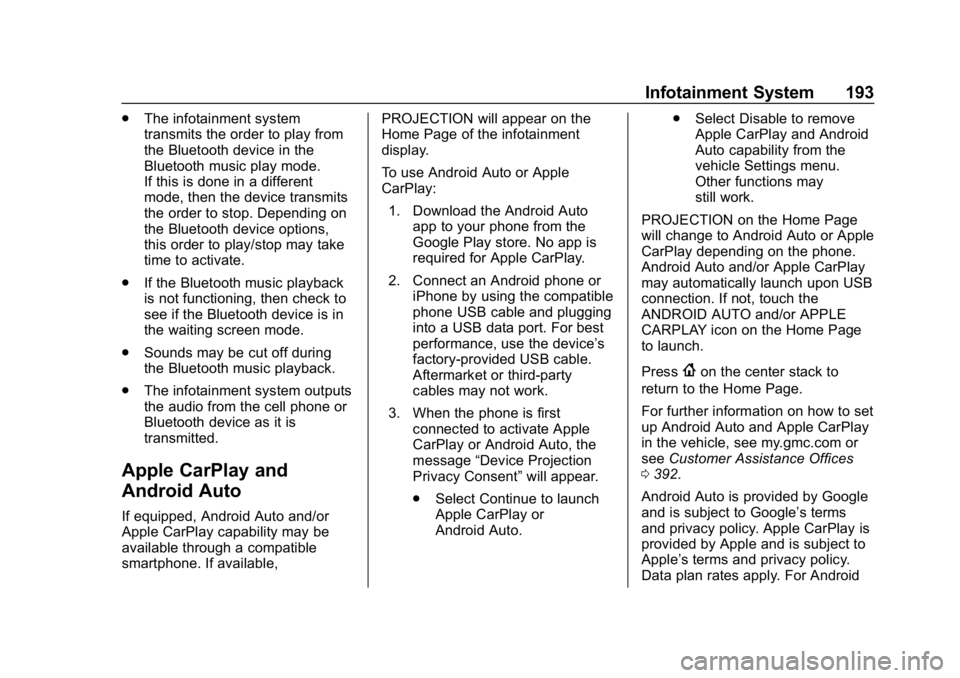
To use Android Auto or Apple
CarPlay:
1. Download the Android Auto app to your phone from the
Google Play store. No app is
required for Apple CarPlay.
2. Connect an Android phone or iPhone by using the compatible
phone USB cable and plugging
into a USB data port. For best
performance, use the device’ s
factory-provided USB cable.
Aftermarket or third-party
cables may not work.
3. When the phone is first connected to activate Apple
CarPlay or Android Auto, the
message “Device Projection
Privacy Consent” will appear.
. Select Continue to launch
Apple CarPlay or
Android Auto. .
Select Disable to remove
Apple CarPlay and Android
Auto capability from the
vehicle Settings menu.
Other functions may
still work.
PROJECTION on the Home Page
will change to Android Auto or Apple
CarPlay depending on the phone.
Android Auto and/or Apple CarPlay
may automatically launch upon USB
connection. If not, touch the
ANDROID AUTO and/or APPLE
CARPLAY icon on the Home Page
to launch.
Press
{on the center stack to
return to the Home Page.
For further information on how to set
up Android Auto and Apple CarPlay
in the vehicle, see my.gmc.com or
see Customer Assistance Offices
0 392.
Android Auto is provided by Google
and is subject to Google’s terms
and privacy policy. Apple CarPlay is
provided by Apple and is subject to
Apple’ s terms and privacy policy.
Data plan rates apply. For Android
Page 317 of 429
GMC Acadia/Acadia Denali Owner Manual (GMNA-Localizing-U.S./Canada/
Mexico-12146149) - 2019 - crc - 7/30/18
316 Vehicle Care
FusesUsage
F14 Driver heated seat
F15 Instrument panel switch bank
F16 Sunroof
F17 Body control module 1
F18 Instrument cluster
F19 –
F20 Rear seat entertainment
F21 Body control module 4
F22 Infotainment USB data/Aux jack
F23 Body control module 2
F24 USB charger/ Wireless charging
F25 Park aid
F26 CIM
F27 Video Fuses
Usage
F28 Heating, ventilation, and air
conditioning
display
F29 Radio
F30 Steering wheel adjustment controls
F31 Front blower
F32 DC AC inverter
F33 Driver power seat
F34 Passenger power seat
F35 Battery IEC 1 feed
F36 Electric power steering
F37 Rear seat entertainment/USB
charge/Wireless
charging module
F38 Body control module 8
F39 – Circuit
Breakers Usage
F40 –
F41 –
F42 Auxiliary power outlet/Lighter
Rear Compartment Fuse
Block
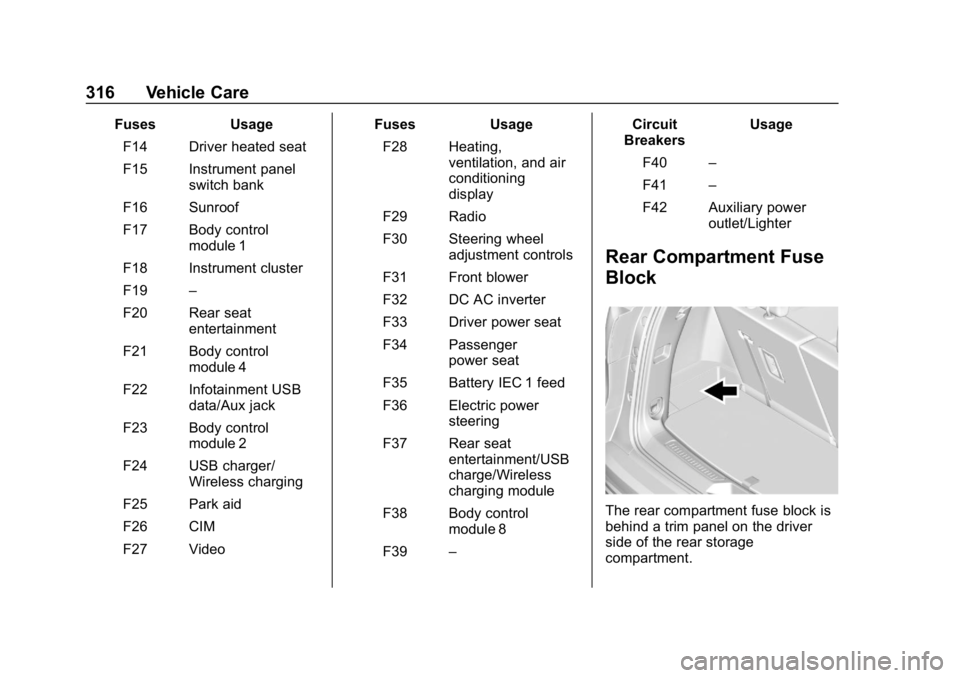
The rear compartment fuse block is
behind a trim panel on the driver
side of the rear storage
compartment.
Page 319 of 429
GMC Acadia/Acadia Denali Owner Manual (GMNA-Localizing-U.S./Canada/
Mexico-12146149) - 2019 - crc - 7/30/18
318 Vehicle Care
FusesUsage
F21 Trailer connector
F22 –
F23 –
F24 Passenger window switch
F25 –
F26 Trailer brake
F27 Driver ventilated seat/Lumbar
F28 Passive entry/ Passive start
F29 –
F30 Canister vent
F31 –
F32 Heated mirror
F33 –
F34 Liftgate module
F35 Fuel system control module
F36 Passenger ventilated seat/
Lumbar Fuses
Usage
F37 –
F38 Window module
F39 Rear closure
F40 Memory seat module
F41 Automatic occupancy sensor
F42 Trailer battery 2
F43 –
F44 –
F45 Liftgate motor
F46 Rear heated seats
F47 –
F48 Glass break sensor
F49 –
F50 –
F51 –
F52 Active dampening system module
F53 Rear parking aid module/Video/USB Fuses
Usage
F54 External object calculating/Side
blind zone alert
F55 –
F56 Universal remote system/Rain
sensor
F57 Theft deterrent
Circuit
Breakers Usage
CB1 –
CB2 –
CB3 Rear auxiliary power outlet
Relays Usage
K1 –
K2 –
Page 424 of 429

GMC Acadia/Acadia Denali Owner Manual (GMNA-Localizing-U.S./Canada/-
Mexico-12146149) - 2019 - crc - 7/30/18
Index 423
OnStar Emergency . . . . . . . . . . . . . 405
OnStar Overview . . . . . . . . . . . . . . . 404
OnStar Security . . . . . . . . . . . . . . . . 406
OperationFog Lamps . . . . . . . . . . . . . . . . . . . 168
Infotainment System . . . . . . . . . . 176
Outlets
Power . . . . . . . . . . . . . . . . . . . . . . . . 124
Overheating, Engine . . . . . . . . . . . . 300
Overview . . . . . . . . . . . . . . . . . . . . . . . 175
P
Park Shifting Into . . . . . . . . . . . . . . . . . . . 226
Shifting Out of . . . . . . . . . . . . . . . . 227
Park Assist . . . . . . . . . . . . . . . . . . . . . 253
Parking Brake and P (Park)Mechanism Check . . . . . . . . . . 305
Extended . . . . . . . . . . . . . . . . . . . . . 228
Over Things That Burn . . . . . . . 228
Parking or Backing Assistance Systems . . . . . . . . . . 253
Passenger Airbag Status Indicator . . . . . . . . . . . . . . . . . . . . . . 135
Passenger Compartment Air
Filter . . . . . . . . . . . . . . . . . . . . . . . . . . 204
Passenger Sensing System . . . . . 85 Pedestrian Ahead Indicator . . . . . 141
Perchlorate Materials
Requirements, California . . . . . . 286
Personalization Vehicle . . . . . . . . . . . . . . . . . . . . . . . 152
Phone Apple CarPlay and
Android Auto . . . . . . . . . . . . . . . . 193
Bluetooth . . . . . . . . . . . . . . . . 188, 189
Hands-Free . . . . . . . . . . . . . . . . . . . 194
Port
USB . . . . . . . . . . . . . . . . . . . . . . . . . . 181
Power Door Locks . . . . . . . . . . . . . . . . . . . . . 39
Mirrors . . . . . . . . . . . . . . . . . . . . . . . . . . 49
Outlets . . . . . . . . . . . . . . . . . . . . . . . 124
Protection, Battery . . . . . . . . . . . . 171
Retained Accessory (RAP) . . . 226
Seat Adjustment . . . . . . . . . . . . . . . . 59
Windows . . . . . . . . . . . . . . . . . . . . . . . 51
Pregnancy, Using Seat Belts . . . . 76
Privacy
Vehicle Data Recording . . . . . . . 402
Program Courtesy Transportation . . . . . . 396
Prohibited Fuels . . . . . . . . . . . . . . . . 268 Proposition
65 Warning,
California . . . . . . . . . . . .285, 304, 356,
Back Cover
Publication Ordering Information . . . . . . . . . . . . . . . . . . . . 399
R
Radio Frequency Statement . . . . 400
Radio Reception . . . . . . . . . . . . . . . . 180
RadiosAM-FM Radio . . . . . . . . . . . . . . . . . 178
Satellite . . . . . . . . . . . . . . . . . . . . . . . 179
Reading Lamps . . . . . . . . . . . . . . . . . 170
Rear Climate Control System . . . 201
Rear Seats . . . . . . . . . . . . . . . . . . . . . . 66 Heated . . . . . . . . . . . . . . . . . . . . . . . . . 69
Rear Storage . . . . . . . . . . . . . . . . . . . 112
Rear Vision Camera (RVC) . . . . . 253
Rear Window Washer/Wiper . . . . 121
Rearview Mirrors . . . . . . . . . . . . . . . . 50 Automatic Dimming . . . . . . . . . . . . . 50
Reclining Seatbacks . . . . . . . . . . . . . 59
Recommended Fuel . . . . . . . . . . . . . . . . . . . . . . . . . . 268
Recommended Fluids and
Lubricants . . . . . . . . . . . . . . . . . . . . . 383
Page 427 of 429

GMC Acadia/Acadia Denali Owner Manual (GMNA-Localizing-U.S./Canada/-
Mexico-12146149) - 2019 - crc - 7/30/18
426 Index
Tires (cont'd)Pressure Monitor System . . . . . 328
Rotation . . . . . . . . . . . . . . . . . . . . . . 334
Sealant and
Compressor Kit . . . . . . . . . . . . . 342
Sealant and Compressor Kit, Storing . . . . . . . . . . . . . . . . . . 348
Sidewall Labeling . . . . . . . . . . . . . 321
Terminology and Definitions . . 324
Uniform Tire Quality Grading . . . . . . . . . . . . . . . . . . . . . 337
Wheel Alignment and Tire Balance . . . . . . . . . . . . . . . . . . . . . 339
Wheel Replacement . . . . . . . . . . 339
When It Is Time for New
Tires . . . . . . . . . . . . . . . . . . . . . . . . 335
Winter . . . . . . . . . . . . . . . . . . . . . . . . 320
Top Tier Fuel . . . . . . . . . . . . . . . . . . . 268
Tow/Haul Mode . . . . . . . . . . . . . . . . . 232
Tow/Haul Mode Light . . . . . . . . . . . 140
Towing
Driving Characteristics . . . . . . . . 271
Equipment . . . . . . . . . . . . . . . . . . . . 278
General Information . . . . . . . . . . 271
Recreational Vehicle . . . . . . . . . . 359
Trailer . . . . . . . . . . . . . . . . . . . . . . . . 275
Trailer Sway Control (TSC) . . . 281
Vehicle . . . . . . . . . . . . . . . . . . . . . . . 359 Traction
Control System
(TCS)/StabiliTrak Light . . . . . . 141
Off Light . . . . . . . . . . . . . . . . . . . . . . 141
Traction Control/Electronic Stability Control . . . . . . . . . . . . . . . 236
Trademarks and License
Agreements . . . . . . . . . . . . . . . . . . . 196
Trailer Sway Control (TSC) . . . . . . . . . . 281
Towing . . . . . . . . . . . . . . . . . . . . . . . . 275
Transmission Automatic . . . . . . . . . . . . . . . . . . . . . 230
Fluid, Automatic . . . . . . . . . . . . . . 294
Transportation Program, Courtesy . . . . . . . . . . . . . . . . . . . . . . 396
Trip Odometer . . . . . . . . . . . . . . . . . . 131
Turn and Lane-Change Signals . . . . . . . . . . . . . . . . . . . . . . . . 168
U
Uniform Tire Quality Grading . . . 337
Universal Remote System . . . . . . 160Operation . . . . . . . . . . . . . . . . . . . . . 163
Programming . . . . . . . . . . . . . . . . . 160
Updates
Software . . . . . . . . . . . . . . . . . . . . . . 177 USB Port . . . . . . . . . . . . . . . . . . . . . . . 181
Using This Manual . . . . . . . . . . . . . . . . 2
V
Vehicle
Alarm System . . . . . . . . . . . . . . . . . . 46
Canadian Owners . . . . . . . . . . . . . . . 2
Control . . . . . . . . . . . . . . . . . . . . . . . 207
Identification Number (VIN) . . . 386
Load Limits . . . . . . . . . . . . . . . . . . . 217
Messages . . . . . . . . . . . . . . . . . . . . 151
Personalization . . . . . . . . . . . . . . . 152
Remote Start . . . . . . . . . . . . . . . . . . . 35
Security . . . . . . . . . . . . . . . . . . . . . . . . 46
Speed Messages . . . . . . . . . . . . . 151
Towing . . . . . . . . . . . . . . . . . . . . . . . . 359
Vehicle Ahead Indicator . . . . . . . . 140
Vehicle Care
Storing the Tire Sealantand Compressor Kit . . . . . . . . . 348
Tire Pressure . . . . . . . . . . . . . . . . . 326
Vehicle Data Recording and Privacy . . . . . . . . . . . . . . . . . . . . . . . . 402
Ventilation, Air . . . . . . . . . . . . . . . . . . 203
Visors . . . . . . . . . . . . . . . . . . . . . . . . . . . 52