instrument cluster GMC ACADIA 2020 User Guide
[x] Cancel search | Manufacturer: GMC, Model Year: 2020, Model line: ACADIA, Model: GMC ACADIA 2020Pages: 406, PDF Size: 6.78 MB
Page 126 of 406
GMC Acadia/Acadia Denali Owner Manual (GMNA-Localizing-U.S./Canada/
Mexico-13687875) - 2020 - CRC - 10/28/19
Instruments and Controls 125
accessories are operating in the
vehicle and the engine is left idling
for an extended period. This
condition is normal since the
charging system is not able to
provide full power at engine idle. As
engine speeds are increased, this
condition should correct itself as
higher engine speeds allow the
charging system to create maximum
power.
The vehicle can only be driven for a
short time with the readings outside
the normal operating range. If the
vehicle must be driven, turn off all
accessories, such as the radio and
air conditioner, and unplug all
chargers and accessories.
Readings outside the normal
operating range indicate a possible
problem in the electrical system.
Have the vehicle serviced as soon
as possible.Seat Belt Reminders
Driver Seat Belt Reminder
Light
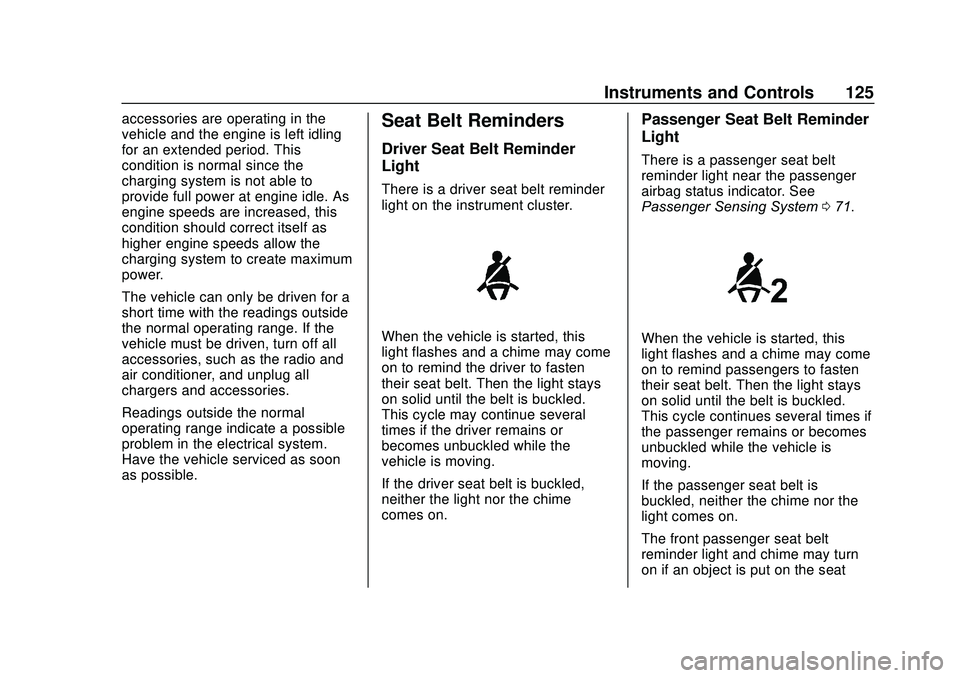
There is a driver seat belt reminder
light on the instrument cluster.
When the vehicle is started, this
light flashes and a chime may come
on to remind the driver to fasten
their seat belt. Then the light stays
on solid until the belt is buckled.
This cycle may continue several
times if the driver remains or
becomes unbuckled while the
vehicle is moving.
If the driver seat belt is buckled,
neither the light nor the chime
comes on.
Passenger Seat Belt Reminder
Light
There is a passenger seat belt
reminder light near the passenger
airbag status indicator. See
Passenger Sensing System071.
When the vehicle is started, this
light flashes and a chime may come
on to remind passengers to fasten
their seat belt. Then the light stays
on solid until the belt is buckled.
This cycle continues several times if
the passenger remains or becomes
unbuckled while the vehicle is
moving.
If the passenger seat belt is
buckled, neither the chime nor the
light comes on.
The front passenger seat belt
reminder light and chime may turn
on if an object is put on the seat
Page 131 of 406
GMC Acadia/Acadia Denali Owner Manual (GMNA-Localizing-U.S./Canada/
Mexico-13687875) - 2020 - CRC - 10/28/19
130 Instruments and Controls
{Warning
The brake system might not be
working properly if the brake
system warning light is on.
Driving with the brake system
warning light on can lead to a
crash. If the light is still on after
the vehicle has been pulled off
the road and carefully stopped,
have the vehicle towed for
service.
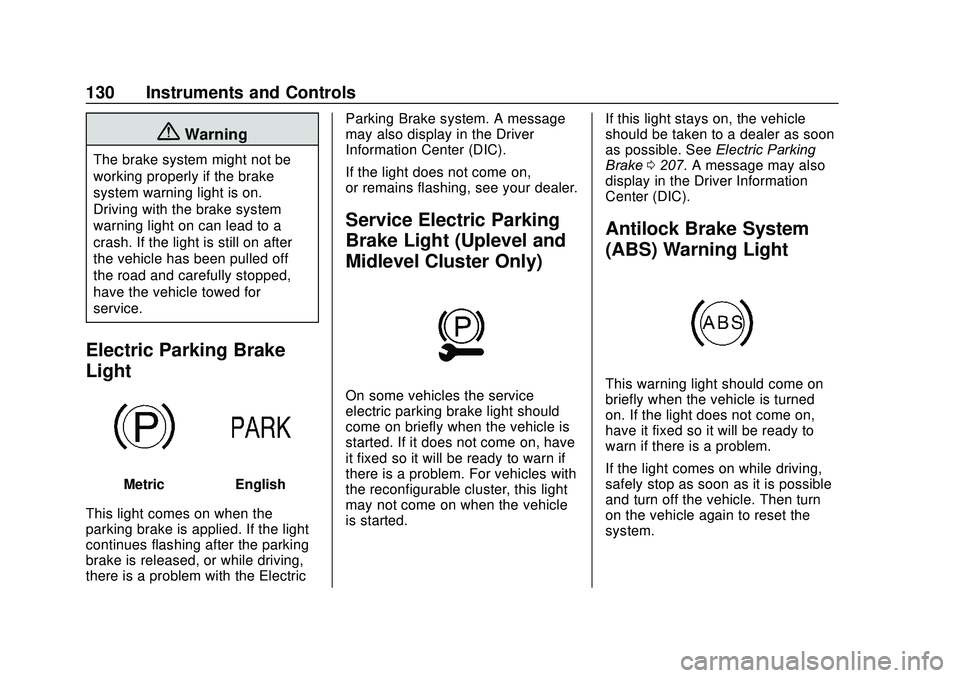
Electric Parking Brake
Light
MetricEnglish
This light comes on when the
parking brake is applied. If the light
continues flashing after the parking
brake is released, or while driving,
there is a problem with the Electric Parking Brake system. A message
may also display in the Driver
Information Center (DIC).
If the light does not come on,
or remains flashing, see your dealer.
Service Electric Parking
Brake Light (Uplevel and
Midlevel Cluster Only)
On some vehicles the service
electric parking brake light should
come on briefly when the vehicle is
started. If it does not come on, have
it fixed so it will be ready to warn if
there is a problem. For vehicles with
the reconfigurable cluster, this light
may not come on when the vehicle
is started.
If this light stays on, the vehicle
should be taken to a dealer as soon
as possible. See
Electric Parking
Brake 0207. A message may also
display in the Driver Information
Center (DIC).
Antilock Brake System
(ABS) Warning Light
This warning light should come on
briefly when the vehicle is turned
on. If the light does not come on,
have it fixed so it will be ready to
warn if there is a problem.
If the light comes on while driving,
safely stop as soon as it is possible
and turn off the vehicle. Then turn
on the vehicle again to reset the
system.
Page 138 of 406
GMC Acadia/Acadia Denali Owner Manual (GMNA-Localizing-U.S./Canada/
Mexico-13687875) - 2020 - CRC - 10/28/19
Instruments and Controls 137
Information Displays
Driver Information Center
(DIC) (Base)
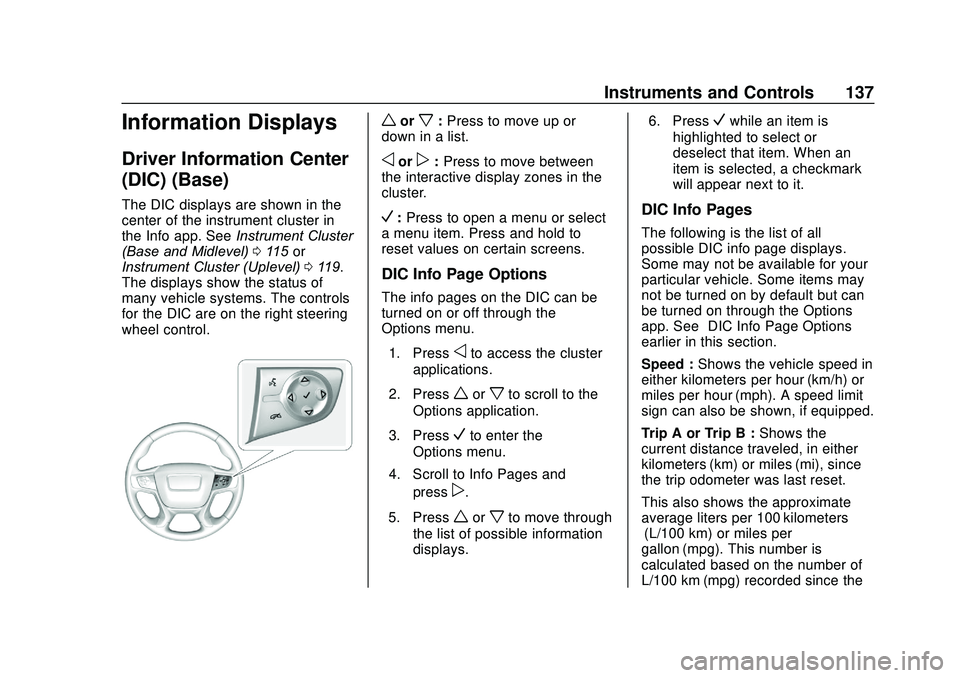
The DIC displays are shown in the
center of the instrument cluster in
the Info app. SeeInstrument Cluster
(Base and Midlevel) 0115 or
Instrument Cluster (Uplevel) 0119.
The displays show the status of
many vehicle systems. The controls
for the DIC are on the right steering
wheel control.
worx: Press to move up or
down in a list.
oorp: Press to move between
the interactive display zones in the
cluster.
V: Press to open a menu or select
a menu item. Press and hold to
reset values on certain screens.
DIC Info Page Options
The info pages on the DIC can be
turned on or off through the
Options menu.
1. Press
oto access the cluster
applications.
2. Press
worxto scroll to the
Options application.
3. Press
Vto enter the
Options menu.
4. Scroll to Info Pages and press
p.
5. Press
worxto move through
the list of possible information
displays. 6. Press
Vwhile an item is
highlighted to select or
deselect that item. When an
item is selected, a checkmark
will appear next to it.
DIC Info Pages
The following is the list of all
possible DIC info page displays.
Some may not be available for your
particular vehicle. Some items may
not be turned on by default but can
be turned on through the Options
app. See “DIC Info Page Options”
earlier in this section.
Speed : Shows the vehicle speed in
either kilometers per hour (km/h) or
miles per hour (mph). A speed limit
sign can also be shown, if equipped.
Trip A or Trip B : Shows the
current distance traveled, in either
kilometers (km) or miles (mi), since
the trip odometer was last reset.
This also shows the approximate
average liters per 100 kilometers (L/100 km) or miles per
gallon (mpg). This number is
calculated based on the number of
L/100 km (mpg) recorded since the
Page 140 of 406
GMC Acadia/Acadia Denali Owner Manual (GMNA-Localizing-U.S./Canada/
Mexico-13687875) - 2020 - CRC - 10/28/19
Instruments and Controls 139
Presswandxto select“Reset
Best Score.” Press
Vto reset the
best average fuel economy. After
reset, the best value displays “-,-”
until the selected distance has been
traveled.
The display provides information on
how current driving behavior affects
the running average and how well
recent driving compares to the best
that has been achieved for the
selected distance.
Economy Trend : Shows history of
the Average Fuel Economy from the
last 50 km (30 mi). Each bar
represents about 5 km (3 mi) of
driving. During driving the bars will
shift to always reflect the most
recent distance on the right side.
Press and hold
Vto clear the graph
or to reset through the menu.
ECO Index : Provides feedback on
the efficiency of current driving
behavior. The bar graph shows a
value that is based on current fuel
consumption compared to what is
expected from the vehicle with good
and bad driving habits. Timer :
This display can be used as
a timer. To start the timer, press
V
while this display is active. The
display will show the amount of time
that has passed since the timer was
last reset. To stop the timer, press
V
briefly while this display is active
and the timer is running. To reset
the timer to zero, press and hold
V
while this display is active, or press
pand select reset.
Battery Voltage : Displays the
current battery voltage, if equipped.
Battery voltage changes are normal
while driving. See Charging System
Light 0127. If there is a problem
with the battery charging system,
the DIC will display a message.
Transmission Fluid
Temperature : Shows the
temperature of the automatic
transmission fluid in either degrees
Celsius (°C) or degrees
Fahrenheit (°F).
Blank Page : Shows no
information.
Driver Information Center
(DIC) (Midlevel and
Uplevel)
The DIC displays are shown in the
center of the instrument cluster in
the Info app. See Instrument Cluster
(Base and Midlevel) 0115 or
Instrument Cluster (Uplevel) 0119.
The displays show the status of
many vehicle systems. The controls
for the DIC are on the right steering
wheel control.
worx: Press to move up or
down in a list.
Page 141 of 406
GMC Acadia/Acadia Denali Owner Manual (GMNA-Localizing-U.S./Canada/
Mexico-13687875) - 2020 - CRC - 10/28/19
140 Instruments and Controls
oorp:Press to move between
the interactive display zones in the
cluster.
V: Press to open a menu or select
a menu item. Press and hold to
reset values on certain screens.
DIC Info Page Options
The info pages on the DIC can be
turned on or off through the
Options menu.
1. Press
pto go to the Options
application.
2. Press
Vto enter the
Options menu.
3. Press
worxto move through
the list of possible information
displays.
4. Press
Vwhile an item is
highlighted to select or
deselect that item. When an
item is selected, a checkmark
will appear next to it.
DIC Info Pages
The following is the list of all
possible DIC info page displays.
Some may not be available for your
particular vehicle. Some items may
not be turned on by default but can
be turned on through the Options
app. See “DIC Info Page Options”
earlier in this section.
Speed : Shows the vehicle speed in
either kilometers per hour (km/h) or
miles per hour (mph). The vehicle
odometer is also shown on
this page.
Trip A or Trip B, Average Fuel
Economy, and Average Speed :
Shows the current distance traveled,
in either kilometers (km) or
miles (mi), since the trip odometer
was last reset.
The Average Fuel Economy display
shows the approximate average
liters per 100 kilometers (L/100 km)
or miles per gallon (mpg). This
number is calculated based on the
number of L/100 km (mpg) recorded
since the last time this menu item
was reset. This number reflects only the approximate average fuel
economy that the vehicle has right
now, and will change as driving
conditions change.
The Average Speed display shows
the average speed of the vehicle in
kilometers per hour (km/h) or miles
per hour (mph). This average is
calculated based on the various
vehicle speeds recorded since the
last reset of this value.
Press and hold
Vwhile this display
is active to reset the trip odometer,
the average fuel economy, and the
average speed. Or press
pand
select reset in the menu.
Fuel Range and Instantaneous
Fuel Economy : Shows the
approximate distance the vehicle
can be driven without refueling.
LOW will be displayed when the
vehicle is low on fuel. The fuel
range estimate is based on an
average of the vehicle's fuel
economy over recent driving history
and the amount of fuel remaining in
the fuel tank.
Page 143 of 406

GMC Acadia/Acadia Denali Owner Manual (GMNA-Localizing-U.S./Canada/
Mexico-13687875) - 2020 - CRC - 10/28/19
142 Instruments and Controls
Press and holdVto clear the graph
or press
pto reset through
the menu.
ECO Index : Provides feedback on
the efficiency of current driving
behavior. The bar graph shows a
value that is based on current fuel
consumption compared to what is
expected from the vehicle with good
and bad driving habits.
Speed Signs : Shows sign
information, which comes from a
roadway database in the onboard
navigation.
Off Road : Displays vehicle pitch
and roll information, road wheel
angle, and four-wheel drive (4WD)
status.
Following Distance : The following
distance to a moving vehicle ahead
in your path is indicated in following
time in seconds. See Forward
Collision Alert (FCA) System 0231.
Blank Page : Shows no
information. Transmission Fluid Temperature
Gauge :
Shows the temperature of
the automatic transmission fluid in
either degrees Celsius (°C) or
degrees Fahrenheit (°F).
Head-Up Display (HUD)
{Warning
If the HUD image is too bright or
too high in your field of view, it
may take you more time to see
things you need to see when it is
dark outside. Be sure to keep the
HUD image dim and placed low in
your field of view.
If equipped with HUD, some
information concerning the
operation of the vehicle is projected
onto the windshield. The information
is projected through the HUD lens
on the driver side of the instrument
panel and focused out toward the
front of the vehicle.
Caution
If you try to use the HUD image
as a parking aid, you may
misjudge the distance and
damage your vehicle. Do not use
the HUD image as a parking aid.
The HUD information can be
displayed in various languages. The
speedometer reading and other
numerical values can be displayed
in either English or metric units.
The language selection is changed
through the radio and the units of
measurement is changed through
the instrument cluster. See Vehicle
Personalization 0146 and "Options"
under Instrument Cluster (Base and
Midlevel) 0115 or
Instrument Cluster (Uplevel) 0119.
Page 145 of 406
GMC Acadia/Acadia Denali Owner Manual (GMNA-Localizing-U.S./Canada/
Mexico-13687875) - 2020 - CRC - 10/28/19
144 Instruments and Controls
Metric
English
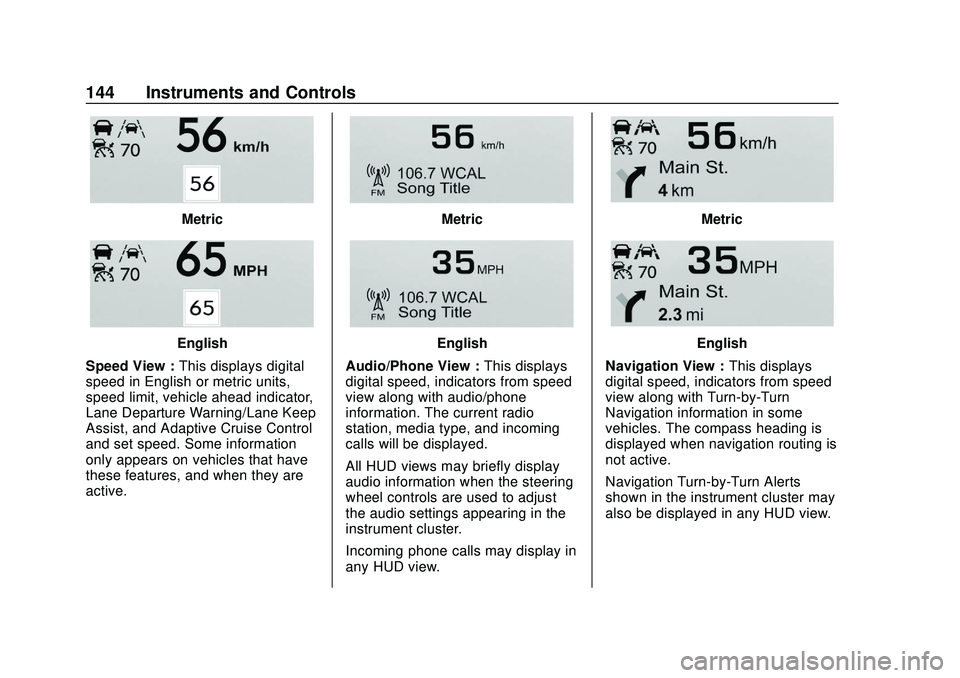
Speed View : This displays digital
speed in English or metric units,
speed limit, vehicle ahead indicator,
Lane Departure Warning/Lane Keep
Assist, and Adaptive Cruise Control
and set speed. Some information
only appears on vehicles that have
these features, and when they are
active.
Metric
English
Audio/Phone View : This displays
digital speed, indicators from speed
view along with audio/phone
information. The current radio
station, media type, and incoming
calls will be displayed.
All HUD views may briefly display
audio information when the steering
wheel controls are used to adjust
the audio settings appearing in the
instrument cluster.
Incoming phone calls may display in
any HUD view.
Metric
English
Navigation View : This displays
digital speed, indicators from speed
view along with Turn-by-Turn
Navigation information in some
vehicles. The compass heading is
displayed when navigation routing is
not active.
Navigation Turn-by-Turn Alerts
shown in the instrument cluster may
also be displayed in any HUD view.
Page 157 of 406
GMC Acadia/Acadia Denali Owner Manual (GMNA-Localizing-U.S./Canada/
Mexico-13687875) - 2020 - CRC - 10/28/19
156 Lighting
;:Turns on the parking lamps
including all lamps, except the
headlamps.
2: Turns on the headlamps
together with the parking lamps and
instrument panel lights.
IntelliBeam®System
If equipped, this system turns the
vehicle's high-beam headlamps on
and off according to surrounding
traffic conditions.
The system turns the high-beam
headlamps on when it is dark
enough and there is no other traffic
present.
This light
bcomes on in the
instrument cluster when the
IntelliBeam system is enabled. Turning On and Enabling
IntelliBeam
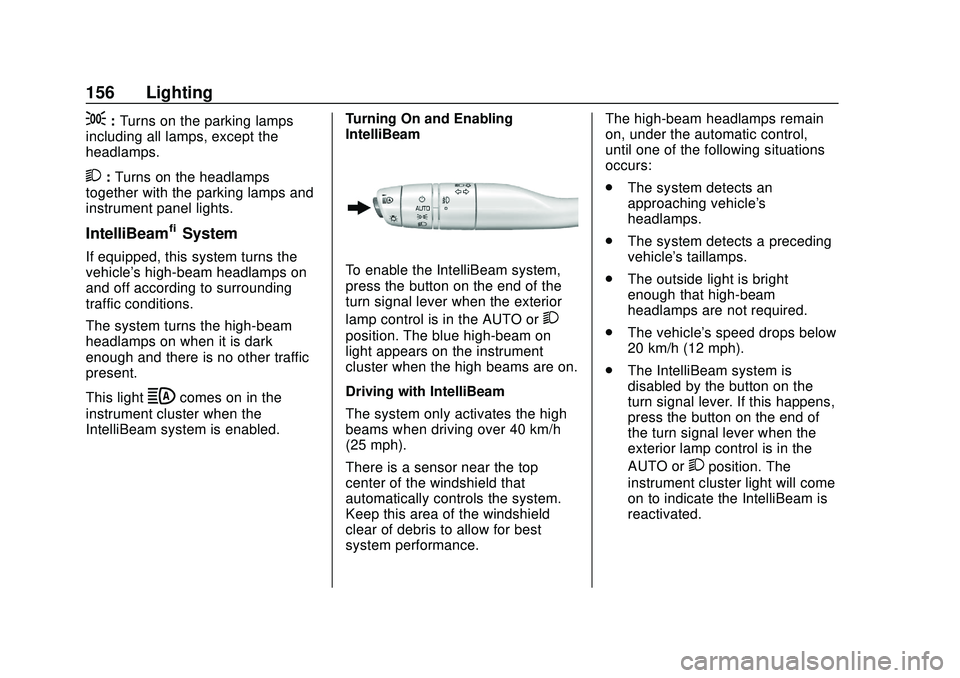
To enable the IntelliBeam system,
press the button on the end of the
turn signal lever when the exterior
lamp control is in the AUTO or
2
position. The blue high-beam on
light appears on the instrument
cluster when the high beams are on.
Driving with IntelliBeam
The system only activates the high
beams when driving over 40 km/h
(25 mph).
There is a sensor near the top
center of the windshield that
automatically controls the system.
Keep this area of the windshield
clear of debris to allow for best
system performance.The high-beam headlamps remain
on, under the automatic control,
until one of the following situations
occurs:
.
The system detects an
approaching vehicle's
headlamps.
. The system detects a preceding
vehicle's taillamps.
. The outside light is bright
enough that high-beam
headlamps are not required.
. The vehicle's speed drops below
20 km/h (12 mph).
. The IntelliBeam system is
disabled by the button on the
turn signal lever. If this happens,
press the button on the end of
the turn signal lever when the
exterior lamp control is in the
AUTO or
2position. The
instrument cluster light will come
on to indicate the IntelliBeam is
reactivated.
Page 158 of 406
GMC Acadia/Acadia Denali Owner Manual (GMNA-Localizing-U.S./Canada/
Mexico-13687875) - 2020 - CRC - 10/28/19
Lighting 157
The high beams may not turn off
automatically if the system cannot
detect another vehicle's lamps
because of any of the following:
.The other vehicle's lamps are
missing, damaged, obstructed
from view, or otherwise
undetected.
. The other vehicle's lamps are
covered with dirt, snow, and/or
road spray.
. The other vehicle's lamps cannot
be detected due to dense
exhaust, smoke, fog, snow, road
spray, mist, or other airborne
obstructions.
. The vehicle's windshield is dirty,
cracked, or obstructed by
something that blocks the view
of the light sensor.
. The vehicle is loaded such that
the front end points upward,
causing the light sensor to aim
high and not detect headlamps
and taillamps.
. Driving on winding or hilly roads. The automatic high-beam
headlamps may need to be disabled
if any of the above conditions exist.
Exterior Lamps Off
Reminder
A warning chime sounds if the driver
door is opened while the ignition is
off and the exterior lamps are on.
Headlamp High/
Low-Beam Changer
3:
Push the turn signal lever away
from you and release, to turn the
high beams on. To return to low
beams, push the lever again or pull
it toward you and release.
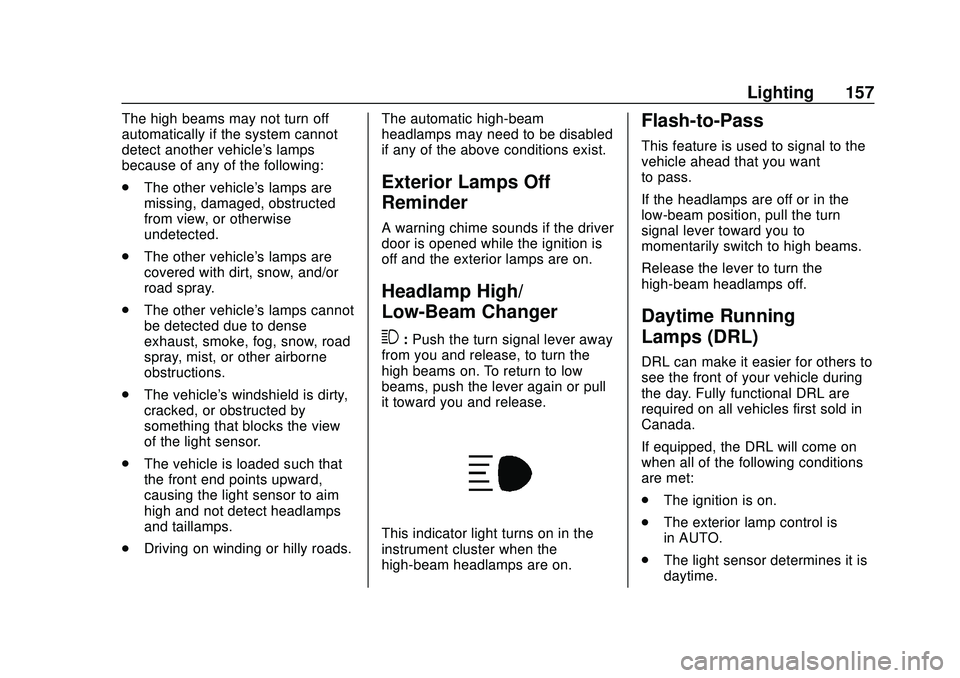
This indicator light turns on in the
instrument cluster when the
high-beam headlamps are on.
Flash-to-Pass
This feature is used to signal to the
vehicle ahead that you want
to pass.
If the headlamps are off or in the
low-beam position, pull the turn
signal lever toward you to
momentarily switch to high beams.
Release the lever to turn the
high-beam headlamps off.
Daytime Running
Lamps (DRL)
DRL can make it easier for others to
see the front of your vehicle during
the day. Fully functional DRL are
required on all vehicles first sold in
Canada.
If equipped, the DRL will come on
when all of the following conditions
are met:
. The ignition is on.
. The exterior lamp control is
in AUTO.
. The light sensor determines it is
daytime.
Page 159 of 406
GMC Acadia/Acadia Denali Owner Manual (GMNA-Localizing-U.S./Canada/
Mexico-13687875) - 2020 - CRC - 10/28/19
158 Lighting
.The parking brake is released or
the vehicle is not in P (Park).
When the DRL are on, the taillamps
and other lamps will not be on.
The DRL turn off when the
headlamps are turned to
Oor the
ignition is off. For vehicles first sold
in Canada, the DRL can only be
turned off when the vehicle is
parked.
Automatic Headlamp
System
When the exterior lamp control is
set to AUTO and it is dark enough
outside, the headlamps come on
automatically.
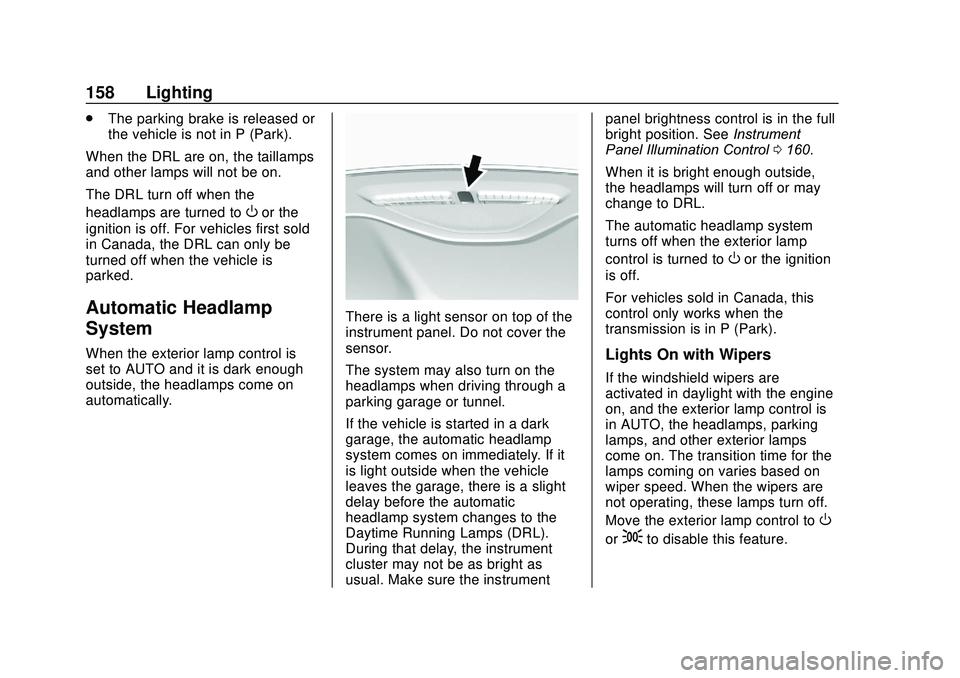
There is a light sensor on top of the
instrument panel. Do not cover the
sensor.
The system may also turn on the
headlamps when driving through a
parking garage or tunnel.
If the vehicle is started in a dark
garage, the automatic headlamp
system comes on immediately. If it
is light outside when the vehicle
leaves the garage, there is a slight
delay before the automatic
headlamp system changes to the
Daytime Running Lamps (DRL).
During that delay, the instrument
cluster may not be as bright as
usual. Make sure the instrument panel brightness control is in the full
bright position. See
Instrument
Panel Illumination Control 0160.
When it is bright enough outside,
the headlamps will turn off or may
change to DRL.
The automatic headlamp system
turns off when the exterior lamp
control is turned to
Oor the ignition
is off.
For vehicles sold in Canada, this
control only works when the
transmission is in P (Park).
Lights On with Wipers
If the windshield wipers are
activated in daylight with the engine
on, and the exterior lamp control is
in AUTO, the headlamps, parking
lamps, and other exterior lamps
come on. The transition time for the
lamps coming on varies based on
wiper speed. When the wipers are
not operating, these lamps turn off.
Move the exterior lamp control to
O
or;to disable this feature.