Manual unlock GMC ACADIA 2020 Owner's Guide
[x] Cancel search | Manufacturer: GMC, Model Year: 2020, Model line: ACADIA, Model: GMC ACADIA 2020Pages: 406, PDF Size: 6.78 MB
Page 104 of 406
GMC Acadia/Acadia Denali Owner Manual (GMNA-Localizing-U.S./Canada/
Mexico-13687875) - 2020 - CRC - 10/28/19
Storage 103
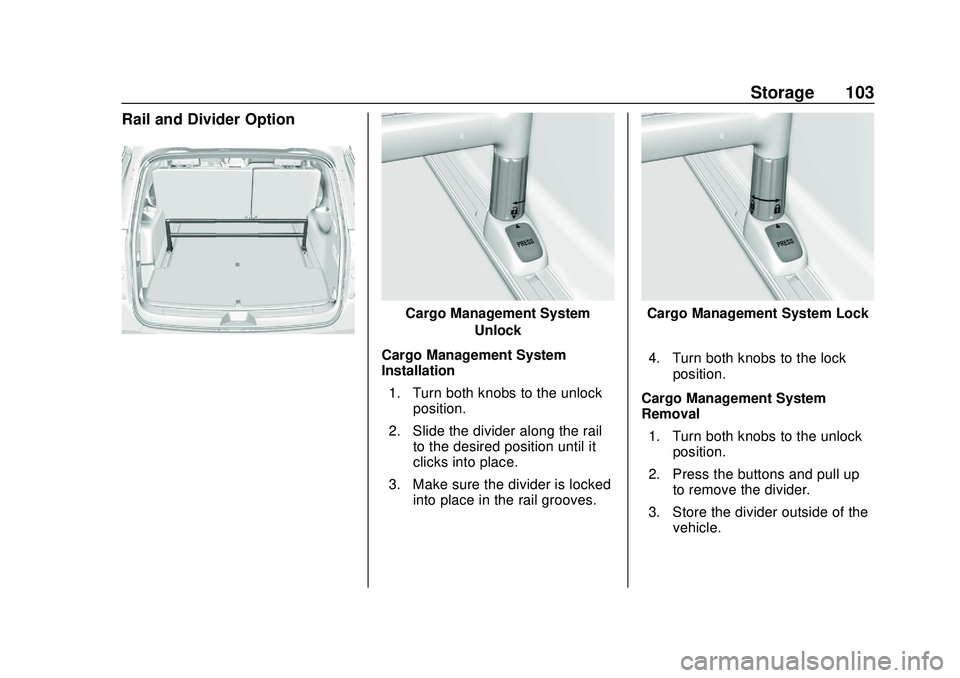
Rail and Divider Option
Cargo Management SystemUnlock
Cargo Management System
Installation 1. Turn both knobs to the unlock position.
2. Slide the divider along the rail to the desired position until it
clicks into place.
3. Make sure the divider is locked into place in the rail grooves.Cargo Management System Lock
4. Turn both knobs to the lock position.
Cargo Management System
Removal 1. Turn both knobs to the unlock position.
2. Press the buttons and pull up to remove the divider.
3. Store the divider outside of the vehicle.
Page 150 of 406
GMC Acadia/Acadia Denali Owner Manual (GMNA-Localizing-U.S./Canada/
Mexico-13687875) - 2020 - CRC - 10/28/19
Instruments and Controls 149
the ground near the rear wheels.
They will return to their previous
driving position when the vehicle is
shifted out of R (Reverse) or the
engine is turned off. SeeReverse
Tilt Mirrors 033.
Touch Off, On - Driver and
Passenger, On - Driver, or On -
Passenger.
Remote Mirror Folding
When on, the outside mirrors will
automatically fold or unfold when
the Remote Keyless Entry (RKE)
transmitter
QorKis pressed and
held on.
Touch Off or On.
Auto Wipe in Reverse Gear
When on and the front wiper is on,
the rear wiper will automatically
activate when the vehicle is shifted
to R (Reverse).
Select Off or On.
Extended Hill Start Assist
This allows the duration of the Hill
Start Assist to be changed. Touch Extended Hold or
Standard Hold.
Lighting
Touch and the following may
display:
.
Vehicle Locator Lights
. Exit Lighting
Vehicle Locator Lights
This setting flashes the headlamps
of your vehicle when you press
K
on the Remote Keyless Entry (RKE)
transmitter.
Touch Off or On.
Exit Lighting
This setting specifies how long the
headlamps stay on after the vehicle
is turned off and exited.
Touch Off, 30 Seconds, 60 Seconds,
or 120 Seconds.
Power Door Locks
Touch and the following may
display:
. Open Door Anti Lock Out .
Auto Door Unlock
. Delayed Door Lock
Open Door Anti Lock Out
This setting prevents the driver door
from locking when the door is open.
If this setting is on, the Delayed
Door Lock menu will not be
available.
Touch Off or On.
Auto Door Unlock
This setting allows selection of
which doors will automatically
unlock when the vehicle is shifted
into P (Park).
Touch Off, All Doors, or Driver Door.
Delayed Door Lock
This setting delays the locking of
the vehicle’ s doors.
Touch Off or On.
Remote Lock, Unlock, Start
Touch and the following may
display:
. Remote Unlock Light Feedback
. Remote Lock Feedback
Page 151 of 406
GMC Acadia/Acadia Denali Owner Manual (GMNA-Localizing-U.S./Canada/
Mexico-13687875) - 2020 - CRC - 10/28/19
150 Instruments and Controls
.Remote Door Unlock
. Remote Start Auto Cool Seats
. Remote Start Auto Heat Seats
. Remote Window Operation
. Passive Door Unlock
. Passive Door Lock
. Remote Left in Vehicle Alert
Remote Unlock Light Feedback
This setting flashes the exterior
lamps when the vehicle is unlocked
with the RKE transmitter.
Touch Off or Flash Lights.
Remote Lock Feedback
This setting specifies how the
vehicle responds when the vehicle
is locked with the RKE transmitter.
Touch Off, Lights and Horn, Lights
Only, or Horn Only.
Remote Door Unlock
This setting specifies whether all
doors, or just the driver door, unlock
when pressing
Kon the RKE
transmitter. Touch All Doors or Driver Door.
Remote Start Auto Cool Seats
This setting automatically turns on
the ventilated seats when using the
remote start function on warm days.
See
Heated and Ventilated Front
Seats 049 and
Remote Vehicle Start 015.
Touch Off or On.
Remote Start Auto Heat Seats
This setting automatically turns on
the heated seats when using the
remote start function on cold days.
See Heated and Ventilated Front
Seats 049 and
Remote Vehicle Start 015.
Touch Off or On.
Remote Window Operation
If equipped, this feature enables
remote operation of the windows
with the RKE transmitter. See
Remote Keyless Entry (RKE)
System Operation 08.
Touch Off or On. Passive Door Unlock
This setting specifies which doors
unlock when using the button on the
driver door handle to unlock the
vehicle.
Touch Off, All Doors, or Driver
Door Only.
Passive Door Lock
This setting specifies if the vehicle
will automatically lock, or lock and
provide an alert after all the doors
are closed, and you walk away from
the vehicle with the RKE transmitter.
See
Remote Keyless Entry (RKE)
System Operation 08.
Touch Off, On with Horn
Chirp, or On.
Remote Left in Vehicle Alert
This feature sounds an alert when
the RKE transmitter is left in the
vehicle. This menu also enables
Remote No Longer in Vehicle Alert.
Touch Off or On.
Page 152 of 406
GMC Acadia/Acadia Denali Owner Manual (GMNA-Localizing-U.S./Canada/
Mexico-13687875) - 2020 - CRC - 10/28/19
Instruments and Controls 151
Seating Position
Touch and the following may
display:
.Seat Entry Memory
. Seat Exit Memory
Seat Entry Memory
This feature automatically recalls
the previously stored 1 or 2 button
positions when the ignition is
changed from off to on or ACC/
ACCESSORY. See Memory Seats
0 46.
Touch Off or On.
Seat Exit Memory
This feature automatically recalls
the previously stored exit button
positions when the ignition is
changed from on or ACC/
ACCESSORY to off if the driver
door is open or opened. See
Memory Seats 046.
Touch Off or On.
Teen Driver
See “Teen Driver” under“Settings”
in the infotainment manual.
Valet Mode
This will lock the infotainment
system and steering wheel controls.
It may also limit access to vehicle
storage locations, if equipped.
To enable valet mode:
1. Enter a four-digit code on the keypad.
2. Touch Enter to go to the confirmation screen.
3. Re-enter the four-digit code.
Touch Lock or Unlock to lock or
unlock the system. Touch Back to
go back to the previous menu.
Universal Remote
System
See Radio Frequency Statement
0 380.
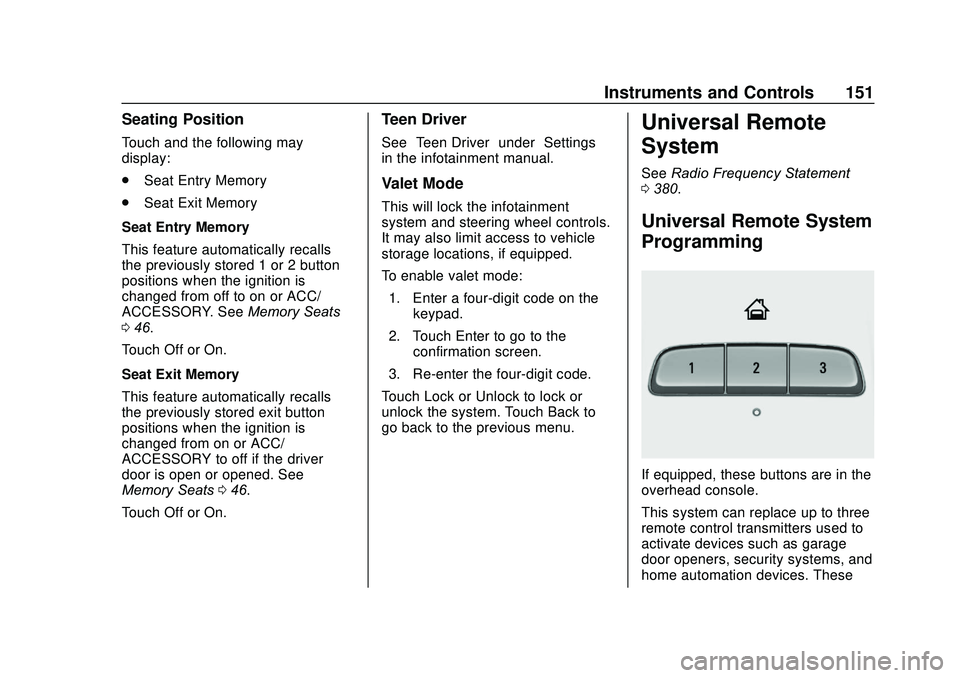
Universal Remote System
Programming
If equipped, these buttons are in the
overhead console.
This system can replace up to three
remote control transmitters used to
activate devices such as garage
door openers, security systems, and
home automation devices. These
Page 171 of 406
GMC Acadia/Acadia Denali Owner Manual (GMNA-Localizing-U.S./Canada/
Mexico-13687875) - 2020 - CRC - 10/28/19
170 Climate Controls
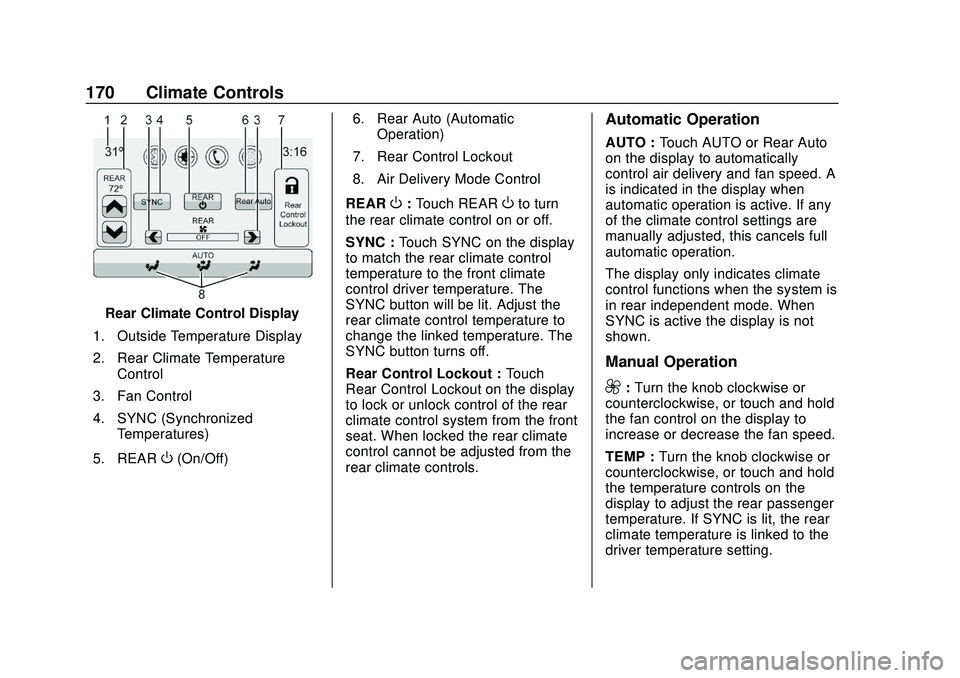
Rear Climate Control Display
1. Outside Temperature Display
2. Rear Climate Temperature Control
3. Fan Control
4. SYNC (Synchronized Temperatures)
5. REAR
O(On/Off) 6. Rear Auto (Automatic
Operation)
7. Rear Control Lockout
8. Air Delivery Mode Control
REAR
O: Touch REAROto turn
the rear climate control on or off.
SYNC : Touch SYNC on the display
to match the rear climate control
temperature to the front climate
control driver temperature. The
SYNC button will be lit. Adjust the
rear climate control temperature to
change the linked temperature. The
SYNC button turns off.
Rear Control Lockout : Touch
Rear Control Lockout on the display
to lock or unlock control of the rear
climate control system from the front
seat. When locked the rear climate
control cannot be adjusted from the
rear climate controls.
Automatic Operation
AUTO : Touch AUTO or Rear Auto
on the display to automatically
control air delivery and fan speed. A
is indicated in the display when
automatic operation is active. If any
of the climate control settings are
manually adjusted, this cancels full
automatic operation.
The display only indicates climate
control functions when the system is
in rear independent mode. When
SYNC is active the display is not
shown.
Manual Operation
9: Turn the knob clockwise or
counterclockwise, or touch and hold
the fan control on the display to
increase or decrease the fan speed.
TEMP : Turn the knob clockwise or
counterclockwise, or touch and hold
the temperature controls on the
display to adjust the rear passenger
temperature. If SYNC is lit, the rear
climate temperature is linked to the
driver temperature setting.
Page 351 of 406
GMC Acadia/Acadia Denali Owner Manual (GMNA-Localizing-U.S./Canada/
Mexico-13687875) - 2020 - CRC - 10/28/19
350 Vehicle Care
Floor Mats
{Warning
If a floor mat is the wrong size or
is not properly installed, it can
interfere with the pedals.
Interference with the pedals can
cause unintended acceleration
and/or increased stopping
distance which can cause a crash
and injury. Make sure the floor
mat does not interfere with the
pedals.
Use the following guidelines for
proper floor mat usage.
. The original equipment floor
mats were designed for your
vehicle. If the floor mats need
replacing, it is recommended
that GM certified floor mats be
purchased. Non-GM floor mats
may not fit properly and may
interfere with the accelerator or
brake pedal. Always check that
the floor mats do not interfere
with the pedals. .
Do not use a floor mat if the
vehicle is not equipped with a
floor mat retainer on the driver
side floor.
. Use the floor mat with the
correct side up. Do not turn
it over.
. Do not place anything on top of
the driver side floor mat.
. Use only a single floor mat on
the driver side.
. Do not place one floor mat on
top of another.
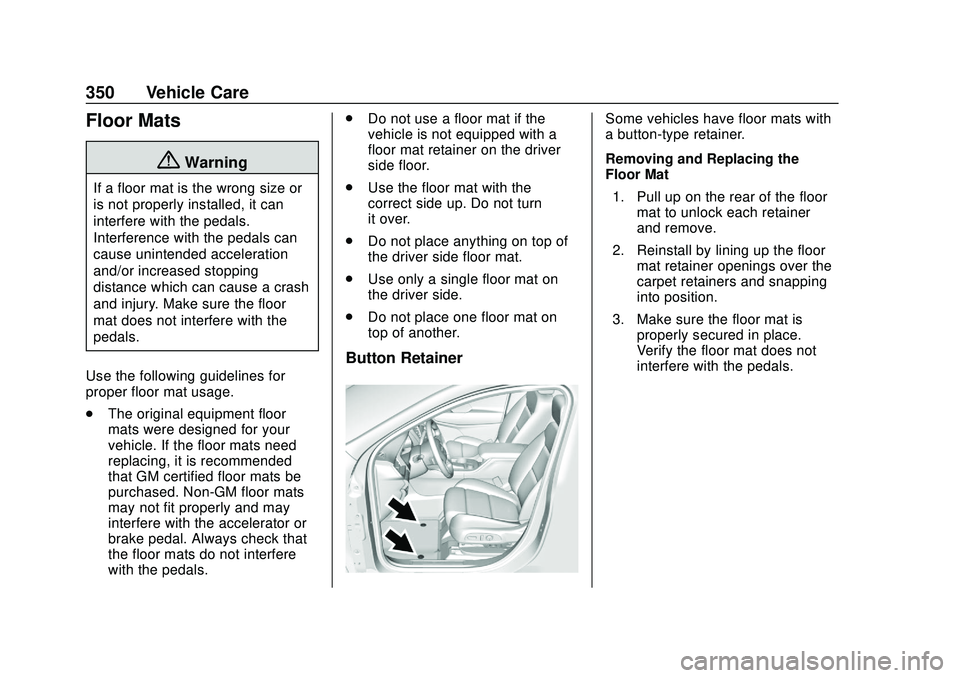
Button Retainer
Some vehicles have floor mats with
a button-type retainer.
Removing and Replacing the
Floor Mat
1. Pull up on the rear of the floor mat to unlock each retainer
and remove.
2. Reinstall by lining up the floor mat retainer openings over the
carpet retainers and snapping
into position.
3. Make sure the floor mat is properly secured in place.
Verify the floor mat does not
interfere with the pedals.
Page 375 of 406
GMC Acadia/Acadia Denali Owner Manual (GMNA-Localizing-U.S./Canada/
Mexico-13687875) - 2020 - CRC - 10/28/19
374 Customer Information
To learn about the GM Mobility
program, see www.gmmobility.com
or call the GM Mobility Assistance
Center at 1-800-323-9935. Text
Telephone (TTY) users, call
1-800-833-9935.
General Motors of Canada also has
a Mobility program. See www.gm.ca
or call 1-800-GM-DRIVE
(800-463-7483) for details. TTY
users call 1-800-263-3830.
Roadside Assistance
Program
For U.S.-purchased vehicles, call
1-888-881-3302; (Text Telephone
(TTY): 1-888-889-2438).
For Canadian-purchased vehicles,
call 1-800-268-6800.
Service is available 24 hours a day,
365 days a year.
Calling for Assistance
When calling Roadside Assistance,
have the following information
ready:.
Your name, home address, and
home telephone number
. Telephone number of your
location
. Location of the vehicle
. Model, year, color, and license
plate number of the vehicle
. Odometer reading, Vehicle
Identification Number (VIN), and
delivery date of the vehicle
. Description of the problem
Coverage
Services are provided for the
duration of the vehicle's powertrain
warranty.
In the U.S., anyone driving the
vehicle is covered. In Canada, a
person driving the vehicle without
permission from the owner is not
covered.
Roadside Assistance is not a part of
the New Vehicle Limited Warranty.
General Motors North America and
GMC reserve the right to make any changes or discontinue the
Roadside Assistance program at
any time without notification.
General Motors North America and
GMC reserve the right to limit
services or payment to an owner or
driver if they decide the claims are
made too often, or the same type of
claim is made many times.
Services Provided
.
Emergency Fuel Delivery:
Delivery of enough fuel for the
vehicle to get to the nearest
service station.
. Lock-Out Service: Service to
unlock the vehicle if you are
locked out. A remote unlock may
be available if you have OnStar.
For security reasons, the driver
must present identification
before this service is given.
. Emergency Tow from a Public
Road or Highway: Tow to the
nearest GMC dealer for warranty
service, or if the vehicle was in a
crash and cannot be driven.
Page 389 of 406
GMC Acadia/Acadia Denali Owner Manual (GMNA-Localizing-U.S./Canada/
Mexico-13687875) - 2020 - CRC - 10/28/19
388 OnStar
Languages
The vehicle can be programmed to
respond in multiple languages.
Press
Qand ask for an Advisor.
Advisors are available in English,
Spanish, and French. Available
languages may vary by country.
Potential Issues
OnStar cannot perform Remote
Door Unlock or Stolen Vehicle
Assistance after the vehicle has
been off continuously for 10 days
without an ignition cycle. If the
vehicle has not been started for
10 days, OnStar can contact
Roadside Assistance or a locksmith
to help gain access to the vehicle.
Global Positioning
System (GPS)
. Obstruction of the GPS can
occur in a large city with tall
buildings; in parking garages;
around airports; in tunnels and
underpasses; or in an area with
very dense trees. If GPS signals
are not available, the OnStar
system should still operate to call OnStar. However, OnStar
could have difficulty identifying
the exact location.
. In emergency situations, OnStar
can use the last stored GPS
location to send to emergency
responders.
A temporary loss of GPS can cause
loss of the ability to send a
Turn-by-Turn Navigation route. The
Advisor may give a verbal route or
may ask for a call back after the
vehicle is driven into an open area.
Cellular and GPS Antennas
Cellular reception is required for
OnStar to send remote signals to
the vehicle. Do not place items over
or near the antenna to prevent
blocking cellular and GPS signal
reception.
Unable to Connect to OnStar
Message
If there is limited cellular coverage
or the cellular network has reached
maximum capacity, this message may come on. Press
Qto try the
call again or try again after driving a
few miles into another cellular area.
Vehicle and Power Issues
OnStar services require a vehicle
electrical system, wireless service,
and GPS satellite technologies to be
available and operating for features
to function properly. These systems
may not operate if the battery is
discharged or disconnected.
Add-on Electrical Equipment
The OnStar system is integrated
into the electrical architecture of the
vehicle. Do not add any electrical
equipment. See Add-On Electrical
Equipment 0258. Added electrical
equipment may interfere with the
operation of the OnStar system and
cause it to not operate.
Vehicle Software Updates
OnStar or GM may remotely deliver
software updates or changes to the
vehicle without further notice or
consent. These updates or changes
may enhance or maintain safety,
security, or the operation of the
Page 393 of 406

GMC Acadia/Acadia Denali Owner Manual (GMNA-Localizing-U.S./Canada/
Mexico-13687875) - 2020 - CRC - 10/28/19
392 Connected Services
devices. Manage data usage by
turning Wi-Fi on or off on your
mobile device, using the myGMC
mobile app, or by contacting an
OnStar Advisor. On some vehicles,
Wi-Fi can also be managed from the
Wi-Fi Hotspot menu.
MyGMC Mobile App (If Available)
Download the myGMC mobile app
to compatible Apple and Android
smartphones. GMC users can
access the following services from a
smartphone:
.Remotely start/stop the vehicle,
if factory-equipped.
. Lock/unlock doors, if equipped
with automatic locks.
. Activate the horn and lamps.
. Check the vehicle’s fuel level, oil
life, or tire pressure,
if factory-equipped with the Tire
Pressure Monitor System.
. Send destinations to the vehicle.
. Locate the vehicle on a map
(U.S. market only). .
Turn the vehicle's Wi-Fi hotspot
on/off, manage settings, and
monitor data consumption,
if equipped.
. Locate a dealer and schedule
service.
. Request roadside assistance.
. Set a parking reminder with pin
drop, take a photo, make a note,
and set a timer.
. Connect with GMC on social
media.
Features are subject to change. For
myGMC mobile app information and
compatibility, see my.gmc.com.
An active OnStar or connected
service plan may be required.
A compatible device,
factory-installed remote start, and
power locks are required. Data rates
apply. See www.onstar.com for
details and system limitations.
Remote Services
Contact an OnStar Advisor to
unlock the doors or sound the horn
and flash the lamps.
Marketplace
OnStar Advisors can provide offers
from restaurants and retailers on
your route, help locate hotels,
or book a room. These services
vary by market.
Diagnostics
By monitoring and reporting on the
vehicle's key systems, OnStar
Advanced Diagnostics, if equipped,
provides a way to keep up on
maintenance. Capabilities vary by
model. See www.onstar.com for
details and system limitations.
Features are subject to change. For
updates on feature capabilities, see
my.gmc.com. Message and data
rates may apply.