speedometer GMC ACADIA 2021 Owner's Manual
[x] Cancel search | Manufacturer: GMC, Model Year: 2021, Model line: ACADIA, Model: GMC ACADIA 2021Pages: 396, PDF Size: 7.87 MB
Page 90 of 396
GMC Acadia/Acadia Denali Owner Manual (GMNA-Localizing-U.S./Canada/
Mexico-14608671) - 2021 - CRC - 10/26/20
Instruments and Controls 89
Instruments and Controls
Controls
Steering Wheel Adjustment . . . . . . . . . . . . 90
Steering Wheel Controls . . . . . . . . . . . . . . . 90
Heated Steering Wheel . . . . . . . . . . . . . . . . 90
Horn . . . . . . . . . . . . . . . . . . . . . . . . . . . . . . . . . . . . 91
Windshield Wiper/Washer . . . . . . . . . . . . . . 91
Rear Window Wiper/Washer . . . . . . . . . . . 92
Compass . . . . . . . . . . . . . . . . . . . . . . . . . . . . . . . 92
Clock . . . . . . . . . . . . . . . . . . . . . . . . . . . . . . . . . . . 93
Power Outlets . . . . . . . . . . . . . . . . . . . . . . . . . . 93
Wireless Charging . . . . . . . . . . . . . . . . . . . . . . 94
Warning Lights, Gauges, and Indicators
Warning Lights, Gauges, andIndicators . . . . . . . . . . . . . . . . . . . . . . . . . . . . 96
Instrument Cluster (Base and Midlevel) . . . . . . . . . . . . . . . . . . . . . . . . . . . . . 97
Instrument Cluster (Uplevel) . . . . . . . . . . . 100
Speedometer . . . . . . . . . . . . . . . . . . . . . . . . . . 102
Odometer . . . . . . . . . . . . . . . . . . . . . . . . . . . . . 102
Trip Odometer . . . . . . . . . . . . . . . . . . . . . . . . . 102
Tachometer . . . . . . . . . . . . . . . . . . . . . . . . . . . . 102
Fuel Gauge . . . . . . . . . . . . . . . . . . . . . . . . . . . . 102
Engine Oil Temperature Gauge . . . . . . . . 103
Engine Coolant Temperature Gauge . . . 104
Voltmeter Gauge . . . . . . . . . . . . . . . . . . . . . . 104
Seat Belt Reminders . . . . . . . . . . . . . . . . . . . 105
Airbag Readiness Light . . . . . . . . . . . . . . . . 105 Passenger Airbag Status Indicator . . . . . 106
Charging System Light . . . . . . . . . . . . . . . . . 107
Malfunction Indicator Lamp (Check
Engine Light) . . . . . . . . . . . . . . . . . . . . . . . . 107
Brake System Warning Light . . . . . . . . . . 108
Electric Parking Brake Light . . . . . . . . . . . . 109
Service Electric Parking Brake Light
(Uplevel and Midlevel
Cluster Only) . . . . . . . . . . . . . . . . . . . . . . . . 109
Antilock Brake System (ABS) Warning Light . . . . . . . . . . . . . . . . . . . . . . . . . . . . . . . . . 110
Gear Shifting Light . . . . . . . . . . . . . . . . . . . . . 110
Tow/Haul Mode Light . . . . . . . . . . . . . . . . . 110
Hill Descent Control Light . . . . . . . . . . . . . . 110
Lane Keep Assist (LKA) Light . . . . . . . . . . . 110
Vehicle Ahead Indicator . . . . . . . . . . . . . . . . 111
Pedestrian Ahead Indicator . . . . . . . . . . . . . 111
Traction Off Light . . . . . . . . . . . . . . . . . . . . . . 111
StabiliTrak OFF Light . . . . . . . . . . . . . . . . . . . 112
Traction Control System (TCS)/ StabiliTrak Light . . . . . . . . . . . . . . . . . . . . . . 112
Engine Coolant Temperature Warning Light . . . . . . . . . . . . . . . . . . . . . . . . . . . . . . . . . 112
Tire Pressure Light . . . . . . . . . . . . . . . . . . . . . 113
Engine Oil Pressure Light . . . . . . . . . . . . . . . 113
Low Fuel Warning Light . . . . . . . . . . . . . . . . 114
Security Light . . . . . . . . . . . . . . . . . . . . . . . . . . 114
High-Beam On Light . . . . . . . . . . . . . . . . . . . 114
Front Fog Lamp Light . . . . . . . . . . . . . . . . . . 114
Lamps On Reminder . . . . . . . . . . . . . . . . . . . 114 Cruise Control Light . . . . . . . . . . . . . . . . . . . . 115
Door Ajar Light . . . . . . . . . . . . . . . . . . . . . . . . . 115
Information Displays
Driver Information Center
(DIC) (Base) . . . . . . . . . . . . . . . . . . . . . . . . . . 115
Driver Information Center (DIC) (Midlevel and Uplevel) . . . . . . . . . . . . . . . 117
Head-Up Display (HUD) . . . . . . . . . . . . . . . . 119
Vehicle Messages
Vehicle Messages . . . . . . . . . . . . . . . . . . . . . . 122
Engine Power Messages . . . . . . . . . . . . . . . 123
Vehicle Speed Messages . . . . . . . . . . . . . . . 123
Vehicle Personalization
Vehicle Personalization . . . . . . . . . . . . . . . . . 123
Universal Remote System
Universal Remote System . . . . . . . . . . . . . . 127
Universal Remote System Programming . . . . . . . . . . . . . . . . . . . . . . . . 127
Universal Remote System Operation . . . 129
Page 98 of 396
GMC Acadia/Acadia Denali Owner Manual (GMNA-Localizing-U.S./Canada/
Mexico-14608671) - 2021 - CRC - 10/26/20
Instruments and Controls 97
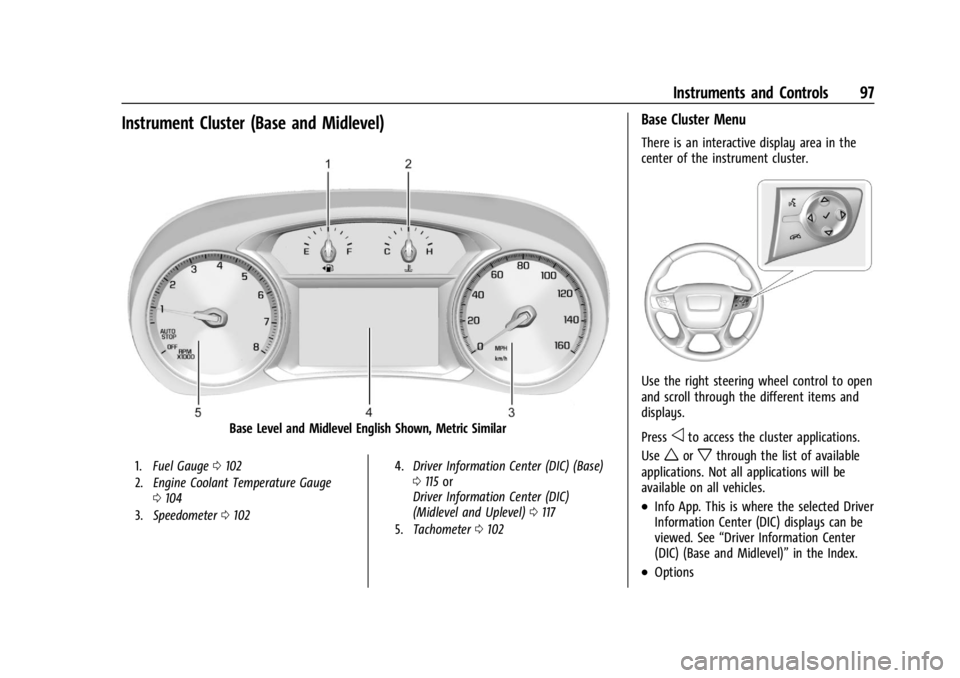
Instrument Cluster (Base and Midlevel)
Base Level and Midlevel English Shown, Metric Similar
1.Fuel Gauge 0102
2. Engine Coolant Temperature Gauge
0104
3. Speedometer 0102 4.
Driver Information Center (DIC) (Base)
0115 or
Driver Information Center (DIC)
(Midlevel and Uplevel) 0117
5. Tachometer 0102
Base Cluster Menu
There is an interactive display area in the
center of the instrument cluster.
Use the right steering wheel control to open
and scroll through the different items and
displays.
Press
oto access the cluster applications.
Use
worxthrough the list of available
applications. Not all applications will be
available on all vehicles.
.Info App. This is where the selected Driver
Information Center (DIC) displays can be
viewed. See “Driver Information Center
(DIC) (Base and Midlevel)” in the Index.
.Options
Page 99 of 396
GMC Acadia/Acadia Denali Owner Manual (GMNA-Localizing-U.S./Canada/
Mexico-14608671) - 2021 - CRC - 10/26/20
98 Instruments and Controls
Options
Press
Vto select the Options app, then
press
pto enter the Options menu. Usew
orxto scroll through items in the
Options menu.
Units : Press
pwhile Units is displayed to
enter the Units menu. Choose English or
Metric units by pressing
Vwhile the
desired item is highlighted.
Info Pages : Press
pwhile Info Pages is
displayed to enter the Info Pages menu and
select the items to be displayed in the
Info app.
Speed Warning : The Speed Warning display
allows you to set a speed not to be
exceeded. To set, press
pwhen Speed
Warning is displayed.
Scroll
worxto adjust the value. PressV
to set the speed.
Once the speed is set, this feature can be
turned off by pressing
Vwhile viewing this
page. If the selected speed limit is exceeded,
a pop-up warning is displayed with a chime.
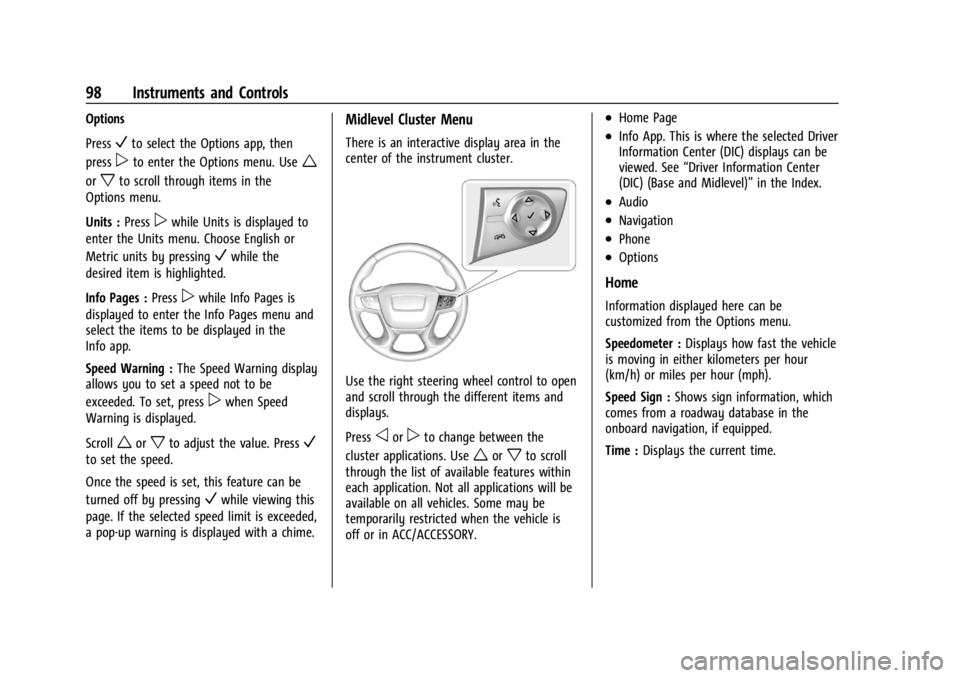
Midlevel Cluster Menu
There is an interactive display area in the
center of the instrument cluster.
Use the right steering wheel control to open
and scroll through the different items and
displays.
Press
oorpto change between the
cluster applications. Use
worxto scroll
through the list of available features within
each application. Not all applications will be
available on all vehicles. Some may be
temporarily restricted when the vehicle is
off or in ACC/ACCESSORY.
.Home Page
.Info App. This is where the selected Driver
Information Center (DIC) displays can be
viewed. See “Driver Information Center
(DIC) (Base and Midlevel)” in the Index.
.Audio
.Navigation
.Phone
.Options
Home
Information displayed here can be
customized from the Options menu.
Speedometer :Displays how fast the vehicle
is moving in either kilometers per hour
(km/h) or miles per hour (mph).
Speed Sign : Shows sign information, which
comes from a roadway database in the
onboard navigation, if equipped.
Time : Displays the current time.
Page 100 of 396
GMC Acadia/Acadia Denali Owner Manual (GMNA-Localizing-U.S./Canada/
Mexico-14608671) - 2021 - CRC - 10/26/20
Instruments and Controls 99
Fuel Range :Displays the approximate
distance the vehicle can be driven without
refueling. The fuel range estimate is based
on an average of the vehicle’s fuel economy
over recent driving history and the amount
of fuel remaining in the fuel tank. Fuel
range cannot be reset.
Audio
Useworxto scroll through options,
browse for music, select from favorites,
or change the audio source. In the main
view, scroll to change the station or go to
the next or previous track.
Navigation
In the Navigation menu, if there is no active
route, press
Vto access Recents or
Favorites. If there is an active route, press
V
to cancel or resume route guidance, mute or
unmute voice guidance, or access Recents or
Favorites.
Phone
In the Phone menu, if there is no active
phone call, view recent calls, scroll through
contacts, select from the favorites, or change
the phone source. If there is an active call,
mute the phone or switch to handset
operation.
Options
Useworxto scroll through items in the
Options menu. Press
Vto select the item.
Press
oto exit the item.
Units : Choose US or Metric units. A selected
mark will be displayed next to the
selected item.
Info Page Options : Select the items to be
displayed in the Info app. A selected mark
will be displayed next to the selected item. Home Page Options :
Select the available
elements to display. Not all elements will be
available on all vehicles: Speedometer,
Active Safety, Speed Sign, Time, and Fuel
Range.
Speed Warning : Allows you to set a speed
not to be exceeded. To set, press
Vwhen
Speed Warning is displayed. Use
worx
to adjust the value. PressVto set the
speed. Once the speed is set, this feature
can be turned off by pressing the
Vwhile
viewing this page. If the selected speed limit
is exceeded, a pop-up warning is displayed
with a chime.
Software Information : Displays open source
software information.
Page 101 of 396
GMC Acadia/Acadia Denali Owner Manual (GMNA-Localizing-U.S./Canada/
Mexico-14608671) - 2021 - CRC - 10/26/20
100 Instruments and Controls
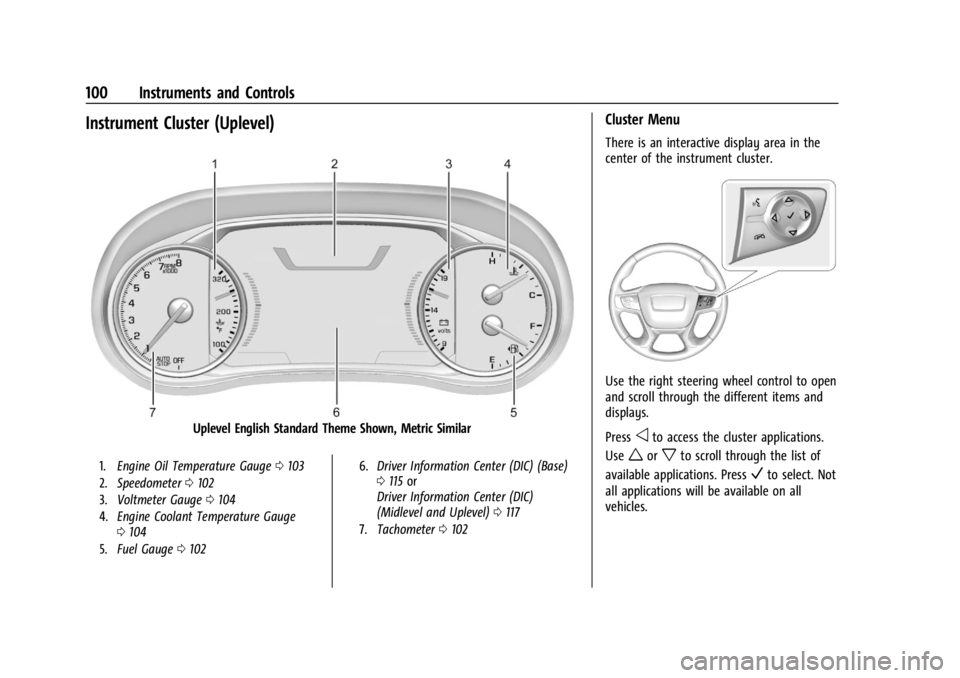
Instrument Cluster (Uplevel)
Uplevel English Standard Theme Shown, Metric Similar
1.Engine Oil Temperature Gauge 0103
2. Speedometer 0102
3. Voltmeter Gauge 0104
4. Engine Coolant Temperature Gauge
0104
5. Fuel Gauge 0102 6.
Driver Information Center (DIC) (Base)
0115 or
Driver Information Center (DIC)
(Midlevel and Uplevel) 0117
7. Tachometer 0102
Cluster Menu
There is an interactive display area in the
center of the instrument cluster.
Use the right steering wheel control to open
and scroll through the different items and
displays.
Press
oto access the cluster applications.
Use
worxto scroll through the list of
available applications. Press
Vto select. Not
all applications will be available on all
vehicles.
Page 103 of 396
GMC Acadia/Acadia Denali Owner Manual (GMNA-Localizing-U.S./Canada/
Mexico-14608671) - 2021 - CRC - 10/26/20
102 Instruments and Controls
Speedometer
The speedometer shows the vehicle's speed
in either kilometers per hour (km/h) or
miles per hour (mph).
Odometer
The odometer shows how far the vehicle has
been driven, in either kilometers or miles.
Trip Odometer
The trip odometer shows how far the
vehicle has been driven since the trip
odometer was last reset.
The trip odometer is accessed and reset
through the Driver Information Center (DIC).
SeeDriver Information Center (DIC) (Base)
0 115 or
Driver Information Center (DIC) (Midlevel and
Uplevel) 0117.
Tachometer
The tachometer displays the engine speed in
revolutions per minute (rpm). For vehicles with the Stop/Start system,
when the ignition is on, the tachometer
indicates the vehicle status. When pointing
to AUTO STOP, the engine is off but the
vehicle is on and can move. The engine
could auto start at any time. When the
indicator points to OFF, the vehicle is off.
When the engine is on, the tachometer will
indicate the engine’s revolutions per minute
(rpm). The tachometer may vary by several
hundred rpm, during Auto Stop mode, when
the engine is shutting off and restarting.
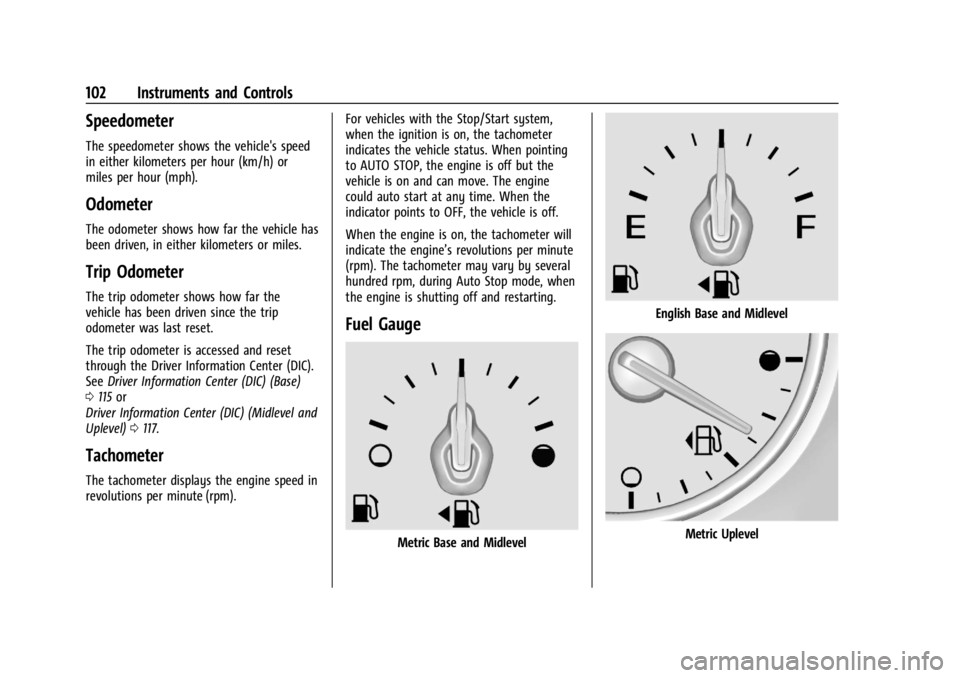
Fuel Gauge
Metric Base and Midlevel
English Base and Midlevel
Metric Uplevel
Page 121 of 396
GMC Acadia/Acadia Denali Owner Manual (GMNA-Localizing-U.S./Canada/
Mexico-14608671) - 2021 - CRC - 10/26/20
120 Instruments and Controls
If equipped with HUD, some information
concerning the operation of the vehicle is
projected onto the windshield. The
information is projected through the HUD
lens on the driver side of the instrument
panel and focused out toward the front of
the vehicle.
Caution
If you try to use the HUD image as a
parking aid, you may misjudge the
distance and damage your vehicle. Do not
use the HUD image as a parking aid.
The HUD information can be displayed in
various languages. The speedometer reading
and other numerical values can be displayed
in either English or metric units.
The language selection is changed through
the radio and the units of measurement is
changed through the instrument cluster. See
Vehicle Personalization 0123 and "Options"
under Instrument Cluster (Base and Midlevel)
0 97 or
Instrument Cluster (Uplevel) 0100.
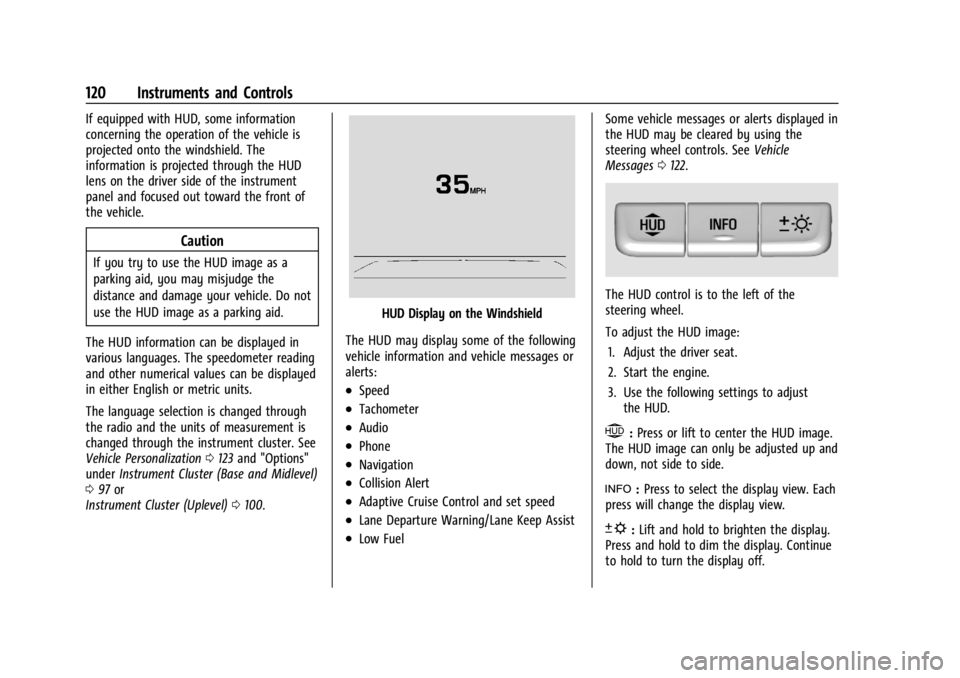
HUD Display on the Windshield
The HUD may display some of the following
vehicle information and vehicle messages or
alerts:
.Speed
.Tachometer
.Audio
.Phone
.Navigation
.Collision Alert
.Adaptive Cruise Control and set speed
.Lane Departure Warning/Lane Keep Assist
.Low Fuel Some vehicle messages or alerts displayed in
the HUD may be cleared by using the
steering wheel controls. See
Vehicle
Messages 0122.
The HUD control is to the left of the
steering wheel.
To adjust the HUD image:
1. Adjust the driver seat.
2. Start the engine.
3. Use the following settings to adjust the HUD.
$:Press or lift to center the HUD image.
The HUD image can only be adjusted up and
down, not side to side.
!: Press to select the display view. Each
press will change the display view.
D: Lift and hold to brighten the display.
Press and hold to dim the display. Continue
to hold to turn the display off.
Page 232 of 396
GMC Acadia/Acadia Denali Owner Manual (GMNA-Localizing-U.S./Canada/
Mexico-14608671) - 2021 - CRC - 10/26/20
Driving and Operating 231
SET−:Press briefly to set the speed and
activate cruise control. If the cruise control is
already active, use to decrease vehicle
speed.
*: Press to disengage cruise control
without erasing the set speed from memory.
Setting Cruise Control
If
Jis on when not in use, SET− or RES+
could get pressed and go into cruise when
not desired. Keep
Joff when cruise is not
being used.
1. Press
J.
2. Get up to the desired speed.
3. Press and release SET−. The desired set speed briefly appears in the instrument
cluster.
4. Remove your foot from the accelerator.
When the cruise control has been set to the
desired speed, a green cruise control
indicator appears on the instrument cluster.
Resuming a Set Speed
If the cruise control is set at a desired speed
and then the brakes are applied or
*is
pressed, the cruise control is disengaged
without erasing the set speed from memory. Once the vehicle speed reaches about
40 km/h (25 mph) or more, press RES+
briefly. The vehicle returns to the previous
set speed.
Increasing Speed While Using Cruise Control
If the cruise control system is already
activated:
.Press and hold RES+ up until the desired
speed is reached, then release it.
.To increase vehicle speed in small
increments, briefly press RES+. For each
press, the vehicle goes about 1 km/h
(1 mph) faster.
The speedometer reading can be displayed
in either English or metric units. See
Instrument Cluster (Base and Midlevel) 097
or
Instrument Cluster (Uplevel) 0100. The
increment value used depends on the units
displayed.
Reducing Speed While Using Cruise Control
If the cruise control system is already
activated:
.Press and hold SET− until the desired
lower speed is reached, then release it.
.To decrease the vehicle speed in small
increments, briefly press SET−. For each
press, the vehicle goes about 1 km/h
(1 mph) slower.
The speedometer reading can be displayed
in either English or metric units. See
Instrument Cluster (Base and Midlevel) 097
or
Instrument Cluster (Uplevel) 0100. The
increment value used depends on the units
displayed.
Passing Another Vehicle While Using Cruise
Control
Use the accelerator pedal to increase the
vehicle speed. When you take your foot off
the pedal, the vehicle will slow down to the
previous set cruise speed.
While pressing the accelerator pedal or
shortly following the release to override
cruise, briefly applying SET− will result in
cruise set to the current vehicle speed.
Using Cruise Control on Hills
How well the cruise control will work on
hills depends upon the vehicle speed, load,
and the steepness of the hills. When going
up steep hills, you might have to step on
the accelerator pedal to maintain your
speed. When going downhill, you may have
Page 234 of 396
GMC Acadia/Acadia Denali Owner Manual (GMNA-Localizing-U.S./Canada/
Mexico-14608671) - 2021 - CRC - 10/26/20
Driving and Operating 233
Warning (Continued)
.On slippery roads where fast changes
in tire traction can cause excessive
wheel slip.
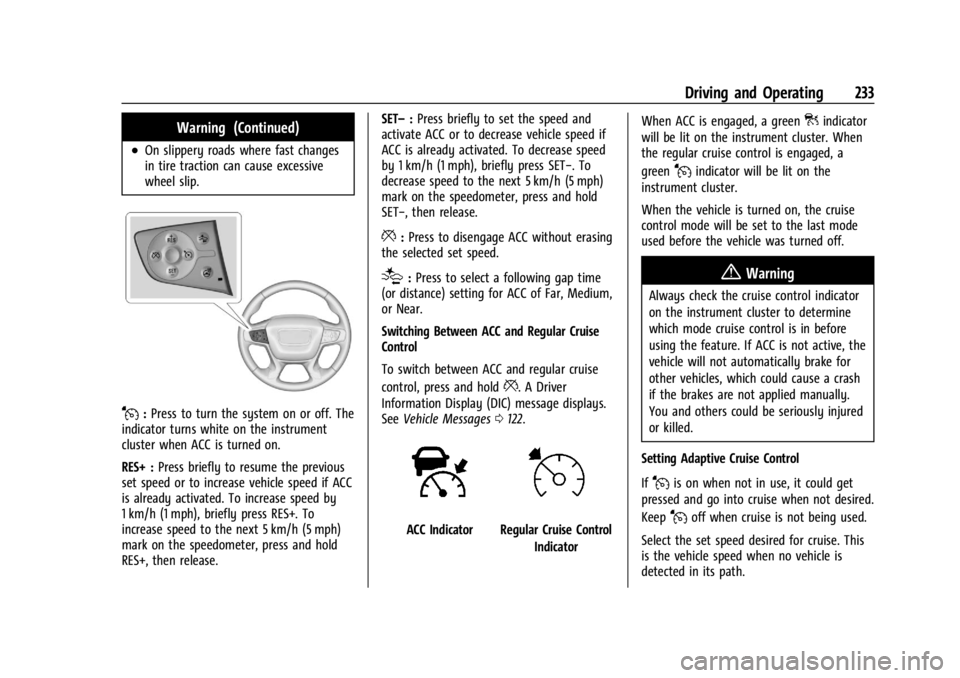
J:Press to turn the system on or off. The
indicator turns white on the instrument
cluster when ACC is turned on.
RES+ : Press briefly to resume the previous
set speed or to increase vehicle speed if ACC
is already activated. To increase speed by
1 km/h (1 mph), briefly press RES+. To
increase speed to the next 5 km/h (5 mph)
mark on the speedometer, press and hold
RES+, then release. SET–
:Press briefly to set the speed and
activate ACC or to decrease vehicle speed if
ACC is already activated. To decrease speed
by 1 km/h (1 mph), briefly press SET−. To
decrease speed to the next 5 km/h (5 mph)
mark on the speedometer, press and hold
SET−, then release.
*: Press to disengage ACC without erasing
the selected set speed.
[: Press to select a following gap time
(or distance) setting for ACC of Far, Medium,
or Near.
Switching Between ACC and Regular Cruise
Control
To switch between ACC and regular cruise
control, press and hold
*. A Driver
Information Display (DIC) message displays.
See Vehicle Messages 0122.
ACC IndicatorRegular Cruise Control
Indicator When ACC is engaged, a green
]indicator
will be lit on the instrument cluster. When
the regular cruise control is engaged, a
green
Jindicator will be lit on the
instrument cluster.
When the vehicle is turned on, the cruise
control mode will be set to the last mode
used before the vehicle was turned off.
{Warning
Always check the cruise control indicator
on the instrument cluster to determine
which mode cruise control is in before
using the feature. If ACC is not active, the
vehicle will not automatically brake for
other vehicles, which could cause a crash
if the brakes are not applied manually.
You and others could be seriously injured
or killed.
Setting Adaptive Cruise Control
If
Jis on when not in use, it could get
pressed and go into cruise when not desired.
Keep
Joff when cruise is not being used.
Select the set speed desired for cruise. This
is the vehicle speed when no vehicle is
detected in its path.
Page 319 of 396

GMC Acadia/Acadia Denali Owner Manual (GMNA-Localizing-U.S./Canada/
Mexico-14608671) - 2021 - CRC - 10/26/20
318 Vehicle Care
Wheel Alignment and Tire
Balance
The tires and wheels were aligned and
balanced at the factory to provide the
longest tire life and best overall
performance. Adjustments to wheel
alignment and tire balancing are not
necessary on a regular basis. Consider an
alignment check if there is unusual tire wear
or the vehicle is significantly pulling to one
side or the other. Some slight pull to the
left or right, depending on the crown of the
road and/or other road surface variations
such as troughs or ruts, is normal. If the
vehicle is vibrating when driving on a
smooth road, the tires and wheels may
need to be rebalanced. See your dealer for
proper diagnosis.
Wheel Replacement
Replace any wheel that is bent, cracked,
or badly rusted or corroded. If wheel nuts
keep coming loose, the wheel, wheel bolts,
and wheel nuts should be replaced. If the
wheel leaks air, replace it. Some aluminum
wheels can be repaired. See your dealer if
any of these conditions exist.Your dealer will know the kind of wheel that
is needed.
Each new wheel should have the same
load-carrying capacity, diameter, width,
offset, and be mounted the same way as
the one it replaces.
Replace wheels, wheel bolts, wheel nuts,
or Tire Pressure Monitor System (TPMS)
sensors with new GM original equipment
parts.
{Warning
Using the wrong replacement wheels,
wheel bolts, or wheel nuts can be
dangerous. It could affect the braking and
handling of the vehicle. Tires can lose air,
and cause loss of control, causing a crash.
Always use the correct wheel, wheel
bolts, and wheel nuts for replacement.
Caution
The wrong wheel can also cause
problems with bearing life, brake cooling,
speedometer or odometer calibration,
headlamp aim, bumper height, vehicle
ground clearance, and tire or tire chain
clearance to the body and chassis.
Used Replacement Wheels
{Warning
Replacing a wheel with a used one is
dangerous. How it has been used or how
far it has been driven may be unknown.
It could fail suddenly and cause a crash.
When replacing wheels, use a new GM
original equipment wheel.
Tire Chains
{Warning
If the vehicle has 235/55R20, 245/65R17,
or 255/65R17 size tires, do not use tire
chains. There is not enough clearance.
Tire chains used on a vehicle without the
proper amount of clearance can cause
damage to the brakes, suspension,
or other vehicle parts. The area damaged
by the tire chains could cause loss of
control and a crash. Use another type of
traction device only if its manufacturer
recommends it for the vehicle's tire size
combination and road conditions. Follow
that manufacturer's instructions. To avoid
vehicle damage, drive slow and readjust
(Continued)