change time GMC CANYON 2015 User Guide
[x] Cancel search | Manufacturer: GMC, Model Year: 2015, Model line: CANYON, Model: GMC CANYON 2015Pages: 433, PDF Size: 4.61 MB
Page 163 of 433
Black plate (4,1)GMC Canyon Owner Manual (GMNA-Localizing-U.S./Canada-7587000) -
2015 - CRC - 3/17/15
6-4 Lighting
The system may also turn on the
headlamps when driving through a
parking garage or tunnel.
If the vehicle is started in a dark
garage, the automatic headlamp
system comes on immediately. If it
is light outside when the vehicle
leaves the garage, there is a slight
delay before the automatic
headlamp system changes to the
DRL. During that delay, the
instrument cluster may not be as
bright as usual. Make sure the
instrument panel brightness control
is in the full bright position. See
Instrument Panel Illumination
Control on page 6-6.
When it is bright enough outside,
the headlamps will turn off or may
change to Daytime Running
Lamps (DRL).
The automatic headlamp system
turns off when the exterior lamp
control is turned to
Oor the
ignition is off.
Lights On with Wipers
If the windshield wipers are
activated in daylight with the engine
on, and the exterior lamp control is
in AUTO, the headlamps, parking
lamps, and other exterior lamps
come on. The transition time for the
lamps coming on varies based on
wiper speed. When the wipers are
not operating, these lamps turn off.
Move the exterior lamp control to
O
or;to disable this feature.
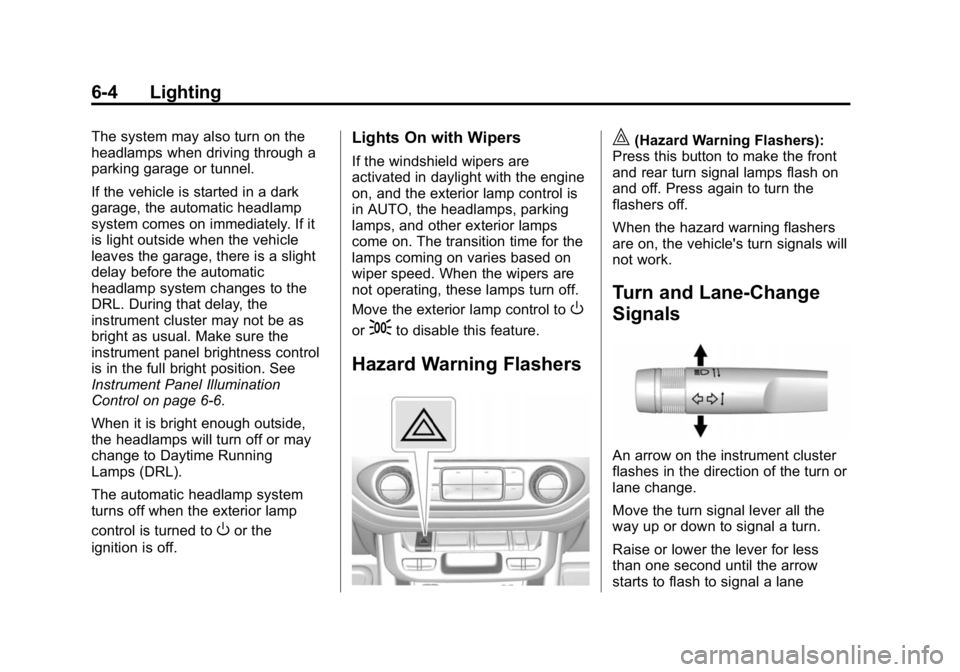
Hazard Warning Flashers
|(Hazard Warning Flashers):
Press this button to make the front
and rear turn signal lamps flash on
and off. Press again to turn the
flashers off.
When the hazard warning flashers
are on, the vehicle's turn signals will
not work.
Turn and Lane-Change
Signals
An arrow on the instrument cluster
flashes in the direction of the turn or
lane change.
Move the turn signal lever all the
way up or down to signal a turn.
Raise or lower the lever for less
than one second until the arrow
starts to flash to signal a lane
Page 164 of 433
Black plate (5,1)GMC Canyon Owner Manual (GMNA-Localizing-U.S./Canada-7587000) -
2015 - CRC - 3/17/15
Lighting 6-5
change. This causes the turn
signals to automatically flash three
times. Holding the turn signal lever
for more than one second will cause
the turn signals to flash until the
lever is released.
The lever returns to its starting
position whenever it is released.
If after signaling a turn or a lane
change the arrows flash rapidly or
do not come on, a signal bulb could
be burned out.
Replace any burned out bulbs. If a
bulb is not burned out, check the
fuse. SeeFuses on page 10-34.
Turn Signal On Chime
If the turn signal is left on for more
than 1.2 km (0.75 mi), a chime
sounds at each flash of the turn
signal. The message TURN
SIGNAL ON will also appear in the
Driver Information Center (DIC). To
turn the chime and message off,
move the turn signal lever to the
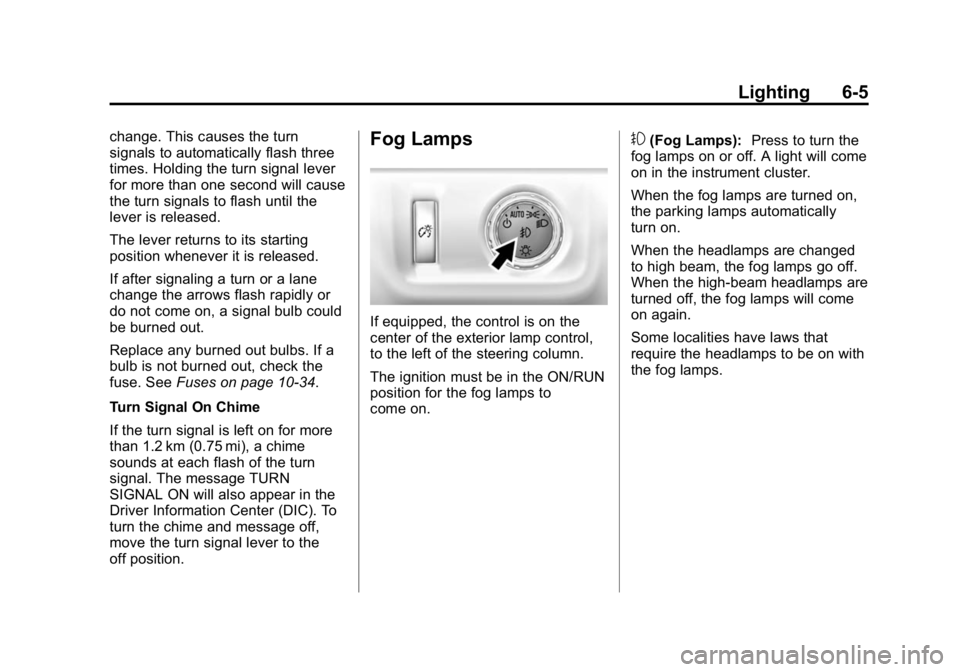
off position.Fog Lamps
If equipped, the control is on the
center of the exterior lamp control,
to the left of the steering column.
The ignition must be in the ON/RUN
position for the fog lamps to
come on.
#(Fog Lamps): Press to turn the
fog lamps on or off. A light will come
on in the instrument cluster.
When the fog lamps are turned on,
the parking lamps automatically
turn on.
When the headlamps are changed
to high beam, the fog lamps go off.
When the high-beam headlamps are
turned off, the fog lamps will come
on again.
Some localities have laws that
require the headlamps to be on with
the fog lamps.
Page 167 of 433
Black plate (8,1)GMC Canyon Owner Manual (GMNA-Localizing-U.S./Canada-7587000) -
2015 - CRC - 3/17/15
6-8 Lighting
on for a set amount of time and then
automatically turn off. The interior
lamps do not come on if the dome
lamp control is in the Off position.
The exterior lamps turn off
immediately by turning the exterior
lamps control off.
This feature can be changed.
SeeVehicle Personalization on
page 5-41.
Battery Load
Management
The vehicle has Electric Power
Management (EPM), which
estimates the battery's temperature
and state of charge. It then adjusts
the voltage for best performance
and extended life of the battery.
When the battery's state of charge
is low, the voltage is raised slightly
to quickly bring the charge back up.
When the state of charge is high,
the voltage is lowered slightly to
prevent overcharging. The voltmeter
gauge or the voltage display on the Driver Information Center (DIC),
if equipped, may show the voltage
moving up or down. This is normal.
If there is a problem, an alert will be
displayed.
The battery can be discharged at
idle if the electrical loads are very
high. This is true for all vehicles.
This is because the generator
(alternator) may not be spinning fast
enough at idle to produce all the
power that is needed for very high
electrical loads.
A high electrical load occurs when
several of the following are on, such
as: headlamps, high beams, fog
lamps, rear window defogger,
climate control fan at high speed,
heated seats, engine cooling fans,
trailer loads, and loads plugged into
accessory power outlets.
EPM works to prevent excessive
discharge of the battery. It does this
by balancing the generator's output
and the vehicle's electrical needs.
It can increase engine idle speed to
generate more power, wheneverneeded. It can temporarily reduce
the power demands of some
accessories.
Normally, these actions occur in
steps or levels, without being
noticeable. In rare cases at the
highest levels of corrective action,
this action may be noticeable to the
driver. If so, a DIC message might
be displayed and it is recommended
that the driver reduce the electrical
loads as much as possible. See
Battery Voltage and Charging
Messages on page 5-33.Battery Power Protection
This feature shuts off the dome and
reading lamps, if they are left on for
more than 10 minutes after the
ignition is turned off. The cargo
lamp shuts off after 20 minutes.
This prevents the battery from
running down.
Page 177 of 433
Black plate (10,1)GMC Canyon Owner Manual (GMNA-Localizing-U.S./Canada-7587000) -
2015 - CRC - 3/17/15
7-10 Infotainment System
A phone or tablet with Internet
connection and the Pandora
application installed is required.
Personal cell phone data plans are
used. Make sure the latest version
is installed on the device.
Launching Pandora
Connect the iPhone to the USB
port, or connect Android®or
BlackBerry®through Bluetooth. See
Bluetooth (Overview) on page 7-25
or Bluetooth (Infotainment Controls -
Base Radio) on page 7-26 or
Bluetooth (Infotainment Controls -
Base Connected Radio) on
page 7-30. For first time use, set up
the stations before connecting to the
vehicle. The Pandora icon will be
available on the Home Page.
When Pandora is chosen, the
Pandora logo will populate on the
screen and the system will display
“Acquiring Pandora Radio Station.”
Launch times can be significant. Using the iPhone
1. Plug the device into the USB
port. The phone screen must be
unlocked.
2. Launch Pandora from the Home Page by selecting the
Pandora icon.
If nothing happens when the
available Pandora screen button is
pressed, download the latest
Pandora application and retry.
The login screen may display on the
device.
Using an Android or BlackBerry
Phone
The BlackBerry phone must be
unlocked to launch Pandora service.
1. Pair the phone using Bluetooth.
2. Launch Pandora by selecting Pandora on the Home Page.
If nothing happens when the
available Pandora screen button is
selected, download the latest
Pandora application and retry. The login screen may display on the
device.
Pandora Menus
Press the MENU knob.
Pandora has a menu with the
following:
Tone Settings:
Select to adjust the
tone settings. See AM-FM Radio on
page 7-7.
Bookmark Artist: Select to
bookmark the artist.
Bookmark Song: Select to
bookmark the song.
Auto Volume: This feature sets the
auto volume based on the speed of
the vehicle and noise in the vehicle.
See AM-FM Radio on page 7-7.
Pandora Features
Pandora service has features to rate
tracks, skip tracks, or change
stations.
Page 194 of 433
Black plate (27,1)GMC Canyon Owner Manual (GMNA-Localizing-U.S./Canada-7587000) -
2015 - CRC - 3/17/15
Infotainment System 7-27
Pairing Information
.Up to five cell phones can be
paired to the Bluetooth system.
.The pairing process is disabled
when the vehicle is moving.
.Pairing only needs to be
completed once per phone,
unless the pairing information on
the cell phone changes or the
cell phone is deleted from the
system.
.Only one paired cell phone can
be connected to the Bluetooth
system at a time.
.If multiple paired cell phones are
within range of the system, the
system connects to the first
available paired cell phone in the
order that they were newly
paired to the system. To connect
to a different paired phone, see
“Connecting to a Different
Phone”later in this section. Pairing a Phone or Device
1. From the Home Page, turn the
MENU knob to access the
PHONE screen button, then
press the MENU knob to select
the PHONE screen button. If a
device has been previously
paired, the main Phone menu
will be shown. If no devices
have been paired, Step 2 can be
skipped.
2. Turn the MENU knob and press to select Manage Phones.
3. Press the button just below the PAIR screen button. A four-digit
Personal Identification Number
(PIN) appears on the display.
The PIN is used in Step 5.
4. Start the pairing process on the cell phone to be paired to the
vehicle. See the cell phone
manufacturer's user guide for
information on this process.
5. Locate the device named “Your
Vehicle” in the list on the cell
phone. Follow the instructions on the cell phone to enter the
PIN provided in Step 3. If a six
digit code is shown on the phone
and the vehicle screen, confirm
the codes are the same. The
system recognizes the new
connected phone after the
pairing process is complete.
6. If the phone prompts to accept connection or allow phone book
download, select Always Accept
and Allow. The phone book may
not be available if not accepted.
7. Repeat Steps 1–6 to pair additional phones or devices.
Listing All Paired and Connected
Phones
1. To list all paired devices, from the Home Page turn the MENU
knob, then press to select the
PHONE screen button.
2. Turn the MENU knob and press to select Manage Phones.
Page 198 of 433
Black plate (31,1)GMC Canyon Owner Manual (GMNA-Localizing-U.S./Canada-7587000) -
2015 - CRC - 3/17/15
Infotainment System 7-31
your cell phone manufacturer's user
guide for Bluetooth functions before
pairing the cell phone. If a Bluetooth
phone is not connected, calls can
be made using OnStar Hands-Free
Calling, if available. SeeOnStar
Overview on page 14-1.
Pairing Information
.Up to 10 cell phones can be
paired to the Bluetooth system.
.The pairing process is disabled
when the vehicle is moving.
.Pairing only needs to be
completed once per phone,
unless the pairing information on
the cell phone changes or the
cell phone is deleted from the
system.
.Only one paired cell phone can
be connected to the Bluetooth
system at a time.
.If multiple paired cell phones are
within range of the system, the
system connects to the most
recently connected device. To
connect to a different paired phone, see
“Connecting to a
Different Phone” after in this
section.
Pairing a Phone or Device
1. From the Home Page, turn the MENU knob to access the
PHONE screen button, then
press the MENU knob to select
the PHONE screen button. If a
device has been previously
paired, the main Phone menu
will be shown. If no devices
have been paired, Step 2 can be
skipped.
2. Turn the MENU knob and press to select Manage Phones.
3. Press the button just below the PAIR/screen button. A four-digit
Personal Identification Number
(PIN) appears on the display.
The PIN may be used in Step 5.
4. Start the pairing process on the cell phone to be paired to the
vehicle. See the cell phone
manufacturer's user guide for
information on this process. 5. Locate the device named
“GMC
IntelliLink” in the list on the cell
phone. Follow the instructions
on the cell phone to confirm the
four-digit code.
After the PIN is successfully
entered or the code is
confirmed, the system confirms
the pairing process is complete.
6. If the phone prompts to accept connection or allow phone book
download, select always accept
and allow. The phone book may
not be available if not accepted.
7. Repeat Steps 1–6 to pair additional phones or devices.
Listing All Paired and Connected
Phones
1. To list all paired devices, from the Home Page turn the MENU
knob, then press to select the
PHONE screen button.
2. Turn the MENU knob and press to select Manage Phones.
Page 202 of 433
Black plate (35,1)GMC Canyon Owner Manual (GMNA-Localizing-U.S./Canada-7587000) -
2015 - CRC - 3/17/15
Infotainment System 7-35
The messages can be deleted or a
new message can be added.
To add a new message:
1. Select Text Settings, then selectManage Predefined Messages.
2. While in the predefined messages list view, select Add
New Predefined Message and a
keyboard displays.
3. Type a new message and select NEW MSG when done to add
the message. Press the
o
BACK button on faceplate to go
back to the predefined
messages list. Select
zto
delete one character at a time.
Memory Full
This message may display if there is
no more room on the phone to store
messages.
Text Settings
Text Alerts: When on, this feature
will display an alert when a new text
message has been received. Select
on or off.
Manage Predefined Messages:
Select to add, change, or delete
predefined messages.
Settings
Teen Driver
If equipped, Teen Driver allows keys
to be programmed with
customizable vehicle settings.
It limits some vehicle features and
prevents some systems, such as
Park Assist, if equipped, from being
turned off. It also displays a report
card of the driving behavior when a
Teen Driver key is used.
To activate or change the settings,
select Teen Driver from the Settings
menu. See Vehicle Personalization
on page 5-41. If no keys are
activated, the Teen Driver feature
will not record any Report
Card data.
A Personal Identification Number
(PIN) must be created using the
keypad. The PIN is required to:
.Register Keys.
.Change settings.
Page 205 of 433
Black plate (38,1)GMC Canyon Owner Manual (GMNA-Localizing-U.S./Canada-7587000) -
2015 - CRC - 3/17/15
7-38 Infotainment System
iPod shuffle®, and iPod touch®are
trademarks of Apple Inc., registered
in the U.S. and other countries.
Fees and Taxes: Subscription fee,
taxes, one time activation fee, and
other fees may apply. Subscription
fee is consumer only. All fees and
programming subject to change.
Subscriptions subject to Customer
Agreement available at
www.siriusxm.com. SiriusXM
®
service only available in the
48 contiguous United States and
Canada.
In Canada: Some deterioration of
service may occur in extreme
northern latitudes. This is beyond
the control of SiriusXM
®Satellite
Radio. Explicit Language Notice: Channels
with frequent explicit language are
indicated with an
“XL”preceding the
channel name. Channel blocking is
available for SiriusXM Satellite
Radio receivers by notifying
SiriusXM:
.USA Customers —See
www.siriusxm.com or call
1-866-635–2349.
.Canadian Customers —See
www.xmradio.ca or call
1-877-209-0079.
It is prohibited to copy, decompile,
disassemble, reverse engineer,
hack, manipulate, or otherwise
make available any technology or
software incorporated in receivers
compatible with the SiriusXM
®
Satellite Radio System or that
support the SiriusXM website, the
Online Service or any of its content.
Furthermore, the AMBER voice
compression software included in
this product is protected by
intellectual property rights including patent rights, copyrights, and trade
secrets of Digital Voice
Systems, Inc.
General Requirements:
1. A License Agreement from
SiriusXM
®is required for any
product that incorporates
SiriusXM Technology and/or for
use of any of the SiriusXM
marks to be manufactured,
distributed, or marketed in the
SiriusXM Service Area.
2. For products to be distributed, marketed, and/or sold in
Canada, a separate agreement
is required with Canadian
Satellite Radio Inc. (operating as
SiriusXM Canada).
Other Information
The Bluetooth®word mark and
logos are owned by the Bluetooth®
SIG, Inc. and any use of such marks
by General Motors is under license.
Other trademarks and trade names
are those of their respective owners.
Page 207 of 433
Black plate (40,1)GMC Canyon Owner Manual (GMNA-Localizing-U.S./Canada-7587000) -
2015 - CRC - 3/17/15
7-40 Infotainment System
Gracenote Data, the Gracenote
Software, and Gracenote Servers.
Gracenote reserves all rights in
Gracenote Data, the Gracenote
Software, and the Gracenote
Servers, including all ownership
rights. Under no circumstances will
Gracenote become liable for any
payment to you for any information
that you provide. You agree that
Gracenote may enforce its rights
under this Agreement against you
directly in its own name.
The Gracenote service uses a
unique identifier to track queries for
statistical purposes. The purpose of
a randomly assigned numeric
identifier is to allow the Gracenote
service to count queries without
knowing anything about who you
are. For more information, see the
web page for the Gracenote Privacy
Policy for the Gracenote service.
The Gracenote Software and each
item of Gracenote Data are licensed
to you "AS IS." Gracenote makes no
representations or warranties,
express or implied, regarding theaccuracy of any Gracenote Data.
Gracenote reserves the right to
delete data from the Gracenote
Servers or to change data
categories for any cause that
Gracenote deems sufficient. No
warranty is made that the Gracenote
Software or Gracenote Servers are
error-free or that functioning of
Gracenote Software or Gracenote
Servers will be uninterrupted.
Gracenote is not obligated to
provide you with new enhanced or
additional data types or categories
that Gracenote may provide in the
future and is free to discontinue its
services at any time.
GRACENOTE DISCLAIMS ALL
WARRANTIES EXPRESS OR
IMPLIED, INCLUDING, BUT NOT
LIMITED TO, IMPLIED
WARRANTIES OF
MERCHANTABILITY, FITNESS
FOR A PARTICULAR PURPOSE,
TITLE, AND NON-INFRINGEMENT.
GRACENOTE DOES NOT
WARRANT THE RESULTS THAT
WILL BE OBTAINED BY YOUR
USE OF THE GRACENOTE
SOFTWARE OR ANY
GRACENOTE SERVER. IN NO
CASE WILL GRACENOTE BE
LIABLE FOR ANY
CONSEQUENTIAL OR
INCIDENTAL DAMAGES OR FOR
ANY LOST PROFITS OR LOST
REVENUES.
© 2013. Gracenote, Inc.
All Rights Reserved.
PANDORA
PANDORA, the PANDORA logo,
and the Pandora trade dress are
trademarks or registered trademarks
of Pandora Media, Inc. Used with
permission.
Unicode
Copyright © 1991-2013 Unicode,
Inc. All rights reserved. Distributed
under the Terms of Use in
http://www.unicode.org/
copyright.html.
Page 213 of 433
Black plate (4,1)GMC Canyon Owner Manual (GMNA-Localizing-U.S./Canada-7587000) -
2015 - CRC - 3/17/15
8-4 Climate Controls
To place the system in
automatic mode:
1. Press AUTO.
2. Set the temperature.To find your comfort setting, start
with 22°C (72°F) and allow the
system time to stabilize. Then
adjust the temperature as
needed for best comfort.
To improve fuel efficiency and to
cool the vehicle faster, recirculation
may be automatically selected in
warm weather.
The recirculation light will not come
on when automatically controlled.
Press
@to manually select
recirculation; press it again to select
outside air.
Do not cover the solar sensor on the
top of the instrument panel near the
windshield. This sensor regulates
air temperature based on sun load.
See “Sensors” later in this section.
Manual Operation
O(On/Off): PressOto turn the
climate control system on or off.
Outside air still enters the vehicle,
and is directed to the floor. This
direction can be changed by
pressing the air delivery mode.
A(Fan Control): Turn clockwise
or counterclockwise to increase or
decrease the fan speed. There is
about a 5 second delay when the
fan is turned on. Press the knob to
turn the fan off.
Press AUTO to return to automatic
operation.
Temperature Control: Turn the
knob clockwise or counterclockwise
to increase or decrease temperature
setting.
Air Delivery Mode Controls:
Press
Y,\,[, or-to change
the direction of the airflow. An
indicator light comes on in the
selected mode button. Changing the mode cancels the
automatic operation and the system
goes into manual mode. Press
AUTO to return to automatic
operation.
Y(Vent):
Air is directed to the
instrument panel outlets.
\(Bi-Level): Air is divided
between the instrument panel and
floor outlets.
[(Floor): Air is directed to the
floor outlets, with some to the
windshield, outboard instrument
panel outlets, side window outlets,
and second row floor outlets.
-(Defog): This mode clears the
windows of fog or moisture. Air is
directed to the windshield, floor
outlets, outboard instrument panel
outlets and side window vents. The
system automatically forces outside
air into the vehicle and the air
conditioning compressor will run,
unless the outside temperature is
close to freezing.