display GMC CANYON 2015 Owner's Guide
[x] Cancel search | Manufacturer: GMC, Model Year: 2015, Model line: CANYON, Model: GMC CANYON 2015Pages: 433, PDF Size: 4.61 MB
Page 154 of 433
Black plate (41,1)GMC Canyon Owner Manual (GMNA-Localizing-U.S./Canada-7587000) -
2015 - CRC - 3/17/15
Instruments and Controls 5-41
Vehicle
Personalization
Use the audio system controls to
access the personalization menus
for customizing vehicle features.
The following are all possible
personalization features. Depending
on the vehicle, some may not be
available.
Base Radio Audio System
Controls
MENU:Press the center of the
knob to enter menus and select
menu items. Turn the knob to scroll
through the menus.
oBACK: Press to return to the
previous menu or exit.
Uplevel Radio Audio System
Controls
1. Press the desired feature to
display a list of available
options.
2. Press to select the desired feature setting. 3. Press
oBACK on the faceplate
or the
0screen button to return
to the previous menu or exit.
Turn the vehicle to ON/RUN to
access the Settings menu, then
select SETTINGS from the Home
page on the infotainment system
display.
Personalization Menus
The following list of menu items may
be available:
.Time and Date
.Language (Language)
.Valet Mode
.Teen Driver
.Radio
.Vehicle
.Bluetooth
.Voice
.Display
.Rear Camera
.Return to Factory Settings
.Software Information
Detailed information for each menu
follows.
Time and Date
Manually set the time and date. See
Clock on page 5-4.
Language (Language)
Select Language, then select from
the available language(s).
The selected language will display
on the system, and voice
recognition will reflect the selected
language.
Valet Mode (If Equipped)
This will lock the infotainment
system and steering wheel controls.
It may also limit top speed, power,
and access to vehicle storage
locations, if equipped.
To enable valet mode:
1. Enter a four-digit code on the keypad.
Page 155 of 433
Black plate (42,1)GMC Canyon Owner Manual (GMNA-Localizing-U.S./Canada-7587000) -
2015 - CRC - 3/17/15
5-42 Instruments and Controls
2. Press Enter to go to theconfirmation screen.
3. Re-enter the four-digit code.
Press LOCK or UNLOCK to lock or
unlock the system. Press Back to go
back to the previous menu.
Teen Driver (If Equipped)
Press and the following may
display:
.View Report Card
.Manage Settings
.Change PIN
.Key Registration
.Clear All Teen Keys/PIN
View Report Card
This allows the driver ’s driving
habits to be viewed. See Teen
Driver on page 7-35.
Manage Settings
Press and the following may
display:
.Audio Volume Limit
.Teen Driver Speed Limiter
.Teen Driver Speed Warning
Audio Volume Limit
This allows a maximum radio
volume to be set.
Select Off or On.
Teen Driver Speed Limiter
If equipped, this allows the
maximum speed limit of the vehicle
to be set.
Select Off or On.
Teen Driver Speed Warning
This allows a warning to be set
when a certain speed is exceeded.
Select Off or On.
Change PIN
This allows the Personal
Identification Number (PIN) to be
changed. See Teen Driver on
page 7-35. Key Registration
This allows the key to be registered.
See
“Register or Unregister a Key”
in Teen Driver on page 7-35.
Clear All Teen Keys/PIN
This allows all Teen Driver keys and
PINs to be cleared.
Select Continue or Cancel.
Radio
Press to display the Radio menu
and the following may display:
.Manage Favorites
.Number of Favorites Shown
.Audible Touch Feedback
.Auto Volume
.Maximum Startup Volume
Manage Favorites
This allows favorites to be edited.
See “Manage Favorites” in“Radio
Setup” underHome Page on
page 7-4 or“Manage Favorites” in
“Settings” under“Radio” in the
infotainment manual.
Page 156 of 433
Black plate (43,1)GMC Canyon Owner Manual (GMNA-Localizing-U.S./Canada-7587000) -
2015 - CRC - 3/17/15
Instruments and Controls 5-43
Number of Favorites Shown
Press to set the number of favorites
to display.
Select the desired number or select
Auto and the infotainment system
will automatically adjust the number
of favorites shown.
Audible Touch Feedback
This allows Audible Touch
Feedback to be turned on or off.
Select Off or On.
Auto Volume
This feature adjusts the volume
based on vehicle speed and
ambient noise.
Select Off, Low, Medium-Low,
Medium, Medium-High, or High.
Maximum Startup Volume
This feature sets the maximum
startup volume. If the vehicle is
started and the volume is greater
than this level, the volume isadjusted to this level. To set the
maximum startup volume, press +
or
−to increase or decrease.
Vehicle
Select and the following may
display:
.Climate and Air Quality
.Comfort and Convenience
.Lighting
.Power Door Locks
.Remote Lock, Unlock, Start
Climate and Air Quality
Select and the following may
display:
.Auto Fan Max Speed
.Auto Defog
.Auto Rear Defog
Auto Fan Max Speed
This feature will set the maximum
auto fan speed.
Select Low, Medium, or High. Auto Defog
This allows the feature to be turned
on or off.
Select Off or On.
Auto Rear Defog
This allows the feature to be turned
on or off.
Select Off or On.
Comfort and Convenience
Select and the following may
display:
.Chime Volume
Chime Volume
This allows the selection of the
chime volume level.
Select + or −to adjust the volume.
Lighting
Select and the following may
display:
.Vehicle Locator Lights
.Exit Lighting
Page 157 of 433
Black plate (44,1)GMC Canyon Owner Manual (GMNA-Localizing-U.S./Canada-7587000) -
2015 - CRC - 3/17/15
5-44 Instruments and Controls
Vehicle Locator Lights
This feature will flash the exterior
lamps and allows the headlamps,
parking lamps, taillamps, and most
of the interior lamps to turn on
briefly when
Kon the Remote
Keyless Entry (RKE) transmitter is
pressed to locate the vehicle.
Select Off or On.
Exit Lighting
This allows the selection of how
long the exterior lamps stay on
when leaving the vehicle when it is
dark outside.
Select Off, 30 Seconds,
60 Seconds, or 120 Seconds.
Power Door Locks
Select and the following may
display:
.Unlocked Door Anti-Lockout
.Auto Door Unlock
.Delayed Door Lock Unlocked Door Anti-Lockout
When on, this feature will keep the
driver door from locking when the
door is open. If Off is selected, the
Delayed Door Lock menu will be
available.
Select Off or On.
Auto Door Unlock
This allows selection of which of the
doors will automatically unlock when
the vehicle is shifted into P (Park)
with an automatic transmission or
when the vehicle is turned off with a
manual transmission.
Select Off, All Doors, or Driver Door.
Delayed Door Lock
When on, this feature will delay the
locking of the doors. To override the
delay, press the power door lock
switch on the door.
Select Off or On.
Remote Lock, Unlock, Start
Select and the following may
display:
.Remote Unlock Light Feedback
.Remote Lock Feedback
.Remote Door Unlock
.Remote Start Auto Heat Seats
Remote Unlock Light Feedback
When on, the exterior lamps will
flash when unlocking the vehicle
with the RKE transmitter.
Select Off or Flash Lights.
Remote Lock Feedback
This allows selection of what type of
feedback is given when locking the
vehicle with the RKE transmitter.
Select Off, Lights and Horn, Lights
Only, or Horn Only.
Remote Door Unlock
This allows selection of which doors
will unlock when pressing
Kon the
RKE transmitter.
Page 158 of 433
Black plate (45,1)GMC Canyon Owner Manual (GMNA-Localizing-U.S./Canada-7587000) -
2015 - CRC - 3/17/15
Instruments and Controls 5-45
Select All Doors or Driver Door.
Remote Start Auto Heat Seats
If equipped and turned on, this
feature will turn the heated seats on
when using remote start on
cold days.
Select Off or On.
Bluetooth
Select and the following may
display:
.Pair New Device
.Device Management
.Ringtones
.Voice Mail Numbers
.Text Message Alerts
Pair New Device
Select to pair a new device. See
“Pairing” underBluetooth
(Overview) on page 7-25 or
Bluetooth (Infotainment Controls -
Base Radio) on page 7-26 or
Bluetooth (Infotainment Controls -
Base Connected Radio) on page 7-30
or“Pairing” in
“Infotainment Controls” under
“Bluetooth” in the infotainment
manual.
Device Management
Select to connect to a different
phone source, disconnect a phone,
or delete a phone.
Ringtones
Press to change the ring tone for
the specific phone. The phone does
not need to be connected to change
the ring tones.
Voice Mail Numbers
This feature displays the voice mail
number for all connected phones.
To change the voice mail number,
select EDIT or press the EDIT
button. Type a new number, then
select SAVE or press the SAVE
button.
Text Message Alerts
This allows the feature to be turned
on or off. Select Off or On.
Voice
Select and the following may
display:
.Confidence Threshold
.Prompt Length
.Audio Feedback Speed
Confidence Threshold
This feature allows the adjustment
of the sensitivity of the speech
recognition system.
Select Confirm More or
Confirm Less.
Prompt Length
This feature adjusts the voice
prompt length.
Select Short or Long.
Audio Feedback Speed
This feature adjusts the audio
feedback speed.
Select Slow, Medium, or Fast.
Page 159 of 433
Black plate (46,1)GMC Canyon Owner Manual (GMNA-Localizing-U.S./Canada-7587000) -
2015 - CRC - 3/17/15
5-46 Instruments and Controls
Display
Select and the following may
display:
.Mode
.Calibrate Touchscreen
.Turn Display Off
Mode
Select to change the display
screen mode.
Select Auto, Day, or Night.
Calibrate Touchscreen
Select to calibrate the touchscreen,
then follow the prompts.
Turn Display Off
Select to turn the display off. Press
anywhere on the display area or any
faceplate button to turn the
display on.
Rear Camera
Select and the following may
display:
.Guidance Lines
Guidance Lines
Select to turn Off or On. See Rear
Vision Camera (RVC) on page 9-50.
Return to Factory Settings
Select and the following may
display:
.Restore Vehicle Settings
.Clear All Private Data
.Restore Radio Settings
Restore Vehicle Settings
This allows selection of restoring
vehicle settings.
Select Restore or Cancel. Clear All Private Data
Select to clear all private information
from the vehicle.
Select Delete or Cancel.
Restore Radio Settings
This allows selection to restore
radio settings.
Select Restore or Cancel.
Software Information
Select to view the infotainment
system current software information.
Page 167 of 433
Black plate (8,1)GMC Canyon Owner Manual (GMNA-Localizing-U.S./Canada-7587000) -
2015 - CRC - 3/17/15
6-8 Lighting
on for a set amount of time and then
automatically turn off. The interior
lamps do not come on if the dome
lamp control is in the Off position.
The exterior lamps turn off
immediately by turning the exterior
lamps control off.
This feature can be changed.
SeeVehicle Personalization on
page 5-41.
Battery Load
Management
The vehicle has Electric Power
Management (EPM), which
estimates the battery's temperature
and state of charge. It then adjusts
the voltage for best performance
and extended life of the battery.
When the battery's state of charge
is low, the voltage is raised slightly
to quickly bring the charge back up.
When the state of charge is high,
the voltage is lowered slightly to
prevent overcharging. The voltmeter
gauge or the voltage display on the Driver Information Center (DIC),
if equipped, may show the voltage
moving up or down. This is normal.
If there is a problem, an alert will be
displayed.
The battery can be discharged at
idle if the electrical loads are very
high. This is true for all vehicles.
This is because the generator
(alternator) may not be spinning fast
enough at idle to produce all the
power that is needed for very high
electrical loads.
A high electrical load occurs when
several of the following are on, such
as: headlamps, high beams, fog
lamps, rear window defogger,
climate control fan at high speed,
heated seats, engine cooling fans,
trailer loads, and loads plugged into
accessory power outlets.
EPM works to prevent excessive
discharge of the battery. It does this
by balancing the generator's output
and the vehicle's electrical needs.
It can increase engine idle speed to
generate more power, wheneverneeded. It can temporarily reduce
the power demands of some
accessories.
Normally, these actions occur in
steps or levels, without being
noticeable. In rare cases at the
highest levels of corrective action,
this action may be noticeable to the
driver. If so, a DIC message might
be displayed and it is recommended
that the driver reduce the electrical
loads as much as possible. See
Battery Voltage and Charging
Messages on page 5-33.Battery Power Protection
This feature shuts off the dome and
reading lamps, if they are left on for
more than 10 minutes after the
ignition is turned off. The cargo
lamp shuts off after 20 minutes.
This prevents the battery from
running down.
Page 168 of 433
Black plate (1,1)GMC Canyon Owner Manual (GMNA-Localizing-U.S./Canada-7587000) -
2015 - CRC - 3/17/15
Infotainment System 7-1
Infotainment
System
Introduction
Infotainment . . . . . . . . . . . . . . . . . . . 7-1
Theft-Deterrent Feature . . . . . . . 7-2
Overview . . . . . . . . . . . . . . . . . . . . . . 7-2
Home Page . . . . . . . . . . . . . . . . . . . 7-4
Software Updates . . . . . . . . . . . . . 7-6
Radio
AM-FM Radio . . . . . . . . . . . . . . . . . 7-7
Satellite Radio . . . . . . . . . . . . . . . . 7-8
Radio Reception . . . . . . . . . . . . . . 7-9
Multi-Band Antenna . . . . . . . . . . . 7-9
Pandora Internet Radio . . . . . . . 7-9
Audio Players
USB Port . . . . . . . . . . . . . . . . . . . . 7-13
Auxiliary Jack . . . . . . . . . . . . . . . . 7-15
Bluetooth Audio . . . . . . . . . . . . . . 7-16
Navigation
OnStar®System . . . . . . . . . . . . . 7-17
Voice Recognition
Voice Recognition . . . . . . . . . . . 7-19
Phone
Bluetooth (Overview) . . . . . . . . 7-25
Bluetooth (InfotainmentControls - Base Radio) . . . . . 7-26
Bluetooth (Infotainment Controls - Base Connected
Radio) . . . . . . . . . . . . . . . . . . . . . . 7-30
Text Messaging . . . . . . . . . . . . . . 7-34
Settings
Teen Driver . . . . . . . . . . . . . . . . . . 7-35
Trademarks and License
Agreements
Trademarks and License Agreements . . . . . . . . . . . . . . . . 7-37
Introduction
Infotainment
Base radio information is included in
this manual. See the infotainment
manual for information on other
available infotainment systems.
Read the following pages to
become familiar with these features.
{Warning
Taking your eyes off the road for
too long or too often while using
any infotainment feature can
cause a crash. You or others
could be injured or killed. Do not
give extended attention to
infotainment tasks while driving.
Limit your glances at the vehicle
displays and focus your attention
on driving. Use voice commands
whenever possible.
Page 170 of 433
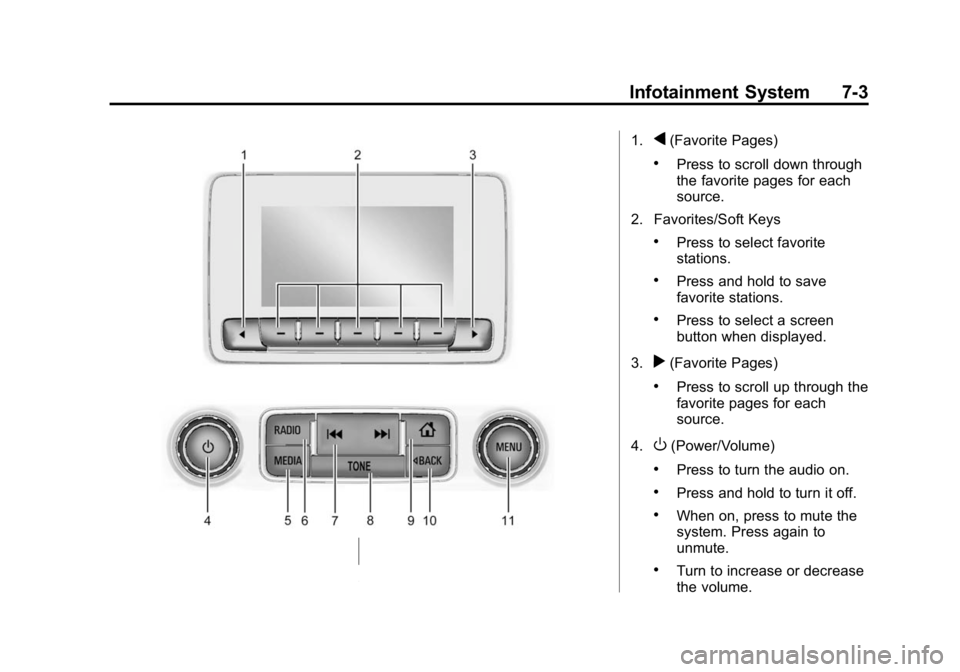
Black plate (3,1)GMC Canyon Owner Manual (GMNA-Localizing-U.S./Canada-7587000) -
2015 - CRC - 3/17/15
Infotainment System 7-3
1.q(Favorite Pages)
.Press to scroll down through
the favorite pages for each
source.
2. Favorites/Soft Keys
.Press to select favorite
stations.
.Press and hold to save
favorite stations.
.Press to select a screen
button when displayed.
3.
r(Favorite Pages)
.Press to scroll up through the
favorite pages for each
source.
4.
O(Power/Volume)
.Press to turn the audio on.
.Press and hold to turn it off.
.When on, press to mute the
system. Press again to
unmute.
.Turn to increase or decrease
the volume.
Page 171 of 433
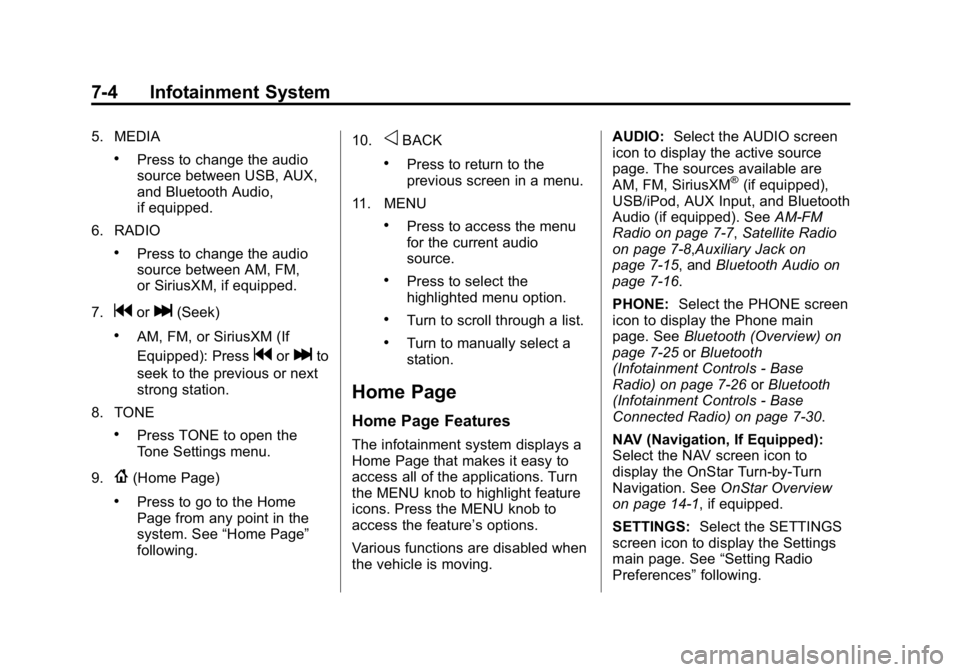
Black plate (4,1)GMC Canyon Owner Manual (GMNA-Localizing-U.S./Canada-7587000) -
2015 - CRC - 3/17/15
7-4 Infotainment System
5. MEDIA
.Press to change the audio
source between USB, AUX,
and Bluetooth Audio,
if equipped.
6. RADIO
.Press to change the audio
source between AM, FM,
or SiriusXM, if equipped.
7.
gorl(Seek)
.AM, FM, or SiriusXM (If
Equipped): Press
gorlto
seek to the previous or next
strong station.
8. TONE
.Press TONE to open the
Tone Settings menu.
9.
{(Home Page)
.Press to go to the Home
Page from any point in the
system. See “Home Page”
following. 10.
oBACK
.Press to return to the
previous screen in a menu.
11. MENU
.Press to access the menu
for the current audio
source.
.Press to select the
highlighted menu option.
.Turn to scroll through a list.
.Turn to manually select a
station.
Home Page
Home Page Features
The infotainment system displays a
Home Page that makes it easy to
access all of the applications. Turn
the MENU knob to highlight feature
icons. Press the MENU knob to
access the feature’s options.
Various functions are disabled when
the vehicle is moving. AUDIO:
Select the AUDIO screen
icon to display the active source
page. The sources available are
AM, FM, SiriusXM
®(if equipped),
USB/iPod, AUX Input, and Bluetooth
Audio (if equipped). See AM-FM
Radio on page 7-7, Satellite Radio
on page 7-8,Auxiliary Jack on
page 7-15, and Bluetooth Audio on
page 7-16.
PHONE: Select the PHONE screen
icon to display the Phone main
page. See Bluetooth (Overview) on
page 7-25 orBluetooth
(Infotainment Controls - Base
Radio) on page 7-26 orBluetooth
(Infotainment Controls - Base
Connected Radio) on page 7-30.
NAV (Navigation, If Equipped):
Select the NAV screen icon to
display the OnStar Turn-by-Turn
Navigation. See OnStar Overview
on page 14-1, if equipped.
SETTINGS: Select the SETTINGS
screen icon to display the Settings
main page. See “Setting Radio
Preferences” following.