display GMC CANYON 2015 Repair Manual
[x] Cancel search | Manufacturer: GMC, Model Year: 2015, Model line: CANYON, Model: GMC CANYON 2015Pages: 433, PDF Size: 4.61 MB
Page 197 of 433
Black plate (30,1)GMC Canyon Owner Manual (GMNA-Localizing-U.S./Canada-7587000) -
2015 - CRC - 3/17/15
7-30 Infotainment System
Call Waiting
Call waiting must be supported on
the Bluetooth phone and enabled by
the wireless service carrier to work.
Accepting a Call Waiting Call
To accept a call waiting call, press
the button just below the SWITCH
screen button.
Declining a Call Waiting Call
To decline a call waiting call, do one
of the following:
.Press the button just below the
IGNORE screen button.
.Do nothing.
Ending a Call
To end a call, press the button just
below the END screen button.
Dual Tone Multi-Frequency
(DTMF) Tones
The in-vehicle Bluetooth system can
send numbers during a call. This is
used when calling a menu-driven
phone system.1. When a call is active, press the
button just below the KEYPAD
screen button.
2. Turn the MENU knob to highlight the first digit and press to select.
If not initially in the phone
application, from the Home Page,
turn the MENU knob, then press to
select the PHONE screen button.
From the PHONE main menu, turn
the MENU knob to highlight Active
Call and press to select.
Bluetooth (Infotainment
Controls - Base
Connected Radio)
For information about how to
navigate the menu system using the
infotainment controls, see Overview
on page 7-2.
Switching to Handset or
Hands-Free Mode
To switch between handset or
hands-free mode, from the Home
Page select the PHONE to display
Call View.
.While the active call is
hands-free, press the Handset
screen button to switch to the
handset mode. The screen
button changes to Hands-Free
once the Bluetooth device
confirms it is operating as
handset.
.While the active call is handset,
select the Hands-Free screen
button to switch to the
hands-free mode. The screen
button changes to Handset once
the Bluetooth device confirms it
is operating as hands-free.
Pairing
A Bluetooth-enabled cell phone
must be paired to the Bluetooth
system and then connected to the
vehicle before it can be used. See
Page 198 of 433
Black plate (31,1)GMC Canyon Owner Manual (GMNA-Localizing-U.S./Canada-7587000) -
2015 - CRC - 3/17/15
Infotainment System 7-31
your cell phone manufacturer's user
guide for Bluetooth functions before
pairing the cell phone. If a Bluetooth
phone is not connected, calls can
be made using OnStar Hands-Free
Calling, if available. SeeOnStar
Overview on page 14-1.
Pairing Information
.Up to 10 cell phones can be
paired to the Bluetooth system.
.The pairing process is disabled
when the vehicle is moving.
.Pairing only needs to be
completed once per phone,
unless the pairing information on
the cell phone changes or the
cell phone is deleted from the
system.
.Only one paired cell phone can
be connected to the Bluetooth
system at a time.
.If multiple paired cell phones are
within range of the system, the
system connects to the most
recently connected device. To
connect to a different paired phone, see
“Connecting to a
Different Phone” after in this
section.
Pairing a Phone or Device
1. From the Home Page, turn the MENU knob to access the
PHONE screen button, then
press the MENU knob to select
the PHONE screen button. If a
device has been previously
paired, the main Phone menu
will be shown. If no devices
have been paired, Step 2 can be
skipped.
2. Turn the MENU knob and press to select Manage Phones.
3. Press the button just below the PAIR/screen button. A four-digit
Personal Identification Number
(PIN) appears on the display.
The PIN may be used in Step 5.
4. Start the pairing process on the cell phone to be paired to the
vehicle. See the cell phone
manufacturer's user guide for
information on this process. 5. Locate the device named
“GMC
IntelliLink” in the list on the cell
phone. Follow the instructions
on the cell phone to confirm the
four-digit code.
After the PIN is successfully
entered or the code is
confirmed, the system confirms
the pairing process is complete.
6. If the phone prompts to accept connection or allow phone book
download, select always accept
and allow. The phone book may
not be available if not accepted.
7. Repeat Steps 1–6 to pair additional phones or devices.
Listing All Paired and Connected
Phones
1. To list all paired devices, from the Home Page turn the MENU
knob, then press to select the
PHONE screen button.
2. Turn the MENU knob and press to select Manage Phones.
Page 199 of 433
Black plate (32,1)GMC Canyon Owner Manual (GMNA-Localizing-U.S./Canada-7587000) -
2015 - CRC - 3/17/15
7-32 Infotainment System
Deleting a Paired Phone
1. From the Home Page, turn theMENU knob, then press to
select the PHONE screen
button.
2. Turn the MENU knob and press to select Manage Phones.
3. Turn the MENU knob to highlight the phone to be deleted.
4. Press the button below the DROP screen button to
disconnect the highlighted
device.
5. Press the button below the DELETE screen button to delete
the highlighted device.
6. A confirmation screen is displayed. Press the button just
below the DELETE screen
button to confirm deletion.
Connecting to a Different Phone
1. From the Home Page, turn the MENU knob, then press to
select the PHONE screen
button. 2. Turn the MENU knob and press
to select Manage Phones.
3. Turn the MENU knob to highlight the phone to be connected.
4. Press the button just below the CONNECT screen button to
connect to the highlighted
device.
Phone Menu
Once a phone is connected and
selected, the following may display:
Recent Calls: Turn the MENU
knob to highlight Recent Calls and
press to select.
Contacts: Turn the MENU knob to
highlight Contacts and press to
select.
Keypad: Turn the MENU knob to
highlight Keypad and press to
select.
Active Call: Turn the MENU knob
to highlight Active Call and press to
select and display the active call
screen. Manage Phones:
Turn the MENU
knob to highlight Manage Phones
and press to select.
Making a Call Using Contacts
and Recent Calls
For cell phones that support the
Contacts and Recent Calls feature,
the Bluetooth system can use the
contacts stored on your cell phone
to make calls. See your cell phone
manufacturer ’s user guide or
contact your wireless provider to
find out if this feature is supported
by your phone.
If the phone prompts to allow phone
book download during the pairing
process, select Always Accept and
Allow. The phone book may not be
available if not accepted.
When a cell phone supports the
phone book feature, the Contacts
and Recent Calls menus are
automatically available.
The Contacts menu allows you to
access the phone book stored in the
cell phone to make a call.
Page 201 of 433
Black plate (34,1)GMC Canyon Owner Manual (GMNA-Localizing-U.S./Canada-7587000) -
2015 - CRC - 3/17/15
7-34 Infotainment System
Accepting a Call Waiting Call
To accept a call waiting call, press
the button just below the SWITCH
screen button.
Declining a Call Waiting Call
To decline a call waiting call, do one
of the following:
.Press the button just below the
IGNORE screen button.
.Do nothing.
Ending a Call
To end a call, press the button just
below the END screen button.
Dual Tone Multi-Frequency
(DTMF) Tones
The in-vehicle Bluetooth system can
send numbers during a call. This is
used when calling a menu-driven
phone system.
1. When a call is active, press thebutton just below the KEYPAD
screen button. 2. Turn the MENU knob to highlight
the first digit and press to select.
If not initially in the phone
application, from the Home Page,
turn the MENU knob, then press to
select the PHONE screen button.
From the PHONE main menu, turn
the MENU knob to highlight Active
Call and press to select.
Text Messaging
If equipped, the infotainment system
may allow text messages to be
received and replied to. Received
messages can also be read aloud.
Text Menu
Inbox: Select to display incoming
messages. To view a message,
select the name of the sender.
Select LISTEN to listen to the text
message. Press the
oBACK button
on the faceplate to the
previous menu.
Settings: See“Text Settings” later
in this section. Reply:
Select to reply using a
predefined text message. See “Text
Settings.”
Call: Select to place a call to the
sender of the text message.
Viewing a Text Message
While viewing a text message:
.Select Reply to reply using a
predefined text message.
.Select Call to place a call to the
sender of the text message.
Viewing Sender Information
If equipped, select the name of the
sender to view sender information if
this information matches contact
information already stored.
Select a Predefined Message:
Select from a set of quick
messages. Select the message
to send.
Predefined Messages
These are short text messages that
can be used to send so responses
will not have to be typed.
Page 202 of 433
Black plate (35,1)GMC Canyon Owner Manual (GMNA-Localizing-U.S./Canada-7587000) -
2015 - CRC - 3/17/15
Infotainment System 7-35
The messages can be deleted or a
new message can be added.
To add a new message:
1. Select Text Settings, then selectManage Predefined Messages.
2. While in the predefined messages list view, select Add
New Predefined Message and a
keyboard displays.
3. Type a new message and select NEW MSG when done to add
the message. Press the
o
BACK button on faceplate to go
back to the predefined
messages list. Select
zto
delete one character at a time.
Memory Full
This message may display if there is
no more room on the phone to store
messages.
Text Settings
Text Alerts: When on, this feature
will display an alert when a new text
message has been received. Select
on or off.
Manage Predefined Messages:
Select to add, change, or delete
predefined messages.
Settings
Teen Driver
If equipped, Teen Driver allows keys
to be programmed with
customizable vehicle settings.
It limits some vehicle features and
prevents some systems, such as
Park Assist, if equipped, from being
turned off. It also displays a report
card of the driving behavior when a
Teen Driver key is used.
To activate or change the settings,
select Teen Driver from the Settings
menu. See Vehicle Personalization
on page 5-41. If no keys are
activated, the Teen Driver feature
will not record any Report
Card data.
A Personal Identification Number
(PIN) must be created using the
keypad. The PIN is required to:
.Register Keys.
.Change settings.
Page 203 of 433
Black plate (36,1)GMC Canyon Owner Manual (GMNA-Localizing-U.S./Canada-7587000) -
2015 - CRC - 3/17/15
7-36 Infotainment System
.Access or delete Report Card
data or Teen Driver settings.
Register or Unregister a Key
Any of the vehicle keys can be
registered as a Teen Driver key.
Label the key to tell it apart from the
other keys. A maximum of eight
keys can be registered. There is
one Report Card per vehicle.
After creating the PIN, to register or
unregister the key(s):
1. Have the vehicle running.
2. For automatic transmissions, the vehicle must be in P (Park).
For manual transmissions, the
vehicle must be stopped with the
parking brake set.
3. Select Teen Driver from the Settings menu.
4. Enter the PIN.
5. Select Key Registration.
The system will display instructions
for registering or unregistering
a key. For Ignition Keyed System:
.If the key is not registered,
select Register and follow the
instructions. A message displays
to confirm successful
registration.
.If the key is already registered,
the option to unregister displays.
If Unregister is selected, the key
is no longer registered and a
confirmation displays.
For Pushbutton Start System:
Once Key Registration is selected,
the system detects whether there is
a transmitter key in the transmitter
pocket, which is in the center
console storage area or on the side
of the steering wheel column. See
Remote Keyless Entry (RKE)
System Operation on page 2-4.
.If no transmitter key is detected,
a message displays indicating to
place the transmitter key in the
transmitter pocket.
.If the transmitter key is in the
transmitter pocket, it will identify
whether the transmitter key is
registered or unregistered.
.If the transmitter key is not
registered, a message
displays requesting
confirmation to register.
Select Register and follow
the instructions. A message
displays to confirm
successful registration.
.If the transmitter key is
already registered, the option
to unregister displays.
If Unregister is selected, the
transmitter key is no longer
registered and a confirmation
displays.
In vehicles with a Pushbutton start
system, if a Teen Driver transmitter
key and a non-Teen Driver
transmitter key are both present at
start up, the vehicle will recognize
the non-Teen Driver transmitter key
to start the vehicle. The Teen Driver
settings will not be active.
Page 208 of 433
Black plate (41,1)GMC Canyon Owner Manual (GMNA-Localizing-U.S./Canada-7587000) -
2015 - CRC - 3/17/15
Infotainment System 7-41
Free Type Project
Portions of this software are
copyright © 2013 The FreeType
Project (http://www.freetype.org).
All rights reserved.
iType
iType is a trademark of Monotype
Imaging Inc. registered in the U.S.
Patent & Trademark Office and may
be registered in certain other
jurisdictions.
Open Source SW
The open source code used in this
device can be downloaded at the
webpage shown in the information
at the center stack display. Further
information concerning the OSS
licenses is shown in the center
stack display.
QNX
Portions of this software are
copyright © 2008-2013,
QNX Software Systems.
All rights reserved.Part C
–EULA
Copyright 2013, Software Systems
GmbH & Co. KG. All Rights
Reserved.
The product you have purchased
("Product") contains Software
(Runtime Configuration No. 505962;
"Software") which is distributed by
or on behalf of the Product
manufacturer "Manufacturer") under
license from Software Systems Co.
("QSSC"). You may only use the
Software in the Product and in
compliance with the license terms
below.
Subject to the terms and conditions
of this License, QSSC hereby
grants you a limited, non-exclusive,
non-transferable license to use the
Software in the Product for the
purpose intended by the
Manufacturer. If permitted by the
Manufacturer, or by applicable law,
you may make one backup copy of
the Software as part of the Product
software. QSSC and its licensors
reserve all license+C31 rights not expressly granted herein, and retain
all right, title and interest in and to
all copies of the Software, including
all intellectual property rights
therein. Unless required by
applicable law you may not
reproduce, distribute or transfer,
or de-compile, disassemble or
otherwise attempt to unbundle,
reverse engineer, modify or create
derivative works of, the Software.
You agree: (1) not to remove, cover
or alter any proprietary notices,
labels or marks in or on the
Software, and to ensure that all
copies bear any notice contained on
the original; and (2) not to export the
Product or the Software in
contravention of applicable export
control laws.
EXCEPT TO THE EXTENT
OTHERWISE REQUIRED BY
APPLICABLE LAW, QSSC AND ITS
LICENSORS PROVIDE THE
SOFTWARE ON AN "AS IS" BASIS,
WITHOUT WARRANTIES OR
CONDITIONS OF ANY KIND,
EITHER EXPRESS OR IMPLIED
Page 209 of 433
Black plate (42,1)GMC Canyon Owner Manual (GMNA-Localizing-U.S./Canada-7587000) -
2015 - CRC - 3/17/15
7-42 Infotainment System
INCLUDING, WITHOUT
LIMITATION, ANY WARRANTIES
OR CONDITIONS OF TITLE,
NON-INFRINGEMENT,
MERCHANTABILITY OR FITNESS
FOR A PARTICULAR PURPOSE.
ANY WARRANTIES OR OTHER
PROVISIONS OFFERED BY THE
MANUFACTURER OR ITS
DISTRIBUTOR(S) THAT DIFFER
FROM THIS LICENSE ARE
OFFERED BY THE
MANUFACTURER OR ITS
DISTRIBUTOR(S) ALONE AND
NOT BY QSSC, ITS AFFILIATES
OR THEIR LICENSORS. YOU
ASSUME ANY RISKS
ASSOCIATED WITH YOUR USE
OF THE SOFTWARE UNDER THIS
LICENSE.
EXCEPT TO THE EXTENT
OTHERWISE REQUIRED BY
APPLICABLE LAW (SUCH AS IN
THE CASE OF DELIBERATE OR
GROSSLY NEGLIGENT ACTS), IN
NO EVENT SHALL QSSC, ITS
AFFILIATES OR THEIR
LICENSORS BE LIABLE TO YOUUNDER ANY LEGAL THEORY,
WHETHER IN TORT (INCLUDING
NEGLIGENCE), CONTRACT OR
OTHERWISE, FOR DAMAGES,
INCLUDING ANY DIRECT,
INDIRECT, SPECIAL, INCIDENTAL,
OR CONSEQUENTIAL DAMAGES
OF ANY CHARACTER ARISING AS
A RESULT OF THIS LICENSE OR
OUT OF THE USE OR INABILITY
TO USE THE PRODUCT
(INCLUDING BUT NOT LIMITED
TO DAMAGES FOR LOSS OF
GOODWILL, WORK STOPPAGE,
PRODUCT FAILURE OR
MALFUNCTION, OR ANY AND ALL
OTHER COMMERCIAL DAMAGES
OR LOSSES), EVEN IF QSSC, ITS
AFFILIATES OR THEIR
LICENSORS HAVE BEEN
ADVISED OF THE POSSIBILITY
OF SUCH DAMAGES.
WMA
This product is protected by certain
intellectual property rights of
Microsoft. Use or distribution of
such technology outside of this
product is prohibited without a
license from Microsoft.
For more information on the
Software, including any open source
software license terms (and
available source code) as well as
copyright attributions applicable to
the Runtime Configuration indicated
above, please contact the
Manufacturer or contact QSSC at
175 Terence Matthews Crescent,
Kanata, Ontario, Canada K2M 1W8
([email protected]).
END USER NOTICE
The marks of companies displayed
by this product to indicate business
locations are the marks of their
respective owners. The use of such
marks in this product does not imply
any sponsorship, approval,
or endorsement by such companies
of this product.
Page 212 of 433
Black plate (3,1)GMC Canyon Owner Manual (GMNA-Localizing-U.S./Canada-7587000) -
2015 - CRC - 3/17/15
Climate Controls 8-3
{Caution
Using a razor blade or sharp
object to clear the inside rear
window can damage the rear
window defogger. Repairs would
not be covered by the vehicle
warranty. Do not clear the inside
rear window with sharp objects.
Automatic Climate
Control System
With this system the heating,
cooling, and ventilation in the
vehicle can be controlled.
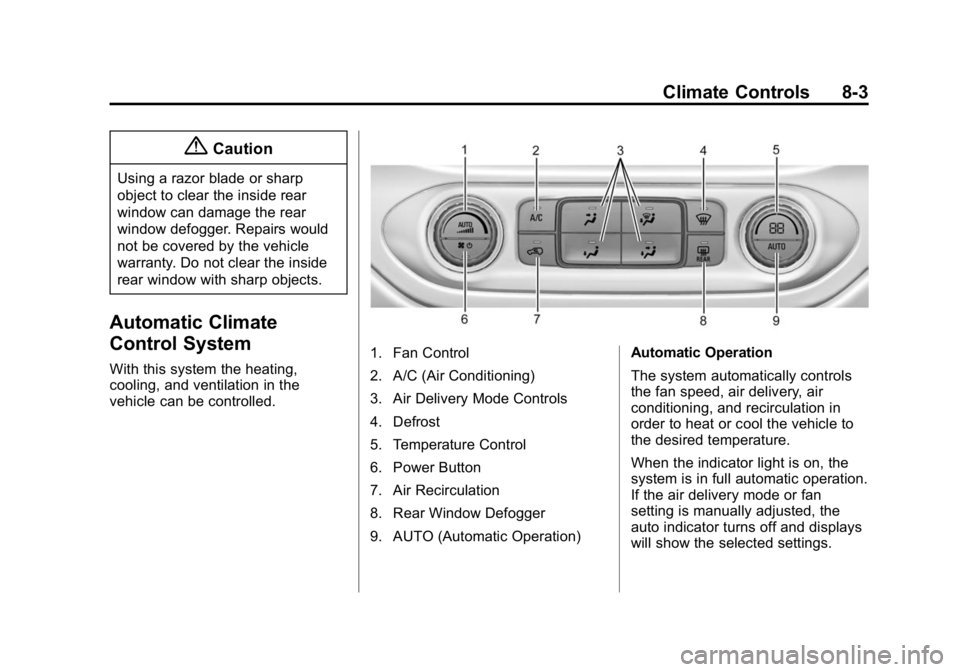
1. Fan Control
2. A/C (Air Conditioning)
3. Air Delivery Mode Controls
4. Defrost
5. Temperature Control
6. Power Button
7. Air Recirculation
8. Rear Window Defogger
9. AUTO (Automatic Operation)Automatic Operation
The system automatically controls
the fan speed, air delivery, air
conditioning, and recirculation in
order to heat or cool the vehicle to
the desired temperature.
When the indicator light is on, the
system is in full automatic operation.
If the air delivery mode or fan
setting is manually adjusted, the
auto indicator turns off and displays
will show the selected settings.
Page 238 of 433
Black plate (23,1)GMC Canyon Owner Manual (GMNA-Localizing-U.S./Canada-7587000) -
2015 - CRC - 3/17/15
Driving and Operating 9-23
On vehicles with an automatic
transmission, the shift lever must be
in P (Park) to turn the ignition switch
to LOCK/OFF.
{Caution
Using a tool to force the key to
turn in the ignition could cause
damage to the switch or break the
key. Use the correct key, make
sure it is all the way in, and turn it
only with your hand. If the key
cannot be turned by hand, see
your dealer.
2 (ACC/ACCESSORY): This
position lets things like the radio
and the windshield wipers operate
while the engine is off. It also
unlocks the steering wheel. Use this
position if the vehicle must be
pushed or towed.
3 (ON/RUN): This position can be
used to operate the electrical
accessories and to display some
instrument cluster warning and indicator lights. This position can
also be used for service and
diagnostics, and to verify the proper
operation of the malfunction
indicator lamp as may be required
for emission inspection purposes.
The switch stays in this position
when the engine is running. The
transmission is also unlocked in this
position on automatic transmission
vehicles.
If the key is left in the ACC/
ACCESSORY or ON/RUN position
with the engine off, the battery could
be drained. The vehicle may not
start if the battery is allowed to drain
for an extended period of time.
4 (START):
This is the position that
starts the engine. When the engine
starts, release the key. The ignition
switch returns to ON/RUN for
driving.
A warning tone will sound when the
driver door is opened, the ignition is
in ACC/ACCESSORY or LOCK/
OFF, and the key is in the ignition.
Starting the Engine
{Caution
If you add electrical parts or
accessories, you could change
the way the engine operates. Any
resulting damage would not be
covered by the vehicle warranty.
See Add-On Electrical Equipment
on page 9-66.
Place the transmission in the
proper gear.
Automatic Transmission
Move the shift lever to P (Park) or
N (Neutral). The engine will not start
in any other position. To restart the
engine when the vehicle is already
moving, use N (Neutral) only.